A blue screen can feel alarming, but the message is a diagnostic clue, not a death sentence for your PC. Each STOP code names the class of fault that forced Windows to halt, and crash logs narrow it down further. This guide walks through reading the code, tracing the driver or update behind it, and applying the right repair. Start with our blue screen overview.
Quick steps
- Write down the STOP code and any driver name shown.
- Note when the crash happens and what changed recently.
- Check Event Viewer and the Minidump folder for details.
- Update, roll back, or reinstall the suspect driver.
- Run DISM and SFC to repair corrupted system files.
- Test memory and disk health, then reset as a last resort.
Things you'll need
- A Windows 11 PC that can boot, at least intermittently
- Administrator access for driver and system repairs
- Internet access to download drivers and look up codes
- A backup of important files before making changes
Step-by-step
Method 1 of 3: Read the STOP Code and Gather Information
Step 1: Note the STOP code on the blue screen
When the blue screen appears, write down the STOP code and any driver or file name shown, such as DRIVER_IRQL_NOT_LESS_OR_EQUAL. The code is your single most useful clue.
Official guide: Microsoft Support · Reference: Microsoft Learn — Bug Check Code Reference · Related on 52runoob: How to Fix a Blue Screen on Windows 11
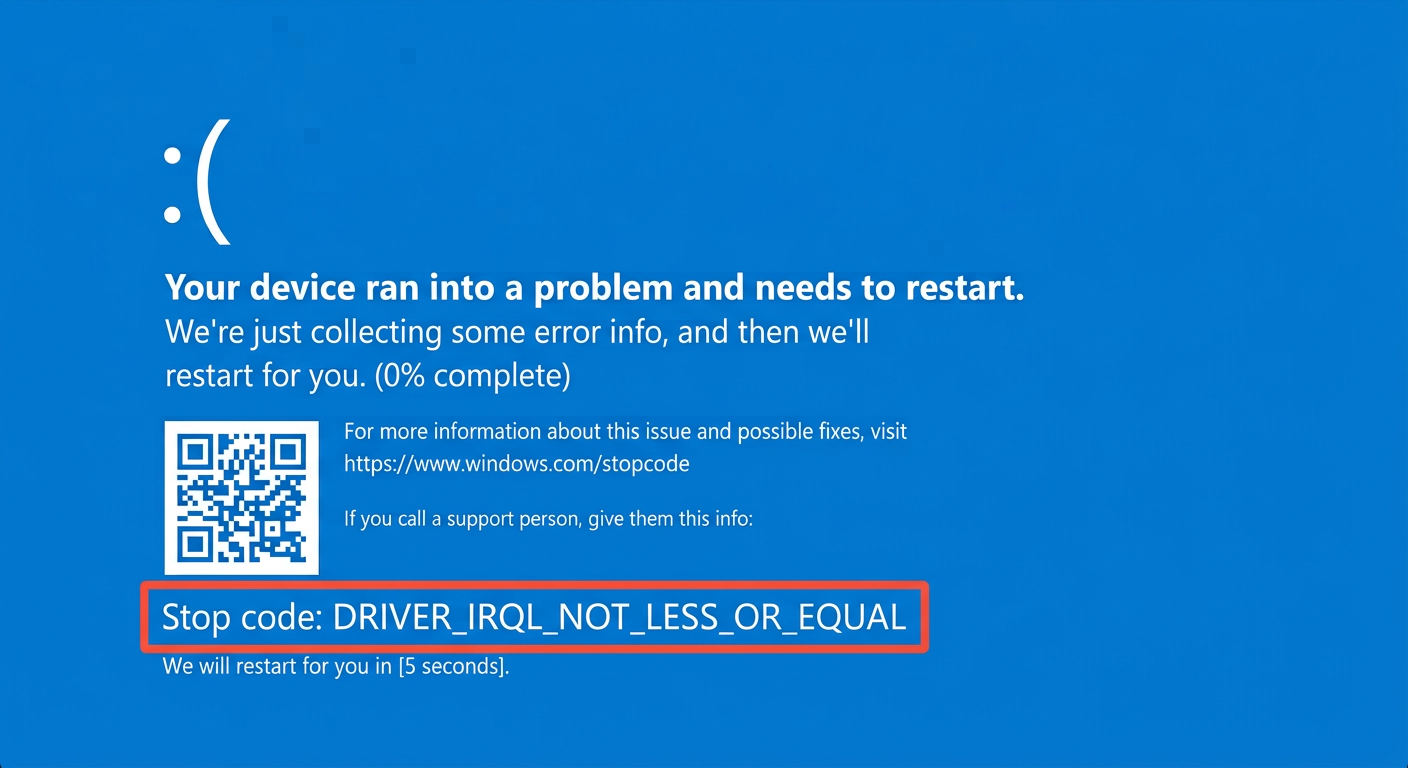
Step 2: Let Windows finish the crash dump
Do not force a shutdown while the screen says it is collecting error information. Windows writes a memory dump that you can analyze later for the exact cause.
Official guide: Microsoft Learn · Reference: Microsoft Support — System File Checker · Related on 52runoob: How to Fix Windows 11 Boot Delays

Step 3: Record when the crash happens
Note whether the blue screen appears at boot, during gaming, or after a specific update. Timing often points to the driver or device that triggered it.
Official guide: Microsoft Learn · Reference: Microsoft Learn — Bug Check Code Reference · Related on 52runoob: How to Stop Startup Apps Slowing Login

Step 4: Check for recent changes
Think about drivers, Windows updates, or new hardware installed before the crashes began. A recent change is usually responsible and gives you a clear rollback target.
Official guide: Microsoft Learn · Reference: Microsoft Support — System File Checker · Related on 52runoob: How to Fix Slow Boot From Fast Startup

Step 5: Restart and see if it repeats
A single blue screen can be a glitch. Restart normally and use the PC for a while to see whether the error returns before you start making changes.
Official guide: Microsoft Support · Reference: Microsoft Learn — Bug Check Code Reference · Related on 52runoob: How to Fix High Disk Usage on Windows 11

Step 6: Find the bugcheck code in Event Viewer
Open Event Viewer from the Start menu, expand Windows Logs > System, and look for Error entries with source BugCheck at the crash time. They record the same code.
Official guide: Microsoft Learn · Reference: Microsoft Support — System File Checker · Related on 52runoob: How to Update the BIOS on Windows

Step 7: Review the minidump files
Crash dumps are saved in C:\Windows\Minidump. Each .dmp file is a small snapshot of the crash that tools like WinDbg can read for more detail.
Official guide: Microsoft Learn · Reference: Microsoft Learn — Bug Check Code Reference · Related on 52runoob: How to Fix Windows 11 Paging File Disk Use

Step 8: Use WinDbg to analyze the dump
Open a .dmp file in WinDbg Preview from the Microsoft Store and run the analyze verbose command. It often names the exact driver file responsible for the crash.
Official guide: Microsoft Learn · Reference: Microsoft Support — System File Checker · Related on 52runoob: How to Fix explorer.exe High CPU

Step 9: Look up the code online
Search the exact STOP code and driver name on a trusted site such as Microsoft Support. Repeated patterns among other users can confirm the right fix.
Official guide: Microsoft Support · Reference: Microsoft Learn — Bug Check Code Reference · Related on 52runoob: How to Fix System Interrupts High CPU

Step 10: Back up important data first
Before changing drivers or system files, copy irreplaceable files to an external drive or the cloud. Blue screens can occasionally precede a failing disk.
Official guide: Microsoft Learn · Reference: Microsoft Support — System File Checker · Related on 52runoob: How to Fix TiWorker.exe After an Update

Method 2 of 3: Update or Roll Back Device Drivers
Step 11: Open Device Manager
Press Win+X and choose Device Manager. Yellow exclamation marks flag devices with driver problems, which are a frequent cause of blue screens.
Official guide: Microsoft Learn · Reference: Microsoft Learn — Bug Check Code Reference · Related on 52runoob: Back Up Your Computer to an External Drive
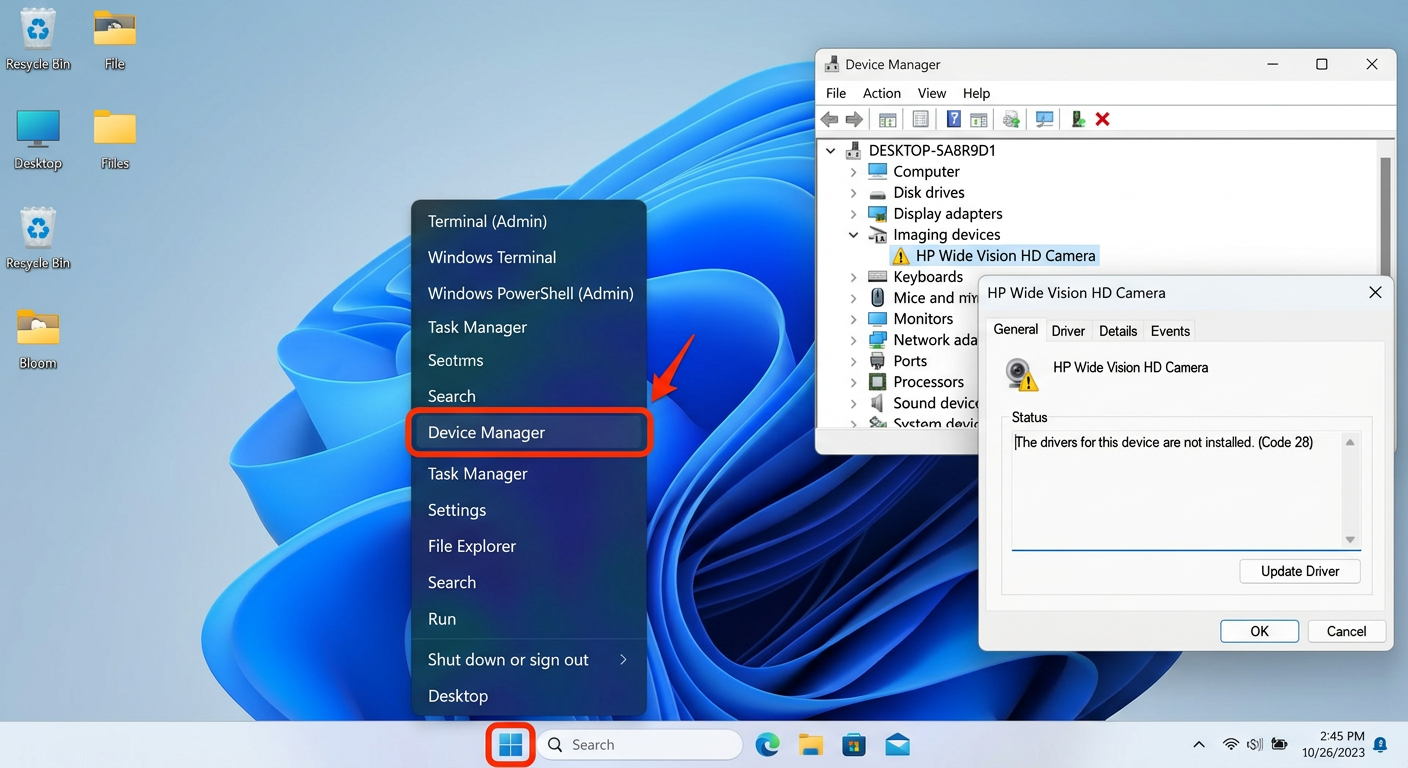
Step 12: Identify the suspect device
Expand Display adapters, Network adapters, and Storage controllers to find the driver named in the crash dump. Start with the device that matches the STOP code.
Official guide: Microsoft Learn · Reference: Microsoft Support — System File Checker · Related on 52runoob: How to Reset Windows 11
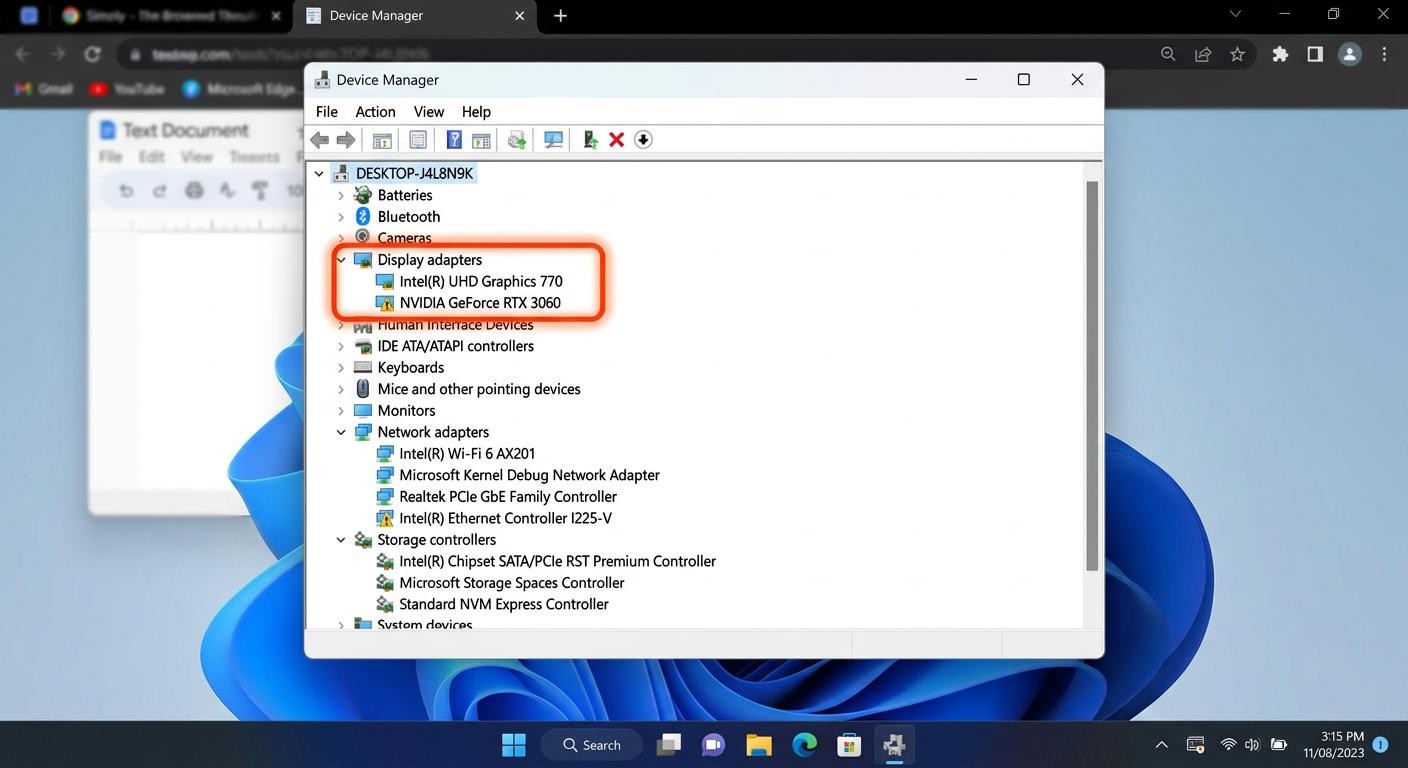
Step 13: Update a driver automatically
Right-click the device and choose Update driver, then Search automatically for drivers. Windows looks through Windows Update and installs a newer version if one exists.
Official guide: Microsoft Support · Reference: Microsoft Learn — Bug Check Code Reference · Related on 52runoob: How to Speed Up a Slow Windows PC

Step 14: Install the driver from the manufacturer
For graphics cards, download the latest driver directly from NVIDIA, AMD, or Intel and run the installer. A clean install removes stale files that automatic updates leave behind.
Official guide: Microsoft Learn · Reference: Microsoft Support — System File Checker · Related on 52runoob: How to Back Up Your Computer

Step 15: Roll back a bad driver
If crashes began right after an update, right-click the device, choose Properties, and open the Driver tab. Click Roll Back Driver to restore the previous working version.
Official guide: Microsoft Learn · Reference: Microsoft Learn — Bug Check Code Reference · Related on 52runoob: How to Update Device Drivers Safely

Step 16: Use System Restore as an alternative
Search for Create a restore point in the Start menu and choose System Restore. Pick a restore point dated before the driver change to undo several updates at once.
Official guide: Microsoft Learn · Reference: Microsoft Support — System File Checker · Related on 52runoob: How to Fix a Blue Screen on Windows 11

Step 17: Update chipset and storage drivers
Visit your PC maker's support page and install current chipset and storage controller drivers. Outdated storage drivers often trigger codes such as INACCESSIBLE_BOOT_DEVICE.
Official guide: Microsoft Support · Reference: Microsoft Learn — Bug Check Code Reference · Related on 52runoob: How to Fix Windows 11 Boot Delays

Step 18: Check Windows Update optional drivers
Go to Settings > Windows Update > Advanced options > Optional updates and install any driver updates listed. Microsoft often ships fixes not yet offered in Device Manager.
Official guide: Microsoft Learn · Reference: Microsoft Support — System File Checker · Related on 52runoob: How to Stop Startup Apps Slowing Login

Step 19: Uninstall a newly added device
If a new peripheral started the crashes, uninstall its driver in Device Manager and disconnect it. Reinstall with the latest software from the vendor when you are ready.
Official guide: Microsoft Learn · Reference: Microsoft Learn — Bug Check Code Reference · Related on 52runoob: How to Fix Slow Boot From Fast Startup

Step 20: Reboot and test stability
Restart after each driver change and use the PC normally for a while. Changing one driver at a time lets you tell which one actually stopped the crashes.
Official guide: Microsoft Learn · Reference: Microsoft Support — System File Checker · Related on 52runoob: How to Fix High Disk Usage on Windows 11

Method 3 of 3: Run System File Repairs and Recovery Tools
Step 21: Run the DISM tool
Open Terminal as administrator and run DISM /Online /Cleanup-Image /RestoreHealth. It repairs the Windows component store that SFC depends on, so run it first.
Official guide: Microsoft Support · Reference: Microsoft Learn — Bug Check Code Reference · Related on 52runoob: How to Update the BIOS on Windows

Step 22: Run the System File Checker
In the same elevated Terminal, type sfc /scannow and press Enter. It scans protected system files and replaces damaged ones with clean copies.
Official guide: Microsoft Learn · Reference: Microsoft Support — System File Checker · Related on 52runoob: How to Fix Windows 11 Paging File Disk Use

Step 23: Check memory with Windows Memory Diagnostic
Search for Windows Memory Diagnostic in the Start menu and choose Restart now and check for problems. Faulty RAM is a common cause of random blue screens.
Official guide: Microsoft Learn · Reference: Microsoft Learn — Bug Check Code Reference · Related on 52runoob: How to Fix explorer.exe High CPU

Step 24: Test the disk with CHKDSK
Open an elevated Command Prompt and run chkdsk C: /f. Agree to schedule the scan at the next restart if Windows says the volume is in use.
Official guide: Microsoft Learn · Reference: Microsoft Support — System File Checker · Related on 52runoob: How to Fix System Interrupts High CPU

Step 25: Check drive health
Use a tool like CrystalDiskInfo or your drive maker's utility to read SMART data. A disk reporting reallocated sectors may be failing and need replacement soon.
Official guide: Microsoft Support · Reference: Microsoft Learn — Bug Check Code Reference · Related on 52runoob: How to Fix TiWorker.exe After an Update

Step 26: Verify system files in Safe Mode
If the scans fail in normal mode, boot into Safe Mode and repeat sfc /scannow. Third-party software is minimized there, so repairs are less likely to be blocked.
Official guide: Microsoft Learn · Reference: Microsoft Support — System File Checker · Related on 52runoob: Back Up Your Computer to an External Drive

Step 27: Remove overclocking and unstable settings
Enter your BIOS or UEFI and load default settings if you have overclocked the CPU or memory. An unstable overclock can produce blue screens that look like driver faults.
Official guide: Microsoft Learn · Reference: Microsoft Learn — Bug Check Code Reference · Related on 52runoob: How to Reset Windows 11

Step 28: Uninstall recent Windows updates
Go to Settings > Windows Update > Update history > Uninstall updates and remove the most recent quality update. This reverses an update that introduced the problem.
Official guide: Microsoft Learn · Reference: Microsoft Support — System File Checker · Related on 52runoob: How to Speed Up a Slow Windows PC
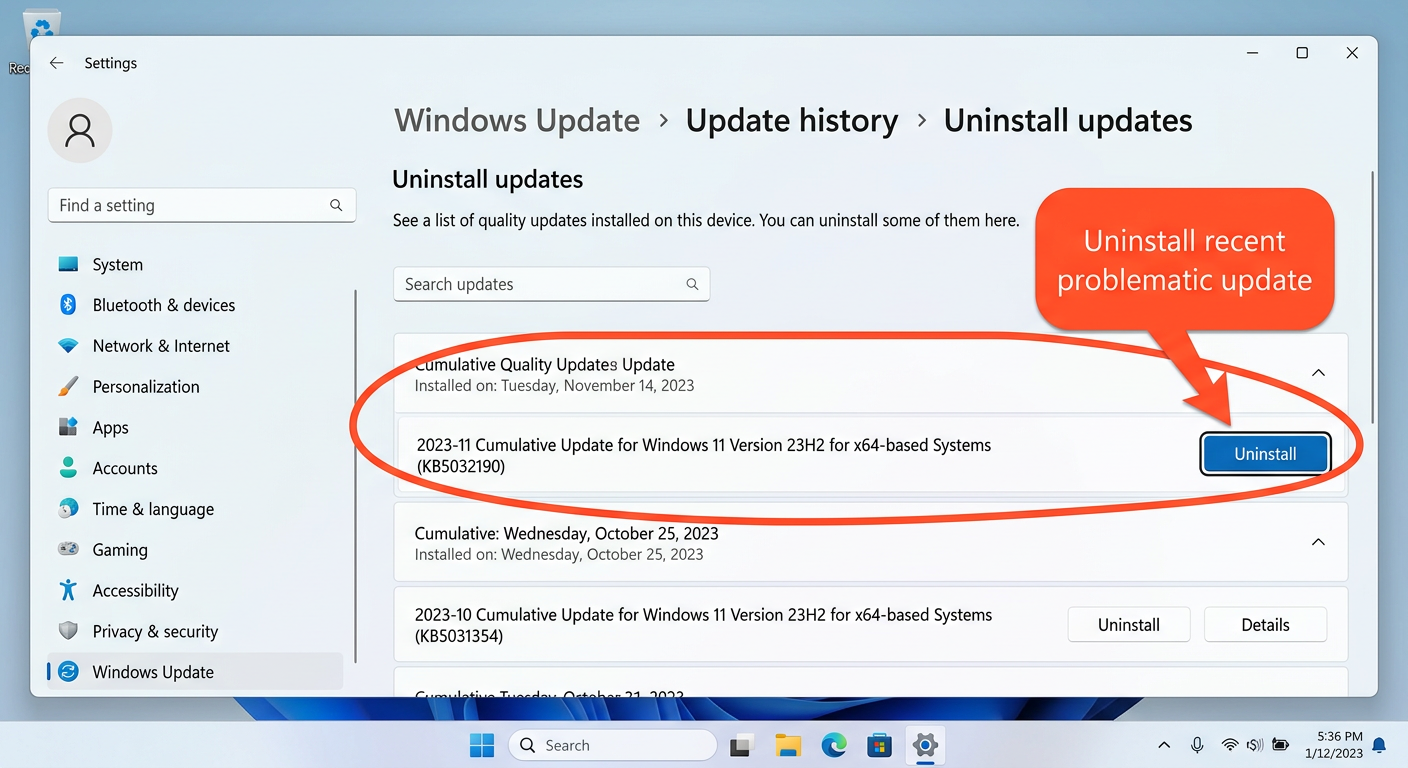
Step 29: Use Startup Repair from recovery
Hold Shift while clicking Restart from the power menu, then choose Troubleshoot > Advanced options > Startup Repair. It fixes boot issues that prevent a clean start.
Official guide: Microsoft Support · Reference: Microsoft Learn — Bug Check Code Reference · Related on 52runoob: How to Back Up Your Computer

Step 30: Reset Windows as a last resort
If repairs fail, choose Troubleshoot > Reset this PC from the recovery menu and keep personal files. This reinstalls Windows while preserving your data and most apps.
Official guide: Microsoft Learn · Reference: Microsoft Support — System File Checker · Related on 52runoob: How to Update Device Drivers Safely

Tips
- Write the exact STOP code down; similar codes can have very different causes.
- Change one thing at a time so you can tell which fix worked.
- A single crash may be a glitch; only investigate if the pattern repeats.
- Keep chipset and storage drivers current, not just graphics drivers.
Warnings
- Back up irreplaceable files first, since crashes can indicate a failing disk.
- Rolling back a driver undoes newer fixes, so use it only when the crash started after an update.
- Formatting or resetting the system drive erases data; keep your backup ready.
- Let Windows finish writing the crash dump before forcing a shutdown.
Frequently asked questions
What is a STOP code on a blue screen?
A STOP code, also called a bugcheck code, is the identifier Windows shows when it must halt to prevent damage. It names the type of fault, such as a driver error or memory failure.
Can a blue screen be caused by hardware?
Yes. Faulty memory, a failing drive, bad cables, and unstable overclocking all produce blue screens. If driver fixes do not help, test RAM and disk health first.
Do I need to reinstall Windows after a blue screen?
Usually not. Most crashes are fixed by updating or rolling back a driver, removing a bad update, or repairing system files. Reinstalling is a last resort.
Where does Windows store blue screen crash logs?
Small memory dumps are saved in C:\Windows\Minidump, and a full dump may be in C:\Windows\MEMORY.DMP. Event Viewer under Windows Logs > System also records each crash.
References
- Microsoft Support — Troubleshoot blue screen errors in Windows. https://support.microsoft.com/en-us/kb/958233
- Microsoft Learn — Bug Check Code Reference. https://learn.microsoft.com/en-us/windows-hardware/drivers/debugger/bug-check-code-reference2
- Microsoft Learn — Analyze a crash dump with WinDbg. https://learn.microsoft.com/en-us/windows-hardware/drivers/debuggercmds/-analyze
- Microsoft Learn — chkdsk command reference. https://learn.microsoft.com/en-us/windows-server/administration/windows-commands/chkdsk
Every guide is reviewed against its sources. See our editorial policy.


Reader comments
0 so farFinished this guide? Tell other readers what worked, what didn't, and what you would change.