A slow or failing microSD card can make an Android phone stutter when opening photos, videos or apps stored on it. Test the card's real read and write speeds, free space and formatting, then decide whether to clean it up or replace it with a faster, genuine card.
This guide walks through the process in clear illustrated steps, from the first preparation to a finished result. Each step has its own picture, so you can compare your progress as you go.
How to use this guide
Work through the steps in order. Method 1 of 3 covers the basics, and the later methods offer alternatives and finishing touches. If you only have a minute, skim the Quick steps box above and come back for the details.
Related guides
- How to Rinse rice
- How to Fix a leaky faucet
- How to Make new friends as an adult
- How to Fix system and compressed memory high cpu on windows 11
- Browse all Fix Slow Device guides
- All 52runoob guides
Trusted external resources
A note on sources
We check each guide against the official resources listed in References at the end of this article. External links open in a new tab; the related guides above stay on this site.
Quick steps
- Check the card's printed speed class.
- Run a real read and write speed test.
- Check how full the card is.
- Back up and reformat the card if needed.
- Keep apps off the card and move them internal.
- Replace the card with a genuine fast model if it stays slow.
Things you'll need
- An Android phone with a microSD card
- A storage speed test app
- A computer with a card reader for deeper checks
- A backup location for card data
Step-by-step
Method 1 of 3: Test the Card's Real Speed
Step 1: Read the printed speed class
Remove or view the card and note its speed class and UHS rating printed on the label.
Step 2: Install a speed test app
Install a reputable storage benchmark from the Play Store to measure the card inside the phone.
Step 3: Run the sequential test
Run the sequential read and write test and note the megabytes per second result.
Step 4: Run the random test
Run the random 4K read and write test, which reflects how apps and galleries feel.
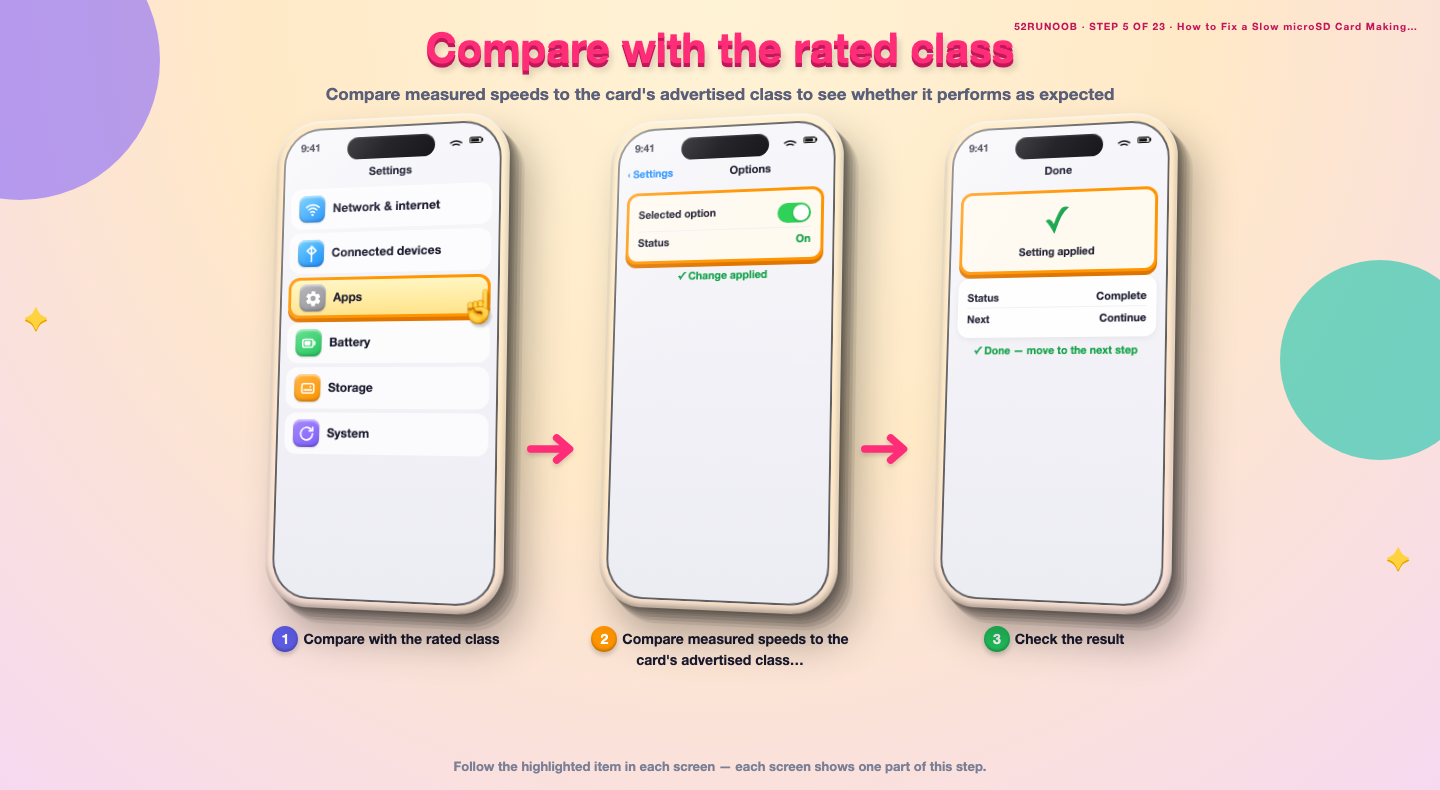
Step 5: Compare with the rated class
Compare measured speeds to the card's advertised class to see whether it performs as expected.
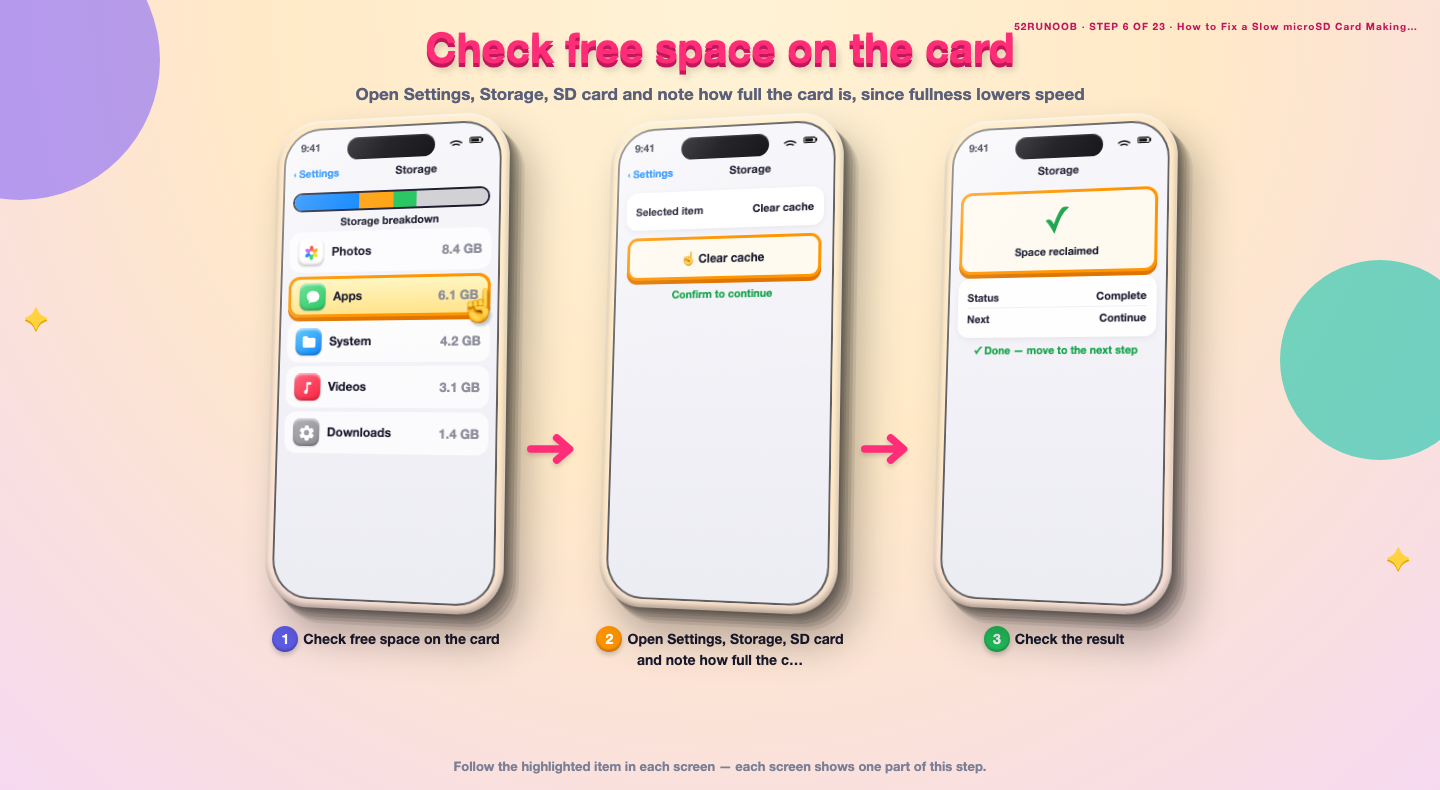
Step 6: Check free space on the card
Open Settings, Storage, SD card and note how full the card is, since fullness lowers speed.
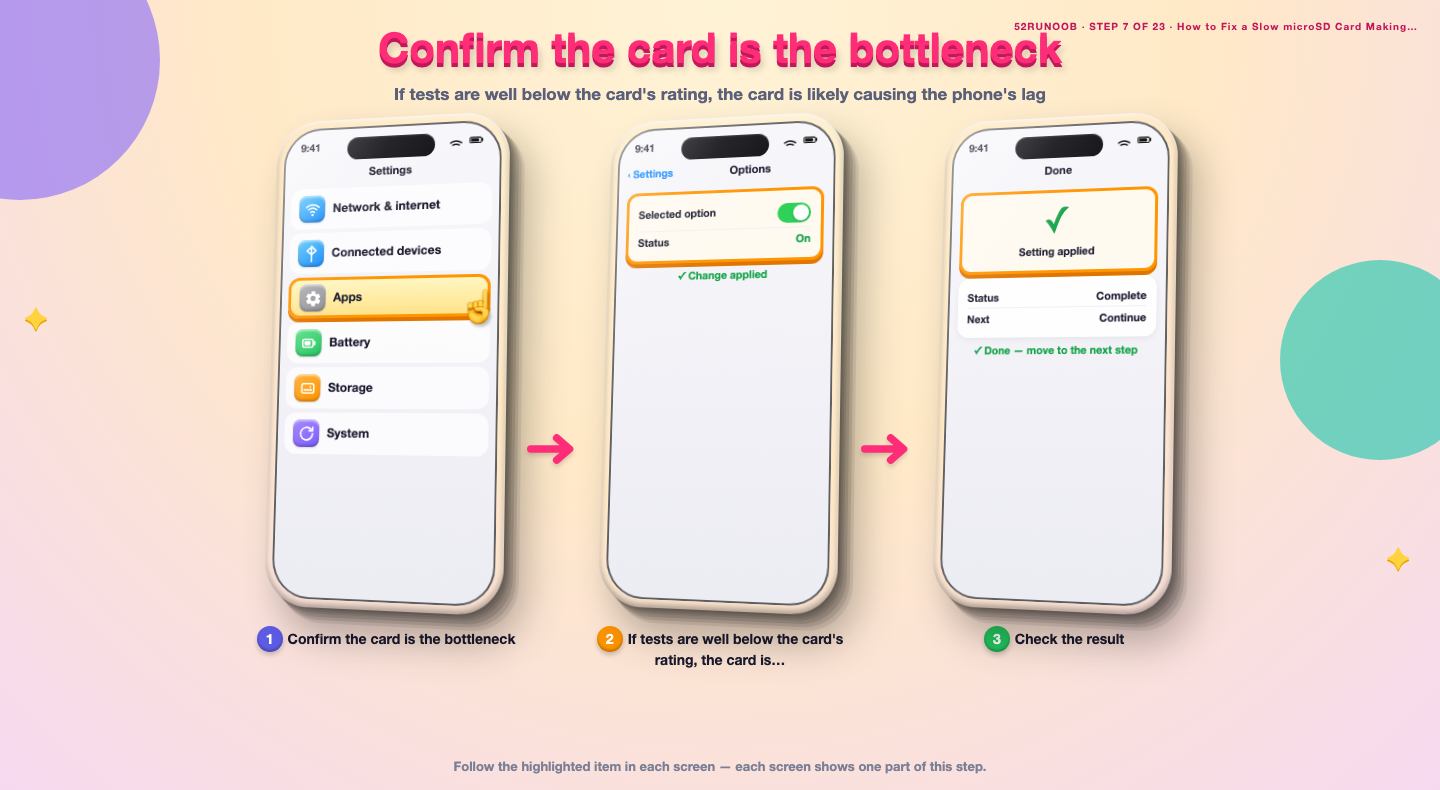
Step 7: Confirm the card is the bottleneck
If tests are well below the card's rating, the card is likely causing the phone's lag.
Method 2 of 3: Clean and Reformat the Card
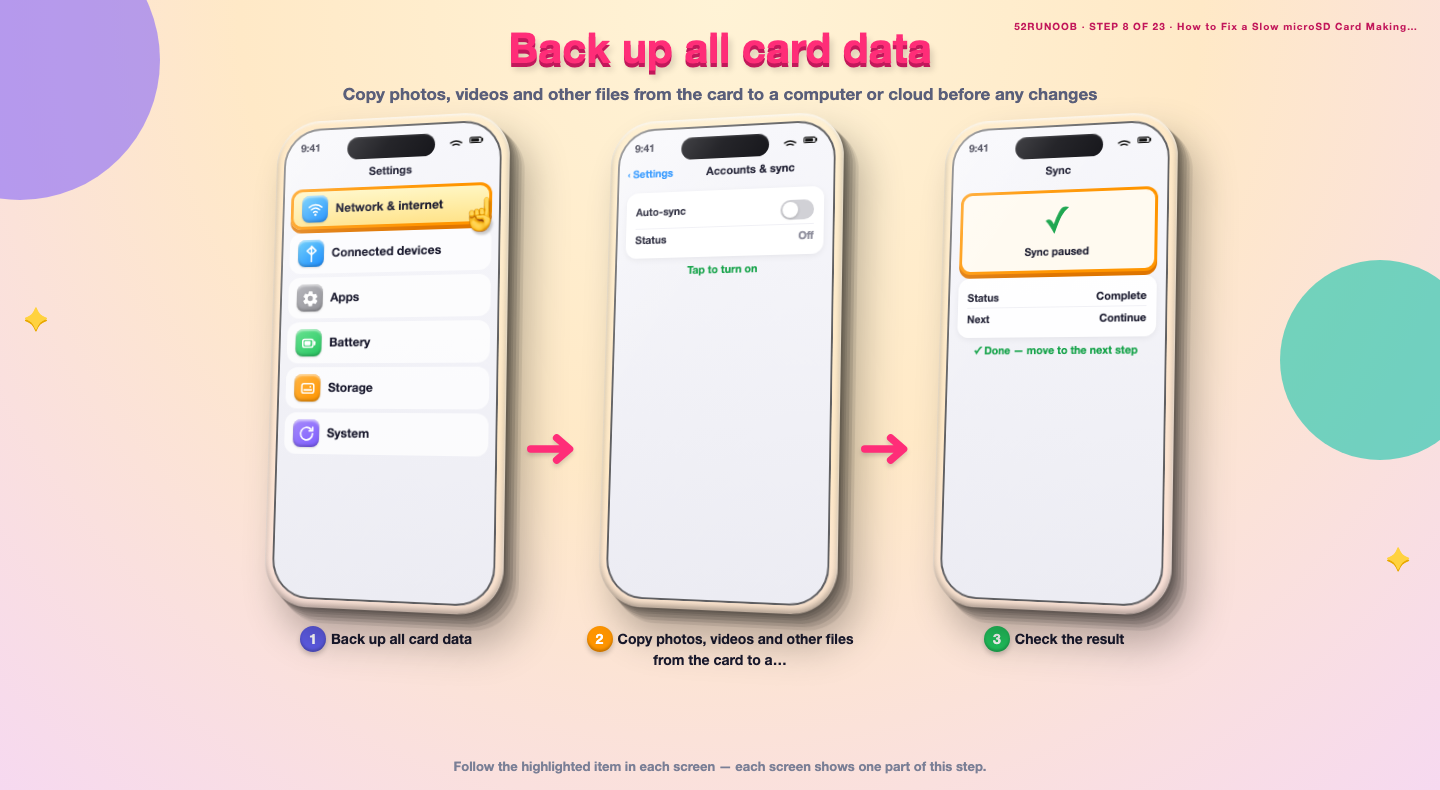
Step 8: Back up all card data
Copy photos, videos and other files from the card to a computer or cloud before any changes.
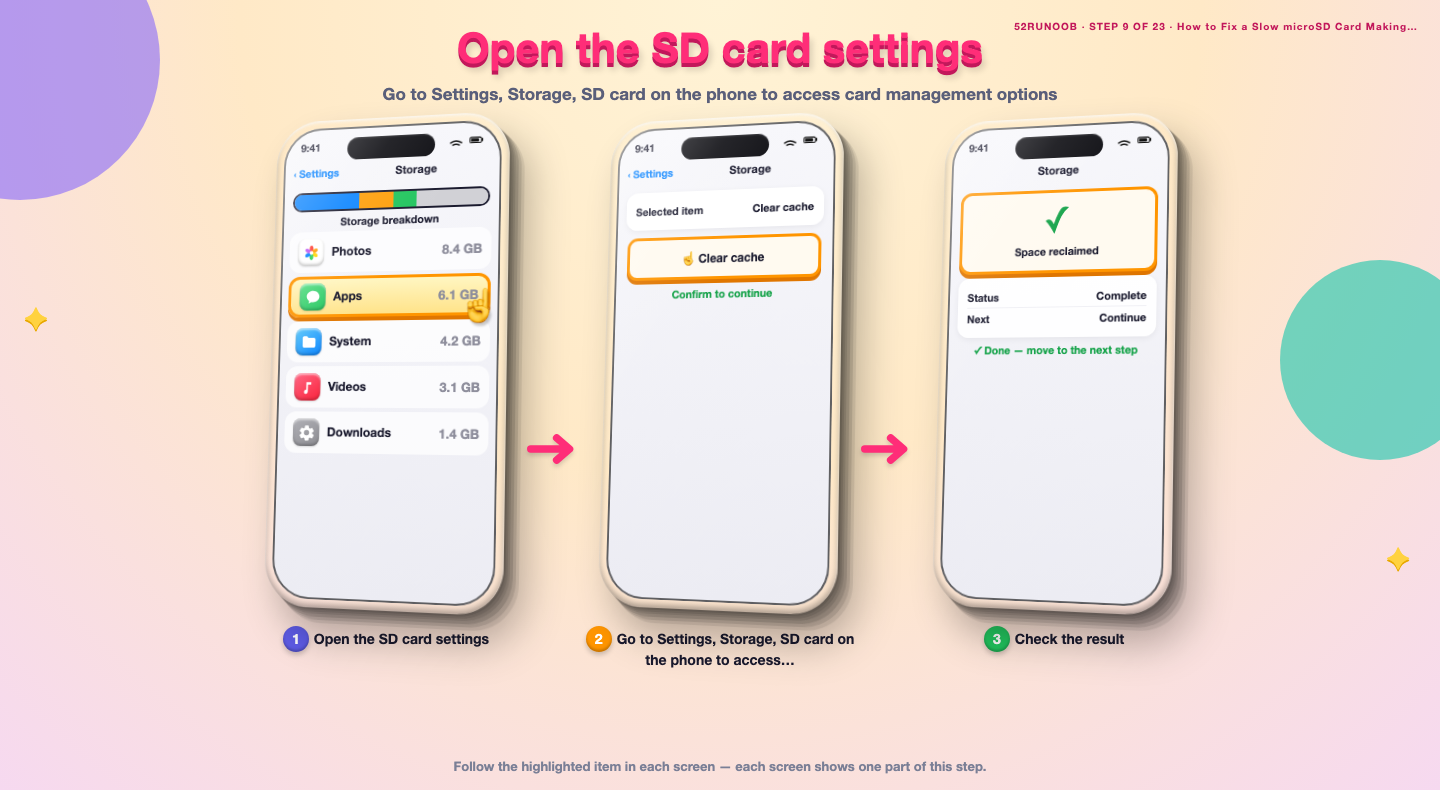
Step 9: Open the SD card settings
Go to Settings, Storage, SD card on the phone to access card management options.
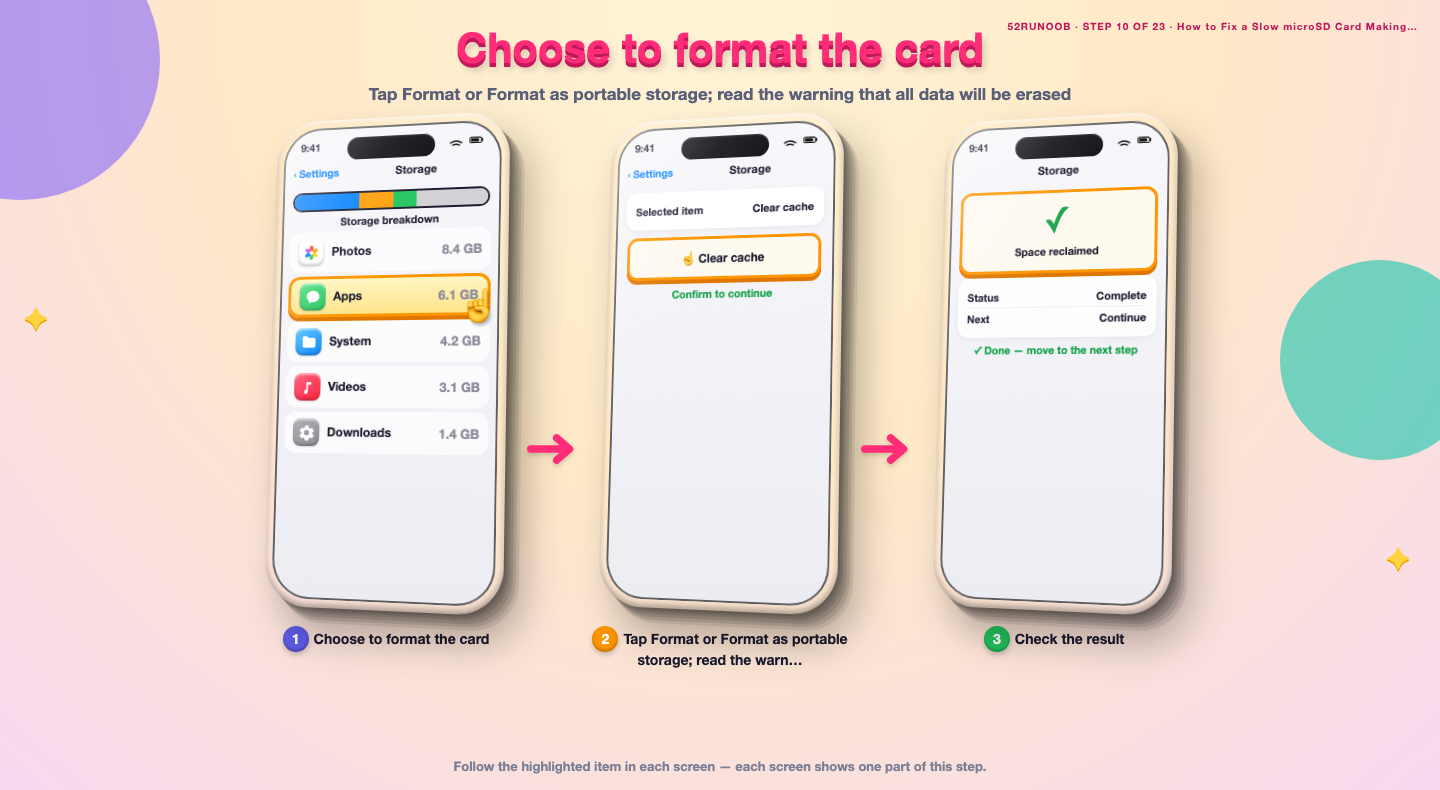
Step 10: Choose to format the card
Tap Format or Format as portable storage; read the warning that all data will be erased.
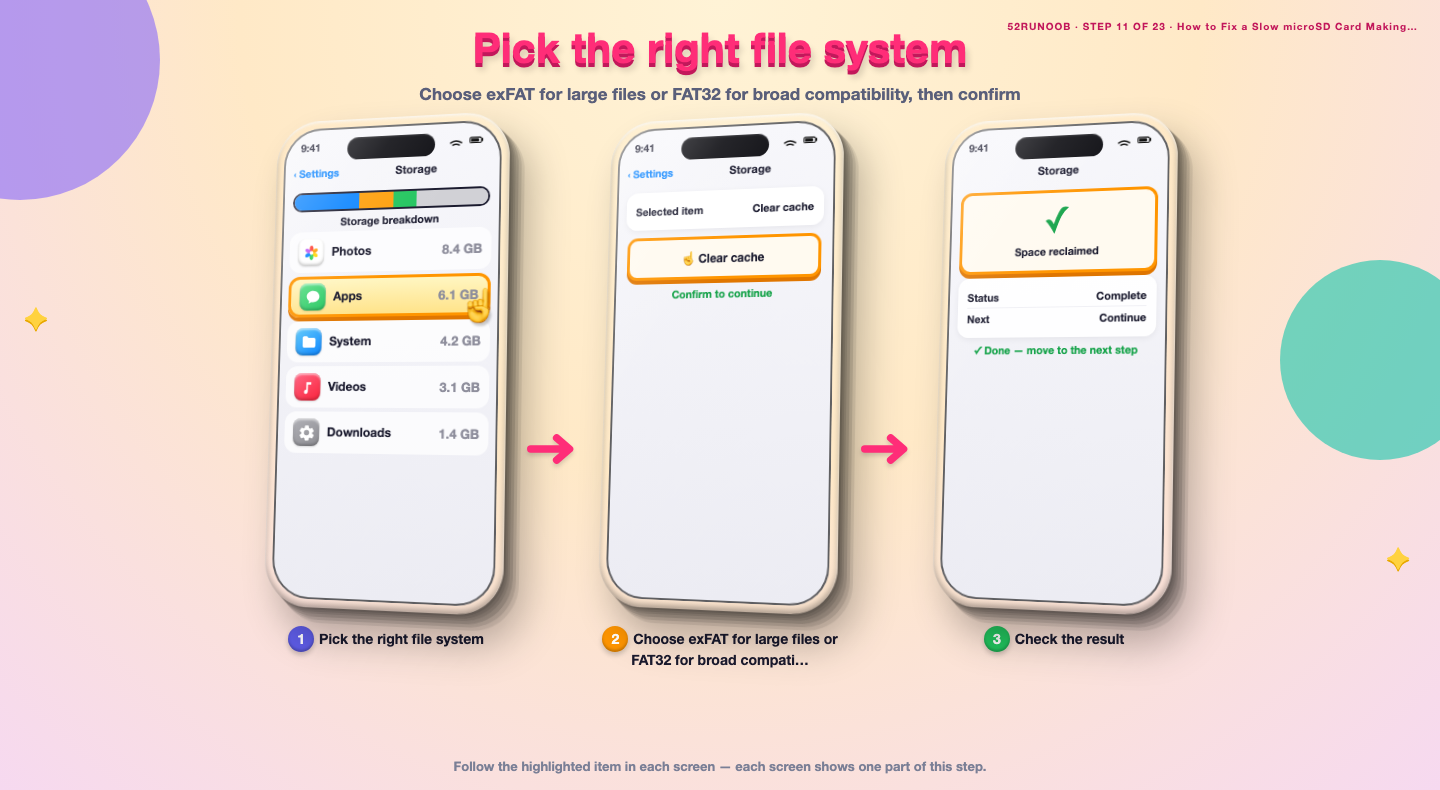
Step 11: Pick the right file system
Choose exFAT for large files or FAT32 for broad compatibility, then confirm.
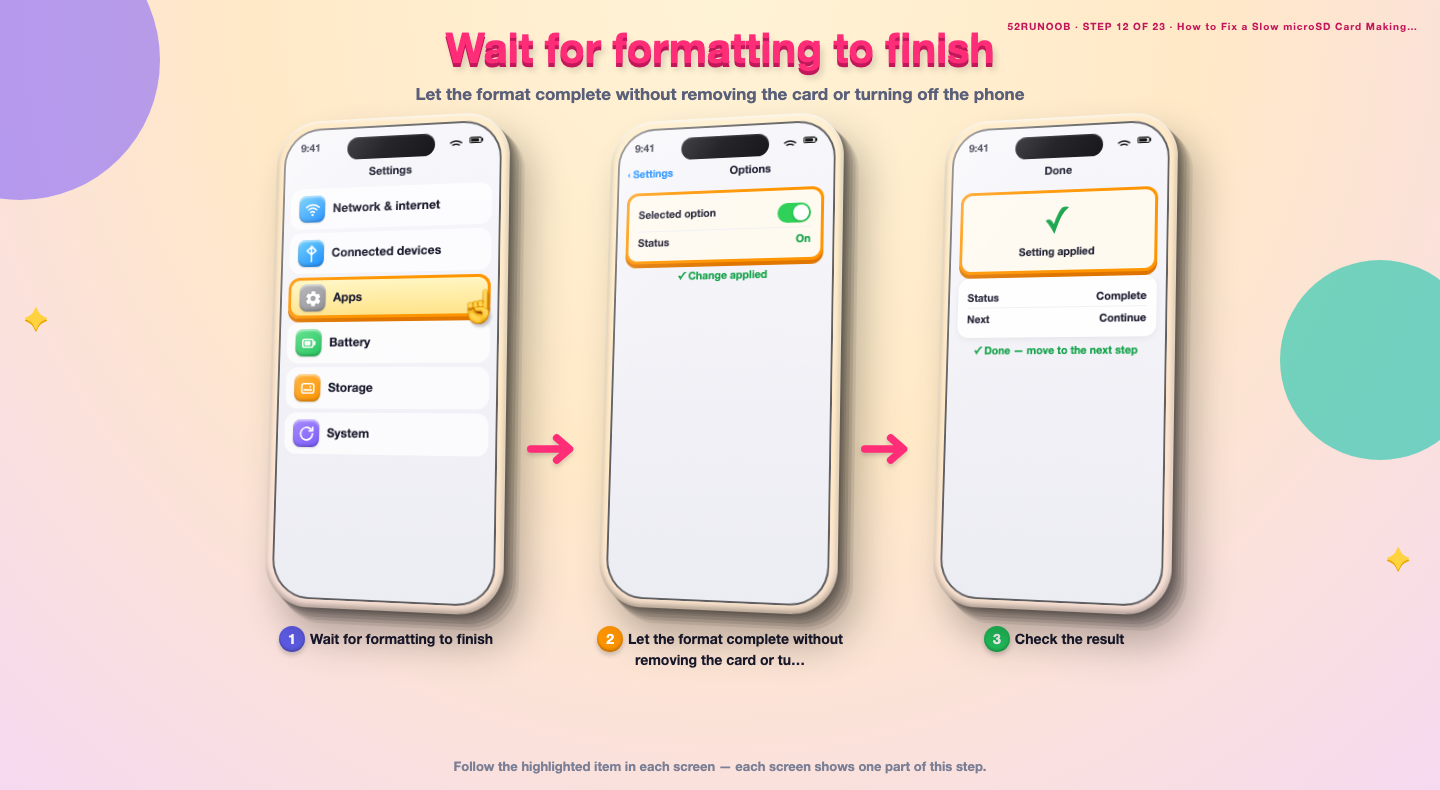
Step 12: Wait for formatting to finish
Let the format complete without removing the card or turning off the phone.
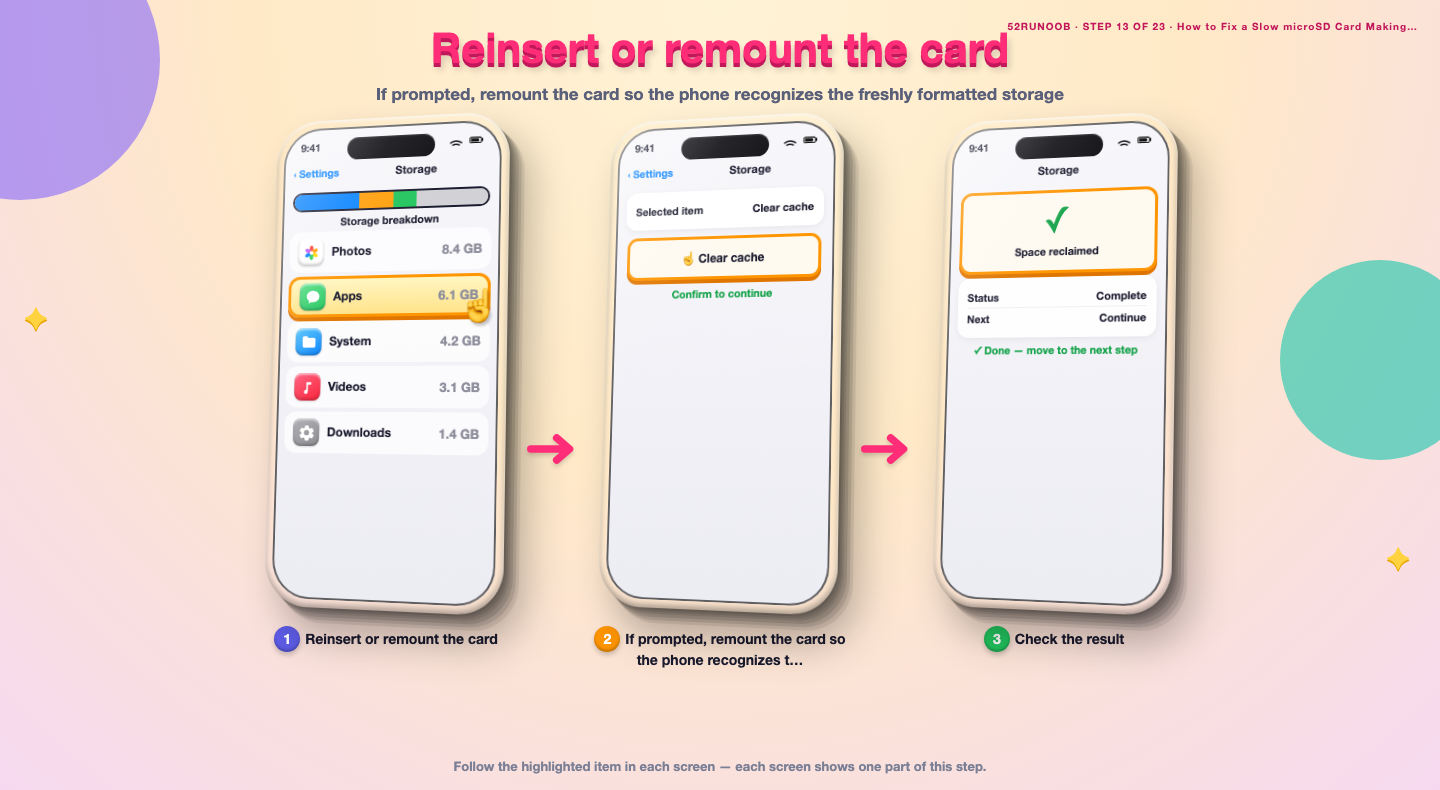
Step 13: Reinsert or remount the card
If prompted, remount the card so the phone recognizes the freshly formatted storage.
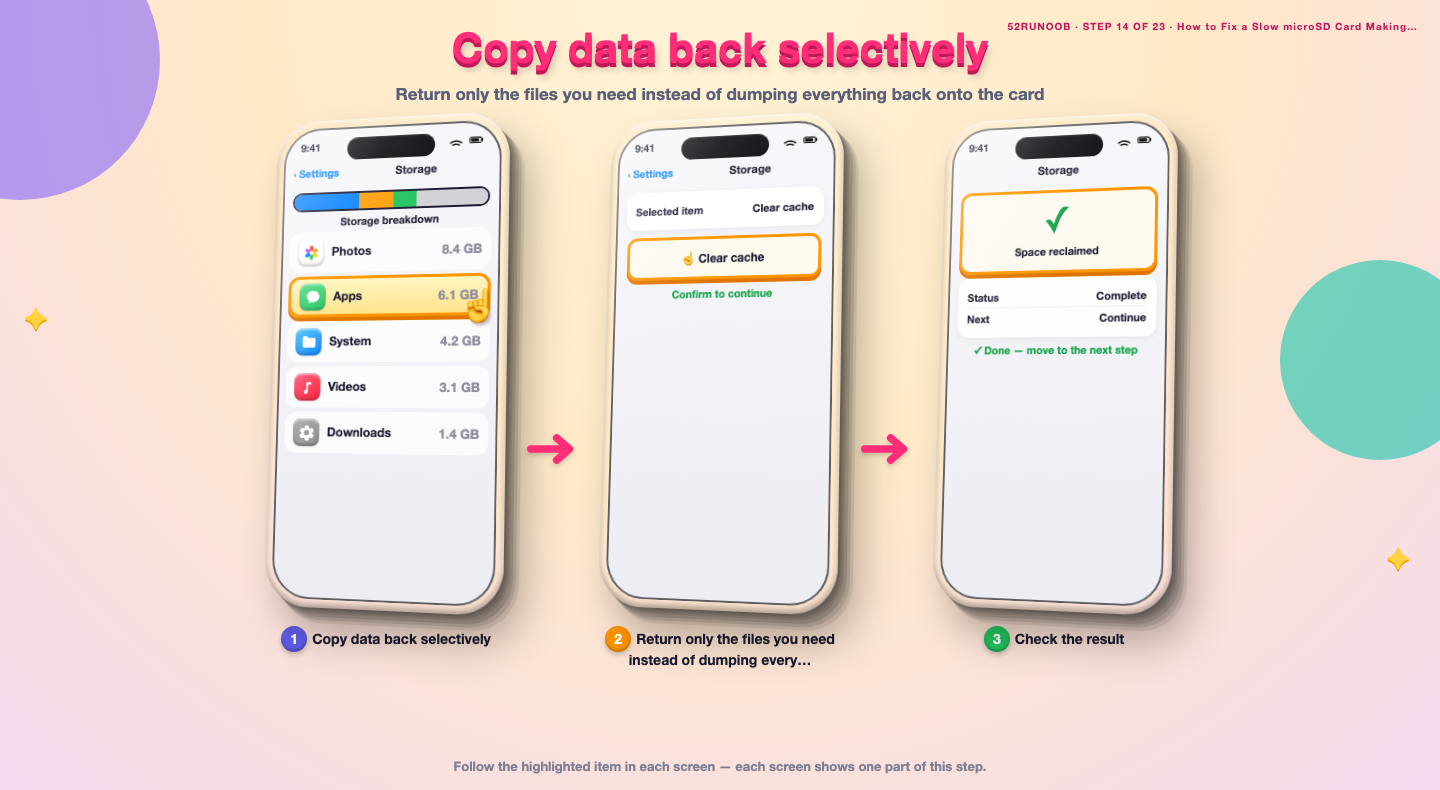
Step 14: Copy data back selectively
Return only the files you need instead of dumping everything back onto the card.
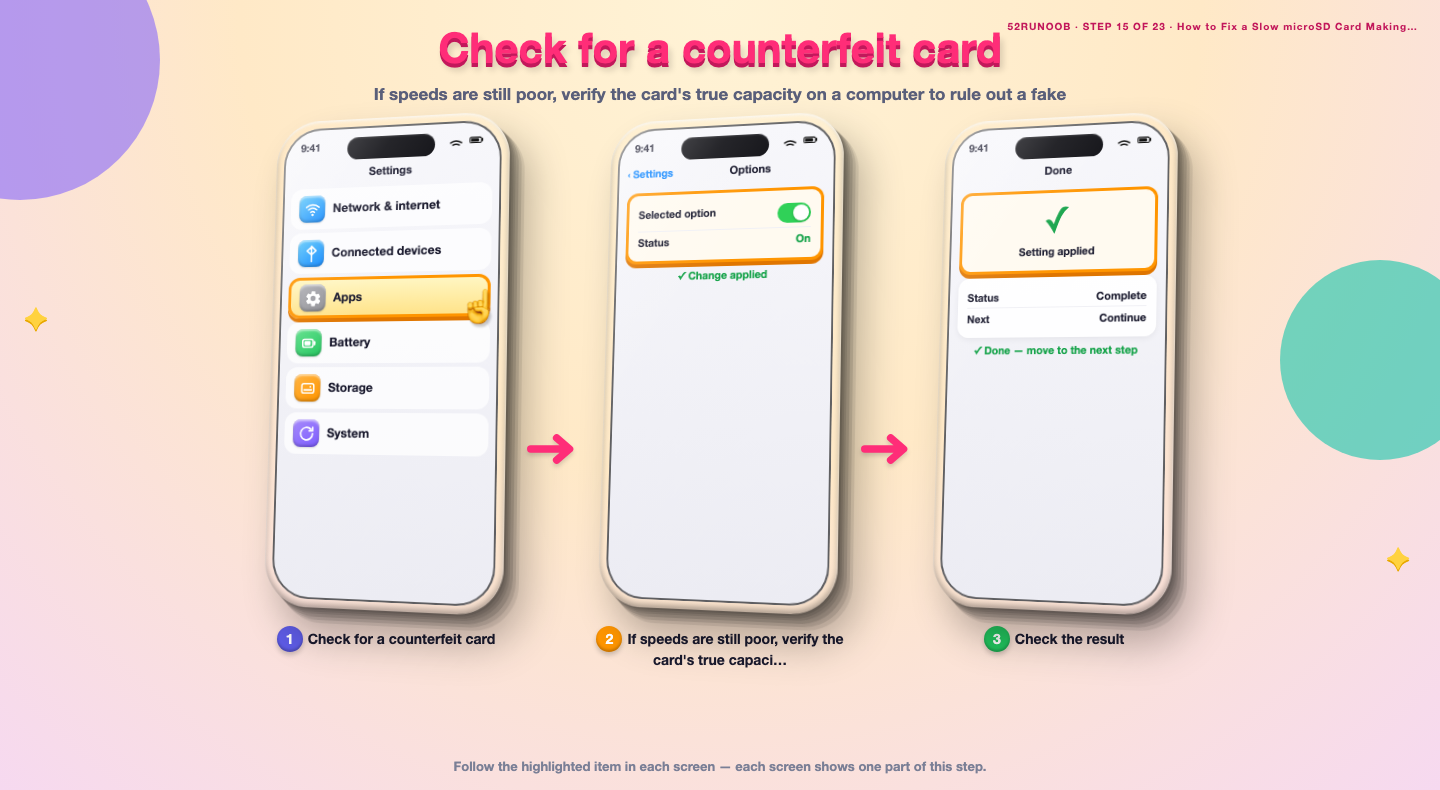
Step 15: Check for a counterfeit card
If speeds are still poor, verify the card's true capacity on a computer to rule out a fake.
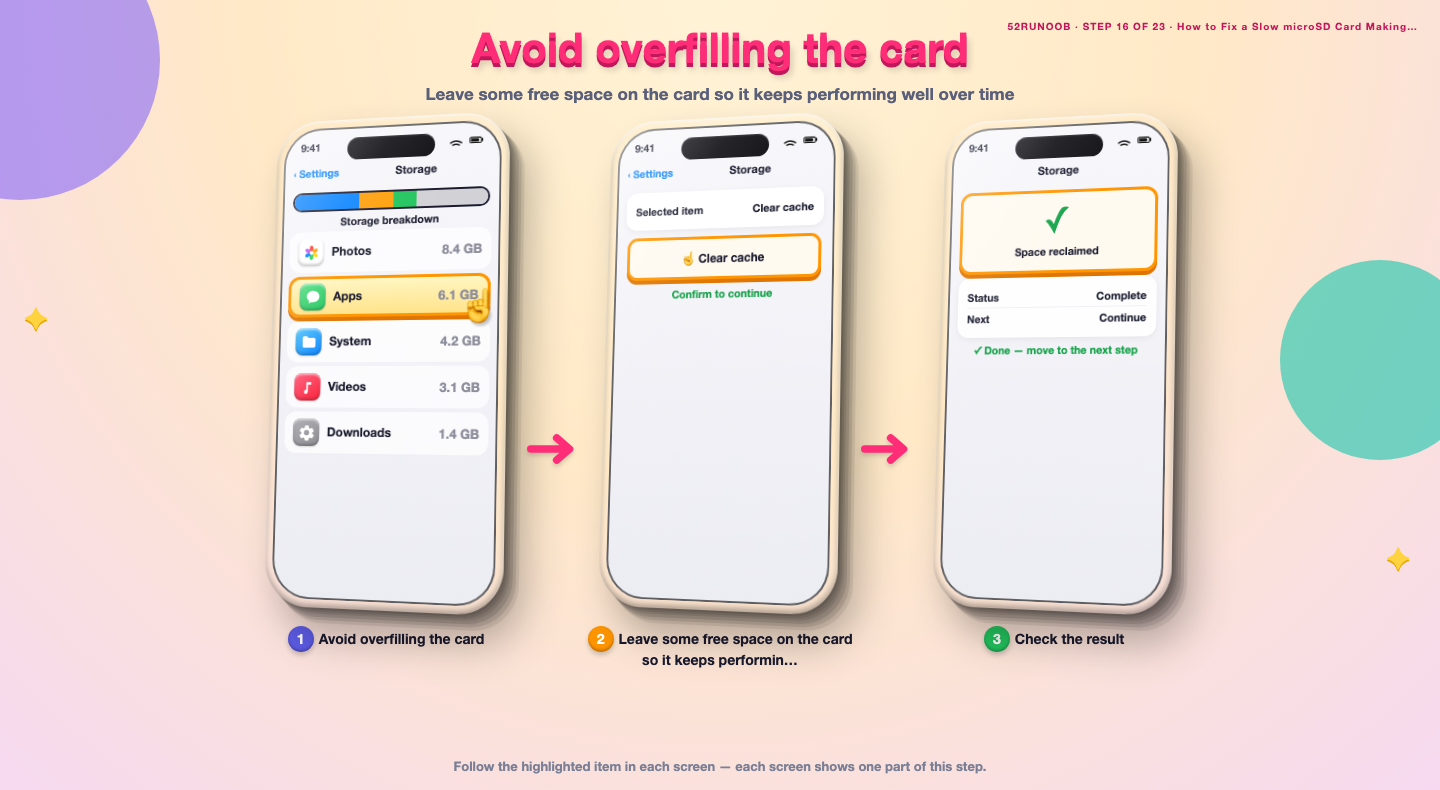
Step 16: Avoid overfilling the card
Leave some free space on the card so it keeps performing well over time.
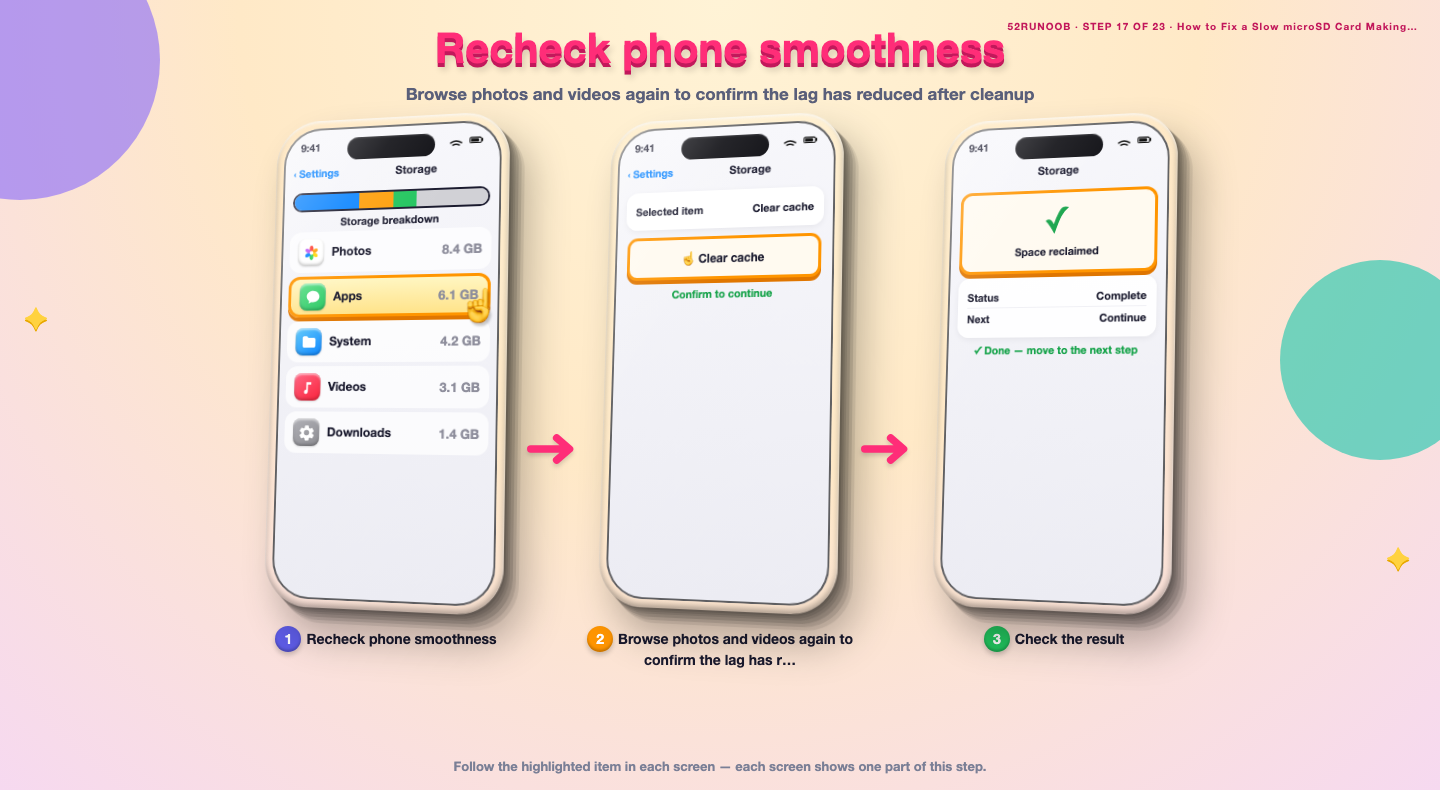
Step 17: Recheck phone smoothness
Browse photos and videos again to confirm the lag has reduced after cleanup.
Method 3 of 3: Replace or Reallocate Storage
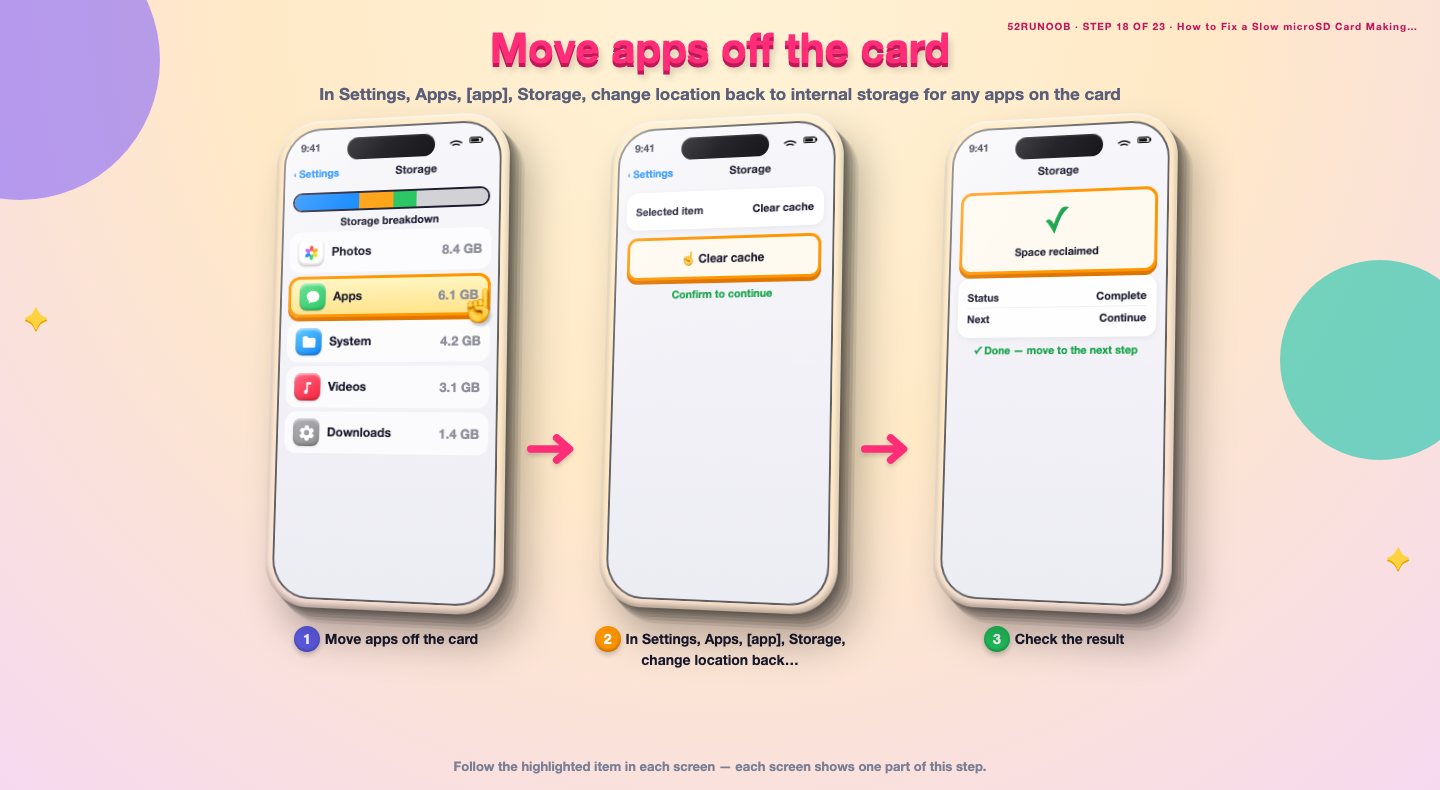
Step 18: Move apps off the card
In Settings, Apps, [app], Storage, change location back to internal storage for any apps on the card.
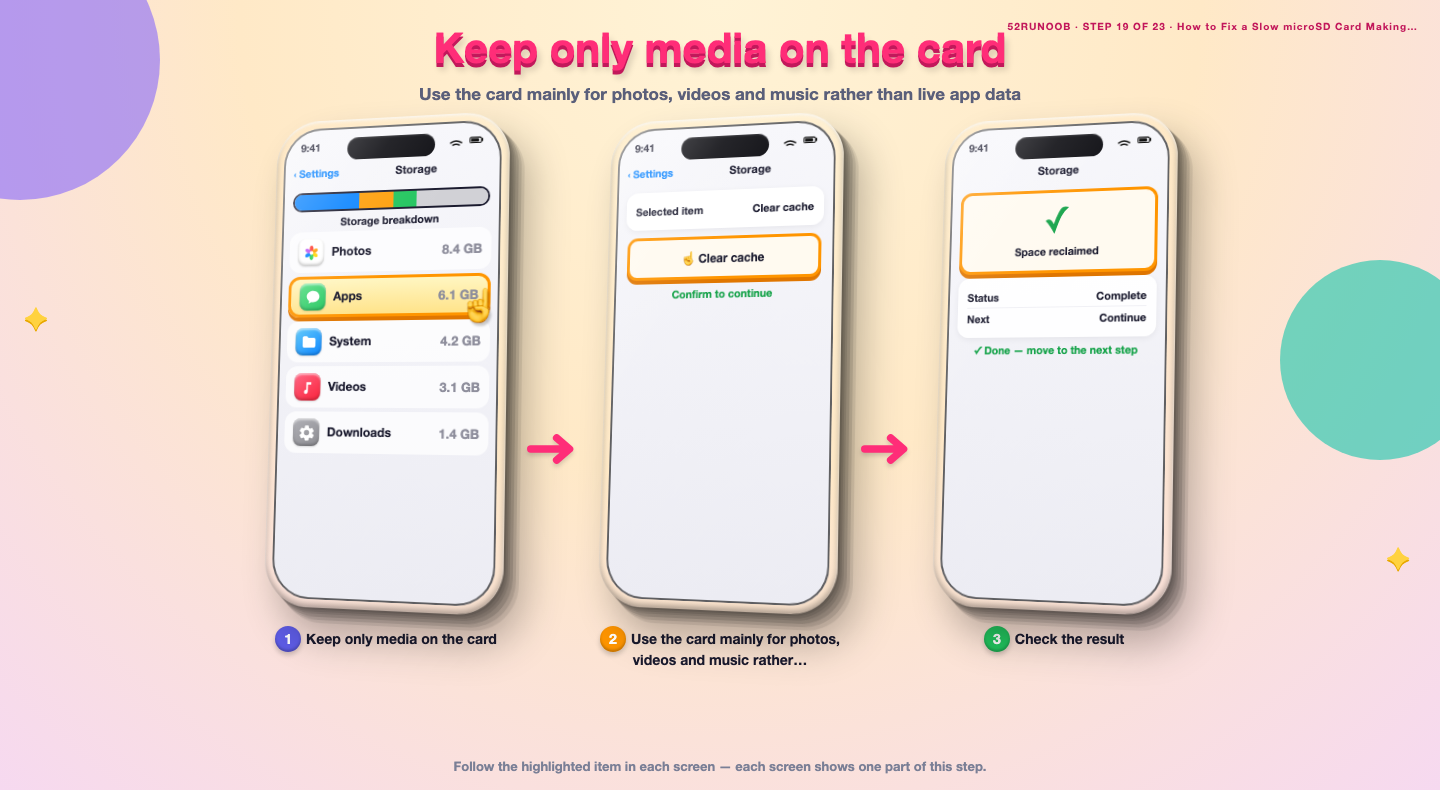
Step 19: Keep only media on the card
Use the card mainly for photos, videos and music rather than live app data.
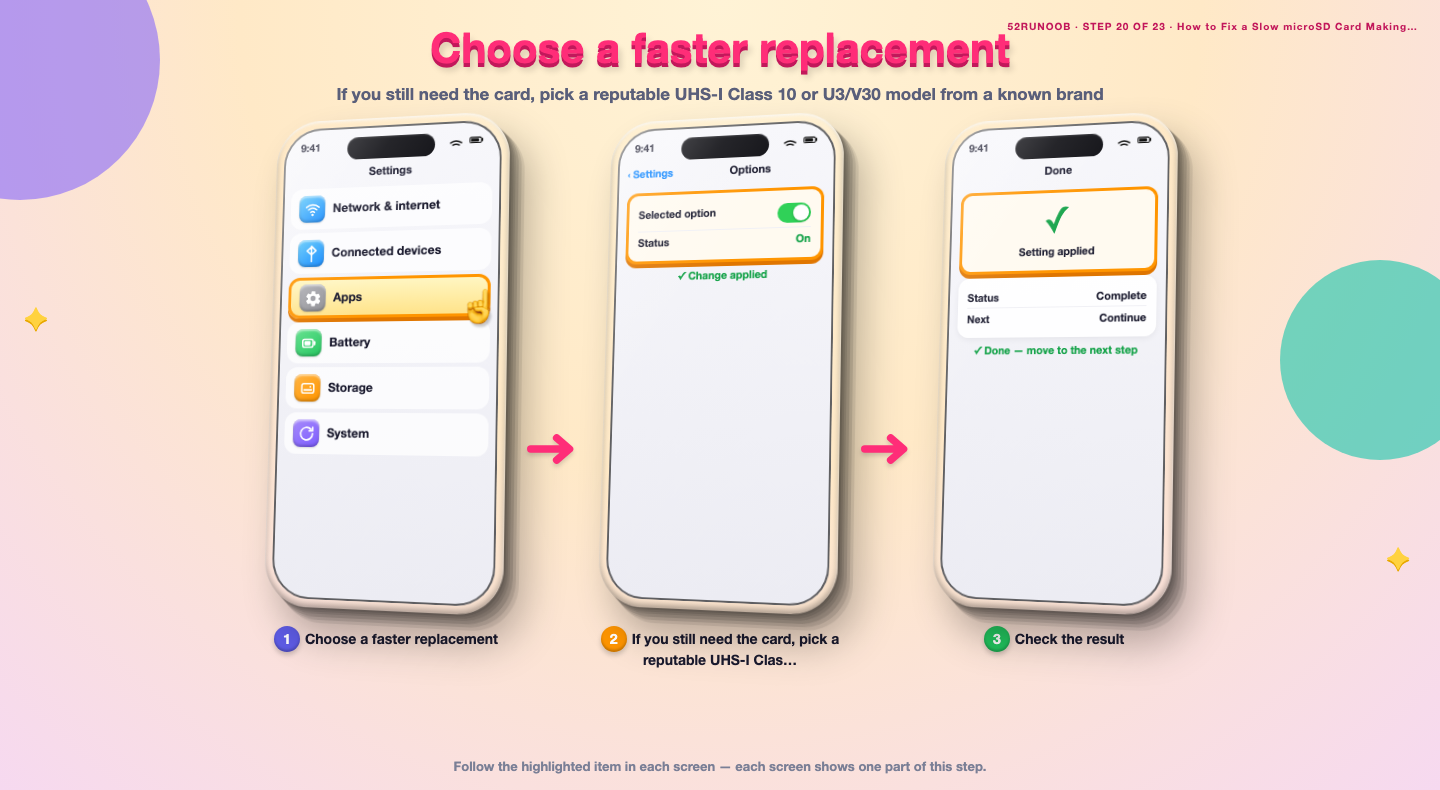
Step 20: Choose a faster replacement
If you still need the card, pick a reputable UHS-I Class 10 or U3/V30 model from a known brand.
Step 21: Avoid unknown brands
Steer clear of very cheap no-name cards that are often slow or counterfeit.
Step 22: Verify authenticity
After buying a replacement, run a full capacity and speed check on a computer before relying on it.
Step 23: Recheck lag after the swap
Insert the verified card and confirm that opening media on the phone is now smooth.
Tips
- Random 4K read speed is the best predictor of app and photo browsing smoothness.
- Cheap counterfeit cards often report the wrong capacity and run very slowly.
- Keeping a card below about 80 percent full helps maintain speed.
Warnings
- Back up all card data before formatting; the process is irreversible.
- Do not use the card while it is being formatted or tested.
- Removing the card during file transfers can corrupt data.
Frequently asked questions
Is a slow microSD card a sign of malware or a fault?
Usually it is simply a low-quality, full or aging card rather than malware. A genuine card that suddenly becomes very slow may be wearing out. Test its speed and verify capacity before assuming the phone is infected.
Why does the phone lag only when opening photos or videos?
Those files often live on the SD card, and a slow card takes longer to deliver them. Random access speed matters here, so browsing a gallery can stutter even when general phone use feels fine.
Can formatting the card really make the phone faster?
Yes, if fragmentation and leftover junk files are slowing it down. Formatting gives the card a clean file system, but you must back up your data first because everything on it is erased.
How can I tell if the card is fake?
Check the reported capacity against the label and run a full write-and-verify test on a computer with a tool like H2testw. A fake card usually fails near its real, much smaller capacity and runs slowly.
References
- Android Source — Storage subsystem. https://source.android.com/docs/core/storage
- Google Support — Speed up your Android device. https://support.google.com/android/answer/9454546
- wikiHow — How to Fix a Slow microSD Card Making the Phone Lag. https://www.wikihow.com/Speed-Up-an-Android-Phone
Every guide is reviewed against its sources. See our editorial policy.
Reader comments
0 so farFinished this guide? Tell other readers what worked, what didn't, and what you would change.