A Windows 11 blue screen (BSOD) is a safety stop that protects your data when Windows hits a serious problem; most are fixed by removing new hardware, booting into Safe Mode, updating drivers, or running built-in system repair tools.
This guide walks through the process in clear illustrated steps, from the first preparation to a finished result. Each step has its own picture, so you can compare your progress as you go.
How to use this guide
Work through the steps in order. Method 1 of 3 covers the basics, and the later methods offer alternatives and finishing touches. If you only have a minute, skim the Quick steps box above and come back for the details.
Related guides
- How to Organize a small closet
- How to Reduce your monthly bills
- How to Share housework fairly
- How to Compare bank accounts
- Browse all Windows Troubleshooting guides
- All 52runoob guides
Trusted external resources
- Microsoft Support — Resolving blue screen errors in Windows
- Microsoft Support — Troubleshoot unexpected restarts and stop code errors
- Microsoft Learn — Advanced troubleshooting for stop code errors
A note on sources
We check each guide against the official resources listed in References at the end of this article. External links open in a new tab; the related guides above stay on this site.
Quick steps
- Note the stop code shown on the blue screen before it restarts.
- Unplug any hardware or USB devices you added recently.
- Restart the PC and see whether the blue screen returns.
- Boot into Safe Mode to isolate driver or software conflicts.
- Update or roll back drivers in Device Manager.
- Run system file and memory checks, then use System Restore if needed.
Things you'll need
- Your Windows 11 PC and its power cable
- The stop code or error message from the blue screen (write it down or photograph it)
- A working internet connection for driver and update downloads
- A USB drive with Windows 11 recovery media (for advanced repairs)
Step-by-step
Method 1 of 3: Try Quick Fixes and Safe Mode
Step 1: Write down the stop code
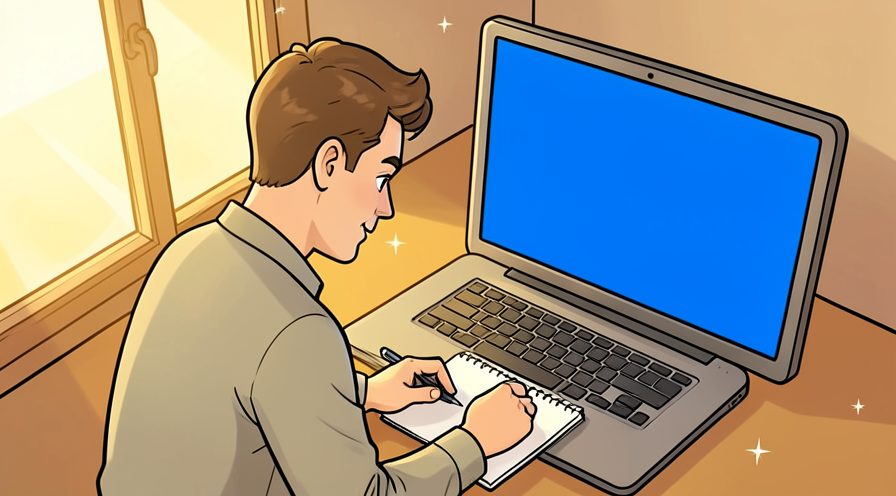
When the blue screen appears, read the stop code at the bottom (for example MEMORY_MANAGEMENT) and write it down or take a photo before the PC restarts.
Step 2: Remove newly added hardware
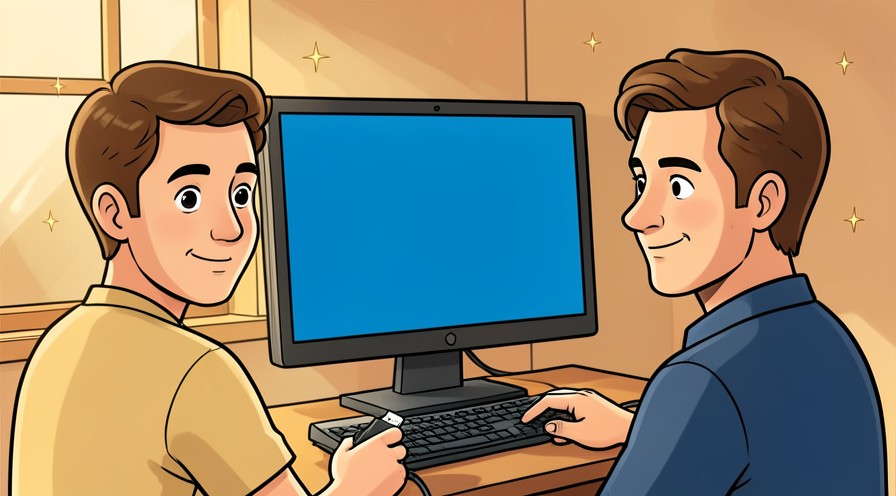
If you added hardware or a USB device before the crashes began, shut down the PC, unplug the new device, and try restarting.
Step 3: Restart the computer
Restart Windows normally. A one-time blue screen is often resolved by a simple reboot with no further action needed.
Step 4: Enter the Windows Recovery Environment
If Windows will not start, hold the power button to force a shutdown, then power on and interrupt boot three times to reach Automatic Repair, then choose Advanced options.
Step 5: Start in Safe Mode
In Advanced options choose Startup Settings, restart, then press 4 or 5 to boot into Safe Mode, where only essential drivers load.

Step 6: Run the Blue Screen troubleshooter
In Safe Mode open Settings, System, Troubleshoot, Other troubleshooters, and run the Blue Screen troubleshooter to detect obvious faults.

Method 2 of 3: Update or Roll Back Drivers
Step 7: Open Device Manager
Right-click the Start button and choose Device Manager to see all installed hardware and any devices flagged with a yellow warning icon.
Step 8: Find devices with warning icons
Look for any device marked with a yellow exclamation mark, which indicates a driver problem that can cause blue screens.
Step 9: Update a suspect driver
Right-click the flagged device, choose Update driver, and let Windows search automatically for the latest compatible driver.

Step 10: Roll back a recent driver
If the crashes began after a driver update, open the device Properties, Driver tab, and choose Roll Back Driver to restore the previous version.
Step 11: Check Windows Update
Open Settings, Windows Update, and select Check for updates, then install all available patches and optional driver updates.
Step 12: Restart and test stability
Restart the PC and use it normally for a while to confirm the blue screen no longer appears after the driver changes.

Method 3 of 3: Run System Repair and Restore Tools
Step 13: Open Command Prompt as administrator
From the Recovery Environment or an admin Start menu, open Command Prompt with administrator rights so you can run repair commands.
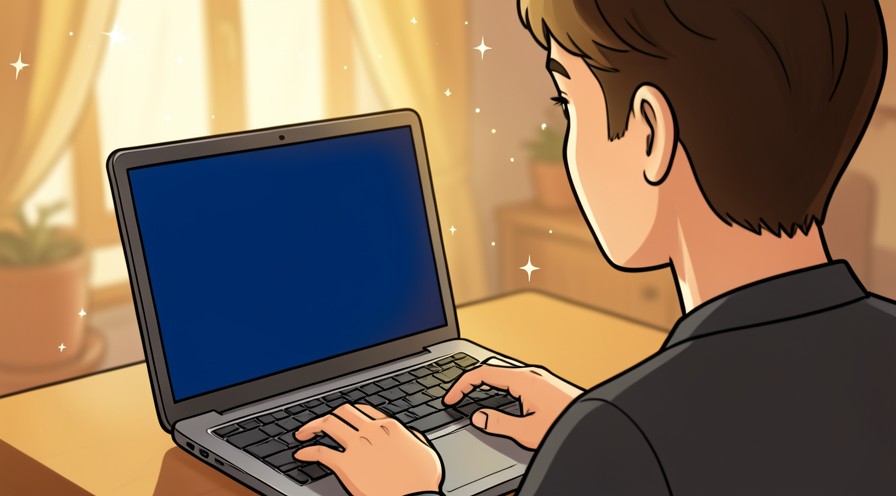
Step 14: Run the System File Checker
Type sfc /scannow and press Enter to scan and repair corrupted Windows system files, then wait for it to finish.
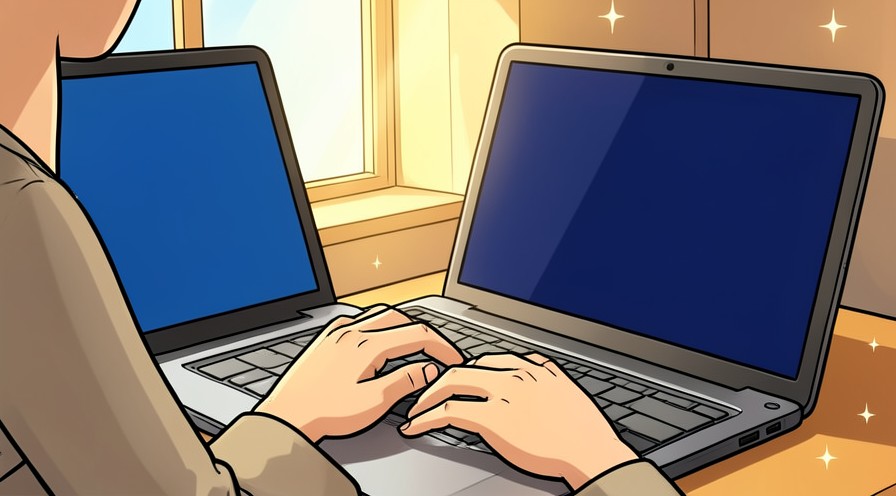
Step 15: Run DISM repair
Type DISM /Online /Cleanup-Image /RestoreHealth and press Enter to repair the Windows component store if SFC found problems.
Step 16: Check the disk for errors
Run chkdsk c: /f to find and fix file system errors on the drive that could trigger stop codes.

Step 17: Run Windows Memory Diagnostic
Open Windows Memory Diagnostic from the Start menu and restart to test the RAM for faults that cause memory-related blue screens.
Step 18: Use System Restore or Reset this PC
If all else fails, choose a restore point from Recovery options, or use Reset this PC while keeping your personal files.
Tips
- Blue screens are often caused by a single new driver or device — undo the last change first.
- Take a photo of the stop code; it is the fastest way to identify the exact cause.
- Keep Windows Update current, since many bug checks are fixed by patches.
Warnings
- Back up important files before making system-level changes.
- Only download drivers from the manufacturer or Microsoft, never from third-party driver sites.
- If you see repeated memory-related stop codes, test the RAM before reinstalling Windows.
Frequently asked questions
How long does it take to fix a blue screen on windows 11?
What supplies do I need for fix a blue screen on windows 11?
Is fix a blue screen on windows 11 safe for beginners?
References
- Microsoft Support — Resolving blue screen errors in Windows. https://support.microsoft.com/en-us/help/14238/windows-10-troubleshoot-blue-screen-errors
- Microsoft Support — Troubleshoot unexpected restarts and stop code errors. https://support.microsoft.com/en-us/windows/troubleshoot-blue-screen-errors
- Microsoft Learn — Advanced troubleshooting for stop code errors. https://learn.microsoft.com/en-us/windows-hardware/drivers/debugger/bug-check-code-reference2
- wikiHow — How to Fix a Blue Screen on Windows 11. https://www.wikihow.com/Fix-a-Blue-Screen-on-Windows
Every guide is reviewed against its sources. See our editorial policy.


Reader comments
0 so farFinished this guide? Tell other readers what worked, what didn't, and what you would change.