A 64GB iPhone that is almost full slows down because iOS needs free space for caches, updates and app data. Check the storage breakdown in iPhone Storage, offload unused apps, optimize photos and remove bulky downloads to get the phone responsive again without losing important data.
This guide walks through the process in clear illustrated steps, from the first preparation to a finished result. Each step has its own picture, so you can compare your progress as you go.
How to use this guide
Work through the steps in order. Method 1 of 2 covers the basics, and the later methods offer alternatives and finishing touches. If you only have a minute, skim the Quick steps box above and come back for the details.
Related guides
- How to Make a travel itinerary
- How to Handle lost luggage
- How to Build a morning routine
- How to Fix android phone slow while google photos is backing up
- Browse all Fix Slow Device guides
- All 52runoob guides
Trusted external resources
- Apple Support — About storage on your iPhone
- Apple Support — Free up space on iPhone
- Apple Support — Check battery health
A note on sources
We check each guide against the official resources listed in References at the end of this article. External links open in a new tab; the related guides above stay on this site.
Quick steps
- Open Settings, General, iPhone Storage to see usage.
- Review apps sorted by size and offload unused ones.
- Enable Optimize iPhone Storage for Photos.
- Delete old downloaded videos and podcasts.
- Clear Safari website data and recently deleted photos.
- Keep at least 10 to 15 percent of storage free.
Things you'll need
- An iPhone with nearly full storage
- Access to Settings and iPhone Storage
- A Wi-Fi connection for cloud offloading
- A computer or iCloud backup for important data
Step-by-step
Method 1 of 2: Audit What Is Using Storage
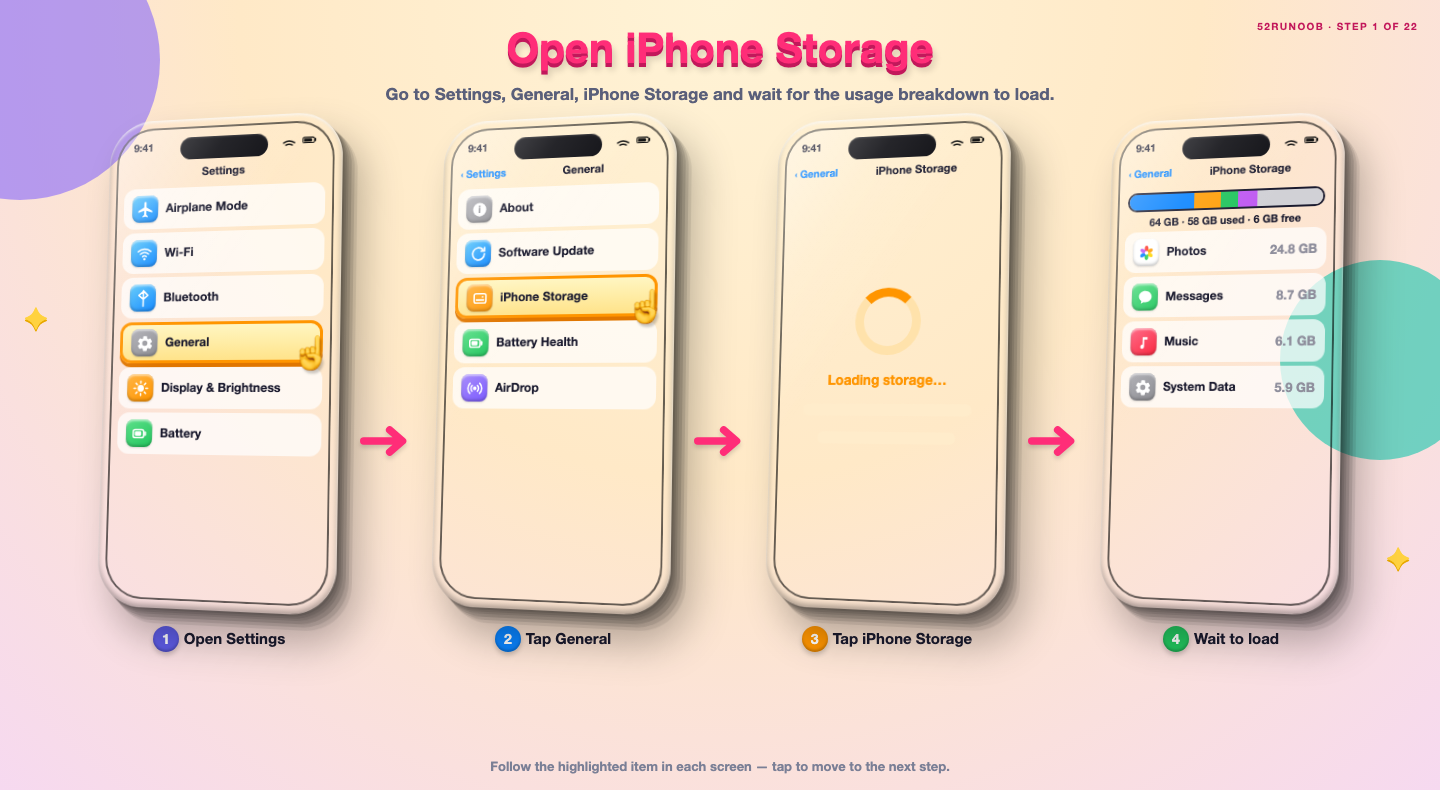
Step 1: Open iPhone Storage
Go to Settings, General, iPhone Storage and wait for the usage breakdown to load.
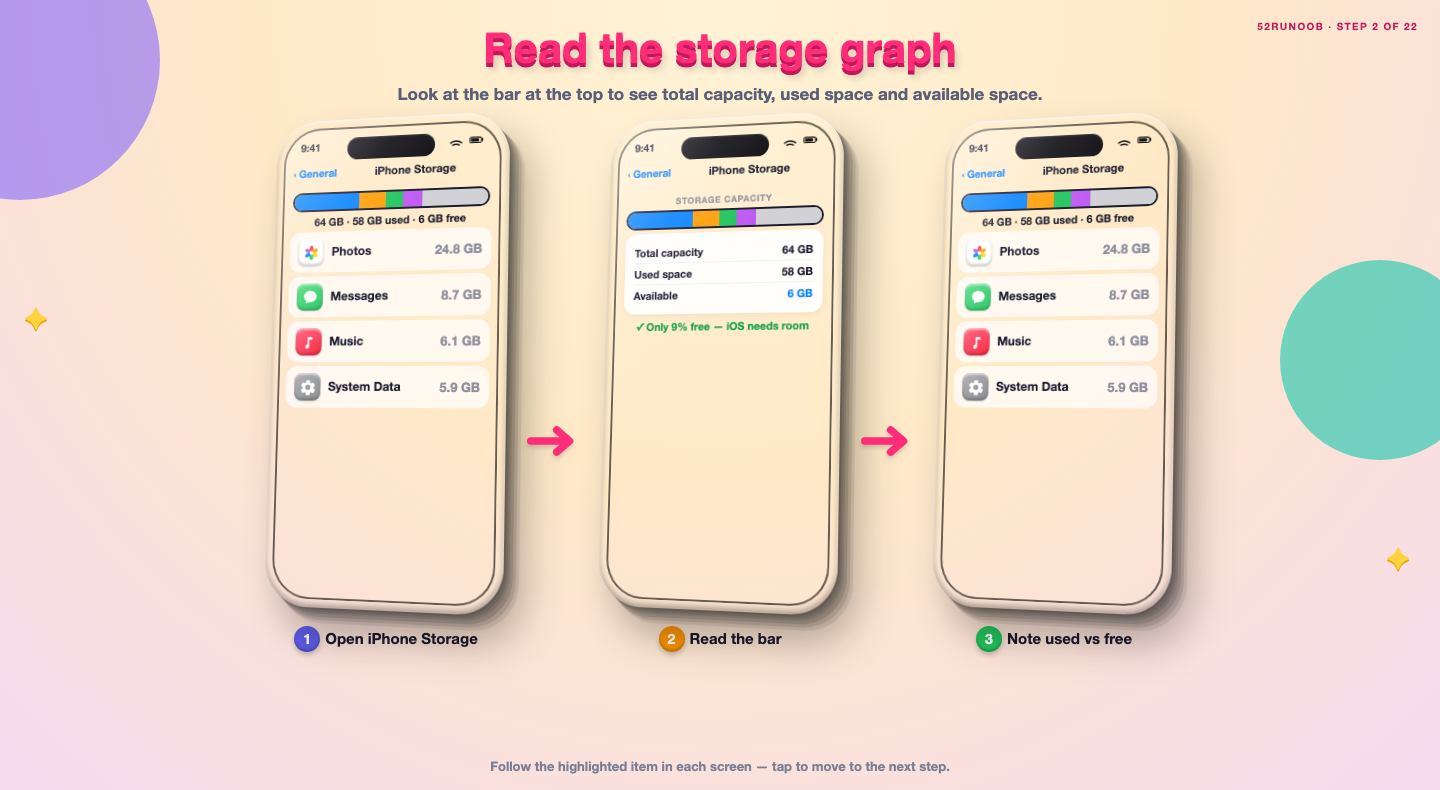
Step 2: Read the storage graph
Look at the bar at the top to see total capacity, used space and available space.
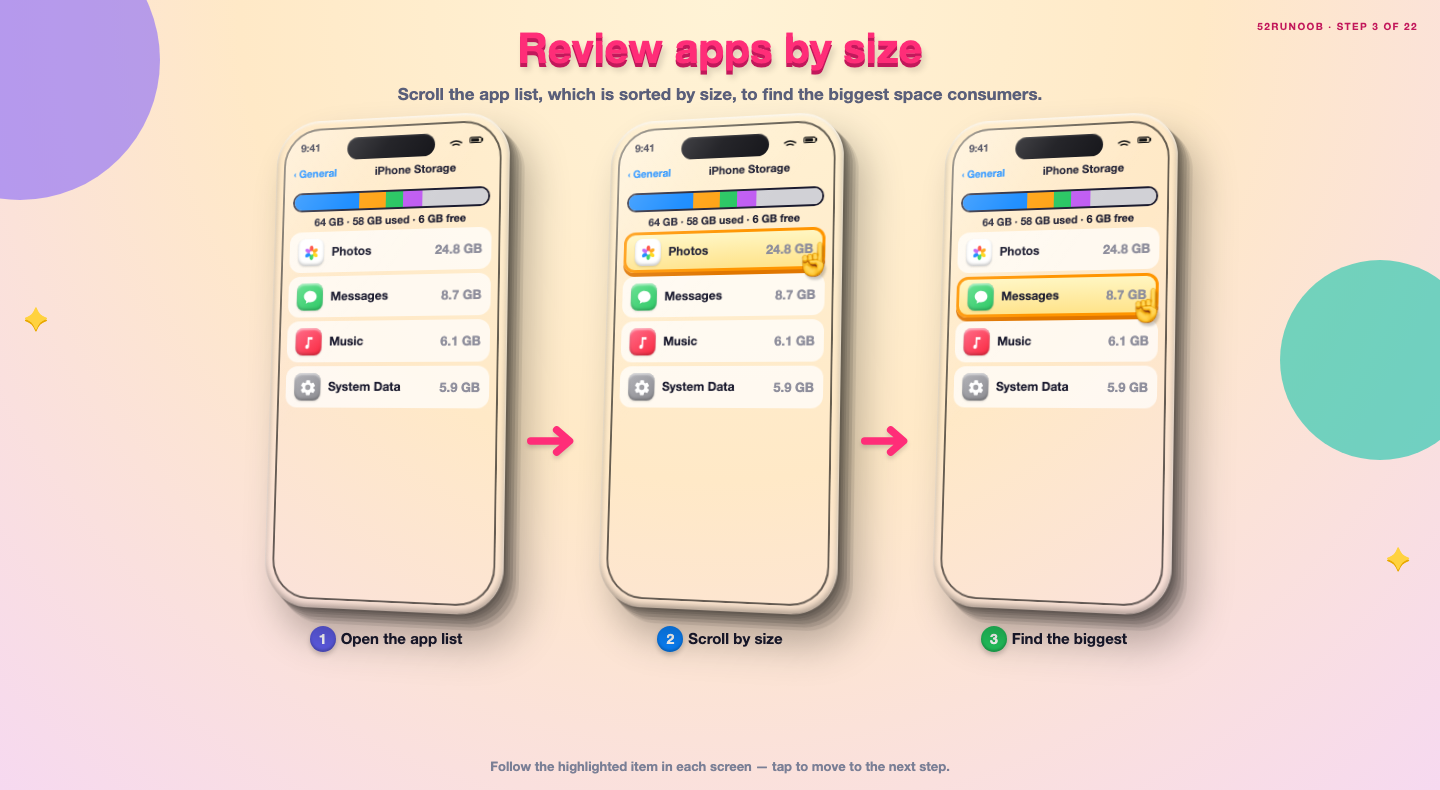
Step 3: Review apps by size
Scroll the app list, which is sorted by size, to find the biggest space consumers.
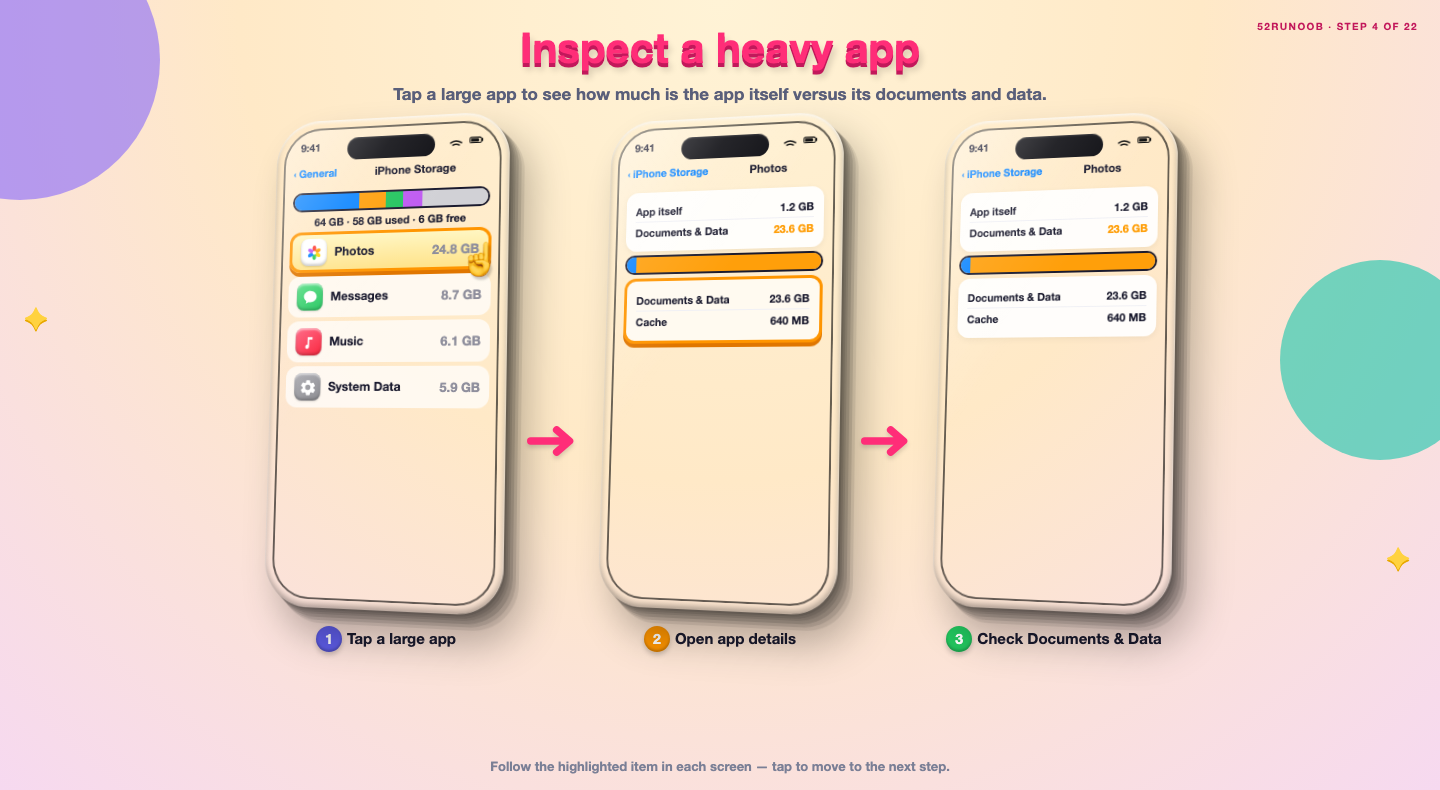
Step 4: Inspect a heavy app
Tap a large app to see how much is the app itself versus its documents and data.
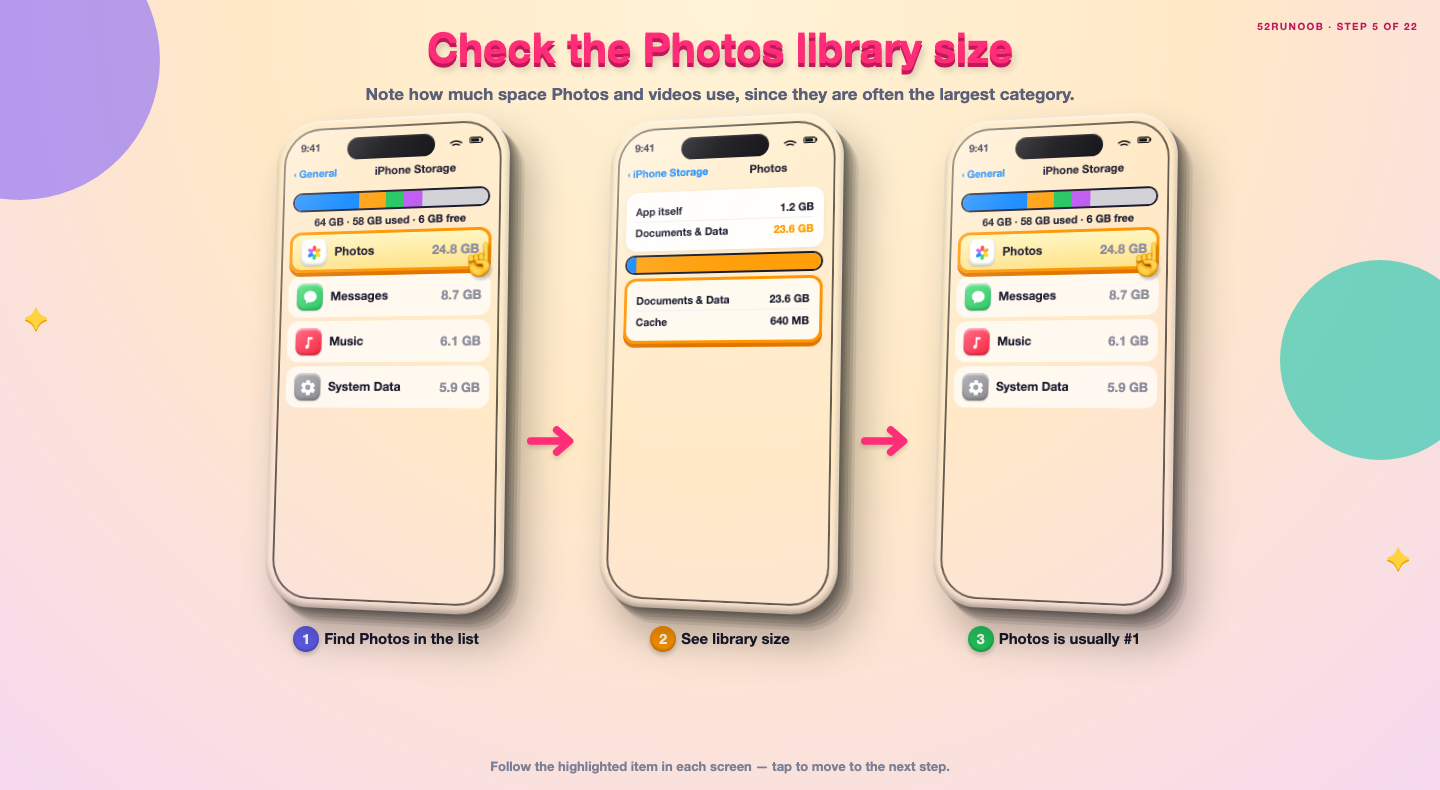
Step 5: Check the Photos library size
Note how much space Photos and videos use, since they are often the largest category.
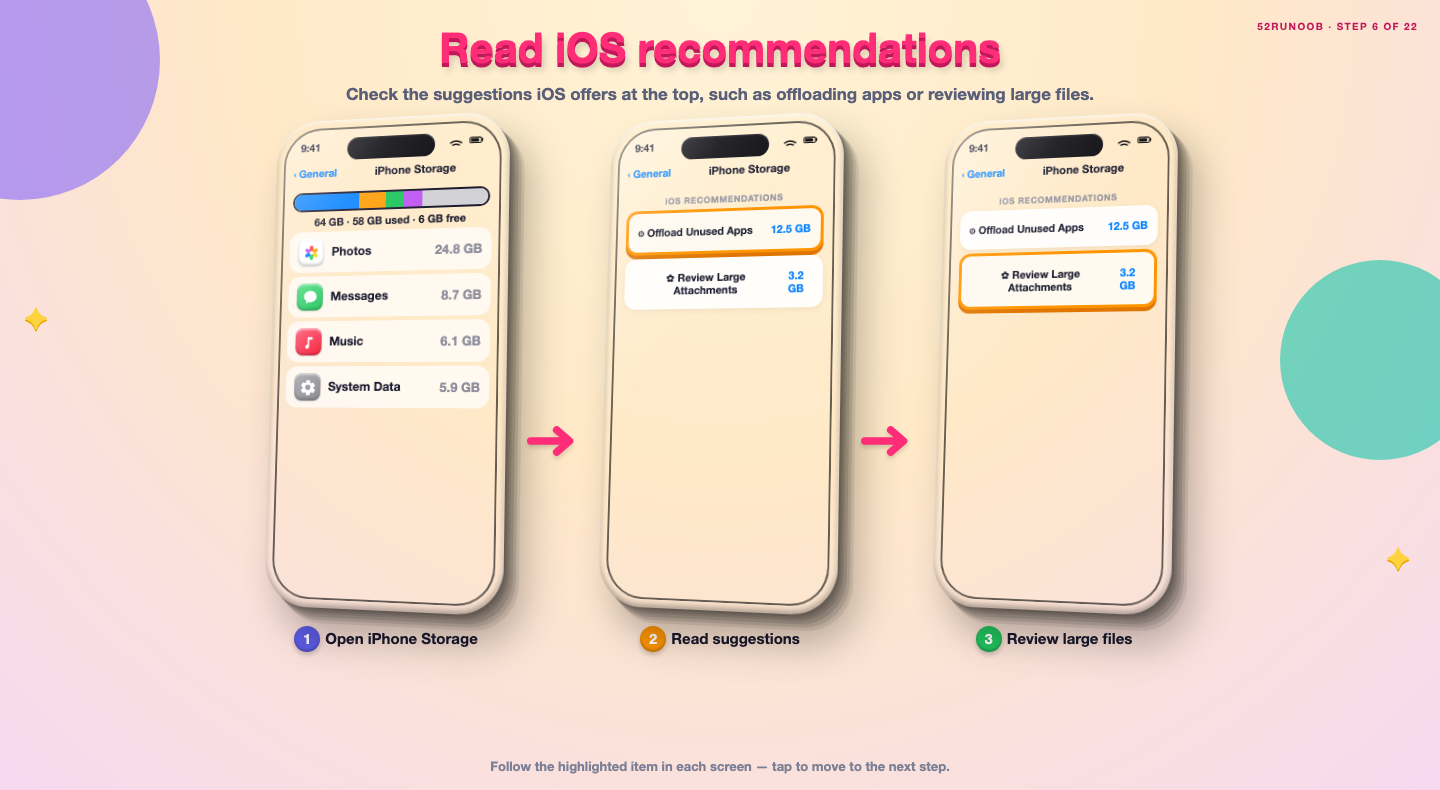
Step 6: Read iOS recommendations
Check the suggestions iOS offers at the top, such as offloading apps or reviewing large files.
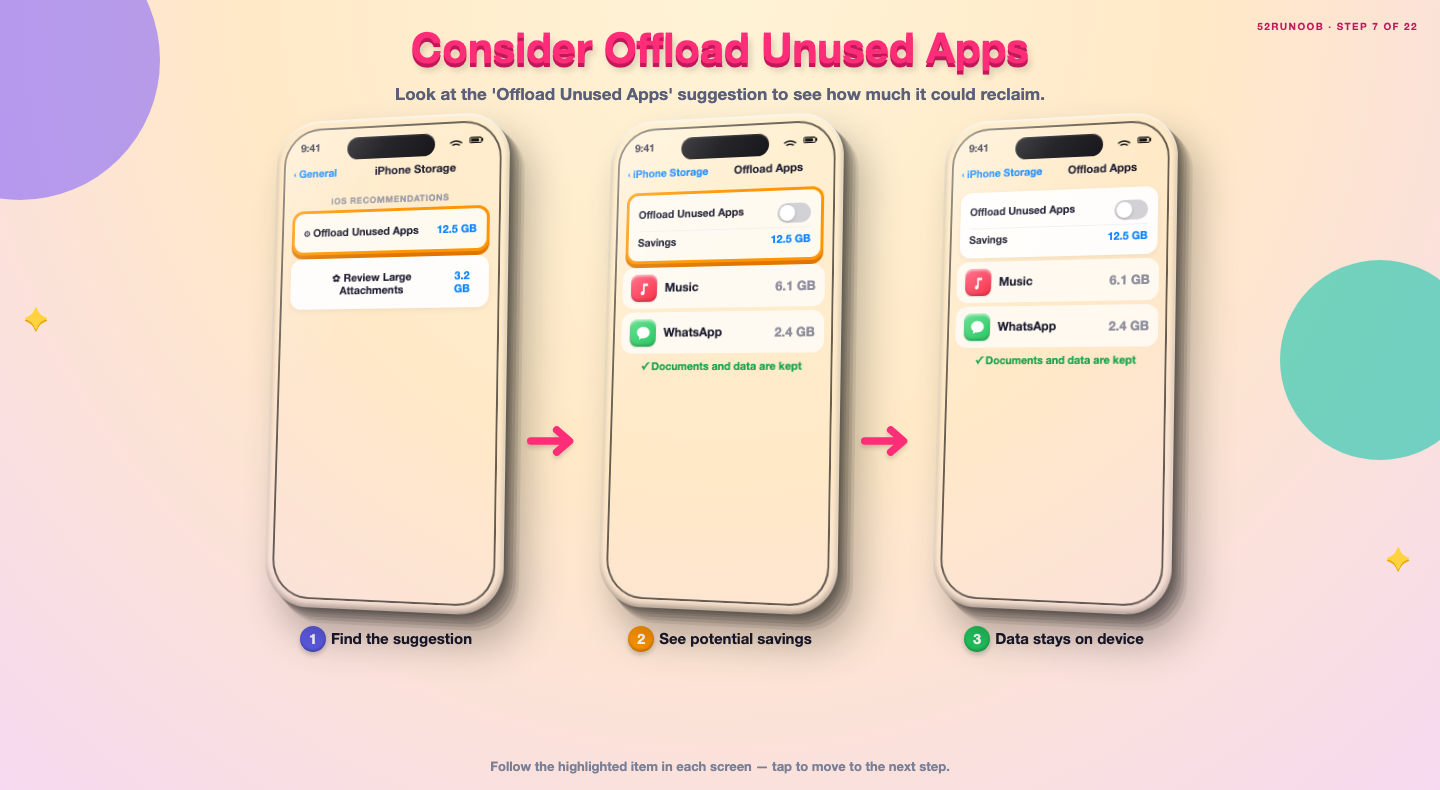
Step 7: Consider Offload Unused Apps
Look at the 'Offload Unused Apps' suggestion to see how much it could reclaim.
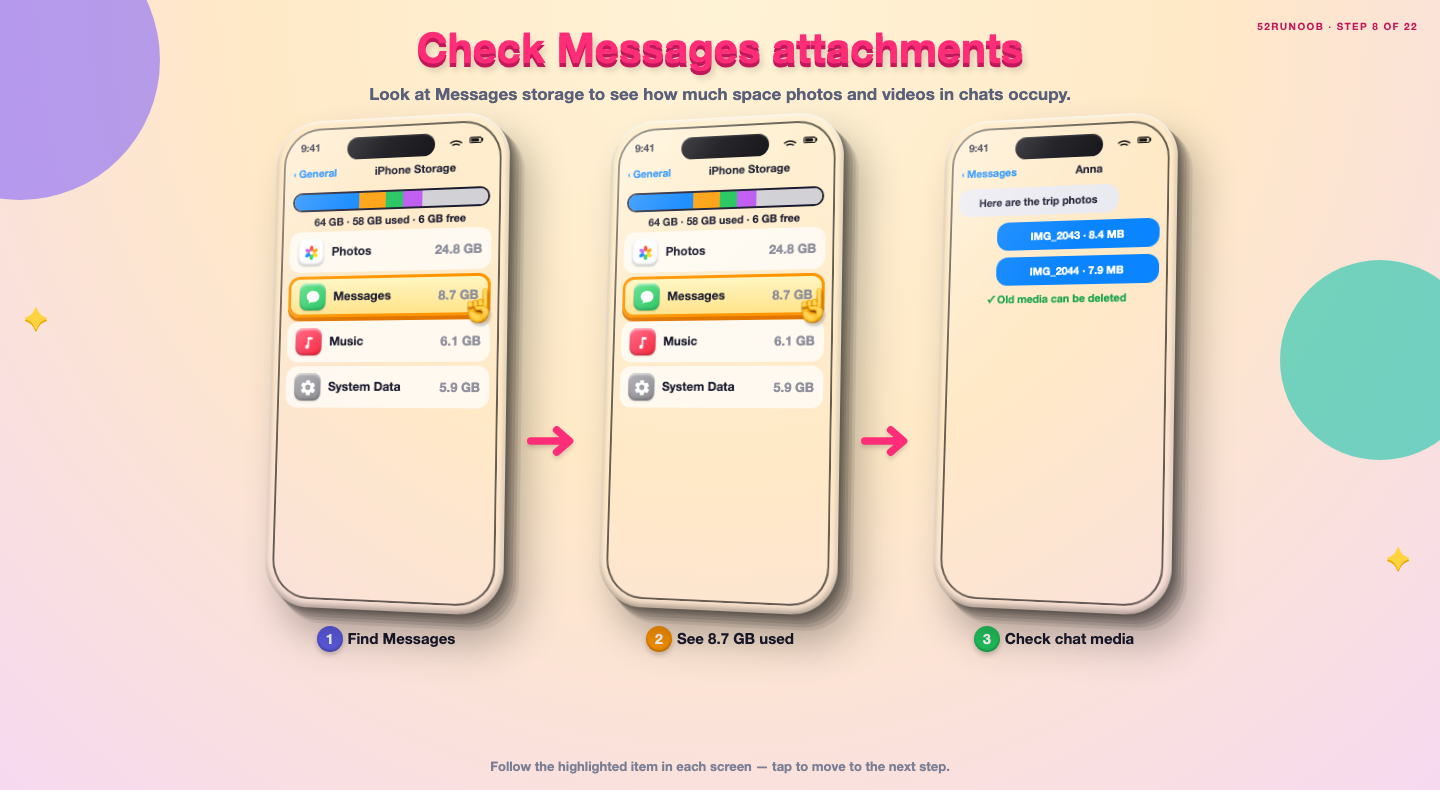
Step 8: Check Messages attachments
Look at Messages storage to see how much space photos and videos in chats occupy.
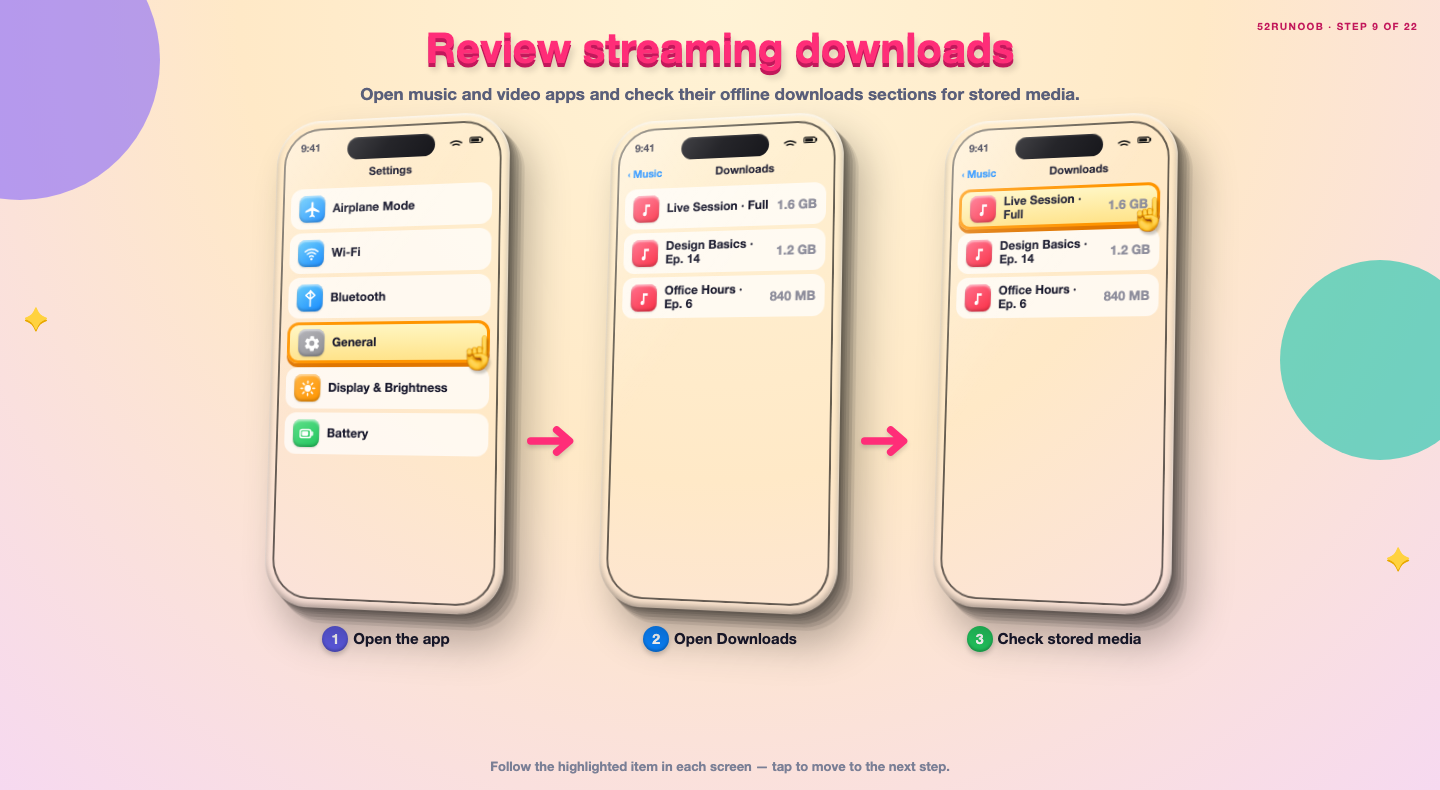
Step 9: Review streaming downloads
Open music and video apps and check their offline downloads sections for stored media.
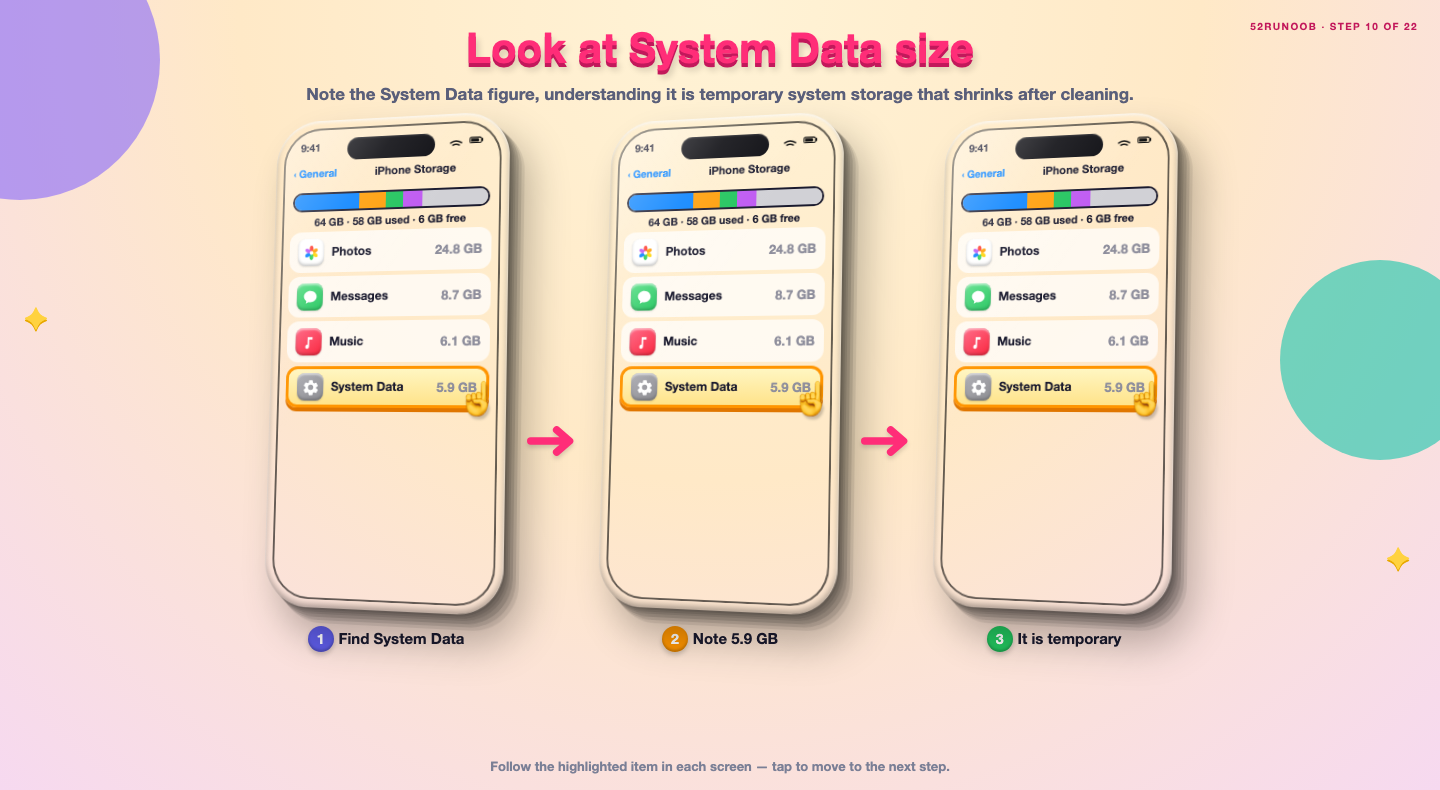
Step 10: Look at System Data size
Note the System Data figure, understanding it is temporary system storage that shrinks after cleaning.
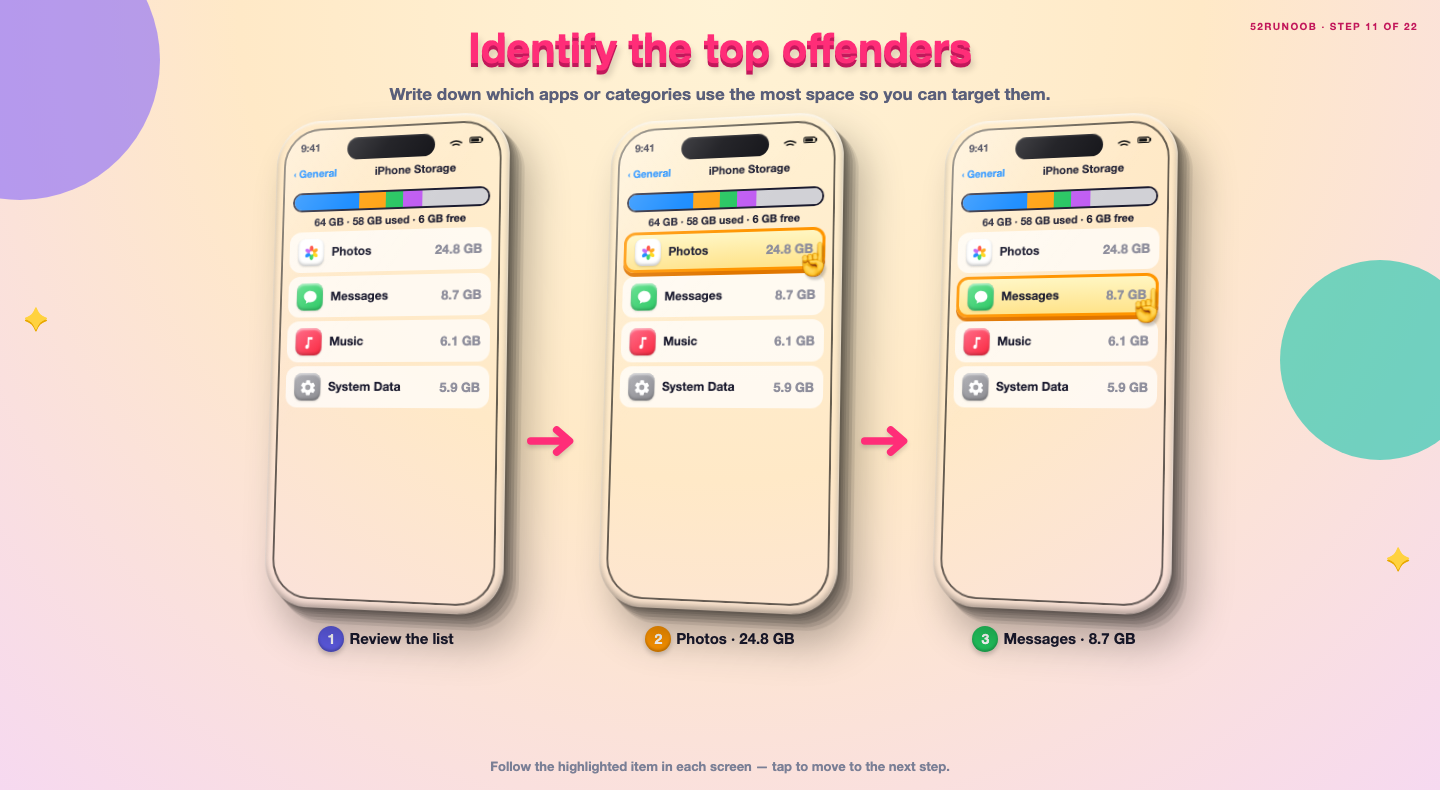
Step 11: Identify the top offenders
Write down which apps or categories use the most space so you can target them.
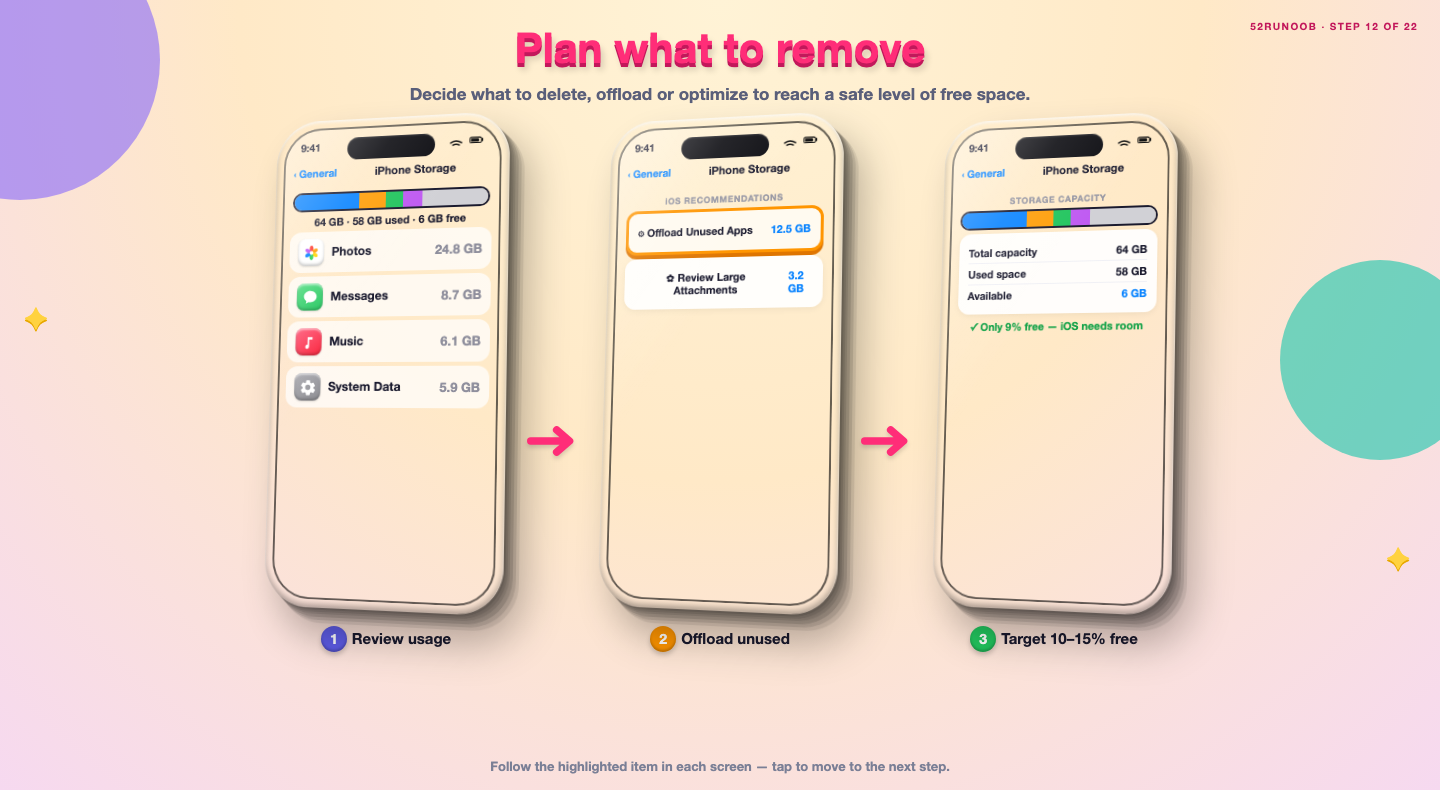
Step 12: Plan what to remove
Decide what to delete, offload or optimize to reach a safe level of free space.
Method 2 of 2: Free Space Safely
Step 13: Enable offloading
Go to Settings, General, iPhone Storage, Offload Unused Apps and turn it on to remove idle apps but keep their data.
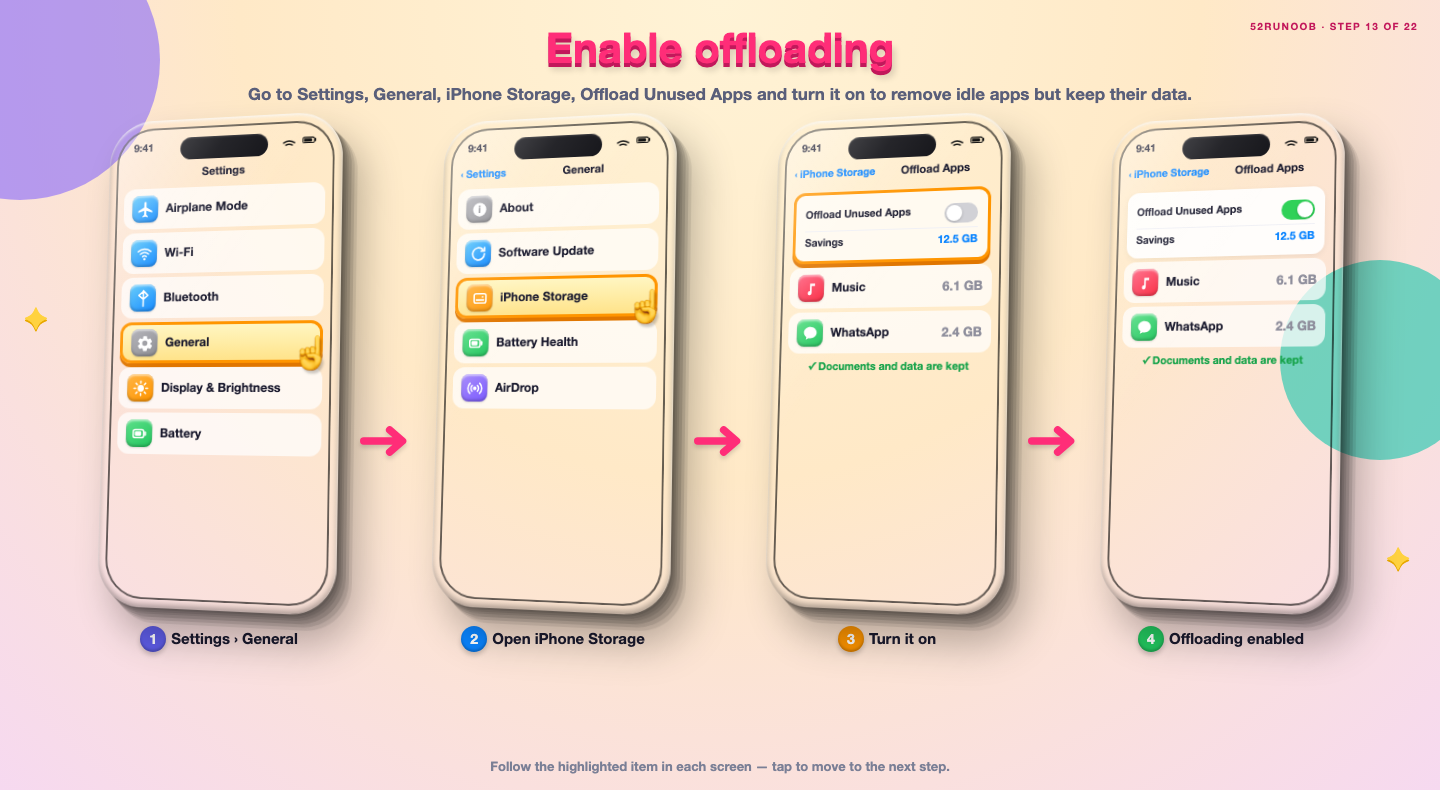
Step 14: Delete unused apps manually
In the app list, tap an unused app and choose Delete App to remove it and its data.
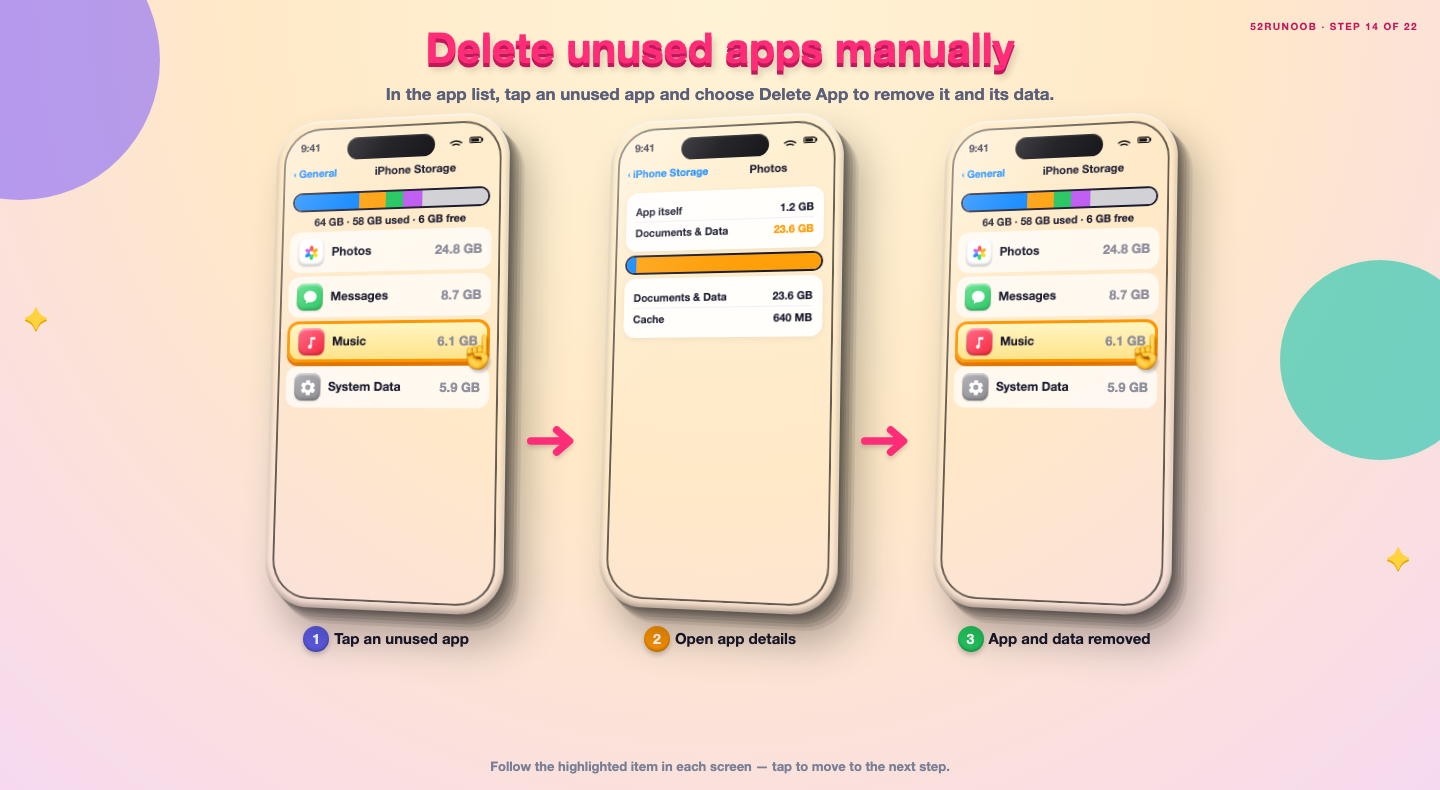
Step 15: Optimize Photos storage
Go to Settings, Photos and enable Optimize iPhone Storage to keep only small previews locally.
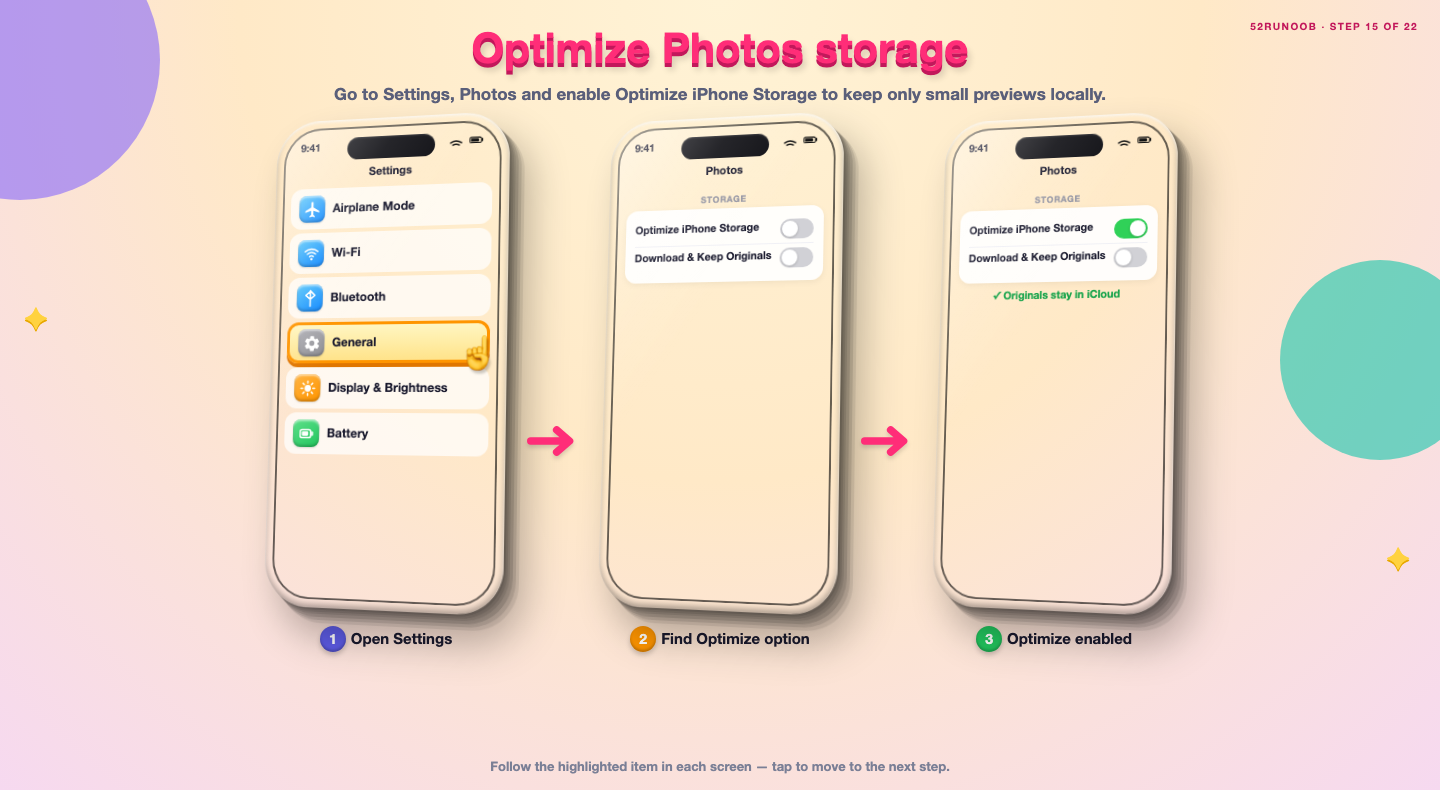
Step 16: Empty Recently Deleted
In the Photos app, open Albums, Recently Deleted and delete items you no longer need, since they still use space.
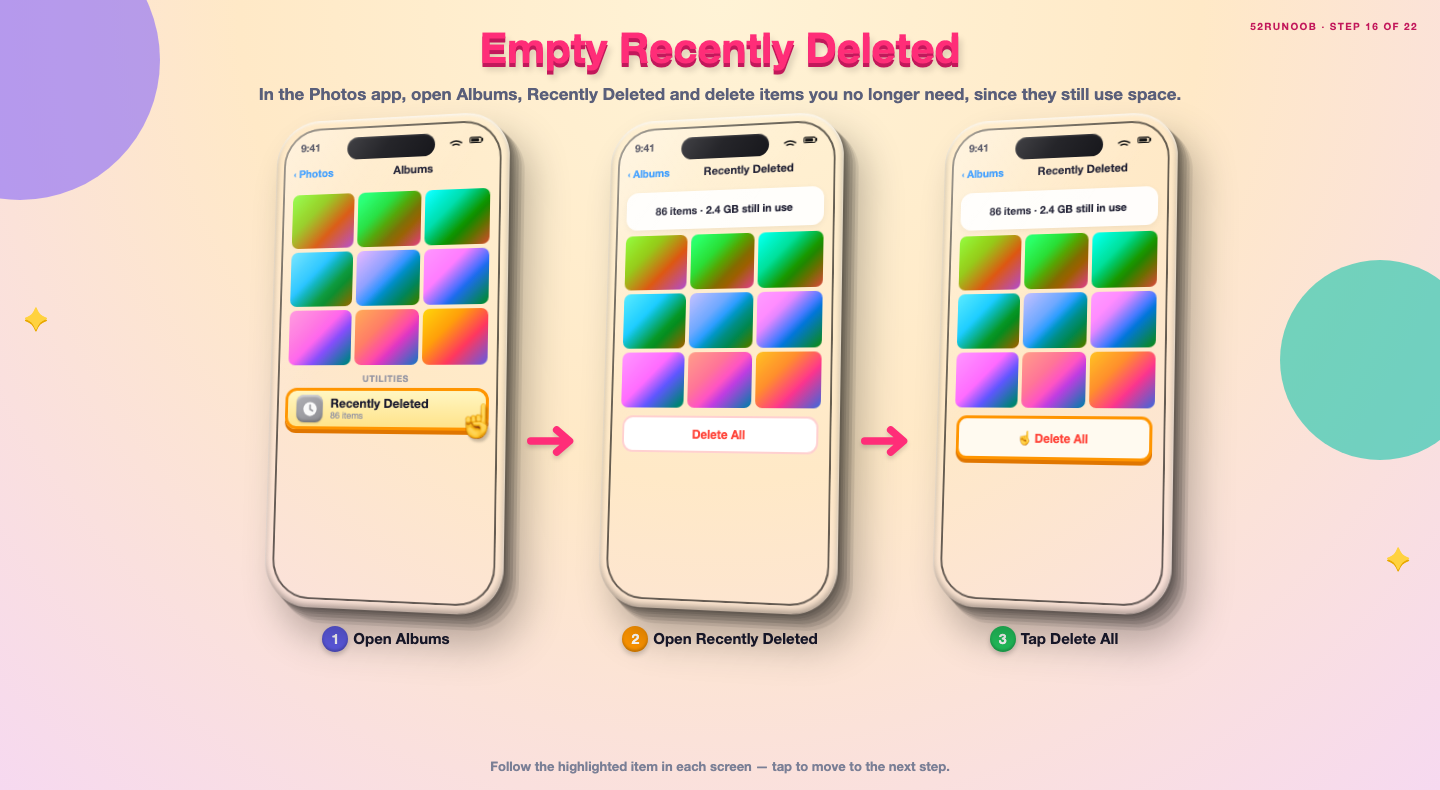
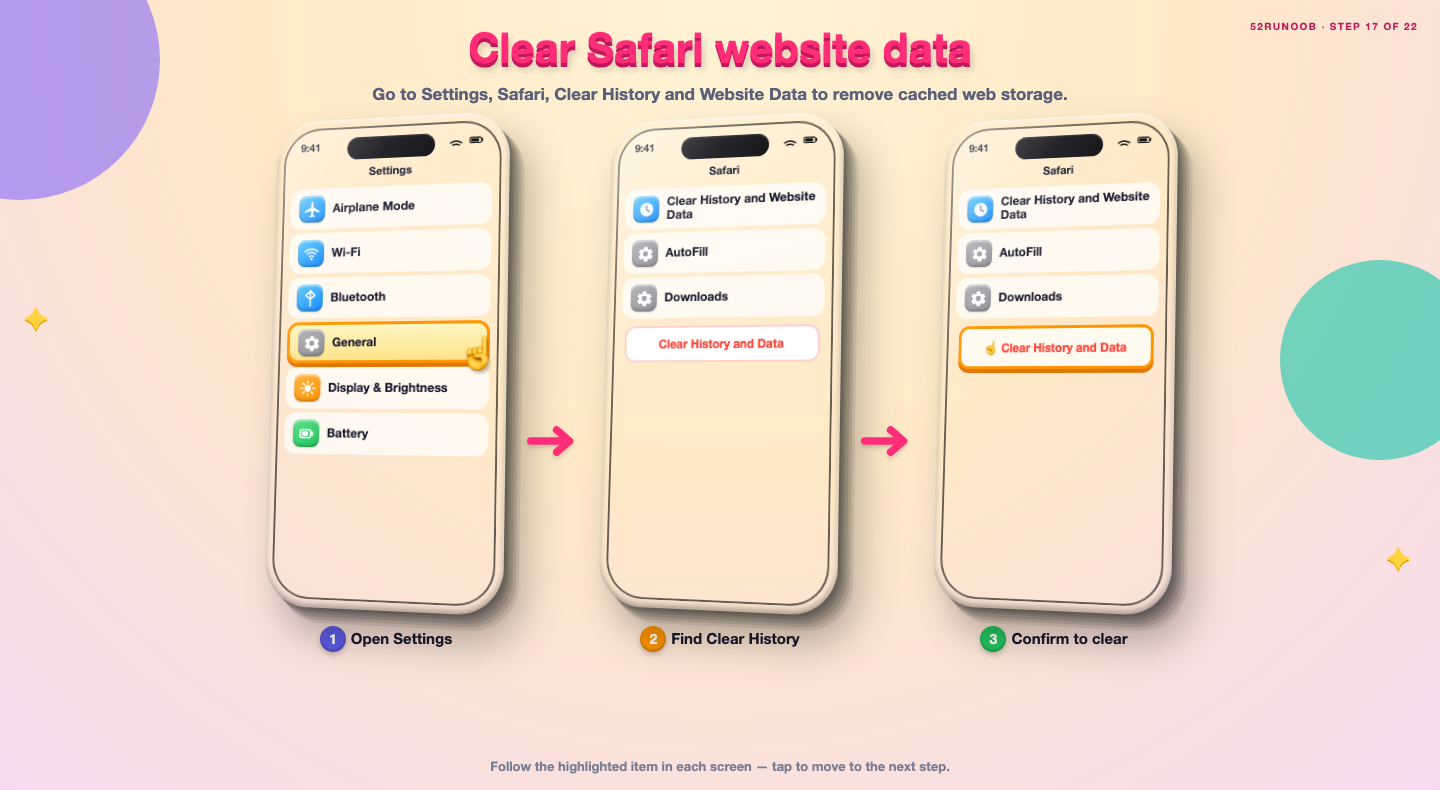
Step 17: Clear Safari website data
Go to Settings, Safari, Clear History and Website Data to remove cached web storage.
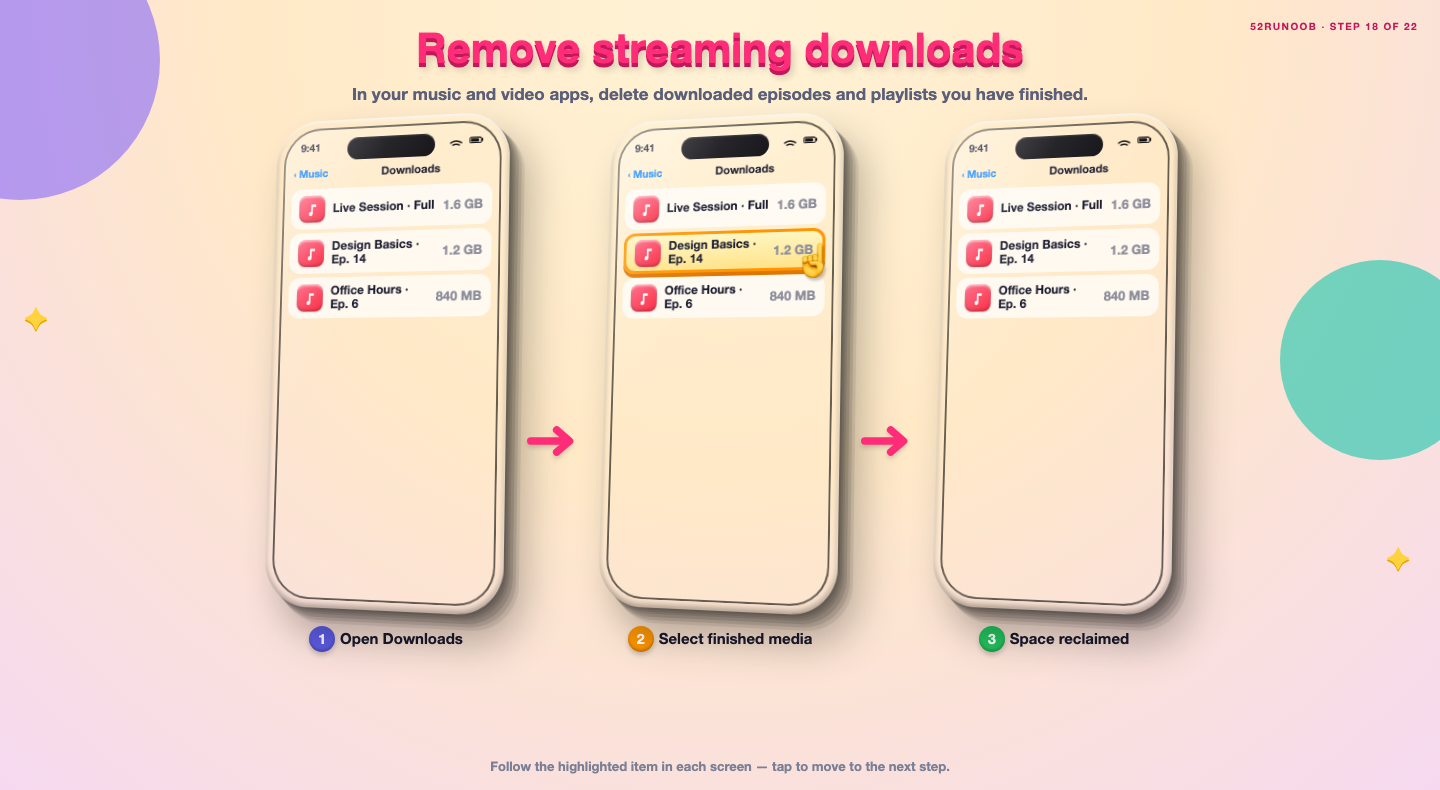
Step 18: Remove streaming downloads
In your music and video apps, delete downloaded episodes and playlists you have finished.
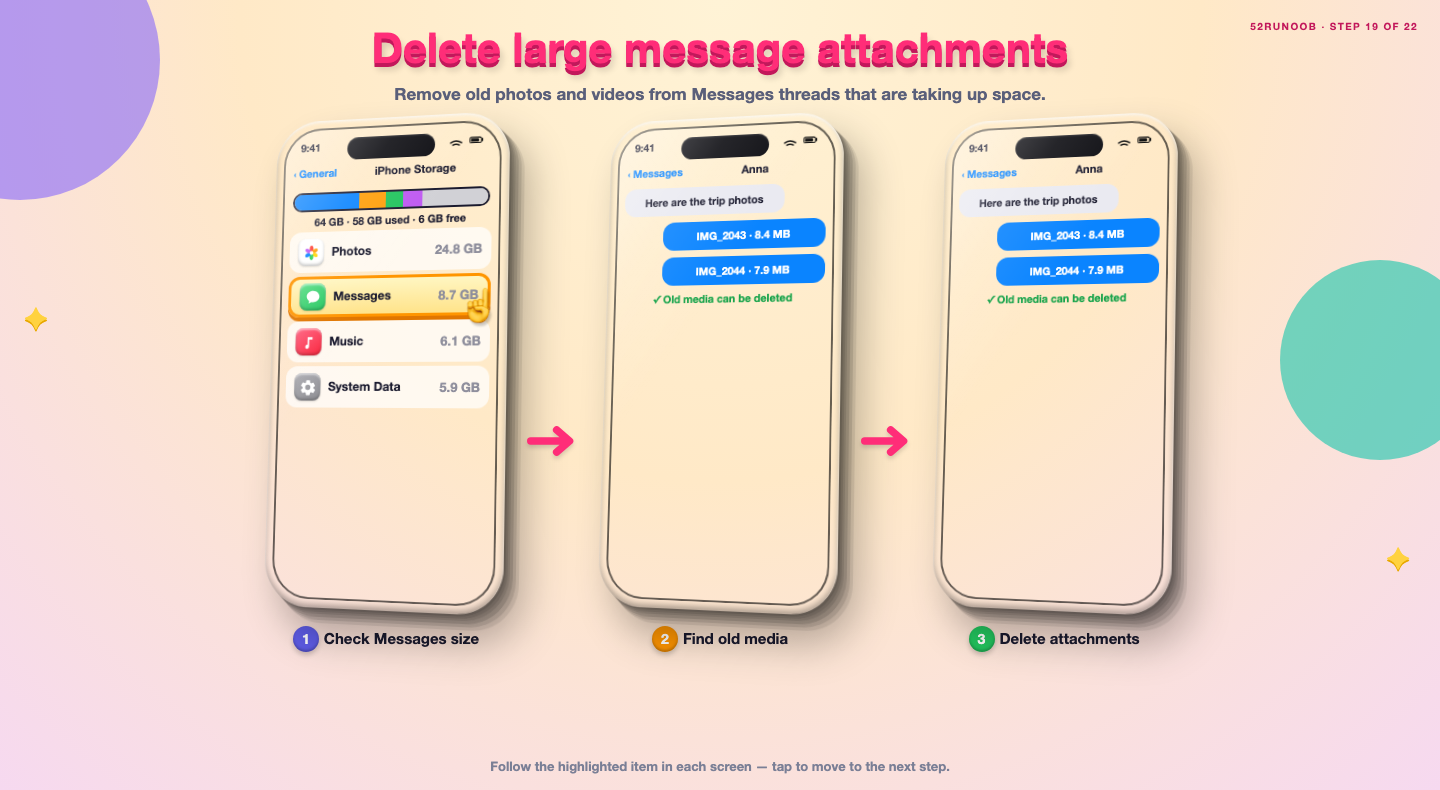
Step 19: Delete large message attachments
Remove old photos and videos from Messages threads that are taking up space.
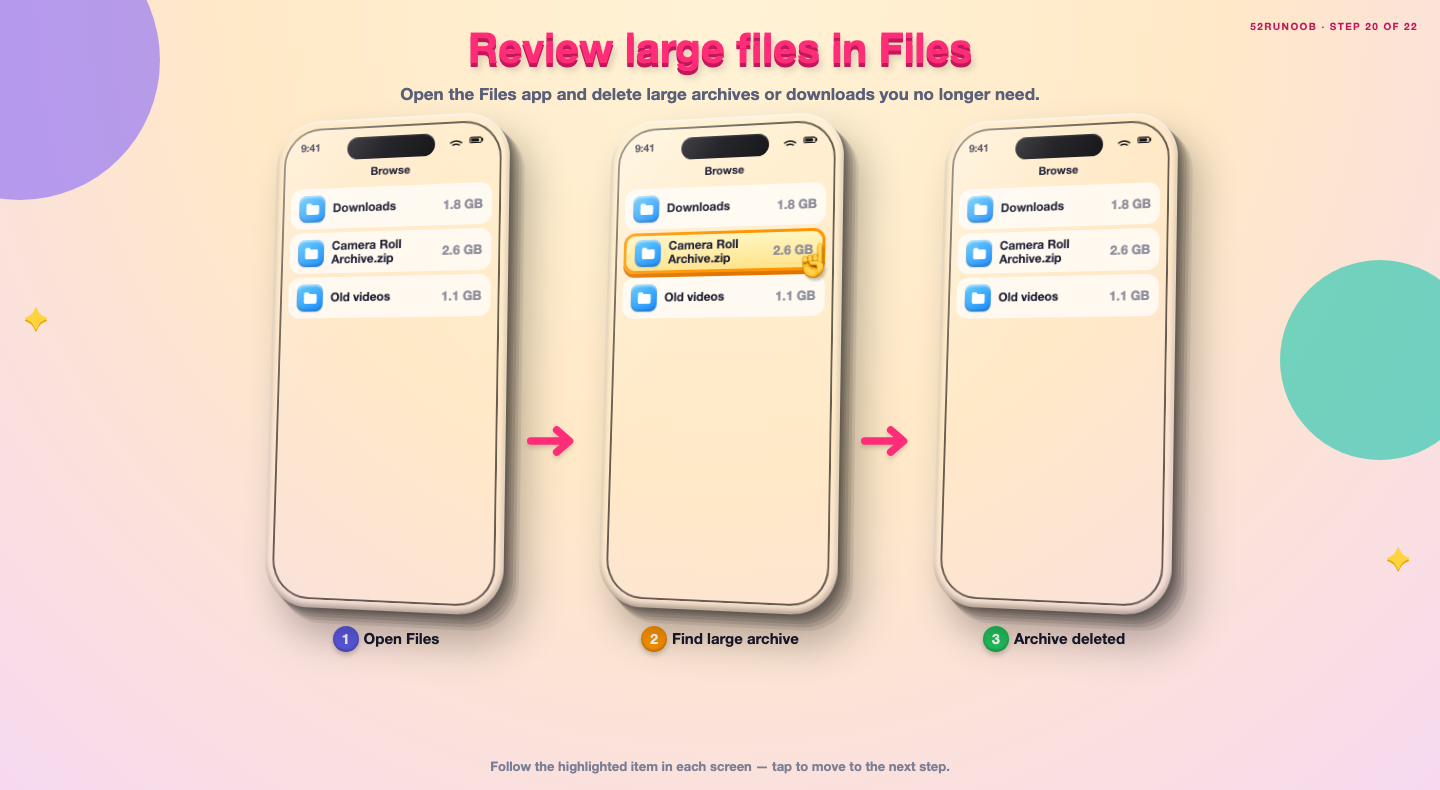
Step 20: Review large files in Files
Open the Files app and delete large archives or downloads you no longer need.
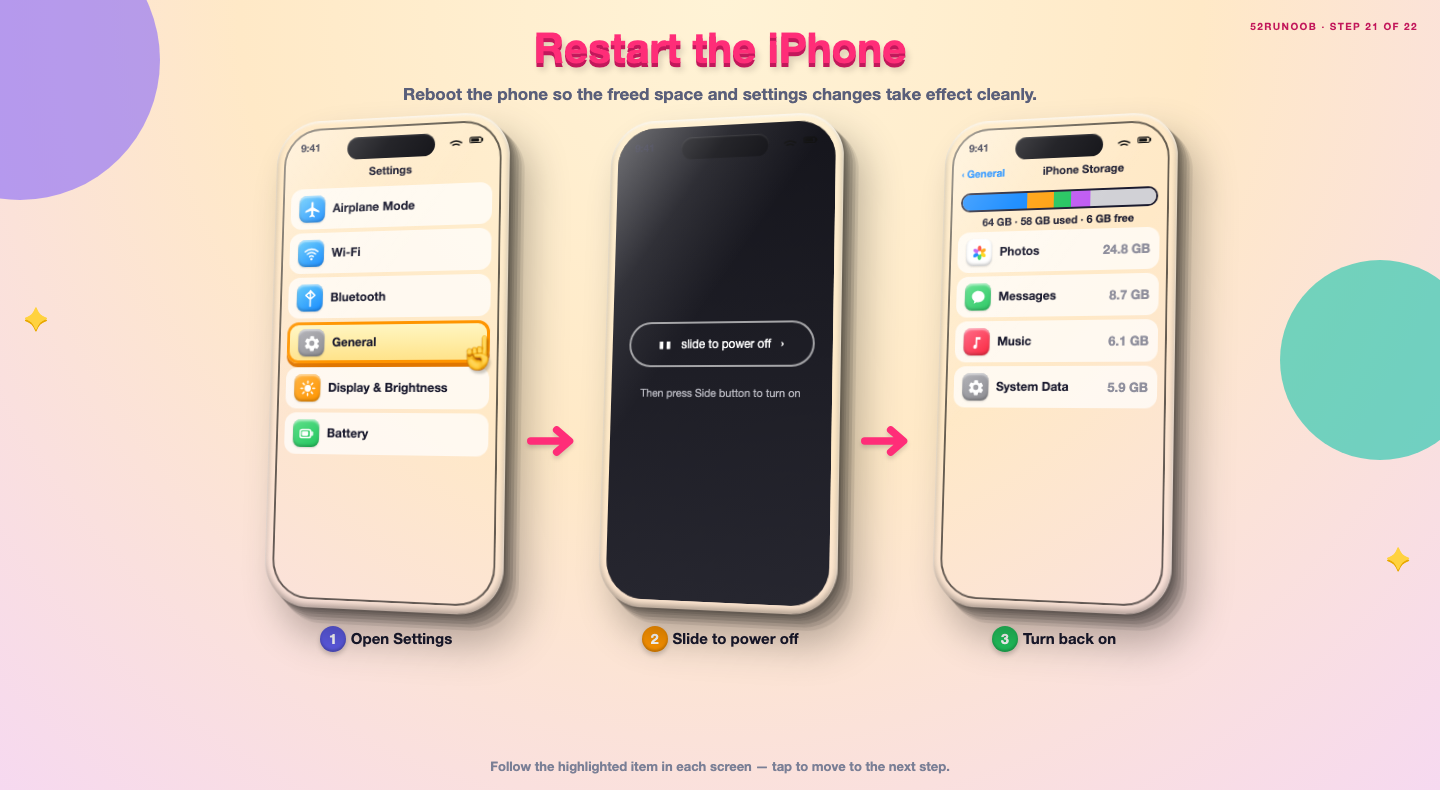
Step 21: Restart the iPhone
Reboot the phone so the freed space and settings changes take effect cleanly.
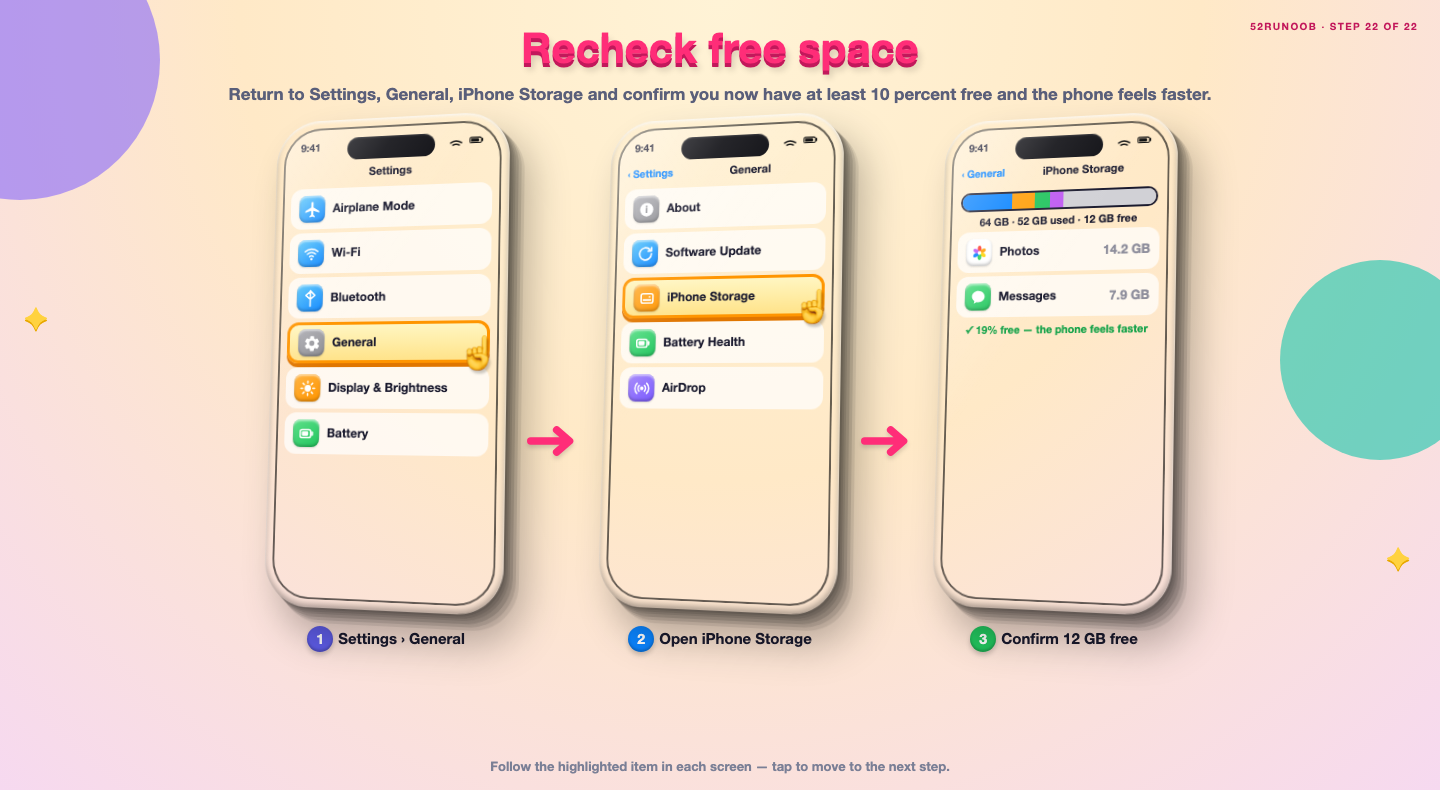
Step 22: Recheck free space
Return to Settings, General, iPhone Storage and confirm you now have at least 10 percent free and the phone feels faster.
Tips
- Offloading removes the app but keeps its documents and data, so you can reinstall it later.
- Optimizing Photos keeps full-resolution originals in iCloud and small versions on the device.
- iOS slows noticeably when less than about 10 percent of storage is free.
Warnings
- Back up photos before deleting them, because deletion from the device can sync to iCloud.
- Emptying Recently Deleted is permanent, so check it first.
- Do not delete iOS system files or attempt to jailbreak to gain space.
Frequently asked questions
Is 'System Data' filling my iPhone a virus?
No. System Data is normal temporary and system files that iOS manages automatically. It can grow with caches and logs but is not malware. Restarting the phone and freeing overall storage usually reduces it.
Why does a full 64GB iPhone feel so slow?
iOS needs free space to write caches, apply updates and manage app data. When little room remains, these operations slow down and apps take longer to open. Freeing even several gigabytes often restores speed.
Does offloading an app delete my data?
No. Offloading removes the app itself but keeps its documents and data on the iPhone. When you reinstall the app, your information returns, so it is a safe way to reclaim space.
How much free space should I keep?
Aim to keep at least 10 to 15 percent of total capacity free. On a 64GB iPhone that means roughly 6 to 10GB, which gives iOS enough room to run updates and caches smoothly.
References
- Apple Support — About storage on your iPhone. https://support.apple.com/en-us/102433
- Apple Support — Free up space on iPhone. https://support.apple.com/en-us/102650
- Apple Support — Check battery health. https://support.apple.com/en-us/108782
- wikiHow — How to Fix iPhone Slow With 64GB Storage Nearly Full. https://www.wikihow.com/Free-Up-Space-on-an-iPhone
Every guide is reviewed against its sources. See our editorial policy.
Reader comments
1 so farhttps://forum.usinsk.in/blog/pages/?1xbet___promokod_bonus.html