Fast startup is a hybrid boot that saves the Windows kernel to a hibernation file so the next start is quicker. When that saved state is stale after a driver or update change, it can cause slow boots, frozen logins, or driver errors. Toggling fast startup off, forcing a full shutdown, and updating storage and chipset drivers usually resolves it.
This guide walks through the process in clear illustrated steps, from the first preparation to a finished result. Each step has its own picture, so you can compare your progress as you go.
How to use this guide
Work through the steps in order. Method 1 of 3 covers the basics, and the later methods offer alternatives and finishing touches. If you only have a minute, skim the Quick steps box above and come back for the details.
Related guides
- How to Start strength training at home
- How to Share housework fairly
- How to Tie a tie
- How to Take a screenshot on windows and mac
- Browse all Windows Troubleshooting guides
- All 52runoob guides
Trusted external resources
- Microsoft Support — Shut down, sleep, or hibernate your PC
- Microsoft Learn — System power states and fast startup
- Microsoft Support — Troubleshoot problems updating Windows
A note on sources
We check each guide against the official resources listed in References at the end of this article. External links open in a new tab; the related guides above stay on this site.
Quick steps
- Open Control Panel, Power Options, and choose what the power buttons do.
- Click change settings that are currently unavailable to unlock shutdown options.
- Turn off fast startup, save changes, and restart.
- Test boot time and re-enable it only if it genuinely helps.
- Run shutdown /s /full for a true full shutdown when needed.
- Update chipset, storage, and graphics drivers and retry.
Things you'll need
- A Windows 11 PC with administrator access
- Control Panel and Power Options built into Windows
- An administrator Command Prompt
- A timer to compare boot times before and after
Step-by-step
Method 1 of 3: Find and Toggle Fast Startup
Step 1: Open Control Panel
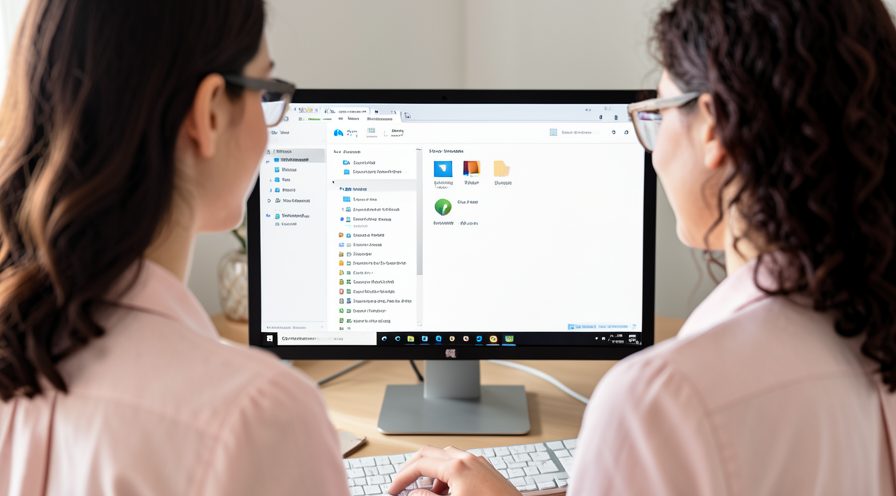
Type control panel in the Start menu search and open the classic Control Panel.
Step 2: Open Power Options
Select System and Security, then open Power Options.

Step 3: Choose power button settings
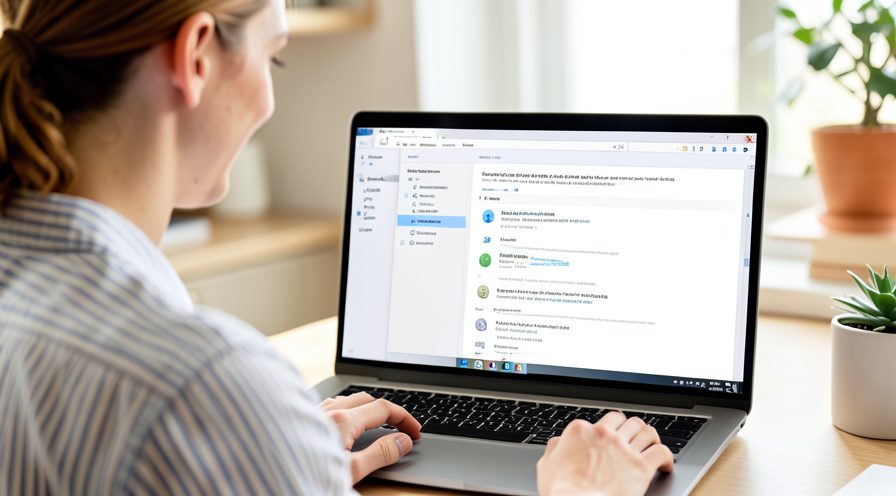
Click the link for choosing what the power buttons do in the left pane.
Step 4: Unlock the settings
Click the link to change settings that are currently unavailable.
Step 5: Turn fast startup off
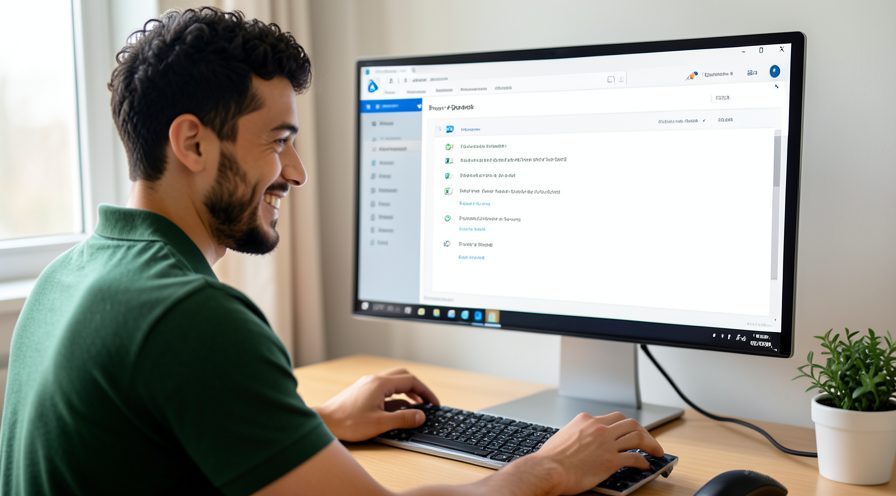
Uncheck the fast startup option under Shutdown settings and save changes.

Step 6: Restart and compare
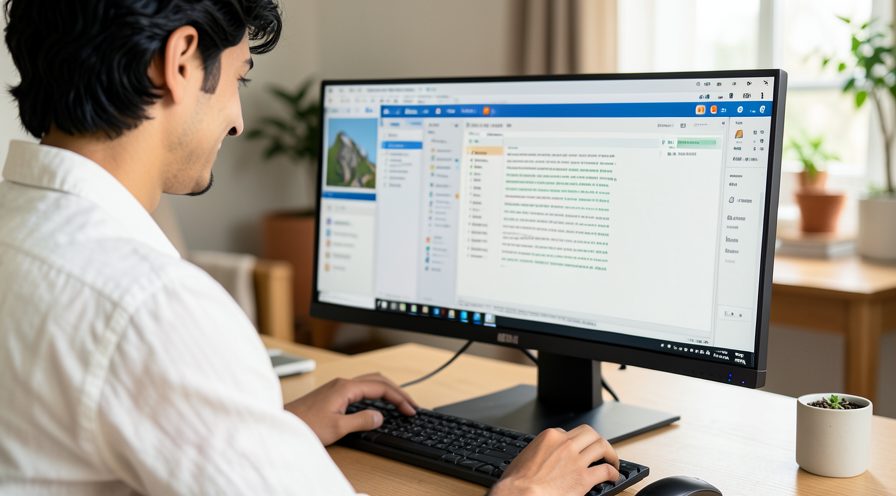
Restart the PC and time how long the desktop takes to appear.
Step 7: Test a cold boot
Shut down fully, then power on again to see whether the desktop appears faster with the change.
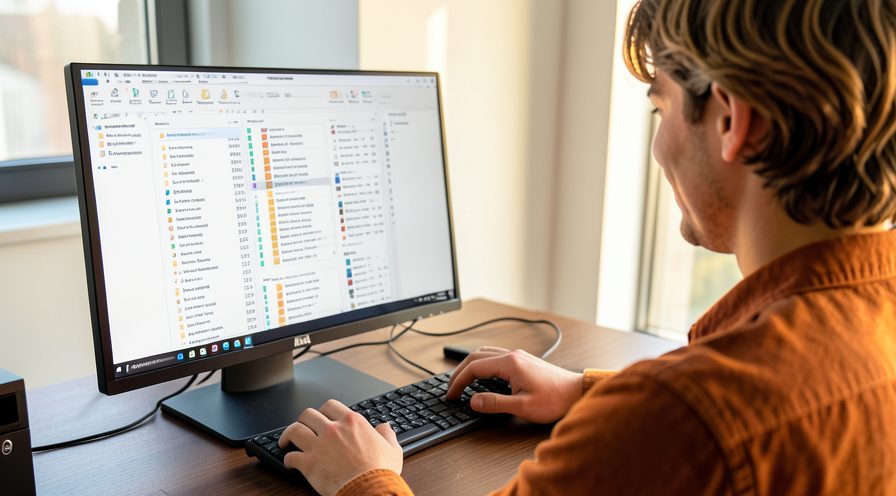
Step 8: Verify the setting stuck
Reopen the power settings and confirm the fast startup switch stayed off after the restart.

Method 2 of 3: Force Full Shutdowns and Clean State
Step 9: Open an administrator terminal
Right-click Start and open Windows Terminal or Command Prompt as administrator.
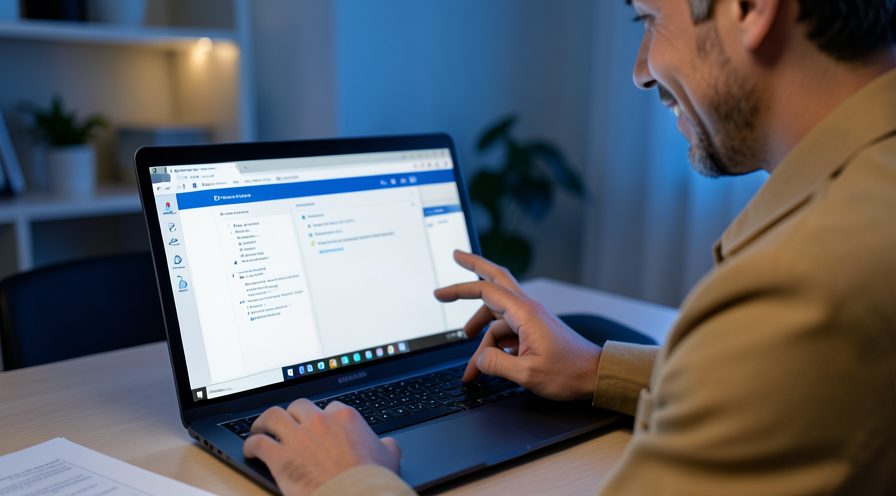
Step 10: Run a full shutdown command
Type shutdown /s /full and press Enter to bypass the hybrid boot once.
Step 11: Use Shift plus Shut down
Hold Shift while choosing Shut down in the Start menu for a one-time full shutdown.
Step 12: Restart after updates
Restart normally after any Windows update to rebuild a clean startup image.
Step 13: Disable quick boot in firmware
If available, turn off fast boot in the firmware settings for a cleaner hardware start.
Step 14: Re-enable fast startup if helpful
Turn fast startup back on only if your measured boot time improves.

Method 3 of 3: Update Drivers and Verify
Step 15: Check Windows Update
Open Windows Update and install any optional driver updates offered for your PC.
Step 16: Update storage drivers
Visit your PC or drive maker's site for current chipset and storage controller drivers.

Step 17: Update graphics drivers
Install the latest graphics driver, since display drivers often affect fast boot.

Step 18: Run the power troubleshooter
In Settings, System, Troubleshoot, run the Power troubleshooter if Windows offers it.
Step 19: Check disk errors
Run chkdsk c: /f to rule out disk faults that slow startup.
Step 20: Confirm a stable boot
Restart twice and confirm the PC reaches the desktop quickly and reliably.
Step 21: Review recent system errors
Check the reliability report for boot failures that may still point to a stale driver.
Tips
- Fast startup helps most on hard drive systems; on a fast SSD the difference is small.
- A full shutdown clears the hibernation image and often fixes a stale fast-start boot.
- After any driver update, restart normally once so Windows can rebuild a clean boot image.
Warnings
- Turning off fast startup may add a few seconds to each boot on slower drives.
- Do not confuse fast startup with Sleep or Hibernate, which behave differently.
- Back up important files before changing power or driver settings on an unstable PC.
Frequently asked questions
What is fast startup in Windows 11?
Fast startup is a hybrid shutdown that logs you off and saves the Windows kernel session to a hibernation file instead of fully closing it. On the next power on, Windows restores that saved image rather than initializing everything from scratch. This shortens boot time but keeps drivers and services in a preserved state.
Can fast startup cause slow boot or driver problems?
Yes. If the saved kernel image was created before a driver or update change, restoring it can load an outdated driver state and slow or stall the boot. Turning fast startup off forces a clean startup that rebuilds the kernel and drivers. This often resolves login freezes and device errors.
How do I do a full shutdown instead of fast startup?
Open an administrator Command Prompt and run shutdown /s /full to perform a true full shutdown. You can also hold Shift while clicking Shut down in the Start menu to bypass fast startup once. A restart from the power menu also performs a full shutdown and boot cycle.
Where is the fast startup setting?
Open Control Panel, go to System and Security, then Power Options, and choose what the power buttons do. Click Change settings that are currently unavailable, then find the fast startup option under Shutdown settings. Check or uncheck it and save your changes.
References
- Microsoft Support — Shut down, sleep, or hibernate your PC. https://support.microsoft.com/en-us/windows/shut-down-sleep-or-hibernate-your-pc-2941d165-7d0a-a5e8-c5ad-8c972e8e6eff
- Microsoft Learn — System power states and fast startup. https://support.microsoft.com/en-us/help/841858
- Microsoft Support — Troubleshoot problems updating Windows. https://support.microsoft.com/en-us/windows/deployment/updates-lifecycle/troubleshoot-problems-updating-windows
- wikiHow — How to Fix Slow Boot Caused by Fast Startup on Windows 11. https://www.wikihow.com/Speed-Up-Your-PC
Every guide is reviewed against its sources. See our editorial policy.
Reader comments
0 so farFinished this guide? Tell other readers what worked, what didn't, and what you would change.