explorer.exe draws the Windows desktop, taskbar and File Explorer, so high CPU often reflects an overloaded shell: too many open windows, thumbnail generation, preview panes, shell extensions, or a slow network drive. Restart Explorer, disable costly shell features and extensions, clear cached thumbnails, then repair system files if the problem persists.
This guide walks through the process in clear illustrated steps, from the first preparation to a finished result. Each step has its own picture, so you can compare your progress as you go.
How to use this guide
Work through the steps in order. Method 1 of 2 covers the basics, and the later methods offer alternatives and finishing touches. If you only have a minute, skim the Quick steps box above and come back for the details.
Related guides
- How to Fix tiworker exe high cpu usage after a windows update
- How to Fix sysmain superfetch using 100 disk on windows 11
- How to Write a college essay
- How to Ask for help at work
- Browse all Fix Slow Device guides
- All 52runoob guides
Trusted external resources
- Microsoft Support — Use System File Checker to repair files
- Microsoft Support — Configure startup applications
- Microsoft Support — Free up drive space in Windows
A note on sources
We check each guide against the official resources listed in References at the end of this article. External links open in a new tab; the related guides above stay on this site.
Quick steps
- Confirm explorer.exe is the process using CPU in Task Manager.
- Restart Windows Explorer from the Processes tab.
- Close unused File Explorer windows.
- Turn off the preview pane and thumbnail previews.
- Clear the thumbnail cache with Disk Cleanup.
- Run SFC and DISM to repair corrupted shell files.
Things you'll need
- A Windows 11 PC with administrator access
- Task Manager, File Explorer and Disk Cleanup
- A few spare minutes to test each change
- An external drive if you need to back up files
Step-by-step
Method 1 of 2: Restart Explorer and Cut the Shell Load
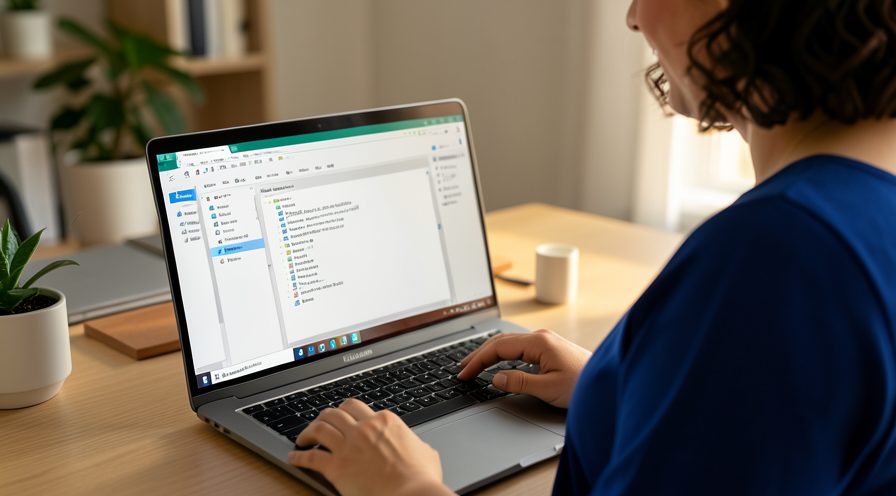
Step 1: Confirm explorer.exe in Task Manager
Press Ctrl+Shift+Esc, open Processes, and check whether Windows Explorer is the process consuming CPU.
Step 2: Restart Windows Explorer
Right-click Windows Explorer in the list and choose Restart to reload the desktop and taskbar.
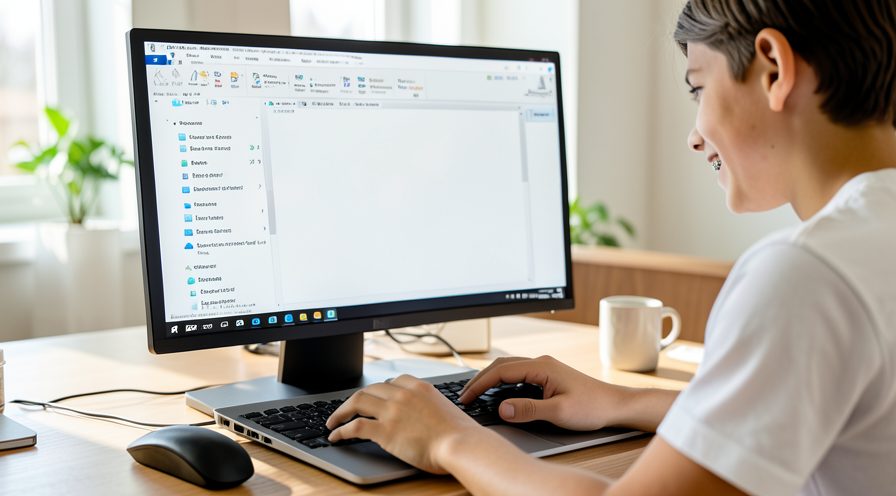
Step 3: Close unused Explorer windows
Close File Explorer windows you are not using so fewer shell instances compete for CPU.

Step 4: Turn off the preview pane
In File Explorer, open View, Show, and select Preview pane to toggle it off.

Step 5: Disable thumbnail previews
Open Folder Options, the View tab, and check Always show icons, never thumbnails.
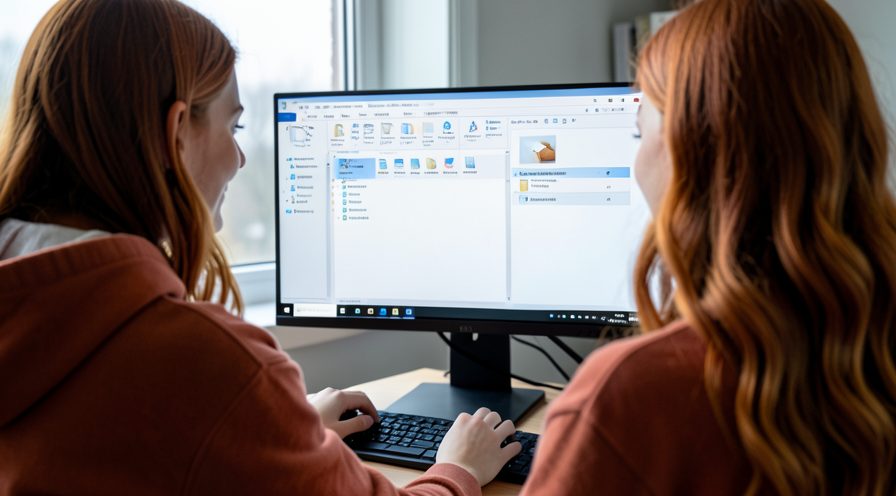
Step 6: Clear the thumbnail cache
Search for Disk Cleanup, run it for the system drive, and select Thumbnails to remove cached previews.

Step 7: Disconnect slow network drives
Temporarily disconnect mapped network drives to see whether Explorer CPU drops when they are gone.
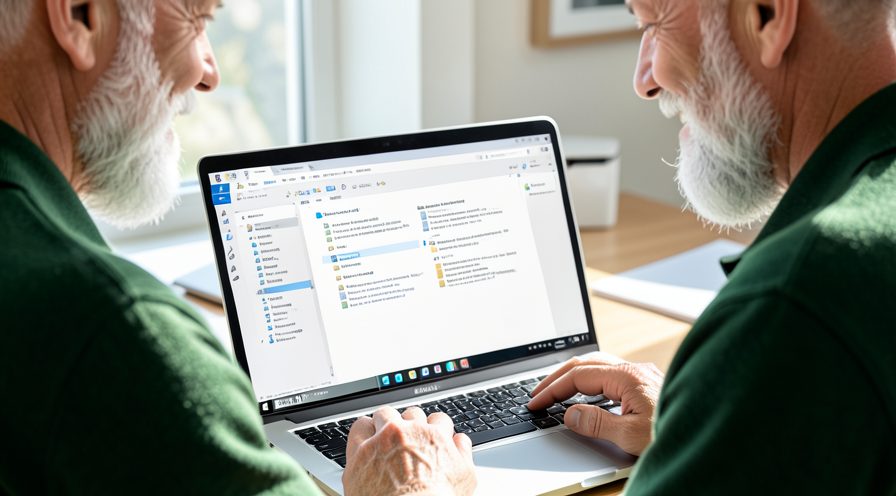
Step 8: Disable unnecessary shell extensions
Use an extension manager to turn off context menu add-ons from apps you rarely use.

Step 9: Reset folder view settings
In Folder Options, View tab, click Reset Folders to restore default views that may be corrupted.

Method 2 of 2: Repair System Files and Check the Drive
Step 10: Open an elevated terminal
Right-click the Start button, choose Terminal Admin, and approve the administrator prompt.

Step 11: Run the System File Checker
Type the system file checker scan command and press Enter, then wait for it to finish.
Step 12: Run DISM restore health
Enter the DISM restore health command to repair the Windows component store behind Explorer.

Step 13: Check the system drive for errors
Run a disk check on the system drive to find file system errors that slow Explorer.

Step 14: Free up drive space
Remove temporary files so the drive has enough free space for Explorer to work efficiently.
Step 15: Update storage and chipset drivers
In Device Manager, update disk controller and chipset drivers that affect file access.
Step 16: Restart and verify CPU usage
Restart Windows and confirm explorer.exe now uses a normal amount of CPU while browsing folders.

Tips
- Restarting Explorer is safe and does not close your other applications.
- A single slow network folder can make the whole Explorer shell stall.
- Thumbnail generation is a common cause on drives full of photos and videos.
Warnings
- Ending explorer.exe briefly removes the taskbar and desktop before it restarts.
- Do not delete files manually from the Windows folder to fix Explorer.
- Back up important files before making registry changes.
Frequently asked questions
Is it safe to restart explorer.exe?
Yes. Restarting explorer.exe only reloads the desktop, taskbar and File Explorer windows; your running programs stay open. Use Task Manager, find Windows Explorer, and click Restart to do it cleanly.
Why is File Explorer slow only on one folder?
That folder likely contains thousands of files, many media thumbnails, or lives on a slow network drive. Turning off thumbnails and preview panes, or moving the files locally, usually makes that folder responsive again.
Do context menu extensions slow Explorer?
Yes. Shell extensions from apps such as archive tools and cloud drives load in Explorer and can greatly increase CPU. Disabling extensions you do not use often speeds up right-click menus and folder browsing.
Can corrupted system files cause explorer.exe high CPU?
They can. Damaged shell or system files make Explorer retry failing operations repeatedly. Running the System File Checker and DISM restore health commands repairs those files and often resolves the CPU spike.
References
- Microsoft Support — Use System File Checker to repair files. https://support.microsoft.com/en-us/topic/use-the-system-file-checker-tool-to-repair-missing-or-corrupted-system-files-79aa86cb-ca52-166a-92a3-966e85d4094e
- Microsoft Support — Configure startup applications. https://support.microsoft.com/en-us/help/4558286
- Microsoft Support — Free up drive space in Windows. https://support.microsoft.com/windows/free-up-drive-space-in-windows-85529ccb-c365-490d-b548-831022bc9b32
- wikiHow — How to Fix explorer.exe High CPU When File Explorer Is Slow on Windows 11. https://www.wikihow.com/Speed-Up-Your-Computer
Every guide is reviewed against its sources. See our editorial policy.

Reader comments
0 so farFinished this guide? Tell other readers what worked, what didn't, and what you would change.