A two-minute boot to the desktop is usually caused by too many startup apps, a slow mechanical hard drive, pending Windows updates, or a fast startup profile that no longer matches your drivers. Work through the simple causes first by trimming startup programs and letting updates finish, then check disk health and power settings. If the drive is an aging HDD, moving Windows to an SSD is the single biggest improvement.
This guide walks through the process in clear illustrated steps, from the first preparation to a finished result. Each step has its own picture, so you can compare your progress as you go.
How to use this guide
Work through the steps in order. Method 1 of 3 covers the basics, and the later methods offer alternatives and finishing touches. If you only have a minute, skim the Quick steps box above and come back for the details.
Related guides
- How to Build a capsule wardrobe
- How to Save money on groceries
- How to Start strength training at home
- How to Support a friend who is struggling
- Browse all Windows Troubleshooting guides
- All 52runoob guides
Trusted external resources
- Microsoft Support — Configure startup applications in Windows
- Microsoft Support — Shut down, sleep, or hibernate your PC
- Microsoft — chkdsk command reference
A note on sources
We check each guide against the official resources listed in References at the end of this article. External links open in a new tab; the related guides above stay on this site.
Quick steps
- Time the boot and note whether the delay is before or after the login screen.
- Disable high-impact startup apps in Task Manager.
- Check Windows Update and let any pending updates install and restart.
- Turn fast startup on or off to see which gives a quicker boot.
- Run a disk health check and free up drive space.
- Move Windows to an SSD or perform a clean boot if delays persist.
Things you'll need
- A Windows 11 PC you can restart several times
- Administrator access in Windows
- Task Manager, Windows Update, and built-in disk tools
- A stopwatch or phone timer to measure boot time
Step-by-step
Method 1 of 3: Cut Down What Loads at Sign-In
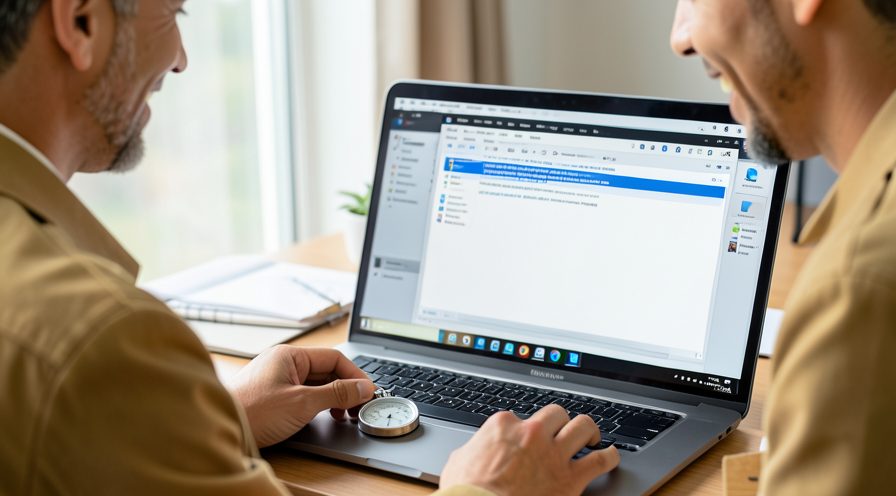
Step 1: Measure the current boot time
Start a timer when you press power and stop when the desktop is ready.
Step 2: Open Task Manager
Press Ctrl+Shift+Esc and switch to the Apps or Startup apps tab.
Step 3: Sort by startup impact
Click the Startup impact column to put high-impact apps at the top.
Step 4: Disable unnecessary apps
Right-click apps you rarely need and choose Disable to keep them from launching.
Step 5: Check Settings startup list
Open Settings, Apps, Startup and turn off any remaining apps you do not need at login.
Step 6: Restart and time again
Reboot and compare the new time with your original measurement.
Method 2 of 3: Clear Updates and Check the Disk
Step 7: Check for pending updates
Open Windows Update and install any available updates, then restart when prompted.
Step 8: Free up drive space
In Settings, System, Storage, remove temporary files so the drive is not nearly full.
Step 9: Check drive health
Open File Explorer, right-click the system drive, and run the built-in error check.
Step 10: Run a disk scan
Run chkdsk c: /f and agree to schedule it for the next restart.
Step 11: Review reliability
Open Reliability Monitor to spot disk or driver errors around the time of slow boots.
Step 12: Restart to complete checks
Reboot so the scheduled disk check runs and then time the next startup.

Step 13: Defragment a mechanical drive
If the system drive is a hard disk, open Optimize Drives and defragment it so boot files load faster.
Step 14: Check the drive health status
Use the built-in drive health tool to check for warnings that indicate a failing disk.

Method 3 of 3: Tune Power and Boot Configuration
Step 15: Open power options
Search for Control Panel, open Power Options, and choose what the power buttons do.
Step 16: Toggle fast startup
Under shutdown settings, turn fast startup off, save, and reboot to compare.
Step 17: Perform a clean boot
Open System Configuration, hide Microsoft services, and disable the rest, then restart.
Step 18: Isolate a conflicting item
Re-enable services in small groups until the slow boot returns.

Step 19: Update device drivers
Use Windows Update or your PC maker's tool to install current chipset and storage drivers.
Tips
- Measure before and after each change so you know which fix actually helped.
- An SSD usually cuts boot time far more than any software tweak on a mechanical drive.
- A clean boot with only Microsoft services running is a good way to isolate a conflicting app.
Warnings
- Do not disable essential security or driver startup items just to save a few seconds.
- Let a pending update finish before troubleshooting; interrupting it can prolong the delay.
- Back up your files before moving Windows to a new drive or changing disk settings.
Frequently asked questions
Why does Windows 11 take two minutes to reach the desktop?
The usual reasons are too many apps launching at sign-in, a slow hard drive, updates waiting for a restart, or fast startup restoring a stale driver state. The delay can happen before the login screen during hardware initialization or after login while startup apps load. Measuring where the time goes tells you which fix to try first.
Does an SSD really make Windows 11 boot faster?
Yes, this is usually the biggest single improvement. An SSD has no moving parts, so Windows can read boot files far faster than from a mechanical hard drive. If your PC still uses a hard drive, cloning Windows to an SSD often cuts boot time from minutes to seconds.
Should I turn fast startup on or off for a faster boot?
Fast startup is designed to shorten boot by saving the kernel state to a hibernation file, so keeping it on often helps. However, a stale hibernation image after driver updates can cause slow or failed boots, in which case turning it off forces a clean boot. Test both settings and keep the one that gives a reliable, repeatable start.
What is a clean boot and how does it help?
A clean boot starts Windows with only essential Microsoft services and no third-party startup apps. You use the System Configuration tool to hide non-Microsoft services and disable startup items, then restart. If the PC boots quickly, one of the disabled items is the cause and you can re-enable them one group at a time.
References
- Microsoft Support — Configure startup applications in Windows. https://support.microsoft.com/en-us/help/4558286
- Microsoft Support — Shut down, sleep, or hibernate your PC. https://support.microsoft.com/en-us/windows/shut-down-sleep-or-hibernate-your-pc-2941d165-7d0a-a5e8-c5ad-8c972e8e6eff
- Microsoft — chkdsk command reference. https://support.microsoft.com/en-us/help/2854570
- wikiHow — How to Fix Windows 11 Taking 2 Minutes to Boot to Desktop. https://www.wikihow.com/Speed-Up-Your-Computer
Every guide is reviewed against its sources. See our editorial policy.

Reader comments
0 so farFinished this guide? Tell other readers what worked, what didn't, and what you would change.