Startup apps launch as soon as you sign in, and too many of them compete for CPU and disk access, which stretches the time until the desktop is usable. Windows 11 lets you control them from Task Manager or Settings, where you can see each app's startup impact. For items that do not appear in those lists, check the Startup folders, scheduled tasks, and services.
This guide walks through the process in clear illustrated steps, from the first preparation to a finished result. Each step has its own picture, so you can compare your progress as you go.
How to use this guide
Work through the steps in order. Method 1 of 2 covers the basics, and the later methods offer alternatives and finishing touches. If you only have a minute, skim the Quick steps box above and come back for the details.
Related guides
- How to Reconnect with an old friend
- How to Build a morning routine
- How to Start a walking habit
- How to Hang a picture straight
- Browse all Windows Troubleshooting guides
- All 52runoob guides
Trusted external resources
- Microsoft Support — Configure startup applications in Windows
- Microsoft Learn — Windows System Services Fundamentals
- Microsoft Support — Windows startup settings and msconfig
A note on sources
We check each guide against the official resources listed in References at the end of this article. External links open in a new tab; the related guides above stay on this site.
Quick steps
- Open Task Manager and go to the Startup apps tab.
- Sort by Startup impact and disable high-impact apps you do not need.
- Turn off the same apps in Settings, Apps, Startup.
- Check the Startup folders for leftover shortcuts.
- Review Task Scheduler and services for hidden autoruns.
- Restart and confirm the desktop appears sooner.
Things you'll need
- A Windows 11 PC with administrator access
- Task Manager and the Settings app
- Task Scheduler and Services consoles built into Windows
- A few minutes to restart and test login
Step-by-step
Step 1: Open Task Manager
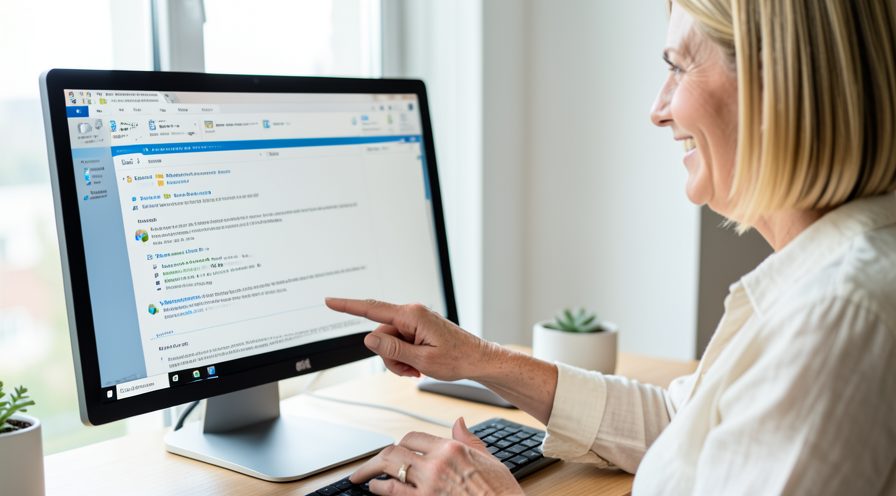
Right-click the Start button and choose Task Manager from the menu.
Step 2: Open the Startup apps tab
Select the Startup apps tab if Task Manager opens in a compact view.
Step 3: Sort by startup impact
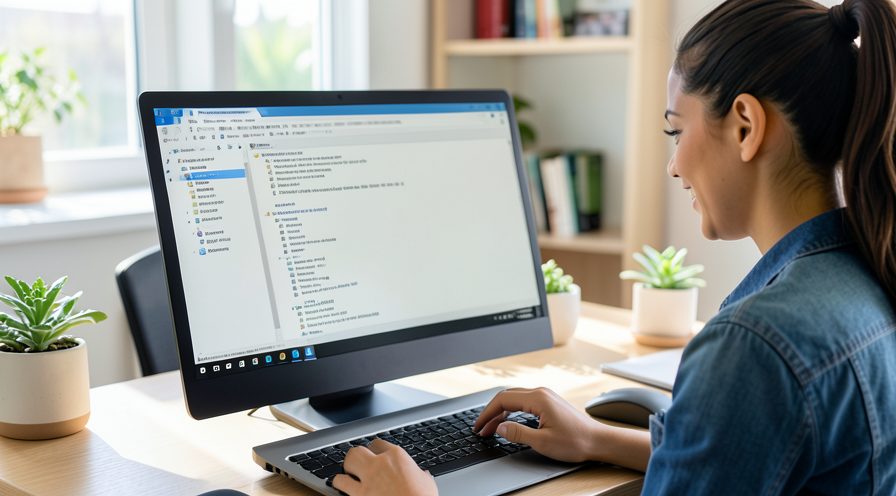
Click the Startup impact column to rank apps by how much they slow the login.
Step 4: Disable high-impact apps
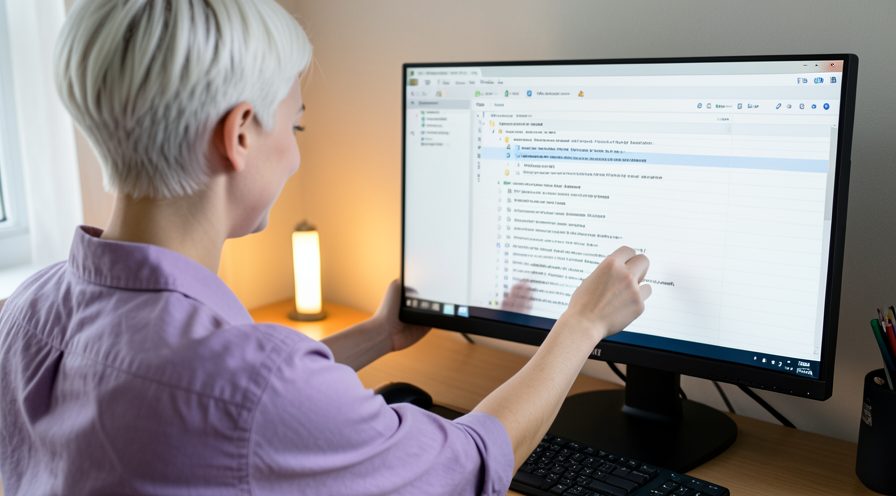
Select an app you do not need at login and click Disable.

Step 5: Repeat for lower-impact apps
Work down the list and disable other programs you rarely use right away.
Step 6: Restart to test
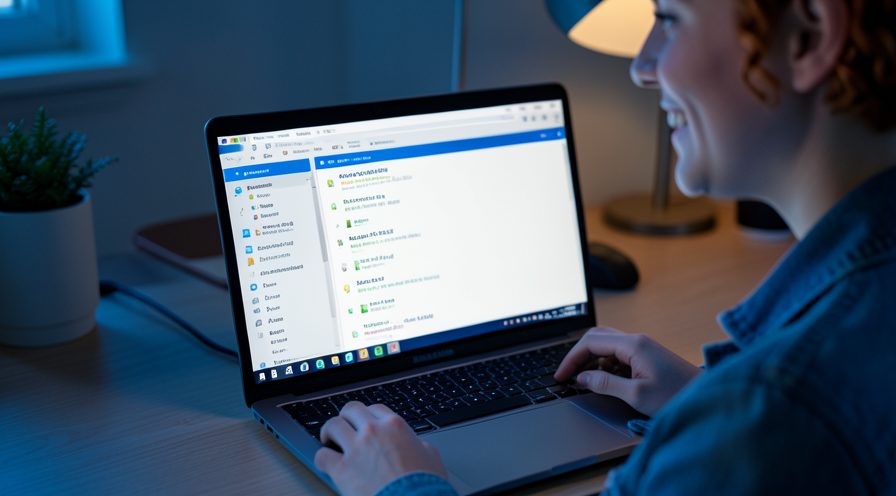
Restart the PC and note how much sooner the desktop is ready.
Step 7: Check for hidden autoruns
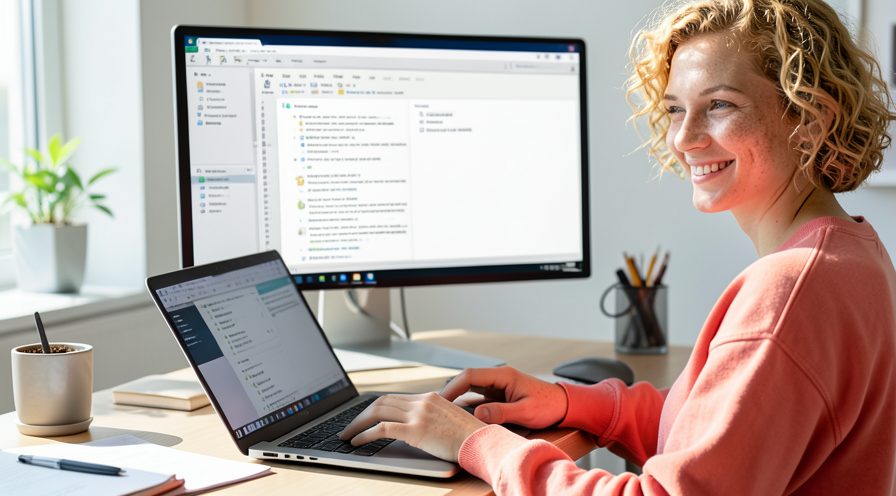
Open Task Scheduler and disable unfamiliar logon tasks, then check services for non-system entries set to Automatic.
Method 2 of 2: Use Settings and Startup Folders
Step 8: Open Startup settings
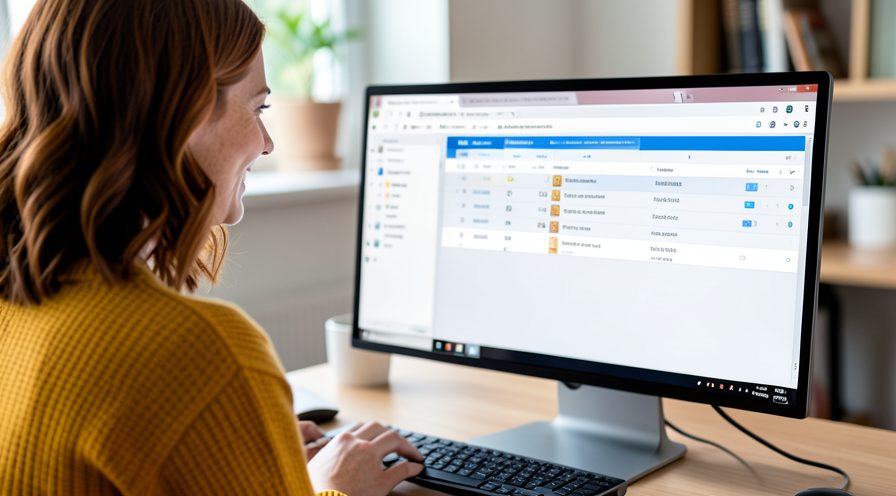
Go to Settings, Apps, Startup to see the same list in a simpler view.
Step 9: Toggle apps off
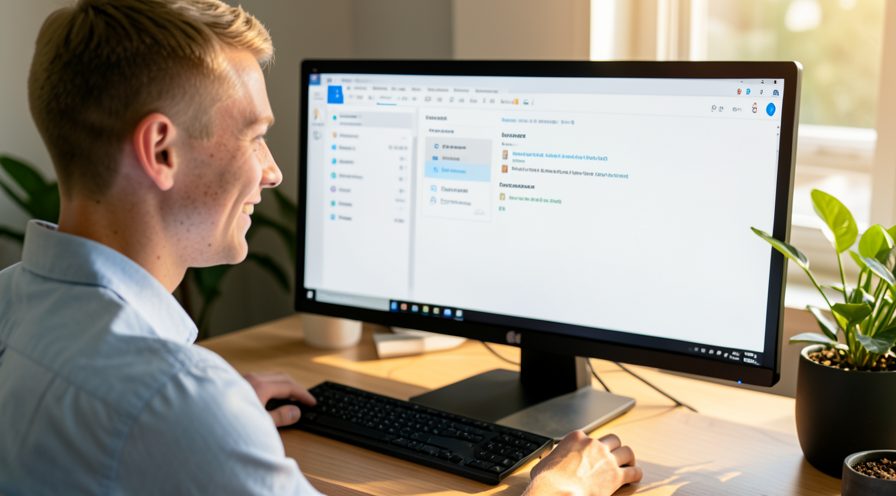
Switch off programs you do not want launching when you sign in.
Step 10: Open your Startup folder
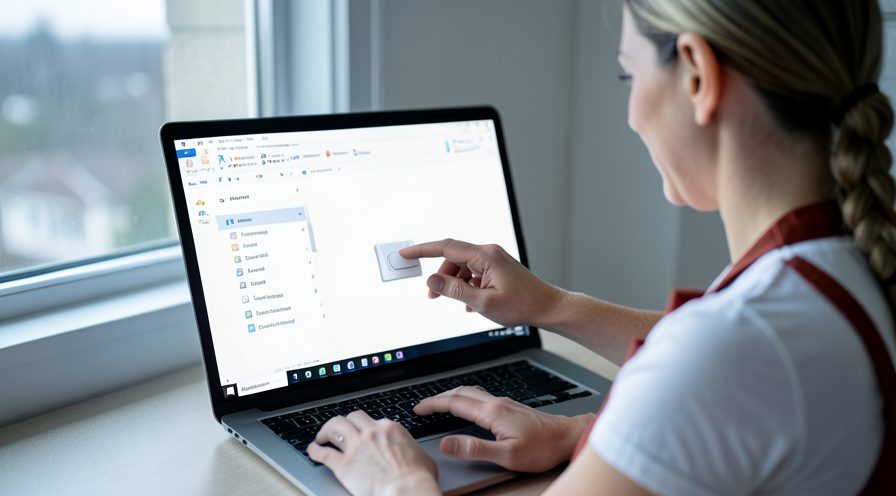
Press the Windows key and R together, type shell:startup, and press Enter.
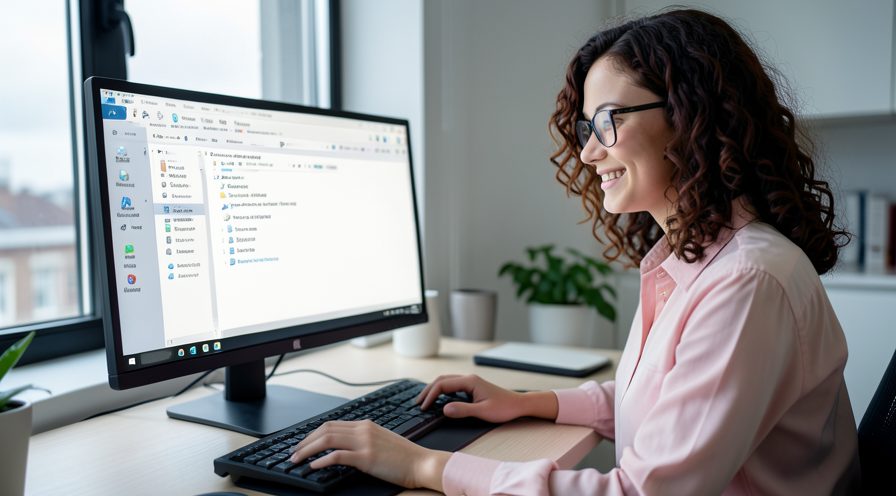
Step 11: Remove leftover shortcuts
Delete shortcuts for programs that keep starting despite being disabled.
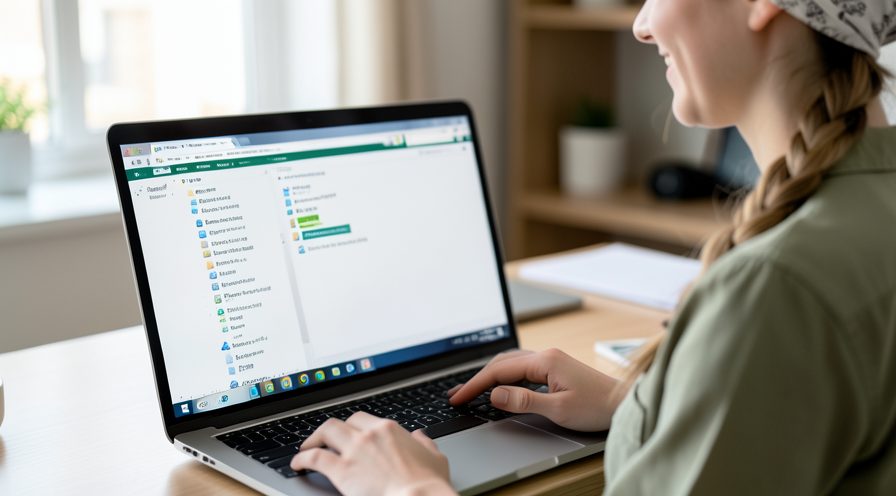
Step 12: Check the common Startup folder
Repeat with shell:common startup to clean entries that affect all users.
Step 13: Sign out and back in
Sign out and sign in again to confirm the changes took effect.
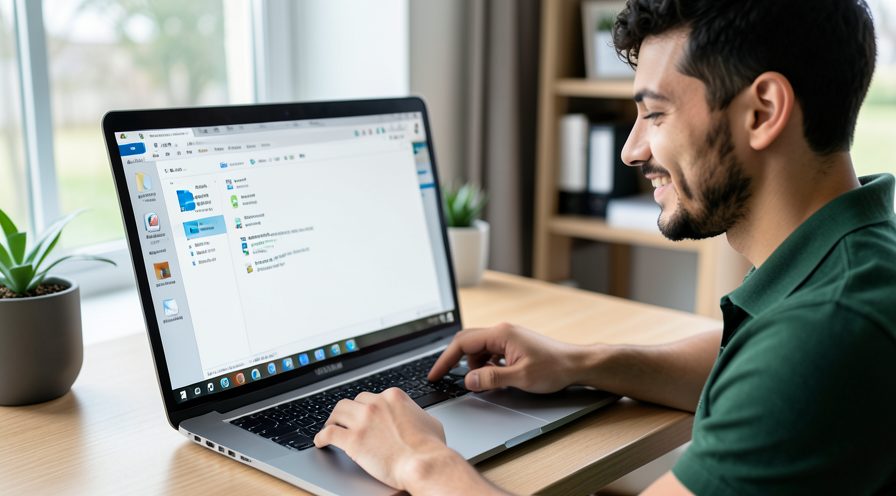
Tips
- Task Manager shows startup impact, so remove the high-impact items first for the biggest gain.
- Disabling a startup app does not uninstall it; you can still open it manually anytime.
- Re-enable one app at a time if you are unsure which one you actually need at login.
Warnings
- Do not disable security software or essential driver utilities from the startup list.
- Some apps re-add themselves to startup after an update, so recheck periodically.
- Changing services or scheduled tasks can break app features; note the original settings first.
Frequently asked questions
What are startup apps in Windows 11?
Startup apps are programs Windows launches automatically when you sign in. They include chat clients, cloud storage tools, and update helpers that want to be ready immediately. Each one uses CPU and disk while the desktop is settling, so a long list slows login.
Is disabling a startup app the same as uninstalling it?
No. Disabling only stops the app from launching automatically at sign-in. The app remains installed and works normally when you open it yourself. You can re-enable it in Task Manager or Settings at any time.
Why do some apps still start after I disabled them?
Some programs register through scheduled tasks or services rather than the standard startup list, so disabling them in Task Manager does not stop them. Others restore their startup entry during an update. Check Task Scheduler, the Services console, and the Startup folders to catch these cases.
How do I open the Startup folders?
Press the Windows key and R together, type shell:startup for your own account or shell:common startup for all users, and press Enter. A File Explorer window opens showing the shortcuts that launch at sign-in. Delete any shortcut you no longer want to start automatically.
References
- Microsoft Support — Configure startup applications in Windows. https://support.microsoft.com/en-us/help/4558286
- Microsoft Learn — Windows System Services Fundamentals. https://learn.microsoft.com/en-us/archive/technet-wiki/12229.windows-system-services-fundamentals
- Microsoft Support — Windows startup settings and msconfig. https://support.microsoft.com/en-us/help/17419/windows-7-advanced-startup
- wikiHow — How to Stop Startup Apps From Slowing Down Windows 11 Login. https://www.wikihow.com/Disable-Startup-Programs
Every guide is reviewed against its sources. See our editorial policy.
Reader comments
0 so farFinished this guide? Tell other readers what worked, what didn't, and what you would change.