The Google Play Store can spike the CPU while it verifies, downloads and installs apps, but updates that hang forever point to a stuck download, low storage or a corrupted service cache. Clear the store's temporary files, check the network and repair the Google services it depends on. Updates should then resume normally.
This guide walks through the process in clear illustrated steps, from the first preparation to a finished result. Each step has its own picture, so you can compare your progress as you go.
How to use this guide
Work through the steps in order. Method 1 of 3 covers the basics, and the later methods offer alternatives and finishing touches. If you only have a minute, skim the Quick steps box above and come back for the details.
Related guides
- How to Fix windows 11 boot delay after installing an ssd
- How to Fix android system high battery use when the phone is idle
- How to Develop a reading habit
- How to Wash your hair the right way
- Browse all Fix Slow Device guides
- All 52runoob guides
Trusted external resources
- Google Play Help - Fix downloads and updates
- Android Support - Speed up your Android device
- Android Support - Clear app cache and data
A note on sources
We check each guide against the official resources listed in References at the end of this article. External links open in a new tab; the related guides above stay on this site.
Quick steps
- Confirm the Play Store in battery usage.
- Force stop the Play Store and clear its cache and data.
- Update the Play Store and Google Play services.
- Check free storage and a stable Wi-Fi connection.
- Verify the phone date and time are automatic.
Things you'll need
- An Android phone with internet access
- A stable Wi-Fi network for larger updates
- The Google Play Store and Settings apps
- About 20 minutes for a full test
Step-by-step
Method 1 of 3: Clear the Stuck Download State
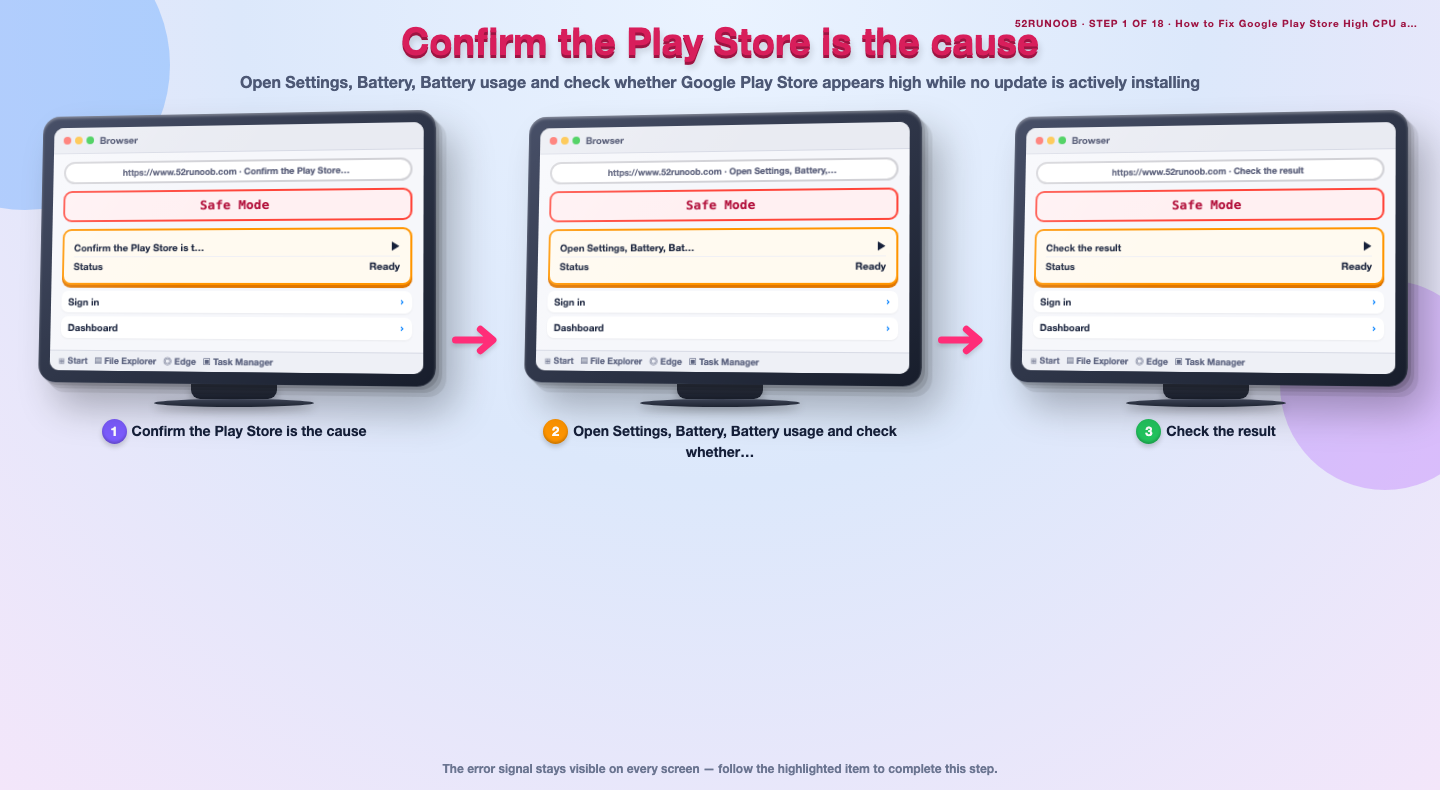
Step 1: Confirm the Play Store is the cause
Open Settings, Battery, Battery usage and check whether Google Play Store appears high while no update is actively installing.
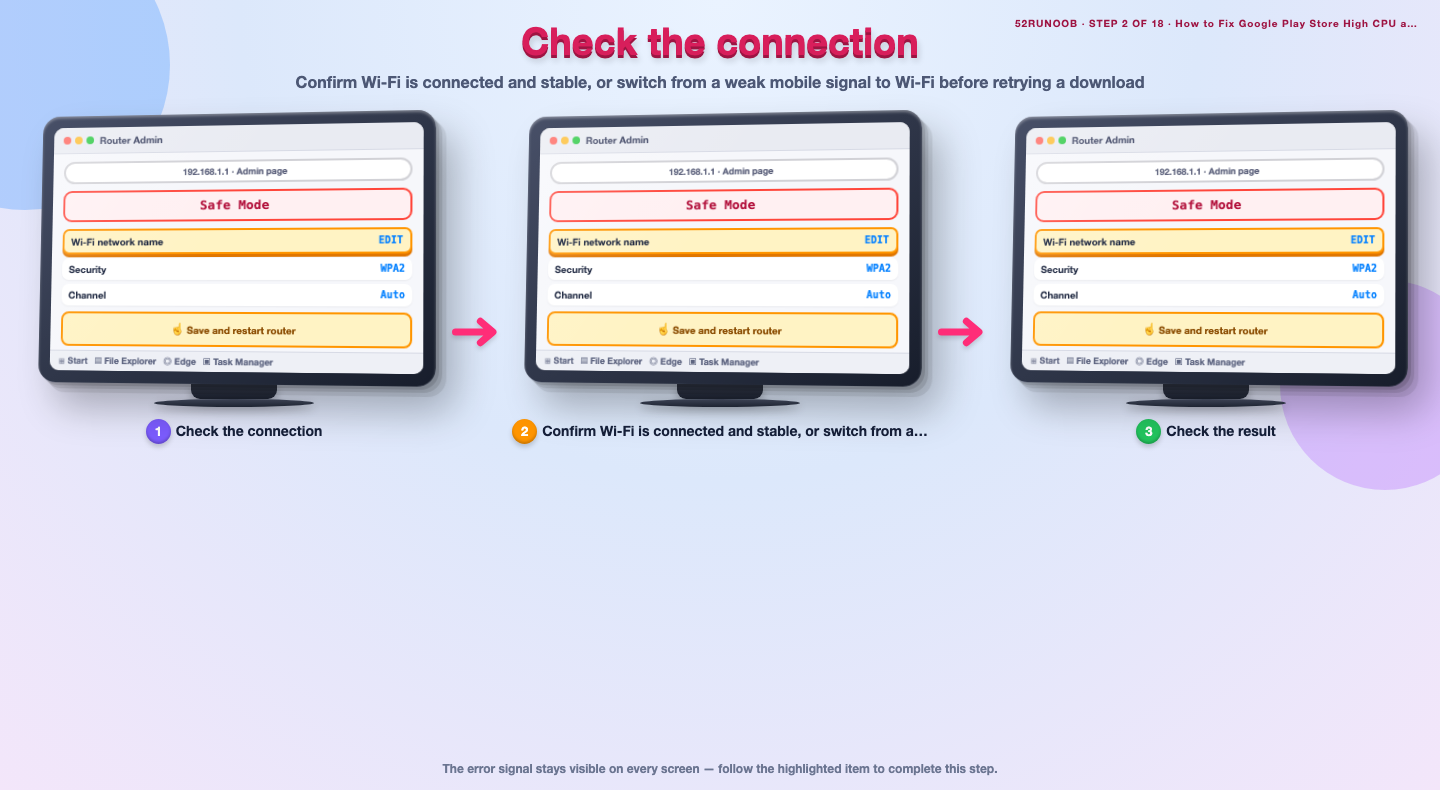
Step 2: Check the connection
Confirm Wi-Fi is connected and stable, or switch from a weak mobile signal to Wi-Fi before retrying a download.
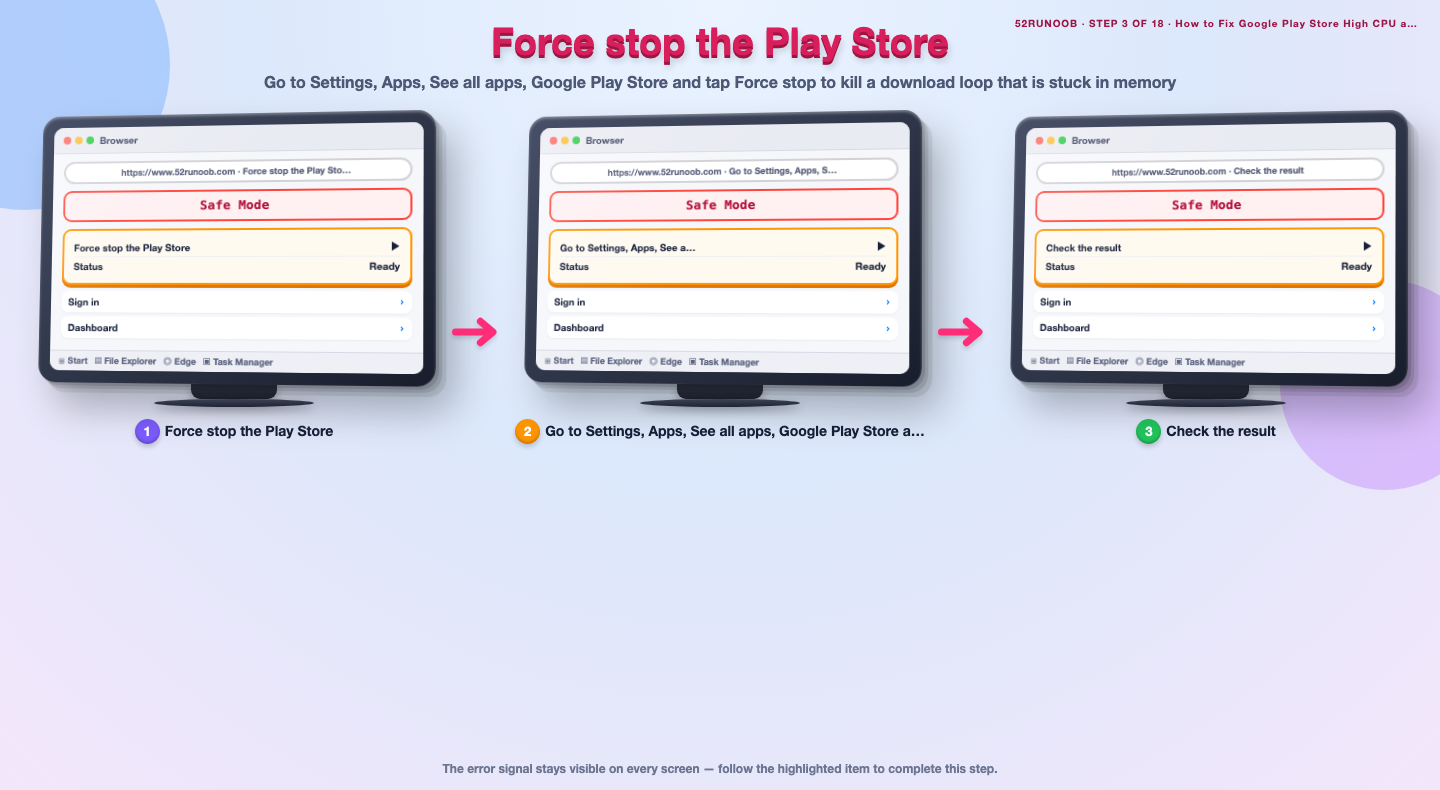
Step 3: Force stop the Play Store
Go to Settings, Apps, See all apps, Google Play Store and tap Force stop to kill a download loop that is stuck in memory.
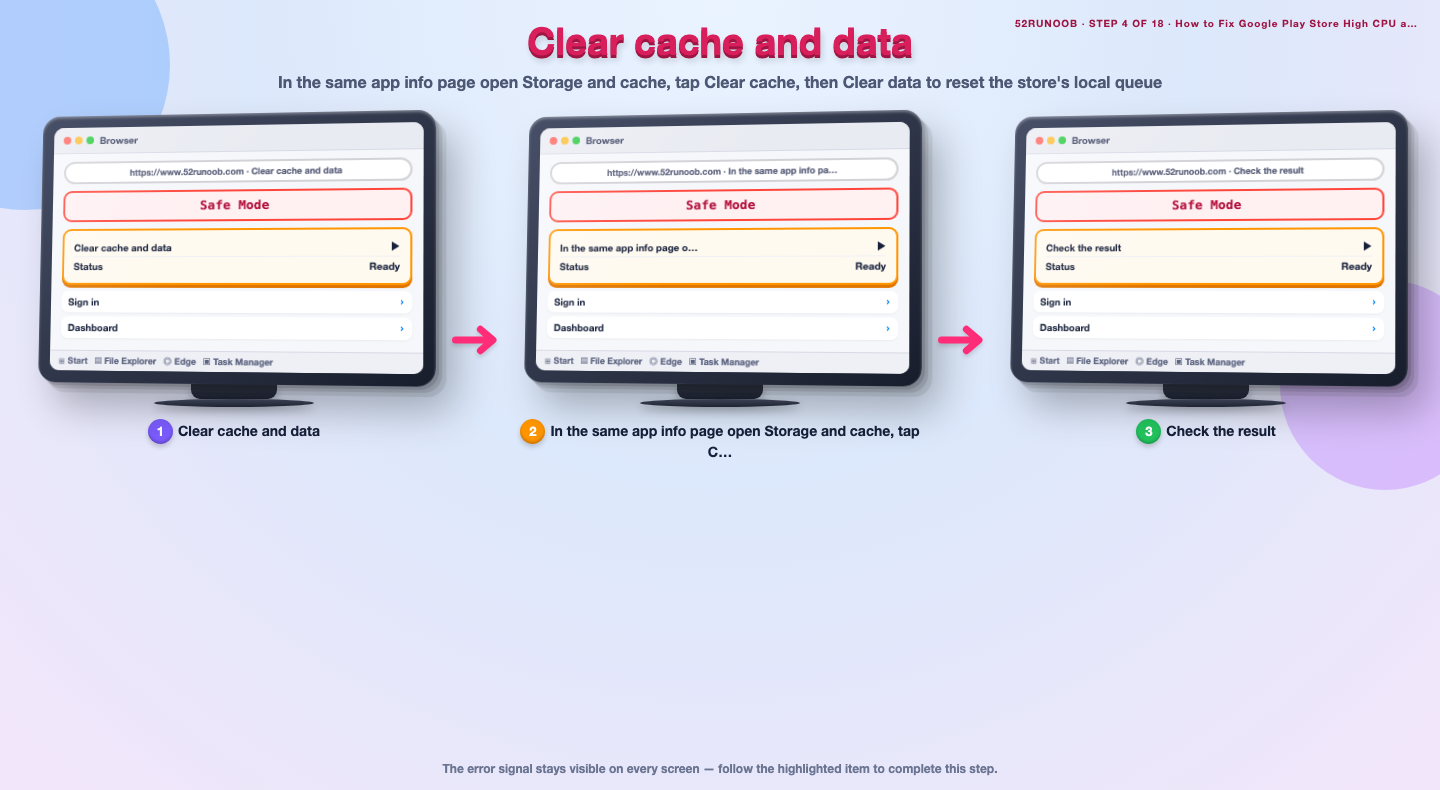
Step 4: Clear cache and data
In the same app info page open Storage and cache, tap Clear cache, then Clear data to reset the store's local queue.
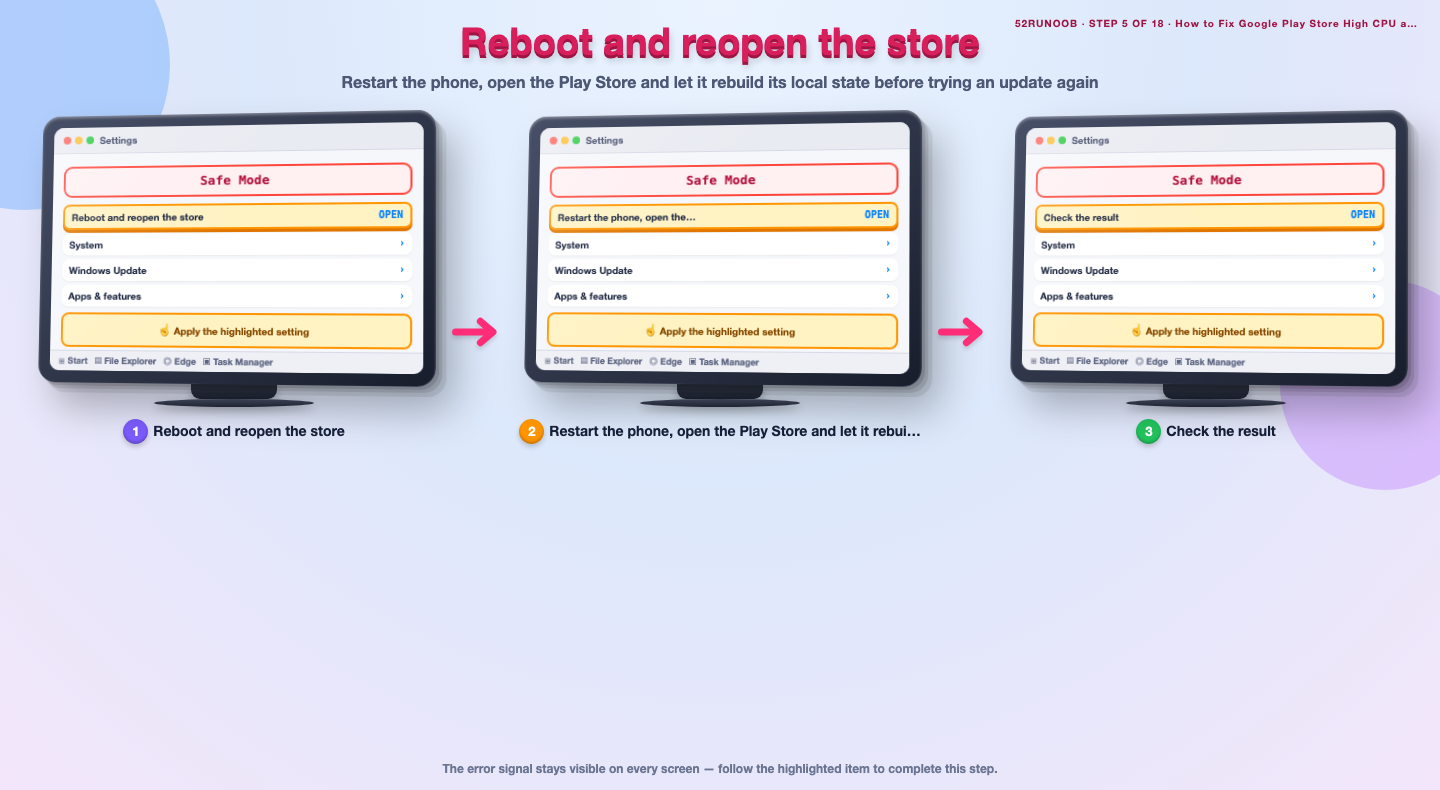
Step 5: Reboot and reopen the store
Restart the phone, open the Play Store and let it rebuild its local state before trying an update again.
Method 2 of 3: Repair the Update Process
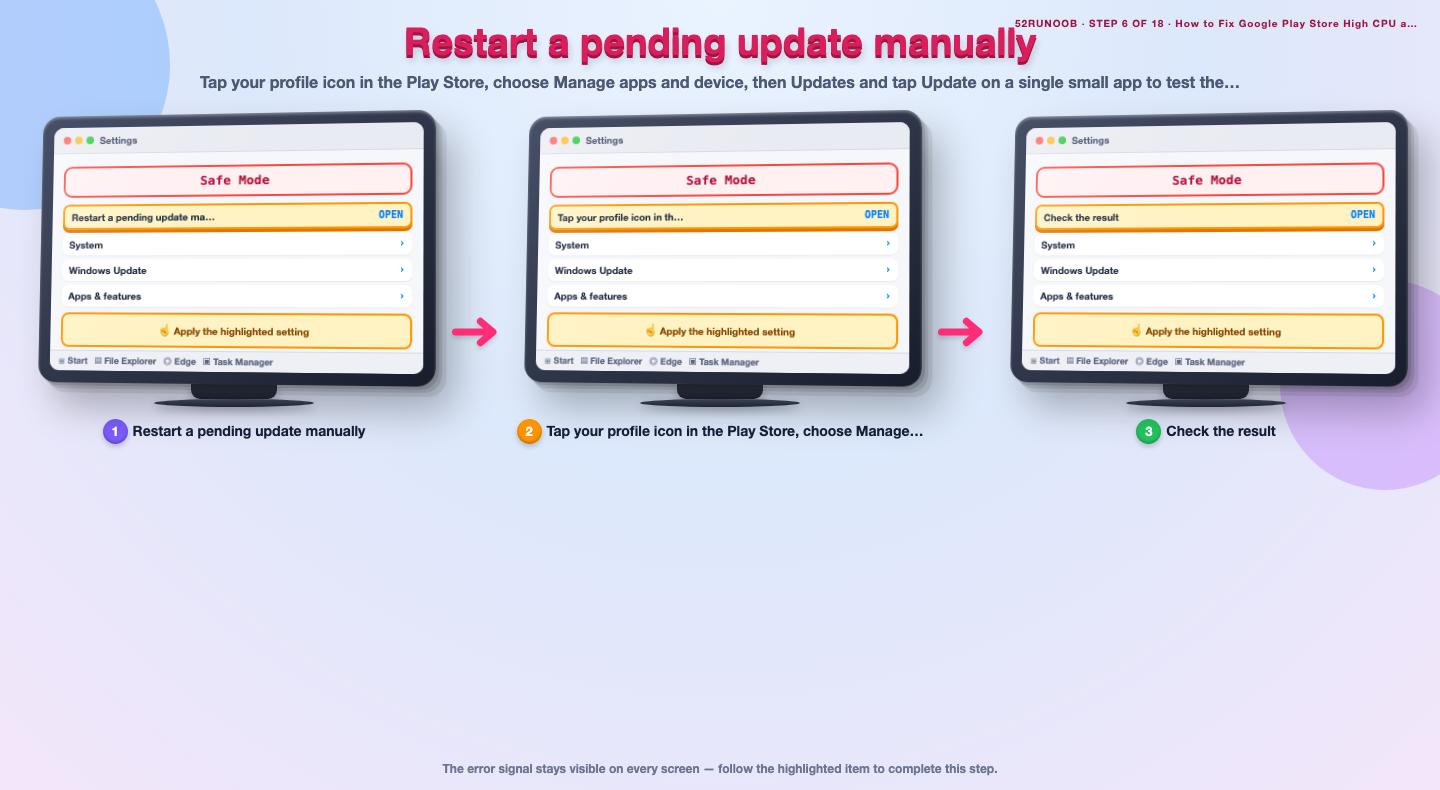
Step 6: Restart a pending update manually
Tap your profile icon in the Play Store, choose Manage apps and device, then Updates and tap Update on a single small app to test the queue.
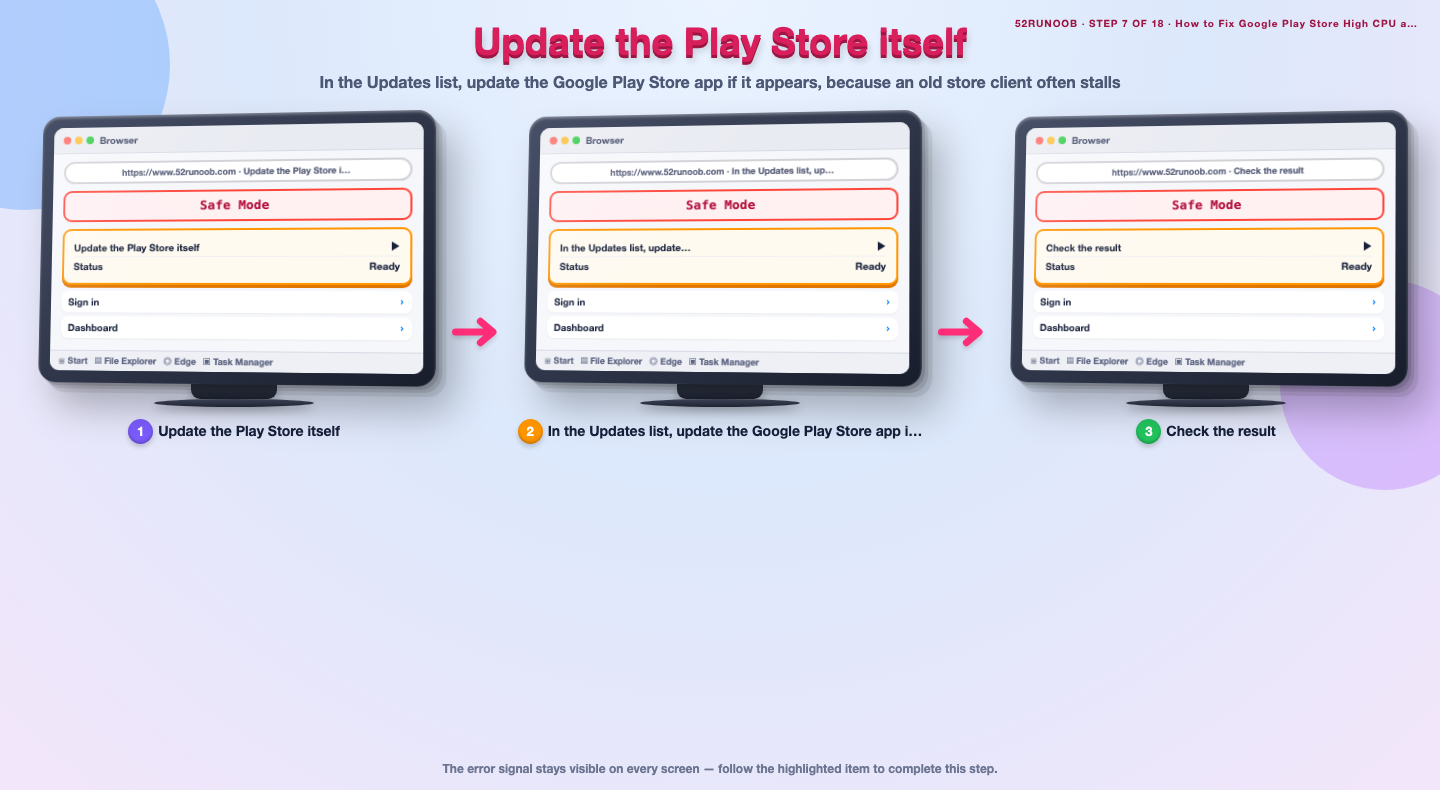
Step 7: Update the Play Store itself
In the Updates list, update the Google Play Store app if it appears, because an old store client often stalls.
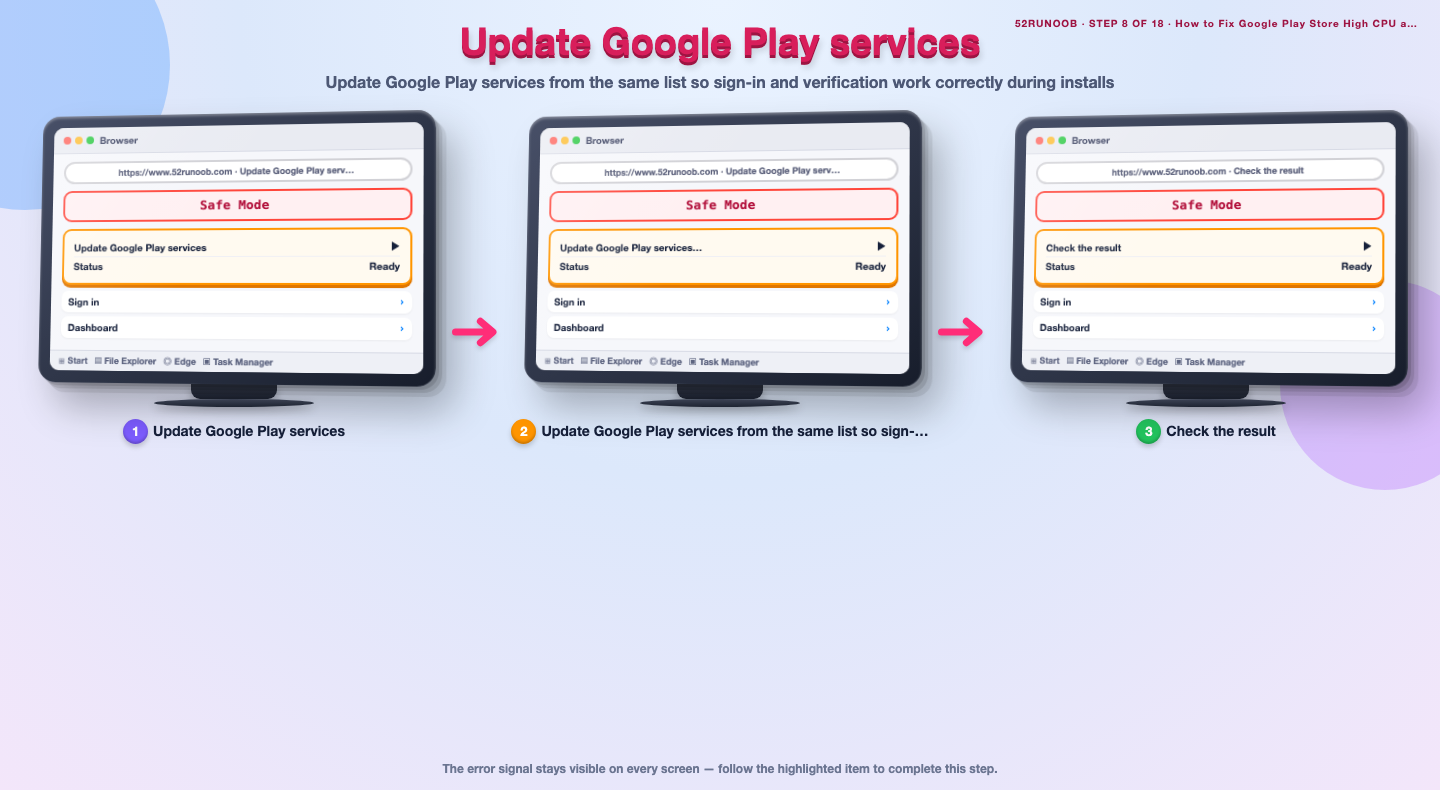
Step 8: Update Google Play services
Update Google Play services from the same list so sign-in and verification work correctly during installs.
Step 9: Turn off auto-update temporarily
In Play Store profile icon, Settings, Network preferences, set Auto-update apps to Don't auto-update apps and install updates one at a time while diagnosing.
Step 10: Free up phone storage
Open Settings, Storage and delete unused files or apps so there is enough room to unpack updates; a nearly full phone cannot install apps.
Step 11: Restore auto-update
Once manual updates succeed, set Auto-update apps back to Wi-Fi only so the phone keeps apps current without using mobile data.
Method 3 of 3: Fix the Services Behind the Store
Step 12: Clear Google Play services cache
Go to Settings, Apps, See all apps, Google Play services, Storage and cache and tap Clear cache to remove stale verification files.
Step 13: Clear the Download Manager cache
Use the Show system menu in the app list, open Download Manager and clear its cache so a half-finished download is not reused.
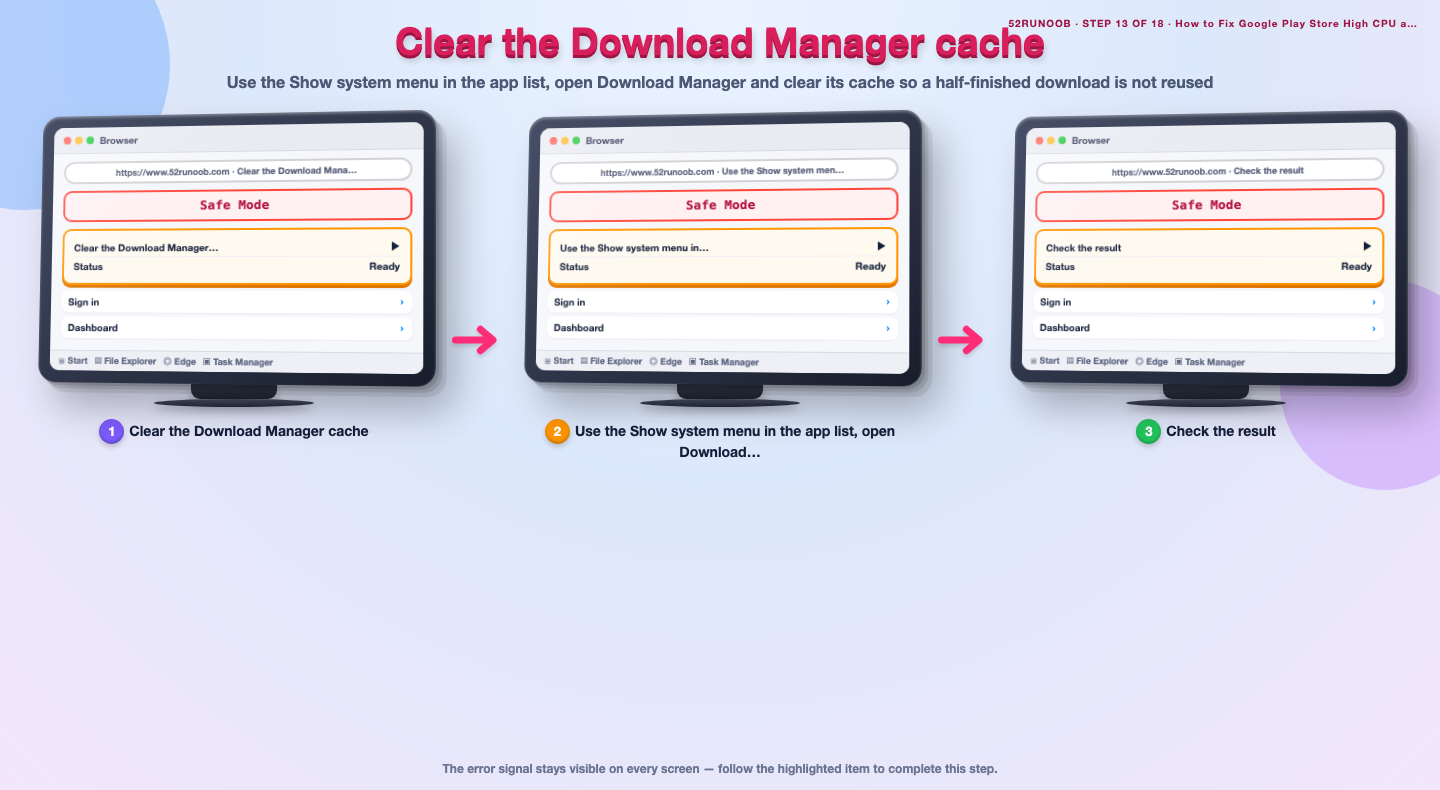
Step 14: Set date and time to automatic
Open Settings, System, Date and time and enable automatic date and time, since a wrong clock breaks Play Store verification.
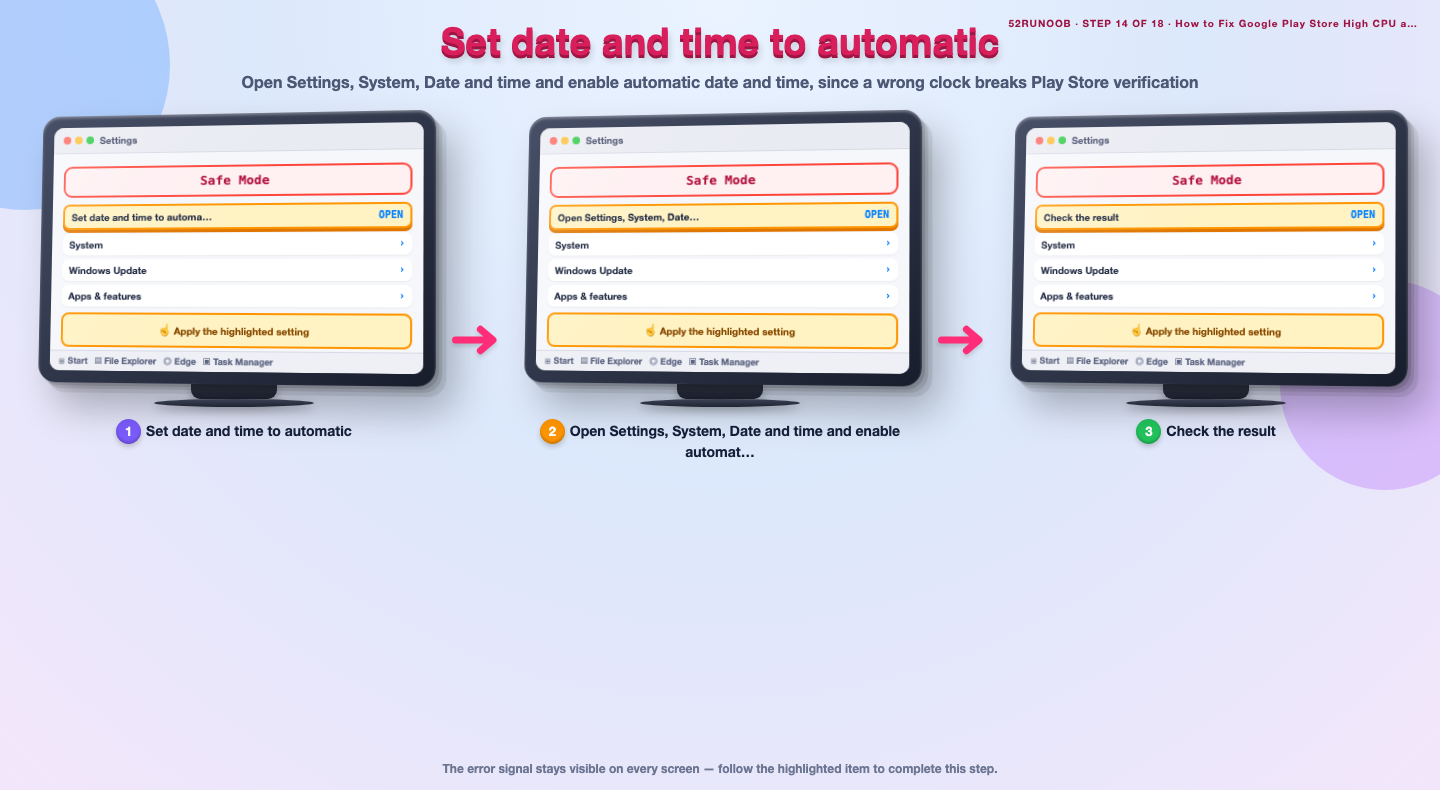
Step 15: Run a Play Protect scan
In the Play Store, open Play Protect and run a scan to rule out a malicious app interfering with downloads.
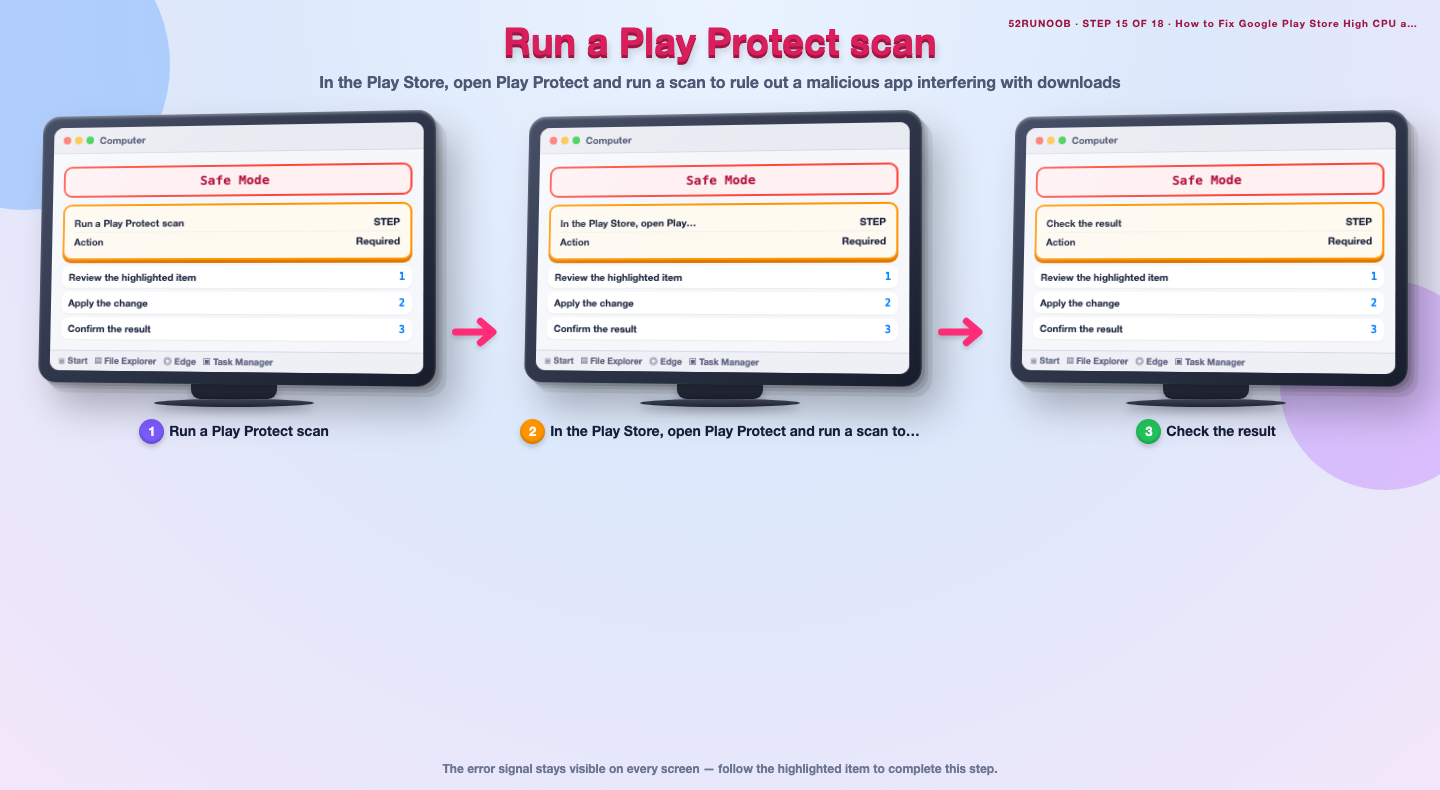
Step 16: Test updates on Wi-Fi only
In Play Store profile icon, Settings, Network preferences, set app downloads to Wi-Fi only and retry an update over a strong connection.
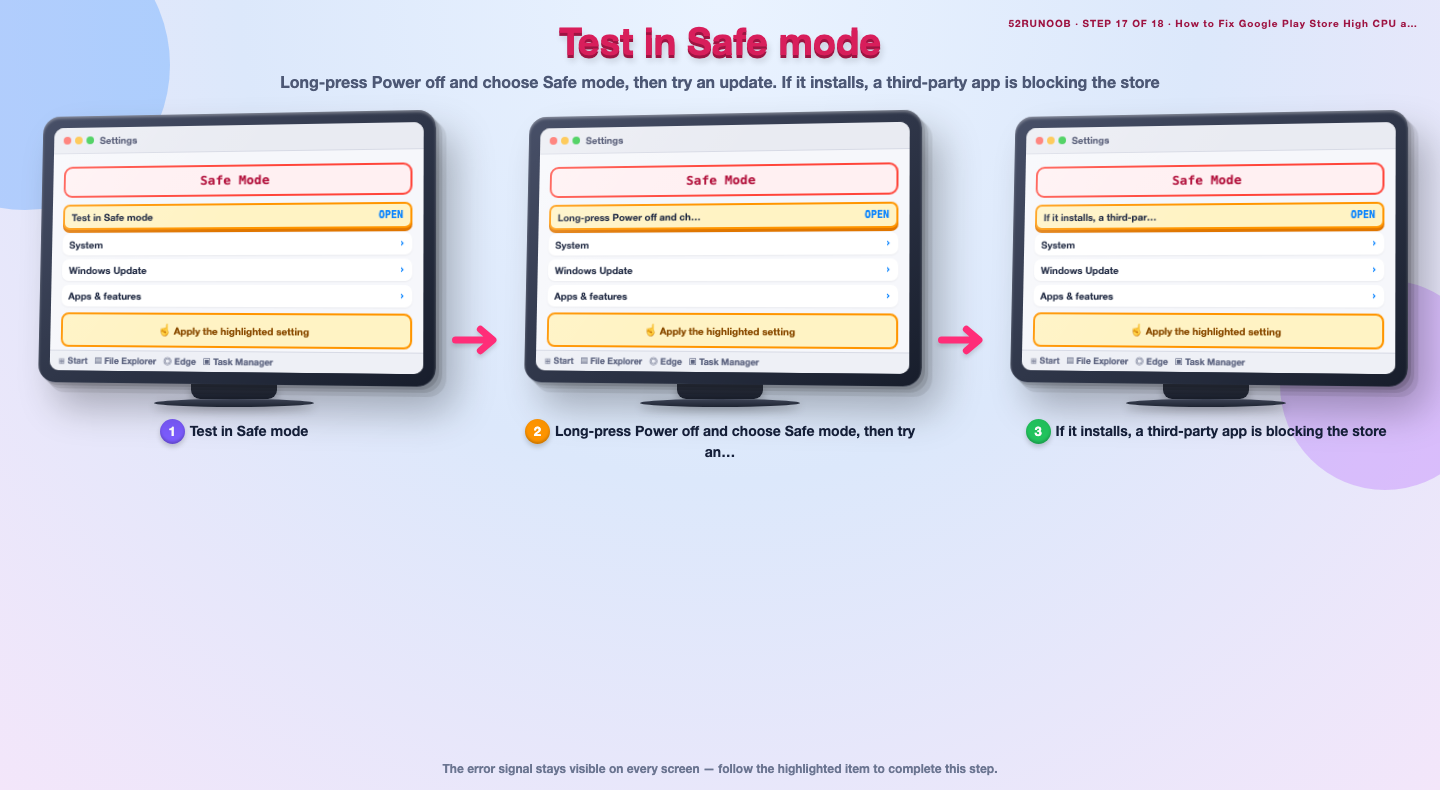
Step 17: Test in Safe mode
Long-press Power off and choose Safe mode, then try an update. If it installs, a third-party app is blocking the store.
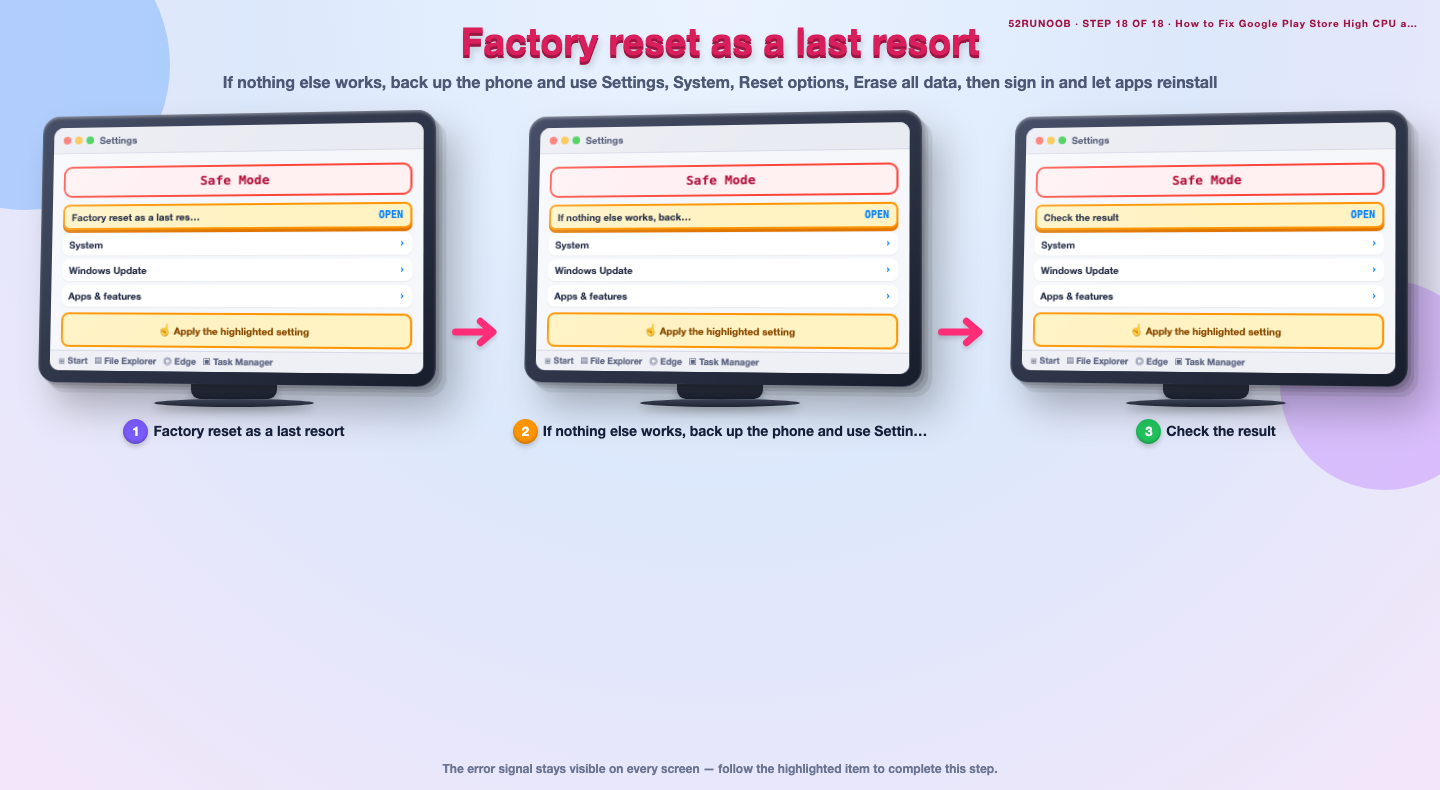
Step 18: Factory reset as a last resort
If nothing else works, back up the phone and use Settings, System, Reset options, Erase all data, then sign in and let apps reinstall.
Tips
- Clearing Play Store data resets its settings but does not delete your installed apps.
- Updates often finish faster when the screen stays on and the phone is charging.
- A weak mobile signal is a frequent reason downloads stall at zero percent.
Warnings
- Do not sideload random APK files to fix the store; they can carry malware.
- Resetting network settings removes saved Wi-Fi passwords and Bluetooth pairings.
- Factory reset is a last resort, so back up photos and messages before using it.
Frequently asked questions
Is it normal for the Play Store to use CPU during updates?
Yes. The store decompresses, verifies and optimizes each app, so a temporary rise is expected. It should settle once the update finishes; a reading that never drops signals a stuck download or cache problem.
Will clearing Play Store data delete my apps?
No. Clearing data resets the store's own settings and local queue, but your installed apps and their data remain untouched. You may need to sign in again the next time you open it.
Why do updates stay pending forever?
Common causes are low storage, an unstable connection, an outdated Play Store or wrong system date and time. Work through those checks in order and updates usually start moving again.
Do I need Google Play services for updates?
Yes. Google Play services handles account sign-in and app verification for the store. Keep it updated and never disable it, or downloads can fail entirely.
References
- Google Play Help - Fix downloads and updates. https://support.google.com/googleplay/answer/7012527
- Android Support - Speed up your Android device. https://support.google.com/android/answer/9454546
- Android Support - Clear app cache and data. https://support.google.com/android/answer/9551190
- wikiHow — How to Fix Google Play Store High CPU and Slow App Updates. https://www.wikihow.com/Speed-Up-an-Android-Phone
Every guide is reviewed against its sources. See our editorial policy.
Reader comments
0 so farFinished this guide? Tell other readers what worked, what didn't, and what you would change.