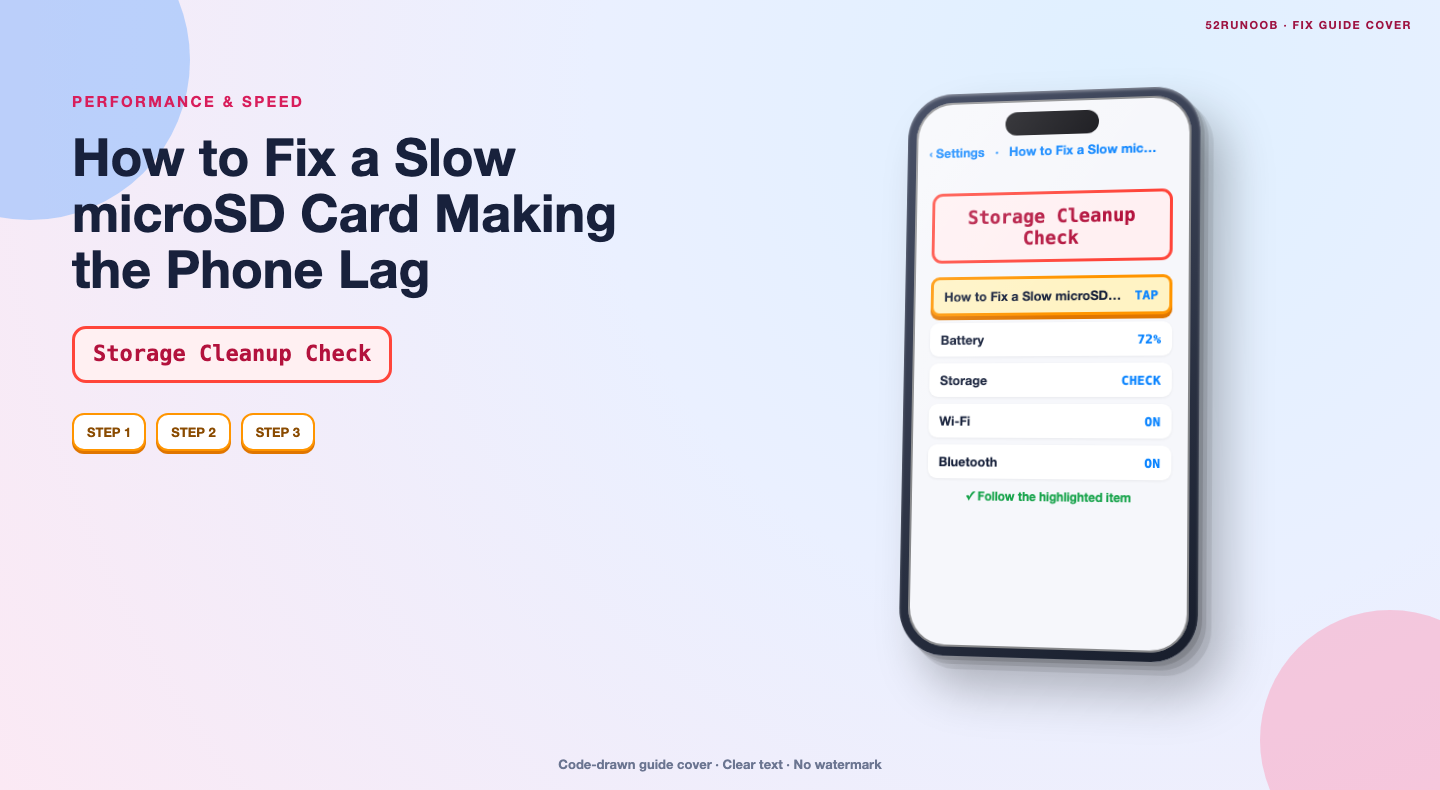
Moving apps to a microSD card can make an Android phone feel slow because most cards are far slower than internal storage, especially for the random reads apps need. Identify which apps you moved, return performance-critical ones to internal storage and keep only media on the card.
This guide walks through the process in clear illustrated steps, from the first preparation to a finished result. Each step has its own picture, so you can compare your progress as you go.
How to use this guide
Work through the steps in order. Method 1 of 2 covers the basics, and the later methods offer alternatives and finishing touches. If you only have a minute, skim the Quick steps box above and come back for the details.
Related guides
- How to Fix tiworker exe high cpu usage after a windows update
- How to Change a tire
- How to Speed up a slow phone
- How to Add carbs to your protein shake
- Browse all Fix Slow Device guides
- All 52runoob guides
Trusted external resources
- Android Source — Storage subsystem
- Google Support — Speed up your Android device
- Google Support — Clear app cache and data
A note on sources
We check each guide against the official resources listed in References at the end of this article. External links open in a new tab; the related guides above stay on this site.
Quick steps
- Check the SD card's speed class and free space.
- Find which apps were moved to the card.
- Move games and messaging apps back to internal storage.
- Keep only photos and videos on the card.
- Restart the phone after moving apps.
- Consider a faster, reputable UHS-I card.
Things you'll need
- An Android phone with a microSD card
- Access to Settings, Apps and Storage
- A file manager for checking the card
- A computer and card reader if you plan to test or replace the card
Step-by-step
Method 1 of 2: Check the Card and the Moved Apps
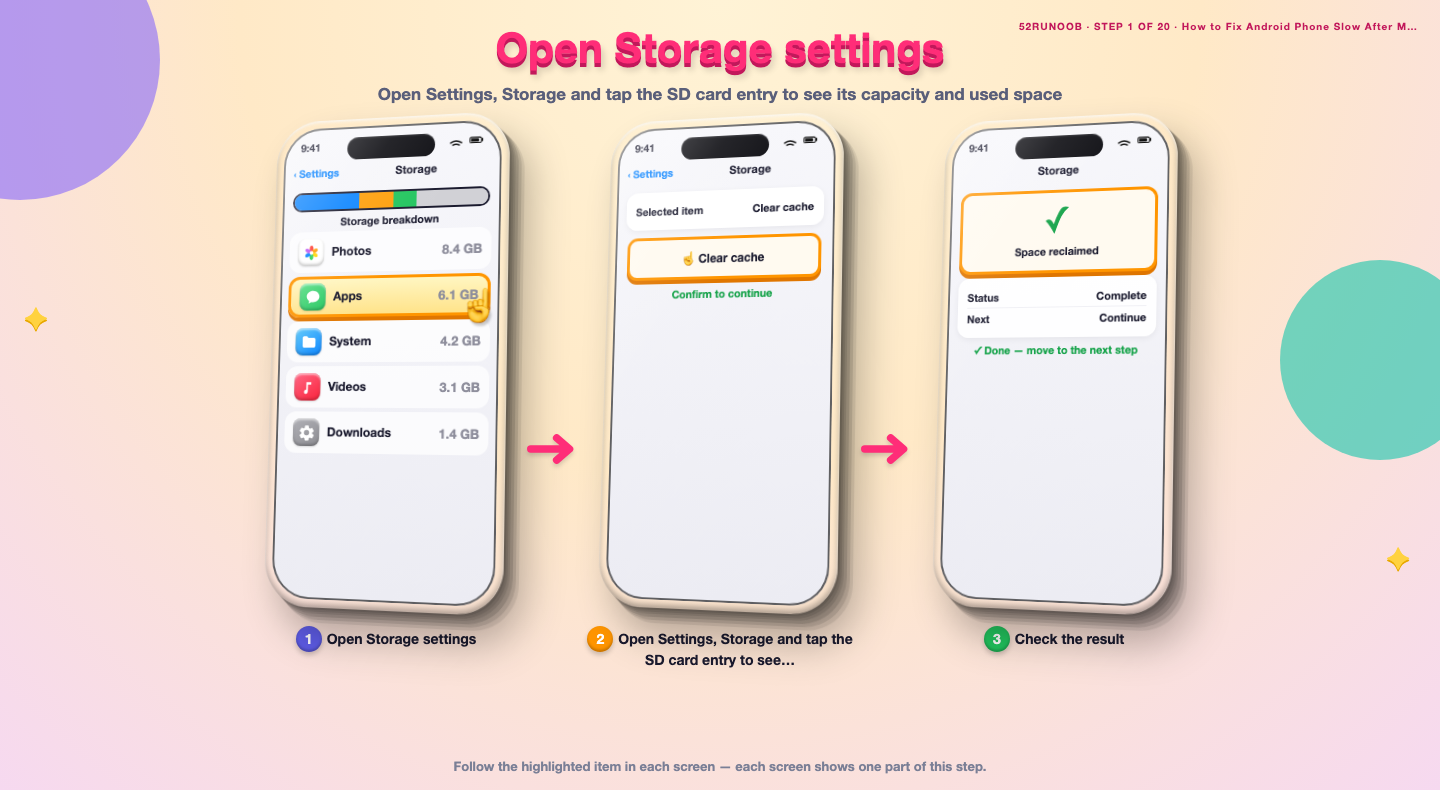
Step 1: Open Storage settings
Open Settings, Storage and tap the SD card entry to see its capacity and used space.
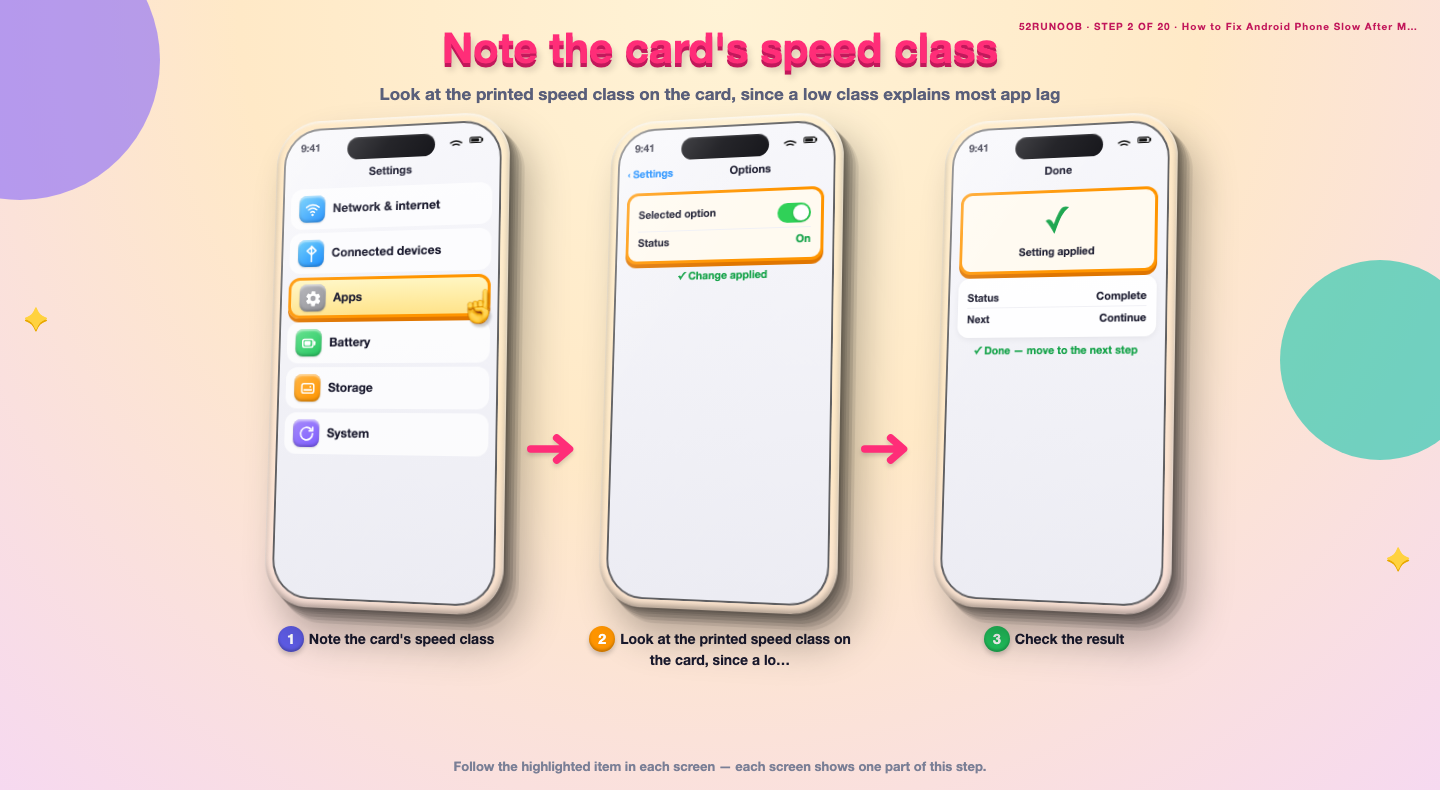
Step 2: Note the card's speed class
Look at the printed speed class on the card, since a low class explains most app lag.
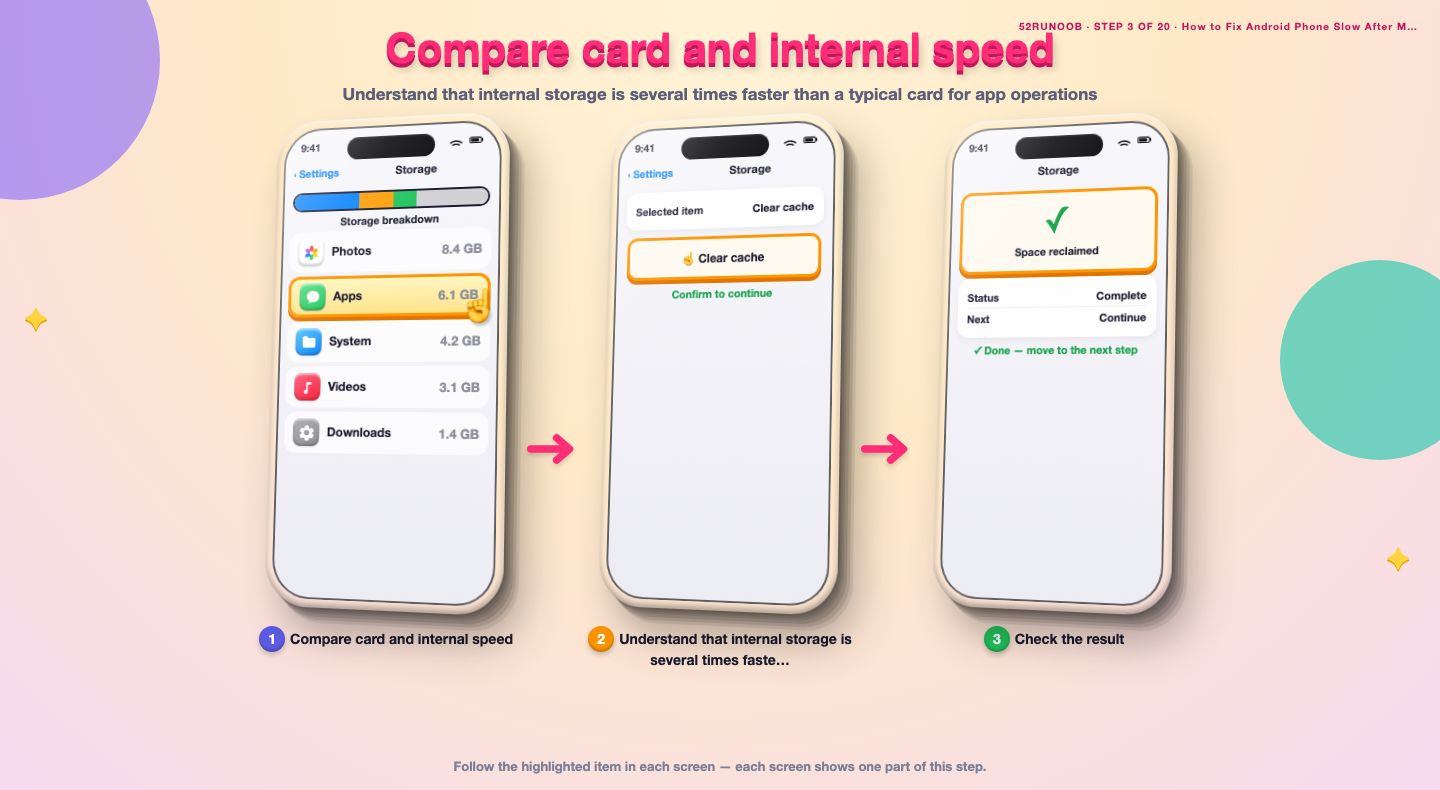
Step 3: Compare card and internal speed
Understand that internal storage is several times faster than a typical card for app operations.
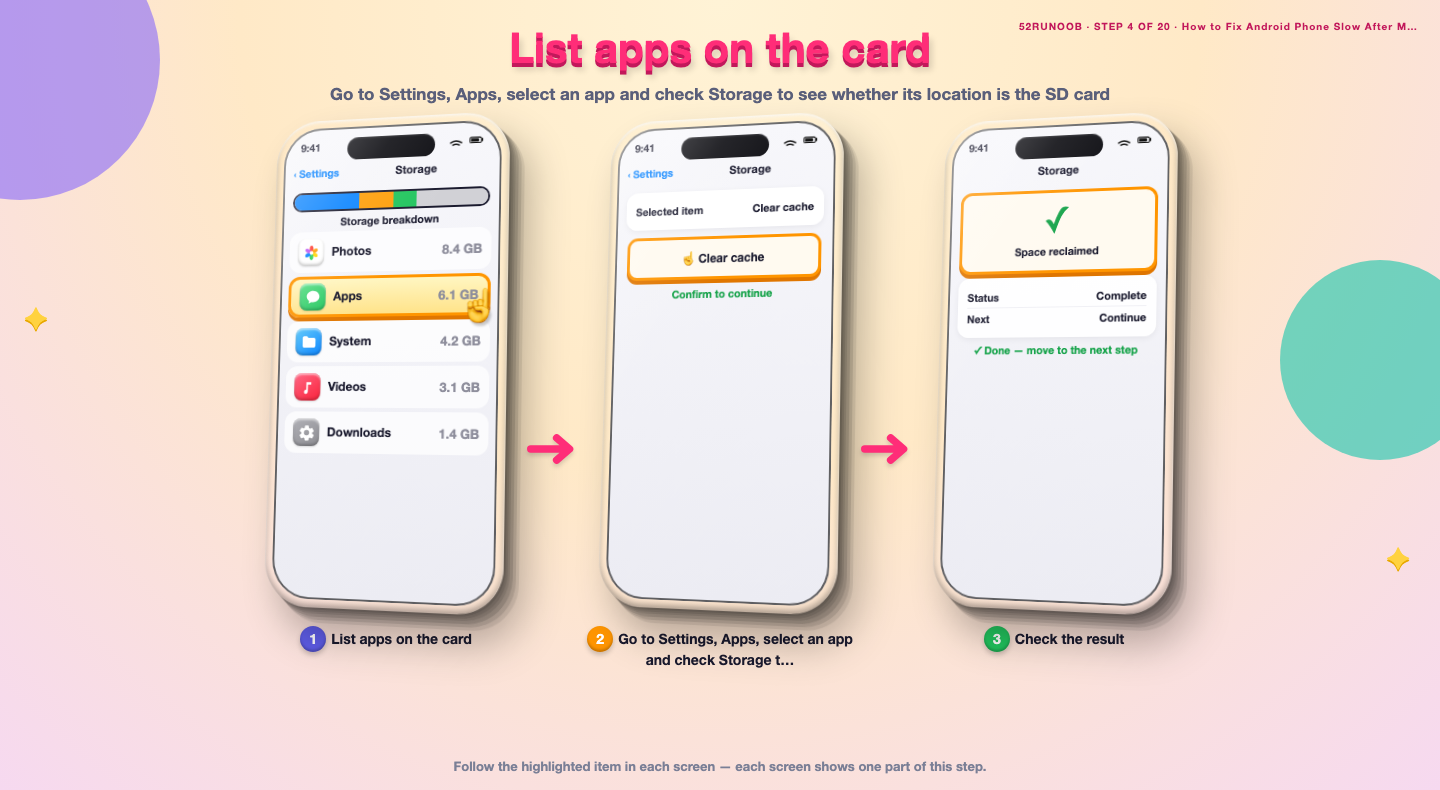
Step 4: List apps on the card
Go to Settings, Apps, select an app and check Storage to see whether its location is the SD card.
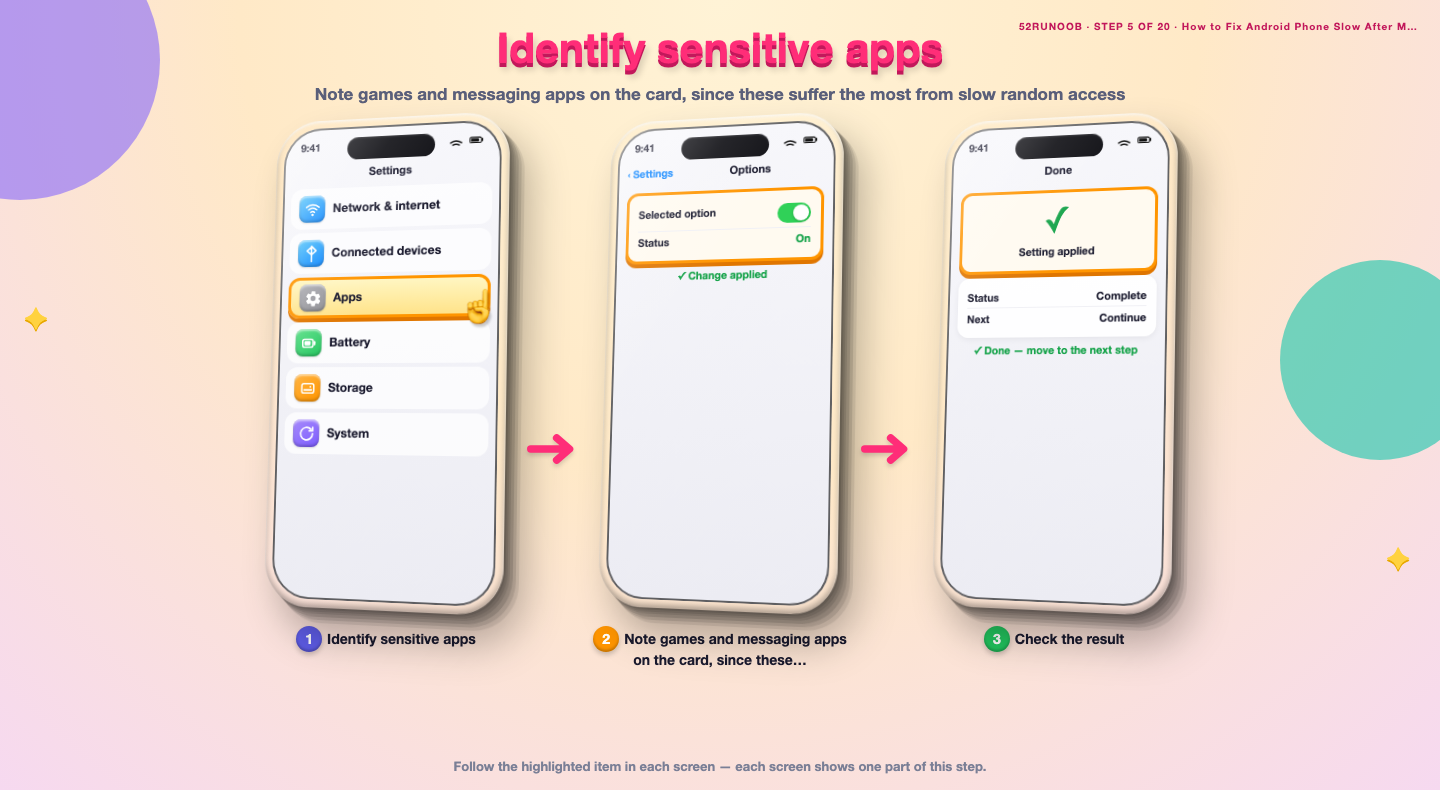
Step 5: Identify sensitive apps
Note games and messaging apps on the card, since these suffer the most from slow random access.
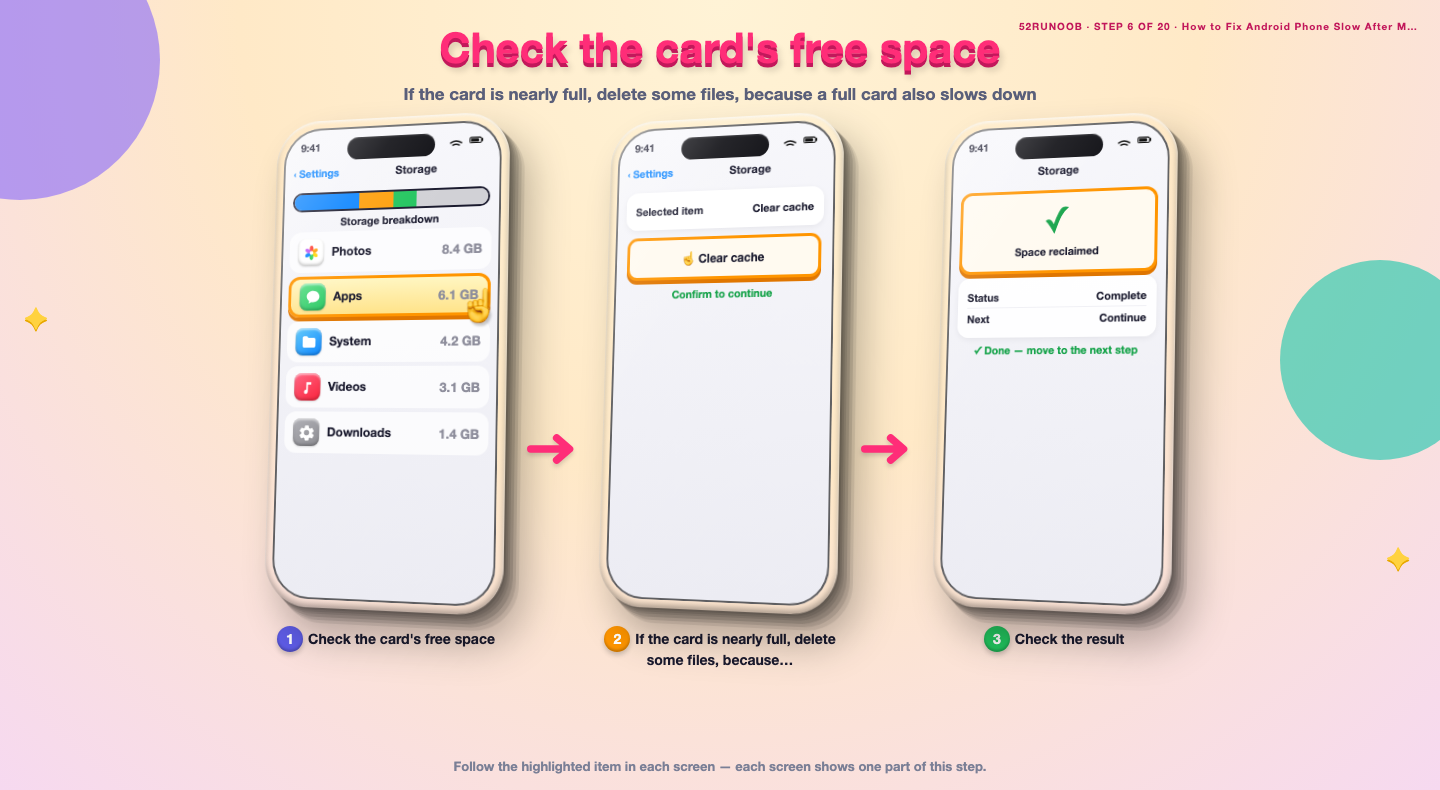
Step 6: Check the card's free space
If the card is nearly full, delete some files, because a full card also slows down.
Step 7: Run a quick copy test
Copy a large file to and from the card in the Files app to feel its real transfer speed.
Step 8: Check for file errors
Use the Files app or a card utility to check whether the card reports errors or corruption.
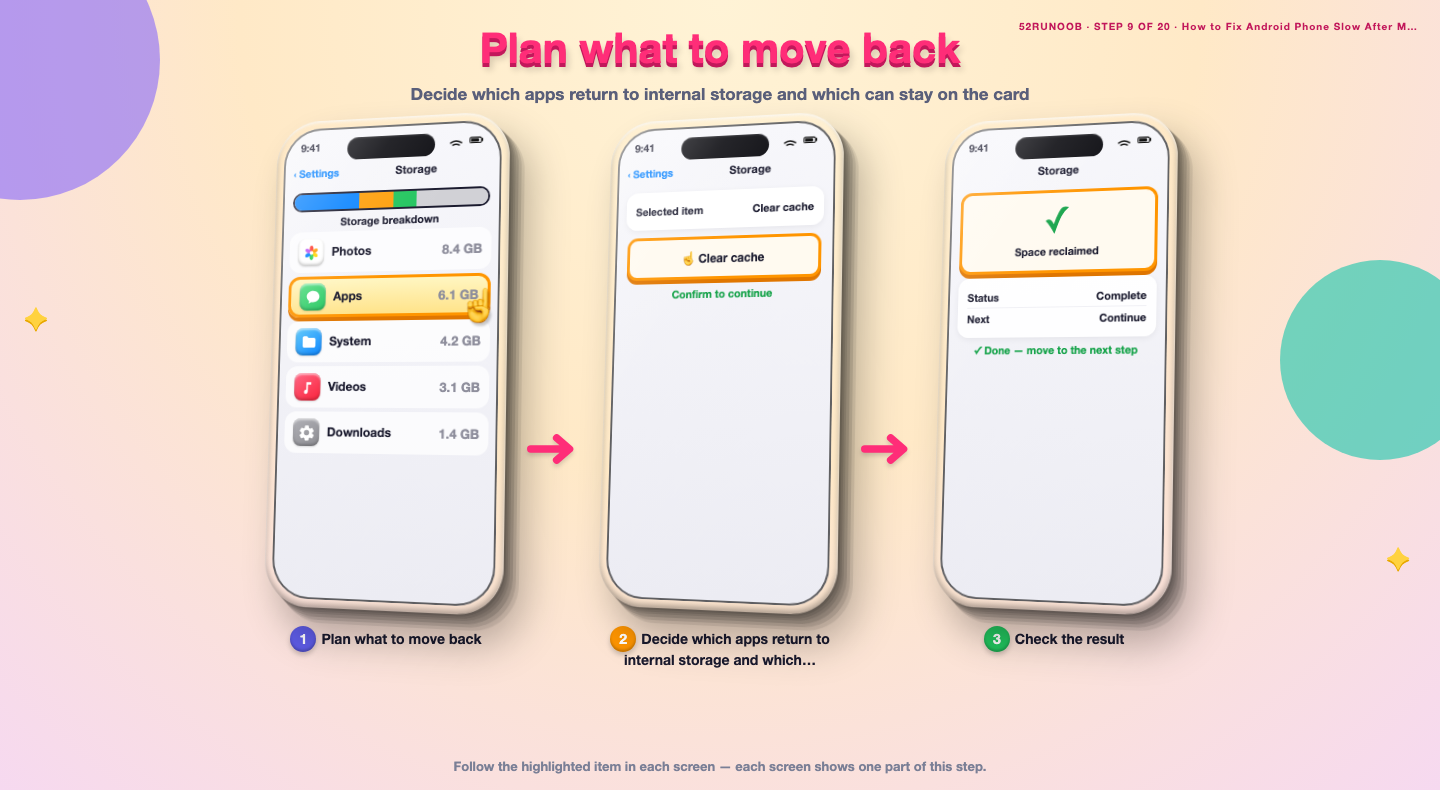
Step 9: Plan what to move back
Decide which apps return to internal storage and which can stay on the card.
Method 2 of 2: Move Apps Back and Optimize
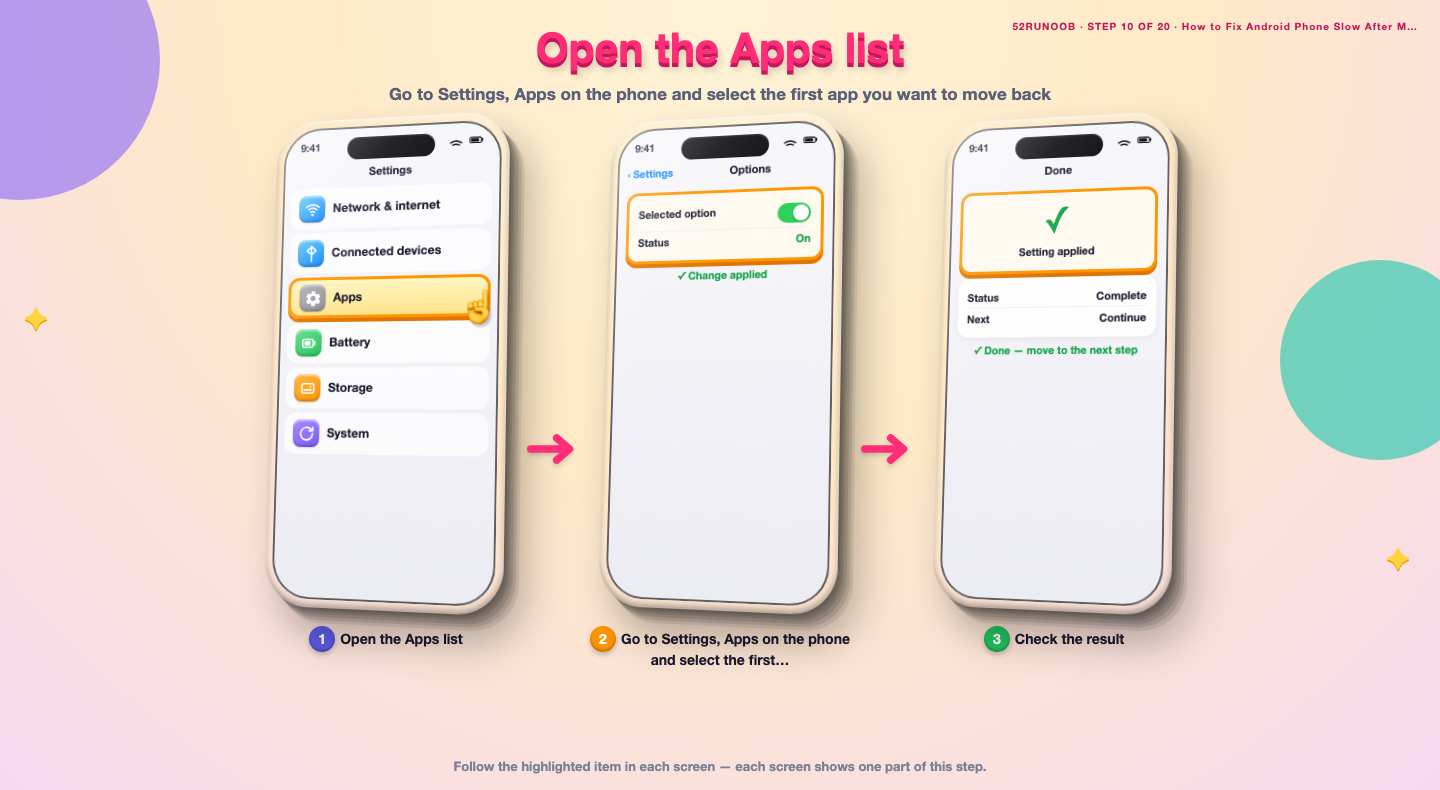
Step 10: Open the Apps list
Go to Settings, Apps on the phone and select the first app you want to move back.
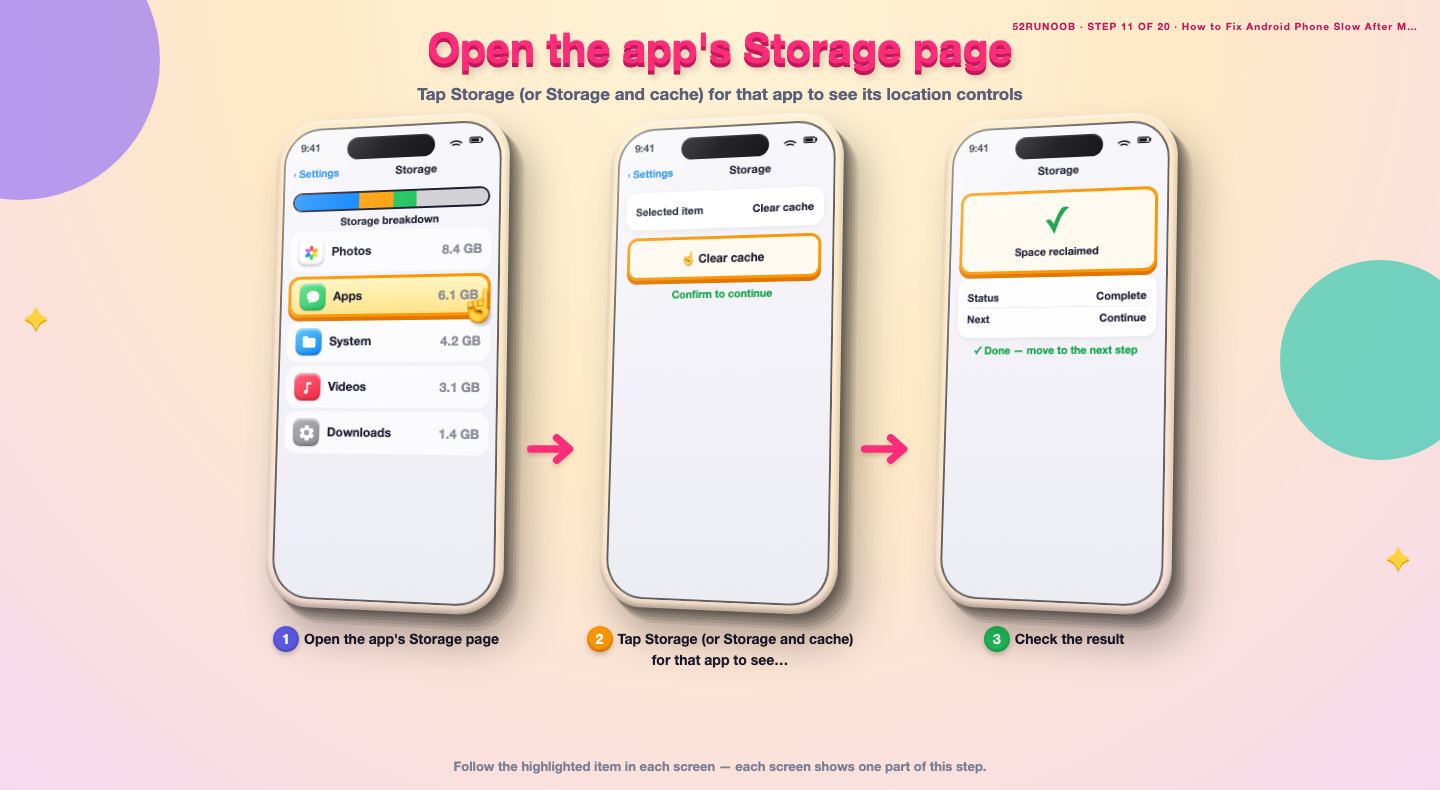
Step 11: Open the app's Storage page
Tap Storage (or Storage and cache) for that app to see its location controls.
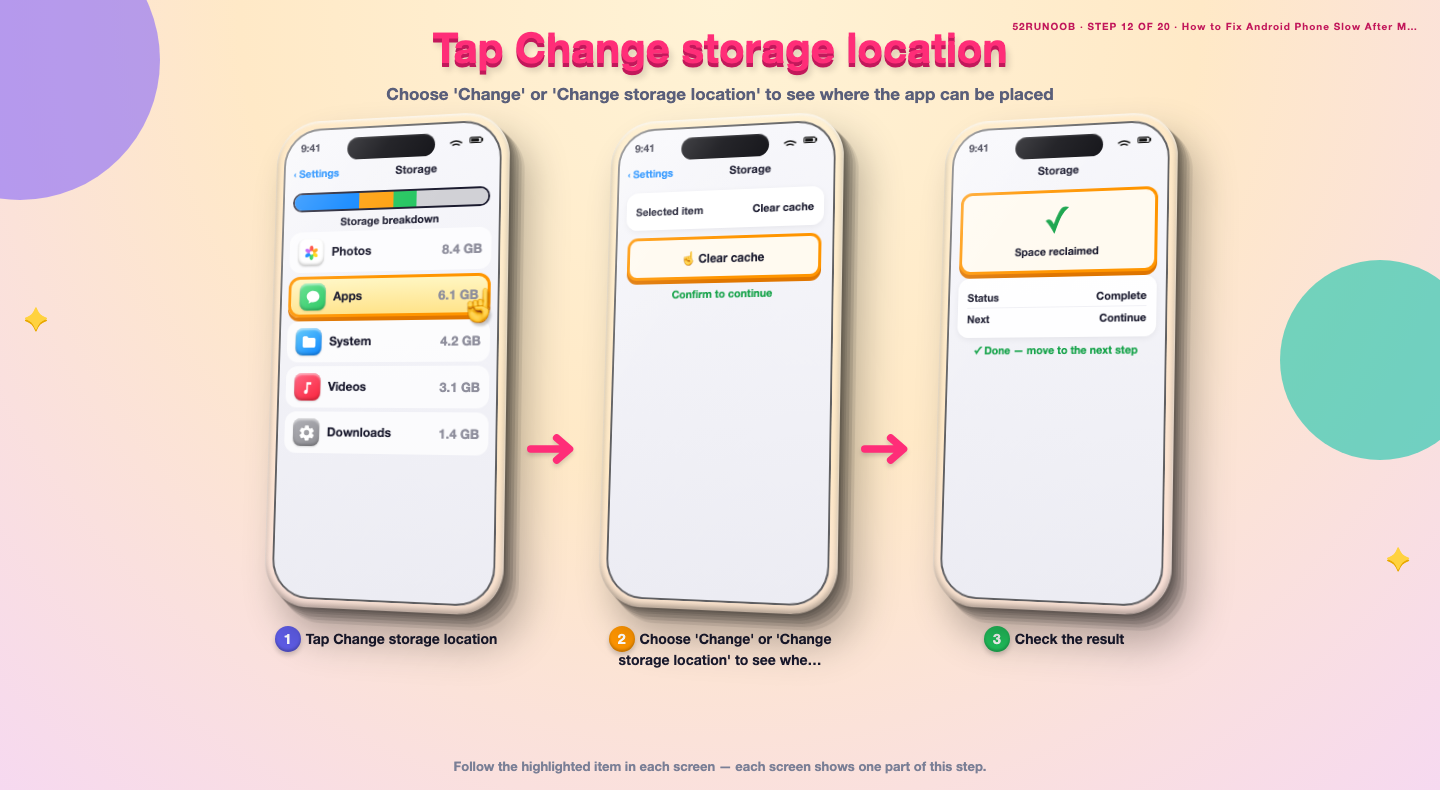
Step 12: Tap Change storage location
Choose 'Change' or 'Change storage location' to see where the app can be placed.
Step 13: Select internal storage
Choose 'Internal storage' as the new location for the app.
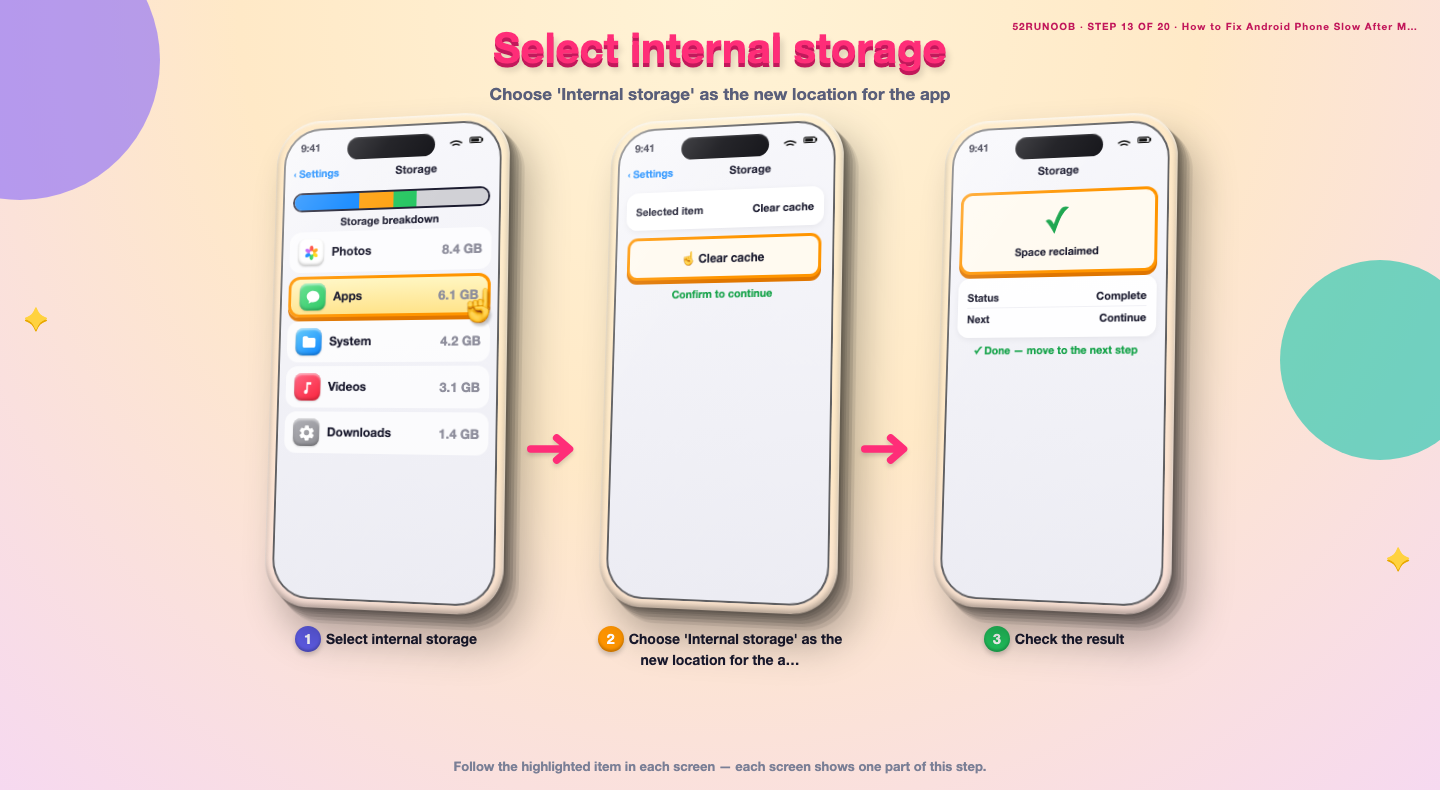
Step 14: Move the app and wait
Tap Move and wait until the transfer finishes without interrupting it.
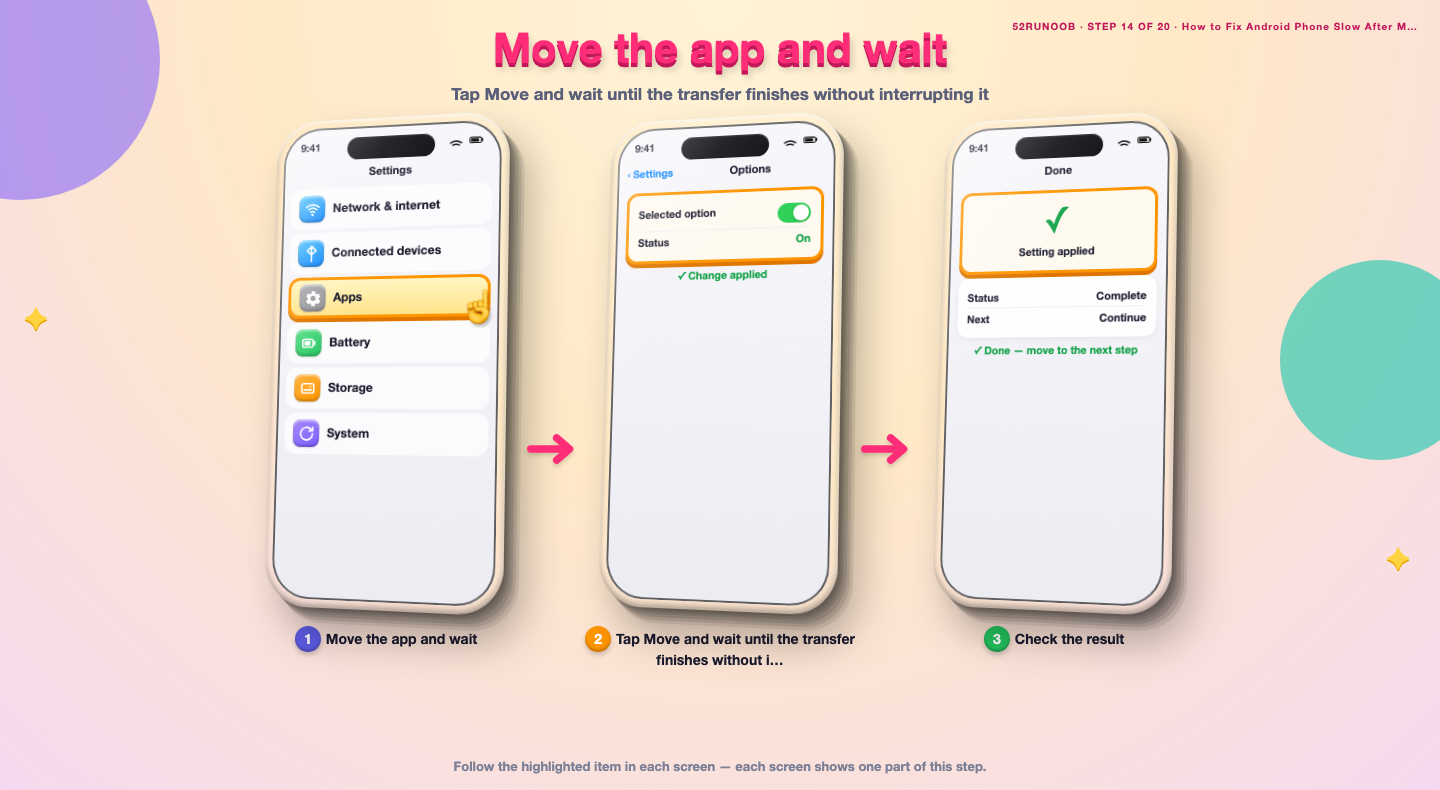
Step 15: Repeat for critical apps
Move games, browsers and messaging apps back the same way to restore responsiveness.
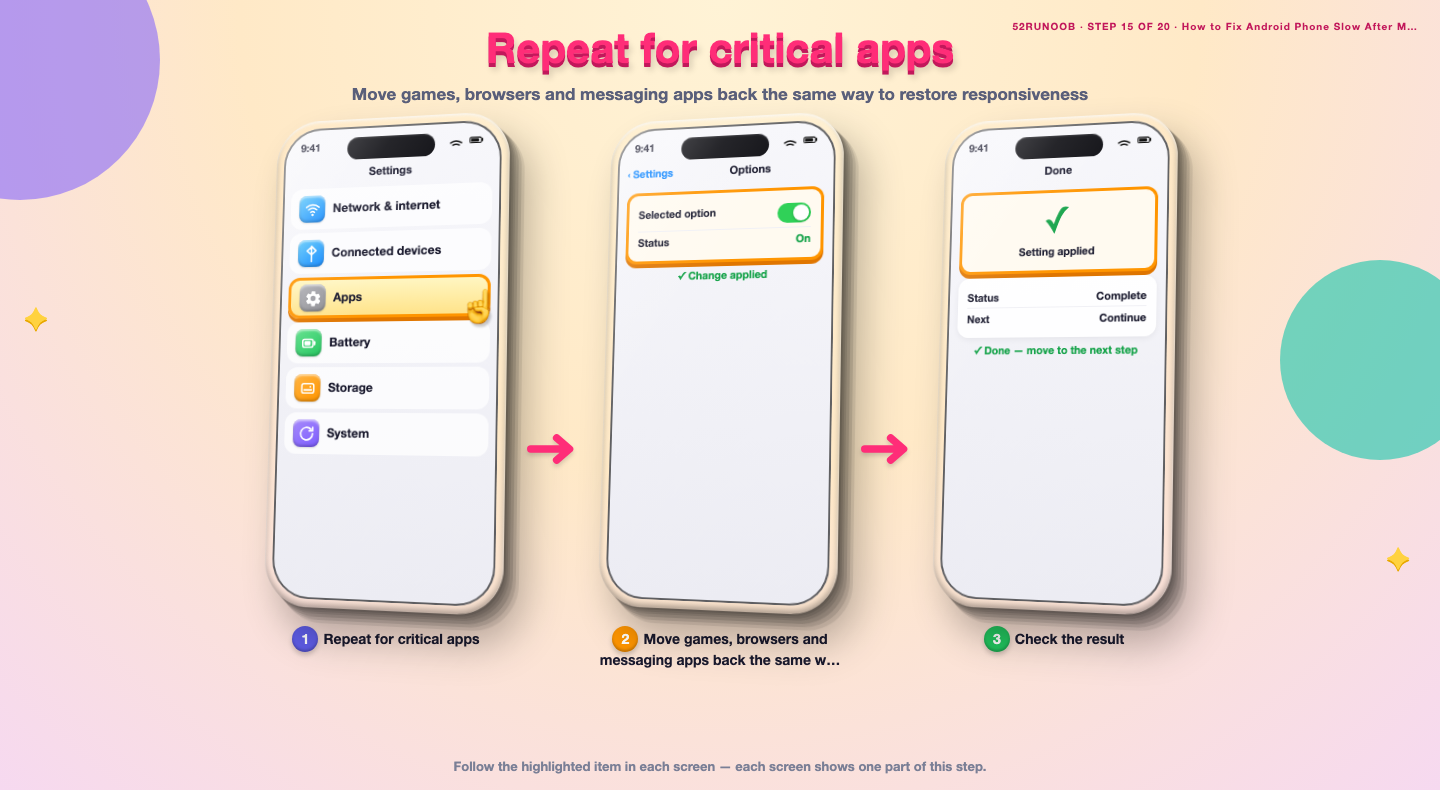
Step 16: Keep media on the card
Leave photos, videos and music on the card, which suits its sequential read strengths.
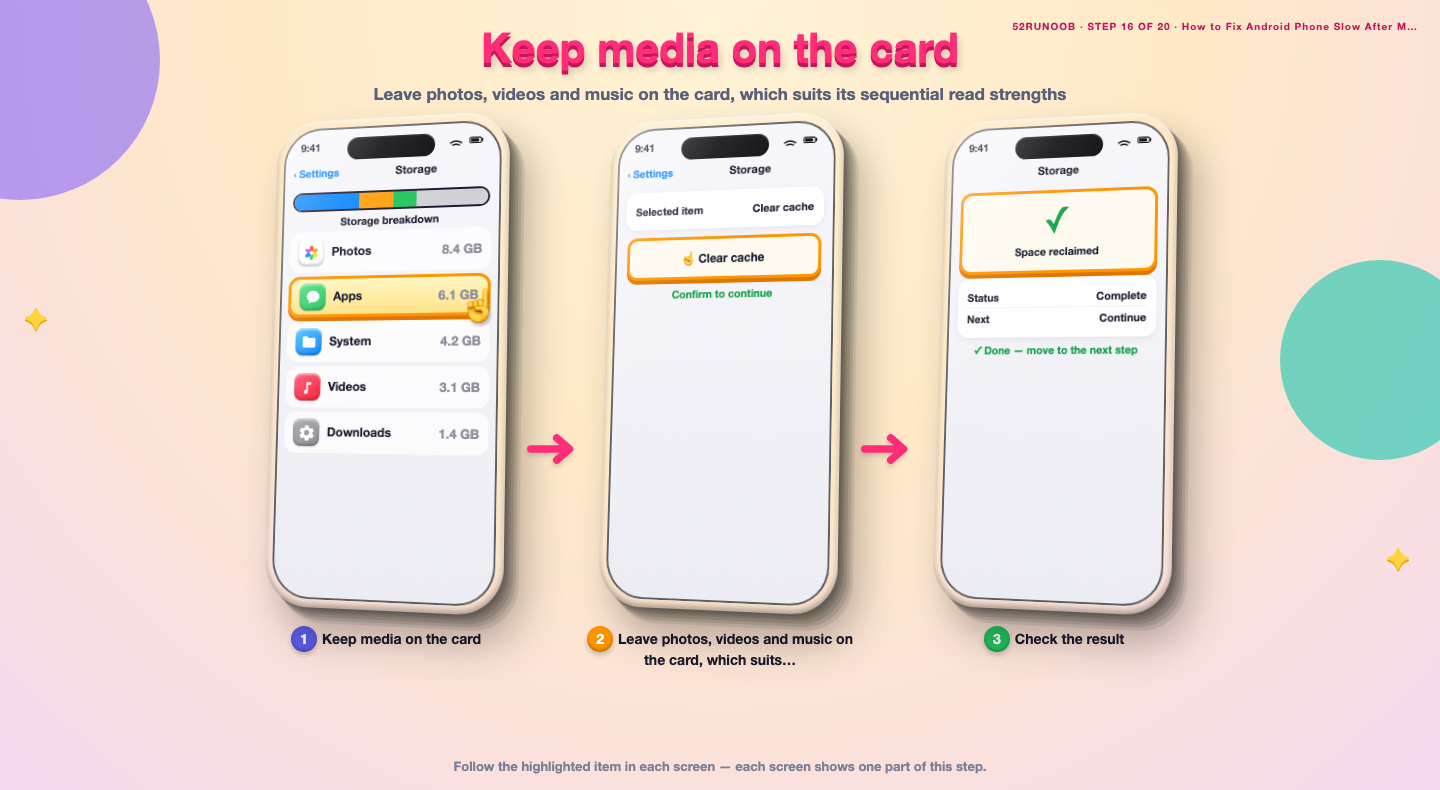
Step 17: Restart the phone
Reboot the phone so all apps relaunch from their new locations cleanly.
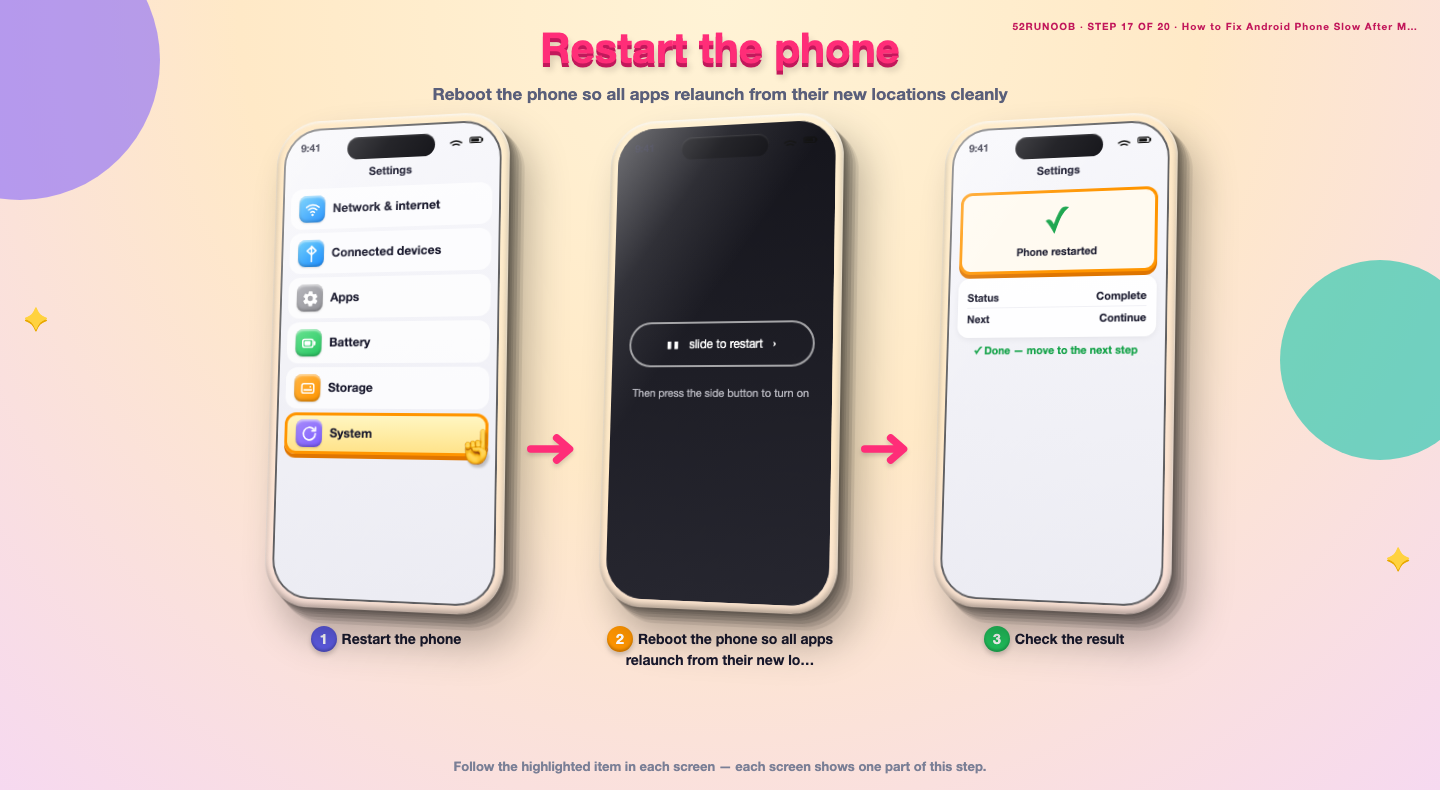
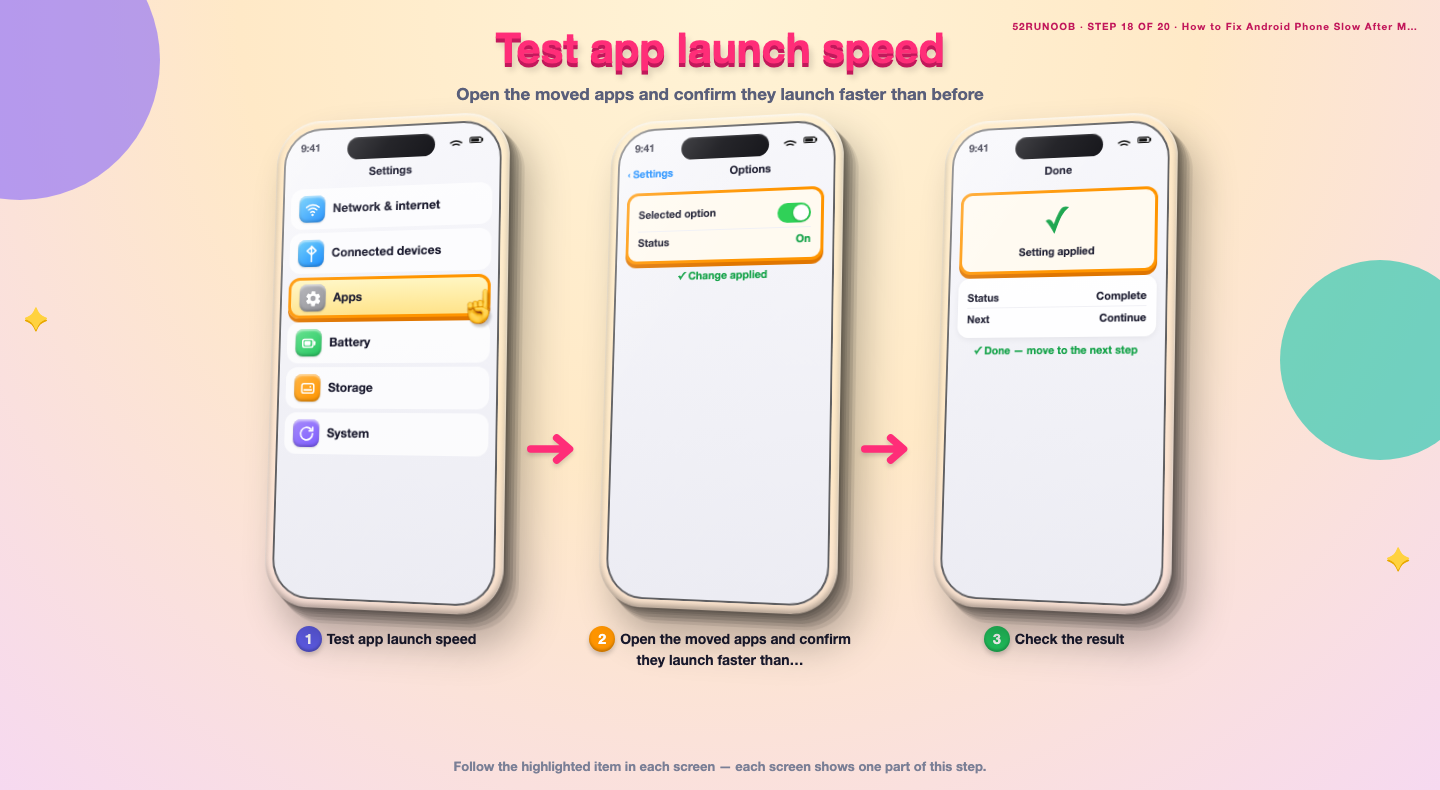
Step 18: Test app launch speed
Open the moved apps and confirm they launch faster than before.
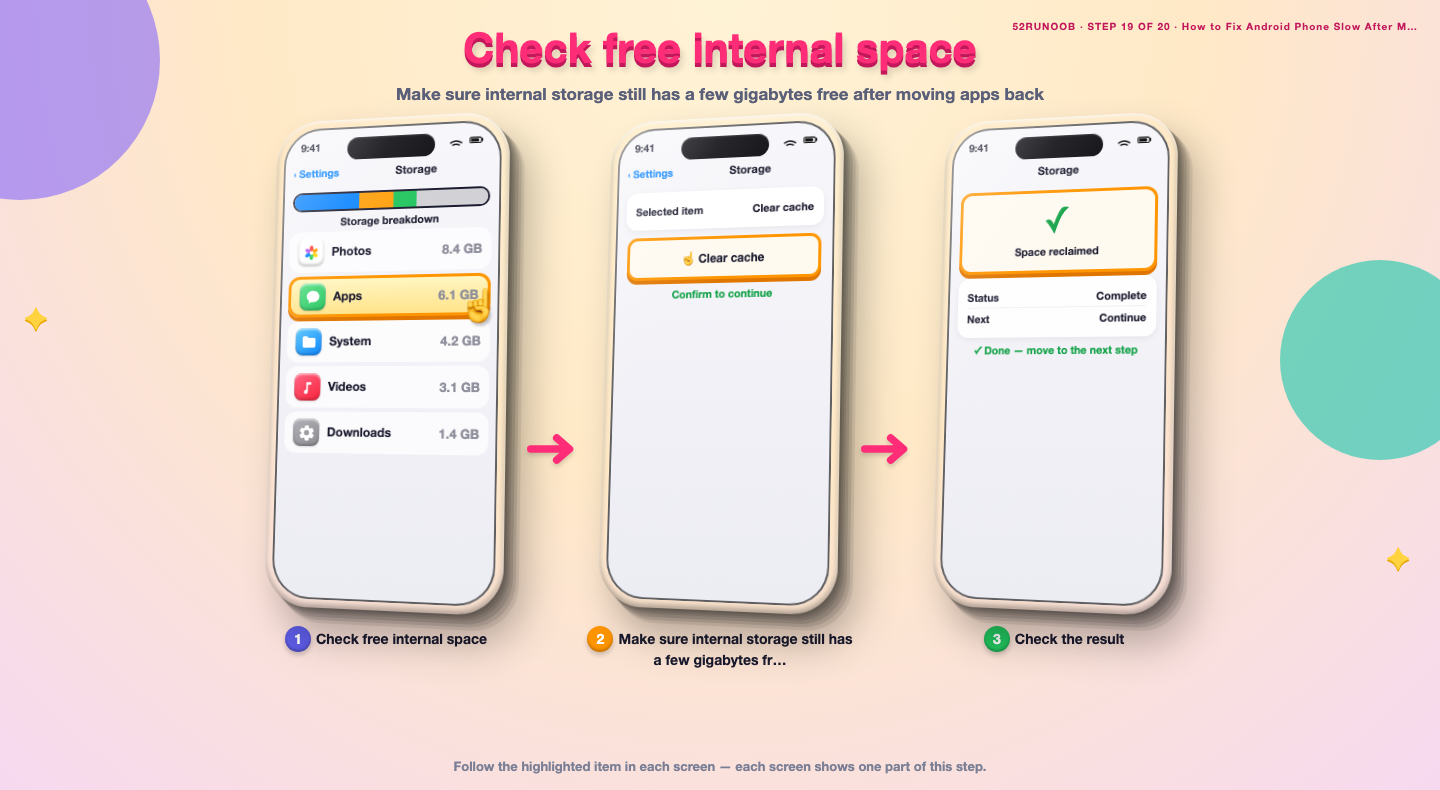
Step 19: Check free internal space
Make sure internal storage still has a few gigabytes free after moving apps back.
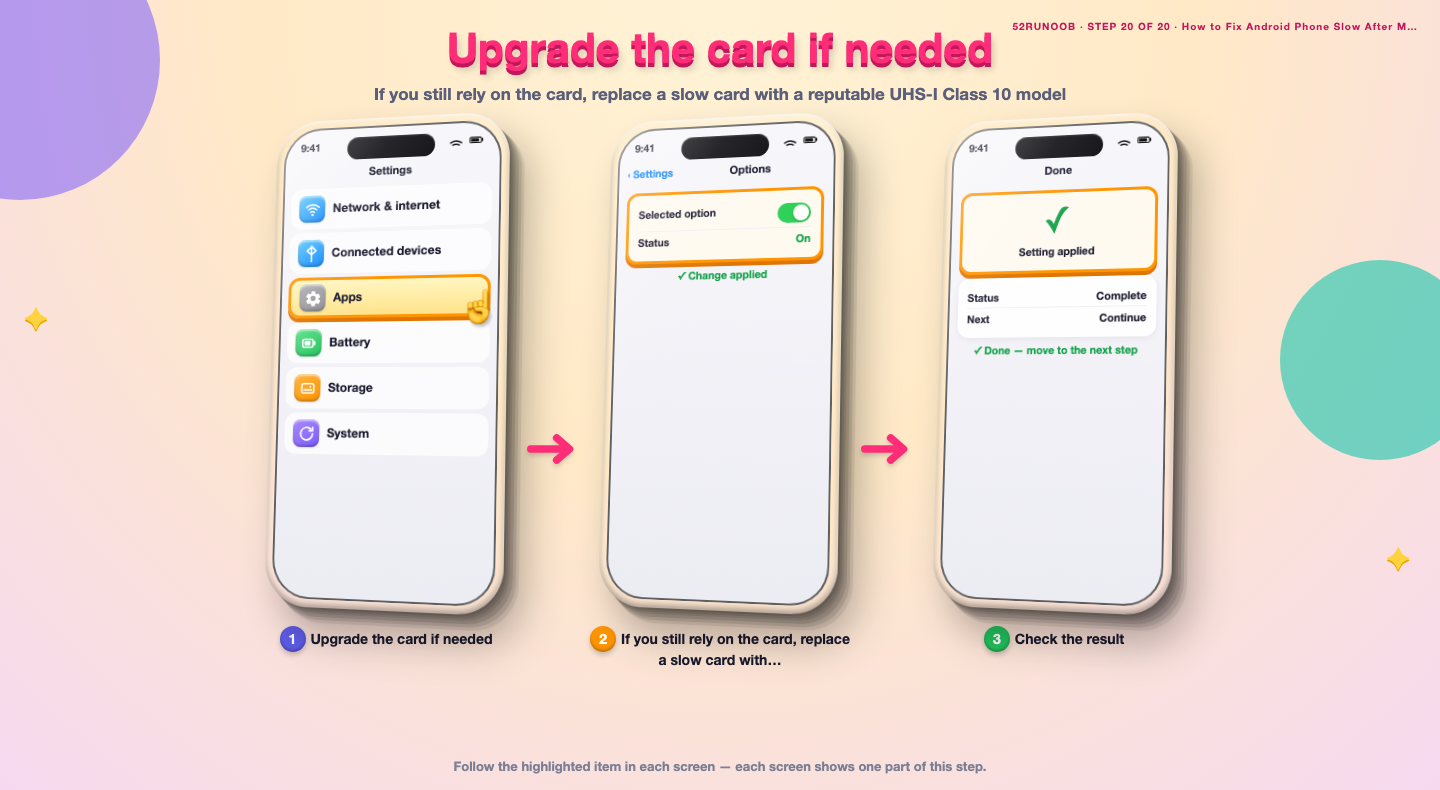
Step 20: Upgrade the card if needed
If you still rely on the card, replace a slow card with a reputable UHS-I Class 10 model.
Tips
- Random read speed matters more than advertised capacity for app performance.
- A nearly full SD card slows down further, so leave headroom.
- Check that the card is genuine; counterfeit cards are often very slow.
Warnings
- Formatting the card erases everything on it, so back up first.
- Do not move system-critical apps to the card; they may stop working.
- Removing the card while apps run on it can crash those apps.
Frequently asked questions
Is running apps from a microSD card harmful or abnormal?
It is supported and safe, but it is often slow because SD cards have much higher latency than internal flash. Nothing dangerous happens; the phone simply waits longer for app data, which feels like lag.
Why did the phone get slower right after I moved apps?
Most SD cards, especially low speed-class ones, cannot match internal storage for the small random reads apps perform constantly. Moving games and messaging apps back to internal storage usually removes the lag.
Can any app be moved to a microSD card?
Only apps that the developer allows can be moved, and system or widget-heavy apps often cannot. Even when allowed, performance-sensitive apps run noticeably slower from a card.
Will a faster card fix the lag completely?
A reputable UHS-I Class 10 or faster card improves copying and media playback, but internal storage is still quicker for apps. For the smoothest result, keep apps internal and use the card mainly for media.
References
- Android Source — Storage subsystem. https://source.android.com/docs/core/storage
- Google Support — Speed up your Android device. https://support.google.com/android/answer/9454546
- Google Support — Clear app cache and data. https://support.google.com/android/answer/9551190
- wikiHow — How to Fix Android Phone Slow After Moving Apps to a microSD Card. https://www.wikihow.com/Speed-Up-an-Android-Phone
Every guide is reviewed against its sources. See our editorial policy.
Reader comments
0 so farFinished this guide? Tell other readers what worked, what didn't, and what you would change.