"Android System" is a broad label covering core services such as sync, location and system updates. When it tops the battery list while the phone sits idle, a background app or a stuck service is usually to blame. Find the requesting app, restrict it, and let the phone sleep properly.
This guide walks through the process in clear illustrated steps, from the first preparation to a finished result. Each step has its own picture, so you can compare your progress as you go.
How to use this guide
Work through the steps in order. Method 1 of 2 covers the basics, and the later methods offer alternatives and finishing touches. If you only have a minute, skim the Quick steps box above and come back for the details.
Related guides
- How to Avoid roaming charges abroad
- How to Do digital art on your phone
- How to Paint a room
- How to Clear your browser cache
- Browse all Fix Slow Device guides
- All 52runoob guides
Trusted external resources
- Google Support — Understand battery usage
- Google Support — Battery optimization
- Android Developers — Background work overview
A note on sources
We check each guide against the official resources listed in References at the end of this article. External links open in a new tab; the related guides above stay on this site.
Quick steps
- Check Battery usage while the phone has been idle overnight.
- Look for a waking app behind the Android System entry.
- Restrict background activity for that app.
- Disable unnecessary always-on location and scanning.
- Reboot and confirm the idle drain improves.
Things you'll need
- An Android phone with a day of battery history
- Access to Settings Battery and Location
- About 20 minutes
- An overnight test period
Step-by-step
Method 1 of 2: Identify the Idle Drain
Step 1: Let the phone sit idle overnight
Unplug the phone at night and leave it untouched so the battery data reflects true idle behaviour.

Step 2: Open battery usage in the morning
Go to Settings, Battery, Battery usage and check how much power Android System used while idle.

Step 3: Look at awake versus idle time
Check whether the phone barely slept, which indicates a wake lock rather than normal standby drain.
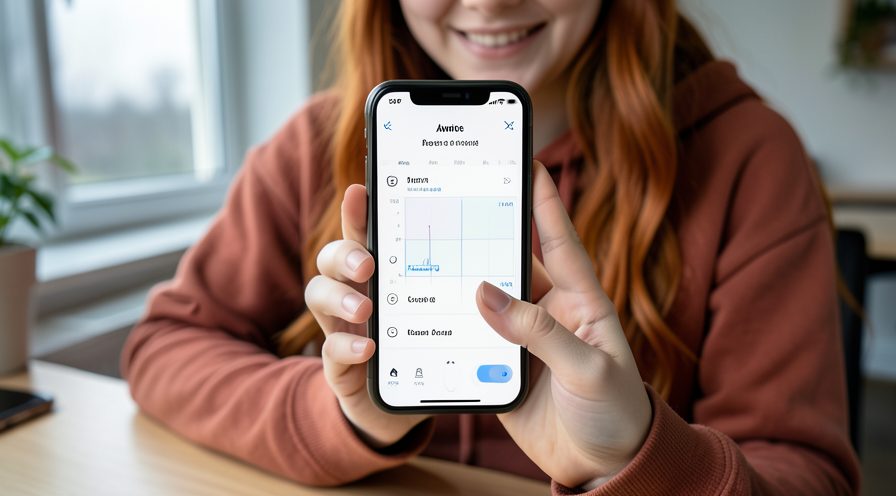
Step 4: Find a waking app
Look for a regular app near the top of the list that could be requesting background work.
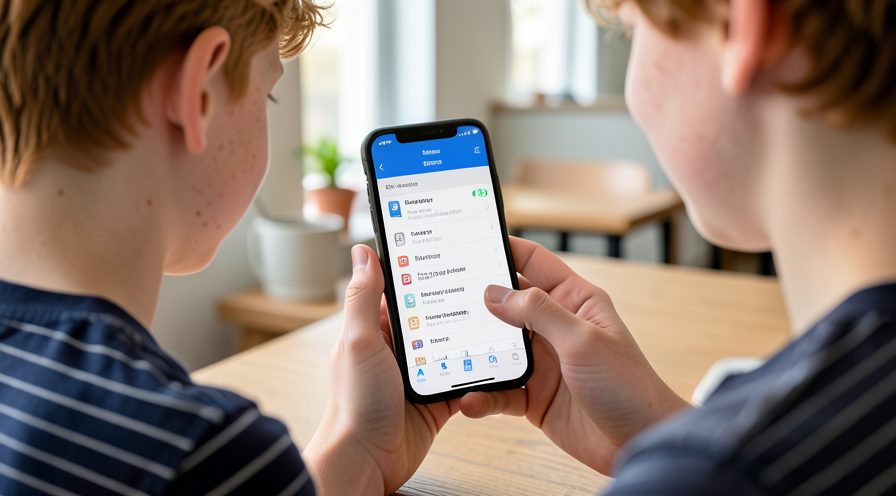
Step 5: Check for a failing sync
Open Settings, Accounts and look for an account stuck syncing that keeps services awake.
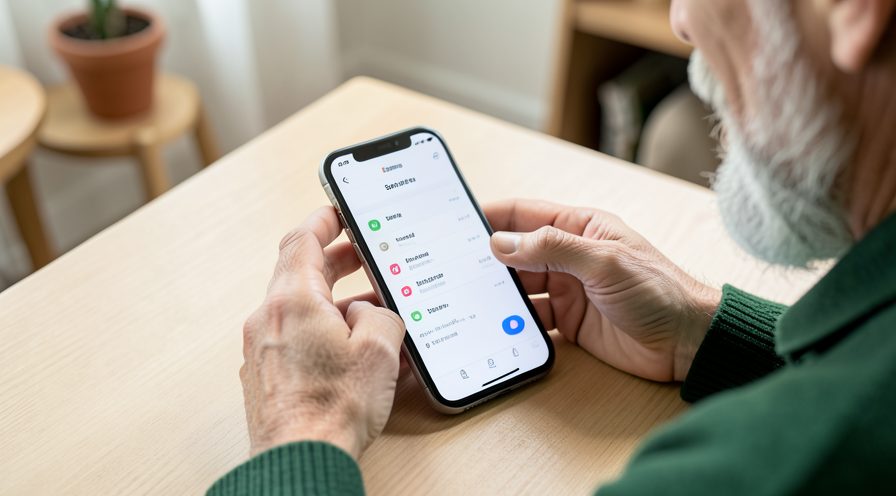
Method 2 of 2: Stop the Background Wake-Ups
Step 6: Restrict the suspicious app
Open the app's battery settings and choose Restrict background activity.
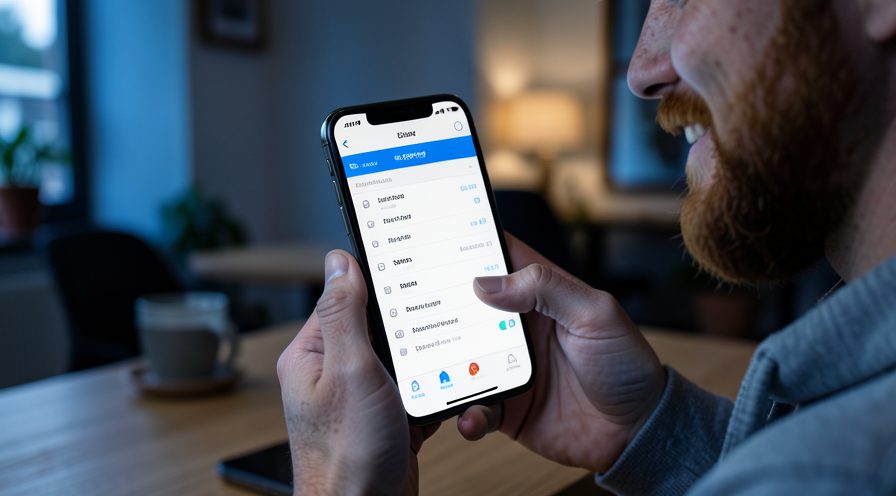
Step 7: Limit background location
In Settings, Location, set non-essential apps to Only while using the app.

Step 8: Disable Wi-Fi and Bluetooth scanning
In Location services, switch off scanning that runs even when Wi-Fi or Bluetooth is off.
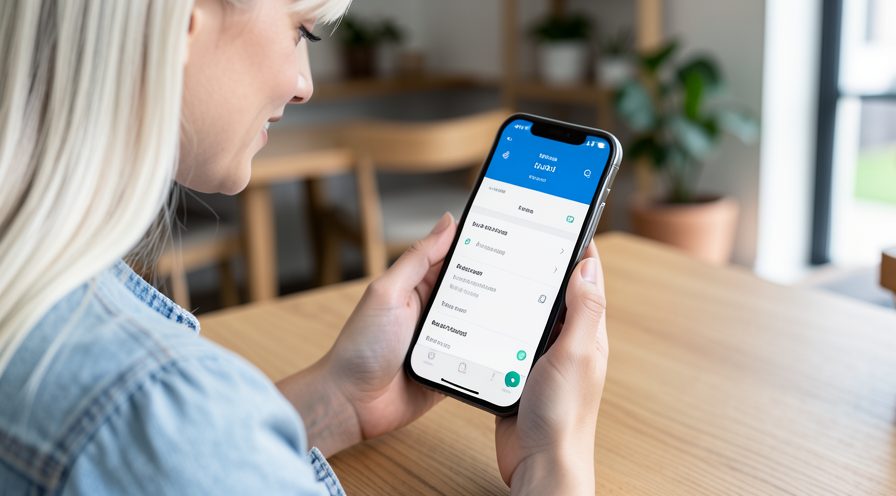
Step 9: Turn on Adaptive Battery
Enable Adaptive Battery so Android learns and limits apps you rarely use.
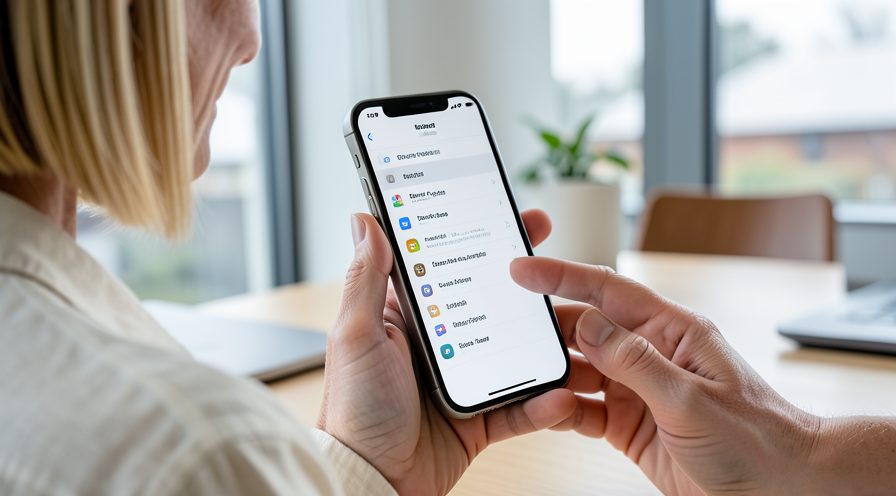
Step 10: Schedule Battery Saver
Set Battery Saver to activate at night to reduce background activity while you sleep.

Step 11: Reboot the phone
Restart to release any wake lock currently held by a stuck process.

Step 12: Recheck the next morning
Compare the new idle battery graph and confirm Android System use has dropped.

Tips
- Android System is a category, not a single app, so dig into what calls it.
- A phone that stays awake at night almost always has an app requesting a wake lock.
- Give changes a full night to show their effect before judging.
Warnings
- Do not disable core system services to save power; core functions will break.
- Aggressive task killers can delay alarms and messages.
- Restricting a messaging app may stop notifications arriving promptly.
Frequently asked questions
Why does Android System use battery when I am not using the phone?
Core services still sync accounts, check for updates and process location in the background. A high reading while idle usually means an app is repeatedly requesting those services or holding a wake lock.
Is Android System a real app I can remove?
No. It is a label for essential system processes. You cannot remove it, but you can reduce what it does by limiting the apps that request background work.
How do I find the app causing the drain?
Check Battery usage for any regular app near the top, review location permissions, and look for accounts with failing syncs. Those are the usual triggers behind a high Android System reading.
Will turning the phone off at night help?
It stops the drain but is not a fix. Restricting the offending app and enabling Adaptive Battery solves the cause while keeping the phone ready for calls and alarms.
References
- Google Support — Understand battery usage. https://support.google.com/android/answer/7664686
- Google Support — Battery optimization. https://support.google.com/android/answer/9779889
- Android Developers — Background work overview. https://developer.android.com/guide/background
- wikiHow — How to Fix "Android System" High Battery Use When the Phone Is Idle. https://www.wikihow.com/Save-Battery-Life-on-an-Android-Phone
Every guide is reviewed against its sources. See our editorial policy.

Reader comments
0 so farFinished this guide? Tell other readers what worked, what didn't, and what you would change.