com.android.systemui draws the status bar, navigation bar, quick settings and home screen on every Android phone. A high CPU reading is usually caused by a stuck notification, a live wallpaper, too many widgets or a third-party launcher. Reboot, clear the System UI cache, then trim the visual work it has to do.
This guide walks through the process in clear illustrated steps, from the first preparation to a finished result. Each step has its own picture, so you can compare your progress as you go.
How to use this guide
Work through the steps in order. Method 1 of 2 covers the basics, and the later methods offer alternatives and finishing touches. If you only have a minute, skim the Quick steps box above and come back for the details.
Related guides
- How to Fix 100 disk usage on windows 11 when the pc is idle
- How to How to fix xiaomi phone slow after a hyperos update
- How to Organize a small closet
- How to Deal with a difficult coworker
- Browse all Fix Slow Device guides
- All 52runoob guides
Trusted external resources
- Android Support - Speed up your Android device
- Android Support - Clear app cache and data
- Android Developers - Managing app memory
A note on sources
We check each guide against the official resources listed in References at the end of this article. External links open in a new tab; the related guides above stay on this site.
Quick steps
- Confirm System UI in battery usage with system processes shown.
- Restart the phone to clear a stuck screen state.
- Clear the cache of System UI from the app list.
- Switch a live wallpaper to a static image.
- Test in Safe mode to rule out a launcher or widget.
Things you'll need
- An Android phone with a charged battery
- Access to Settings and the app list with system apps shown
- A few minutes to test each change
Step-by-step
Method 1 of 2: Identify the Trigger and Clear Stuck State
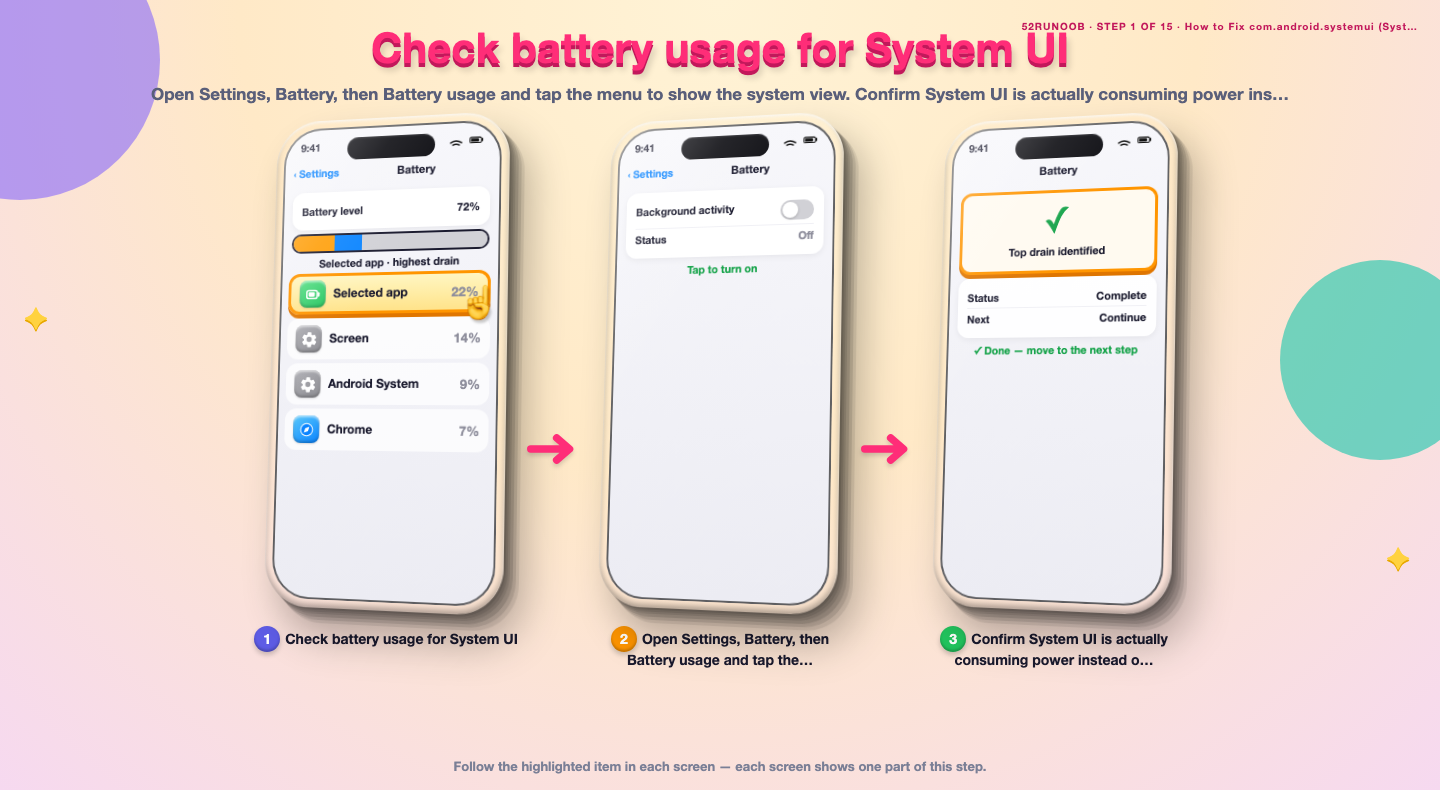
Step 1: Check battery usage for System UI
Open Settings, Battery, then Battery usage and tap the menu to show the system view. Confirm System UI is actually consuming power instead of a regular app using the screen.
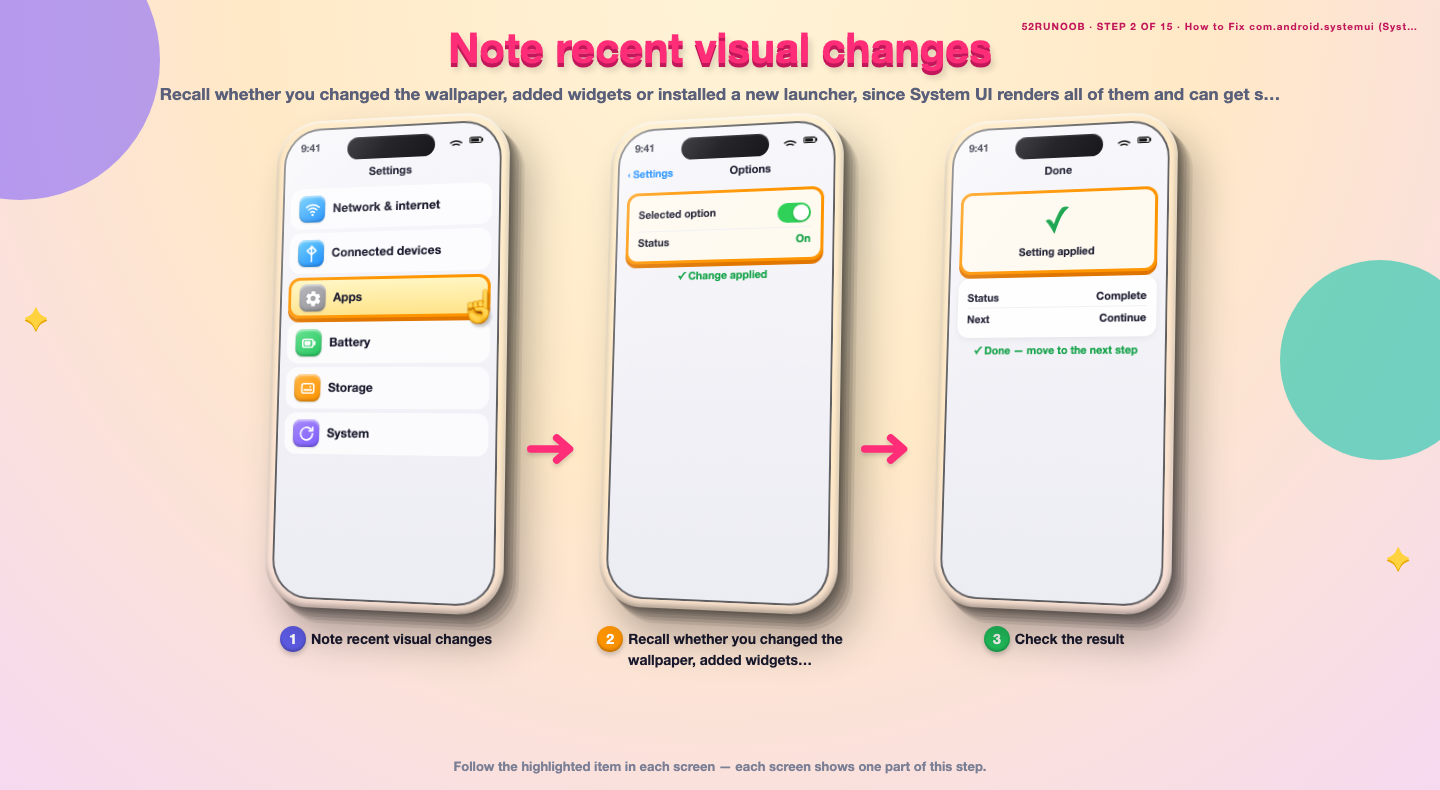
Step 2: Note recent visual changes
Recall whether you changed the wallpaper, added widgets or installed a new launcher, since System UI renders all of them and can get stuck redrawing them.
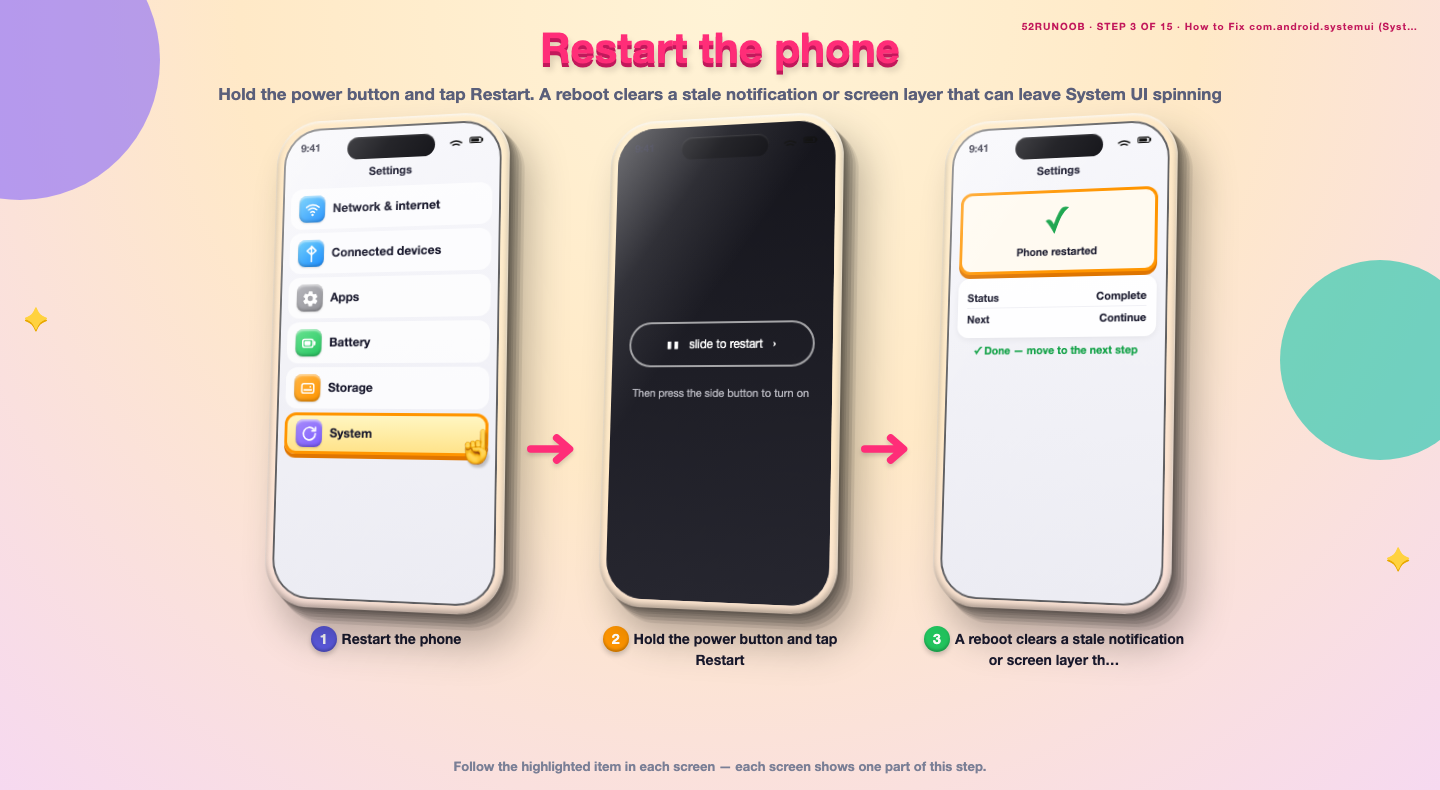
Step 3: Restart the phone
Hold the power button and tap Restart. A reboot clears a stale notification or screen layer that can leave System UI spinning.
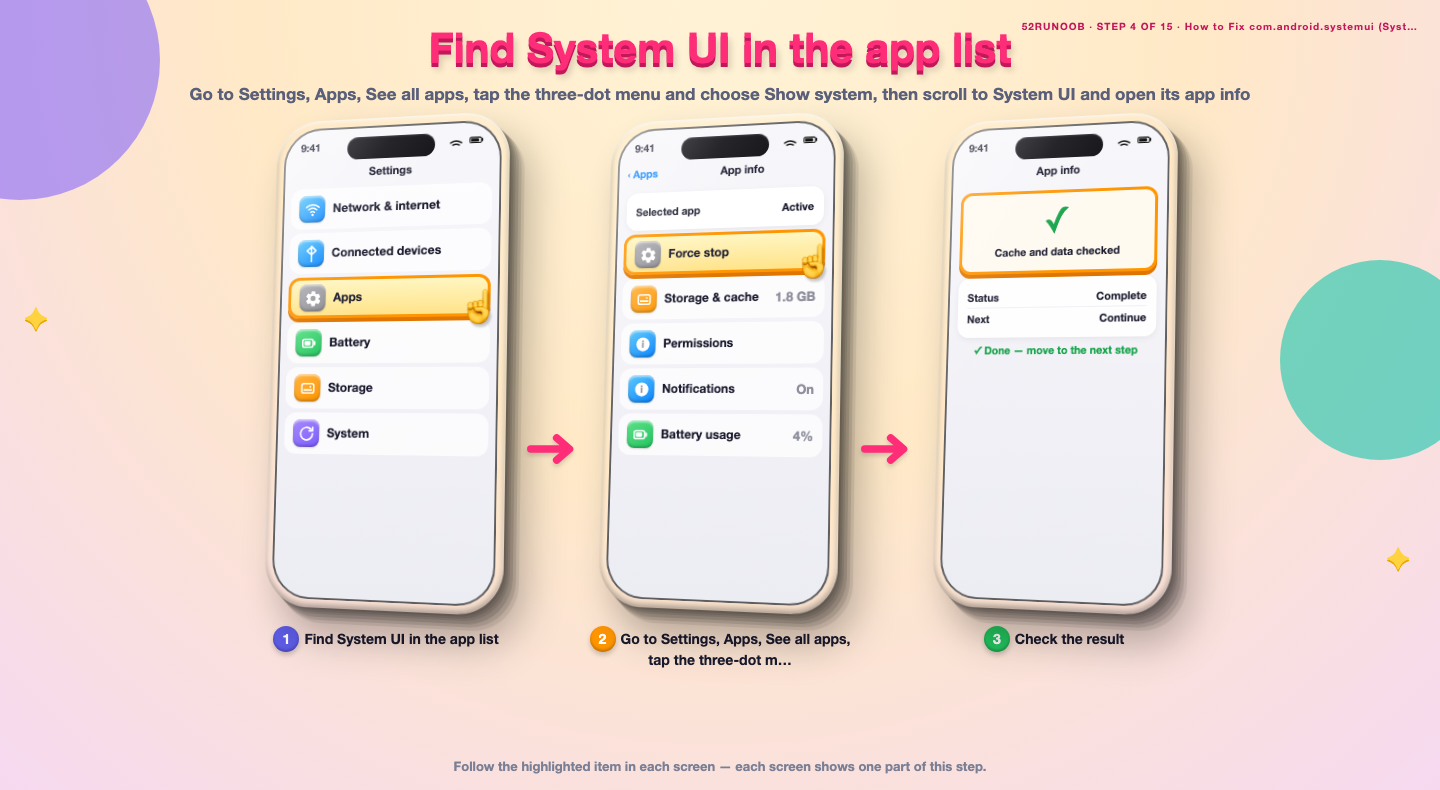
Step 4: Find System UI in the app list
Go to Settings, Apps, See all apps, tap the three-dot menu and choose Show system, then scroll to System UI and open its app info.
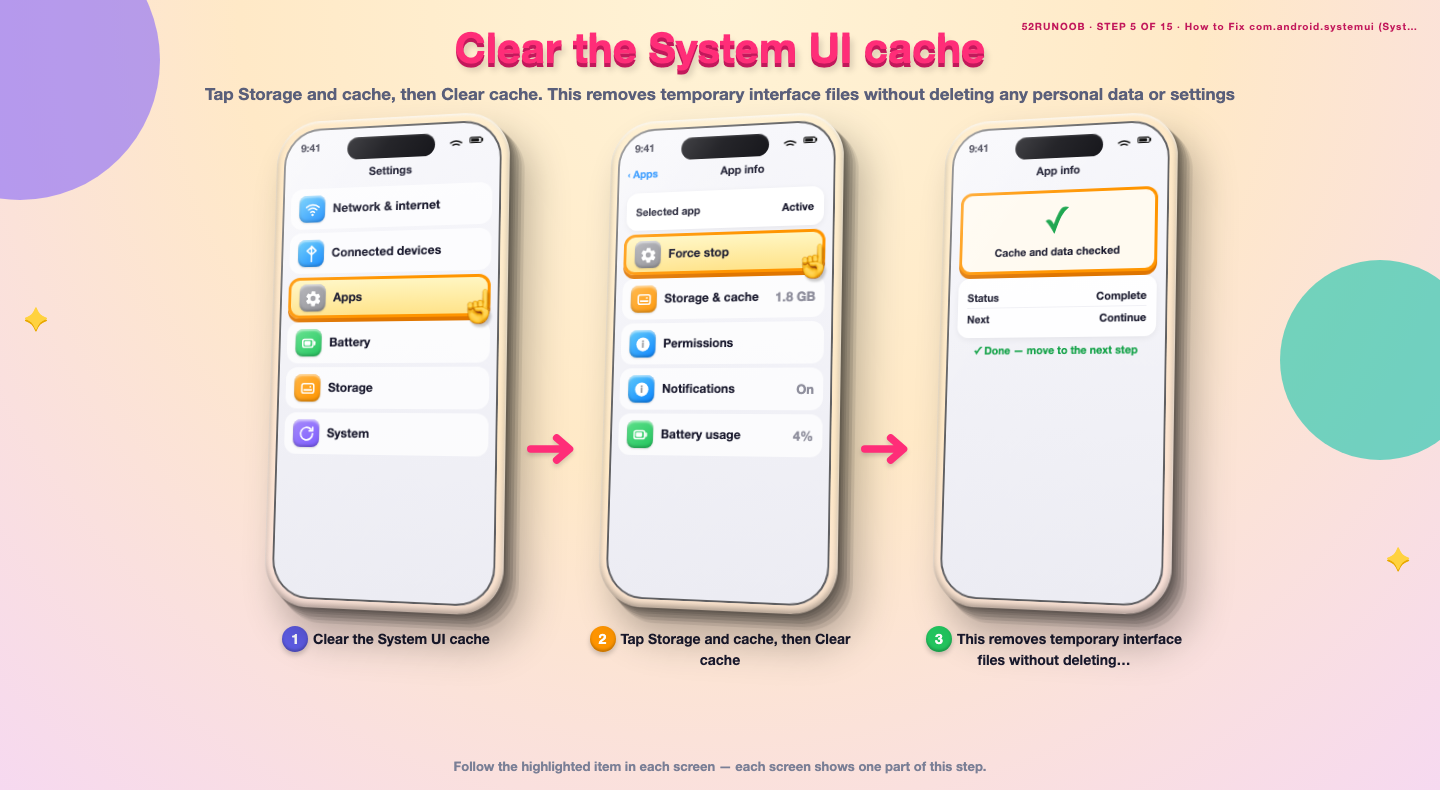
Step 5: Clear the System UI cache
Tap Storage and cache, then Clear cache. This removes temporary interface files without deleting any personal data or settings.
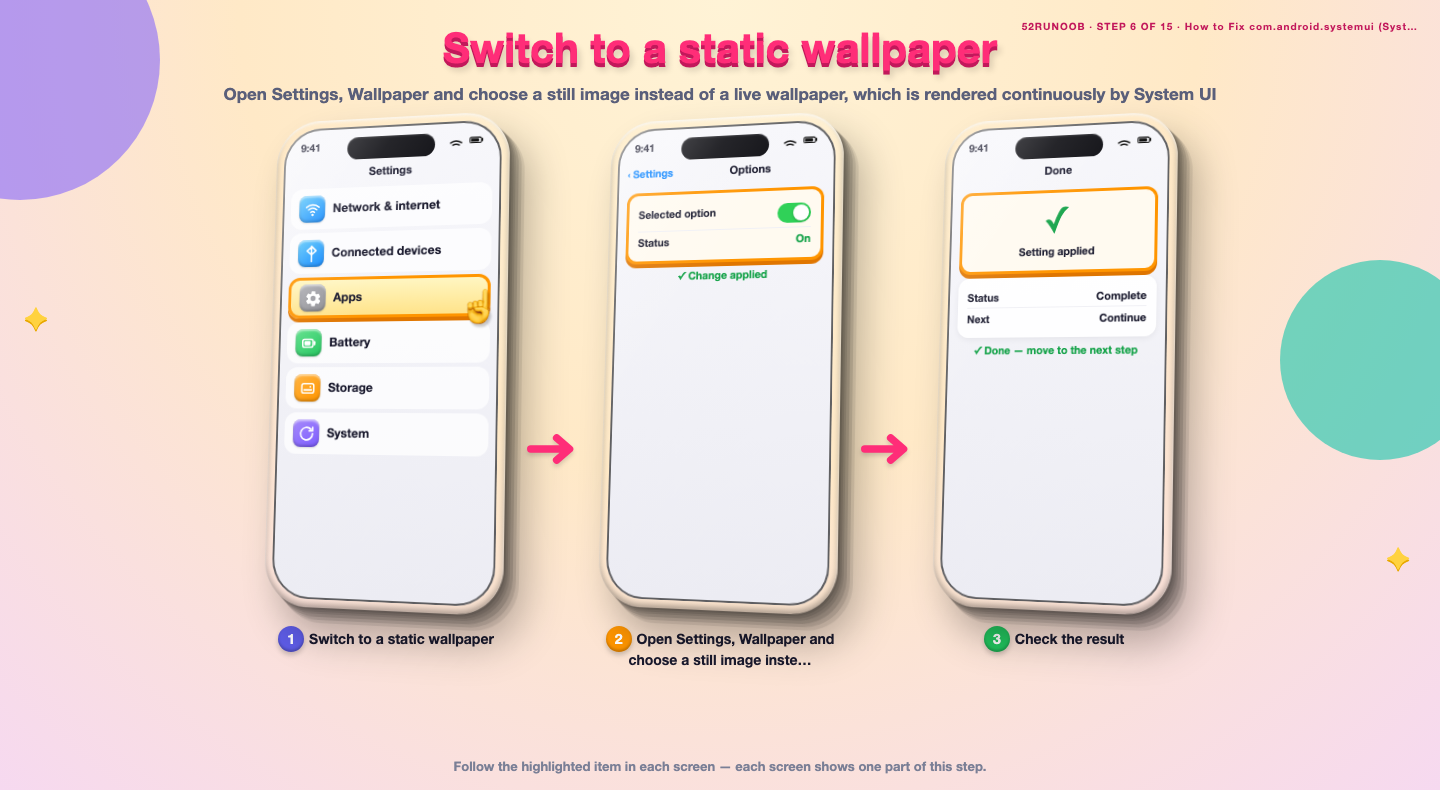
Step 6: Switch to a static wallpaper
Open Settings, Wallpaper and choose a still image instead of a live wallpaper, which is rendered continuously by System UI.
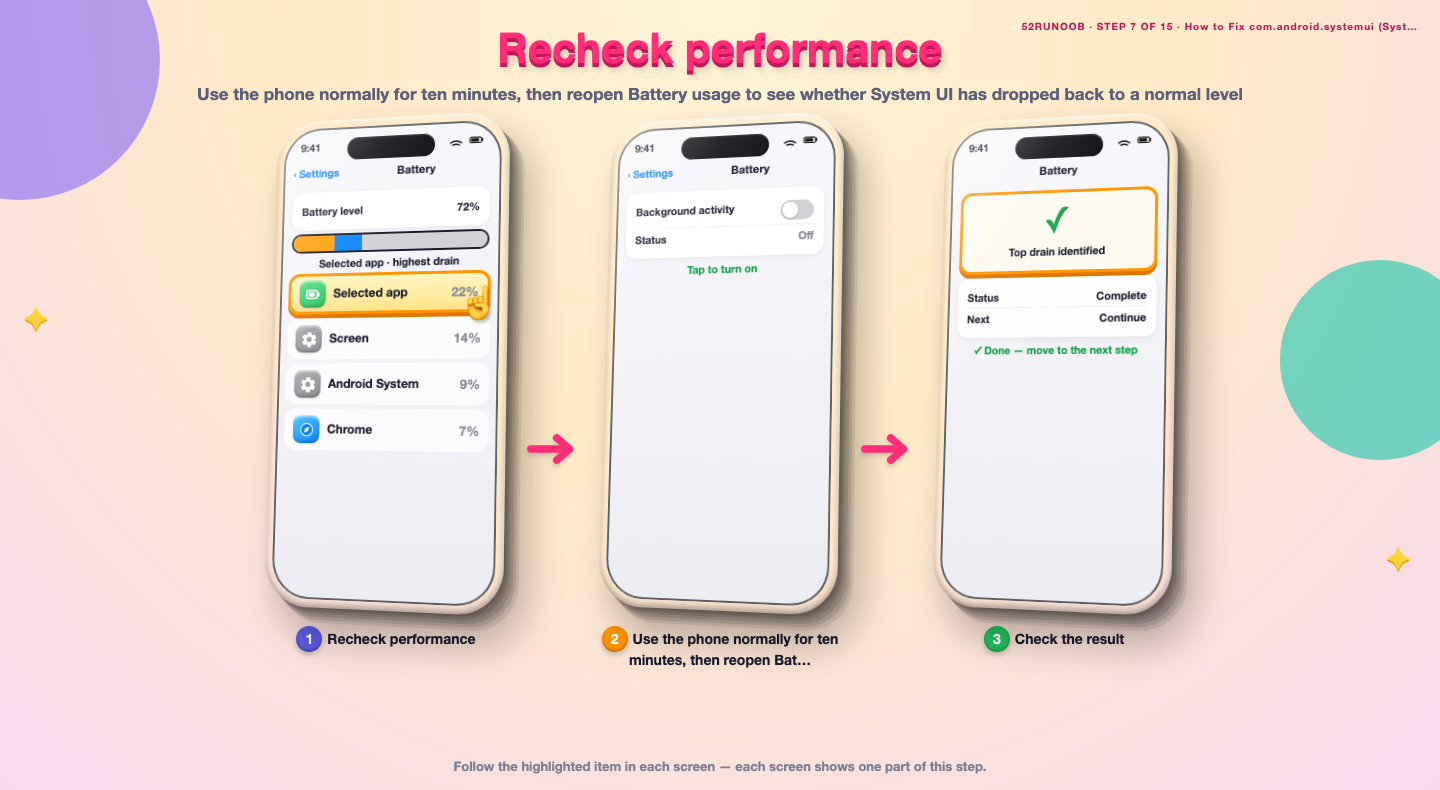
Step 7: Recheck performance
Use the phone normally for ten minutes, then reopen Battery usage to see whether System UI has dropped back to a normal level.
Method 2 of 2: Reduce the System UI Workload
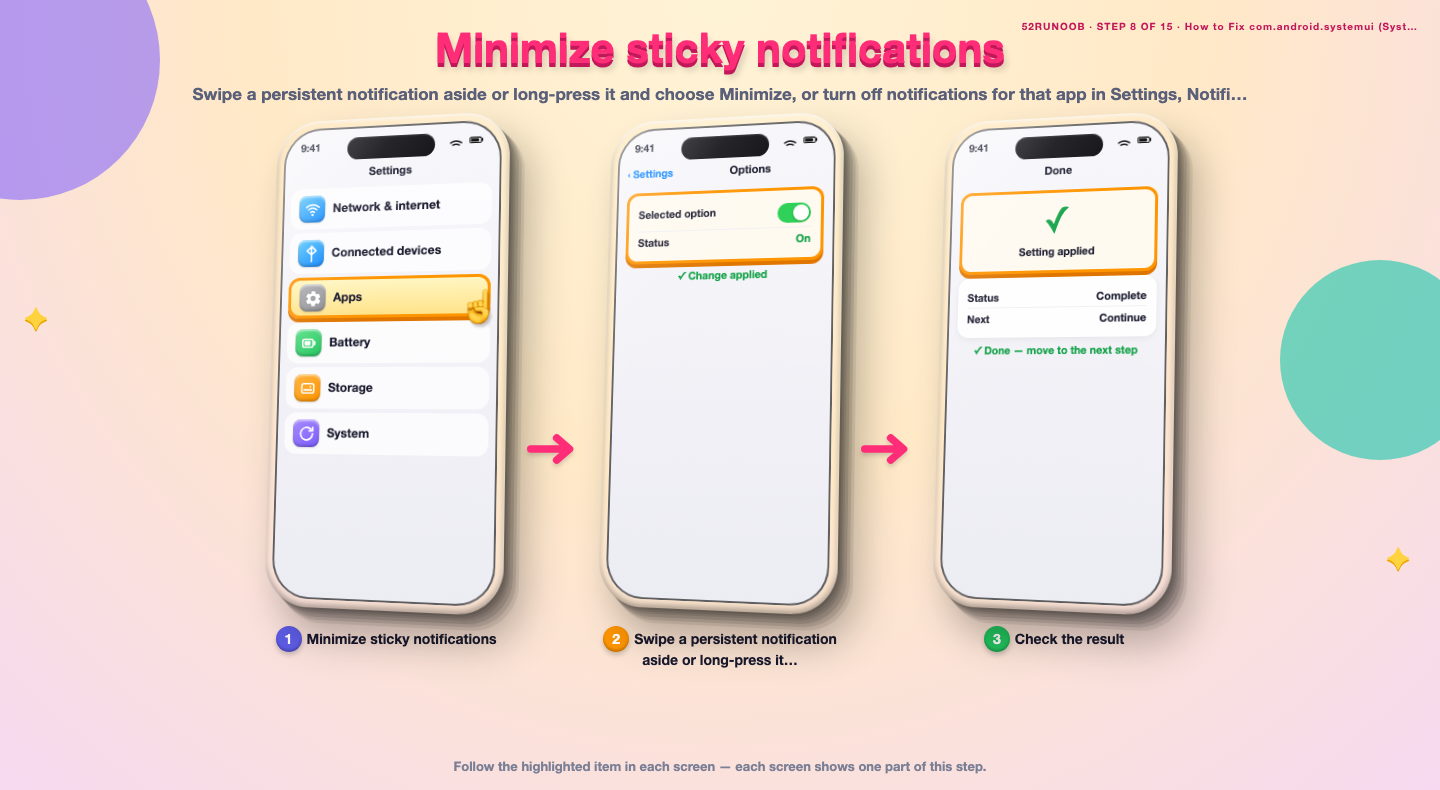
Step 8: Minimize sticky notifications
Swipe a persistent notification aside or long-press it and choose Minimize, or turn off notifications for that app in Settings, Notifications.
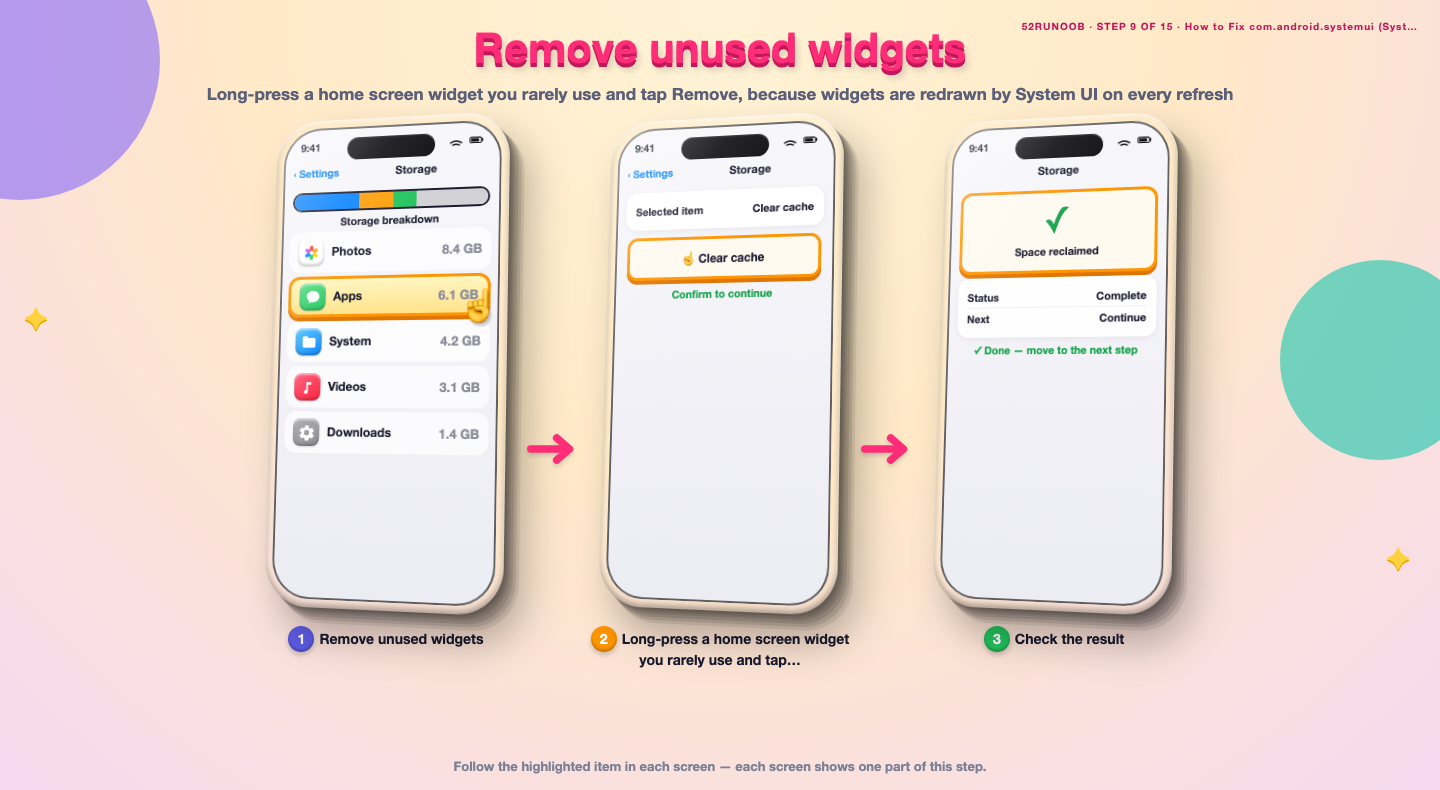
Step 9: Remove unused widgets
Long-press a home screen widget you rarely use and tap Remove, because widgets are redrawn by System UI on every refresh.
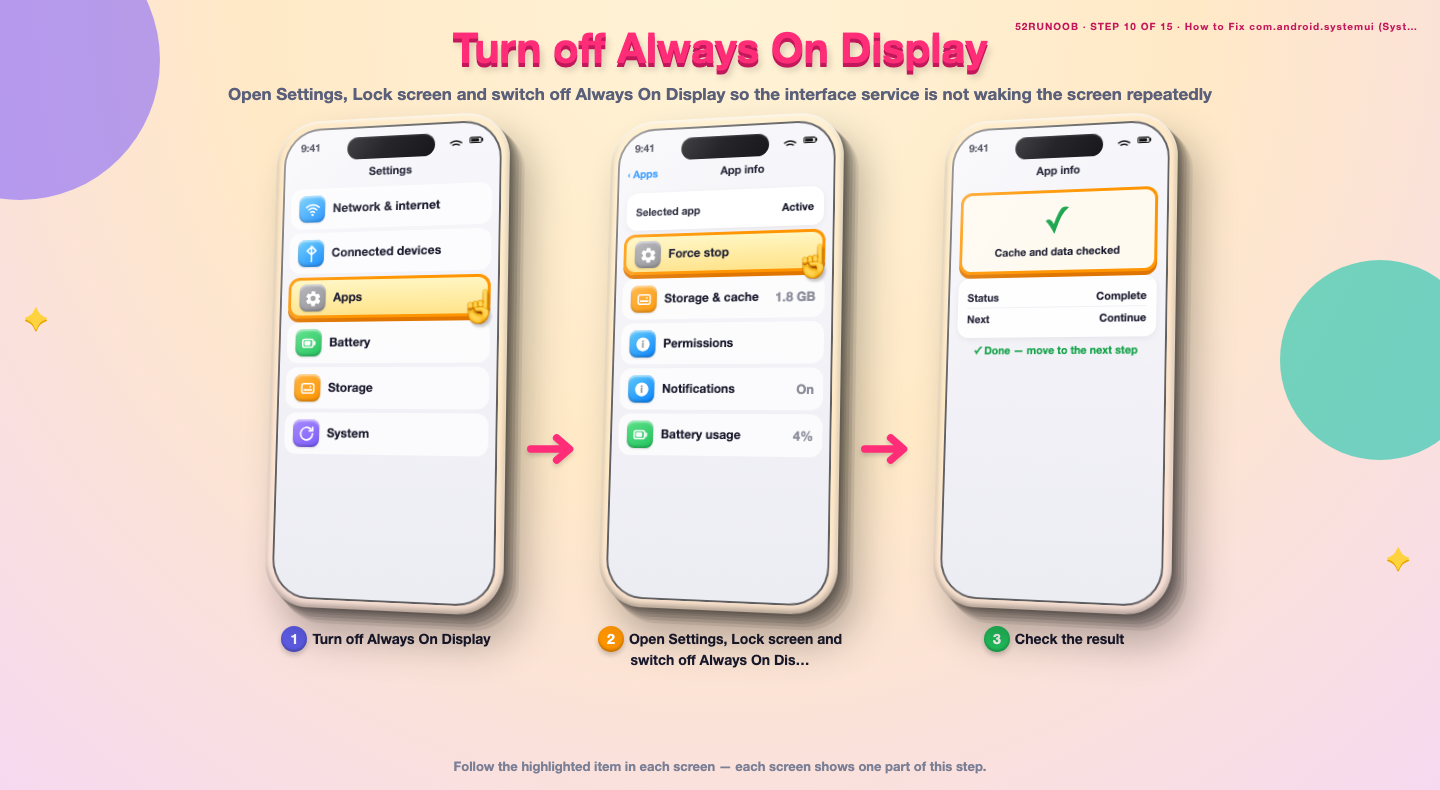
Step 10: Turn off Always On Display
Open Settings, Lock screen and switch off Always On Display so the interface service is not waking the screen repeatedly.
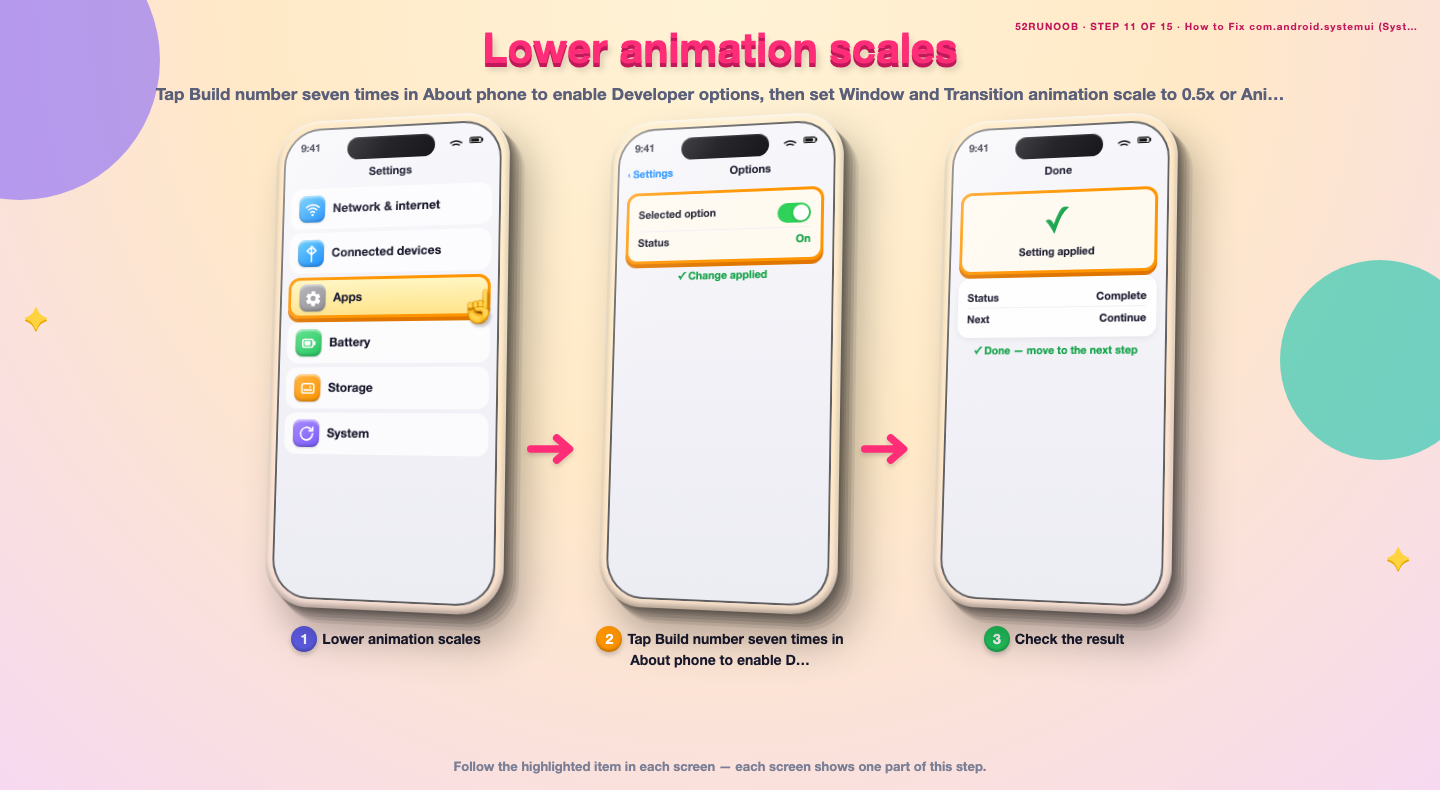
Step 11: Lower animation scales
Tap Build number seven times in About phone to enable Developer options, then set Window and Transition animation scale to 0.5x or Animation off.
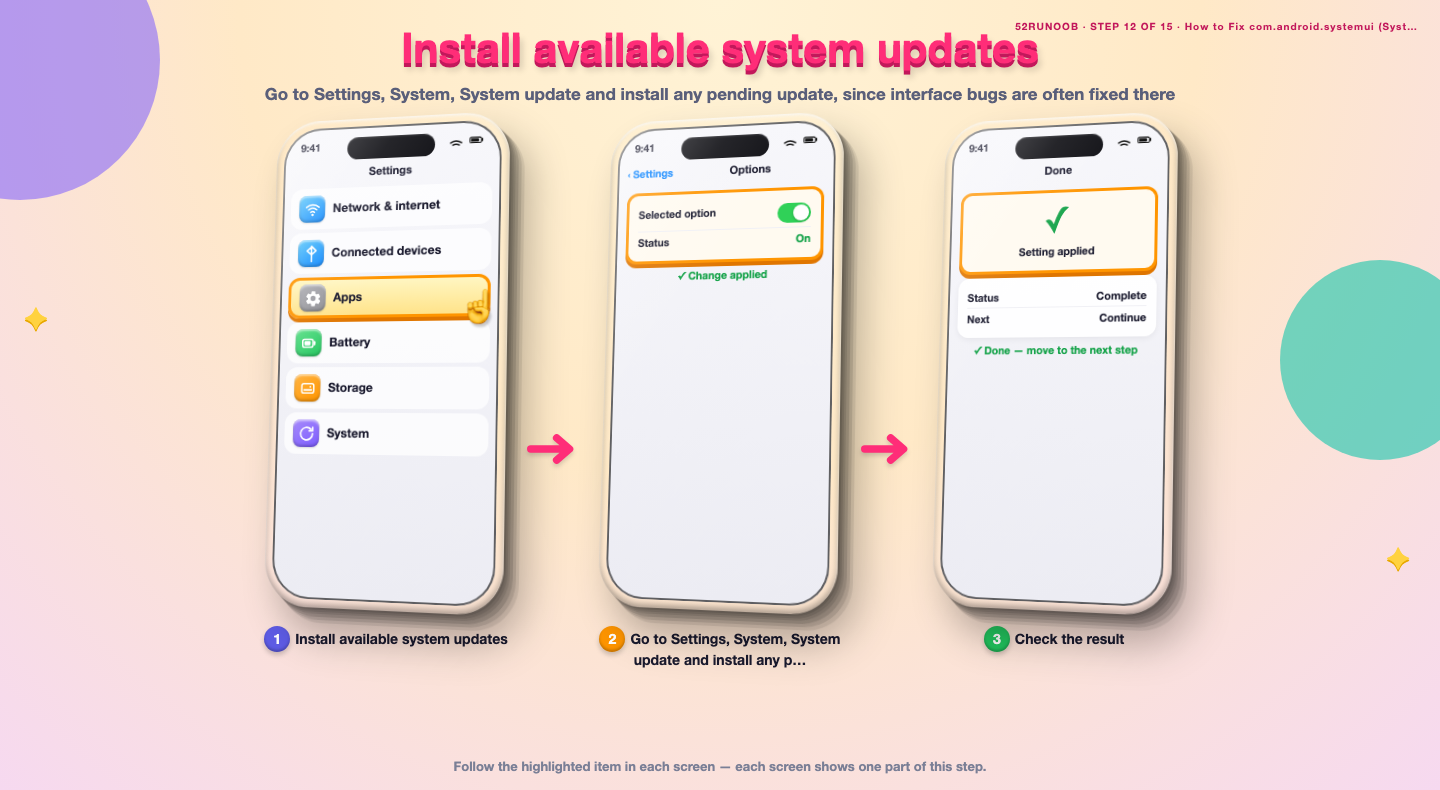
Step 12: Install available system updates
Go to Settings, System, System update and install any pending update, since interface bugs are often fixed there.
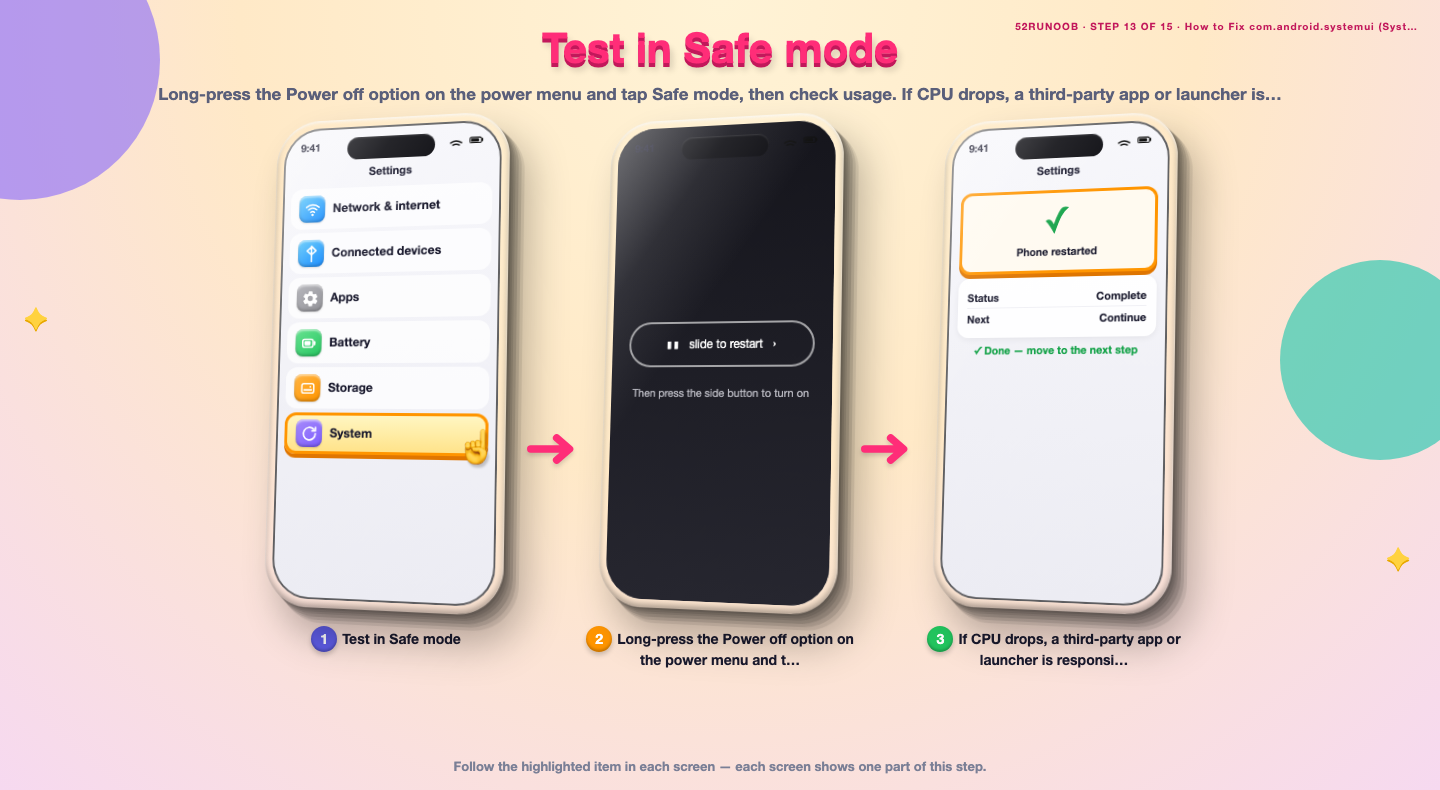
Step 13: Test in Safe mode
Long-press the Power off option on the power menu and tap Safe mode, then check usage. If CPU drops, a third-party app or launcher is responsible.
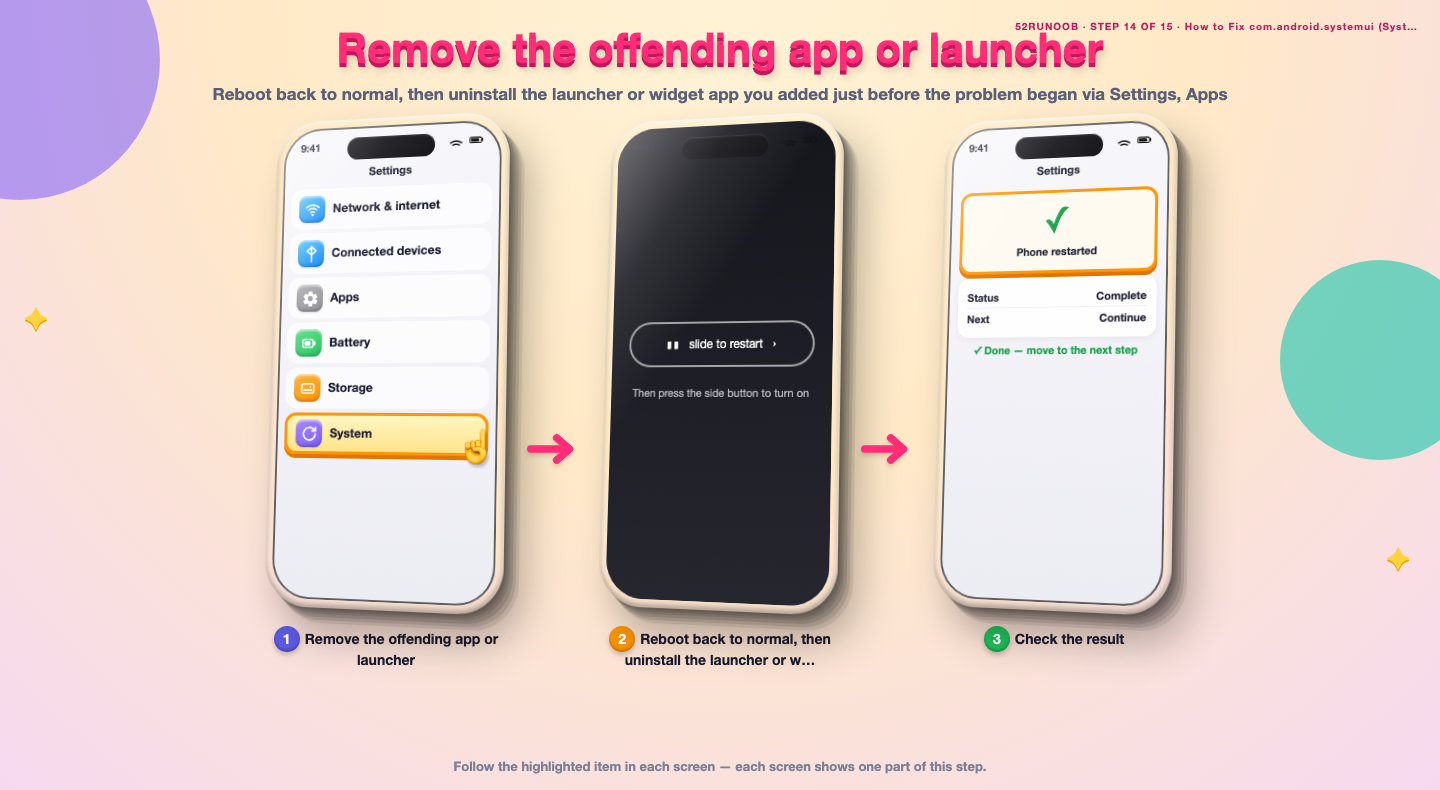
Step 14: Remove the offending app or launcher
Reboot back to normal, then uninstall the launcher or widget app you added just before the problem began via Settings, Apps.
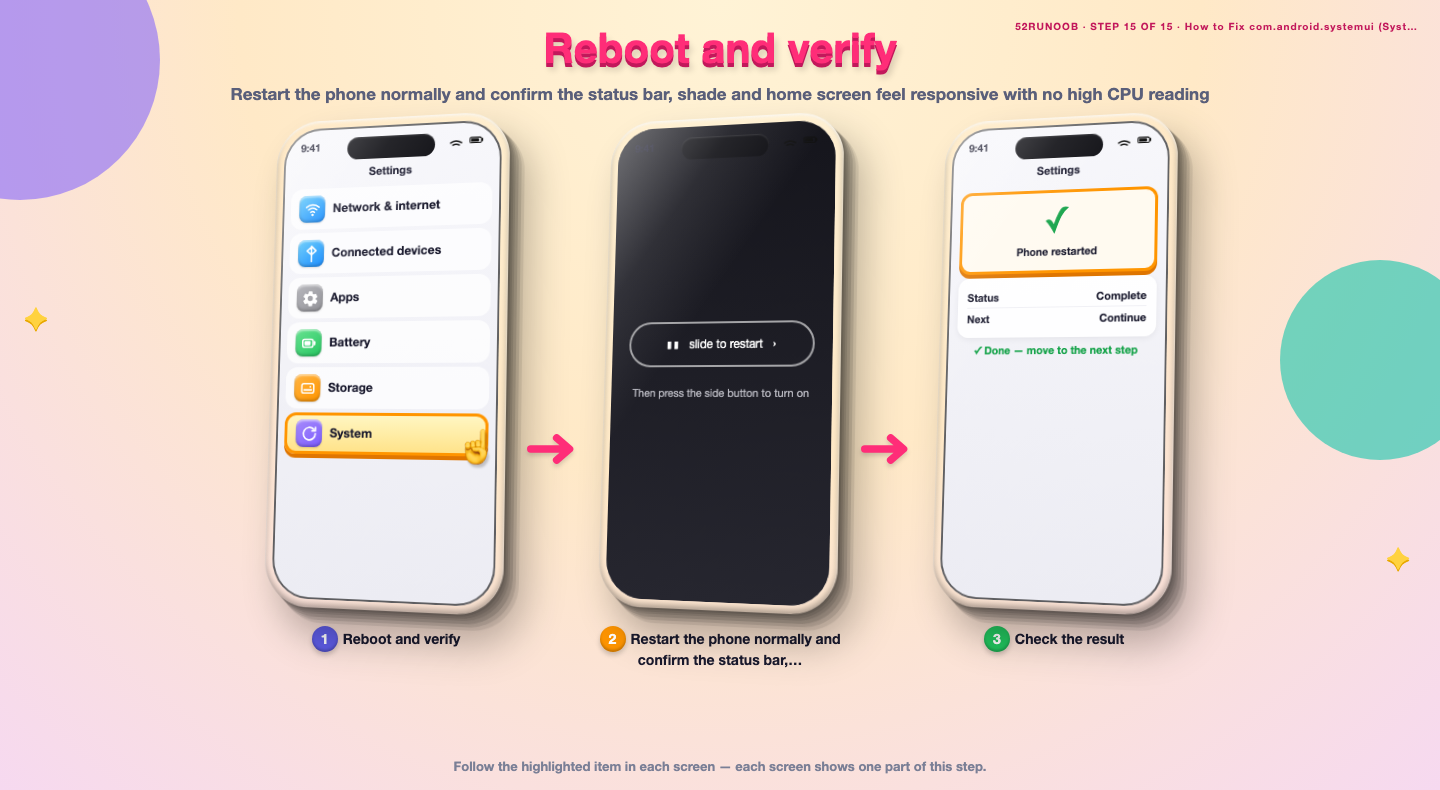
Step 15: Reboot and verify
Restart the phone normally and confirm the status bar, shade and home screen feel responsive with no high CPU reading.
Tips
- System UI restarts itself after a force stop, so it cannot be removed.
- A single persistent notification is a common hidden cause.
- Lowering animation speed makes the interface feel snappier on older hardware.
Warnings
- Do not install so-called CPU cooler apps; they often add more background work.
- Force stopping System UI briefly blanks the screen, so do it while the phone is idle.
- Reset options erase saved Wi-Fi passwords, so back them up first.
Frequently asked questions
Is com.android.systemui a virus?
No. It is the official Android system interface process that draws the status bar, navigation and notifications. It is a normal part of the operating system and should not be deleted or disabled.
Is high CPU usage from System UI normal?
A short spike while swiping the shade or changing wallpaper is normal. A reading that stays high when the screen is idle is not, and usually points to a stuck notification, widget or a third-party launcher.
Can I force stop System UI?
You can, but Android restarts it almost immediately, so it is only a temporary fix. Clearing its cache and removing the visual trigger is more effective.
Will Safe mode delete my apps?
No. Safe mode simply disables third-party apps for the session. If System UI CPU drops in Safe mode, reenable apps one at a time to find the culprit, then reboot normally.
References
- Android Support - Speed up your Android device. https://support.google.com/android/answer/9454546
- Android Support - Clear app cache and data. https://support.google.com/android/answer/9551190
- Android Developers - Managing app memory. https://developer.android.com/guide/topics/management/memory
- wikiHow — How to Fix com.android.systemui (SystemUI) High CPU on Android. https://www.wikihow.com/Fix-High-CPU-Usage-on-Android
Every guide is reviewed against its sources. See our editorial policy.
Reader comments
0 so farFinished this guide? Tell other readers what worked, what didn't, and what you would change.