com.google.android.gsf is the Google Services Framework that keeps accounts, calendar and contacts in sync. A stuck account or a failing sync can keep it awake and drain the battery overnight. Reboot, repair the syncing account and restrict background work rather than removing this core component.
This guide walks through the process in clear illustrated steps, from the first preparation to a finished result. Each step has its own picture, so you can compare your progress as you go.
How to use this guide
Work through the steps in order. Method 1 of 2 covers the basics, and the later methods offer alternatives and finishing touches. If you only have a minute, skim the Quick steps box above and come back for the details.
Related guides
- How to Change a tire
- How to Reduce stress naturally
- How to Start calligraphy with a dip pen
- How to Free up storage on your phone
- Browse all Fix Slow Device guides
- All 52runoob guides
Trusted external resources
- Android Support - Speed up your Android device
- Android Developers - Background work guide
- Android Support - Clear app cache and data
A note on sources
We check each guide against the official resources listed in References at the end of this article. External links open in a new tab; the related guides above stay on this site.
Quick steps
- Show system processes in battery usage to confirm GSF.
- Reboot the phone to clear a failed sync.
- Check Google accounts and their sync settings.
- Clear the Google Services Framework cache.
- Update Play services, Gmail, Calendar and Contacts.
Things you'll need
- An Android phone with a Google account signed in
- Access to Settings, Accounts and the app list
- A Wi-Fi connection for app updates
- A full charge cycle for a fair battery test
Step-by-step
Method 1 of 2: Identify the Failing Sync
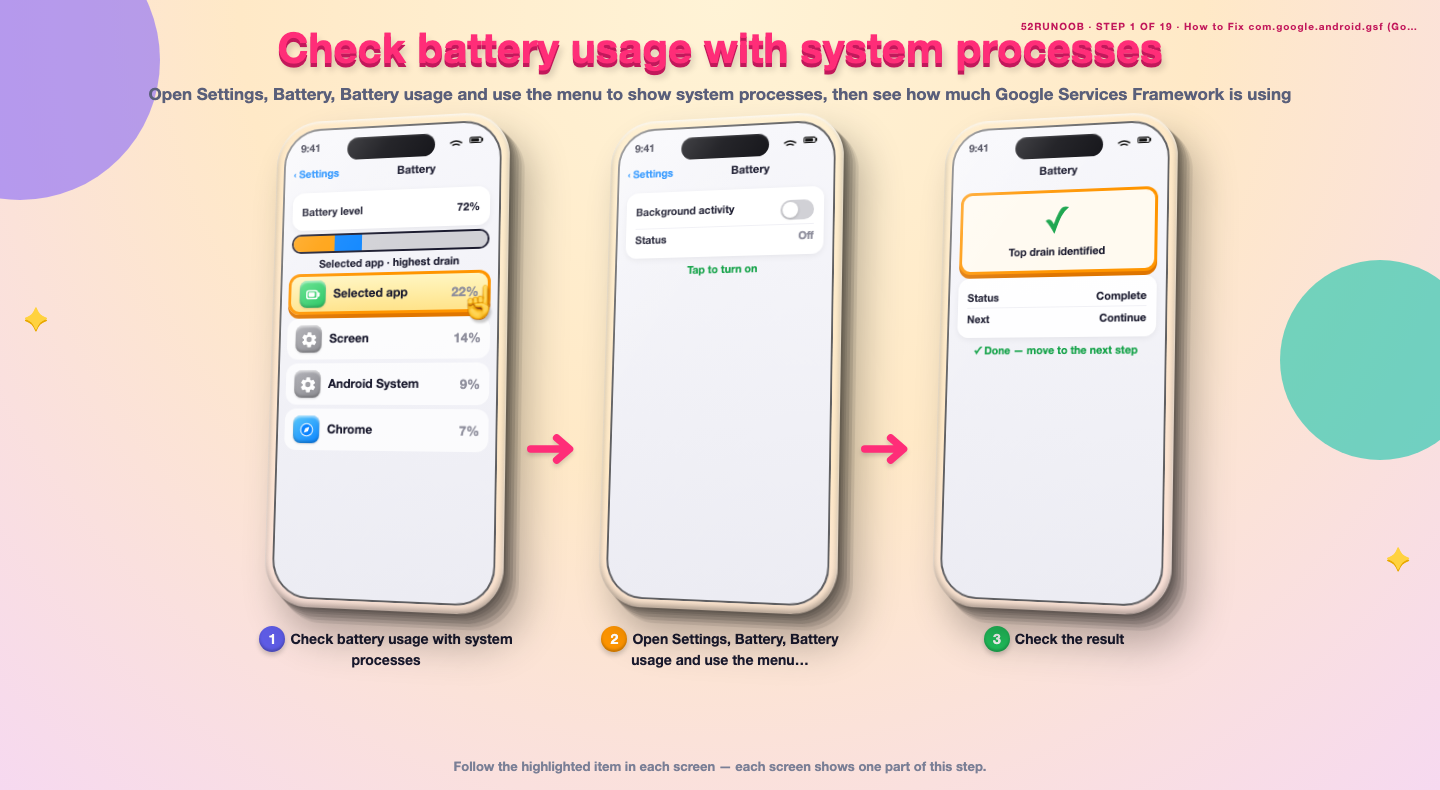
Step 1: Check battery usage with system processes
Open Settings, Battery, Battery usage and use the menu to show system processes, then see how much Google Services Framework is using.
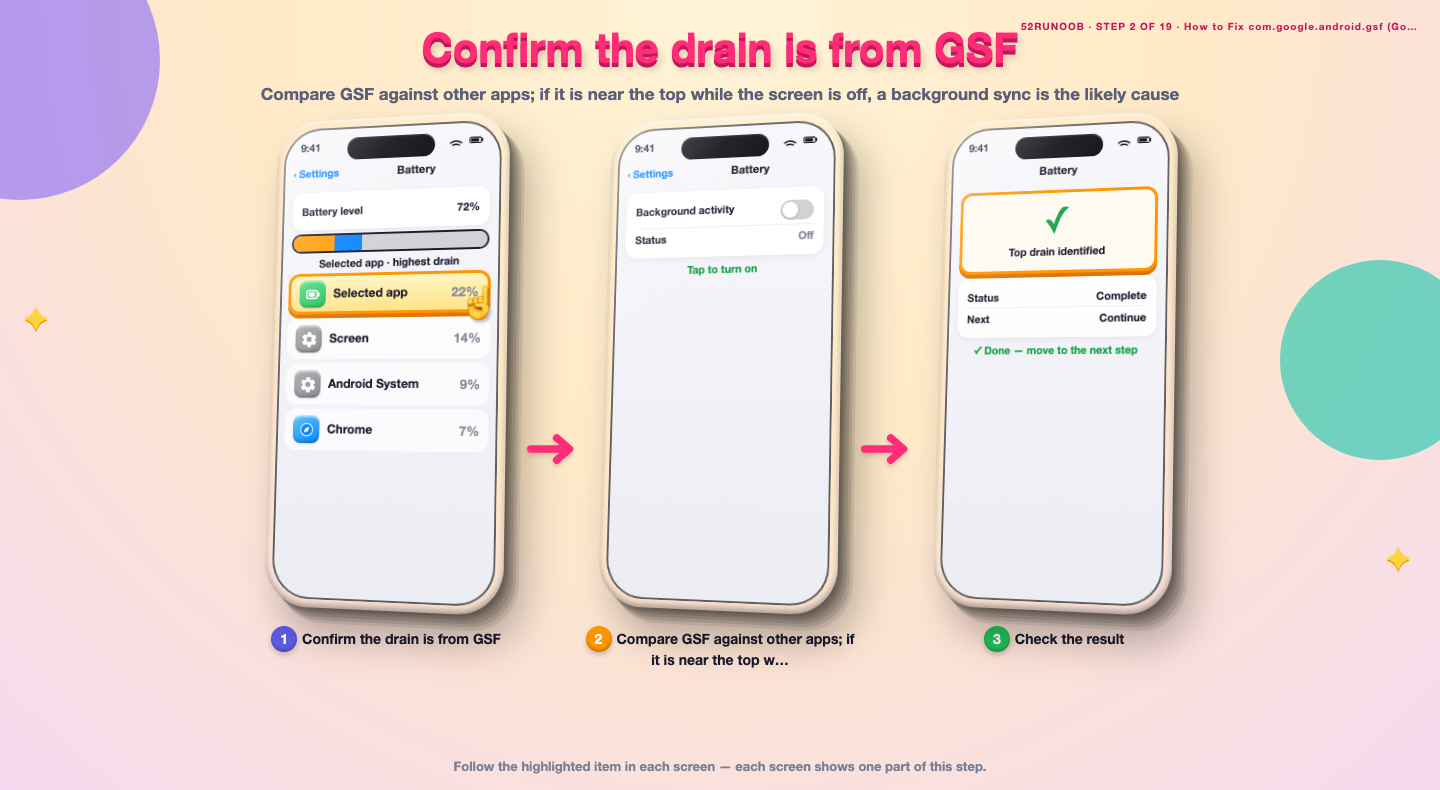
Step 2: Confirm the drain is from GSF
Compare GSF against other apps; if it is near the top while the screen is off, a background sync is the likely cause.
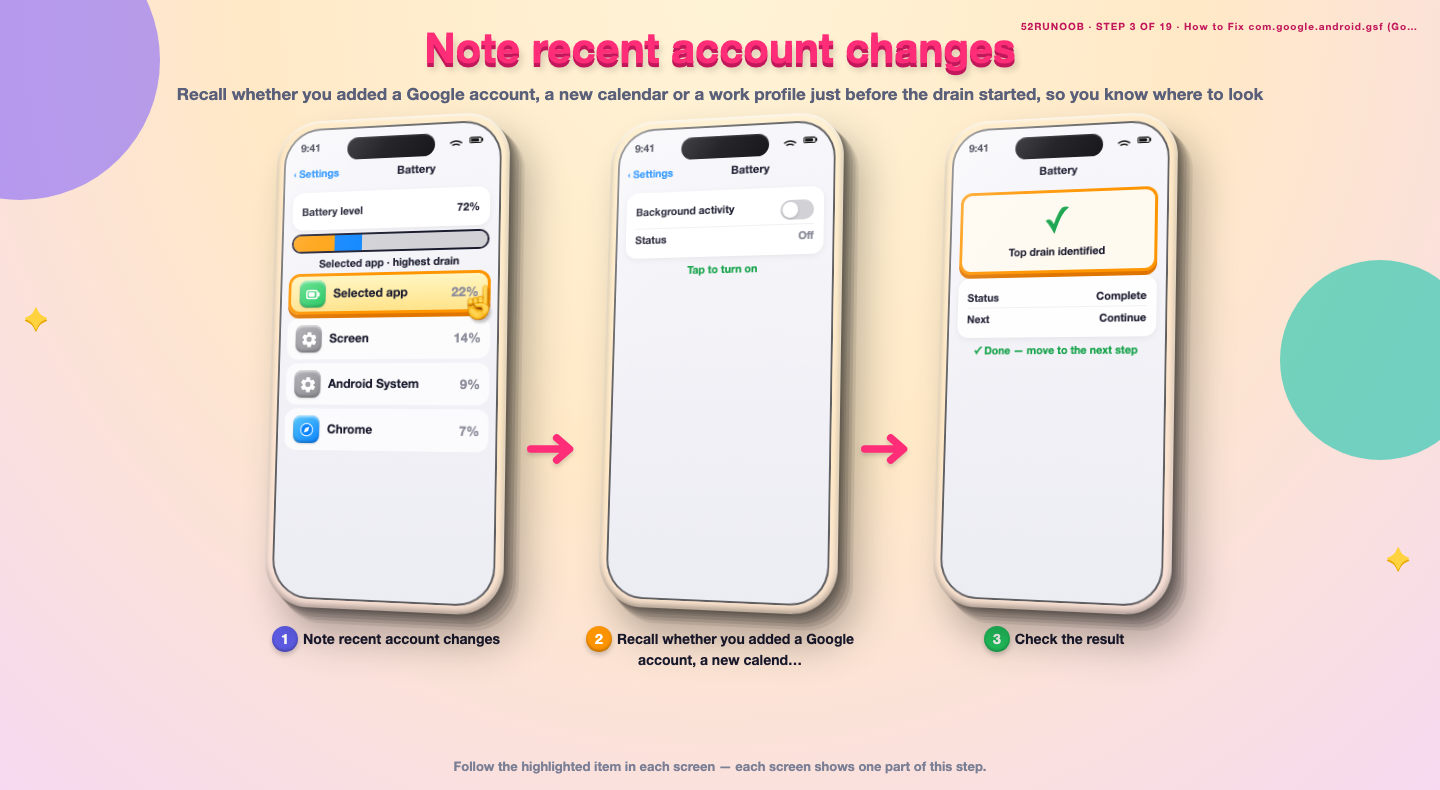
Step 3: Note recent account changes
Recall whether you added a Google account, a new calendar or a work profile just before the drain started, so you know where to look.
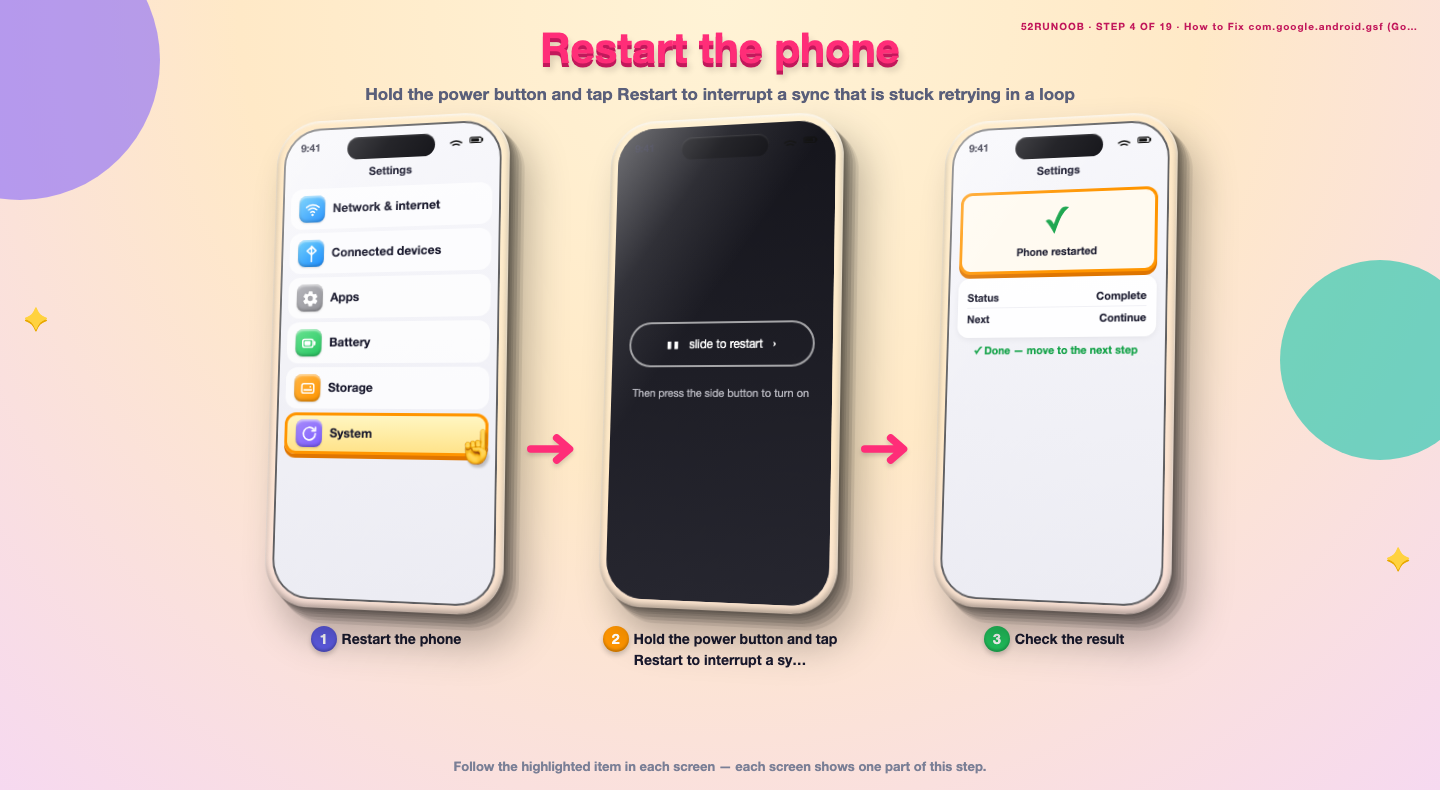
Step 4: Restart the phone
Hold the power button and tap Restart to interrupt a sync that is stuck retrying in a loop.
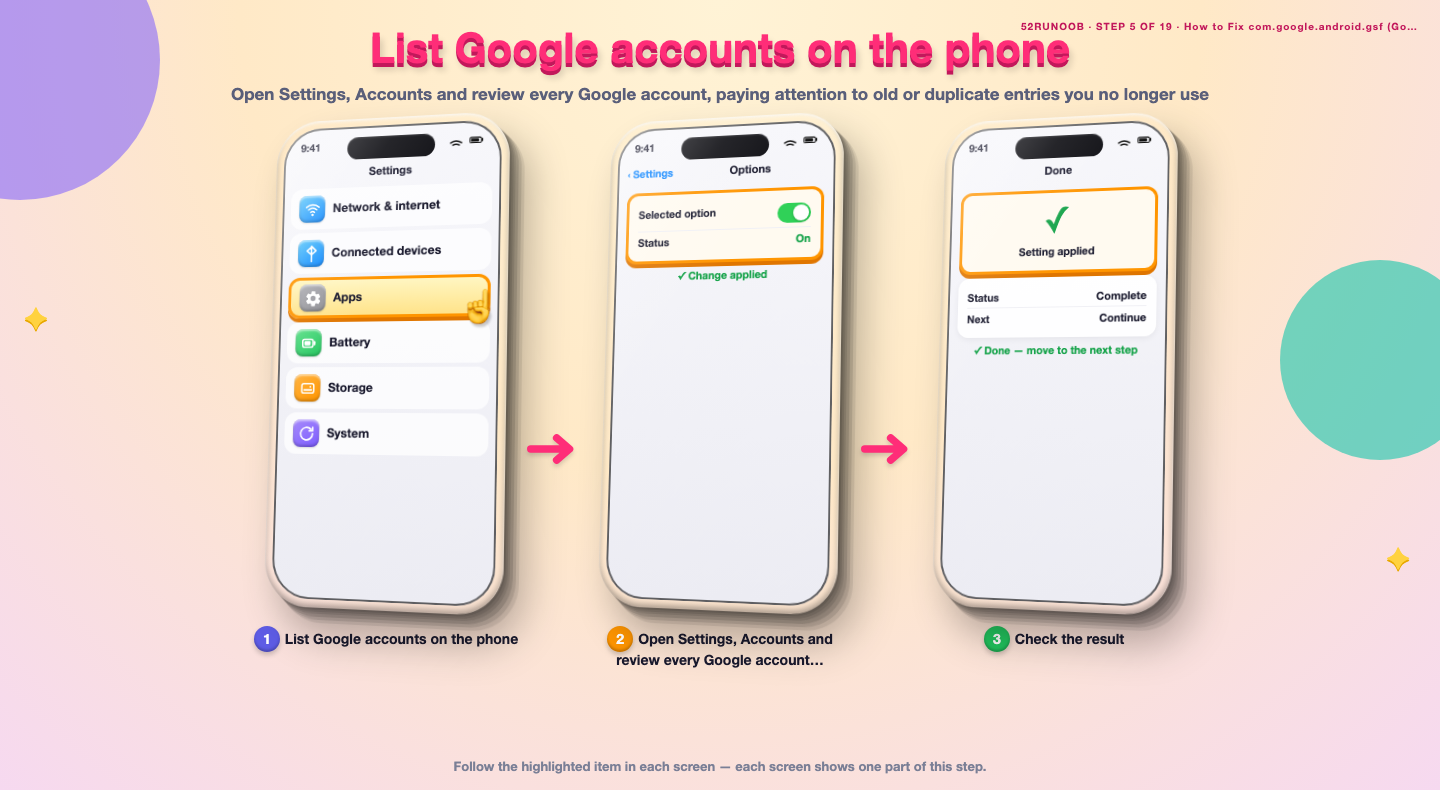
Step 5: List Google accounts on the phone
Open Settings, Accounts and review every Google account, paying attention to old or duplicate entries you no longer use.
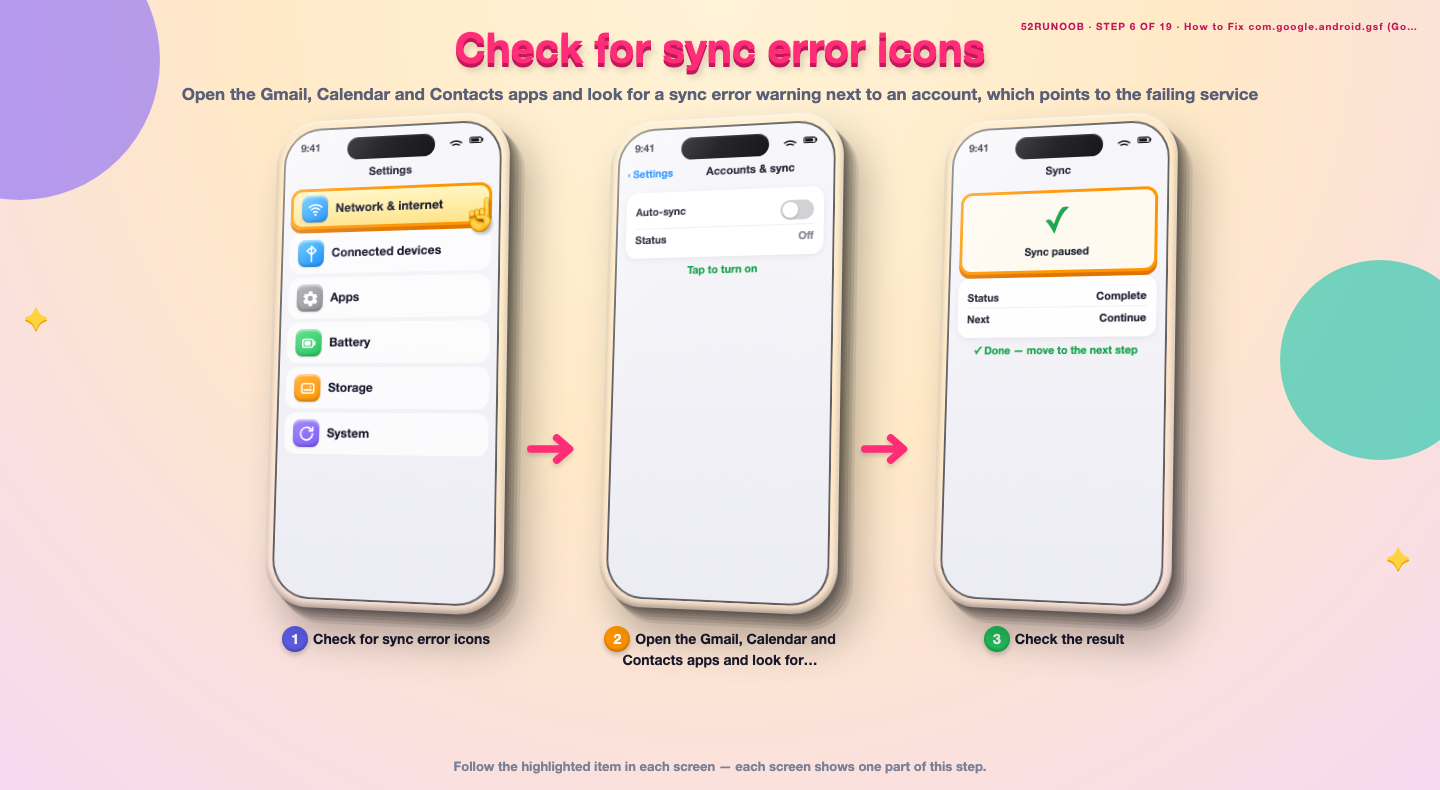
Step 6: Check for sync error icons
Open the Gmail, Calendar and Contacts apps and look for a sync error warning next to an account, which points to the failing service.
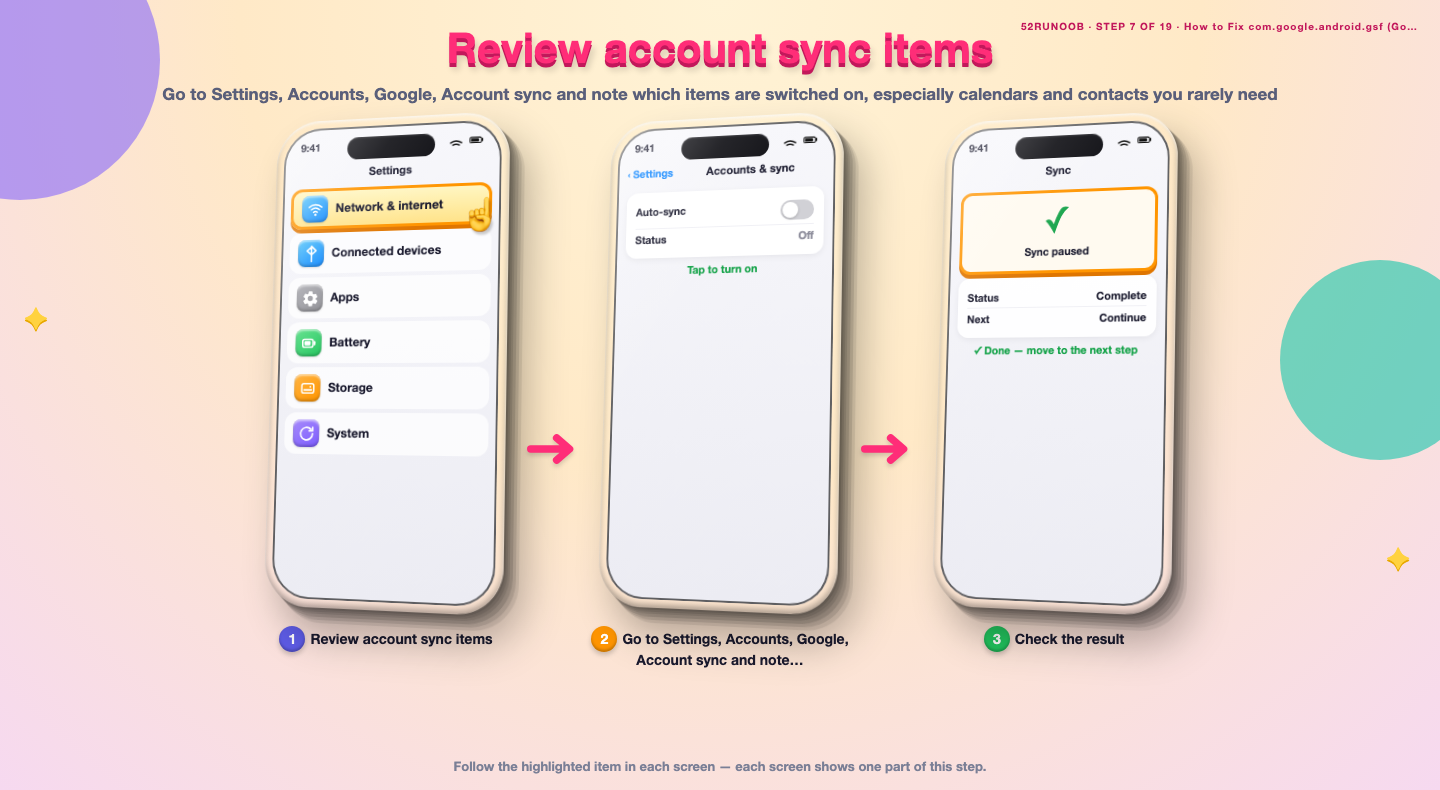
Step 7: Review account sync items
Go to Settings, Accounts, Google, Account sync and note which items are switched on, especially calendars and contacts you rarely need.
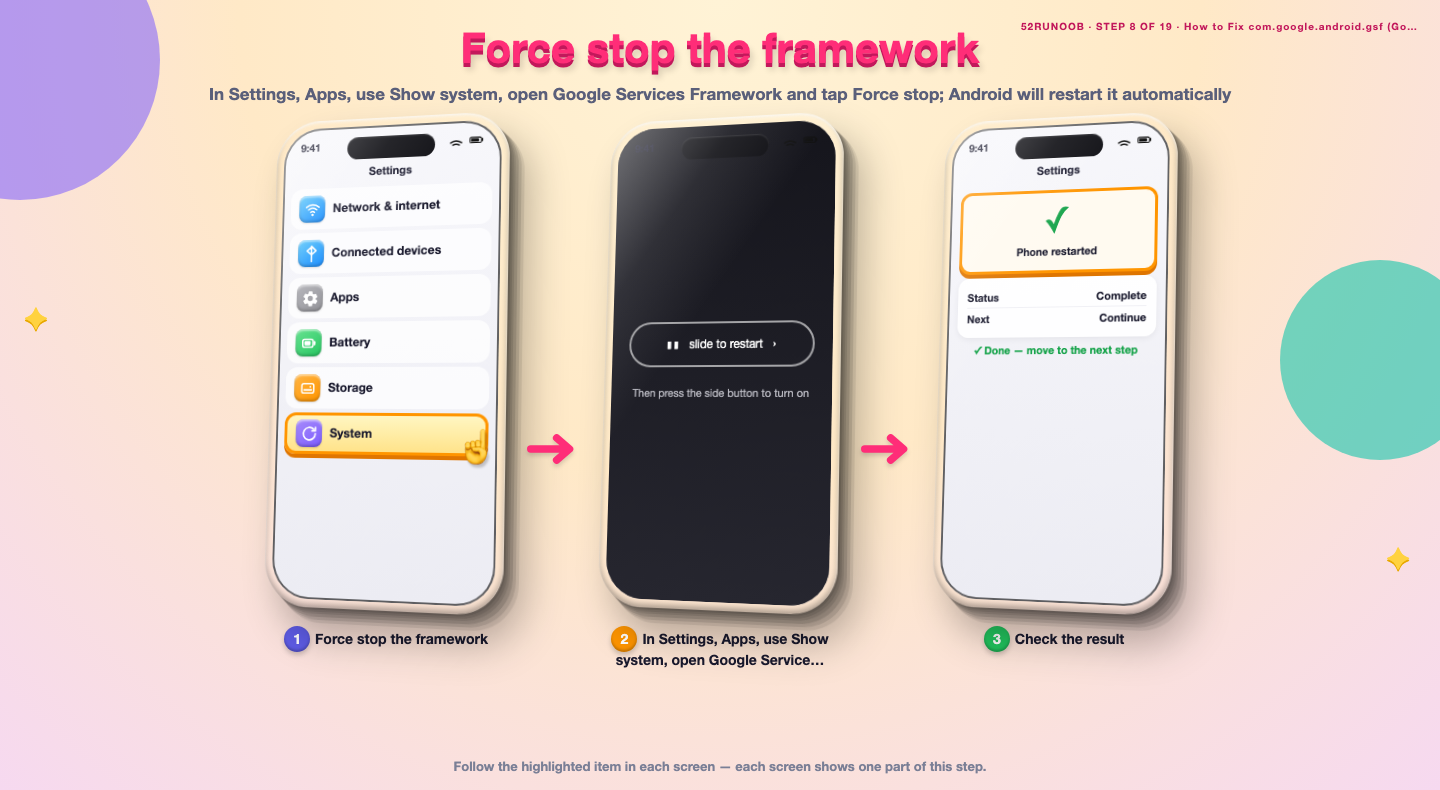
Step 8: Force stop the framework
In Settings, Apps, use Show system, open Google Services Framework and tap Force stop; Android will restart it automatically.
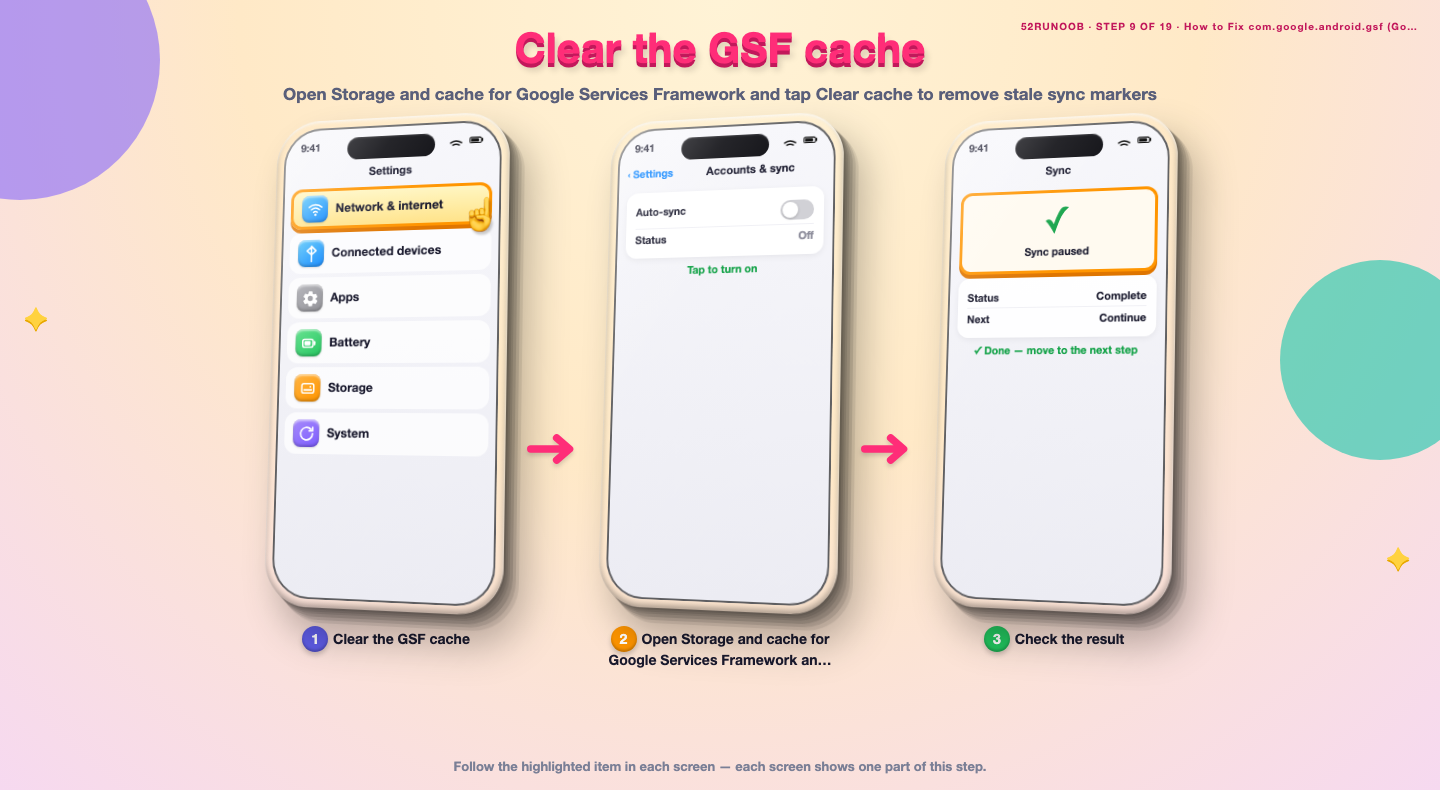
Step 9: Clear the GSF cache
Open Storage and cache for Google Services Framework and tap Clear cache to remove stale sync markers.
Method 2 of 2: Repair Sync and Cut Background Work
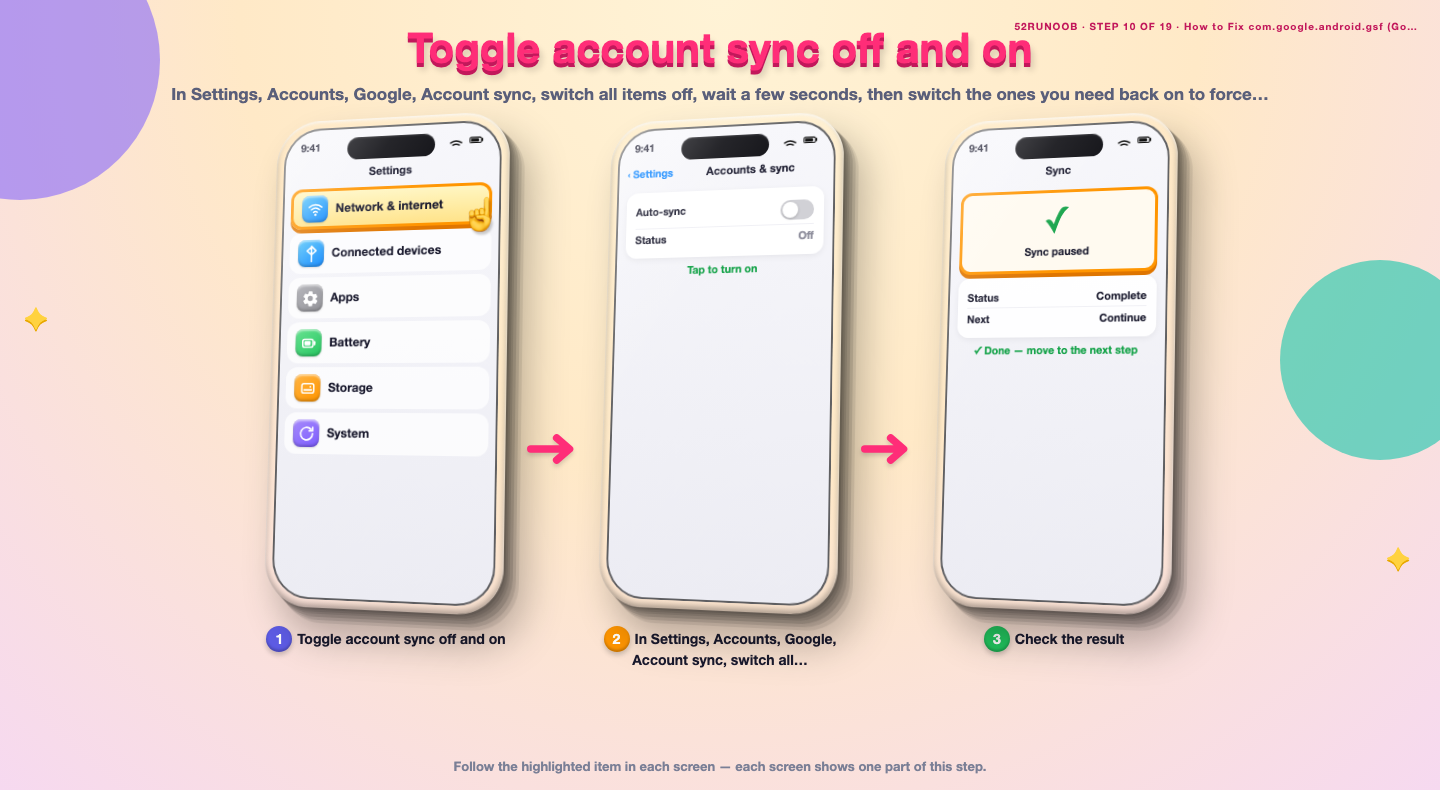
Step 10: Toggle account sync off and on
In Settings, Accounts, Google, Account sync, switch all items off, wait a few seconds, then switch the ones you need back on to force a clean sync.
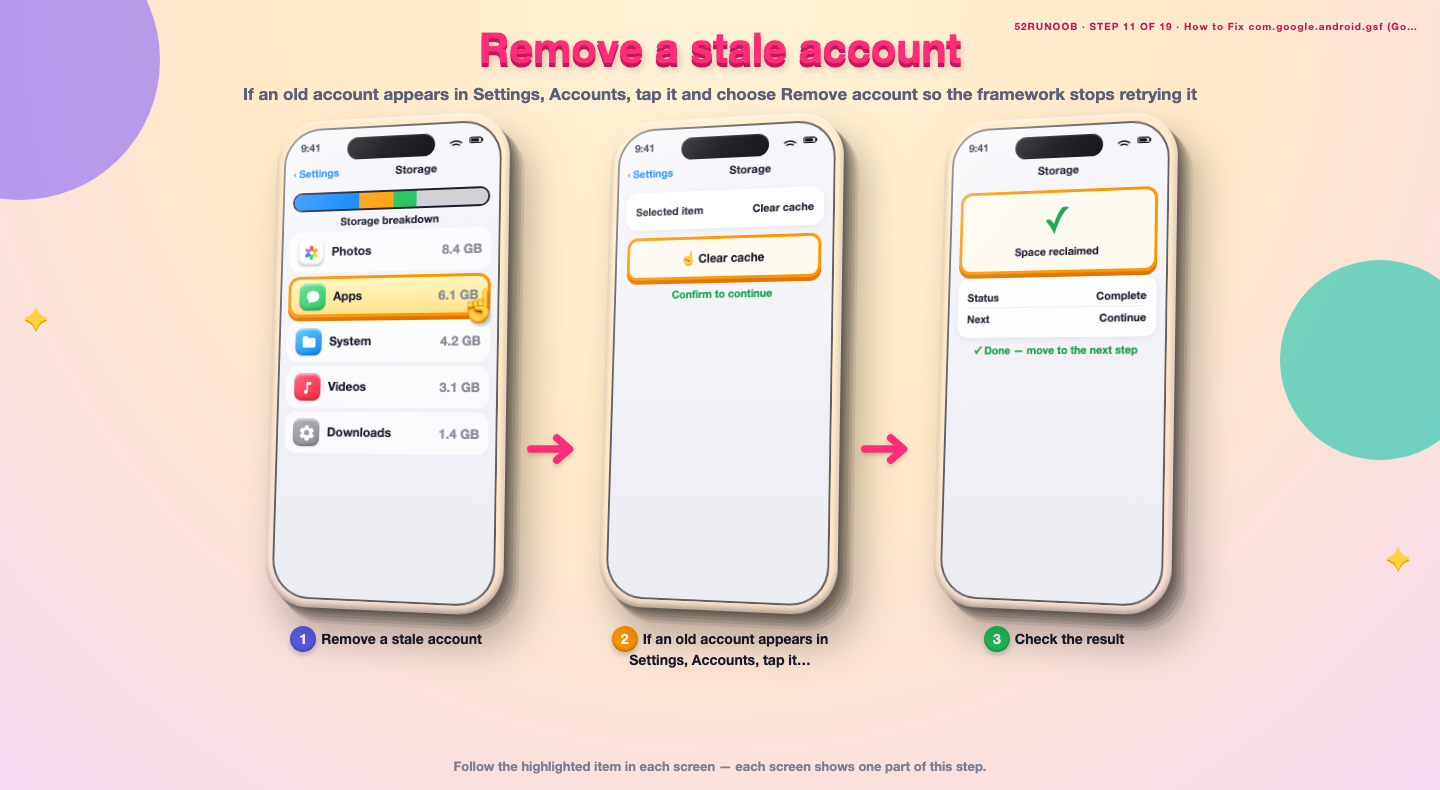
Step 11: Remove a stale account
If an old account appears in Settings, Accounts, tap it and choose Remove account so the framework stops retrying it.
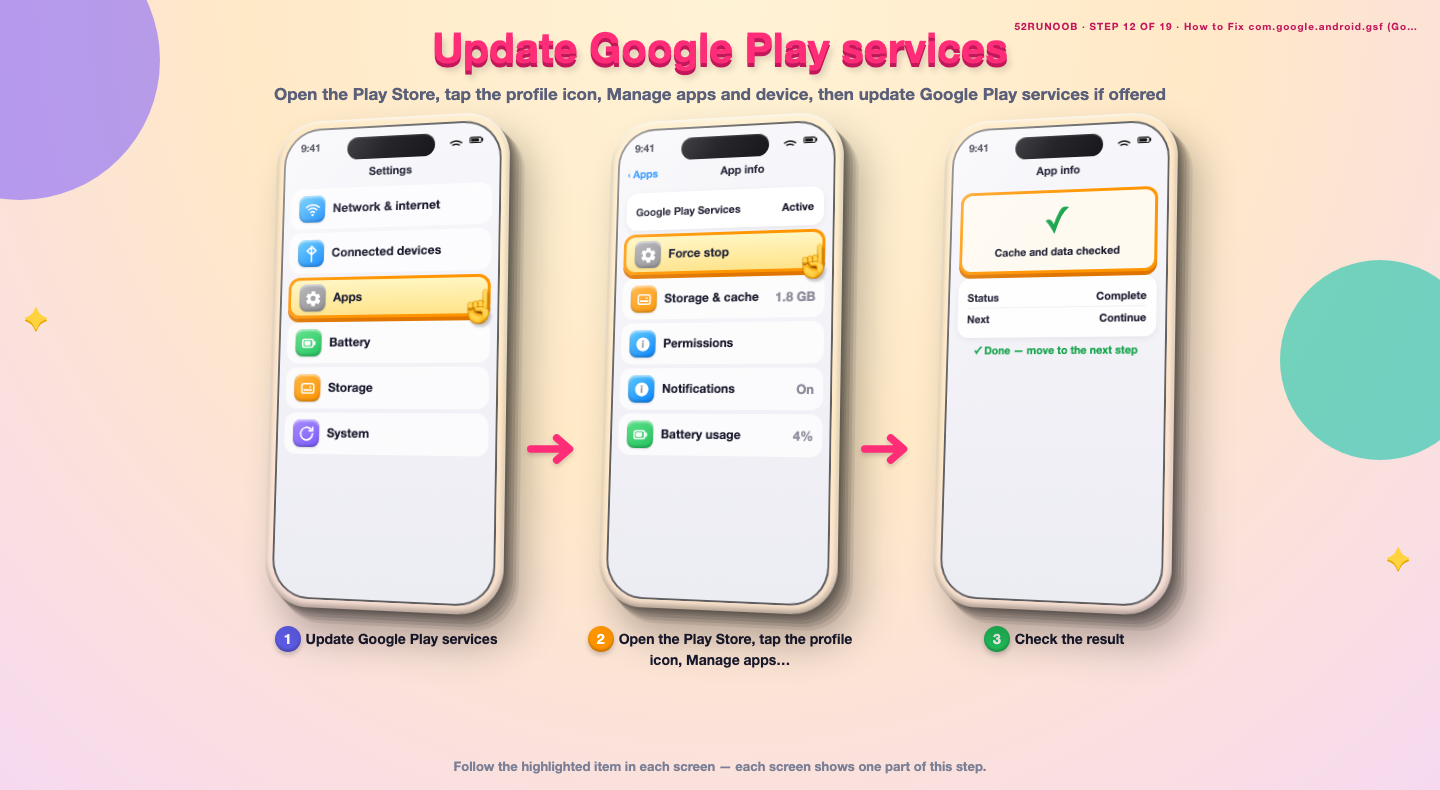
Step 12: Update Google Play services
Open the Play Store, tap the profile icon, Manage apps and device, then update Google Play services if offered.
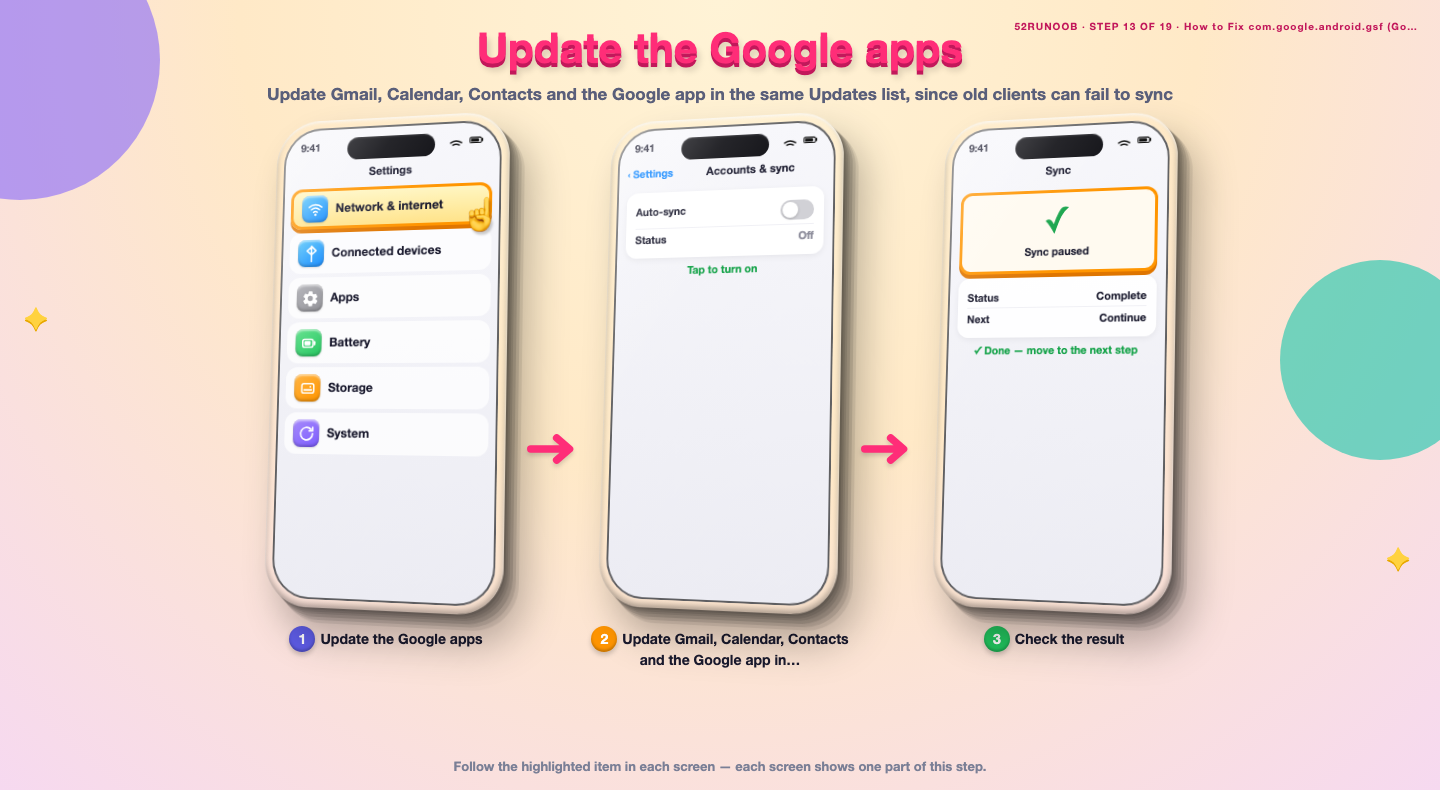
Step 13: Update the Google apps
Update Gmail, Calendar, Contacts and the Google app in the same Updates list, since old clients can fail to sync.
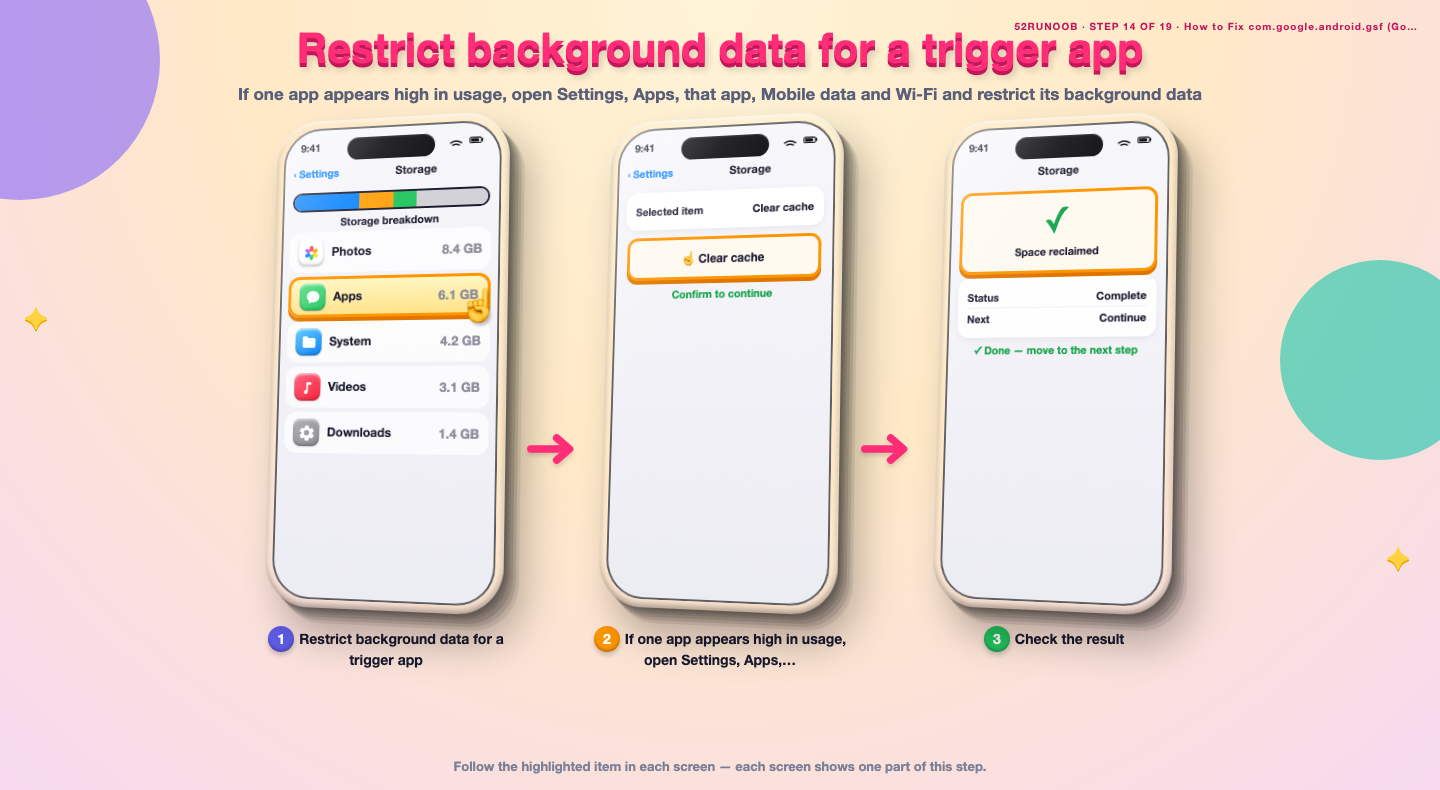
Step 14: Restrict background data for a trigger app
If one app appears high in usage, open Settings, Apps, that app, Mobile data and Wi-Fi and restrict its background data.
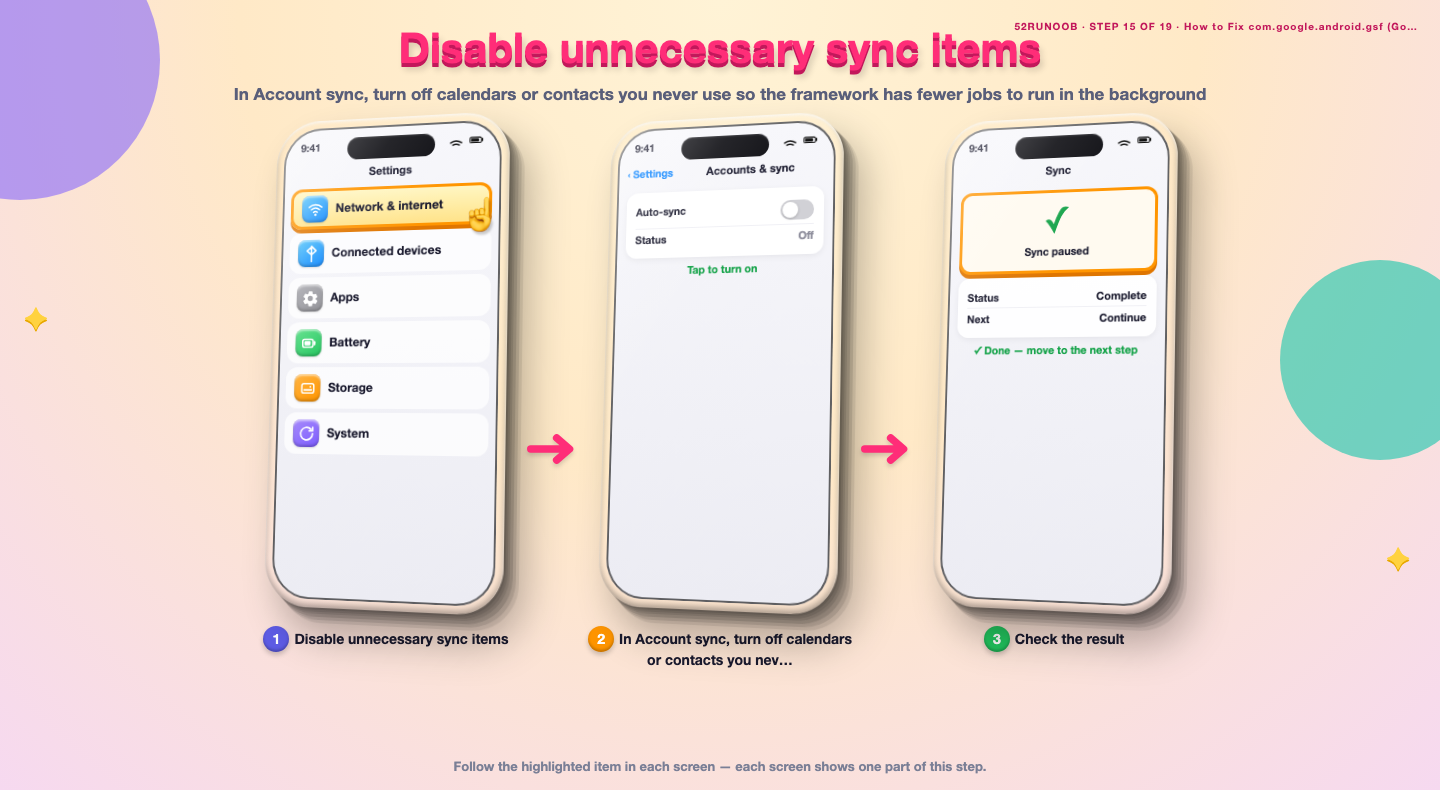
Step 15: Disable unnecessary sync items
In Account sync, turn off calendars or contacts you never use so the framework has fewer jobs to run in the background.
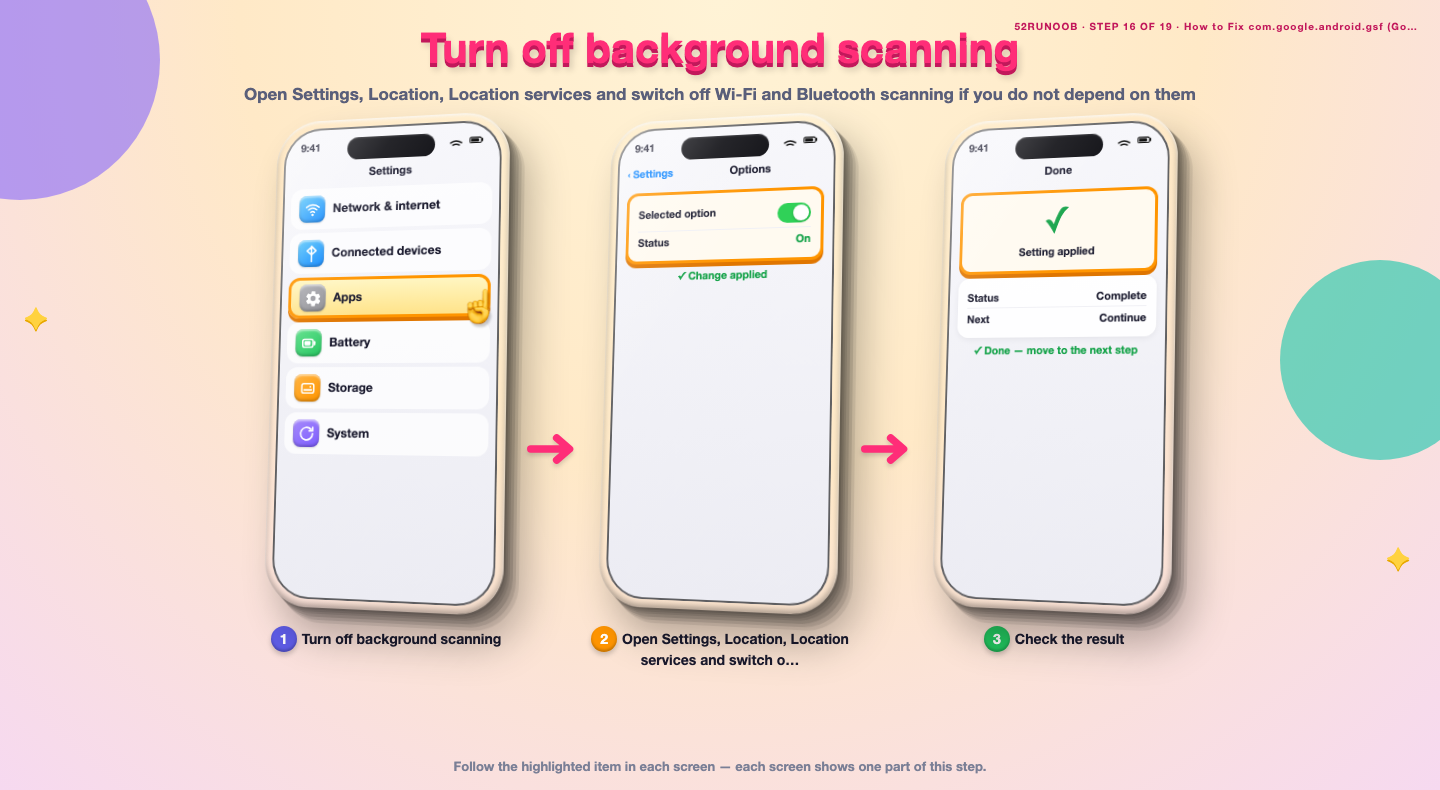
Step 16: Turn off background scanning
Open Settings, Location, Location services and switch off Wi-Fi and Bluetooth scanning if you do not depend on them.
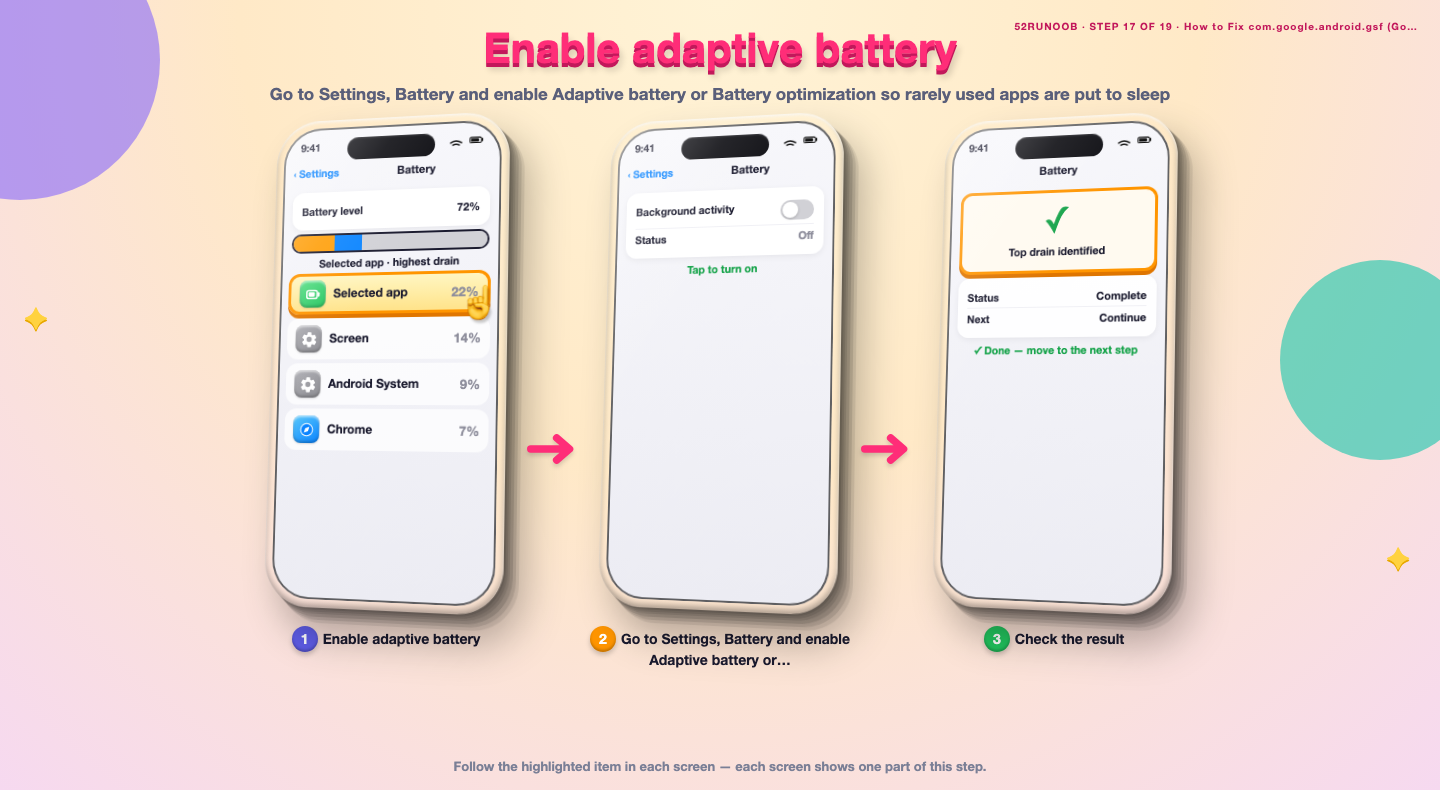
Step 17: Enable adaptive battery
Go to Settings, Battery and enable Adaptive battery or Battery optimization so rarely used apps are put to sleep.
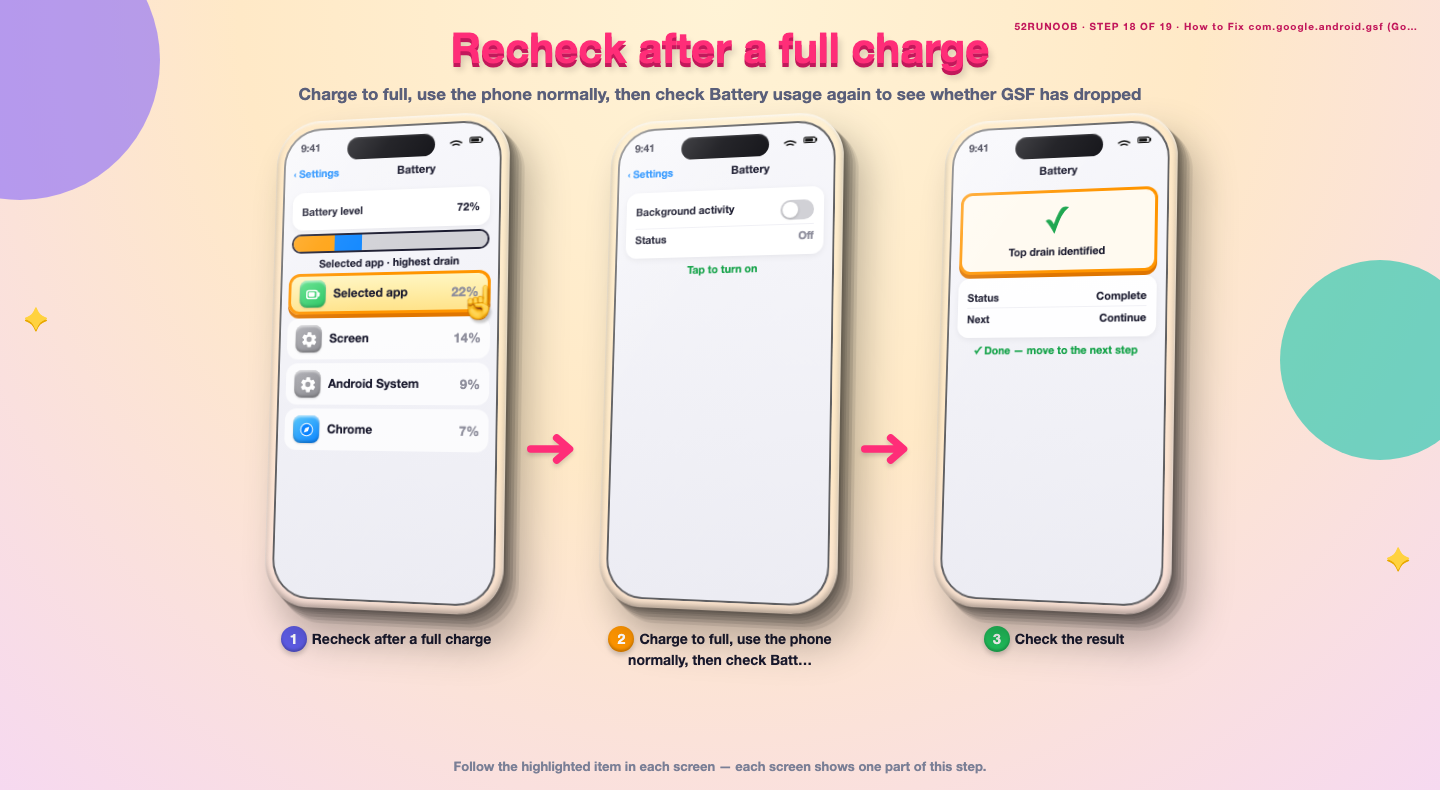
Step 18: Recheck after a full charge
Charge to full, use the phone normally, then check Battery usage again to see whether GSF has dropped.
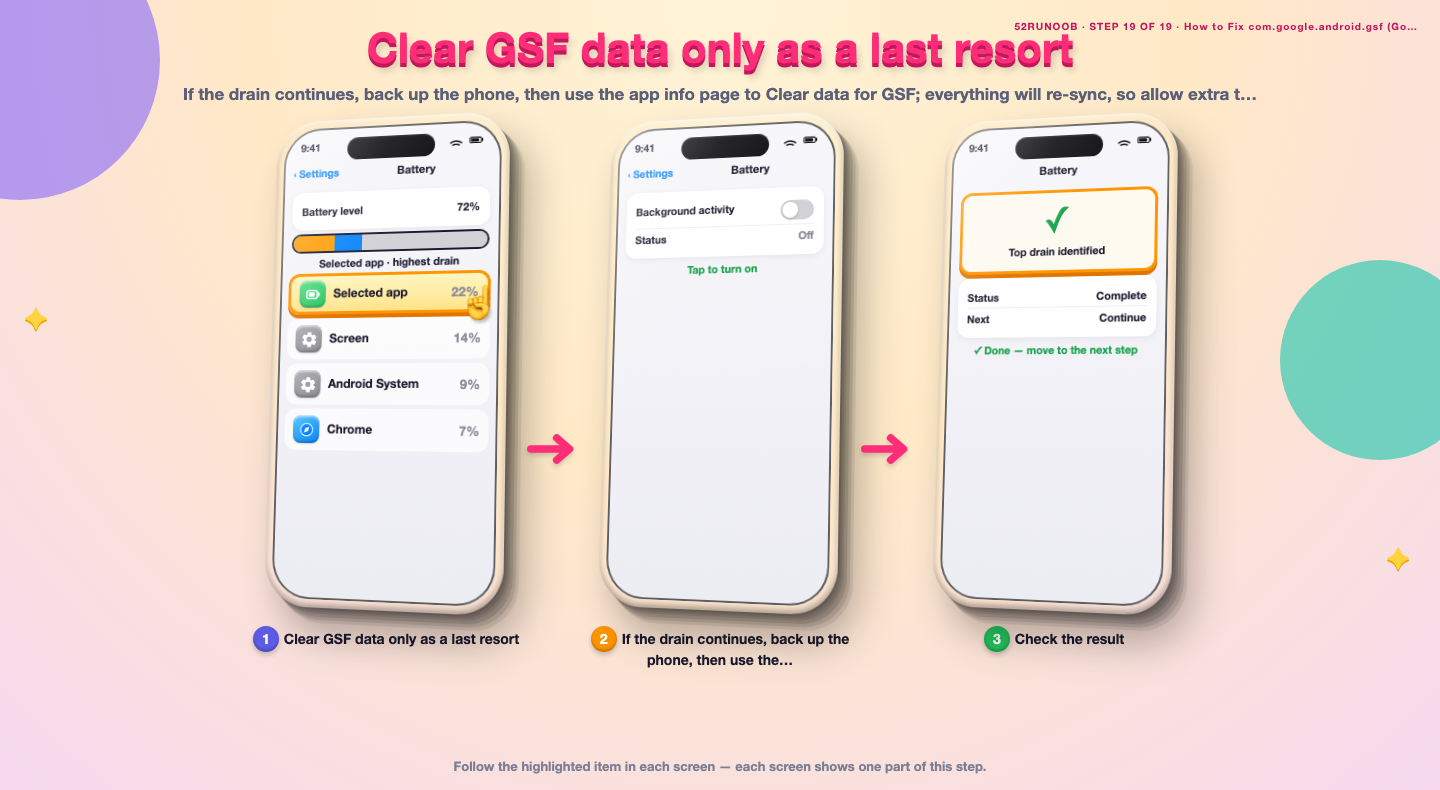
Step 19: Clear GSF data only as a last resort
If the drain continues, back up the phone, then use the app info page to Clear data for GSF; everything will re-sync, so allow extra time and power.
Tips
- A bad network connection makes sync retry endlessly and waste power.
- Removing an old account you no longer use often fixes the drain immediately.
- Check battery usage after a full charge, not after a few minutes of use.
Warnings
- Do not delete Google Services Framework; many core apps depend on it.
- Clearing GSF data resets sync state and triggers a full re-sync, which uses extra power briefly.
- Turning off sync for all accounts stops email and calendar updates until you turn it back on.
Frequently asked questions
Is com.google.android.gsf safe?
Yes. It is the official Google Services Framework used by Android to sync accounts, calendars and contacts. Malware can imitate package names, so confirm the app info shows it as a system component and run Play Protect if you are uncertain.
Is battery drain from GSF normal?
A small amount is normal because it syncs in the background. Draining a large share of the battery while the phone is idle is not, and usually means one account or sync item is failing repeatedly.
Can I disable Google Services Framework?
You should not. Sign-in, calendar, contacts and push notifications rely on it. Instead clear its cache, update the related Google apps and fix the failing account.
Why did the drain start after a system update?
Updates often re-index accounts and contacts for a day or two. If usage stays high after that, reboot, clear the GSF cache and check each account's sync items for errors.
References
- Android Support - Speed up your Android device. https://support.google.com/android/answer/9454546
- Android Developers - Background work guide. https://developer.android.com/guide/background
- Android Support - Clear app cache and data. https://support.google.com/android/answer/9551190
- wikiHow — How to Fix com.google.android.gsf (Google Services Framework) Battery Drain. https://www.wikihow.com/Fix-High-CPU-Usage-on-Android
Every guide is reviewed against its sources. See our editorial policy.
Reader comments
0 so farFinished this guide? Tell other readers what worked, what didn't, and what you would change.