Android System WebView renders web content inside many apps. When it uses high CPU, apps with embedded pages feel laggy and the phone warms up. Update WebView and Chrome, clear their caches, and switch browsers if a buggy version is stuck.
This guide walks through the process in clear illustrated steps, from the first preparation to a finished result. Each step has its own picture, so you can compare your progress as you go.
How to use this guide
Work through the steps in order. Method 1 of 3 covers the basics, and the later methods offer alternatives and finishing touches. If you only have a minute, skim the Quick steps box above and come back for the details.
Related guides
- How to Delete instagram account
- How to Clean a laptop
- How to Practice deep breathing
- How to Have a relaxing spa day at home
- Browse all Fix Slow Device guides
- All 52runoob guides
Trusted external resources
- Google Support — Update Android System WebView
- Android Developers — WebView overview
- Google Support — Speed up your Android device
A note on sources
We check each guide against the official resources listed in References at the end of this article. External links open in a new tab; the related guides above stay on this site.
Quick steps
- Confirm Android System WebView appears high in Battery or CPU usage.
- Update Android System WebView from the Play Store.
- Update Chrome, which often supplies WebView on newer Android.
- Clear the cache of WebView and Chrome.
- Reboot and test the app that felt laggy.
Things you'll need
- An Android phone with the Play Store installed
- A Wi-Fi connection for downloading updates
- Access to Settings Apps
- About 15 minutes
Step-by-step
Method 1 of 3: Update the Web Engine
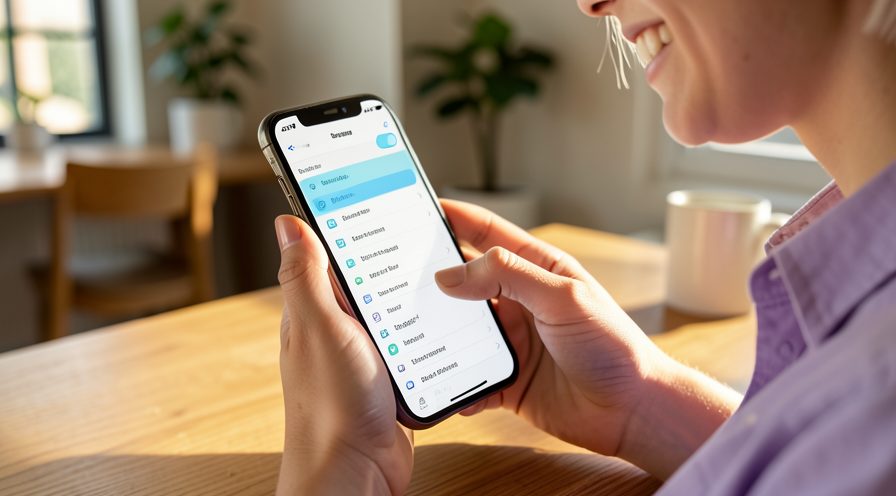
Step 1: Confirm WebView in usage
Open Settings, Battery, Battery usage, show system processes, and check whether Android System WebView is high.
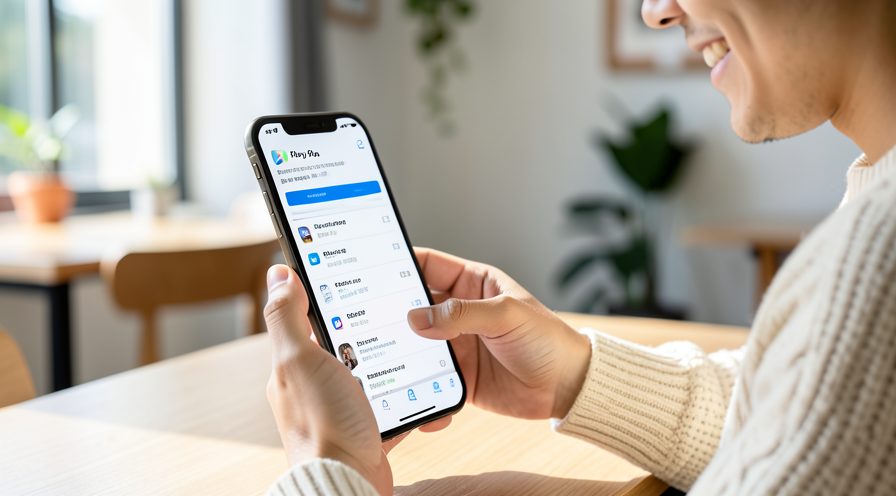
Step 2: Open the Play Store
Connect to Wi-Fi and open the Google Play Store app on the phone.
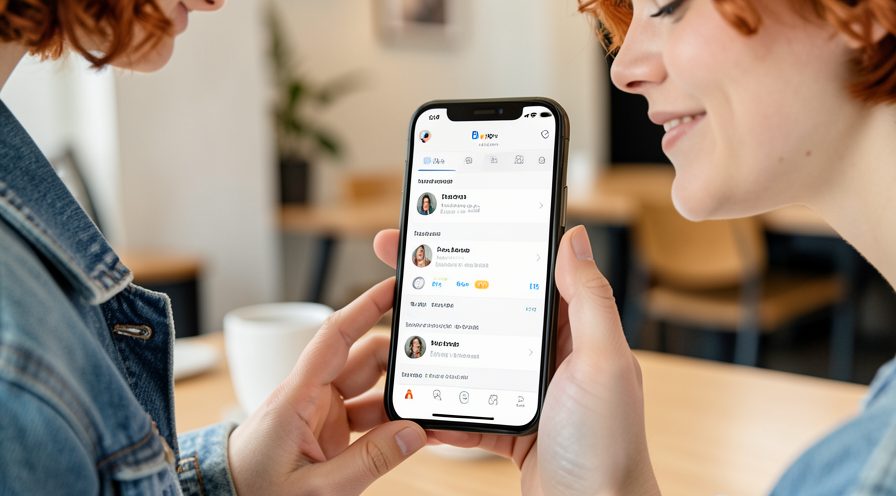
Step 3: Search for Android System WebView
Tap the search bar and type Android System WebView to find the official Google component.
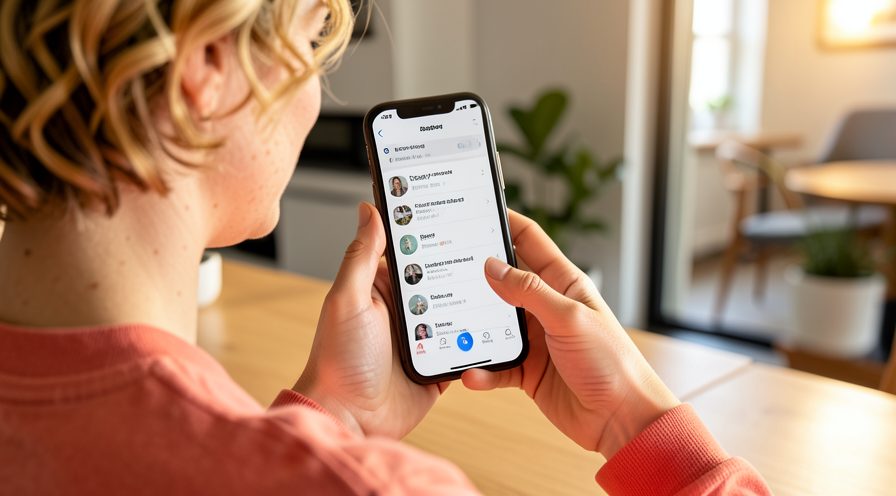
Step 4: Update WebView
Open its page and tap Update if a newer version is available.
Step 5: Update Chrome as well
Return to search, find Chrome and update it, since newer Android uses Chrome as the WebView engine.
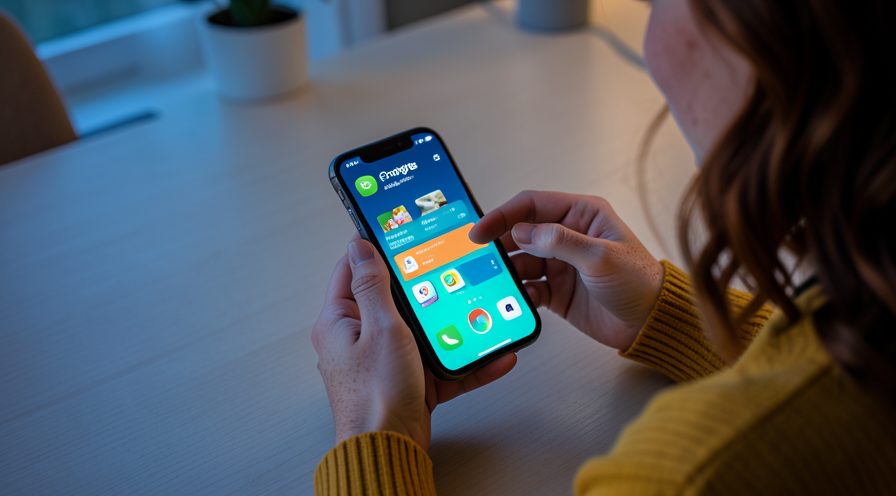
Step 6: Reboot the phone
Restart the phone so the new WebView version loads everywhere.
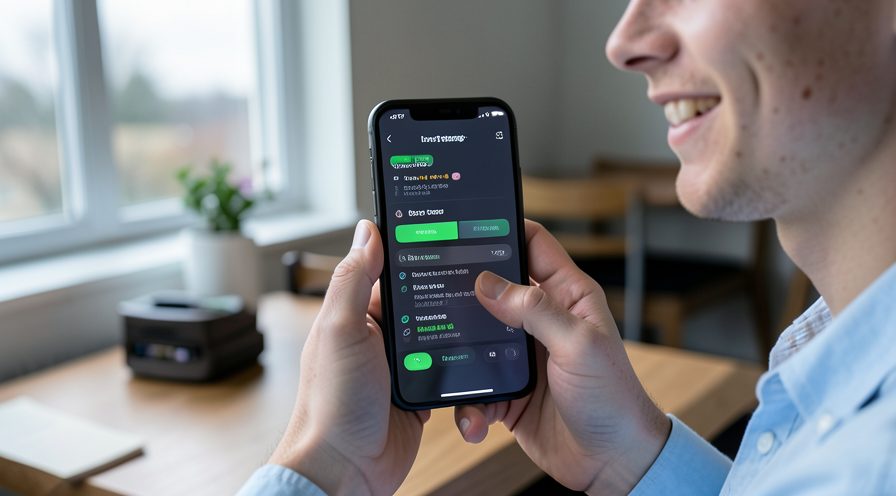
Method 2 of 3: Clear Caches and Test Apps
Step 7: Open WebView app info
Go to Settings, Apps, see all apps, and open Android System WebView. Enable Show system if it is hidden.
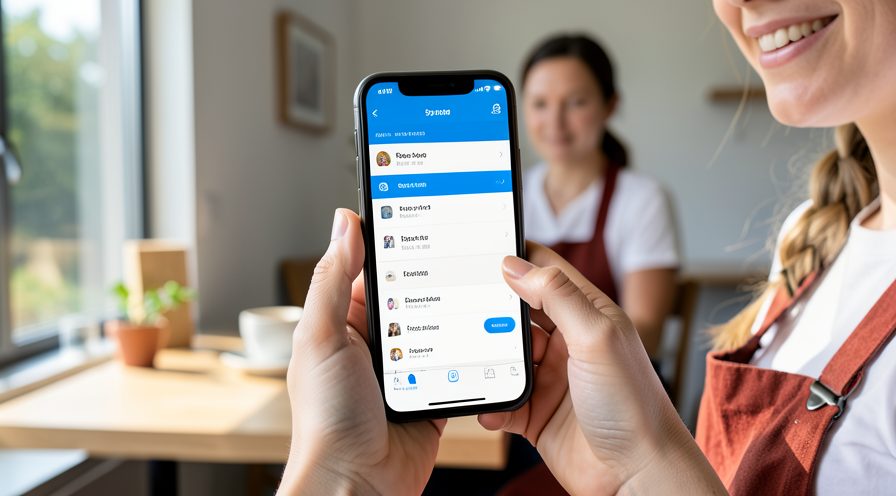
Step 8: Clear WebView cache
Tap Storage and cache, then Clear cache to remove temporary web data without deleting logins.
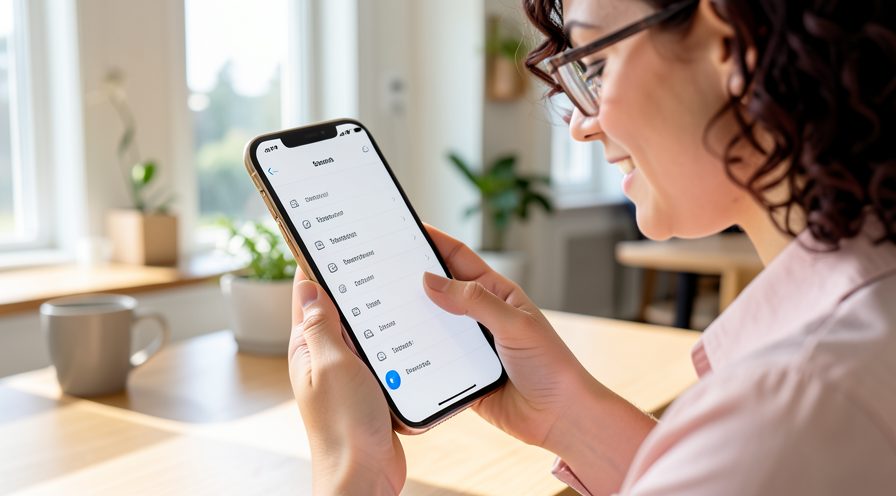
Step 9: Clear Chrome cache
Open Chrome's app info and clear its cache too, since the two share the rendering engine.
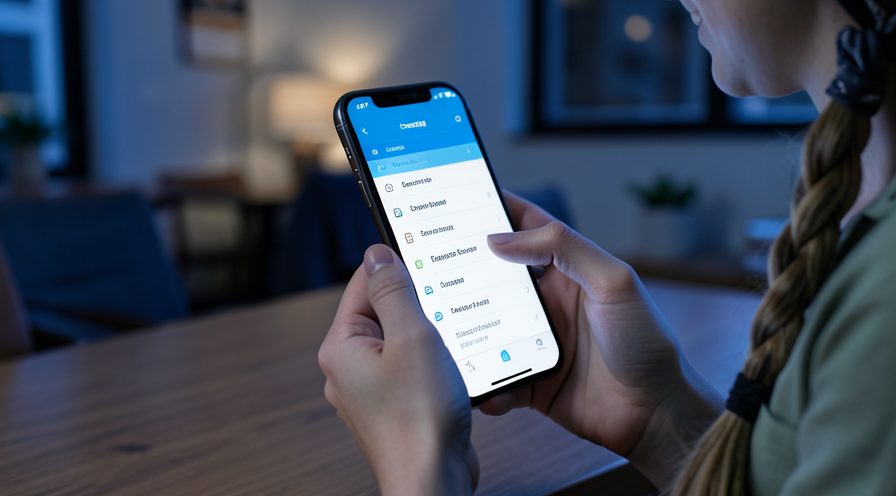
Step 10: Restart the laggy app
Force close the app that felt slow, then reopen it so it reloads with the fresh WebView.
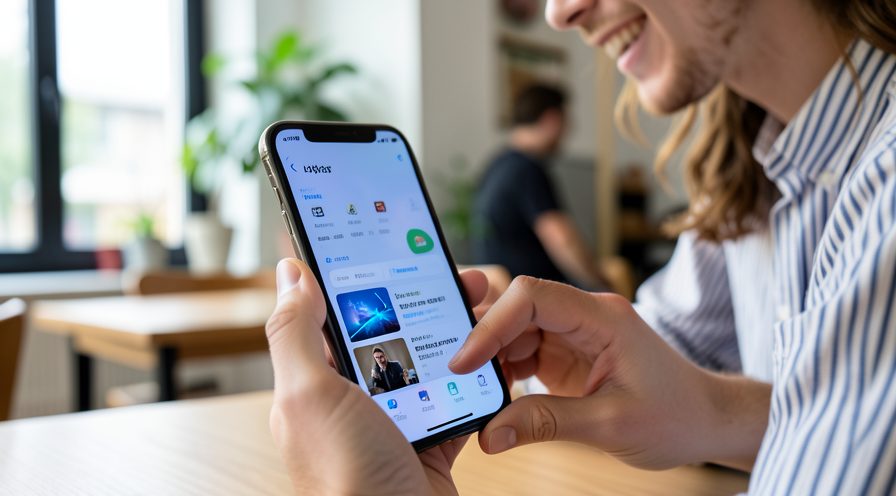
Step 11: Test the previously slow app
Use the app for a few minutes and note whether scrolling and page loads feel smoother.
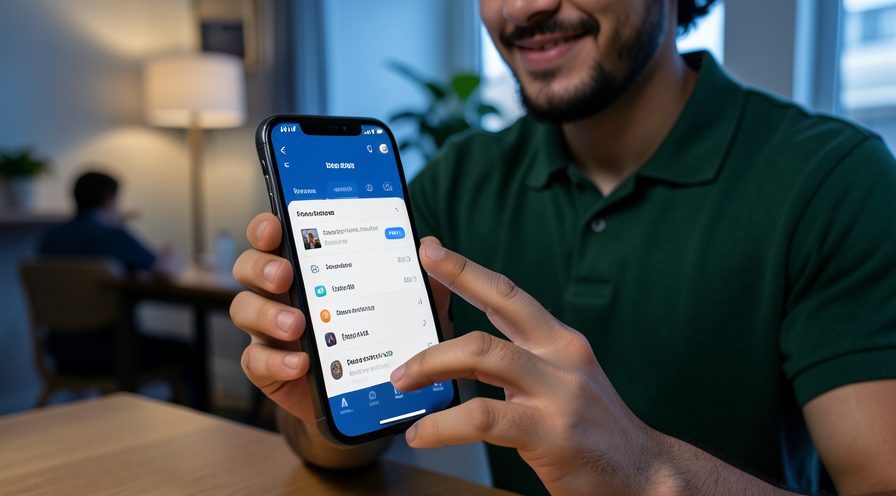
Step 12: Check CPU again
Recheck battery usage to confirm WebView no longer dominates the list.
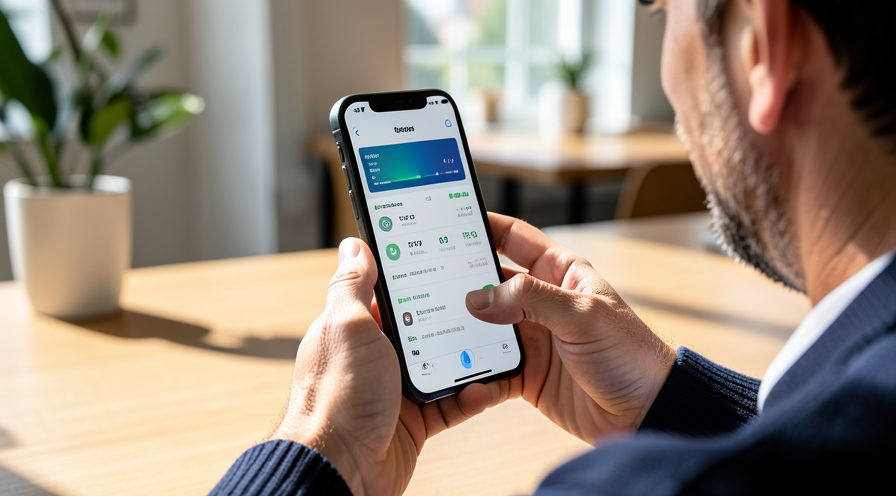
Method 3 of 3: Fall Back if an Update Broke It
Step 13: Notice when the lag began
If the slowdown started right after a WebView update, that version is likely the cause.
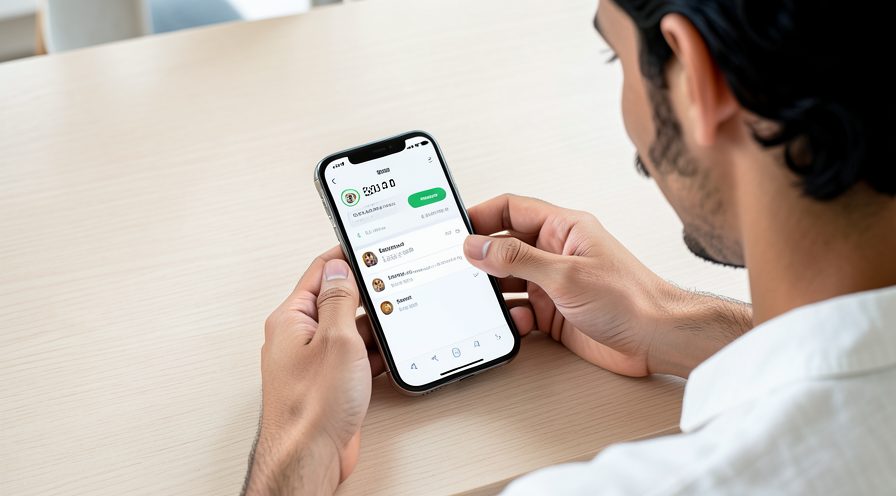
Step 14: Disable Android System WebView
In its app info, tap Disable or Enable and confirm, which falls back to Chrome on recent Android versions.
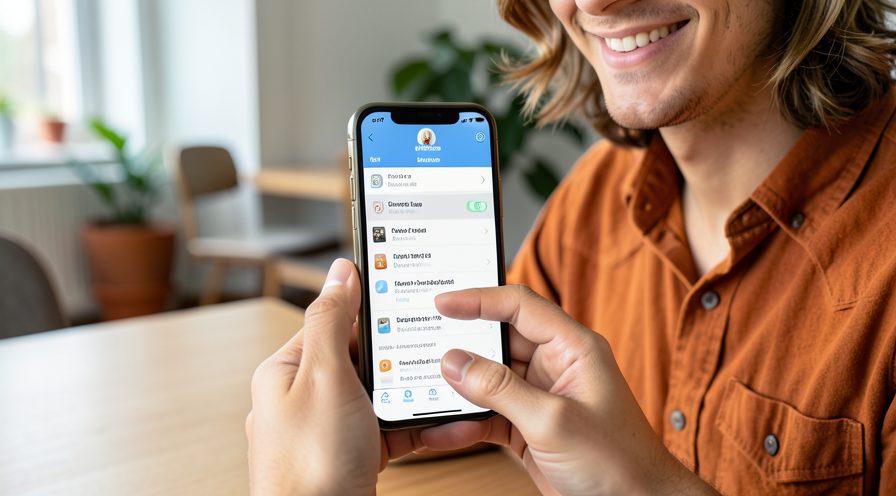
Step 15: Confirm apps still work
Open a few apps that show web pages and verify they still render correctly using Chrome.
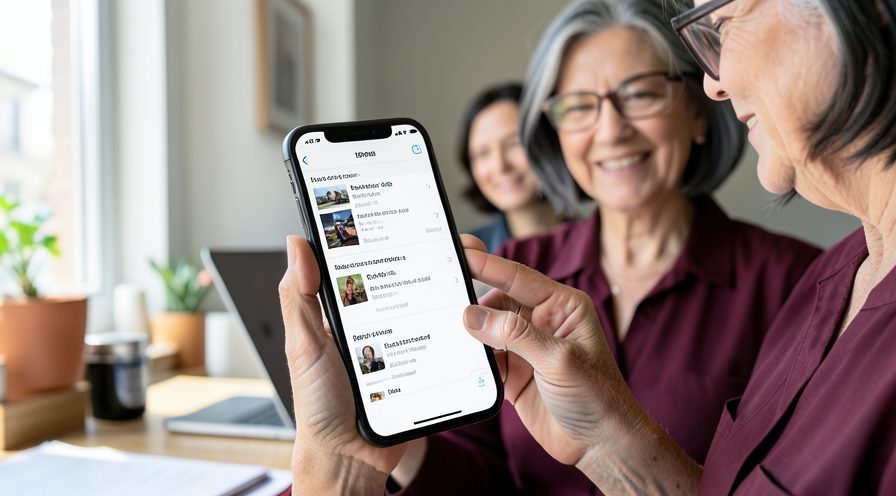
Step 16: Uninstall WebView updates
Use the menu in app info to uninstall updates and return to the factory WebView version.
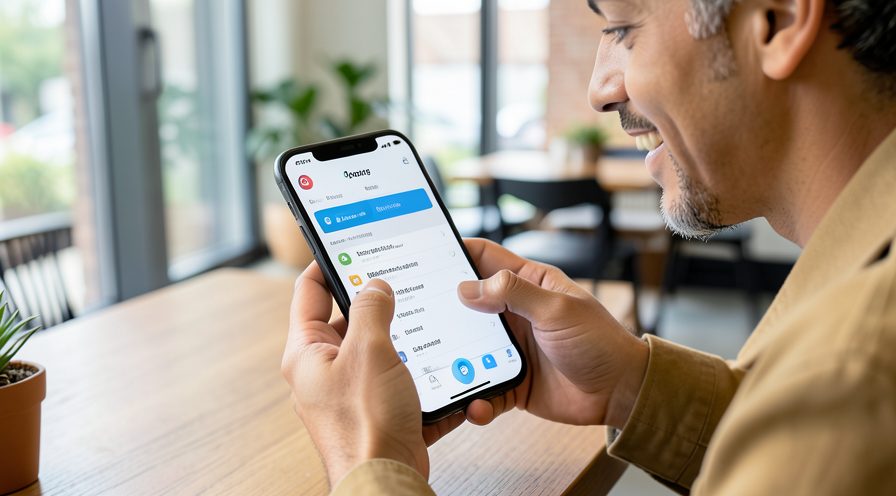
Step 17: Wait for a fixed update
Re-enable WebView and update it again once a newer, corrected version appears in the Play Store.
Tips
- WebView is a system component; you can disable or update it but not remove it normally.
- On Android 10 and newer, Chrome provides WebView, so keep both updated.
- Lag is usually worst in apps that show ads or embedded web pages.
Warnings
- Disabling WebView can break apps that display web pages inside them.
- Do not install WebView from unofficial APK sites; it is a security risk.
- Clearing data resets WebView settings but not your personal browsing data.
Frequently asked questions
What is Android System WebView?
It is a system component that displays web content inside apps that are not browsers. Many apps rely on it to show pages, ads and login screens, so a slow WebView makes those apps feel laggy.
Should I disable Android System WebView?
Usually no, because apps that show web pages will stop working. Updating it is the better fix. If a specific update causes lag, you can disable it temporarily, which falls back to Chrome on newer Android versions.
Why is WebView using so much CPU?
A heavy embedded web page, an outdated WebView version, or an app looping on a web request are the common causes. Updating WebView and Chrome and clearing their caches resolves most cases.
Is Chrome the same as WebView?
On Android 10 and later, Chrome supplies the WebView engine, so both share updates. Keeping Chrome current keeps WebView current too.
References
- Google Support — Update Android System WebView. https://support.google.com/googleplay/answer/7012527
- Android Developers — WebView overview. https://developer.android.com/develop/ui/views/components/webview
- Google Support — Speed up your Android device. https://support.google.com/android/answer/9454546
- wikiHow — How to Fix Android System WebView High CPU and Laggy Apps. https://www.wikihow.com/Speed-Up-an-Android-Phone
Every guide is reviewed against its sources. See our editorial policy.
Reader comments
0 so farFinished this guide? Tell other readers what worked, what didn't, and what you would change.