A One UI 7 update rebuilds caches and syncs Samsung and Google accounts, which can make a Galaxy feel sluggish at first. If the slowdown persists, wipe the system cache, check storage, and disable features that constantly run in the background such as Always On Display and unused Quick Share.
This guide walks through the process in clear illustrated steps, from the first preparation to a finished result. Each step has its own picture, so you can compare your progress as you go.
How to use this guide
Work through the steps in order. Method 1 of 3 covers the basics, and the later methods offer alternatives and finishing touches. If you only have a minute, skim the Quick steps box above and come back for the details.
Related guides
- How to Build a skincare routine
- How to Introduce yourself in a new team
- How to Cook quinoa properly
- How to Boost your energy in the afternoon
- Browse all Fix Slow Device guides
- All 52runoob guides
Trusted external resources
- Samsung Support — Galaxy device support
- Samsung Support — Wipe the cache partition
- Android Support — Optimize battery
A note on sources
We check each guide against the official resources listed in References at the end of this article. External links open in a new tab; the related guides above stay on this site.
Quick steps
- Let the phone settle for a day after the update.
- Wipe the system cache partition in recovery mode.
- Free storage and remove unused apps.
- Turn off Always On Display and unused background features.
- Restart and recheck performance.
Things you'll need
- A Samsung Galaxy running One UI 7
- Access to Settings and recovery mode
- A USB cable and a computer for recovery mode
- About 30 minutes
Step-by-step
Method 1 of 3: Let It Settle and Clean the Cache
Step 1: Allow a settling period
Use the phone normally for a day after the update so indexing and syncing can complete.
Step 2: Check for a newer patch
Open Settings, Software update and install any security patch released after One UI 7.
Step 3: Boot into recovery mode
With the phone off, connect USB to a computer and hold Power plus Volume Up until the recovery menu appears.
Step 4: Wipe the cache partition
Use the volume keys to highlight Wipe cache partition and confirm with the power key, then reboot.
Step 5: Wait for the first boot
Allow the longer first boot to finish without interrupting it.
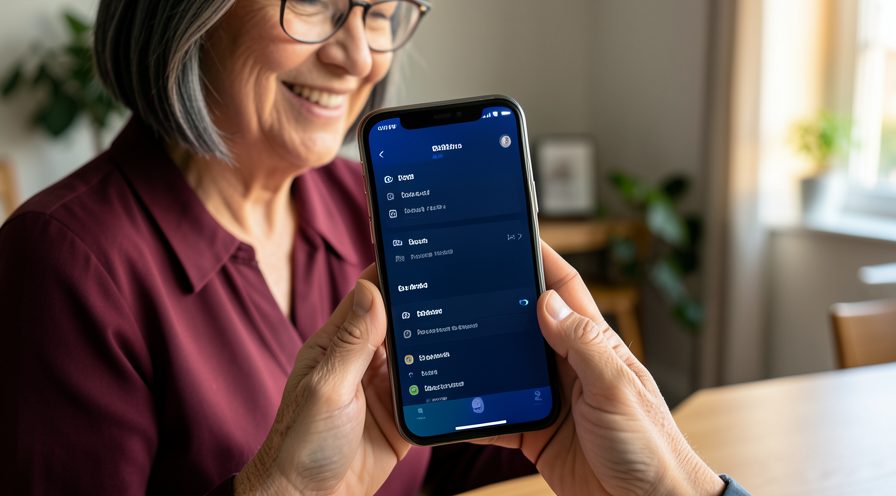
Step 6: Recheck speed
Open a few apps and confirm scrolling and switching feel smoother.
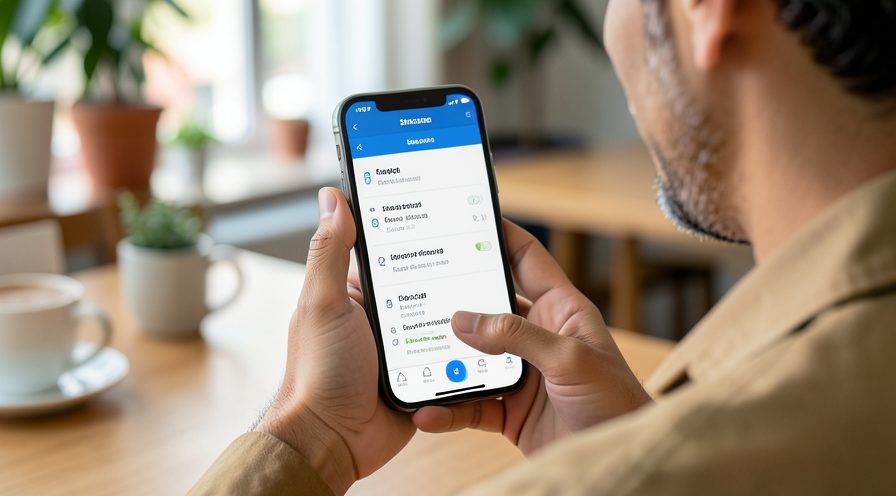
Method 2 of 3: Reduce Background Load
Step 7: Check internal storage
Open Settings, Battery and device care, Storage and see how much free space remains.
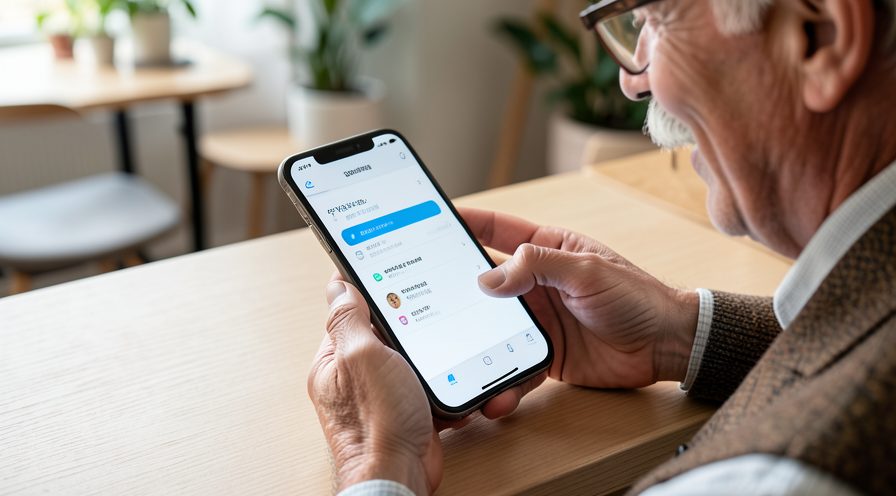
Step 8: Remove unused apps
Delete or disable apps you do not use to cut background processes and free space.
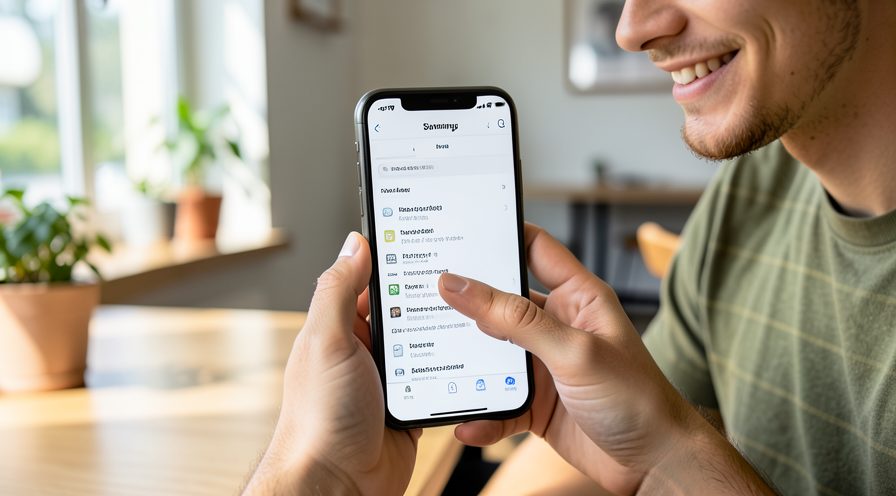
Step 9: Turn off Always On Display
In Settings, Lock screen, Always On Display, switch it off to stop the screen waking constantly.
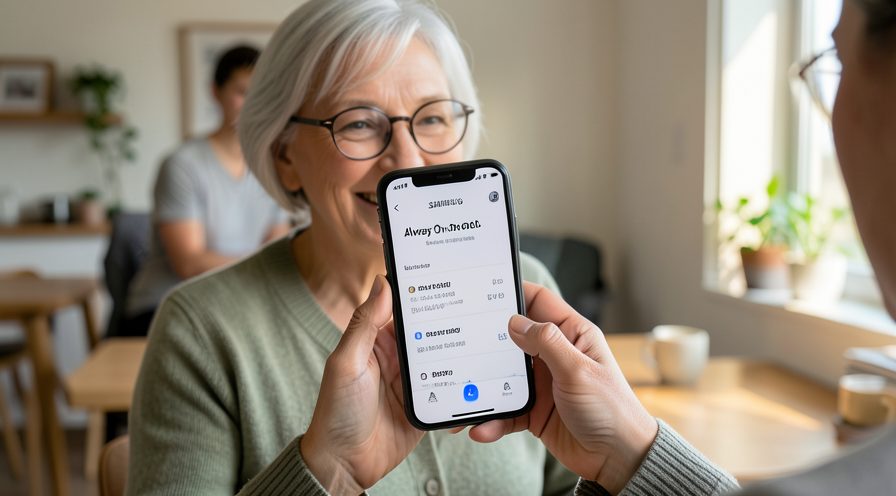
Step 10: Limit Quick Share and nearby scanning
Turn off Quick Share and nearby device scanning when you are not using them.
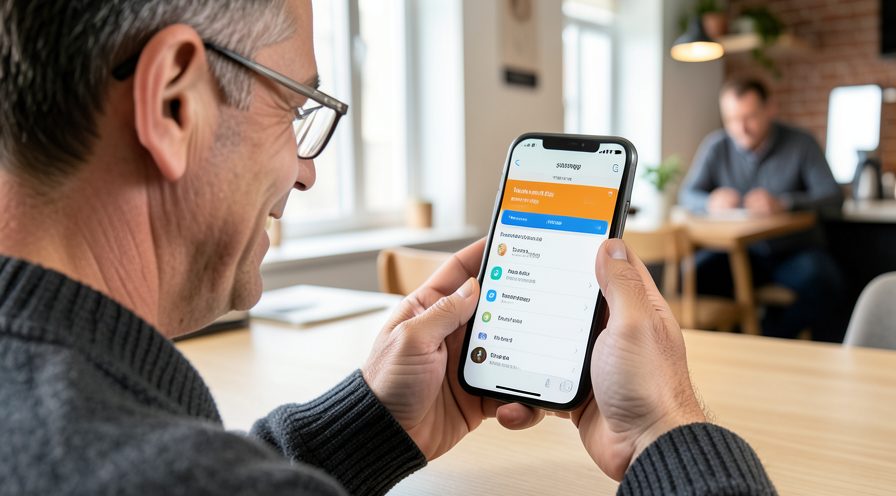
Step 11: Enable Adaptive Battery
In Battery and device care, Battery, turn on Adaptive Battery to limit idle apps.
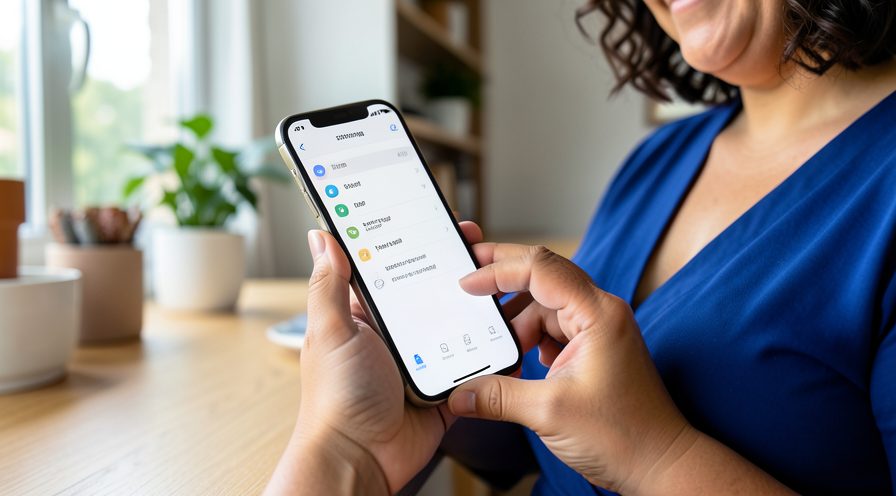
Step 12: Update Samsung and Google apps
Update apps from both the Galaxy Store and Google Play Store to fix version conflicts.
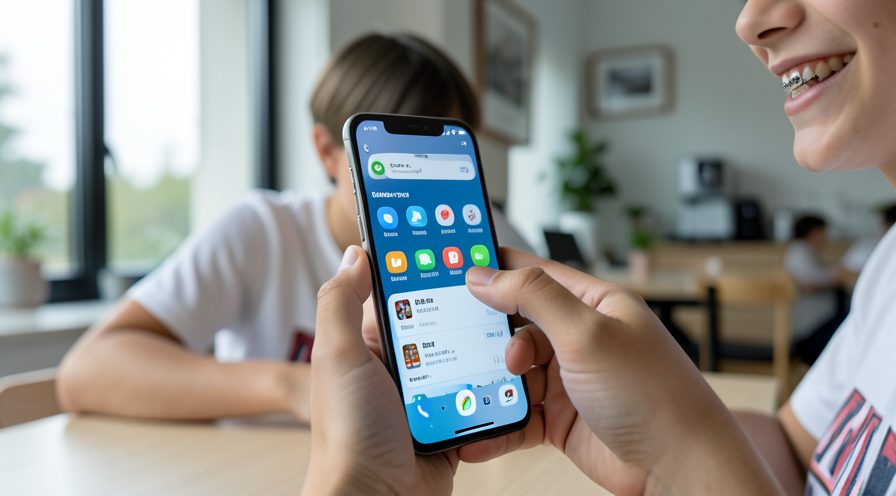
Method 3 of 3: Deep Clean as a Final Step
Step 13: Back up your data
Use Samsung Cloud or Smart Switch to back up photos and app data before a bigger reset.
Step 14: Reset all settings
In Settings, General management, Reset, choose Reset all settings to clear preferences without losing data.
Step 15: Format a failing microSD
If you use a microSD card, back it up and format it in the phone, since a corrupt card slows the device.
Step 16: Test performance again
Use the phone for a day and verify the update slowdown has cleared.
Tips
- Wiping the cache partition does not delete your photos or apps.
- A microSD card that is failing can slow the whole phone down.
- Keep both Samsung and Google app updates current after an OS update.
Warnings
- Do not choose Factory reset in recovery mode unless you have a backup.
- Removing Samsung apps can break device features; disable instead.
- After a cache wipe the first boot takes longer than usual.
Frequently asked questions
Why is my Galaxy slow after One UI 7?
The update rebuilds app caches and re-indexes data, so the phone is busy for a day or two. Persistent slowdown is usually caused by leftover cache files, low storage, or background features running constantly.
Will wiping the cache partition delete my data?
No. It removes temporary system cache files only. Your photos, apps and accounts stay intact, though the first boot afterwards takes longer.
Should I disable Always On Display?
Turning it off reduces background wake-ups and saves battery, which can help a phone that feels sluggish and warm. You can re-enable it later if you like it.
When should I factory reset?
Only after letting the phone settle, wiping the cache partition, freeing storage and updating apps. If it is still slow, back up everything and do a clean factory reset.
References
- Samsung Support — Galaxy device support. https://www.samsung.com/us/support/
- Samsung Support — Wipe the cache partition. https://www.samsung.com/us/support/answer/ANS00062029/
- Android Support — Optimize battery. https://support.google.com/android/answer/9779889
- wikiHow — How to Fix Samsung Galaxy Slow After the One UI 7 Update. https://www.wikihow.com/Speed-Up-an-Android-Phone
Every guide is reviewed against its sources. See our editorial policy.
Reader comments
0 so farFinished this guide? Tell other readers what worked, what didn't, and what you would change.