You can back up your photos first, then either pause the account temporarily or delete it for good through Instagram's settings.
This guide walks through the process in clear illustrated steps, from the first preparation to a finished result. Each step has its own picture, so you can compare your progress as you go.
How to use this guide
Work through the steps in order. Method 1 of 2 covers the basics, and the later methods offer alternatives and finishing touches. If you only have a minute, skim the Quick steps box above and come back for the details.
Related guides
- How to Resolve conflict at work
- How to Transfer photos from phone to computer
- How to Start calligraphy with a dip pen
- How to Learn guitar chords as a beginner
- Browse all Technology guides
- All 52runoob guides
Trusted external resources
A note on sources
We check each guide against the official resources listed in References at the end of this article. External links open in a new tab; the related guides above stay on this site.
Quick steps
- Back up your photos first
- Open account settings in a browser
- Choose deactivate or permanently delete
- Confirm with your password
Things you'll need
- Your Instagram login
- A web browser or the app
- A place to back up photos
- A few minutes of time
Step-by-step
Method 1 of 2: Back Up and Decide
Step 1: Download your data
Request a copy of your photos and posts from the settings menu.

Step 2: Save important photos
Keep favourite images on your device before you delete anything.

Step 3: Decide between a break and deletion
Deactivate if you might return; delete only if you are sure.

Step 4: Check linked accounts
Note which other services use Instagram to log in.

Step 5: Tell close contacts
Let frequent messageers know where to reach you instead.

Step 6: Use a browser for deletion
Open Instagram in a web browser, where the delete page is easiest to find.

Step 7: Log in to the right account
Make sure you are signed into the account you want to remove.
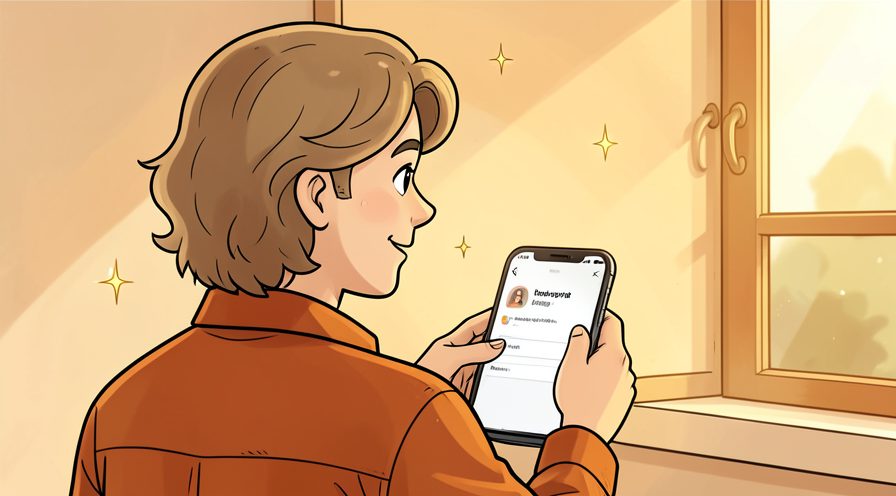
Step 8: Open settings
Go to your profile and open the menu, then settings.

Method 2 of 2: Deactivate or Delete
Step 9: Open account settings
Select the option to edit or manage your account.
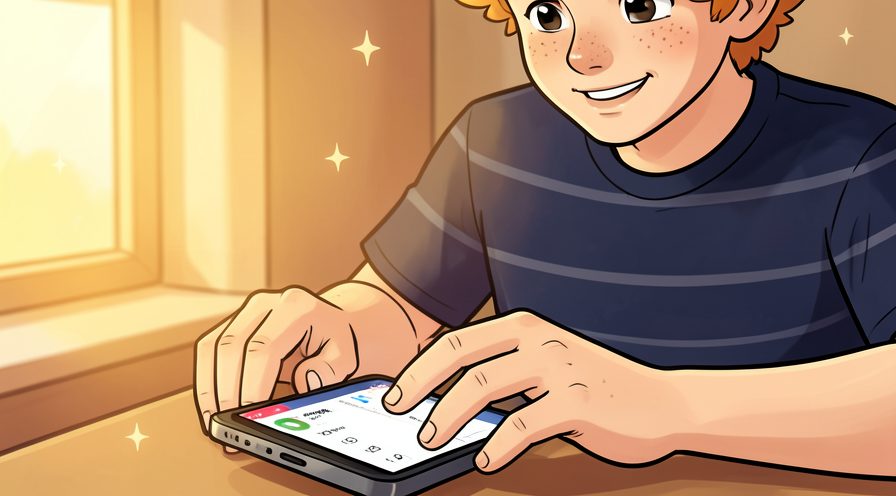
Step 10: Click deactivate your account
Choose the temporary deactivation link on the settings page.
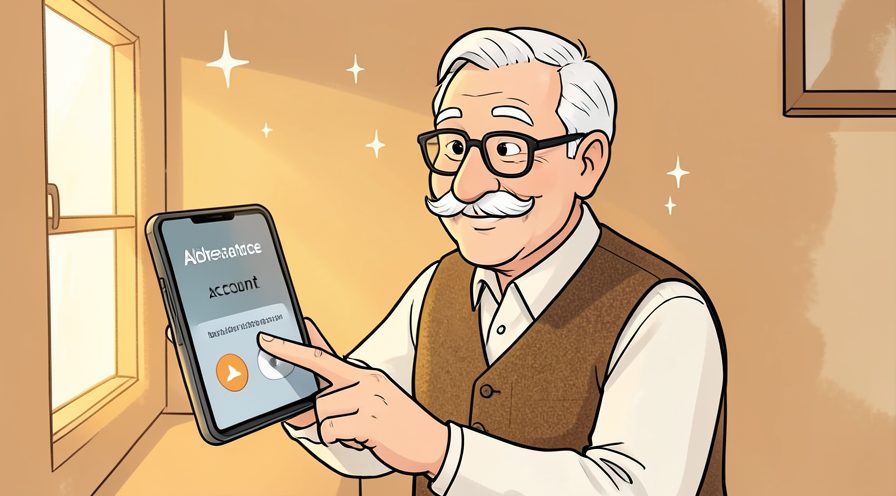
Step 11: Pick a reason
Instagram asks why you are leaving; choose any option.

Step 12: Confirm deactivation
Enter your password and confirm to pause the account.

Step 13: Visit the delete page
For permanent removal, open the dedicated delete account page in a browser.

Step 14: Select a reason for deletion
Choose a reason and continue to the final step.
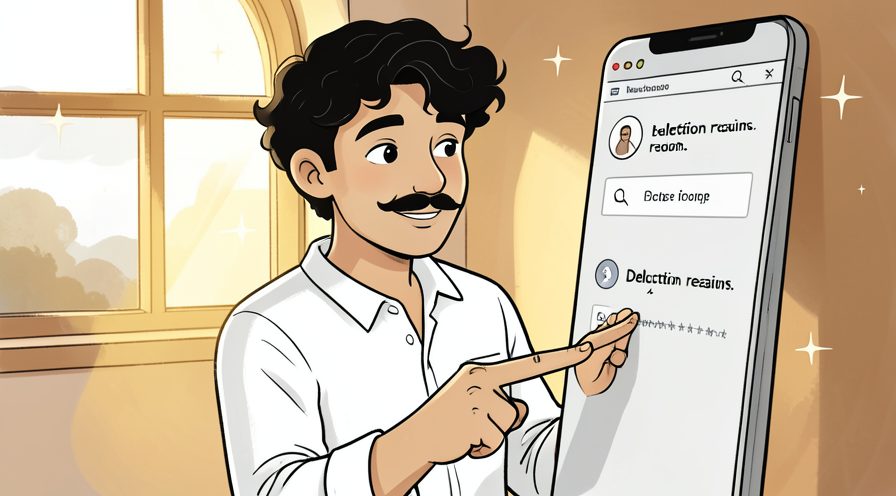
Step 15: Confirm permanent deletion
Enter your password and confirm that you understand it cannot be undone.

Step 16: Wait out the grace period
The account is hidden right away and fully deleted after a short window.

Tips
- Deactivating is reversible; permanent deletion is not.
- Download your data before deleting so memories are not lost.
Warnings
- Permanent deletion removes your profile and photos for good.
- Other sites that use Instagram login will lose that connection.
Frequently asked questions
How long does it take to delete an instagram account?
What supplies do I need for delete an instagram account?
Is delete an instagram account safe for beginners?
References
- Instagram Help — deactivate or delete your account. https://help.instagram.com/139228051676759
- Instagram Help — download your information. https://help.instagram.com/181231772500920
- wikiHow — How to Delete an Instagram Account. https://www.wikihow.com/Delete-an-Instagram-Account
Every guide is reviewed against its sources. See our editorial policy.

Reader comments
0 so farFinished this guide? Tell other readers what worked, what didn't, and what you would change.