A careful routine removes dust and grime from your laptop without damaging the screen, keyboard, or vents.
This guide walks through the process in clear illustrated steps, from the first preparation to a finished result. Each step has its own picture, so you can compare your progress as you go.
How to use this guide
Work through the steps in order. Method 1 of 2 covers the basics, and the later methods offer alternatives and finishing touches. If you only have a minute, skim the Quick steps box above and come back for the details.
Related guides
- How to Make a smoothie bowl
- How to Deal with a flight delay
- How to Say no without feeling guilty
- How to Beat jet lag
- Browse all Technology guides
- All 52runoob guides
Trusted external resources
A note on sources
We check each guide against the official resources listed in References at the end of this article. External links open in a new tab; the related guides above stay on this site.
Quick steps
- Shut down and unplug the laptop
- Dust the vents with compressed air
- Wipe the screen with a damp microfiber cloth
- Clean keys gently and let everything dry
Things you'll need
- Microfiber cloths
- Compressed air
- Isopropyl alcohol (70%)
- A soft brush
Step-by-step
Method 1 of 2: Prep and Dust
Step 1: Save your work and shut down
Close your files and power the laptop off completely.

Step 2: Unplug all cables
Disconnect the charger and any peripherals.

Step 3: Turn off the power completely
Hold the power button until the screen is fully dark.

Step 4: Open the lid gently
Lift the screen without forcing the hinge.

Step 5: Blow out the vents
Use short bursts of compressed air along the vents.

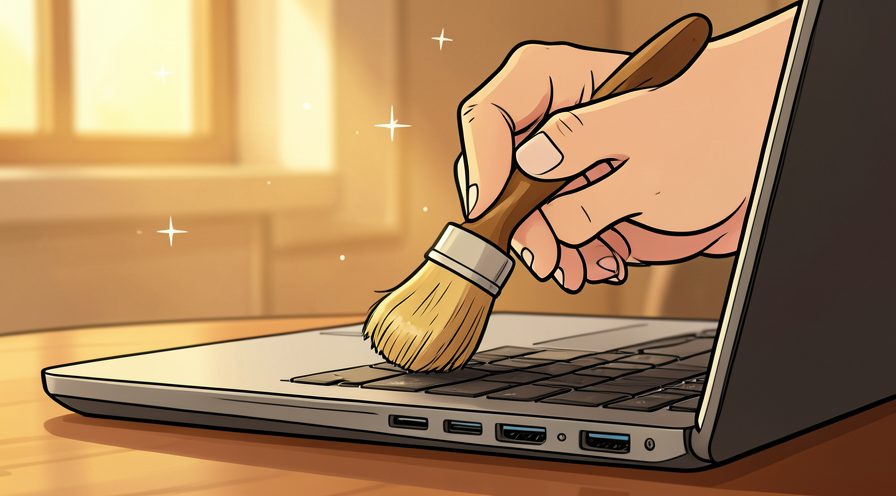
Step 6: Dust the keyboard
Brush loose crumbs from between the keys.

Step 7: Clear the ports
Gently remove dust from USB and charging ports.
Step 8: Wipe the case
Wipe the exterior with a dry microfiber cloth.

Method 2 of 2: Deep Clean Surfaces
Step 9: Dampen a microfiber cloth
Lightly moisten a cloth; it should not drip.

Step 10: Wipe the screen gently
Clean the display in slow overlapping strokes.

Step 11: Dry the screen
Buff away streaks with a dry side of the cloth.

Step 12: Clean the keycaps
Wipe each row of keys with a slightly damp cloth.

Step 13: Disinfect the touchpad
Wipe the trackpad and palm rest to remove oils.

Step 14: Clean the keyboard deck
Wipe the area around the keys to lift grime.

Step 15: Polish the exterior
Wipe the lid and base for a clean finish.

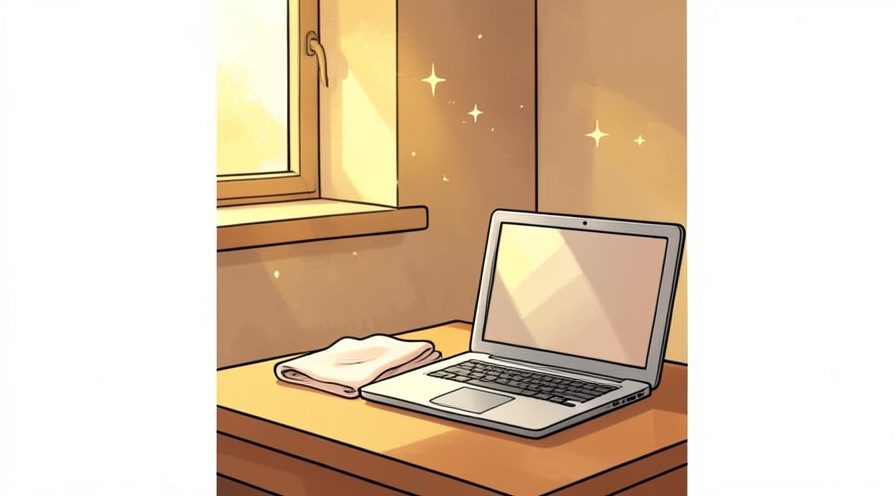
Step 16: Let it air dry
Wait until all surfaces are fully dry before powering on.
Tips
- Never spray liquid directly onto the laptop.
- A slightly damp cloth is enough for most smudges.
Warnings
- Avoid harsh chemicals or paper towels on the screen.
- Do not let liquid run into the vents or ports.
Frequently asked questions
How long does it take to clean a laptop?
What supplies do I need for clean a laptop?
Is clean a laptop safe for beginners?
References
- Apple — how to clean your Mac. https://support.apple.com/en-us/102623
- Microsoft — clean and care for your Surface. https://support.microsoft.com/
- wikiHow — How to Clean a Laptop. https://www.wikihow.com/Clean-a-Laptop
Every guide is reviewed against its sources. See our editorial policy.



Reader comments
0 so farFinished this guide? Tell other readers what worked, what didn't, and what you would change.