com.google.android.gms.persistent is a Google Play Services process that keeps the phone awake for syncing, notifications and location. When it holds a wake lock too long the battery drains overnight. Find the app requesting the wake lock, limit its background activity, and fix the sync that will not sleep.
This guide walks through the process in clear illustrated steps, from the first preparation to a finished result. Each step has its own picture, so you can compare your progress as you go.
How to use this guide
Work through the steps in order. Method 1 of 2 covers the basics, and the later methods offer alternatives and finishing touches. If you only have a minute, skim the Quick steps box above and come back for the details.
Related guides
- How to Treat dry skin in winter
- How to Adjust car headlights
- How to Set up a tent for the first time
- How to Prevent frizzy hair
- Browse all Fix Slow Device guides
- All 52runoob guides
Trusted external resources
- Google Support — Find and fix battery drain
- Google Support — Battery optimization on Android
- Android Developers — Doze and app standby
A note on sources
We check each guide against the official resources listed in References at the end of this article. External links open in a new tab; the related guides above stay on this site.
Quick steps
- Check Battery usage to see how long the phone stays awake.
- Identify the app holding a partial wake lock.
- Restrict background activity for that app.
- Turn on Battery Saver or Adaptive Battery.
- Reboot and confirm the phone can sleep normally.
Things you'll need
- An Android phone with battery usage history
- Access to Settings Battery and App info
- A full night to verify the fix
- About 20 minutes to change settings
Step-by-step
Method 1 of 2: Find What Is Holding the Wake Lock
Step 1: Open battery usage
Go to Settings, Battery, and tap Battery usage to see which apps and system services consumed power since the last charge.
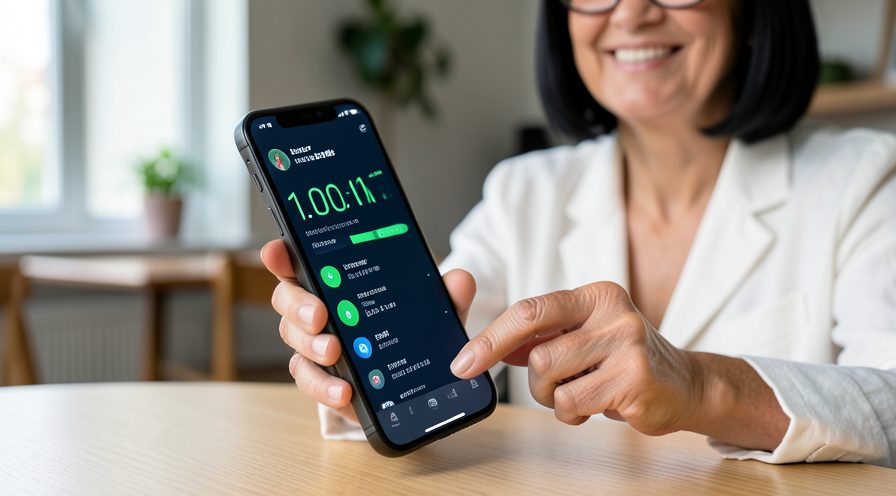
Step 2: Check the awake time
Look at how long the phone was awake versus idle since the last full charge. A phone that barely sleeps points to a wake lock.
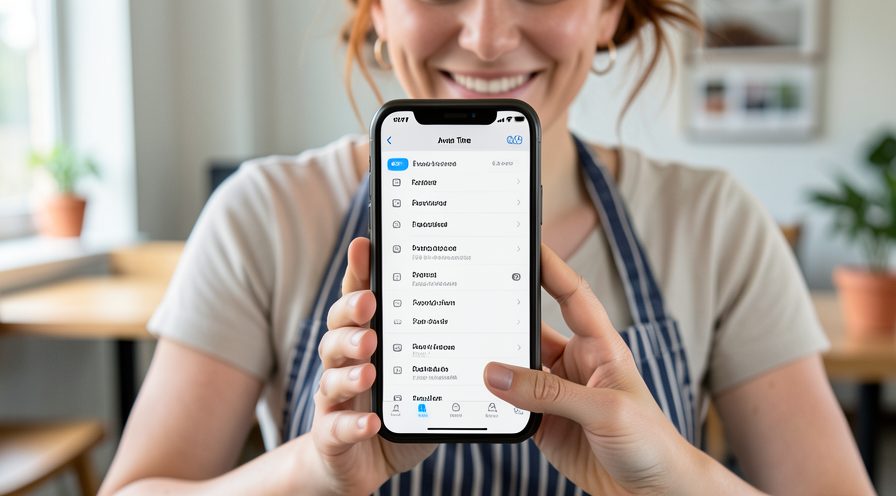
Step 3: Switch to system processes
Use the menu to show system processes and check how long Google Play Services has been active.
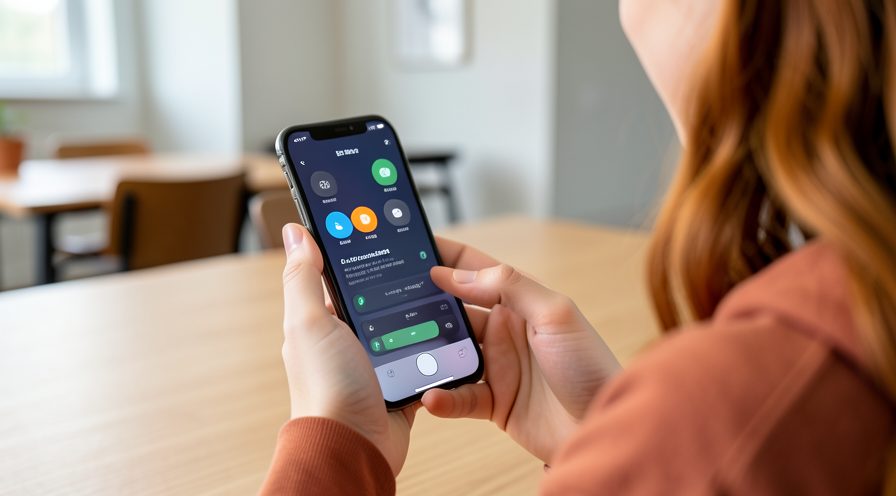
Step 4: Identify the requesting app
The app near the top of the list that needs background access is usually the one requesting the wake lock.
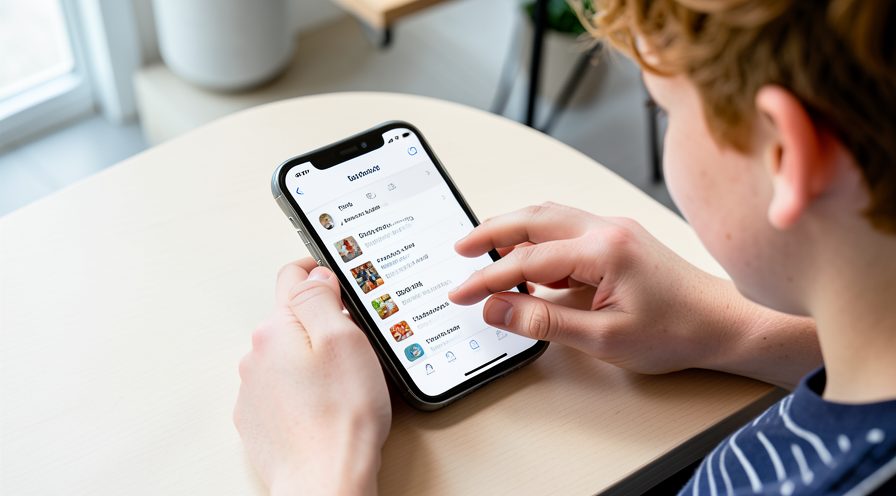
Step 5: Check for a stuck sync
Open Settings, Accounts, and look for an account showing a sync error or spinner that never finishes.
Step 6: Note recent installs
Think about apps installed or updated before the drain began, since a buggy update is a common trigger.
Method 2 of 2: Restrict the Background Activity
Step 7: Open the offending app's info
Go to Settings, Apps, select the suspected app, and open its Battery usage or battery optimization entry.
Step 8: Restrict background activity
Choose Restrict background activity or Manage battery usage and select Restricted to stop it waking the phone.
Step 9: Set background location to while-using
If the app uses location, change its permission to Only while using the app.
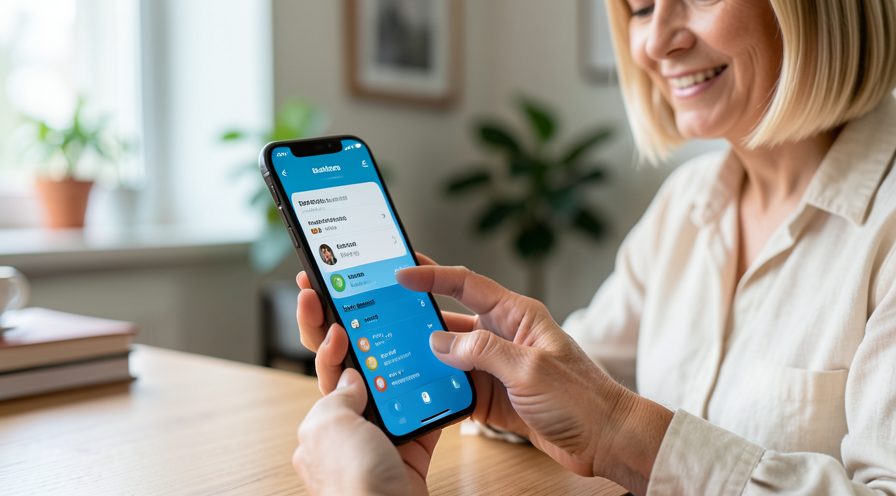
Step 10: Turn on Adaptive Battery
In Settings, Battery, enable Adaptive Battery so Android learns which apps you rarely use and limits them.
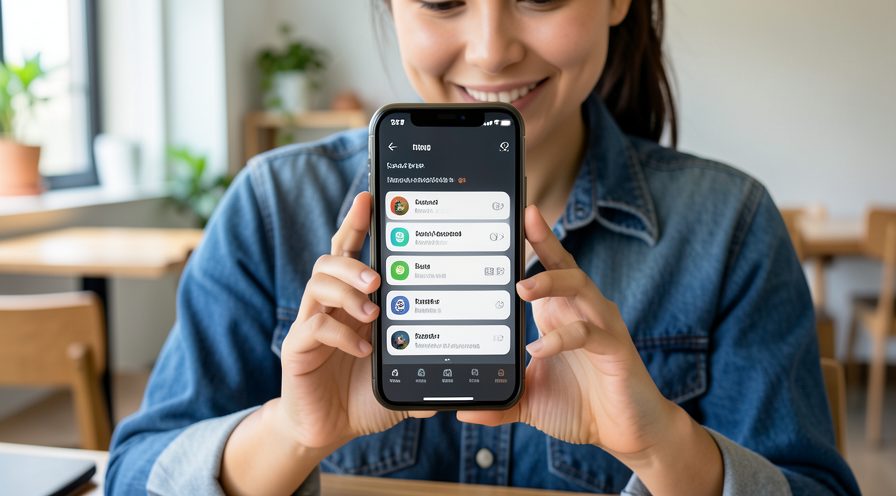
Step 11: Enable Battery Saver at night
Schedule Battery Saver to turn on overnight to limit background work while you sleep.
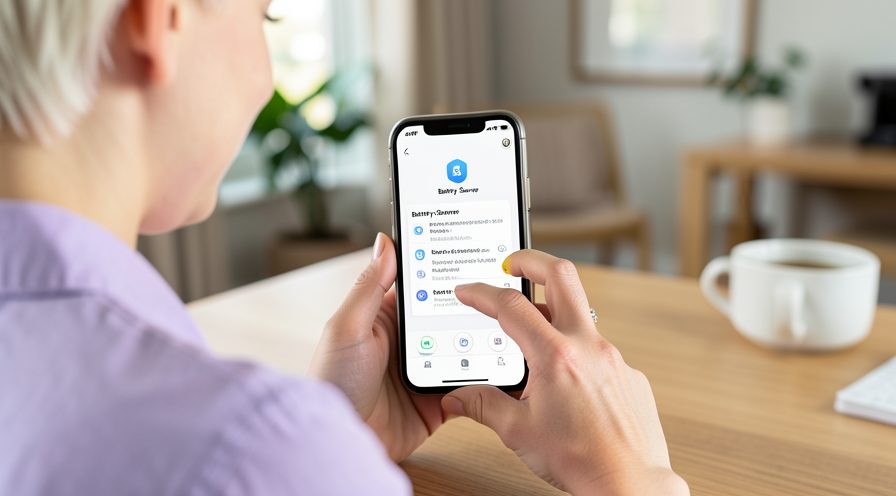
Step 12: Remove a duplicate account
If a failing sync was found, remove the unused account so services stop retrying it all night.
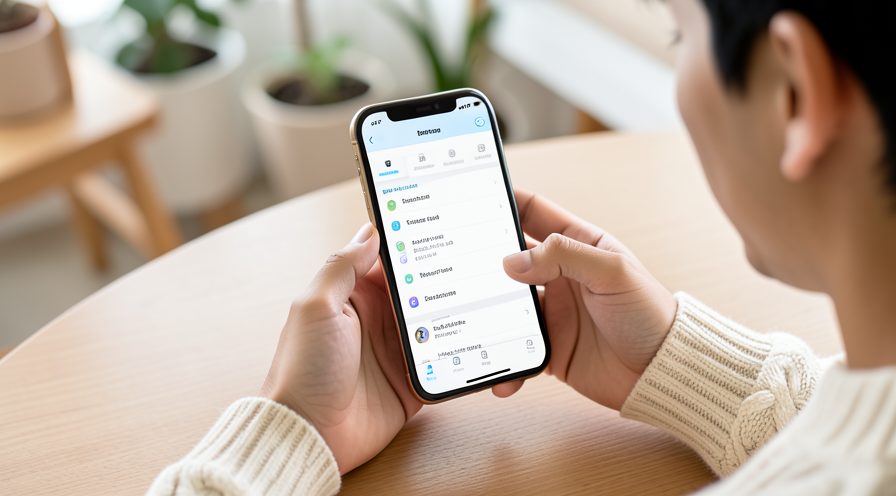
Step 13: Reboot the phone
Restart to release any wake lock currently held, then observe behaviour overnight.
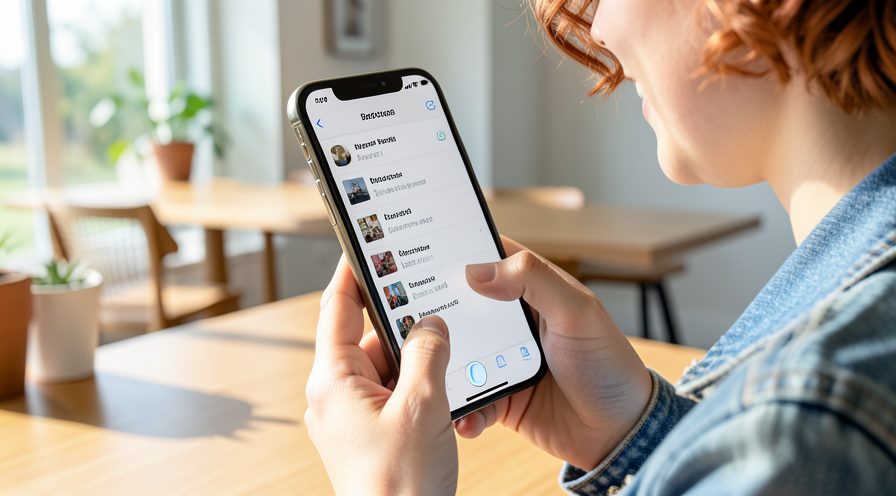
Step 14: Verify the phone sleeps
In the morning, check Battery usage again and confirm the awake time has dropped noticeably.
Tips
- A wake lock is a request to stay awake, not a virus.
- Messaging and navigation apps legitimately hold wake locks briefly.
- Fixing the requesting app solves the problem; killing the Google process does not.
Warnings
- Do not force-stop core Google services permanently; notifications will stop arriving.
- Aggressive battery killer apps can break alarms and messaging.
- Restricting the wrong app may delay important notifications.
Frequently asked questions
What is com.google.android.gms.persistent?
It is a persistent background process of Google Play Services that handles syncing, notifications and location. It is a normal part of Android, but a stuck wake lock held by an app can keep it active and drain the battery.
Is this process safe?
Yes, it is an official system component. If you suspect malware, scan with Play Protect and check the package path in App info rather than trying to remove the process.
Why does my phone never go to sleep?
An app is requesting a partial wake lock, often for background sync, music, or location tracking. Battery usage shows which app is responsible so you can restrict it.
Will Battery Saver fix it?
Battery Saver limits background activity and can reduce the drain, but the real fix is finding and restricting the specific app holding the wake lock.
References
- Google Support — Find and fix battery drain. https://support.google.com/android/answer/7664686
- Google Support — Battery optimization on Android. https://support.google.com/android/answer/9779889
- Android Developers — Doze and app standby. https://developer.android.com/training/monitoring-device-state/doze-standby
- wikiHow — How to Stop com.google.android.gms.persistent From Keeping the Phone Awake. https://www.wikihow.com/Stop-Apps-from-Running-in-the-Background-on-Android
Every guide is reviewed against its sources. See our editorial policy.
Reader comments
0 so farFinished this guide? Tell other readers what worked, what didn't, and what you would change.