On Android 15, Google Play Services can drain the battery when a sync loops, location is requested constantly, or an update leaves the service in a bad state. Update the service, fix the requesting app, and let Android 15's battery tools put idle apps back to sleep.
This guide walks through the process in clear illustrated steps, from the first preparation to a finished result. Each step has its own picture, so you can compare your progress as you go.
How to use this guide
Work through the steps in order. Method 1 of 2 covers the basics, and the later methods offer alternatives and finishing touches. If you only have a minute, skim the Quick steps box above and come back for the details.
Related guides
- How to Fix service host local system network restricted high cpu
- How to Define curly hair without heat
- How to Build a morning routine
- How to Do a push up with proper form
- Browse all Fix Slow Device guides
- All 52runoob guides
Trusted external resources
- Google Support — Battery and Android 15
- Google Support — Battery optimization
- Android Developers — Android 15 behavior changes
A note on sources
We check each guide against the official resources listed in References at the end of this article. External links open in a new tab; the related guides above stay on this site.
Quick steps
- Check Battery usage to confirm Google Play Services is draining power.
- Update Google Play Services and your apps.
- Review which apps have background location access.
- Enable Adaptive Battery and Battery Saver.
- Reboot and monitor overnight.
Things you'll need
- An Android 15 phone
- Access to Settings Battery and Apps
- A Wi-Fi connection for updates
- A night to verify the drain has stopped
Step-by-step
Method 1 of 2: Measure and Update
Step 1: Charge to full first
Charge the phone to 100 percent so battery statistics start from a clean baseline.
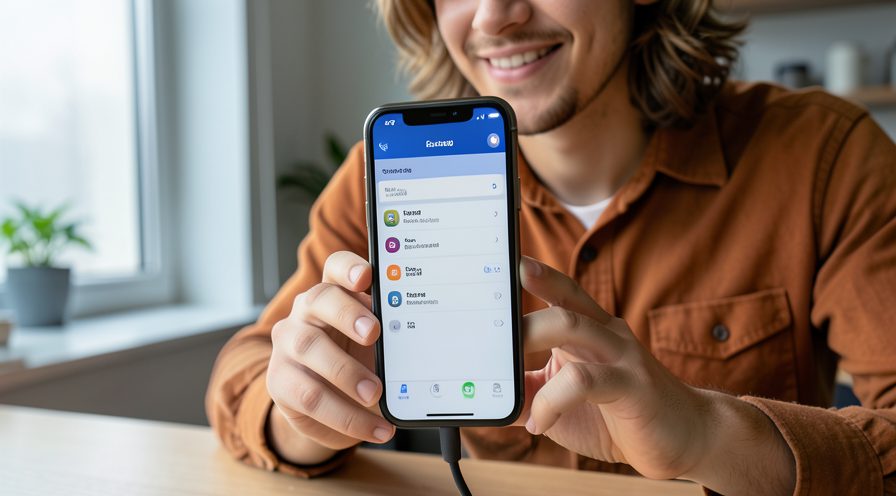
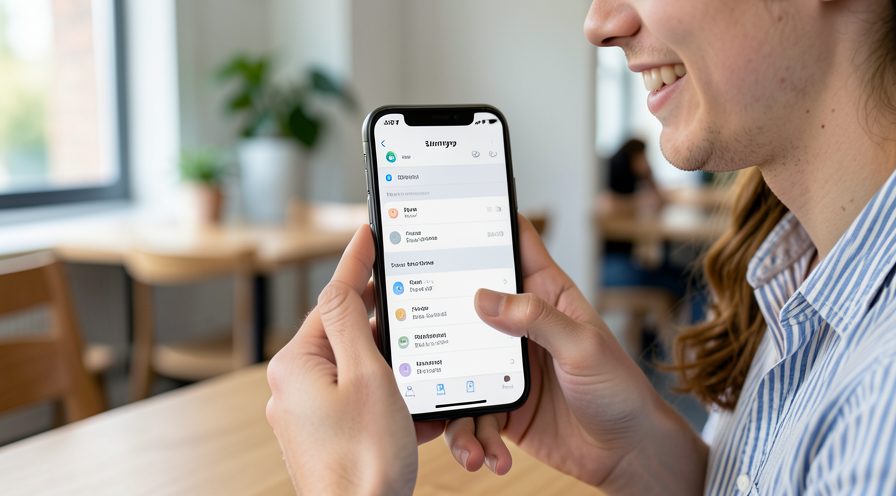
Step 2: Check battery usage
Open Settings, Battery and read the usage breakdown to confirm Google Play Services is high.

Step 3: Look for a requesting app
Identify any regular app near the top that could be calling Google services in the background.
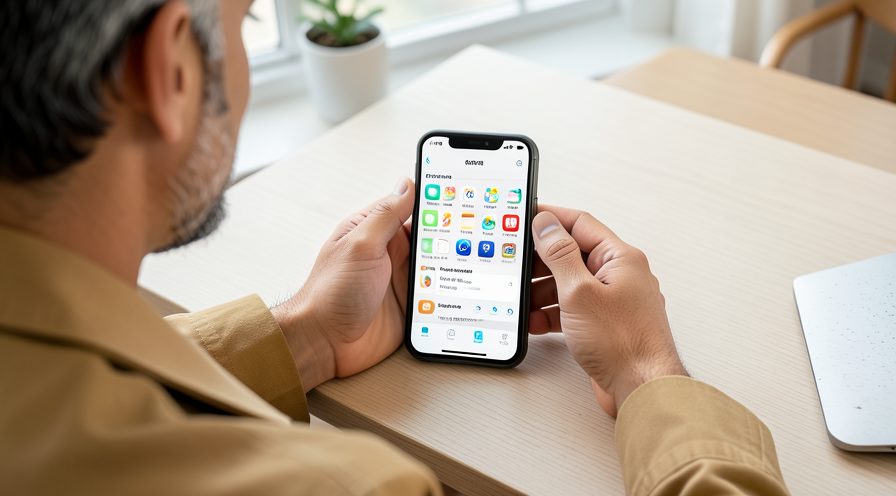
Step 4: Update Play Services
In the Play Store, update Google Play Services if a new version is available.
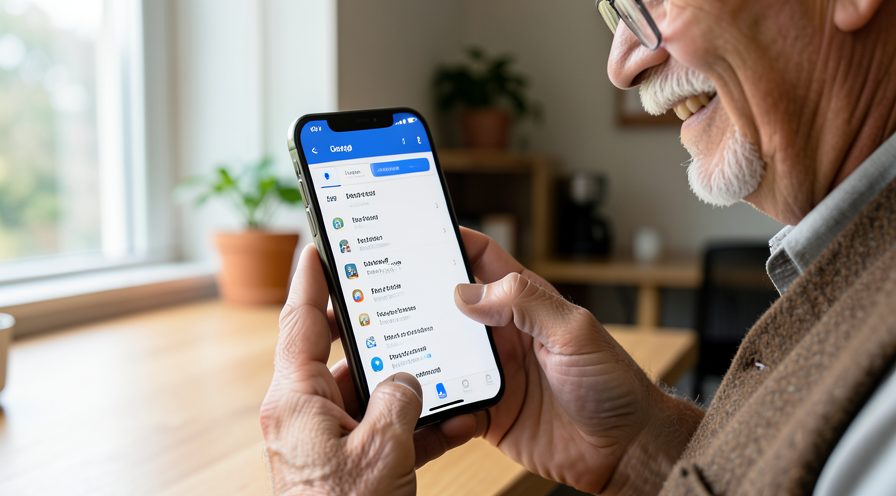
Step 5: Update your apps
Use Manage apps and device to update all apps, since old versions often trigger repeated syncs.

Step 6: Reboot the phone
Restart to clear any process stuck in a sync loop before monitoring again.

Method 2 of 2: Cut the Background Work
Step 7: Review location access
Open Settings, Location and check which apps can access location all the time.
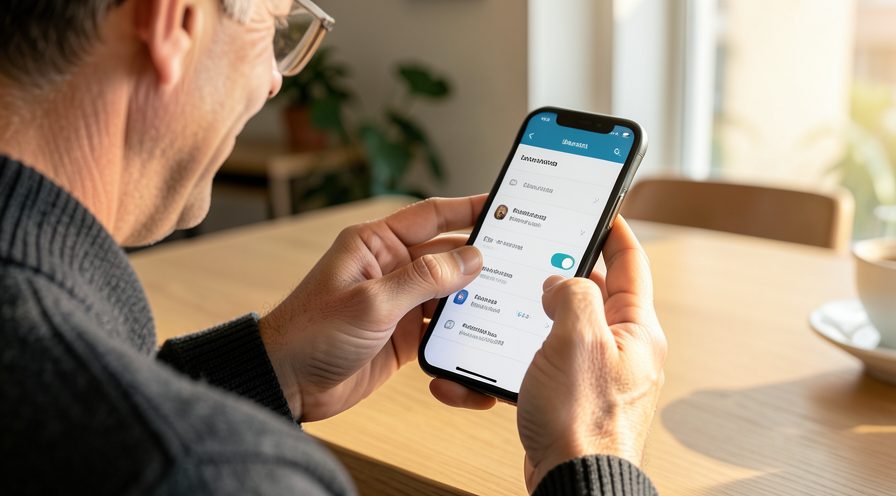
Step 8: Limit unnecessary location
Switch non-essential apps to Only while using the app so they stop waking the service.

Step 9: Turn on Adaptive Battery
In Battery settings, enable Adaptive Battery to let Android 15 restrict rarely used apps.
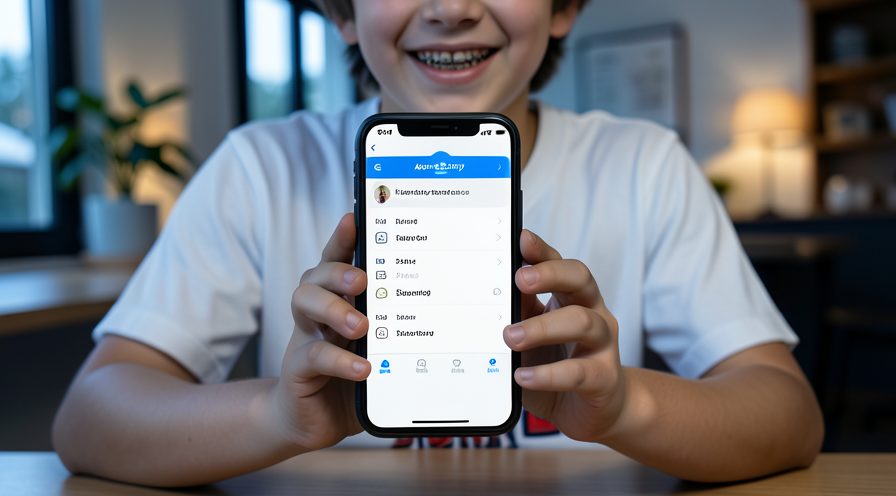
Step 10: Enable Battery Saver
Turn on Battery Saver, or schedule it, to cap background activity automatically.

Step 11: Pause heavy cloud backup
Pause Google Photos or Drive backup temporarily and see if the drain reduces.
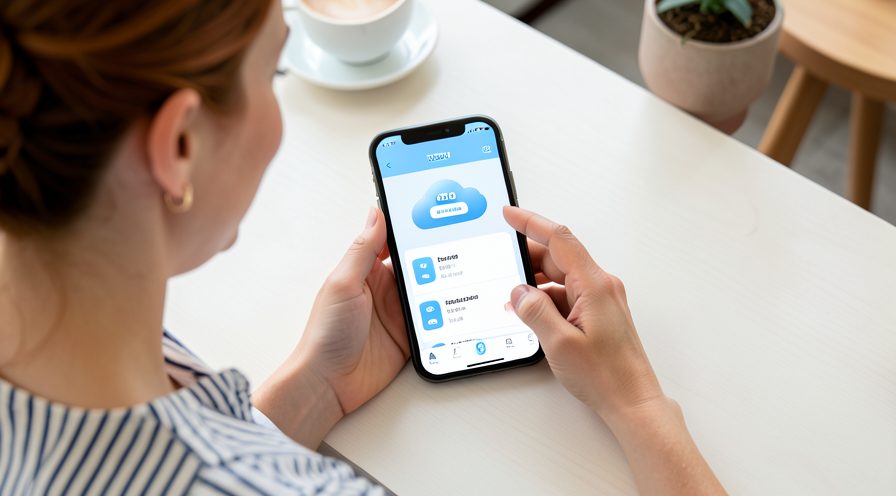
Step 12: Remove a failing account
If an account shows a persistent sync error in Settings, Accounts, remove and re-add it.
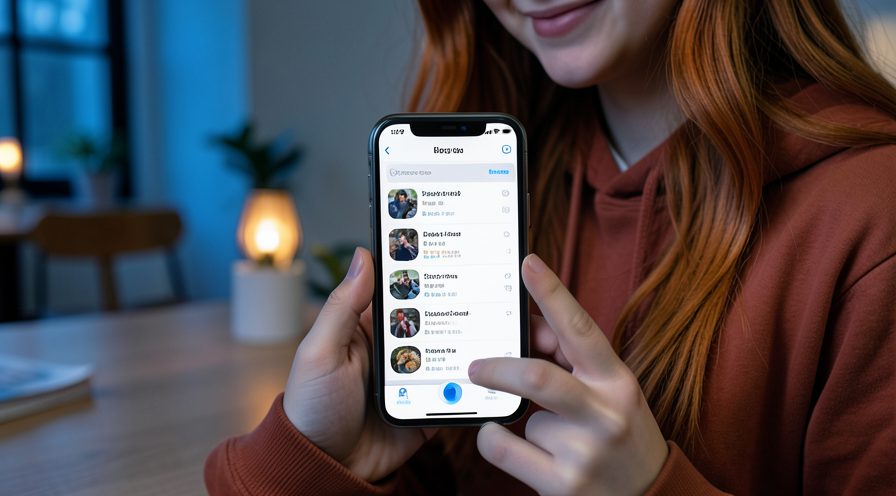
Step 13: Monitor after a full cycle
Use the phone normally for a full charge cycle and recheck Battery usage the next day.
Tips
- A full charge cycle gives the most accurate battery reading.
- New phones spend their first day indexing and syncing, which is normal.
- Fix the app requesting work; the Google service is only doing what it is told.
Warnings
- Do not disable Play Services or Google account sync will break.
- Force-stopping system services repeatedly can cause notification delays.
- Third-party battery savers often cause more drain than they prevent.
Frequently asked questions
Why is Play Services draining battery on Android 15?
Usually an app is repeatedly requesting location or a sync is failing and retrying. Android 15 shows which apps are active in Battery usage so you can find the real cause and restrict it.
Is the drain normal after an OS update?
Yes for the first day or two while the phone re-indexes files and re-syncs accounts. If it continues after a couple of charge cycles, follow the update and restriction steps in this guide.
Should I turn off location entirely?
Not necessarily. Change background location to only-while-using for apps that do not need it, rather than switching location off globally, which breaks maps and finding your phone.
Does Adaptive Battery really help?
Yes. It learns your usage over a few days and restricts apps you rarely open, which reduces unnecessary background work from the services they call.
References
- Google Support — Battery and Android 15. https://support.google.com/android/answer/9454546
- Google Support — Battery optimization. https://support.google.com/android/answer/9779889
- Android Developers — Android 15 behavior changes. https://developer.android.com/about/versions/15/behavior-changes-15
- wikiHow — How to Fix Google Play Services Battery Drain on Android 15. https://www.wikihow.com/Stop-Apps-from-Running-in-the-Background-on-Android
Every guide is reviewed against its sources. See our editorial policy.
Reader comments
0 so farFinished this guide? Tell other readers what worked, what didn't, and what you would change.