After a big iOS update, an iPhone often feels slow and warm for a day or two while it re-indexes photos, finishes app updates and syncs iCloud. If the heat and lag persist, a stuck app or a nearly full storage is the likely cause. Let it settle, then reset settings and free space.
This guide walks through the process in clear illustrated steps, from the first preparation to a finished result. Each step has its own picture, so you can compare your progress as you go.
How to use this guide
Work through the steps in order. Method 1 of 3 covers the basics, and the later methods offer alternatives and finishing touches. If you only have a minute, skim the Quick steps box above and come back for the details.
Related guides
- How to Apply varathane wood stain
- How to Find your skin type
- How to Make a simple tomato sauce
- How to Fix chrome using too much ram on an android phone
- Browse all Fix Slow Device guides
- All 52runoob guides
Trusted external resources
- Apple Support — If your iPhone is running slowly
- Apple Support — Update iOS
- Apple Support — Why your iPhone is warm
A note on sources
We check each guide against the official resources listed in References at the end of this article. External links open in a new tab; the related guides above stay on this site.
Quick steps
- Let the iPhone finish indexing for 24 to 48 hours while charging.
- Restart the phone and check for a newer iOS point release.
- Update all apps from the App Store.
- Free up storage if the device is nearly full.
- Reset all settings if the lag and heat continue.
Things you'll need
- An iPhone running iOS 26
- Access to Settings and the App Store
- A Wi-Fi connection and charger
- 24 to 48 hours of settling time
Step-by-step
Method 1 of 3: Let It Settle and Restart
Step 1: Give it time to index
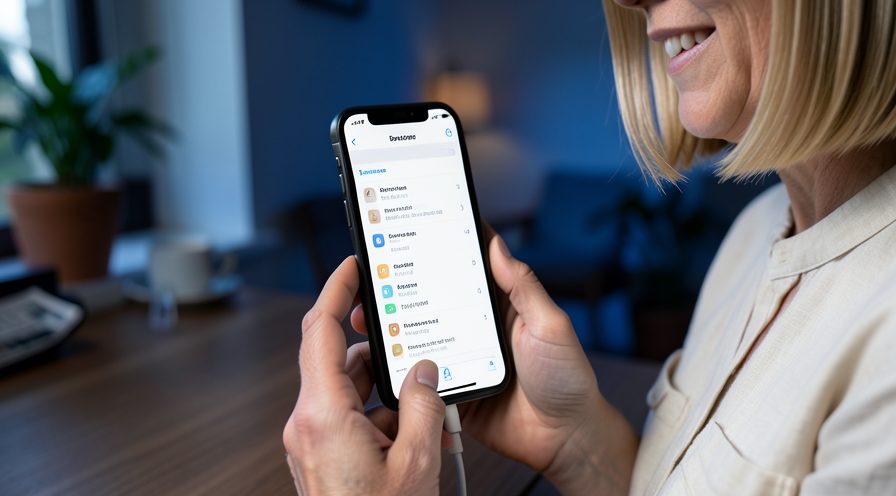
Leave the iPhone plugged in on Wi-Fi for a day so photo and file indexing can finish without interruption.
Step 2: Check for another update
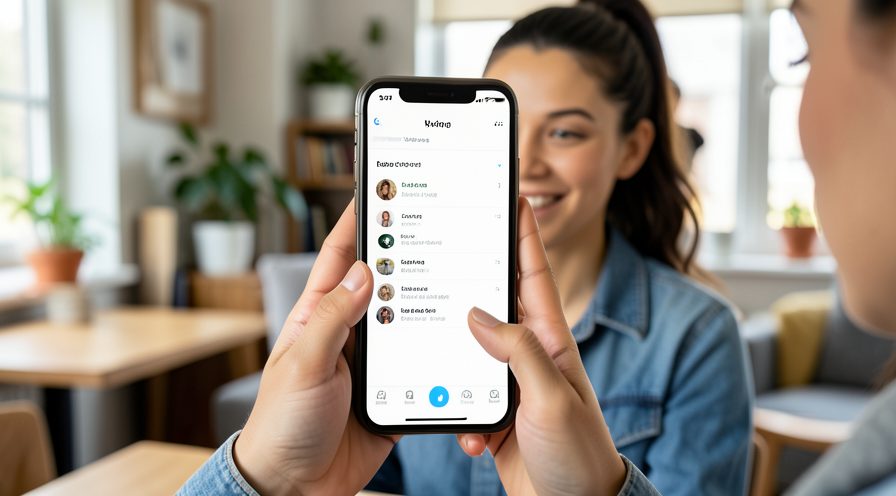
Go to Settings, General, Software Update and install any newer point release that fixes performance bugs.
Step 3: Restart the iPhone
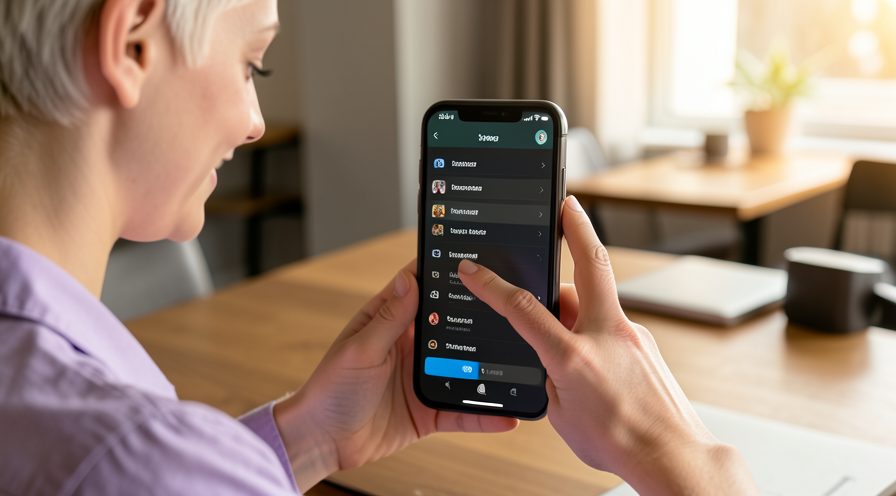
Power off and turn the phone back on to clear stuck processes left by the update.
Step 4: Update all apps
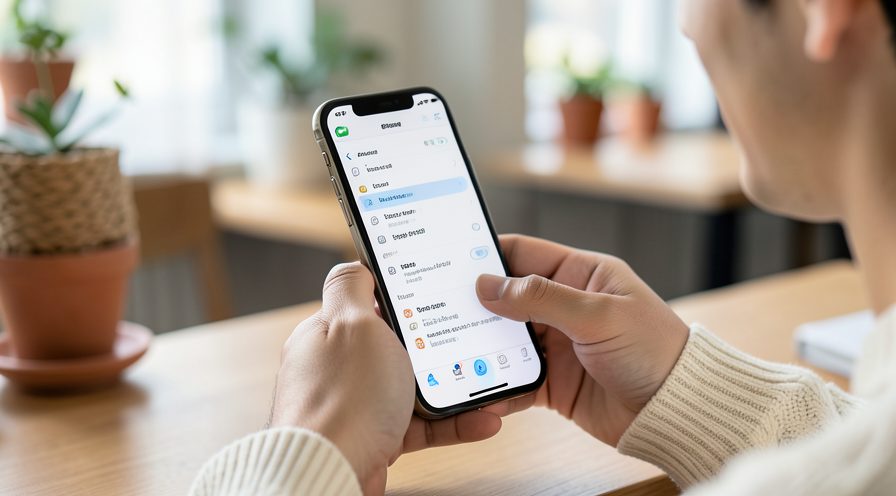
Open the App Store, tap your profile and update every app that has a pending update.
Step 5: Remove the case if hot
Take the case off while the phone is warm and keep it out of sunlight to let heat escape.
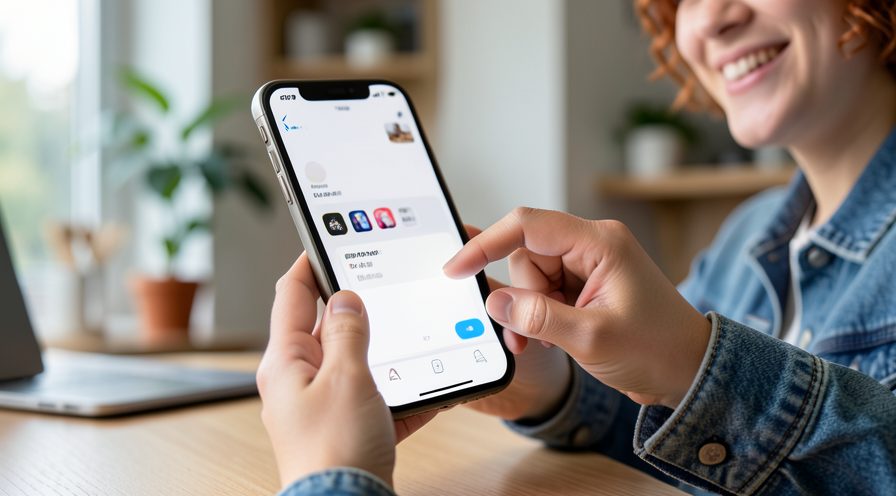
Step 6: Recheck after a day
Use the phone normally for a day and see whether the speed and temperature return to normal.
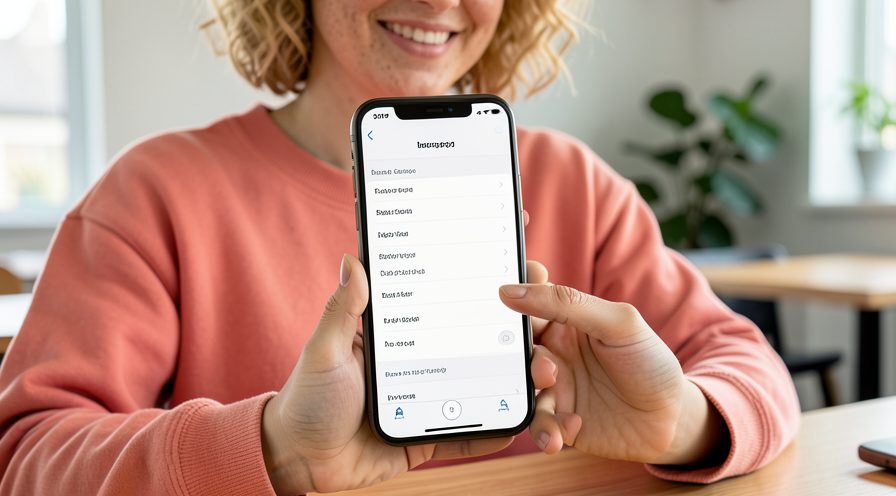
Method 2 of 3: Free Space and Reduce Load
Step 7: Check storage
Open Settings, General, iPhone Storage to see how much space is free and which apps use the most.
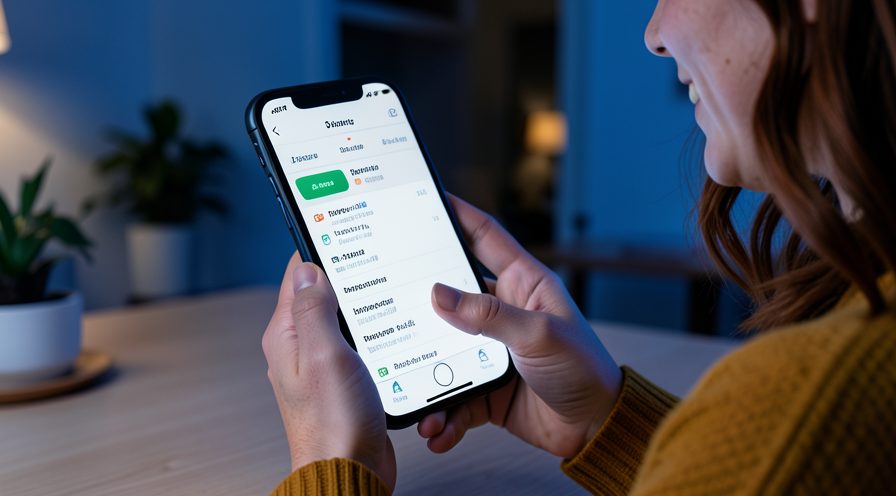
Step 8: Delete unused apps
Offload or delete apps you no longer use to give the phone breathing room for update files.
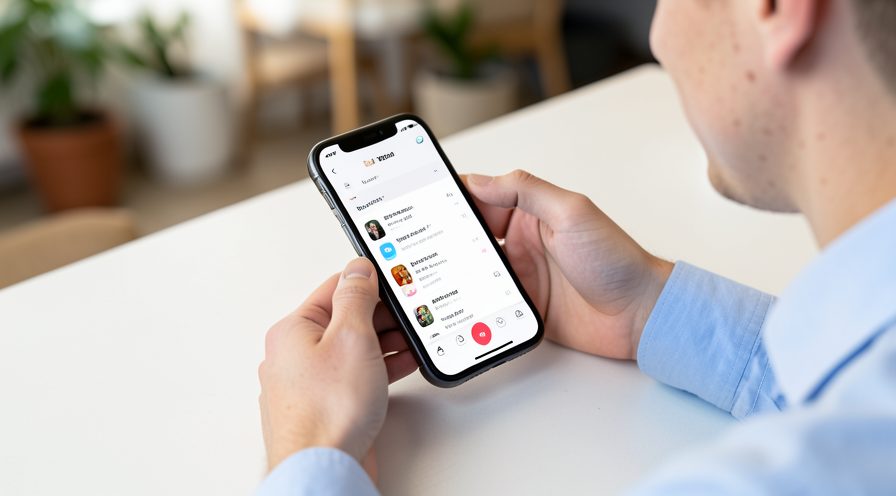
Step 9: Clear cache-heavy apps
In apps like social media or streaming, use their in-app settings to clear cached videos and data.
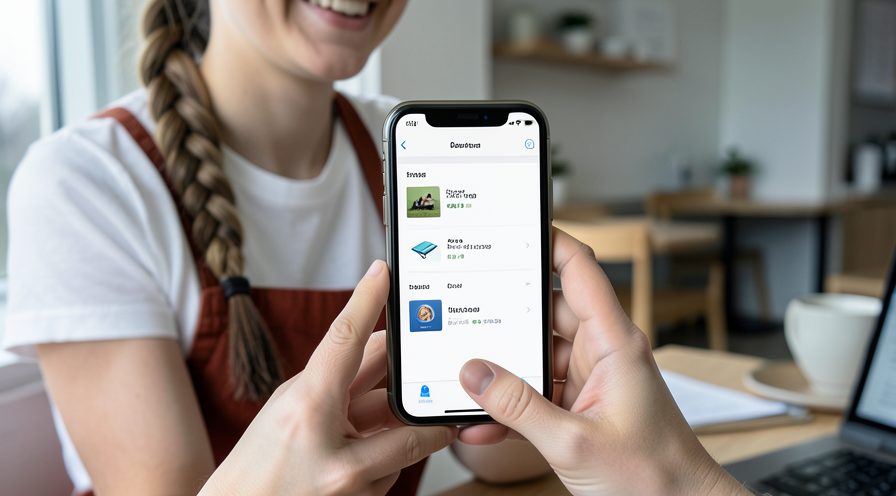
Step 10: Turn off background app refresh
In Settings, General, Background App Refresh, disable it for apps that do not need it.
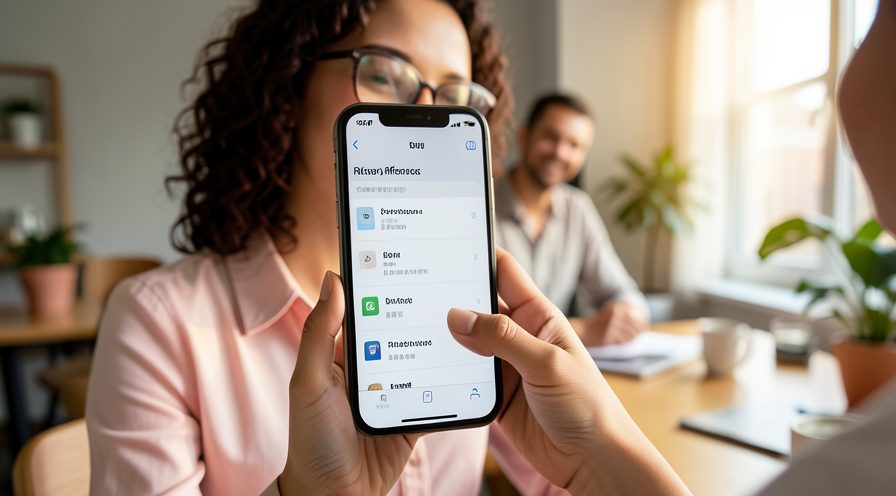
Step 11: Restart after cleaning
Restart the phone once more so the freed space and settings take full effect.

Method 3 of 3: Reset Settings as a Last Resort
Step 12: Back up first
Back up the iPhone to iCloud or a computer before making bigger changes.
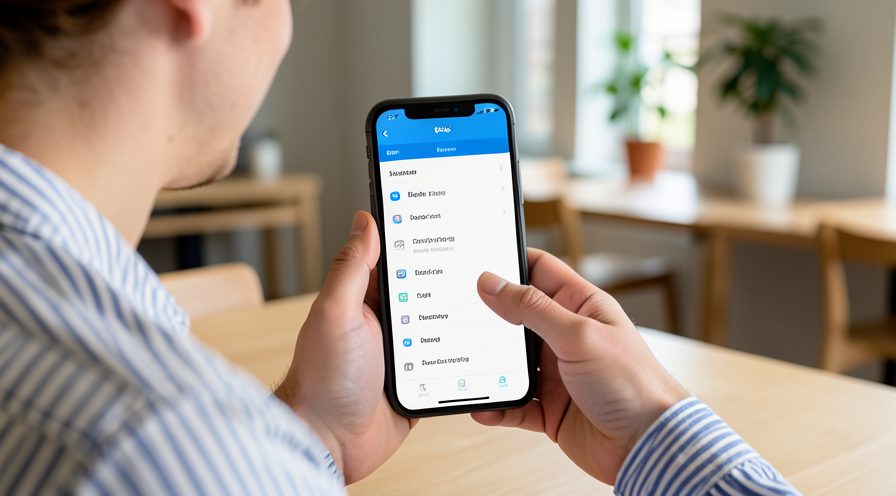
Step 13: Reset all settings
Go to Settings, General, Transfer or Reset, Reset, then Reset All Settings. This keeps your data but clears preferences.
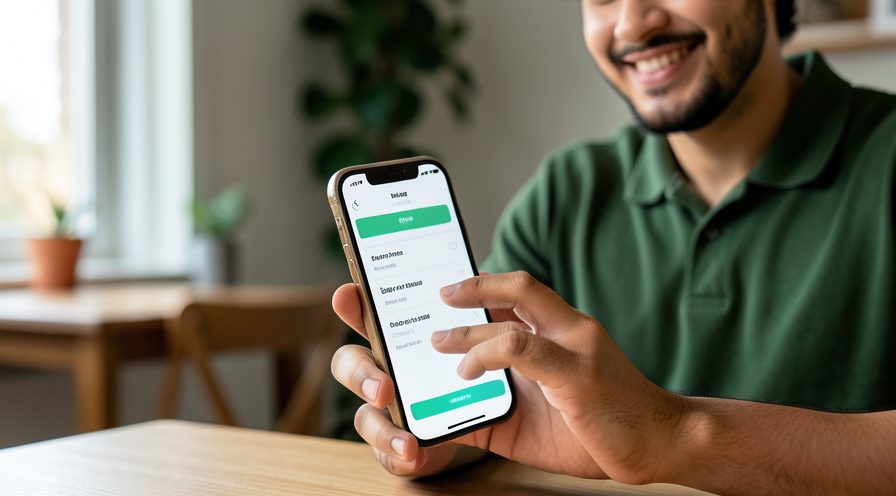
Step 14: Reconnect Wi-Fi
After the reboot, rejoin your Wi-Fi network and re-enter passwords as prompted.
Step 15: Test speed and heat
Use the phone normally for a while and confirm the lag and warmth have reduced.
Step 16: Consider a factory restore
If the problem remains, erase the phone and restore from the backup you made, then reinstall apps fresh.
Tips
- Warmth and lag right after an update are usually temporary.
- Battery health below a healthy level can make heat and throttling worse.
- Always install the latest point release, which often fixes performance bugs.
Warnings
- Do not restore from a backup unless all softer fixes have failed.
- Avoid third-party 'cleaner' apps; iOS manages memory itself.
- Reset all settings keeps your data but removes Wi-Fi passwords and preferences.
Frequently asked questions
Why is my iPhone slow and hot after updating?
After a major update the phone re-indexes photos and files, finishes updating apps and syncs iCloud. That work uses the processor and generates heat for a day or two. If it continues, a stuck app or low storage is usually responsible.
How long should the slowdown last?
Usually 24 to 48 hours. If your iPhone is still slow and warm after two full days of normal use, follow the update, storage and settings-reset steps in this guide.
Should I factory reset after an update?
Not at first. Try restarting, updating apps, freeing storage and resetting all settings. A full erase and restore is a last resort after those steps fail.
Does a case make overheating worse?
It can. Remove the case while the phone is indexing or charging, keep it out of direct sun, and avoid heavy tasks like gaming while it is warm.
References
- Apple Support — If your iPhone is running slowly. https://support.apple.com/en-us/118268
- Apple Support — Update iOS. https://support.apple.com/en-us/108782
- Apple Support — Why your iPhone is warm. https://support.apple.com/en-us/102650
- wikiHow — How to Fix iPhone Slow and Hot After the iOS 26 Update. https://www.wikihow.com/Speed-Up-Your-iPhone
Every guide is reviewed against its sources. See our editorial policy.
Reader comments
0 so farFinished this guide? Tell other readers what worked, what didn't, and what you would change.