A major Android update triggers re-indexing, app optimisation and account sync that can make any phone feel slow for the first day or two. If sluggishness continues, clear cache files, update apps, check storage and remove an app that is stuck in a background loop.
This guide walks through the process in clear illustrated steps, from the first preparation to a finished result. Each step has its own picture, so you can compare your progress as you go.
How to use this guide
Work through the steps in order. Method 1 of 3 covers the basics, and the later methods offer alternatives and finishing touches. If you only have a minute, skim the Quick steps box above and come back for the details.
Related guides
- How to Ask for help at work
- How to Paint a room
- How to Sit less during the day
- How to Fix shellexperiencehost exe high cpu after a windows update
- Browse all Fix Slow Device guides
- All 52runoob guides
Trusted external resources
- Google Support — Speed up your Android device
- Google Support — Free up space
- Android Developers — Art optimization after update
A note on sources
We check each guide against the official resources listed in References at the end of this article. External links open in a new tab; the related guides above stay on this site.
Quick steps
- Wait 24 to 48 hours while the phone optimizes apps.
- Restart the phone once optimization finishes.
- Update all apps and the system.
- Clear cache for the Play Store and Google Play Services.
- Free storage and remove a stuck background app.
Things you'll need
- An Android phone just updated
- A Wi-Fi connection and charger
- Access to Settings and the Play Store
- One to two days of settling time
Step-by-step
Method 1 of 3: Let Optimization Finish
Step 1: Charge on Wi-Fi overnight
Plug the phone in on Wi-Fi and leave it idle so app optimization can complete.
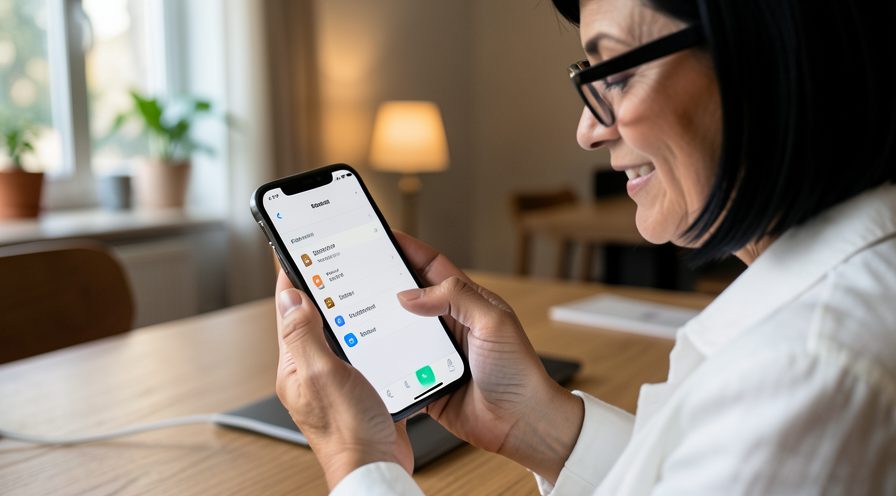
Step 2: Check optimization progress
If a notification about optimizing apps appears, let it finish rather than force-closing it.
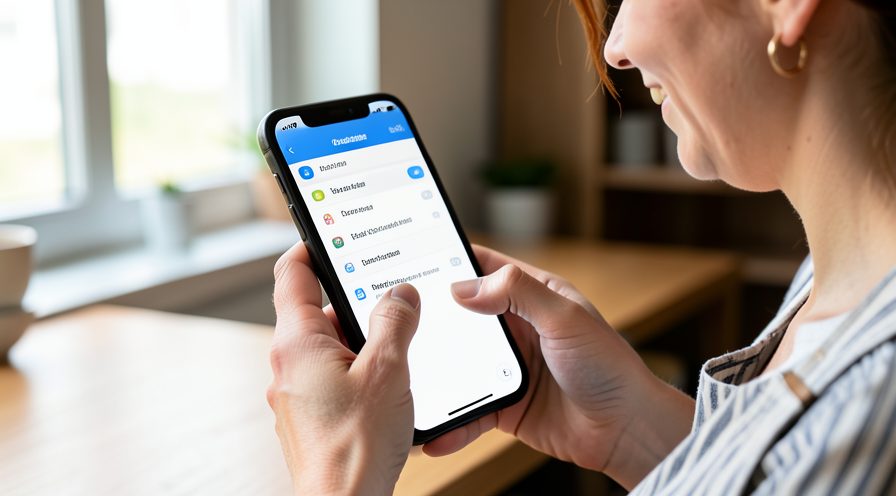
Step 3: Wait a full day
Give the phone a full day of normal use before judging the performance.
Step 4: Restart after optimization
Restart the phone once the optimizing message disappears to clear leftover processes.
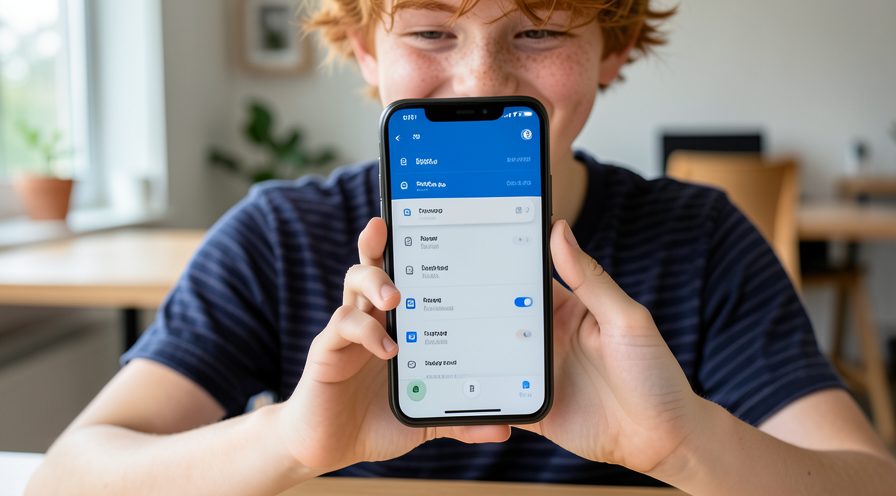
Step 5: Install the next patch
Check Settings, System, System update and install any newer patch that improves performance.
Method 2 of 3: Clear Caches and Update
Step 6: Clear Play Store cache
Open the Play Store app info, go to Storage and cache, and clear the cache.
Step 7: Clear Play Services cache
Do the same for Google Play Services to stop a post-update sync loop.
Step 8: Update all apps
Open Manage apps and device in the Play Store and update everything pending.
Step 9: Check free storage
Open Settings, Storage and confirm at least 15 percent of space is free.
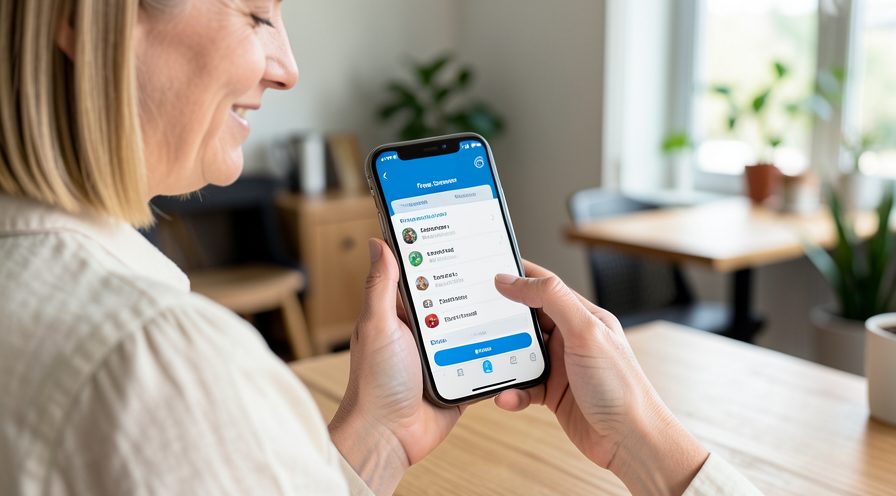
Step 10: Remove large unused files
Delete old videos or downloads you no longer need to give the system room to work.
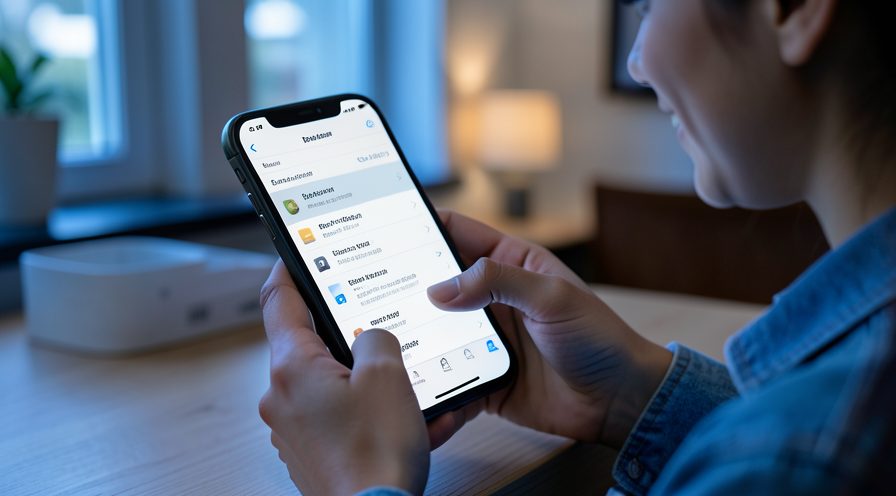
Method 3 of 3: Find a Stuck App
Step 11: Check battery usage
Open Battery usage and look for an app draining power unusually fast since the update.
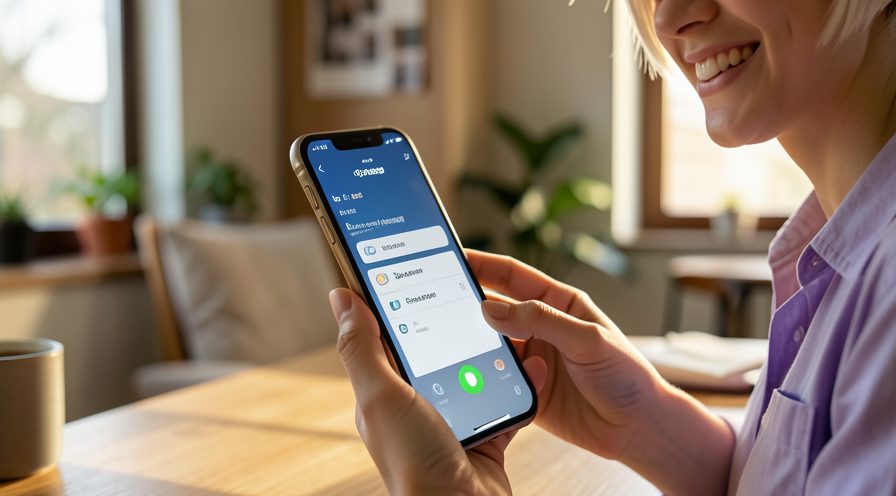
Step 12: Force close the suspect
Open that app's info and tap Force stop to end a background loop.
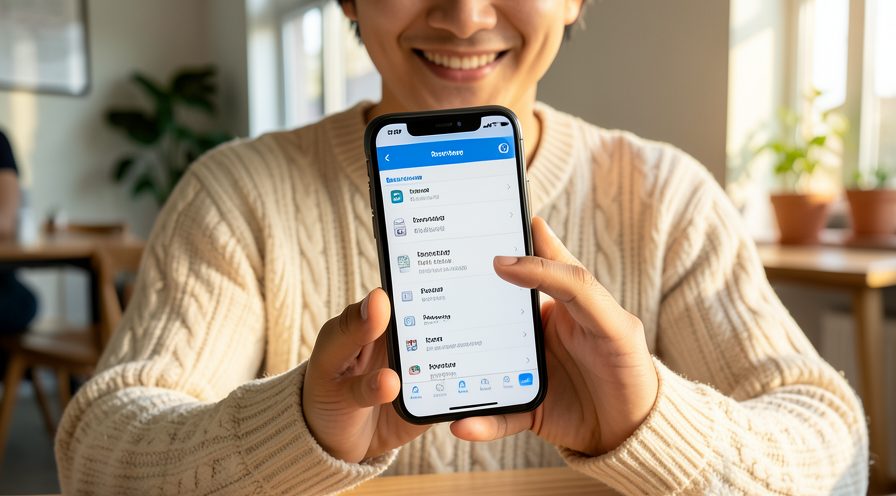
Step 13: Clear its cache
Clear the app's cache, then reopen it to see if the problem returns.
Step 14: Reinstall if needed
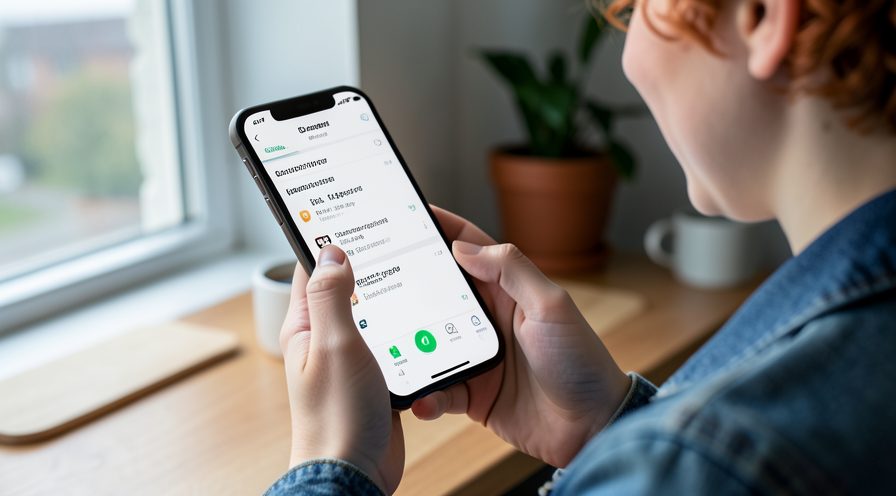
If the app still misbehaves, uninstall and reinstall its latest version.
Step 15: Verify smooth performance
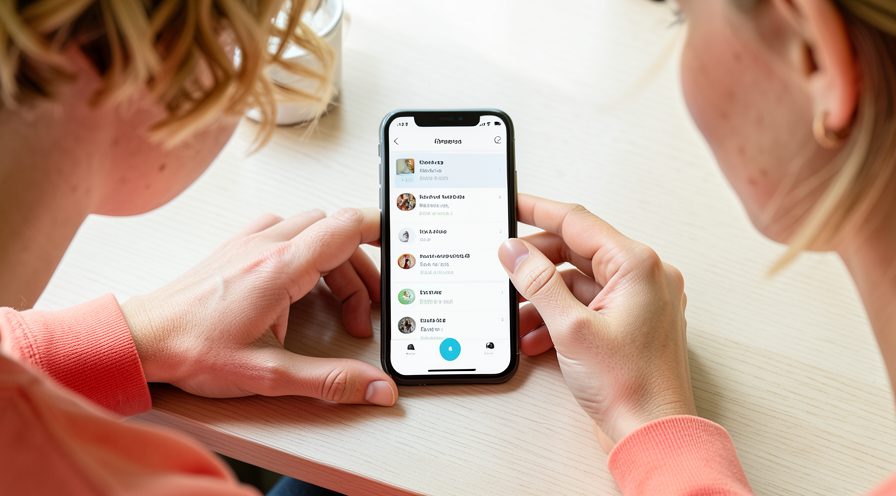
Use the phone normally and confirm the post-update slowness is gone.
Tips
- Optimizing apps runs mostly while the phone charges and is idle.
- A phone below 15 percent free space will feel slow after any update.
- Installing the second point release often fixes first-update bugs.
Warnings
- Do not factory reset during the first day; the slowness may be temporary.
- Avoid beta apps right after a major OS update.
- Clearing app data removes logins, so try cache first.
Frequently asked questions
How long does Android take to optimize apps after an update?
Usually a few hours, but it can take up to a day or two if you have many apps. During that time the phone feels slow and warm. Plugging it in overnight on Wi-Fi speeds the process up.
Why is my phone slow right after updating?
The system rebuilds caches, re-indexes media and optimizes every app for the new Android version. That background work competes with your apps until it finishes.
Will clearing cache speed up the phone?
It can help, especially for the Play Store and Play Services which may be looping after an update. Clearing cache is safe; clearing data signs you out, so try cache first.
Should I install the next update quickly?
Yes. Point releases often include performance fixes for bugs introduced in the major update, so install them when they appear.
References
- Google Support — Speed up your Android device. https://support.google.com/android/answer/9454546
- Google Support — Free up space. https://support.google.com/android/answer/9551190
- Android Developers — Art optimization after update. https://source.android.com/docs/core/ota
- wikiHow — How to Fix Android Phone Slow Immediately After a Major OS Update. https://www.wikihow.com/Speed-Up-an-Android-Phone
Every guide is reviewed against its sources. See our editorial policy.

Reader comments
0 so farFinished this guide? Tell other readers what worked, what didn't, and what you would change.