A laggy keyboard after iOS 26 usually comes from a bloated keyboard cache, a heavy custom keyboard extension, or the phone being warm and low on storage. Reset the keyboard dictionary, remove third-party keyboards and free space to restore instant typing.
This guide walks through the process in clear illustrated steps, from the first preparation to a finished result. Each step has its own picture, so you can compare your progress as you go.
How to use this guide
Work through the steps in order. Method 1 of 2 covers the basics, and the later methods offer alternatives and finishing touches. If you only have a minute, skim the Quick steps box above and come back for the details.
Related guides
- How to Keep in touch long distance
- How to Shape your eyebrows at home
- How to Find a haircut that suits you
- How to Compost at home
- Browse all Fix Slow Device guides
- All 52runoob guides
Trusted external resources
- Apple Support — If the iPhone keyboard is slow
- Apple Support — Reset keyboard dictionary
- Apple Support — Manage iPhone storage
A note on sources
We check each guide against the official resources listed in References at the end of this article. External links open in a new tab; the related guides above stay on this site.
Quick steps
- Restart the iPhone to clear a stuck keyboard process.
- Reset the keyboard dictionary in Reset settings.
- Remove third-party keyboard extensions you do not use.
- Free up storage and let the phone cool down.
- Update iOS to the latest point release.
Things you'll need
- An iPhone on iOS 26
- Access to Settings, General and Keyboard
- A few minutes
- Optional: a computer for a backup
Step-by-step
Method 1 of 2: Quick Fixes
Step 1: Restart the iPhone
Power the phone off and back on to clear a stuck keyboard process after the update.
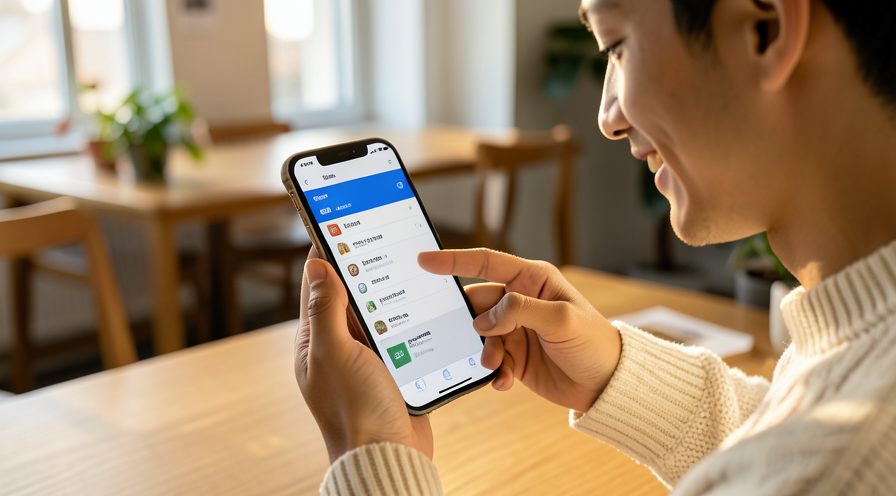
Step 2: Test with predictive text off
In Settings, Keyboard, turn off Predictive Text and type a message to see if lag improves.
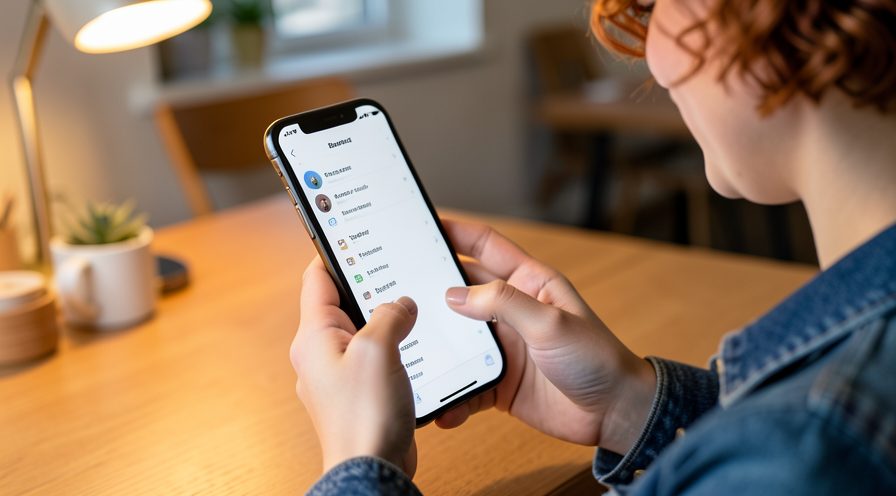
Step 3: Let the phone cool
If the phone is warm, stop charging, remove the case and wait a few minutes before typing again.
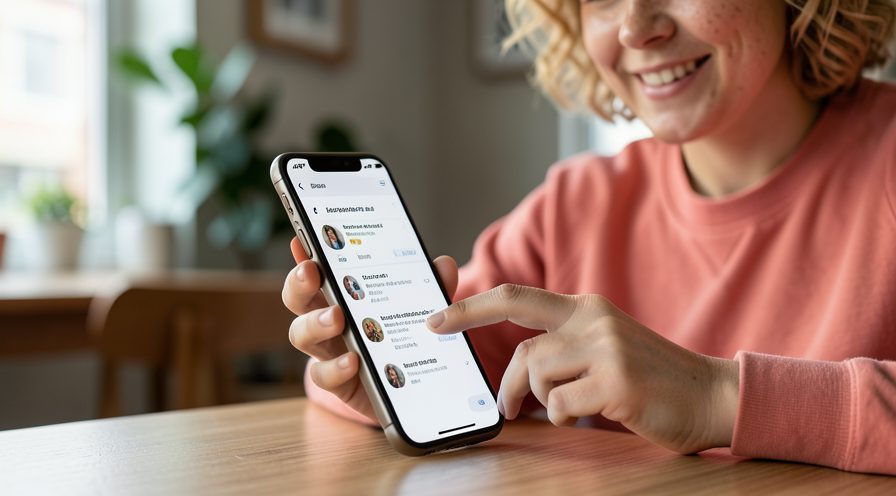
Step 4: Check free storage
Open Settings, General, iPhone Storage and confirm there is comfortable free space.
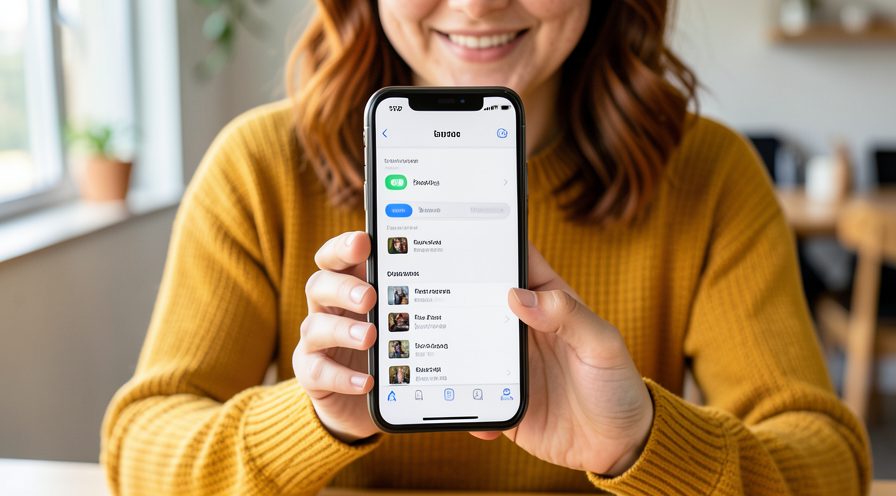
Step 5: Update iOS
Install the latest iOS 26 point release, which may include keyboard performance fixes.
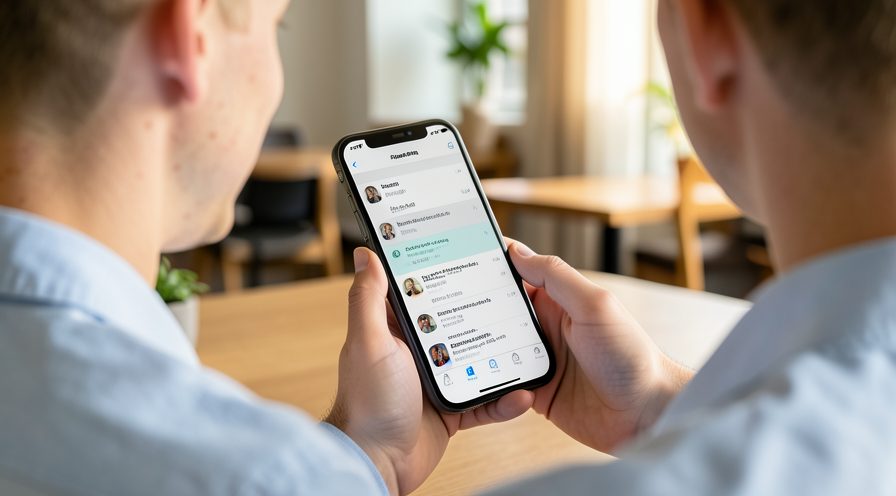
Method 2 of 2: Reset the Keyboard Data
Step 6: Open Reset settings
Go to Settings, General, Transfer or Reset iPhone, Reset.
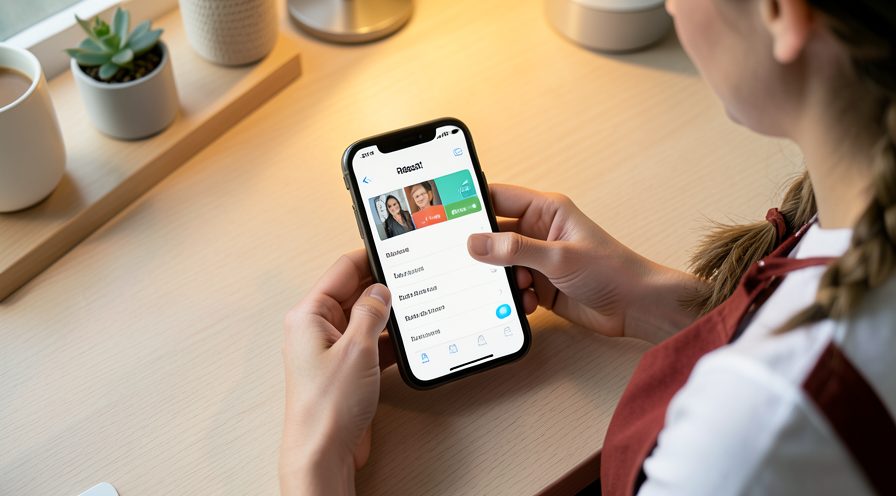
Step 7: Reset the keyboard dictionary
Tap Reset Keyboard Dictionary and confirm. Learned words are cleared but your data stays.
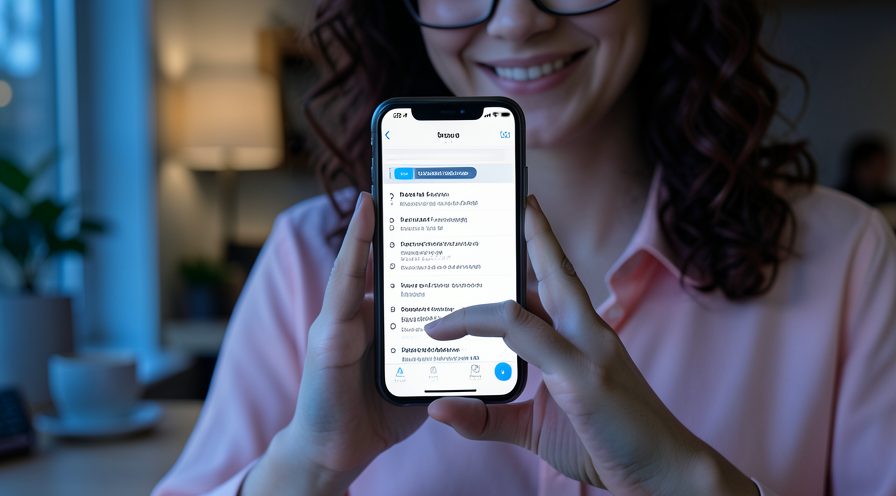
Step 8: Remove third-party keyboards
In Settings, Keyboard, Keyboards, edit and delete keyboards you do not use.
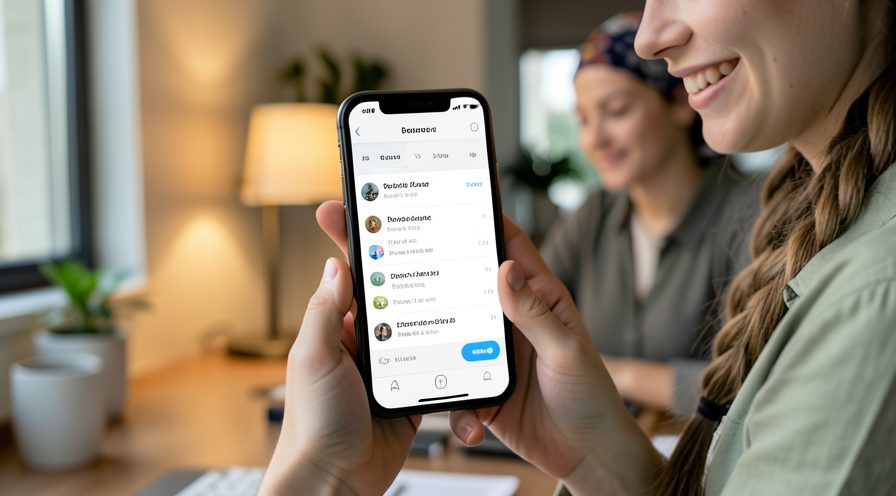
Step 9: Restart after changes
Restart the phone so the keyboard reloads with clean settings.
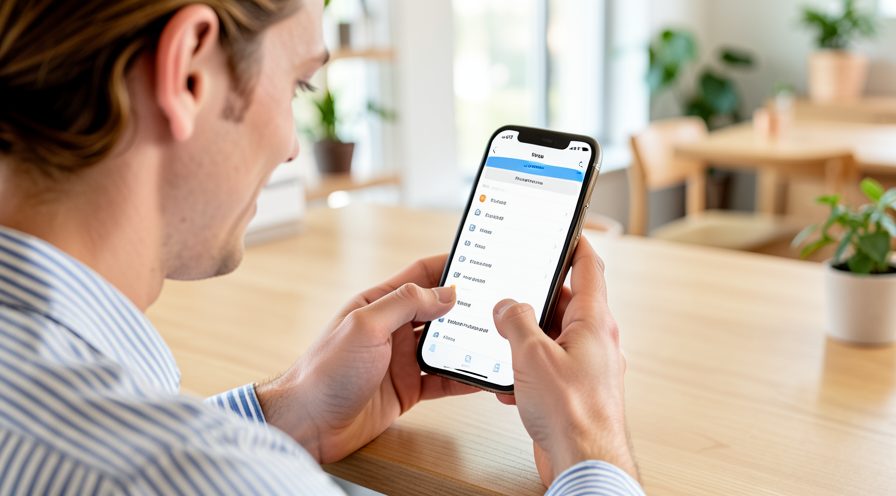
Step 10: Type a test message
Open Notes and type a sentence to confirm the keyboard responds immediately.
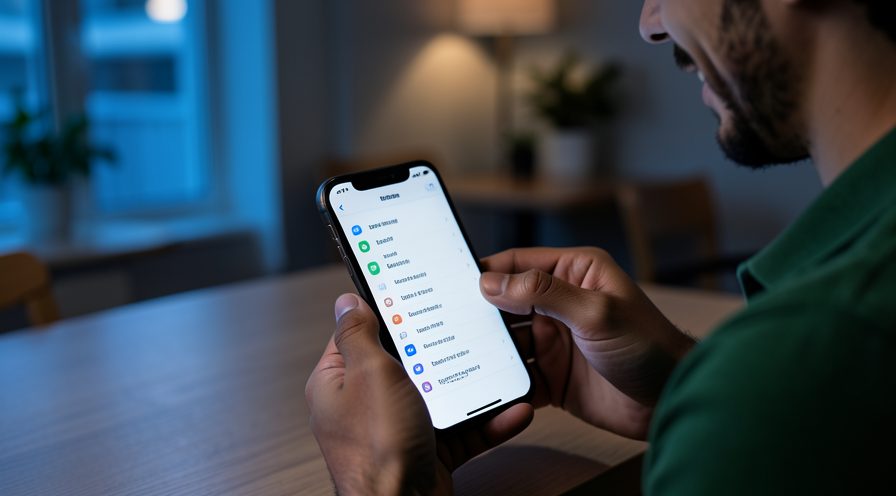
Tips
- The learned word dictionary can grow large and slow predictions.
- Custom keyboards with heavy effects are a common cause of typing delay.
- Turning off predictive text can instantly reduce lag as a test.
Warnings
- Resetting the keyboard dictionary erases learned custom words.
- Removing a third-party keyboard removes its typed shortcuts too.
- Do not install random keyboard apps; they can log what you type.
Frequently asked questions
Why is my keyboard slow after updating iOS?
The update can leave a large learned dictionary or a keyboard extension that is no longer optimized. Warmth and low storage also make typing feel delayed. Resetting the dictionary and removing unused keyboards fixes most cases.
Does resetting the dictionary delete my passwords?
No. It only clears words the keyboard learned from your typing. Saved passwords and autofill data are stored separately and stay intact.
Will turning off predictive text help?
Yes, as a quick test. If typing becomes instant with predictions off, the dictionary or predictive engine is the cause and resetting it is the proper fix.
Can a third-party keyboard cause lag?
Yes. Keyboards with animations or cloud features can slow input, especially right after an OS update. Remove any you do not need or update them to their newest version.
References
- Apple Support — If the iPhone keyboard is slow. https://support.apple.com/en-us/118268
- Apple Support — Reset keyboard dictionary. https://support.apple.com/en-us/108783
- Apple Support — Manage iPhone storage. https://support.apple.com/en-us/102433
- wikiHow — How to Fix iPhone Keyboard Typing Lag After iOS 26. https://www.wikihow.com/Fix-a-Laggy-iPhone-Keyboard
Every guide is reviewed against its sources. See our editorial policy.

Reader comments
0 so farFinished this guide? Tell other readers what worked, what didn't, and what you would change.