com.google.android.gms is Google Play Services, the background engine that syncs your Google account, location and app updates. A high CPU reading is usually caused by a stuck sync, an app hammering location, or corrupted service cache. Clear its cache, fix the syncing app, and update the service instead of disabling it.
This guide walks through the process in clear illustrated steps, from the first preparation to a finished result. Each step has its own picture, so you can compare your progress as you go.
How to use this guide
Work through the steps in order. Method 1 of 3 covers the basics, and the later methods offer alternatives and finishing touches. If you only have a minute, skim the Quick steps box above and come back for the details.
Related guides
- How to Save for a house down payment
- How to Build a capsule wardrobe
- How to Cancel unused subscriptions
- How to Build a float
- Browse all Fix Slow Device guides
- All 52runoob guides
Trusted external resources
- Google Support — Speed up your Android device
- Google Support — Clear app cache and data
- Android Developers — Google Play services overview
A note on sources
We check each guide against the official resources listed in References at the end of this article. External links open in a new tab; the related guides above stay on this site.
Quick steps
- Check Battery or CPU usage to confirm Google Play Services is the cause.
- Reboot the phone to clear a stuck background sync.
- Clear the cache of Google Play Services and Google Play Store.
- Update Google Play Services and the app triggering the spike.
- Restrict background location access for apps you do not trust.
Things you'll need
- An Android phone with a few percent battery remaining
- Access to Settings and the App info screens
- A Wi-Fi connection for updates
- About 15 minutes to test each change
Step-by-step
Method 1 of 3: Confirm the Cause and Clear Stuck State
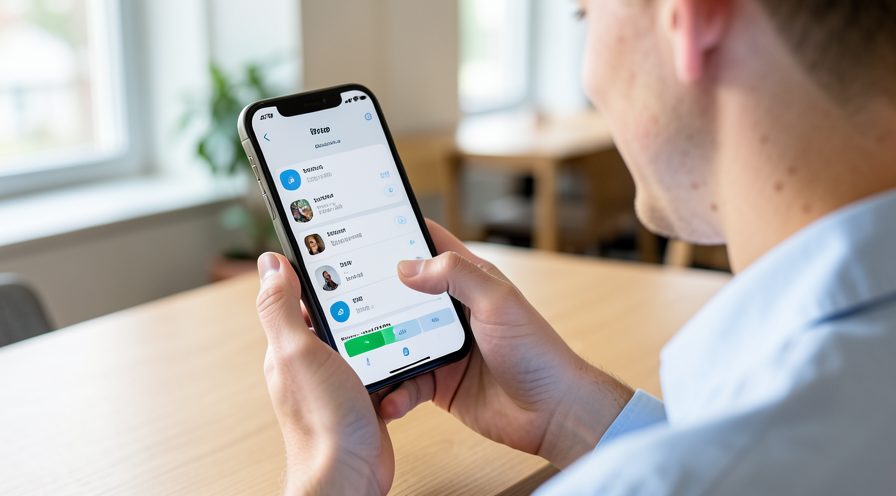
Step 1: Check battery and CPU usage
Open Settings, Battery, then Battery usage and switch the view to show system processes. Confirm Google Play Services is actually high rather than an app using it.
Step 2: Note what you were doing
Remember whether the spike began after installing an app, a system update, or enabling location, so you can target the real trigger later.

Step 3: Restart the phone
Hold the power button and tap Restart. This clears a stuck background sync that often causes the CPU to stay high indefinitely.
Step 4: Recheck after the restart
Wait a few minutes after the phone boots, then check usage again. If the CPU has dropped, the cause was a temporary stuck process.

Step 5: Open Google Play Services app info
Go to Settings, Apps, see all apps, and tap Google Play Services. If it is hidden, use the app info shortcut from a search in Settings.

Step 6: Clear the cache
Tap Storage and cache, then Clear cache. This removes temporary files without signing you out or deleting personal data.
Step 7: Reboot once more
Restart the phone again so the service restarts cleanly with fresh temporary files.
Method 2 of 3: Update and Repair the Service
Step 8: Update Google Play Services
Open the Google Play Store, tap your profile icon, then Manage apps and device, and update Google Play Services if an update is offered.
Step 9: Update the Google Play Store itself
In the same Updates area, update the Play Store app as well, since an old store can leave services out of date.
Step 10: Update the app that caused the spike
Update the most recently installed or updated app, because outdated apps often loop on an old Google API call.
Step 11: Check Play Protect
In the Play Store, open Play Protect and run a scan to rule out a malicious app driving the CPU load.
Step 12: Clear the Google Play Store cache
Open the Play Store app info, go to Storage and cache, and clear its cache to fix a stuck download loop.
Step 13: Verify services are current
Reopen Google Play Services app info and confirm it shows a recent version and no pending update.
Step 14: Check CPU again under normal use
Use the phone normally for ten minutes, then recheck battery usage to confirm the CPU has settled.
Method 3 of 3: Fix Sync and Location Triggers
Step 15: Review accounts on the phone
Open Settings, Accounts and check for an old or duplicate Google account that may be failing to sync in the background.

Step 16: Remove a stale account
If you find an account you no longer use, remove it so Play Services stops retrying the sync repeatedly.
Step 17: Check apps with location access
Open Settings, Location, app permissions, and list apps allowed to use location all the time.
Step 18: Restrict unnecessary location access
Change location permission to 'Only while using the app' for apps that do not need background location.
Step 19: Turn off background Wi-Fi scanning
In Settings, Location, Location services, switch off Wi-Fi and Bluetooth scanning if you do not rely on them.
Step 20: Pause large Google Photos backup
Open Google Photos, go to Backup settings and pause backup temporarily to see if the CPU load drops.
Step 21: Watch CPU after each change
Change one setting at a time and recheck usage, so you can identify which trigger was responsible.
Tips
- Google Play Services is core to Android and should never be uninstalled.
- A single misbehaving app is usually the real cause behind the CPU spike.
- CPU often settles a few minutes after a reboot - give it time before acting.
Warnings
- Do not disable Google Play Services; sign-in, push notifications and updates will break.
- Clearing data (not just cache) signs you out of Google accounts on the phone.
- Avoid 'CPU cooler' apps from unknown developers; many cause the problem themselves.
Frequently asked questions
Is com.google.android.gms a virus?
No. com.google.android.gms is the official package name for Google Play Services, a legitimate core component of Android. Malware sometimes uses similar names, so check the app's storage path in App info and scan with Play Protect if you are unsure.
Can I disable Google Play Services to stop the CPU drain?
You should not. Google Play Services handles sign-in, push notifications, location and app updates. Disabling it breaks many apps. Instead clear its cache, update it, and find the app that is triggering the workload.
Why did the CPU spike start suddenly?
A recent app update, a stuck account sync, or a system update that re-indexes data are the usual triggers. Reboot first, then clear the Play Services cache and update the app you installed or updated last.
Does clearing the cache delete my data?
No. Clearing the cache only removes temporary files and is safe. Clearing data is different - it resets the service and signs you out of Google accounts, so try cache first.
References
- Google Support — Speed up your Android device. https://support.google.com/android/answer/9454546
- Google Support — Clear app cache and data. https://support.google.com/android/answer/9551190
- Android Developers — Google Play services overview. https://developers.google.com/android/guides/overview
- wikiHow — How to Fix com.google.android.gms (Google Play Services) High CPU on Android. https://www.wikihow.com/Fix-High-CPU-Usage-on-Android
Every guide is reviewed against its sources. See our editorial policy.
Reader comments
0 so farFinished this guide? Tell other readers what worked, what didn't, and what you would change.