Mid-range Android phones have less RAM and slower storage, so TikTok's video cache and autoplay stream can quickly cause stutter and freezes. Free storage, clear the app cache and stop power saving from throttling the chip. A few background tweaks usually make the feed smooth again.
This guide walks through the process in clear illustrated steps, from the first preparation to a finished result. Each step has its own picture, so you can compare your progress as you go.
How to use this guide
Work through the steps in order. Method 1 of 2 covers the basics, and the later methods offer alternatives and finishing touches. If you only have a minute, skim the Quick steps box above and come back for the details.
Related guides
- How to Learn javascript
- How to Find a haircut that suits you
- How to Handle lost luggage
- How to Fix com google android gms google play services high cpu on android
- Browse all Fix Slow Device guides
- All 52runoob guides
Trusted external resources
- Android Support - Speed up your Android device
- Android Support - Clear app cache and data
- Android Support - Clear browsing data in Chrome
A note on sources
We check each guide against the official resources listed in References at the end of this article. External links open in a new tab; the related guides above stay on this site.
Quick steps
- Keep at least ten percent of storage free.
- Clear TikTok's cache from its settings menu.
- Turn off Power saving mode while watching.
- Force stop the app and restart the phone.
- Update TikTok and Android System WebView.
Things you'll need
- A mid-range Android phone with TikTok installed
- Access to Settings and TikTok's settings menu
- A stable Wi-Fi or 4G connection
- About 15 minutes to test playback
Step-by-step
Method 1 of 2: Free Resources Before Watching
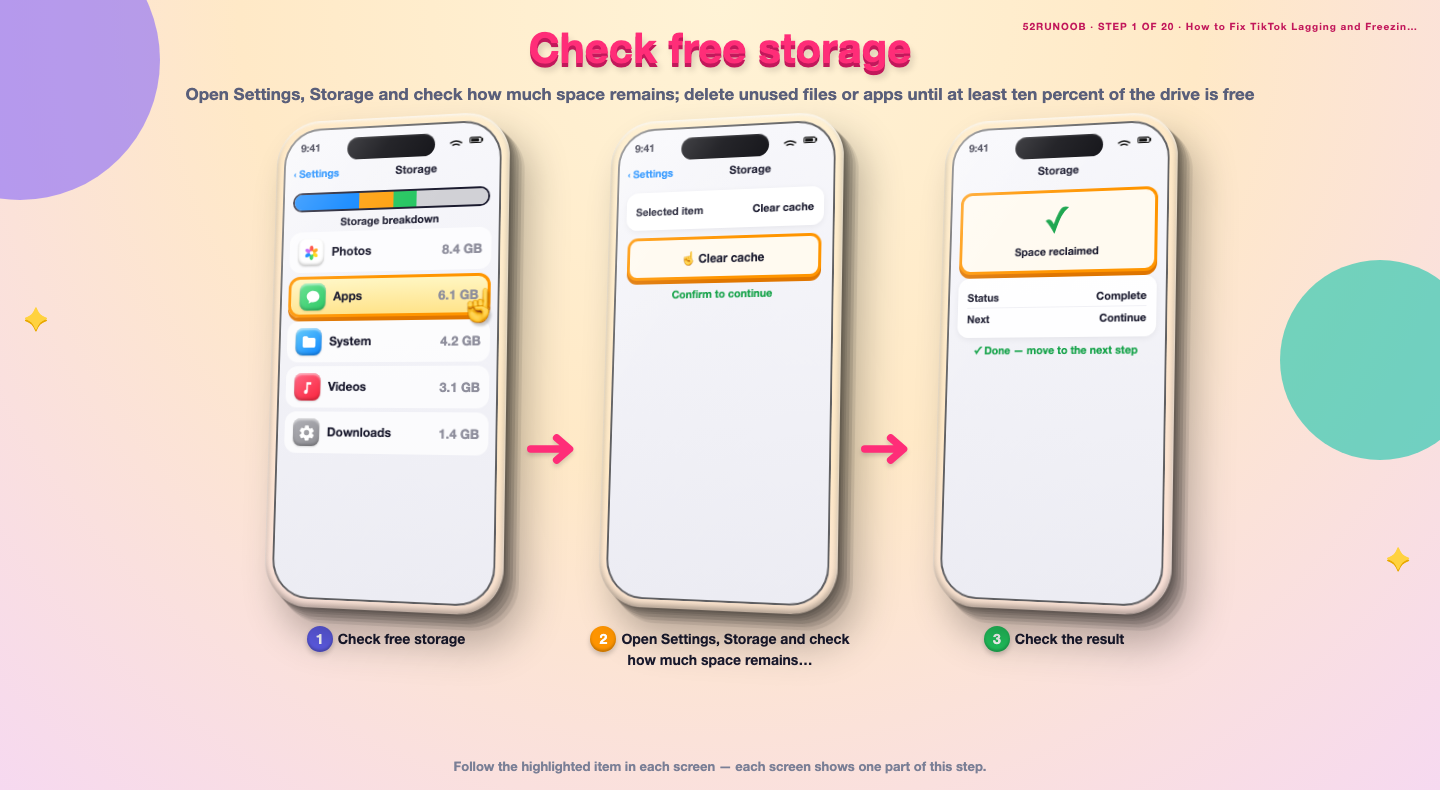
Step 1: Check free storage
Open Settings, Storage and check how much space remains; delete unused files or apps until at least ten percent of the drive is free.
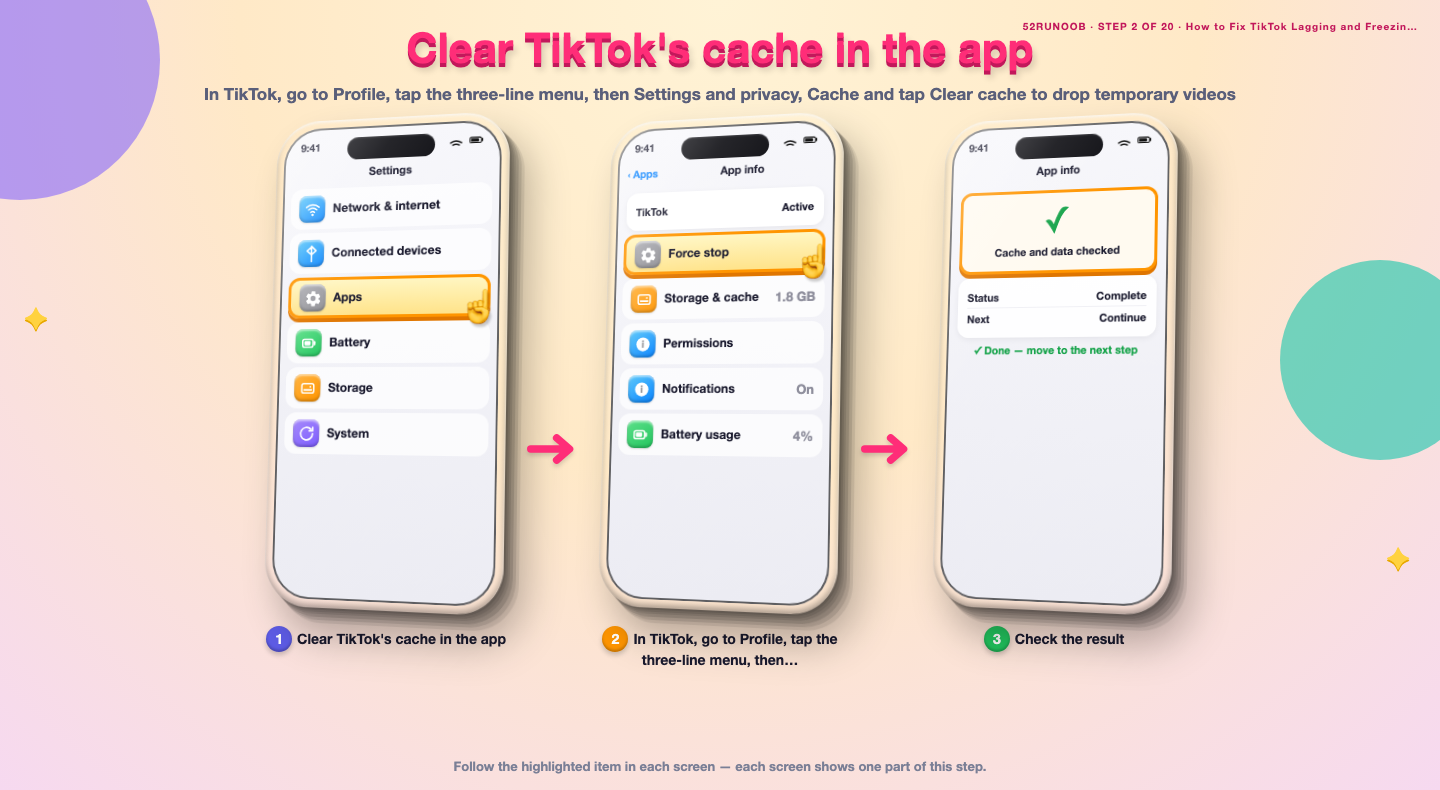
Step 2: Clear TikTok's cache in the app
In TikTok, go to Profile, tap the three-line menu, then Settings and privacy, Cache and tap Clear cache to drop temporary videos.
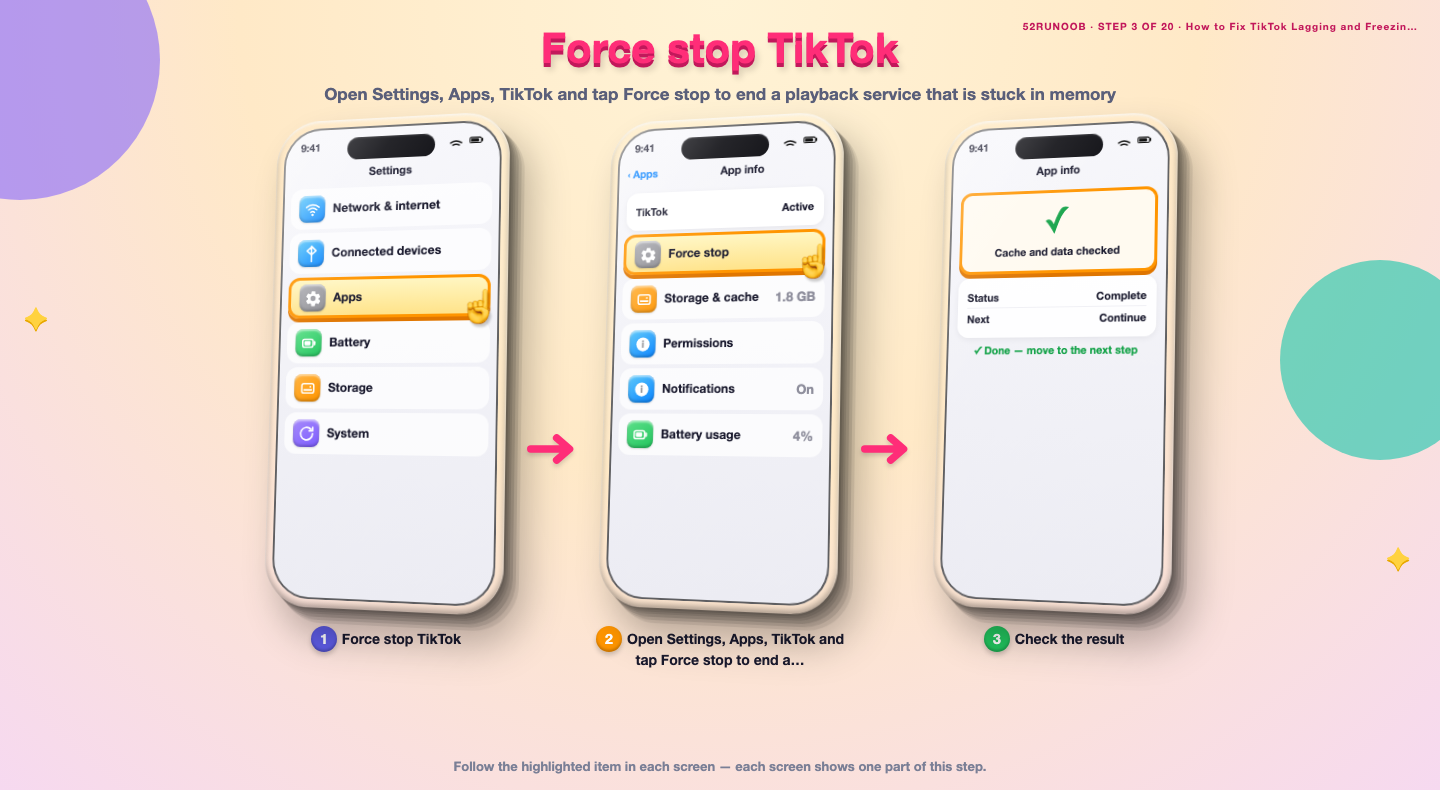
Step 3: Force stop TikTok
Open Settings, Apps, TikTok and tap Force stop to end a playback service that is stuck in memory.
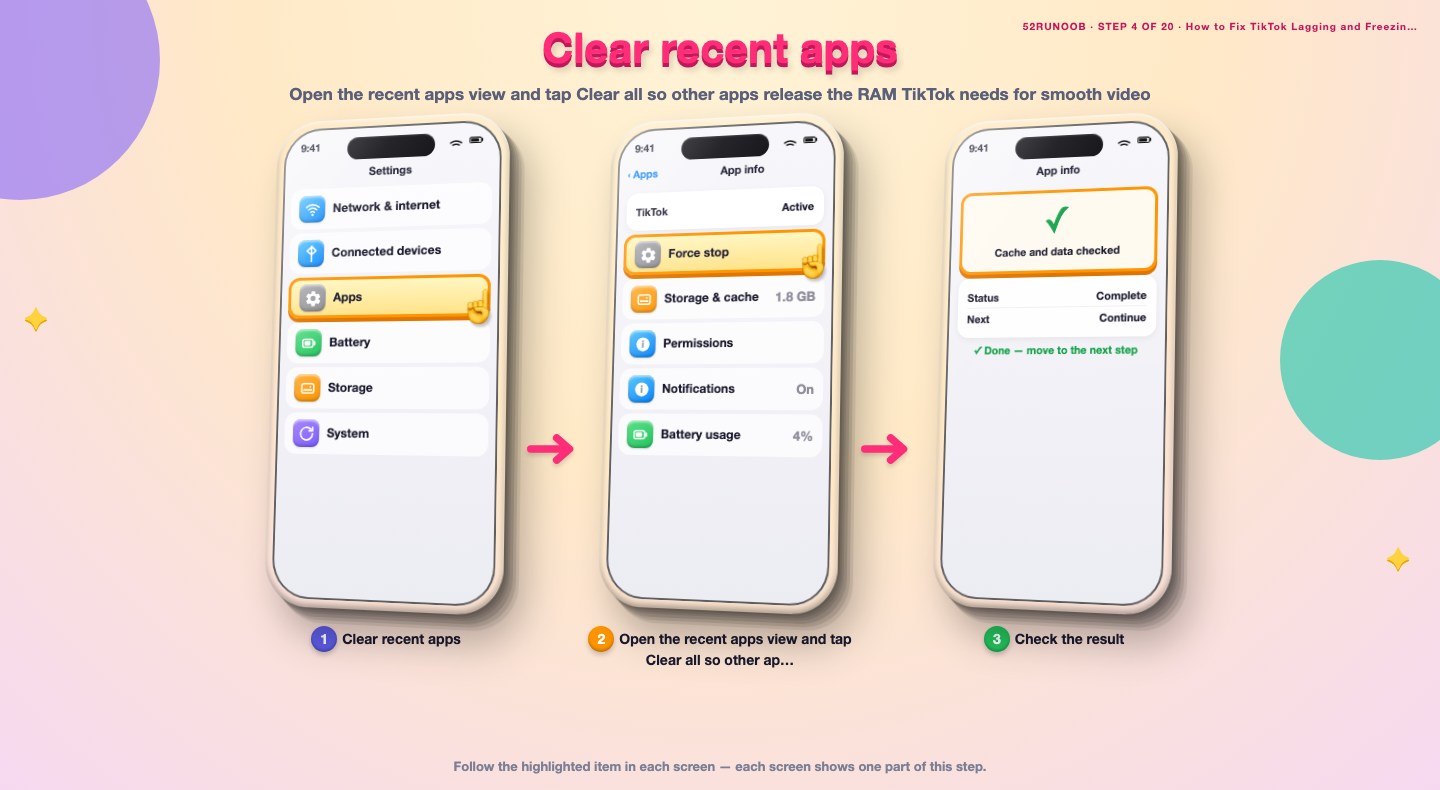
Step 4: Clear recent apps
Open the recent apps view and tap Clear all so other apps release the RAM TikTok needs for smooth video.
Step 5: Restart the phone
Hold the power button and tap Restart to reset memory and thermal state before testing the feed again.
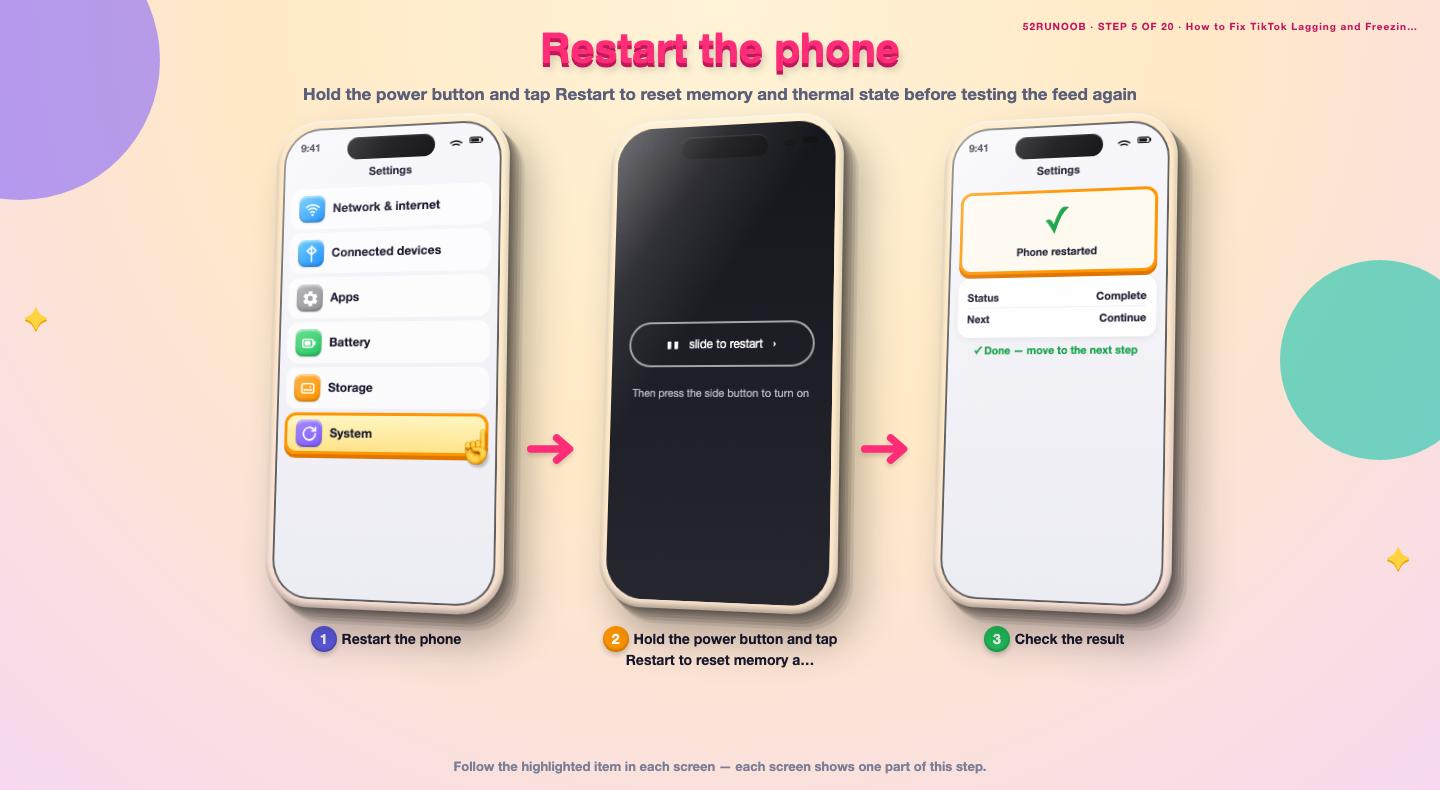
Step 6: Turn off Power saving mode
Open Settings, Battery and switch off Power saving mode, which otherwise caps CPU speed during video decoding.
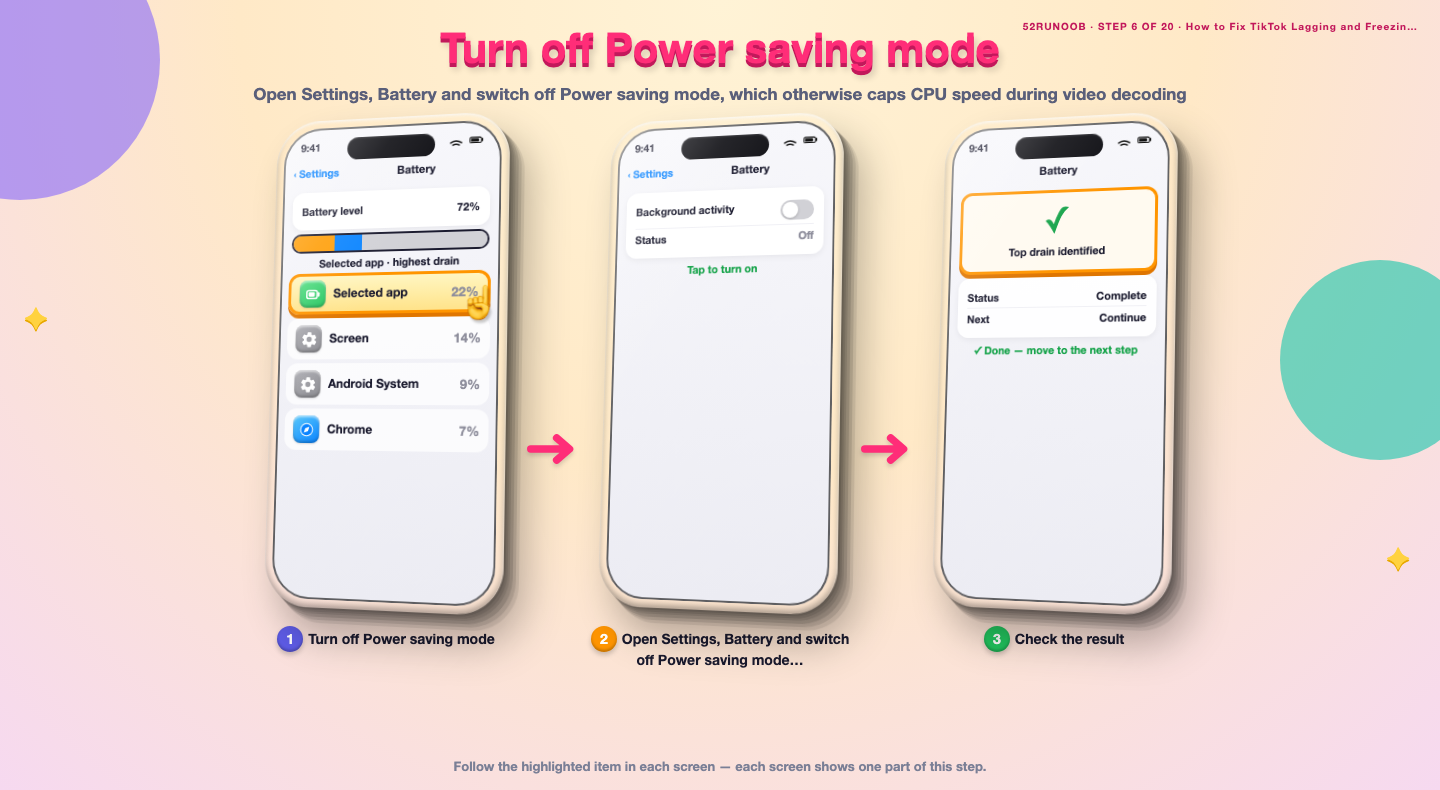
Step 7: Check the connection
Switch between Wi-Fi and mobile data, or move closer to the router, to rule out buffering being mistaken for a freeze.
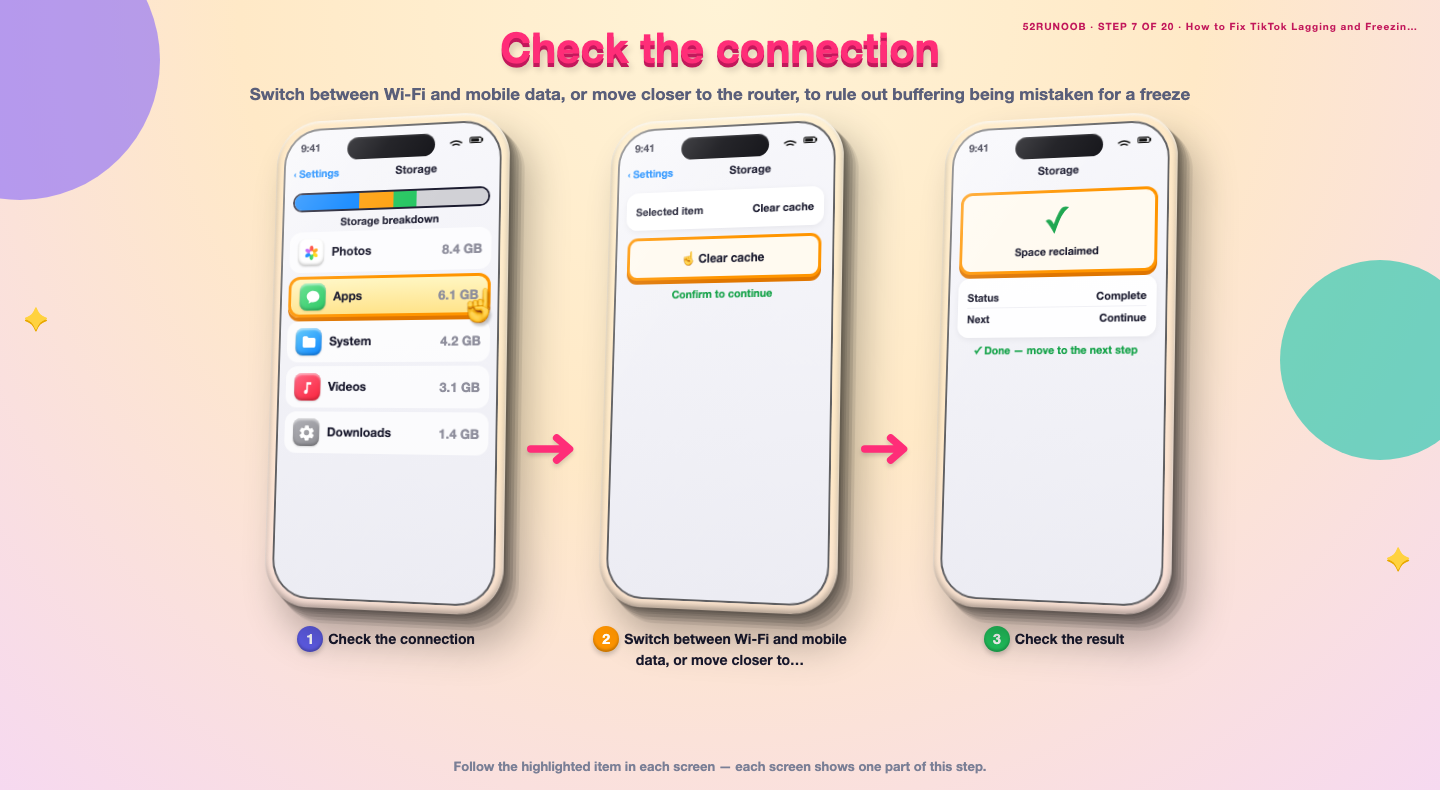
Step 8: Update TikTok
Open the Play Store, tap the profile icon, Manage apps and device and update TikTok to the latest version.
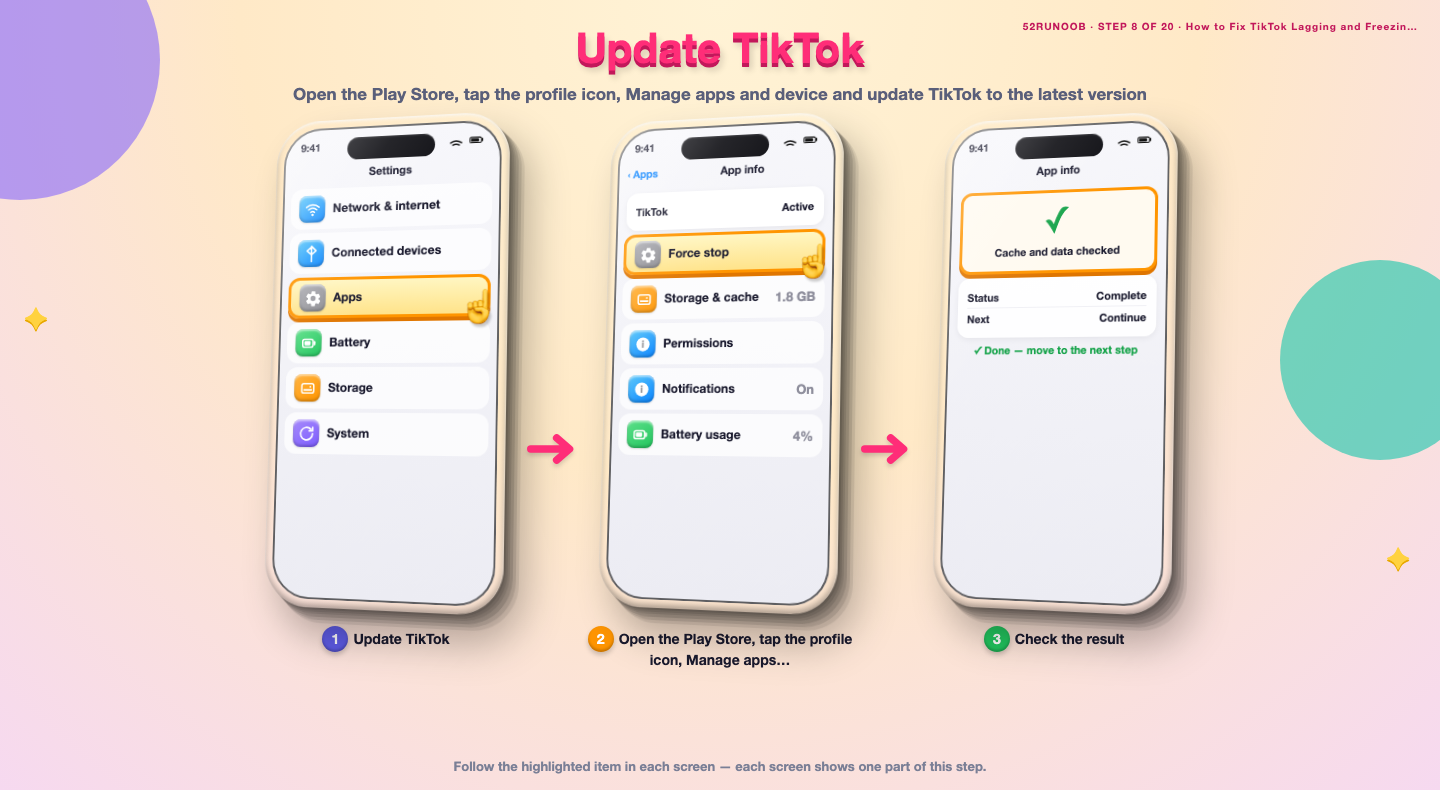
Method 2 of 2: Reduce TikTok's Long-Term Workload
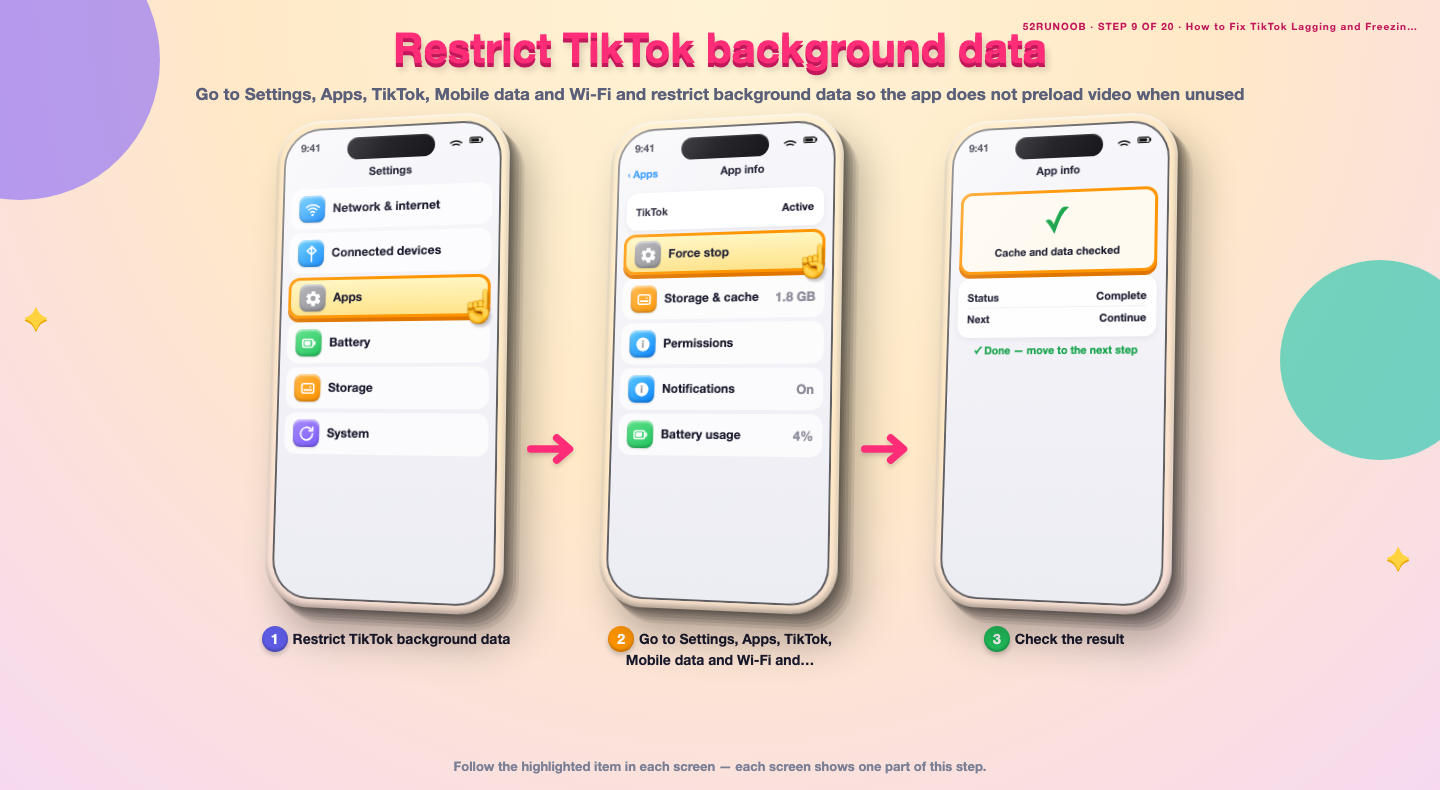
Step 9: Restrict TikTok background data
Go to Settings, Apps, TikTok, Mobile data and Wi-Fi and restrict background data so the app does not preload video when unused.
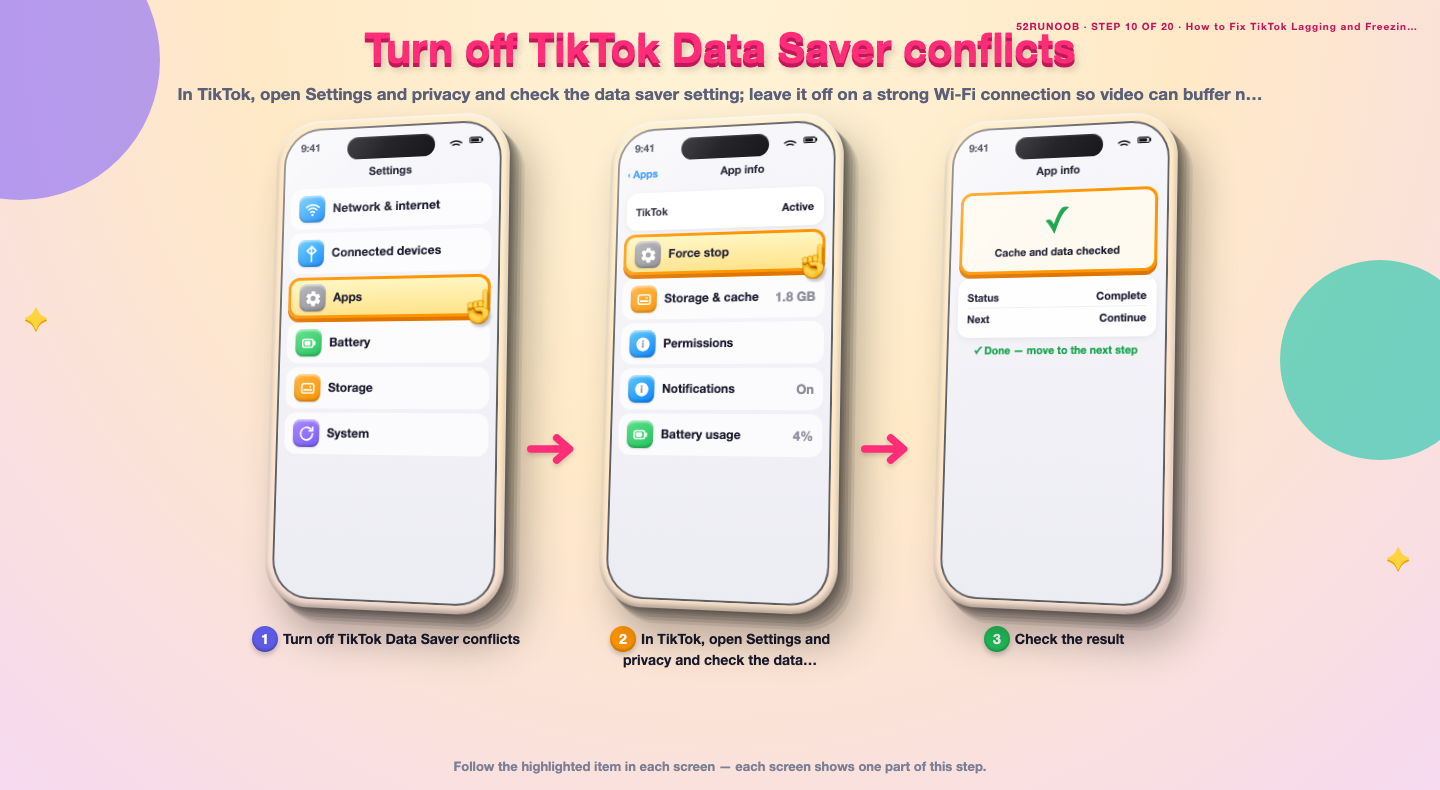
Step 10: Turn off TikTok Data Saver conflicts
In TikTok, open Settings and privacy and check the data saver setting; leave it off on a strong Wi-Fi connection so video can buffer normally.
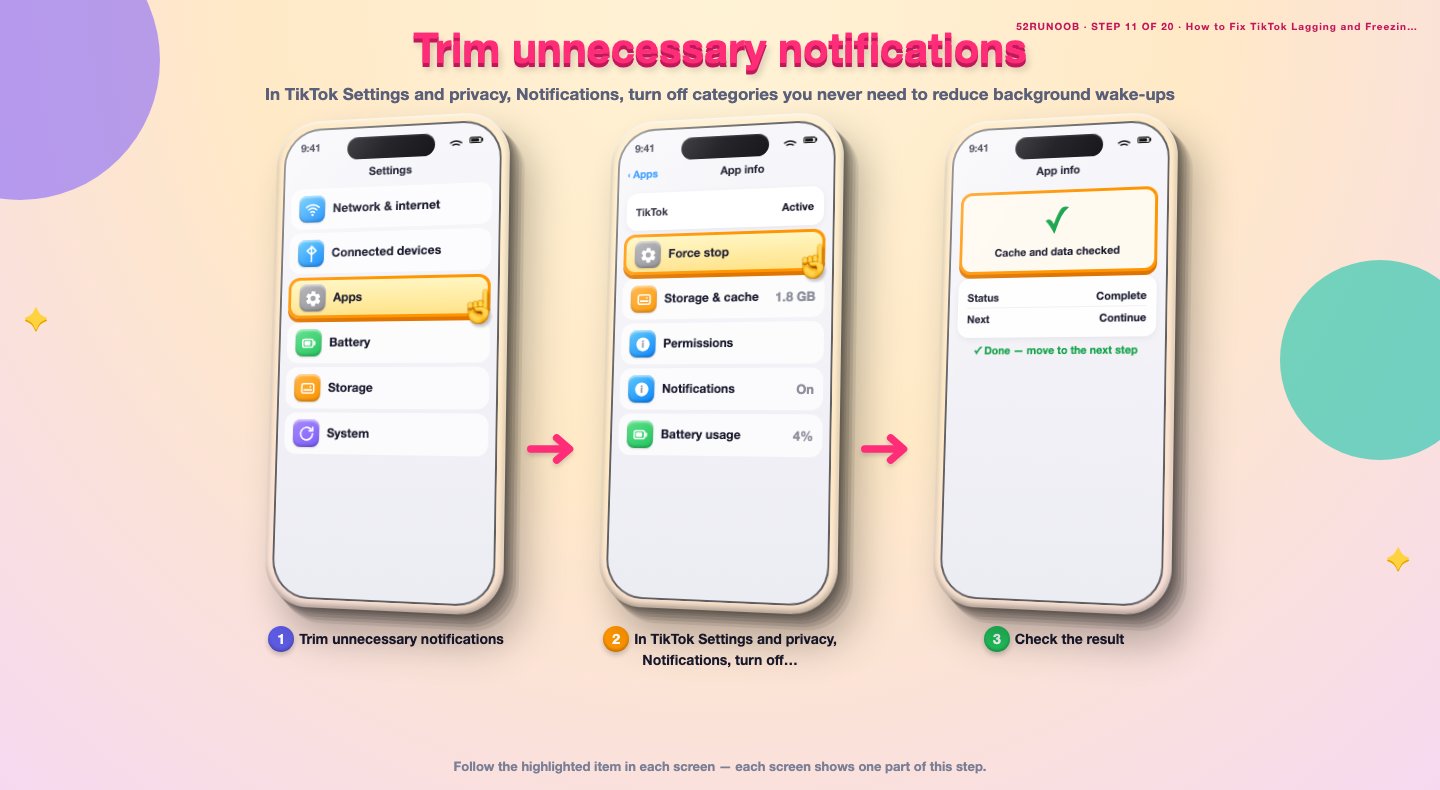
Step 11: Trim unnecessary notifications
In TikTok Settings and privacy, Notifications, turn off categories you never need to reduce background wake-ups.
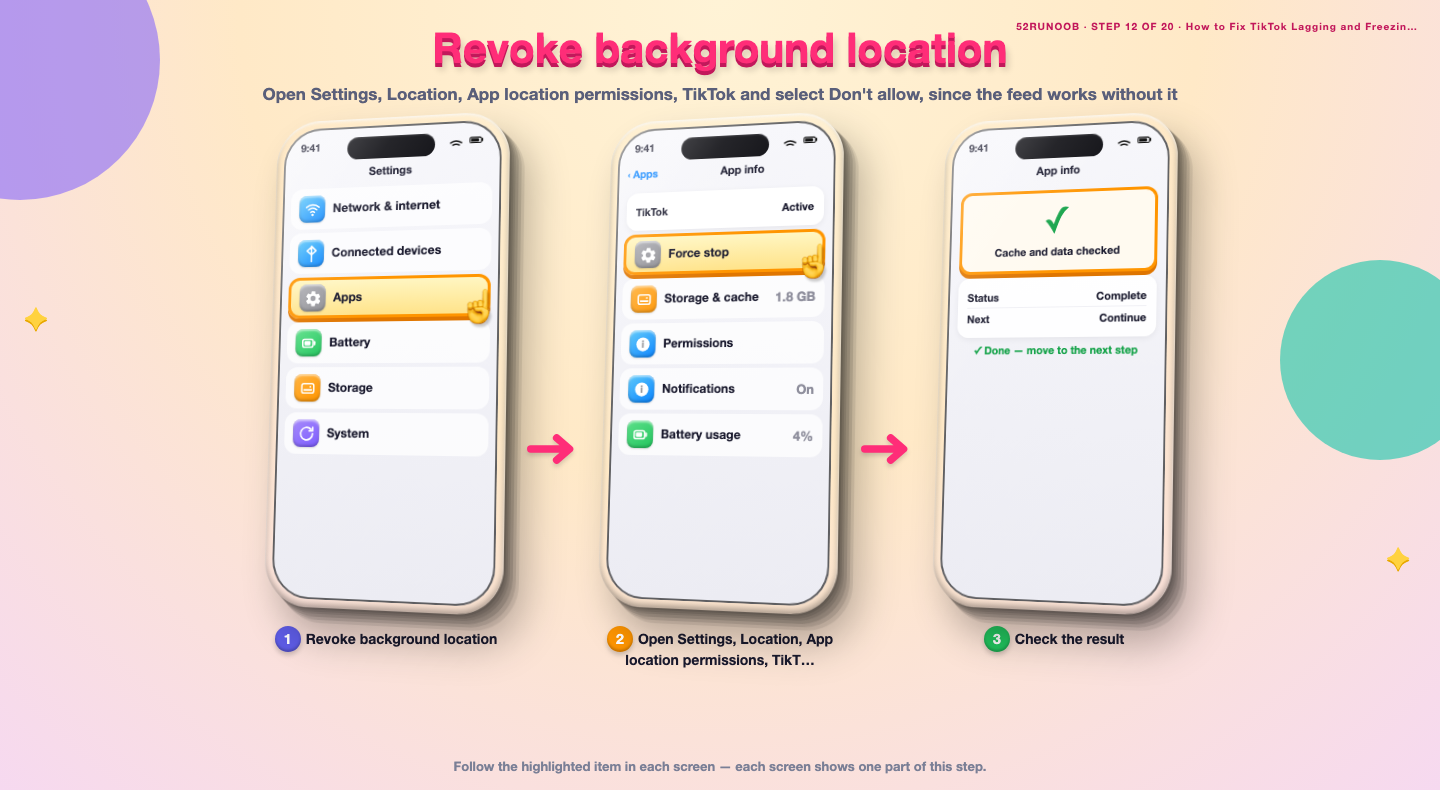
Step 12: Revoke background location
Open Settings, Location, App location permissions, TikTok and select Don't allow, since the feed works without it.
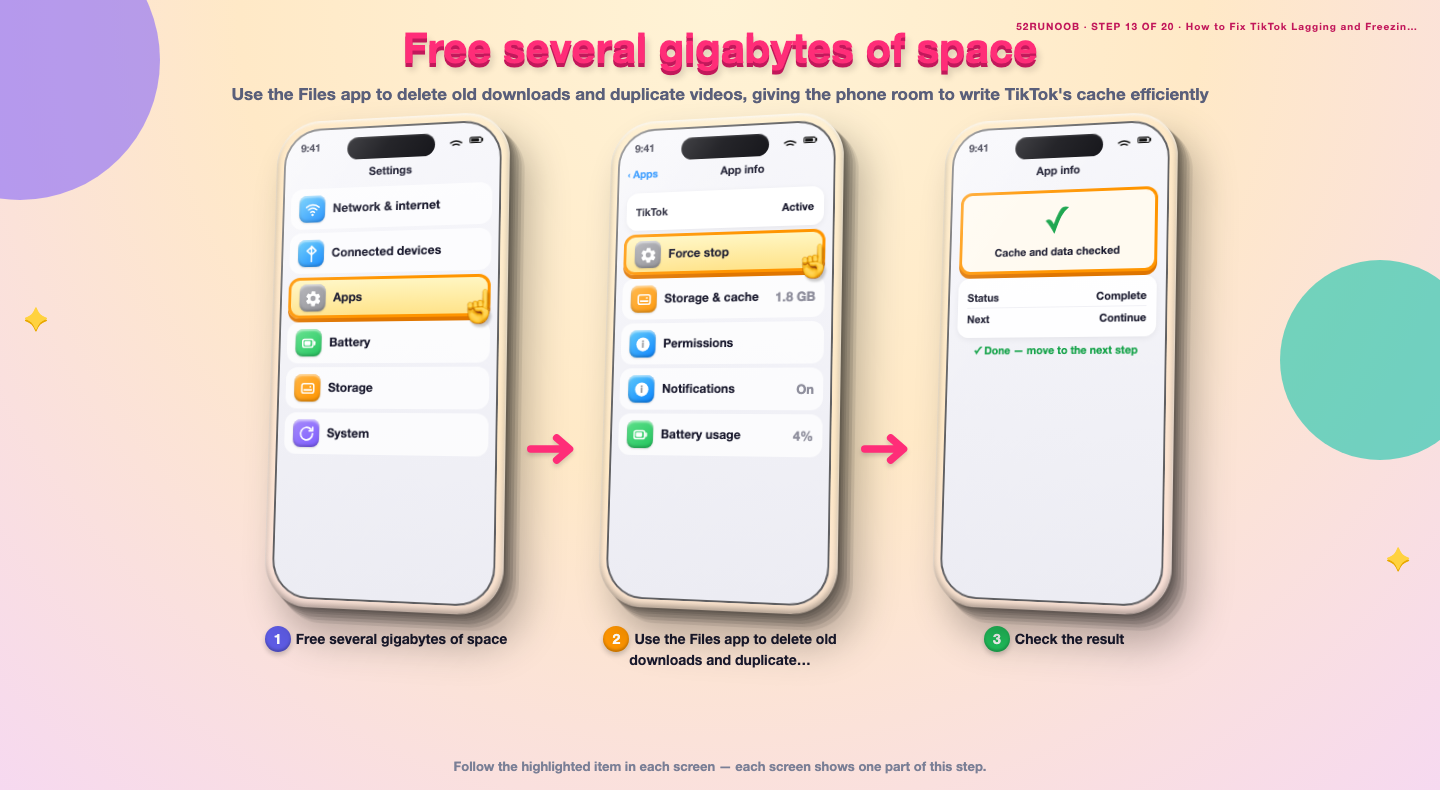
Step 13: Free several gigabytes of space
Use the Files app to delete old downloads and duplicate videos, giving the phone room to write TikTok's cache efficiently.
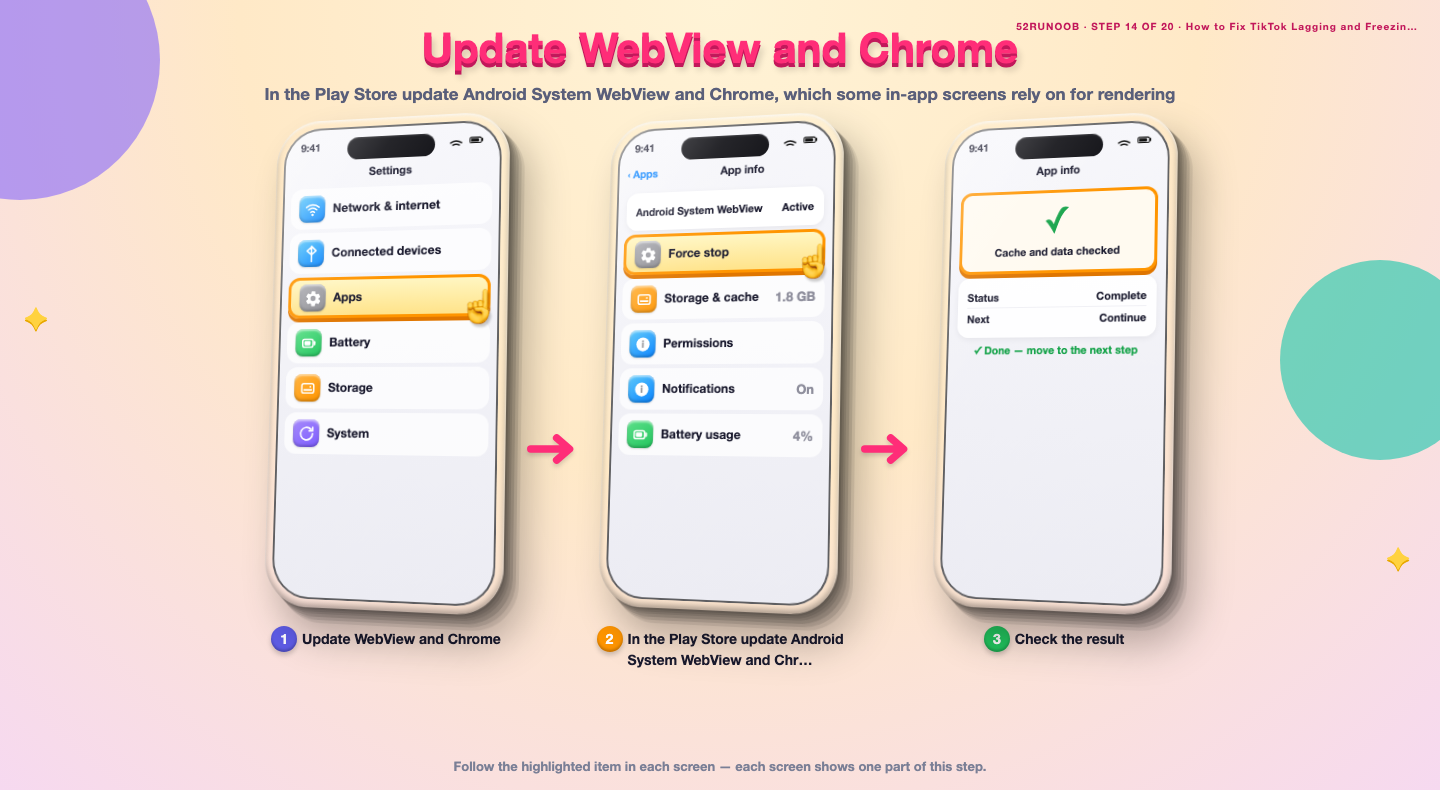
Step 14: Update WebView and Chrome
In the Play Store update Android System WebView and Chrome, which some in-app screens rely on for rendering.
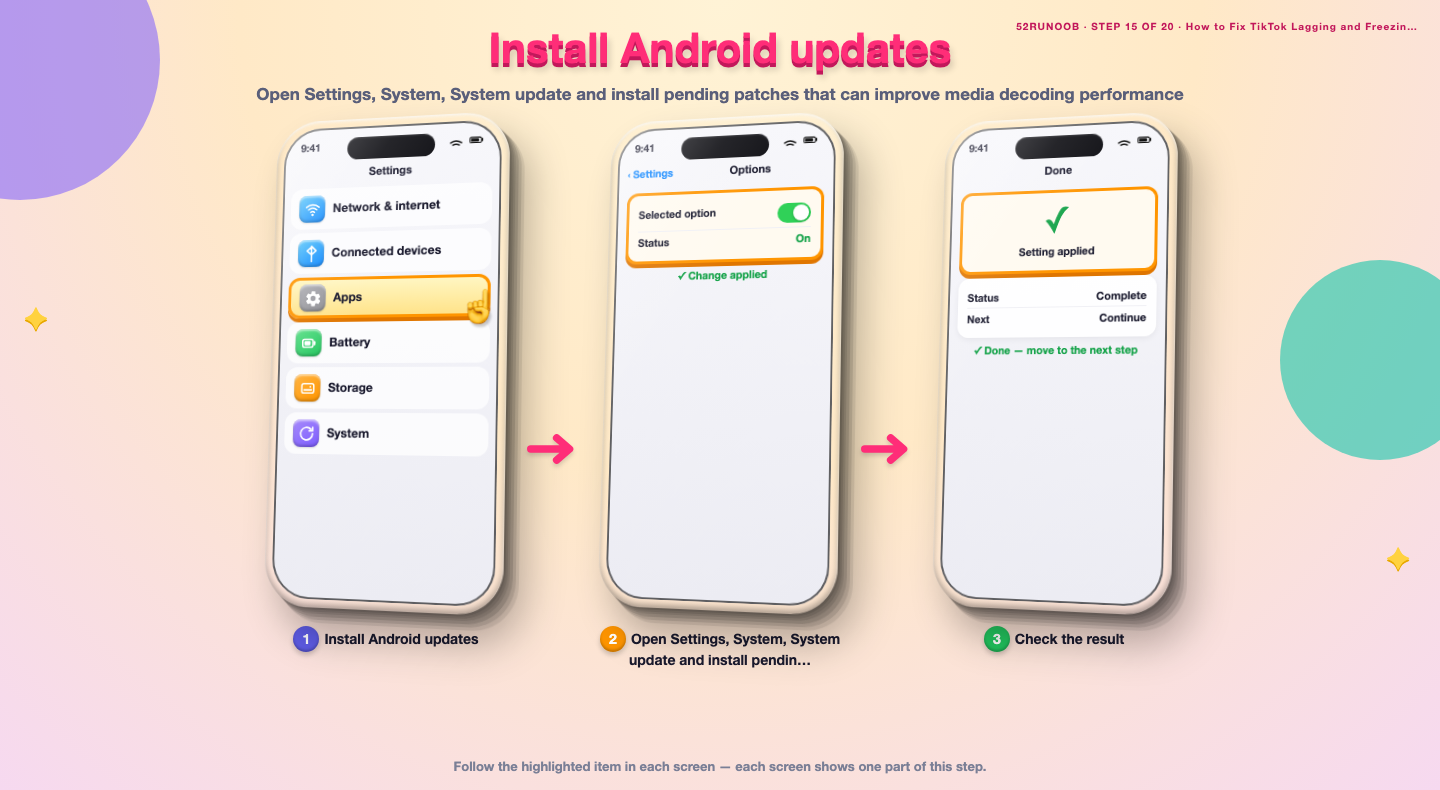
Step 15: Install Android updates
Open Settings, System, System update and install pending patches that can improve media decoding performance.
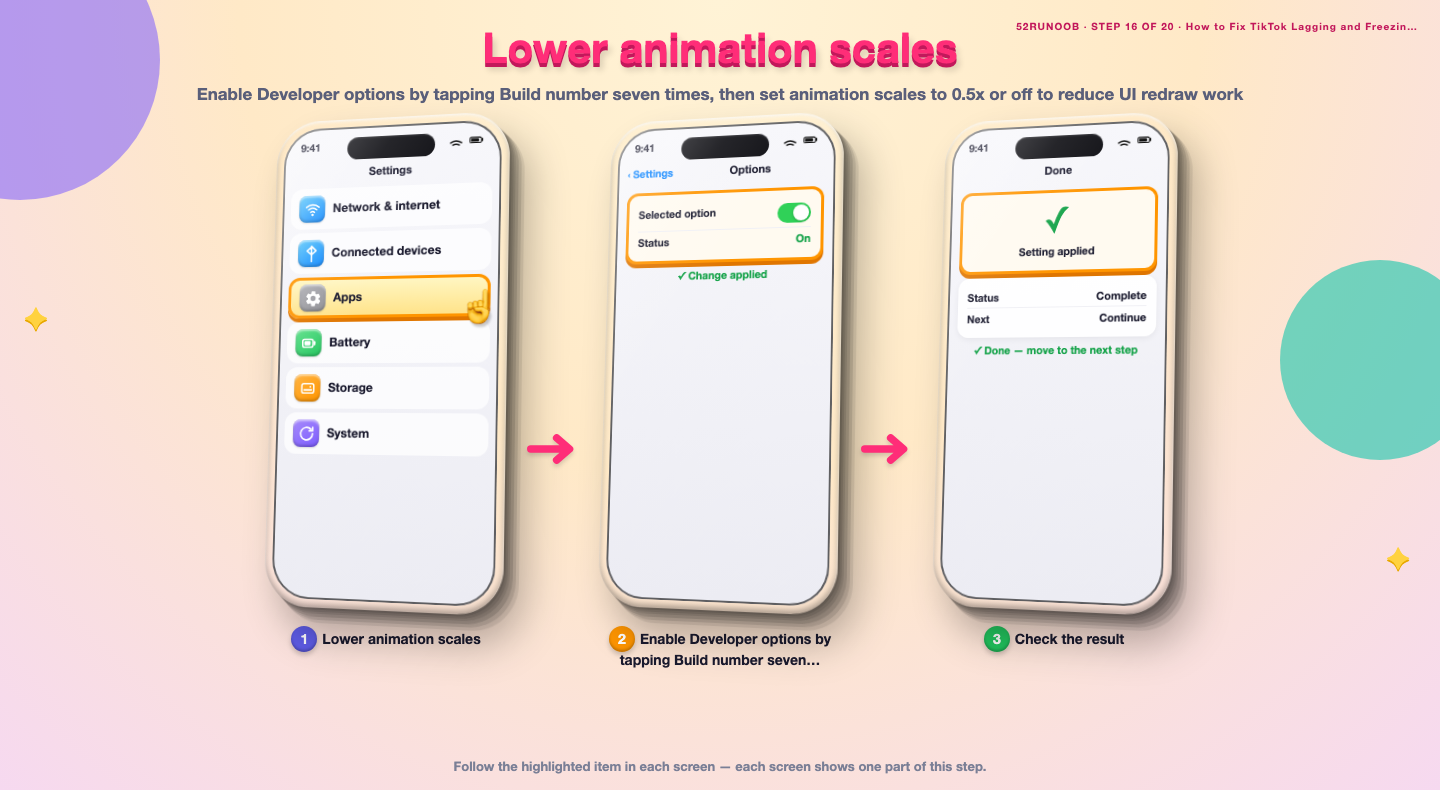
Step 16: Lower animation scales
Enable Developer options by tapping Build number seven times, then set animation scales to 0.5x or off to reduce UI redraw work.
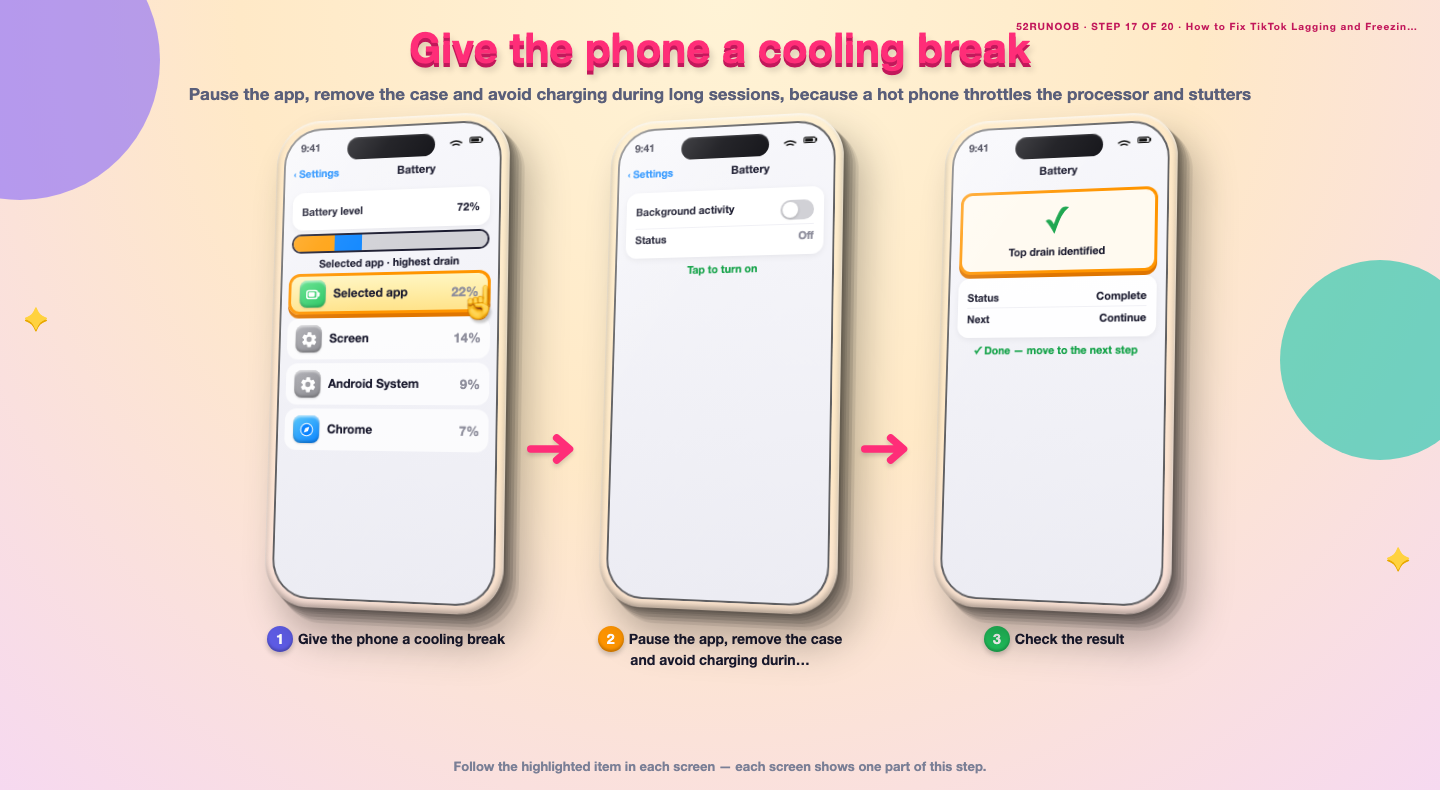
Step 17: Give the phone a cooling break
Pause the app, remove the case and avoid charging during long sessions, because a hot phone throttles the processor and stutters.
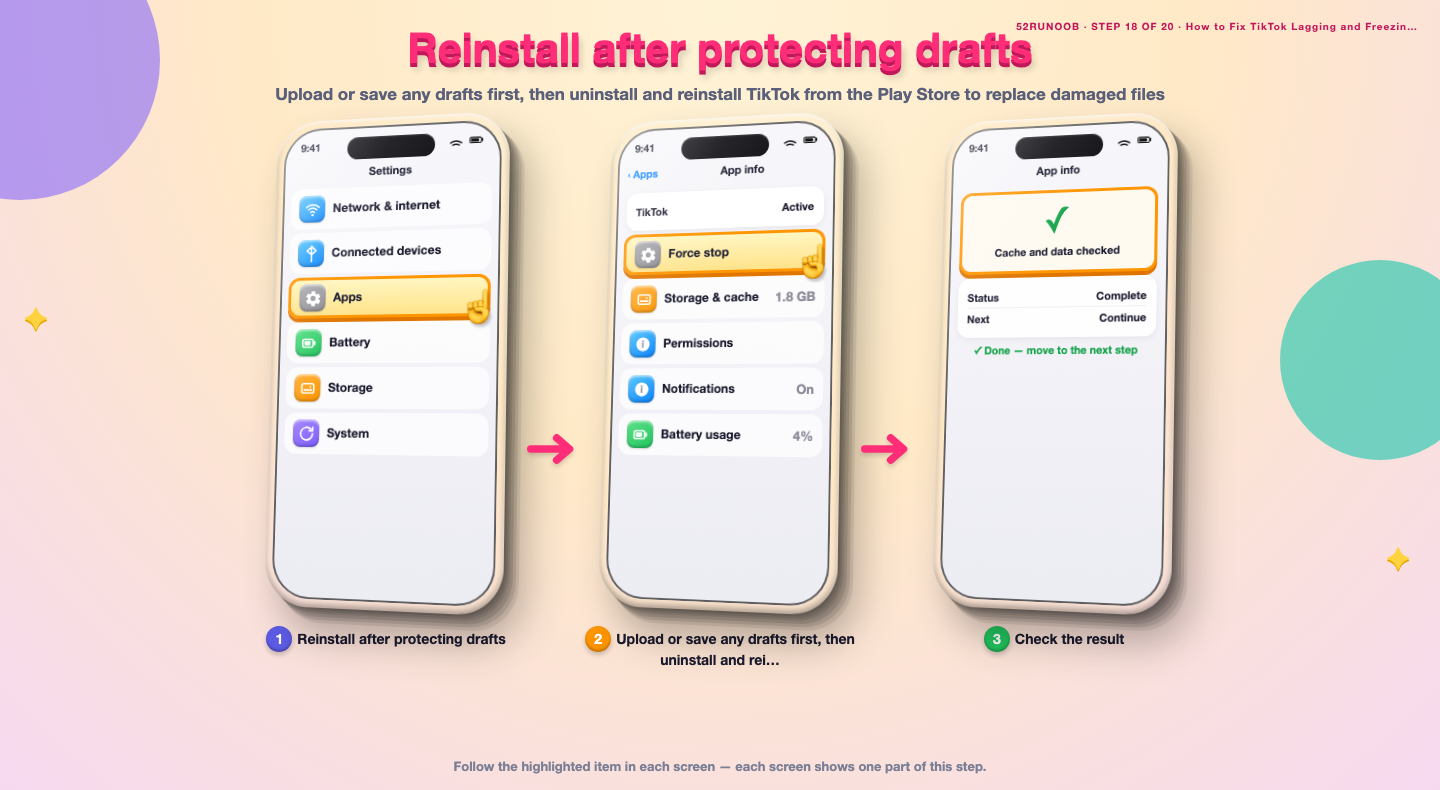
Step 18: Reinstall after protecting drafts
Upload or save any drafts first, then uninstall and reinstall TikTok from the Play Store to replace damaged files.
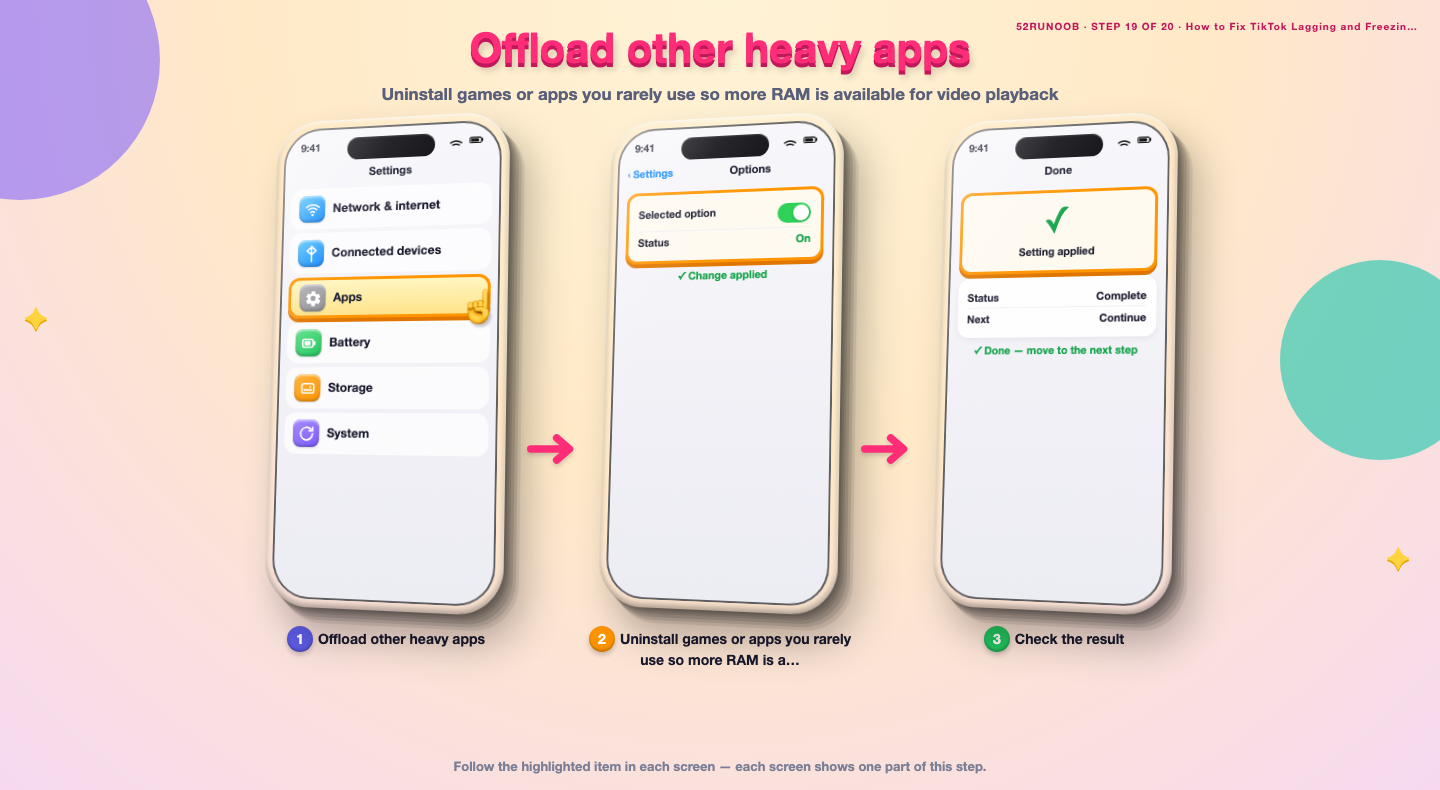
Step 19: Offload other heavy apps
Uninstall games or apps you rarely use so more RAM is available for video playback.
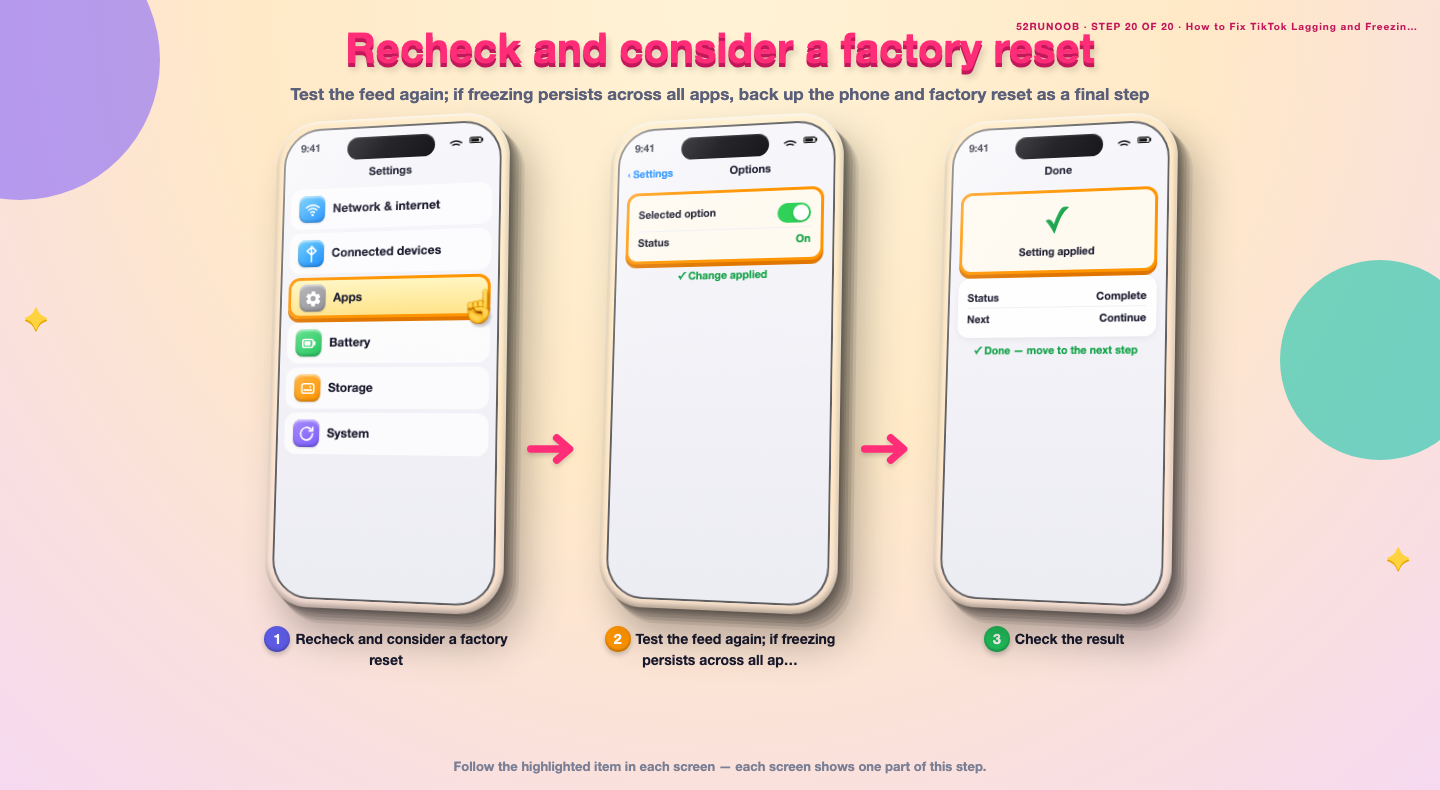
Step 20: Recheck and consider a factory reset
Test the feed again; if freezing persists across all apps, back up the phone and factory reset as a final step.
Tips
- A full storage drive slows down writes more than a slow processor does.
- Power saving mode reduces peak CPU speed exactly when video decoding needs it.
- Drafts live on the device, so back them up before reinstalling TikTok.
Warnings
- Reinstalling TikTok can remove local drafts that were never uploaded.
- Do not grant TikTok background location access unless a feature truly needs it.
- Let the phone cool before a long viewing session to avoid thermal throttling.
Frequently asked questions
Is it normal for TikTok to lag on a mid-range phone?
Some buffering on a slow network is normal, but regular freezing while scrolling is not. It usually comes from low free storage, a large cache or power saving limiting the processor.
Is clearing TikTok's cache safe?
Yes. It removes temporary video files that the app re-downloads as needed. Your account, liked videos and uploads remain on the servers; only locally stored drafts need care.
Why does TikTok freeze only after a while?
The app fills its cache as you watch, and once storage or memory runs low the phone starts stuttering. Clearing the cache and keeping spare space stops the pattern from returning quickly.
Does a fast network fix TikTok lag?
It helps with buffering but not with freezes caused by an overloaded phone. Check both the connection and local storage so you know which one is responsible.
References
- Android Support - Speed up your Android device. https://support.google.com/android/answer/9454546
- Android Support - Clear app cache and data. https://support.google.com/android/answer/9551190
- Android Support - Clear browsing data in Chrome. https://support.google.com/chrome/answer/95582
- wikiHow — How to Fix TikTok Lagging and Freezing on Mid-Range Android Phones. https://www.wikihow.com/Speed-Up-an-Android-Phone
Every guide is reviewed against its sources. See our editorial policy.
Reader comments
0 so farFinished this guide? Tell other readers what worked, what didn't, and what you would change.