The Facebook app renders a constantly refreshing feed, autoplaying video and background location checks, which can push CPU high and make the phone hot. Let the device cool, clear the app's temporary files and turn off the features that keep it working in the background. Warm during video is normal; sustained heat is not.
This guide walks through the process in clear illustrated steps, from the first preparation to a finished result. Each step has its own picture, so you can compare your progress as you go.
How to use this guide
Work through the steps in order. Method 1 of 3 covers the basics, and the later methods offer alternatives and finishing touches. If you only have a minute, skim the Quick steps box above and come back for the details.
Related guides
- How to Search google like a pro
- How to Cook pasta al dente
- How to Fix shellexperiencehost exe high cpu after a windows update
- How to Take better photos with your phone
- Browse all Fix Slow Device guides
- All 52runoob guides
Trusted external resources
- Android Support - Speed up your Android device
- Android Support - Clear app cache and data
- Android Open Source Project - Thermal management
A note on sources
We check each guide against the official resources listed in References at the end of this article. External links open in a new tab; the related guides above stay on this site.
Quick steps
- Stop using the app and let the phone cool naturally.
- Confirm Facebook in battery usage.
- Force stop Facebook and clear its cache.
- Turn off video autoplay in app settings.
- Restrict background data and location access.
Things you'll need
- An Android phone that is warm but not damaged
- Access to Settings and the Facebook app settings
- A shaded, cool place to let the phone rest
- A Wi-Fi connection for app updates
Step-by-step
Method 1 of 3: Cool Down and Confirm the Cause
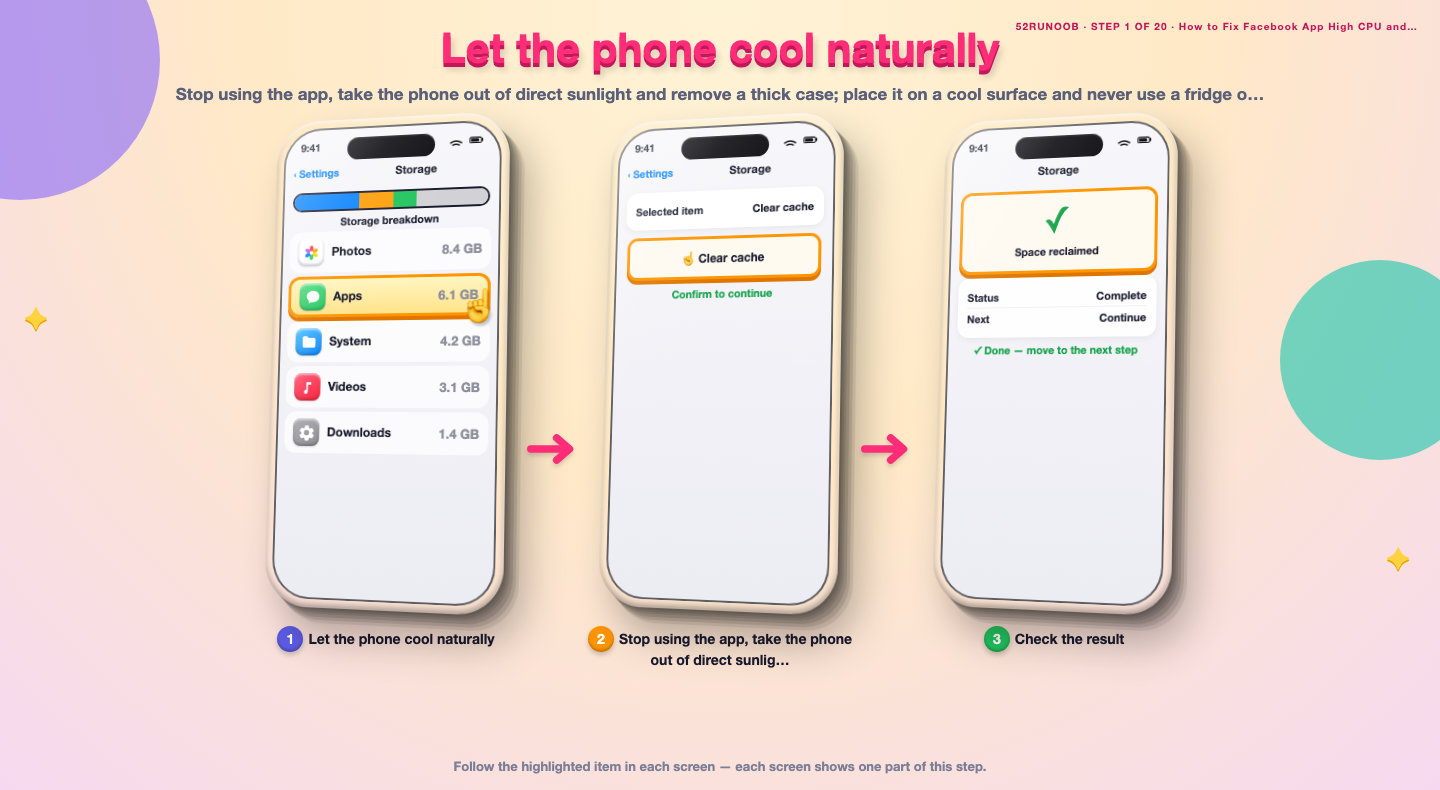
Step 1: Let the phone cool naturally
Stop using the app, take the phone out of direct sunlight and remove a thick case; place it on a cool surface and never use a fridge or freezer.
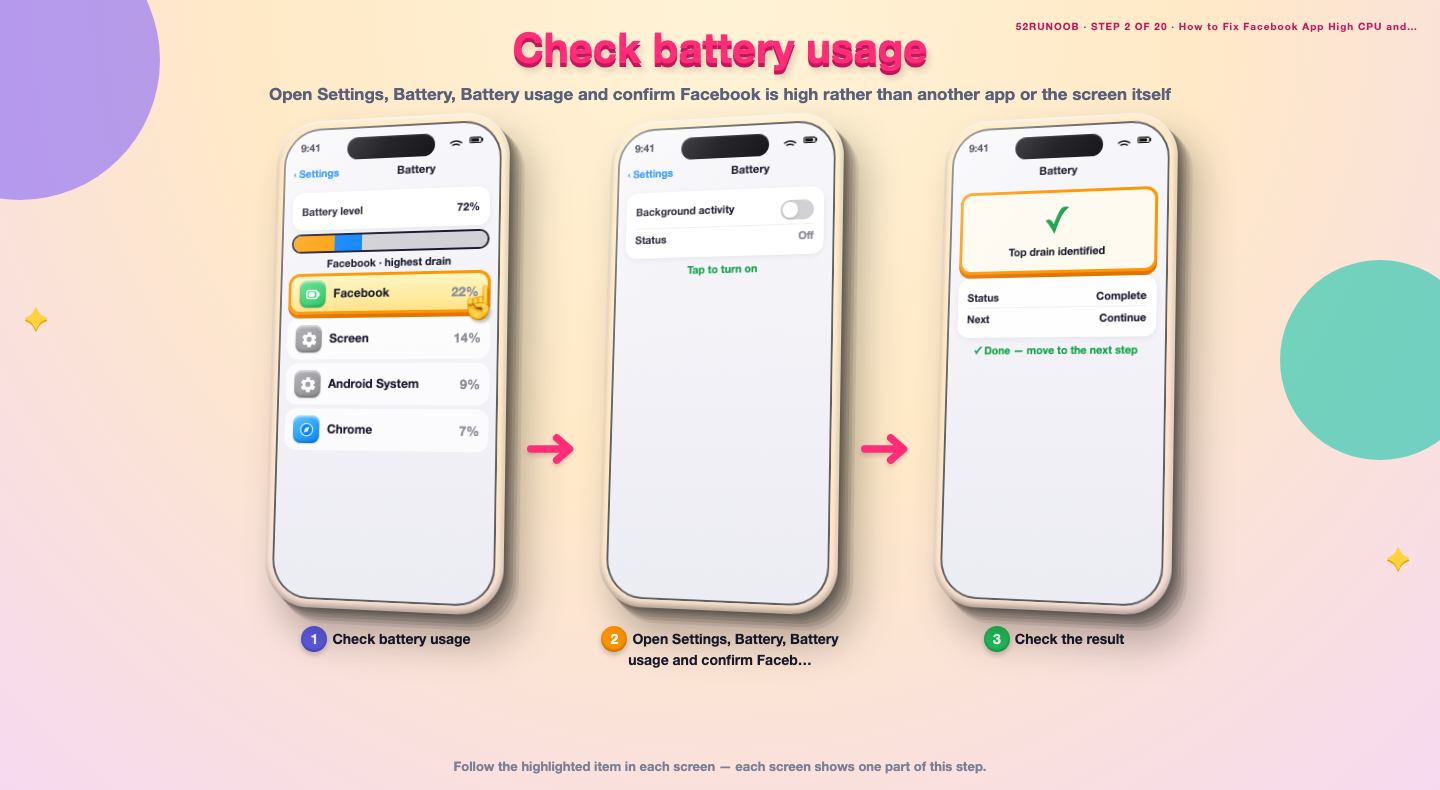
Step 2: Check battery usage
Open Settings, Battery, Battery usage and confirm Facebook is high rather than another app or the screen itself.
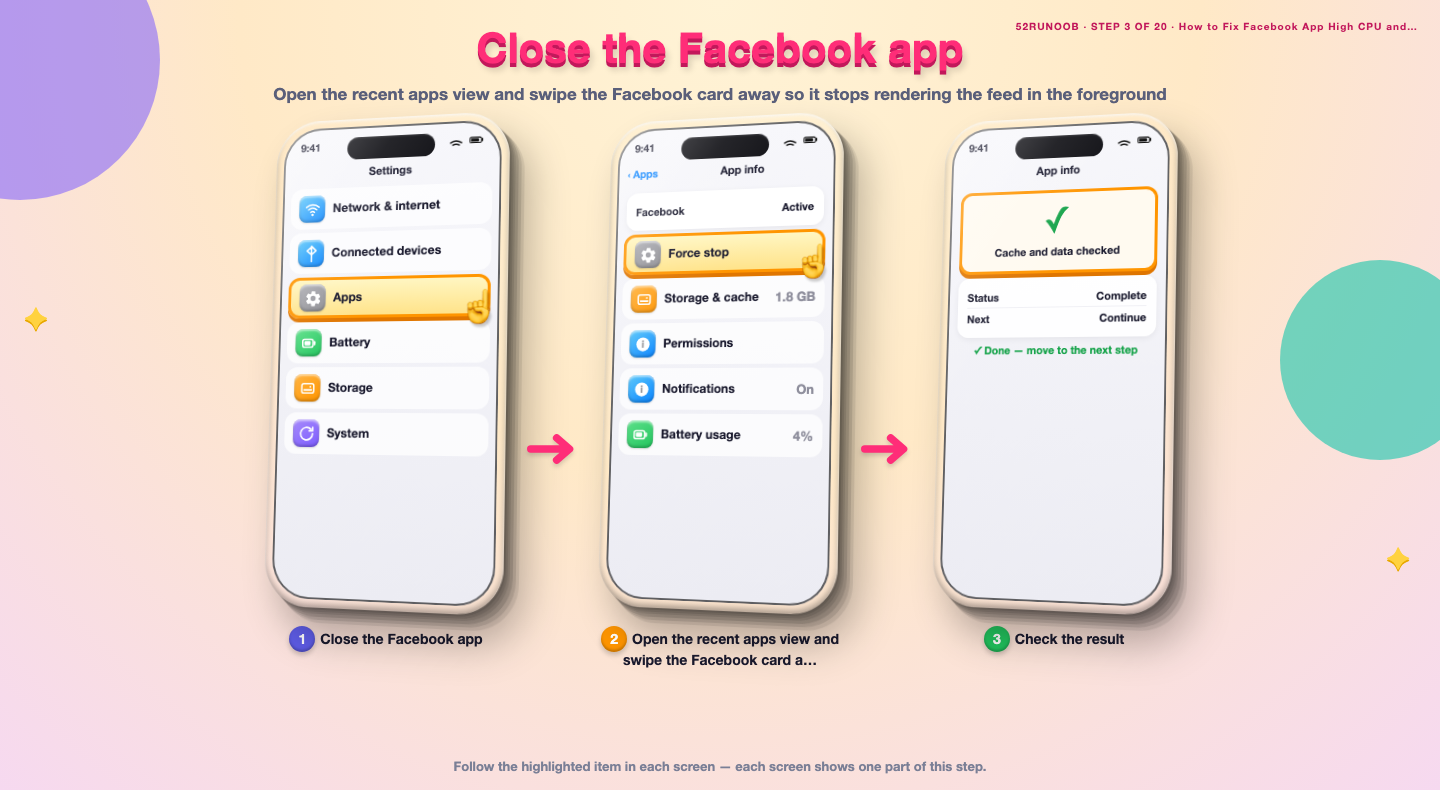
Step 3: Close the Facebook app
Open the recent apps view and swipe the Facebook card away so it stops rendering the feed in the foreground.
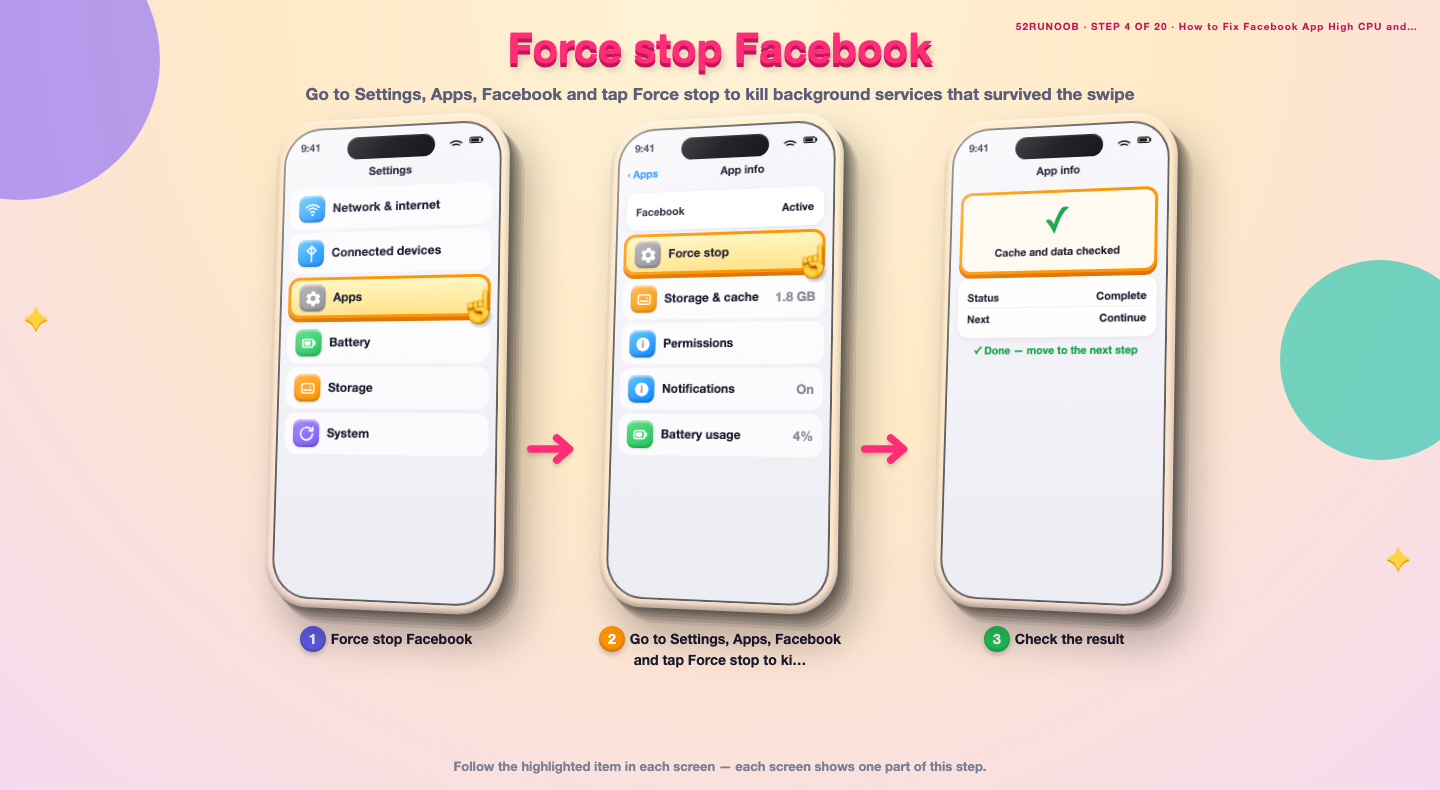
Step 4: Force stop Facebook
Go to Settings, Apps, Facebook and tap Force stop to kill background services that survived the swipe.
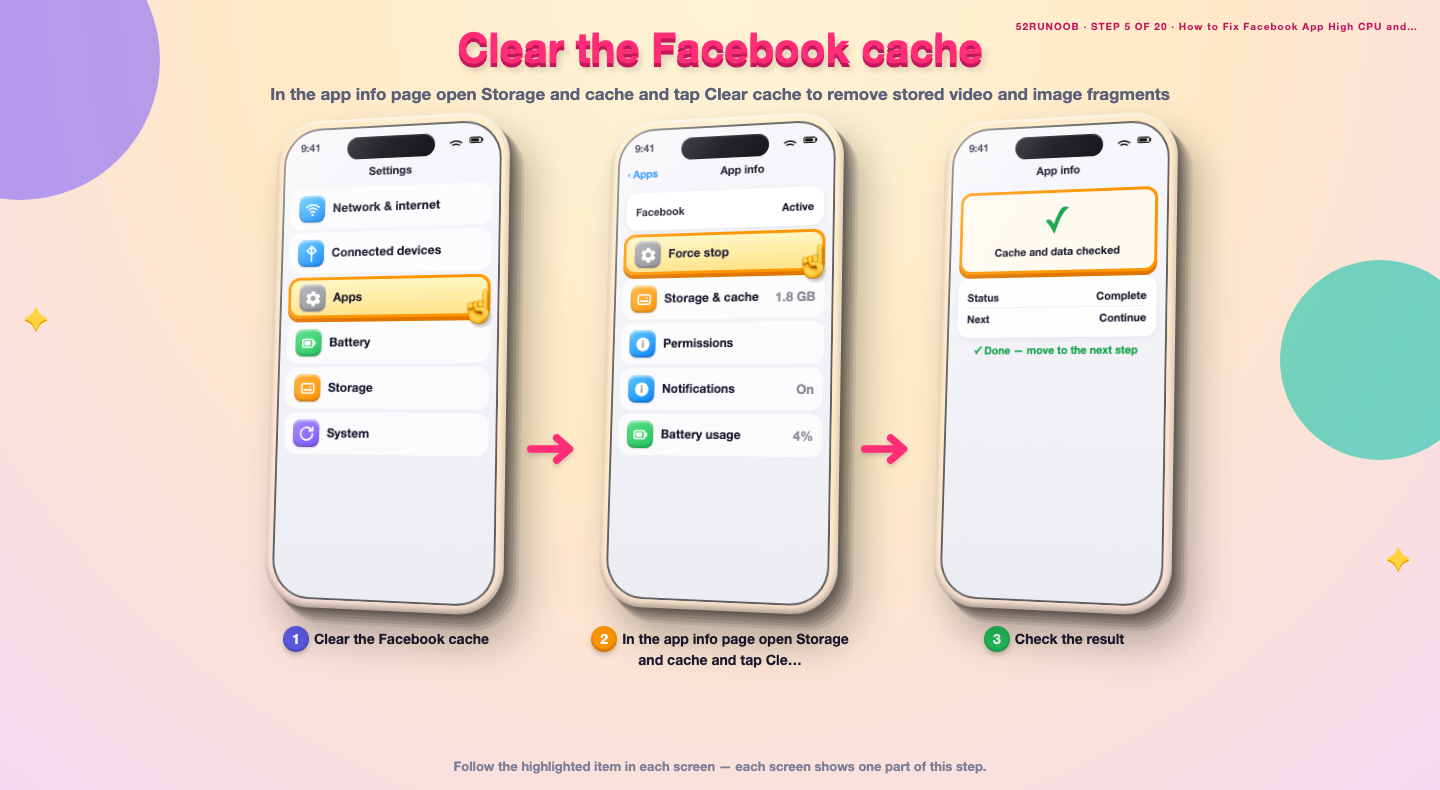
Step 5: Clear the Facebook cache
In the app info page open Storage and cache and tap Clear cache to remove stored video and image fragments.
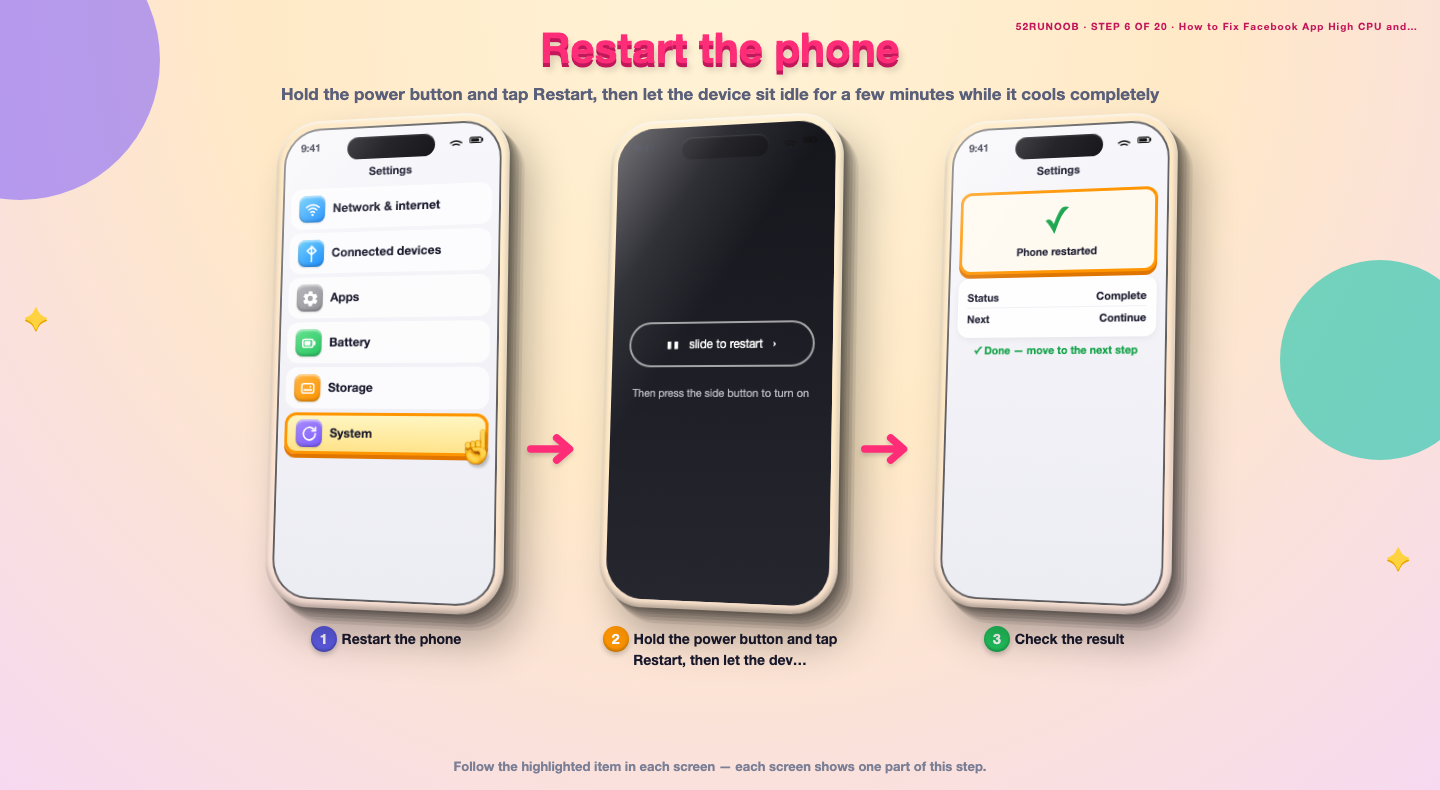
Step 6: Restart the phone
Hold the power button and tap Restart, then let the device sit idle for a few minutes while it cools completely.
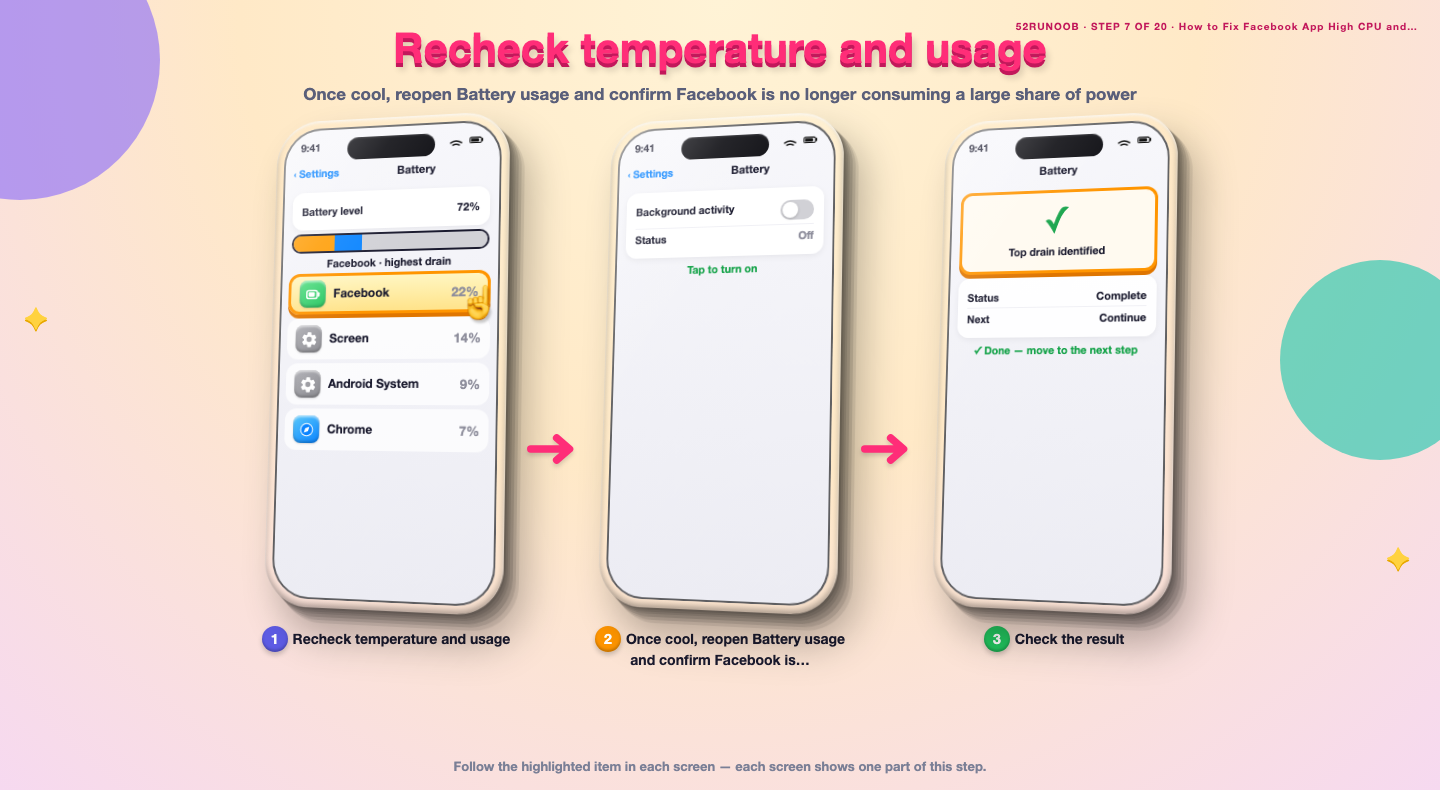
Step 7: Recheck temperature and usage
Once cool, reopen Battery usage and confirm Facebook is no longer consuming a large share of power.
Method 2 of 3: Trim Facebook Background Work
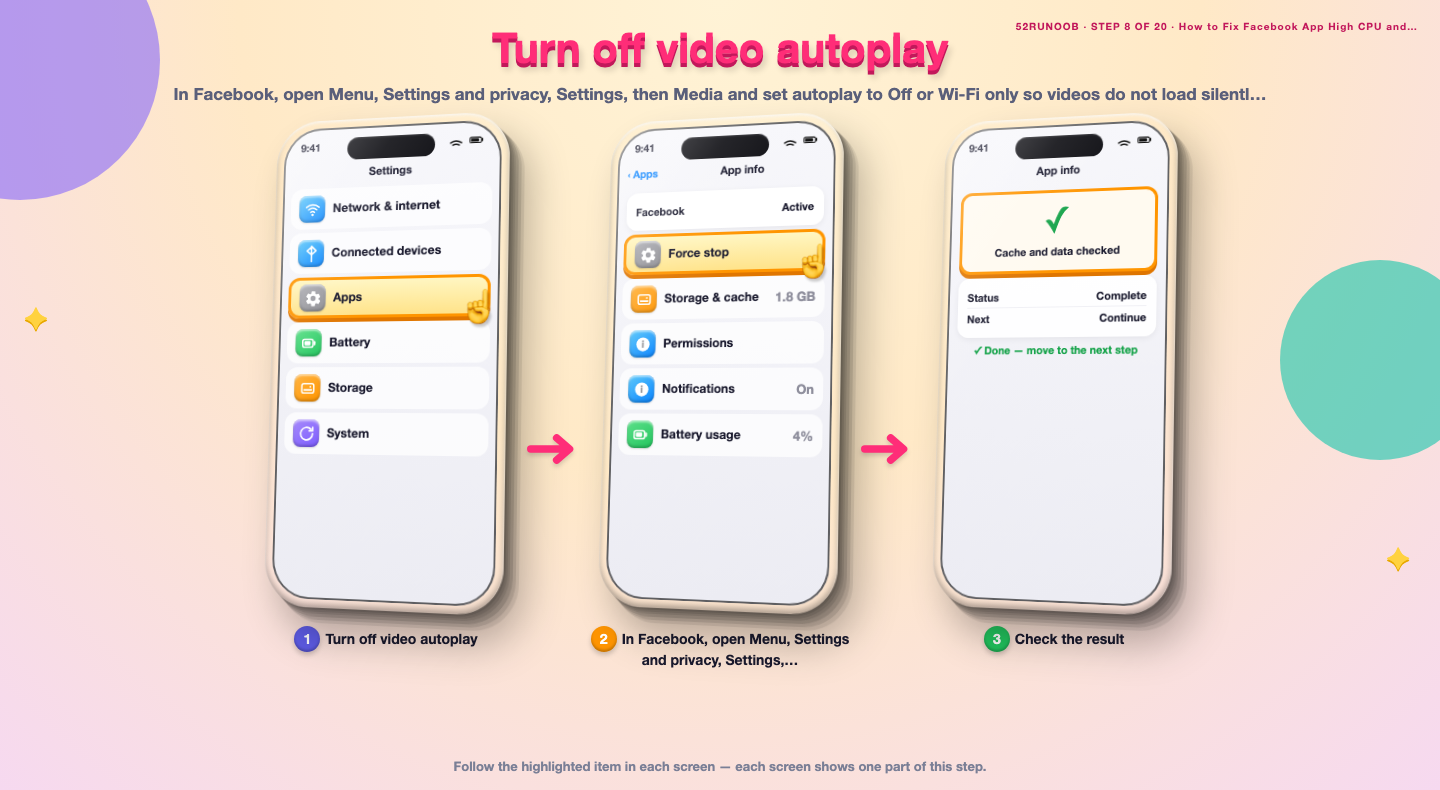
Step 8: Turn off video autoplay
In Facebook, open Menu, Settings and privacy, Settings, then Media and set autoplay to Off or Wi-Fi only so videos do not load silently in the feed.
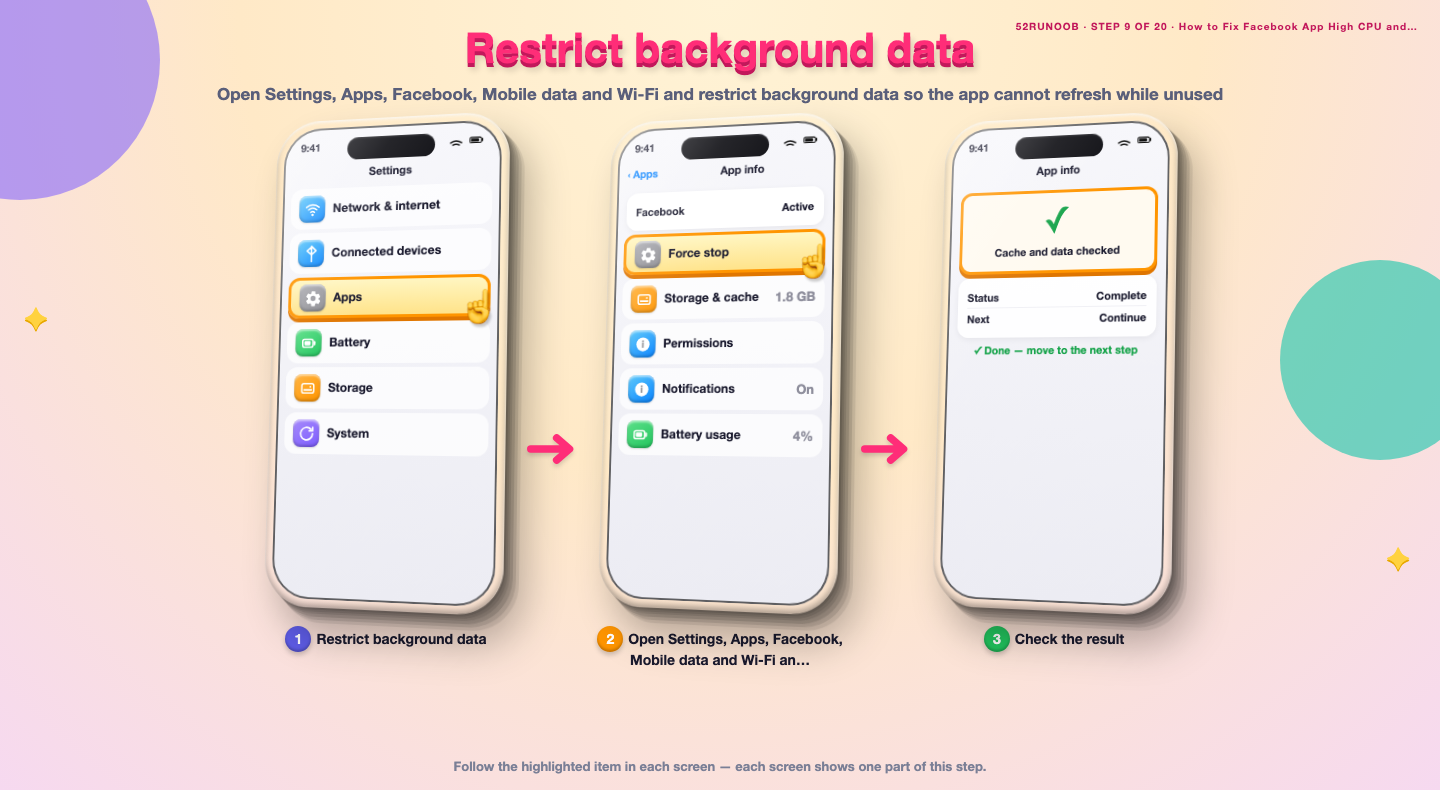
Step 9: Restrict background data
Open Settings, Apps, Facebook, Mobile data and Wi-Fi and restrict background data so the app cannot refresh while unused.
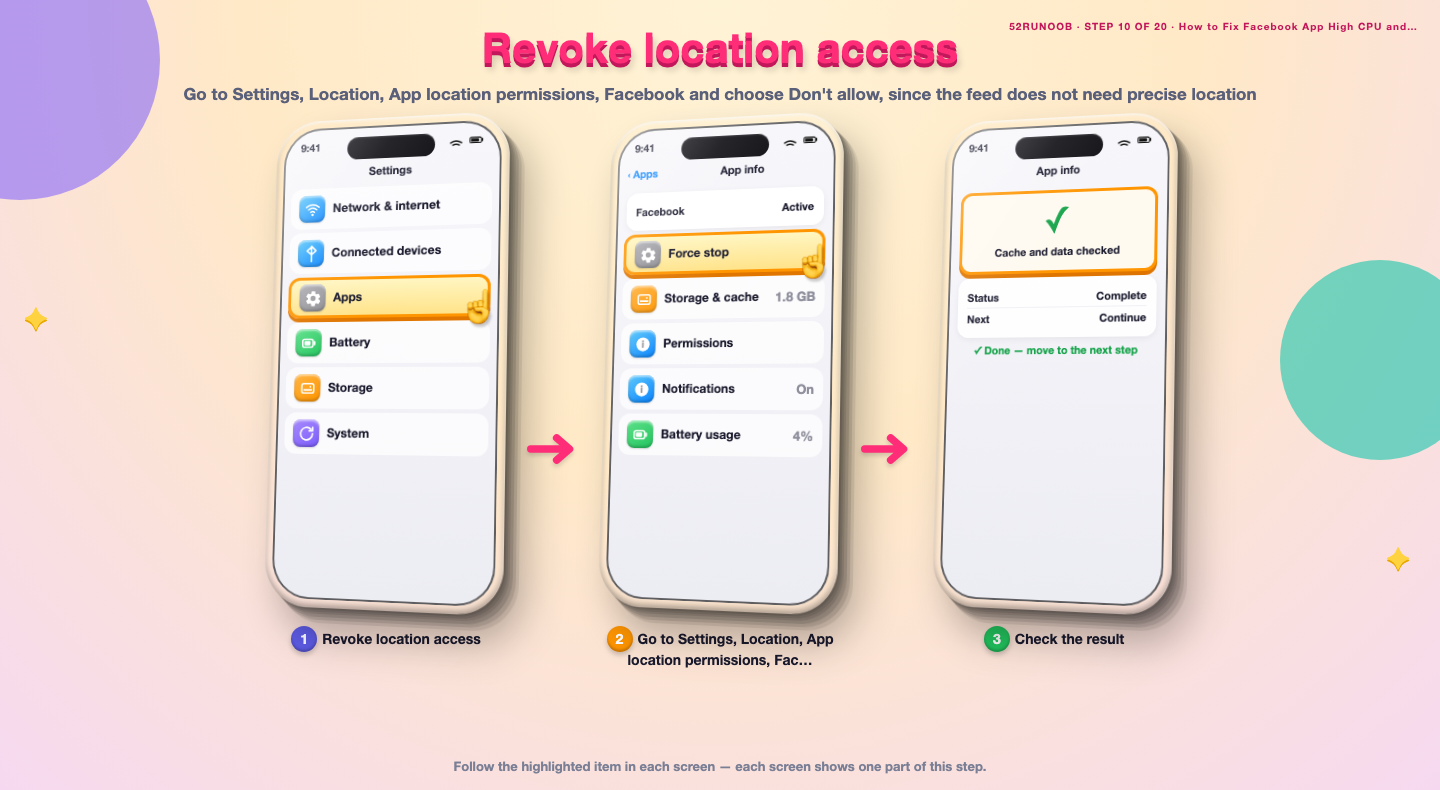
Step 10: Revoke location access
Go to Settings, Location, App location permissions, Facebook and choose Don't allow, since the feed does not need precise location.
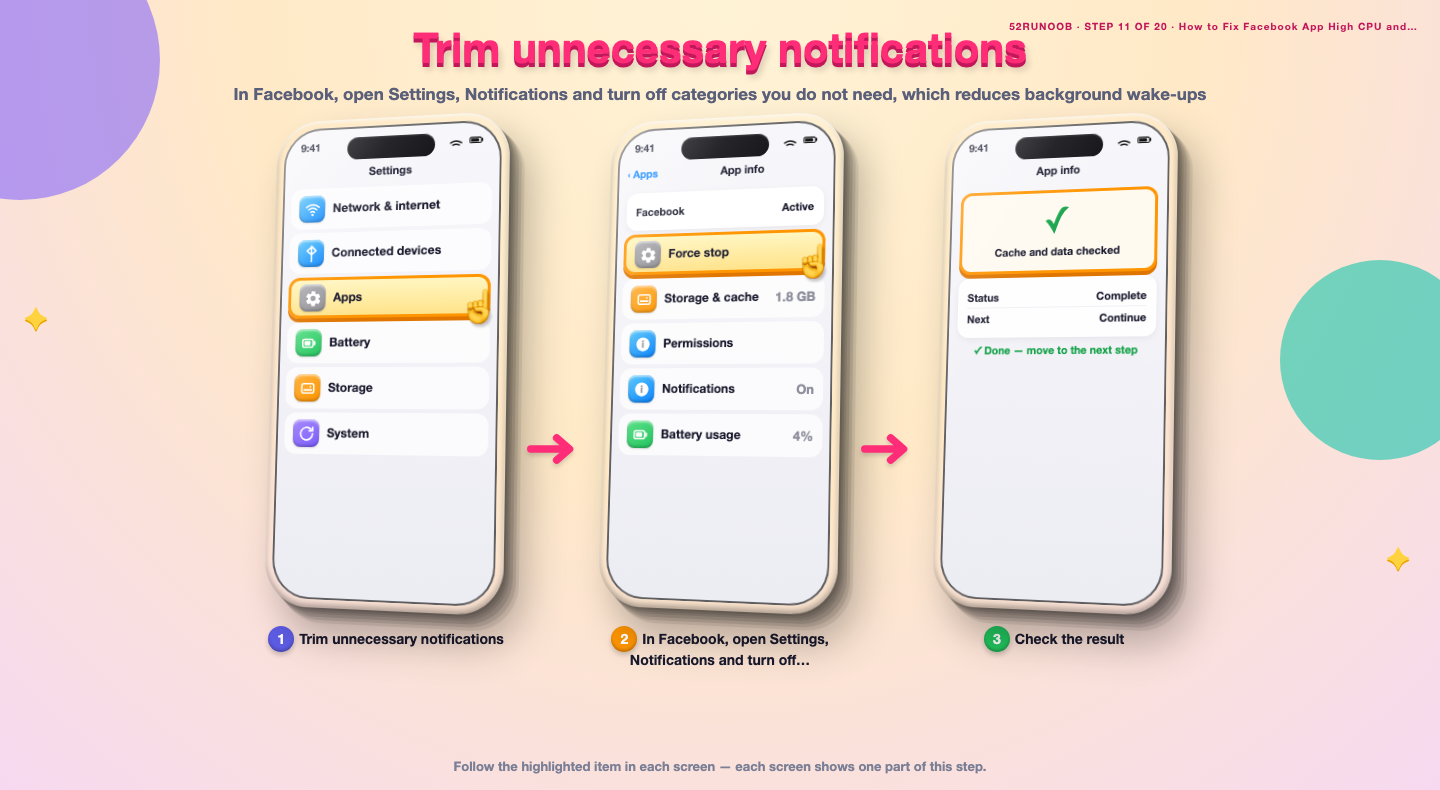
Step 11: Trim unnecessary notifications
In Facebook, open Settings, Notifications and turn off categories you do not need, which reduces background wake-ups.
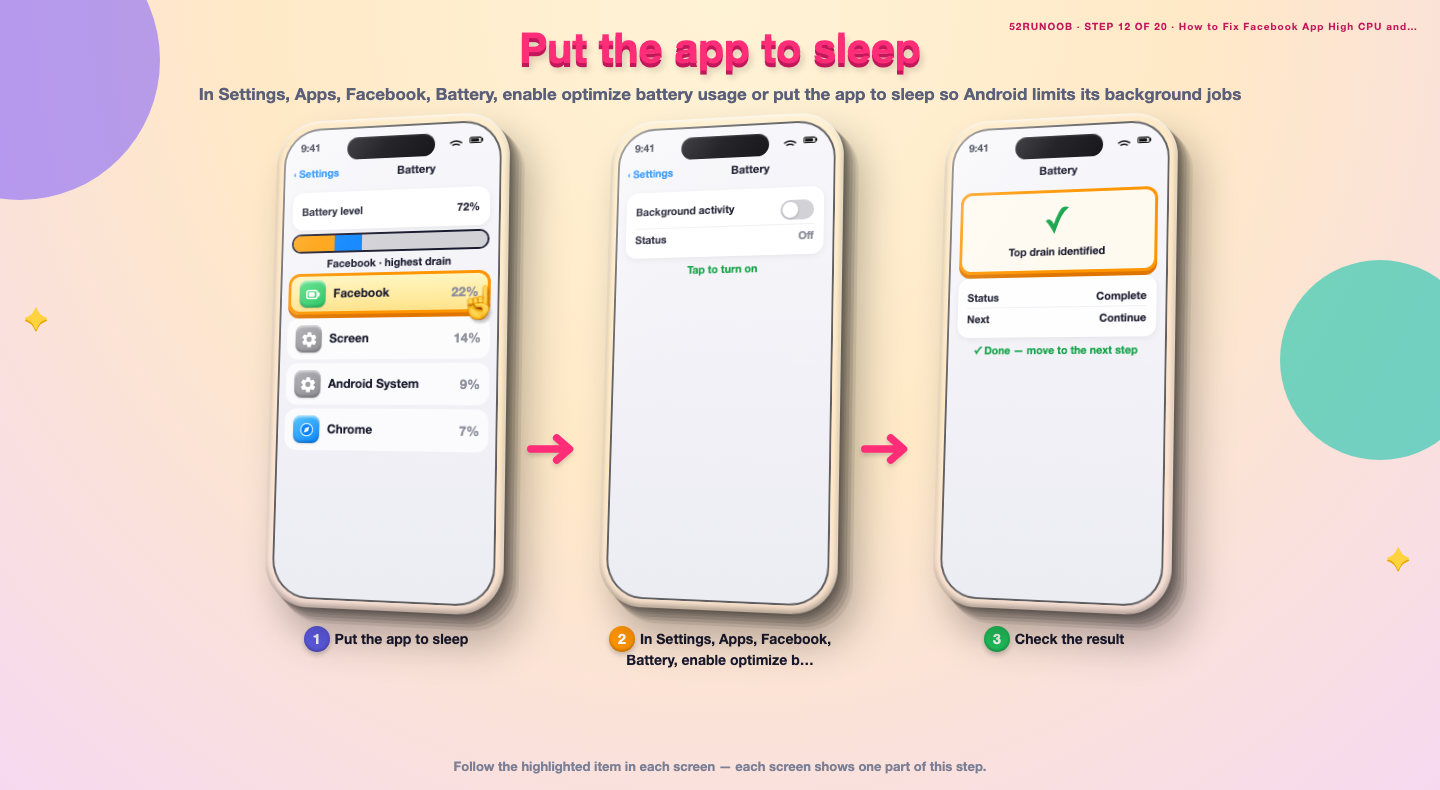
Step 12: Put the app to sleep
In Settings, Apps, Facebook, Battery, enable optimize battery usage or put the app to sleep so Android limits its background jobs.
Step 13: Remove a duplicate Facebook Lite
If both Facebook and Facebook Lite are installed, uninstall the one you do not use via Settings, Apps, since two clients can sync at once.
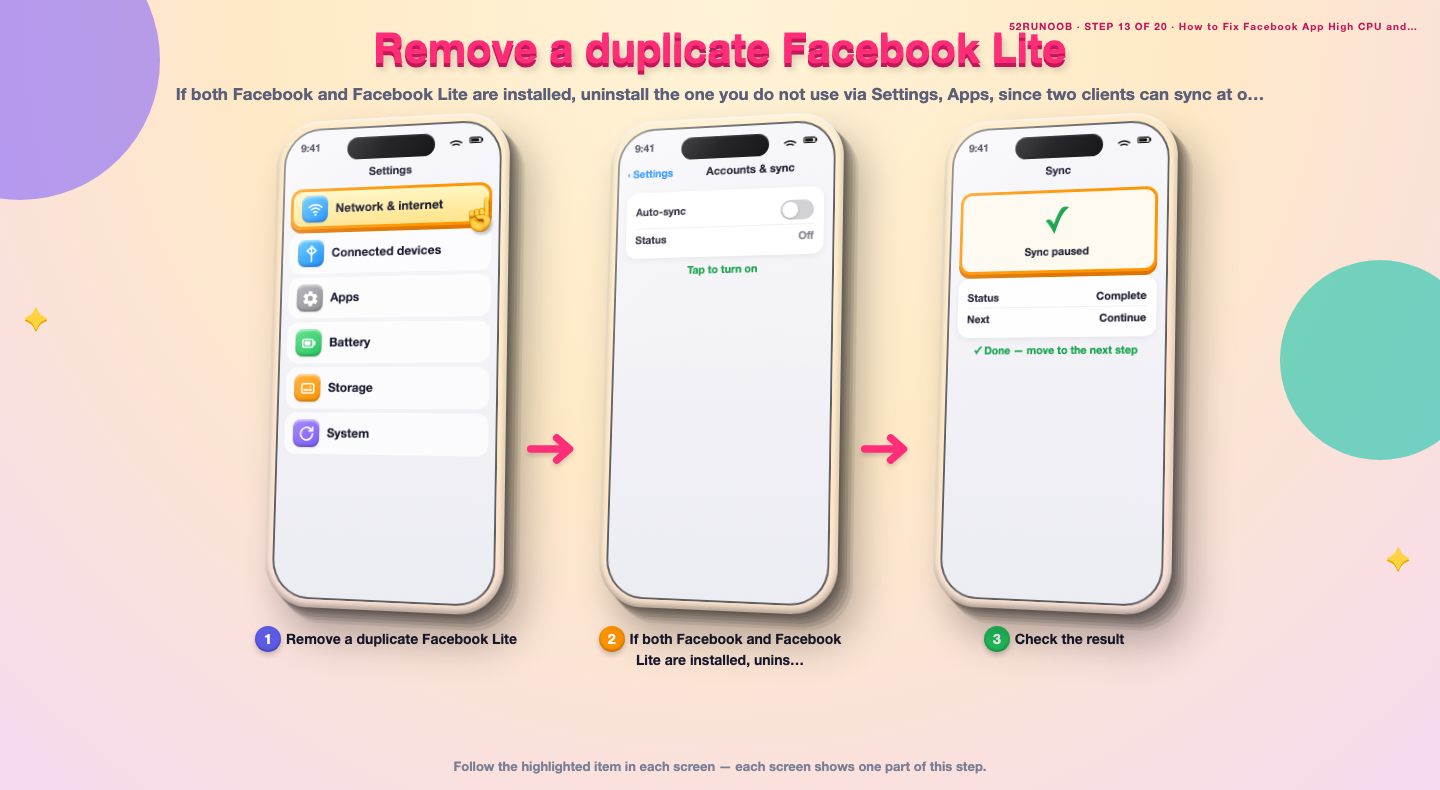
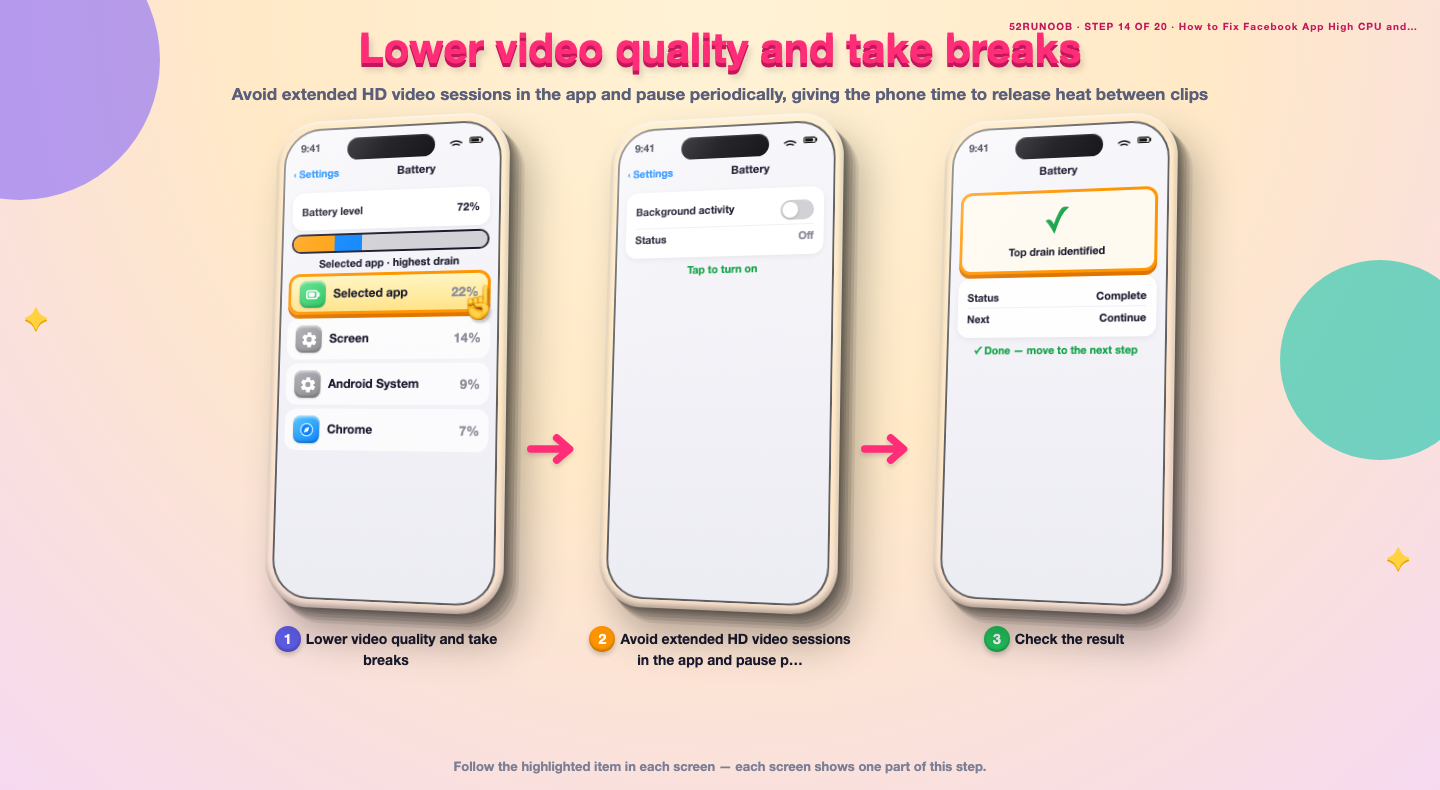
Step 14: Lower video quality and take breaks
Avoid extended HD video sessions in the app and pause periodically, giving the phone time to release heat between clips.
Method 3 of 3: Update, Reset and Reinstall
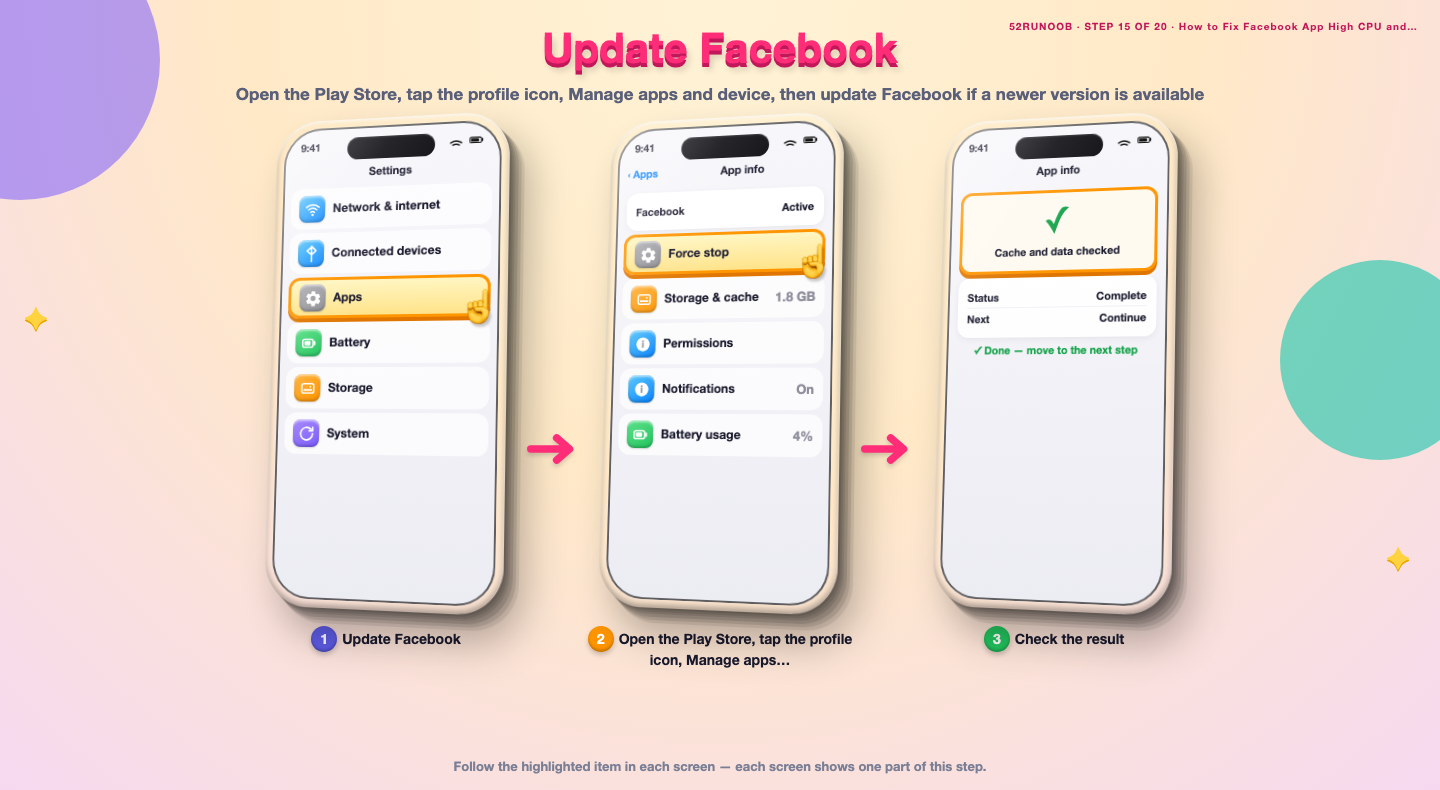
Step 15: Update Facebook
Open the Play Store, tap the profile icon, Manage apps and device, then update Facebook if a newer version is available.
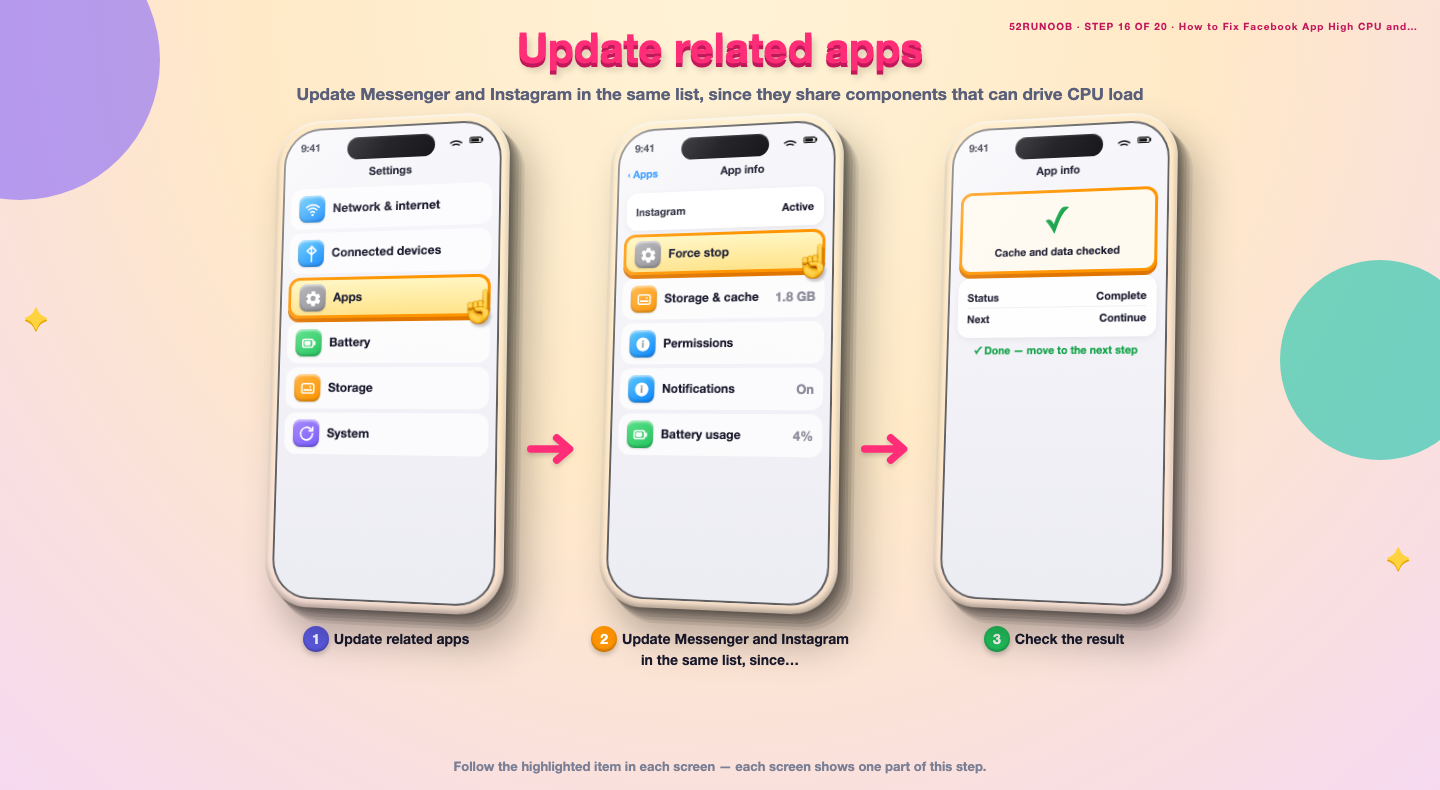
Step 16: Update related apps
Update Messenger and Instagram in the same list, since they share components that can drive CPU load.
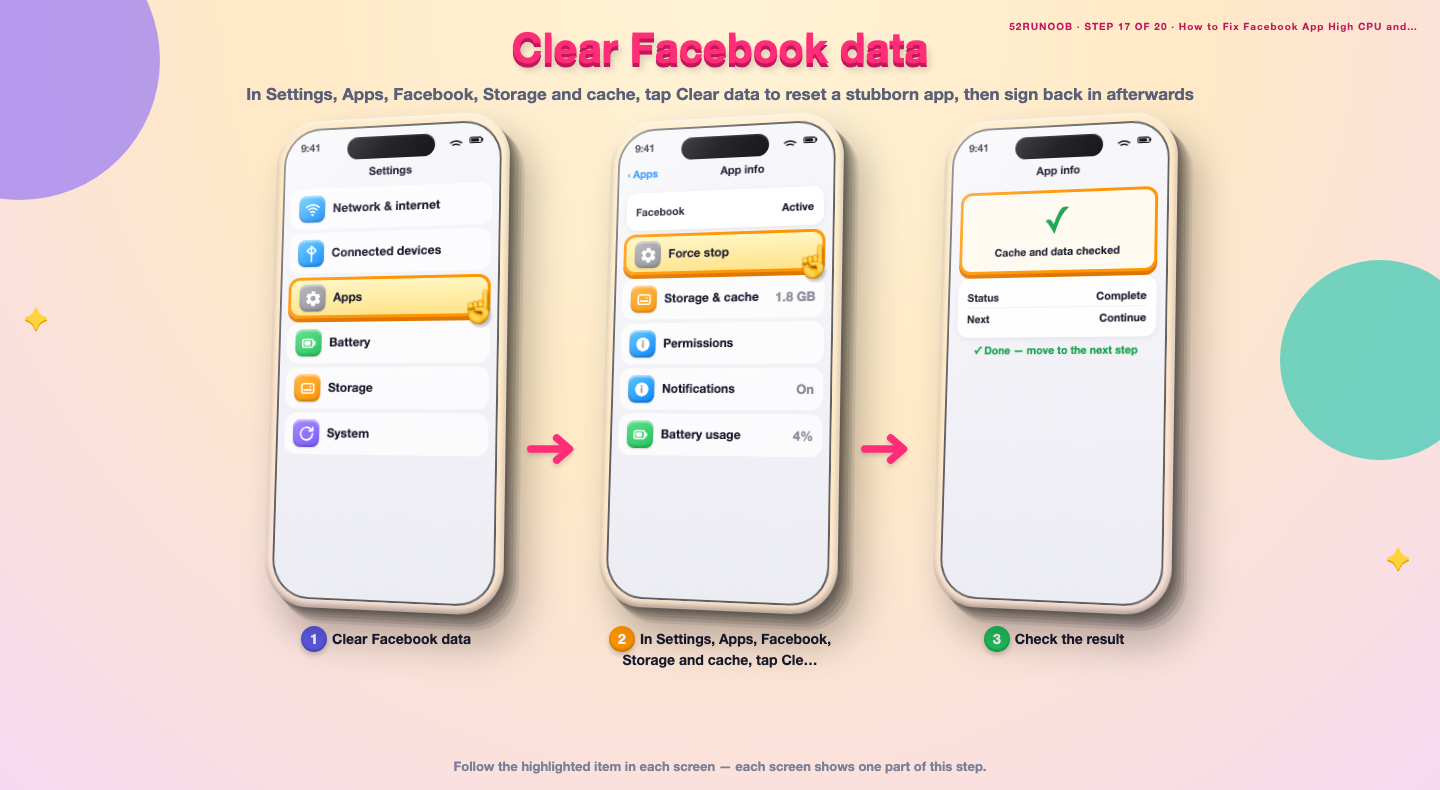
Step 17: Clear Facebook data
In Settings, Apps, Facebook, Storage and cache, tap Clear data to reset a stubborn app, then sign back in afterwards.
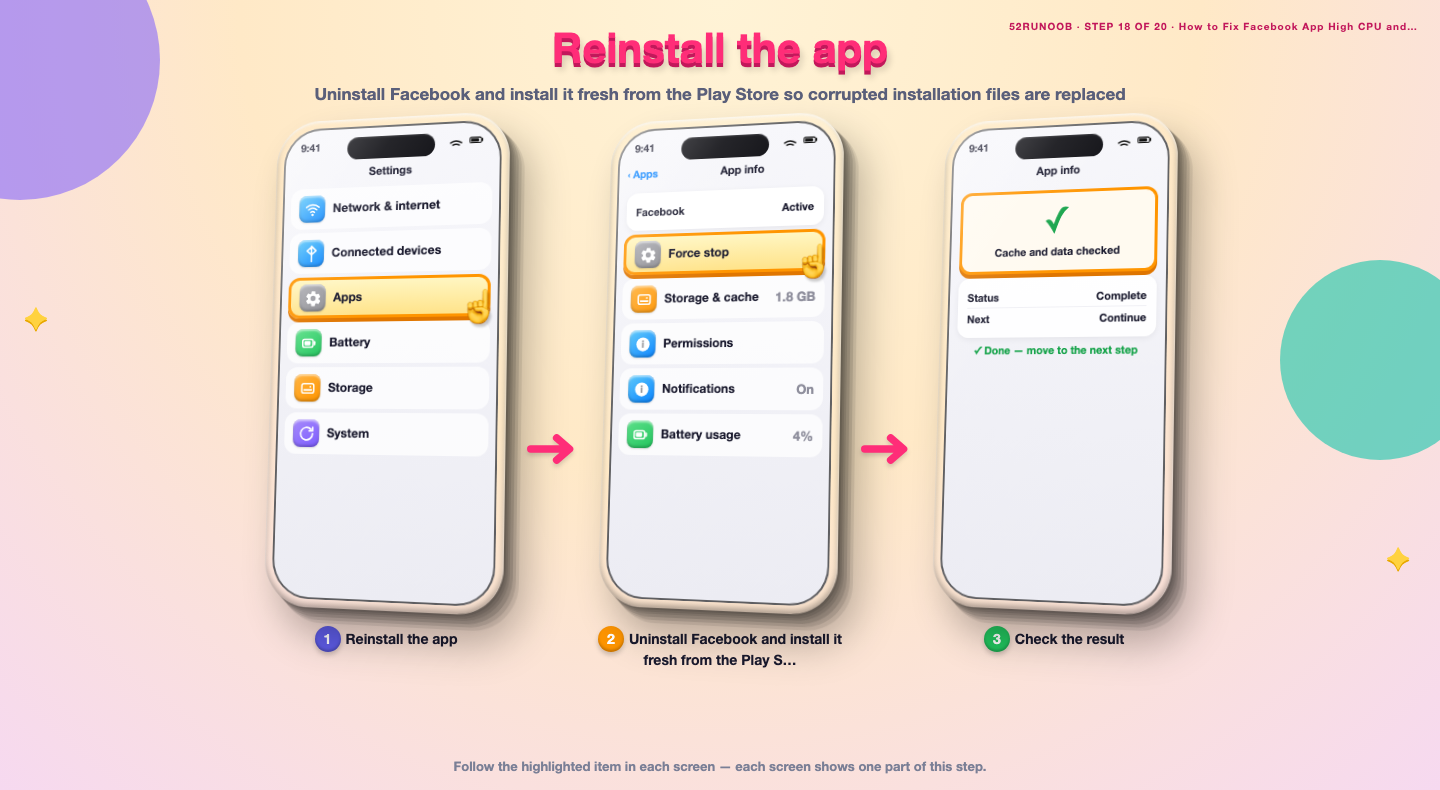
Step 18: Reinstall the app
Uninstall Facebook and install it fresh from the Play Store so corrupted installation files are replaced.
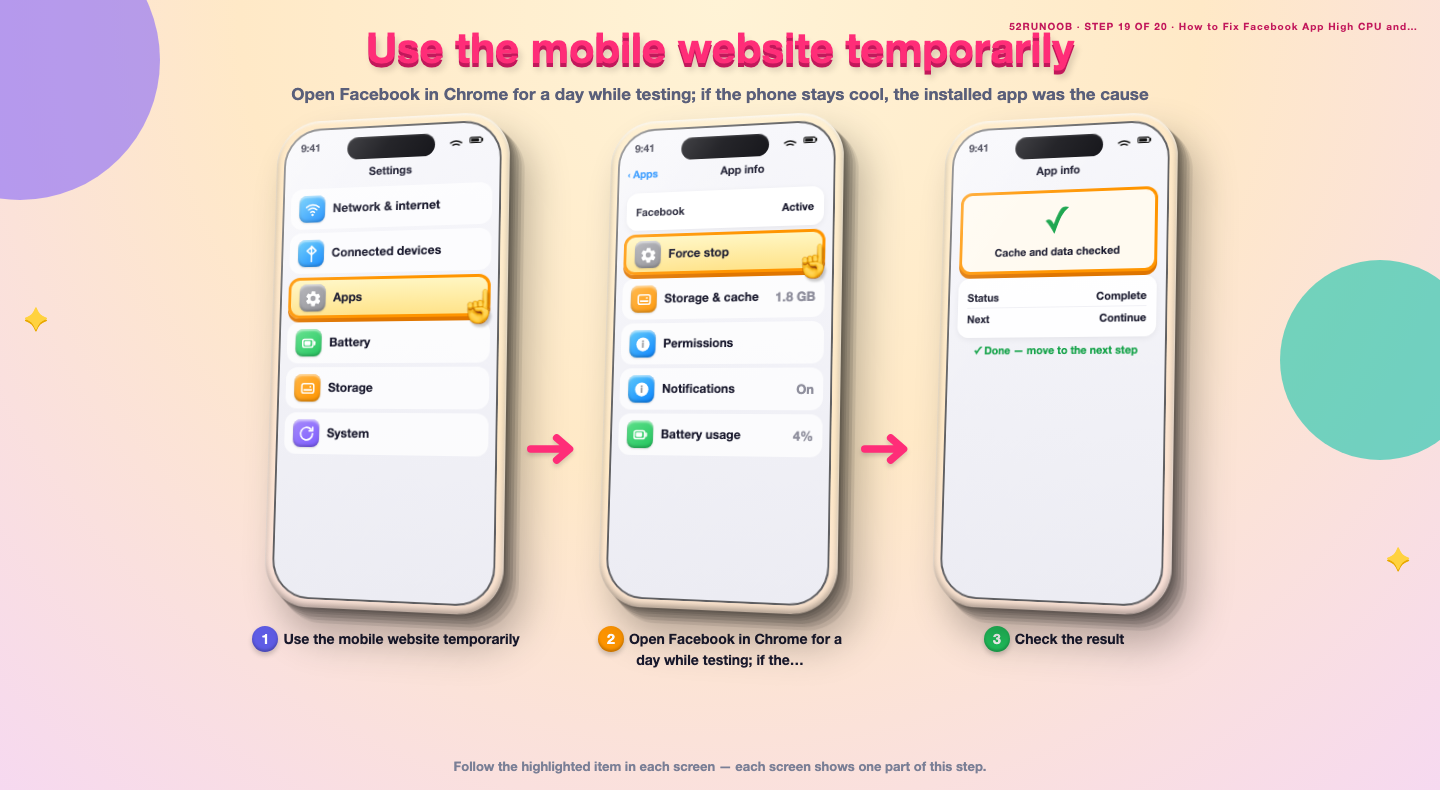
Step 19: Use the mobile website temporarily
Open Facebook in Chrome for a day while testing; if the phone stays cool, the installed app was the cause.
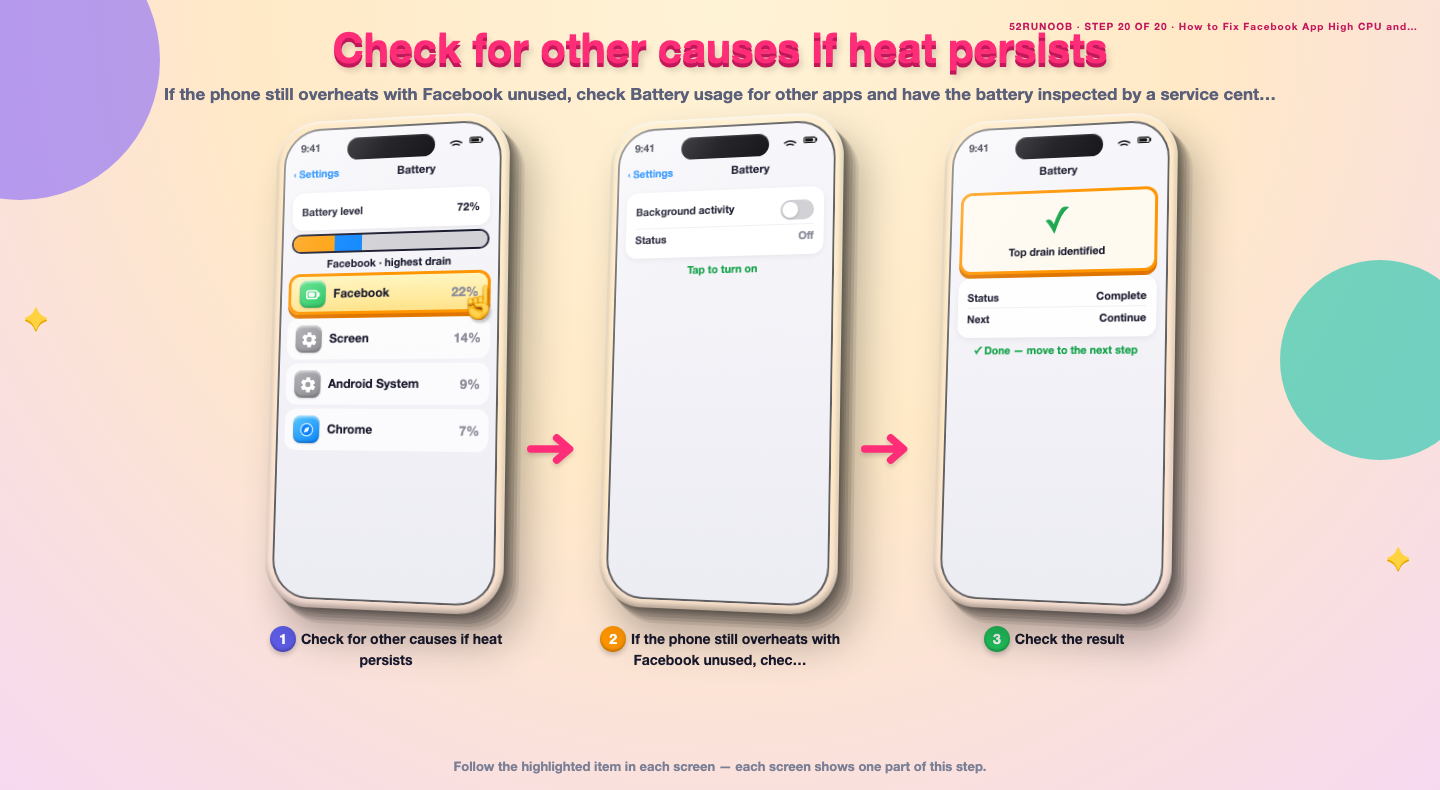
Step 20: Check for other causes if heat persists
If the phone still overheats with Facebook unused, check Battery usage for other apps and have the battery inspected by a service centre.
Tips
- Autoplaying HD video is the single biggest load in the Facebook app.
- Charging while watching video adds heat and slows the phone further.
- Removing a thick case during heavy use helps the device shed heat.
Warnings
- Never put a hot phone in a fridge or freezer; condensation can damage it.
- Do not remove the battery or open the phone casing to cool it.
- If the back cover is swelling or the screen bulges, stop using the phone and seek service.
Frequently asked questions
Is it normal for Facebook to make the phone warm?
Mild warmth while scrolling video is normal because the phone is decoding graphics. A phone that stays hot long after you close the app is not normal and points to a stuck process or a feature running in the background.
Is high CPU from Facebook dangerous?
It is not dangerous by itself, but sustained heat ages the battery and can trigger thermal throttling that makes the phone slow. Cooling the device and trimming the app's background work is enough in most cases.
Will clearing Facebook cache delete my posts?
No. Clearing the cache removes temporary images and videos stored locally; your posts, messages and photos on the servers are safe. Clearing data is different and signs you out.
Why does the phone heat up when Facebook is closed?
A background sync, autoplay preload or location check can keep the app alive. Force stop it, restrict background data, then reboot to confirm the heat stops.
References
- Android Support - Speed up your Android device. https://support.google.com/android/answer/9454546
- Android Support - Clear app cache and data. https://support.google.com/android/answer/9551190
- Android Open Source Project - Thermal management. https://source.android.com/docs/core/power/thermal
- wikiHow — How to Fix Facebook App High CPU and Overheating on Android. https://www.wikihow.com/Cool-Down-an-Overheated-Phone
Every guide is reviewed against its sources. See our editorial policy.
Reader comments
0 so farFinished this guide? Tell other readers what worked, what didn't, and what you would change.