WhatsApp can store gigabytes of copied photos, videos and voice notes in its cache, especially in busy group chats. That fills storage and slows the whole phone. Measure the cache in Manage storage, clear it safely and stop automatic media downloads so it does not grow back.
This guide walks through the process in clear illustrated steps, from the first preparation to a finished result. Each step has its own picture, so you can compare your progress as you go.
How to use this guide
Work through the steps in order. Method 1 of 3 covers the basics, and the later methods offer alternatives and finishing touches. If you only have a minute, skim the Quick steps box above and come back for the details.
Related guides
- How to Connect a printer to wi fi
- How to How to fix com android phone high cpu on android
- How to Take better photos with your phone
- How to Start a bullet journal
- Browse all Fix Slow Device guides
- All 52runoob guides
Trusted external resources
- Google Photos - Free up storage
- Google Photos - Back up your photos
- Android Support - Speed up your Android device
A note on sources
We check each guide against the official resources listed in References at the end of this article. External links open in a new tab; the related guides above stay on this site.
Quick steps
- Check WhatsApp's size in phone storage.
- Open Manage storage to see per-chat sizes.
- Clear cache in Android app info.
- Turn off automatic media downloads.
- Back up chats before deleting large media.
Things you'll need
- An Android phone with WhatsApp installed
- A Wi-Fi connection for chat backup
- Access to Settings and WhatsApp storage settings
- A Google Photos or computer backup for important media
Step-by-step
Method 1 of 3: Measure the Cache
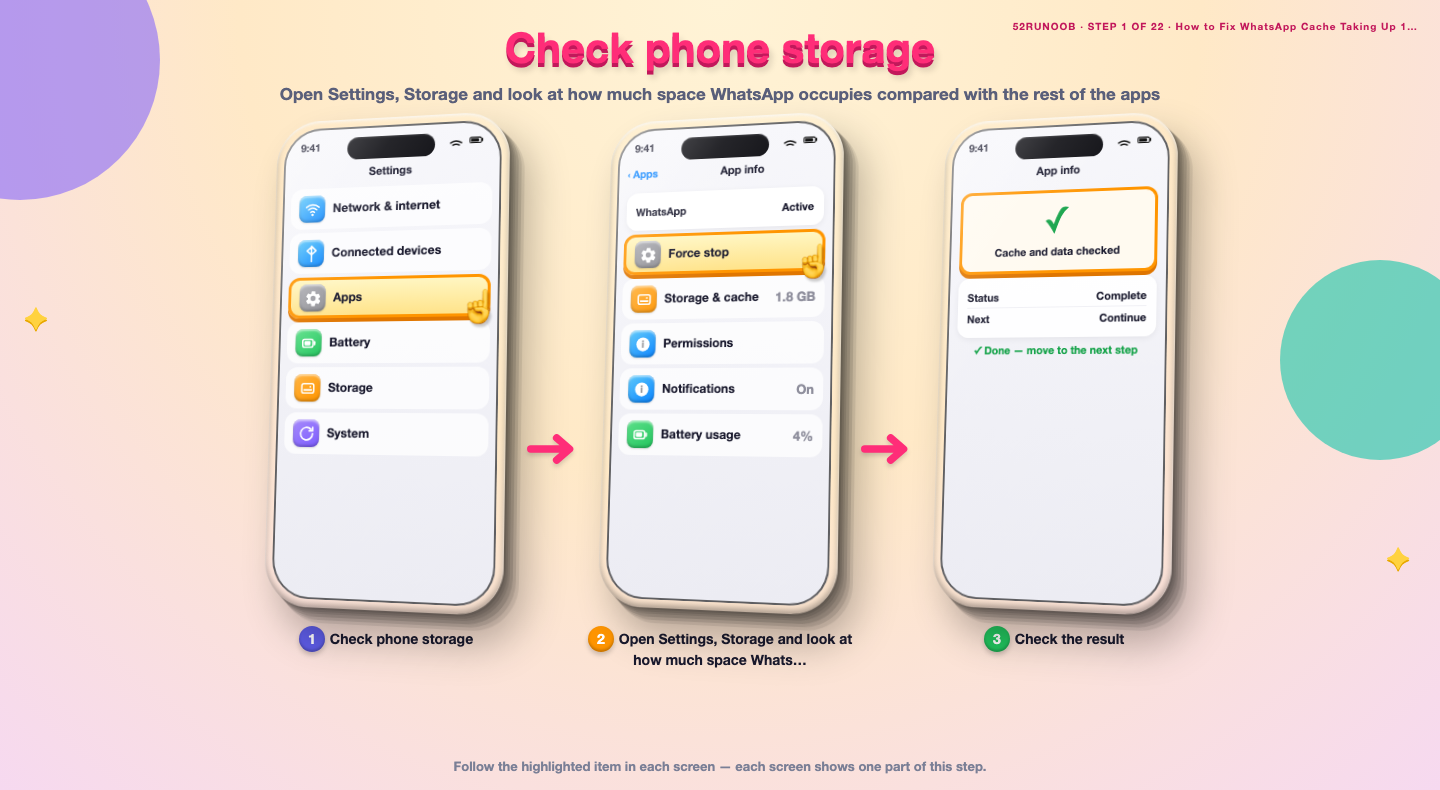
Step 1: Check phone storage
Open Settings, Storage and look at how much space WhatsApp occupies compared with the rest of the apps.
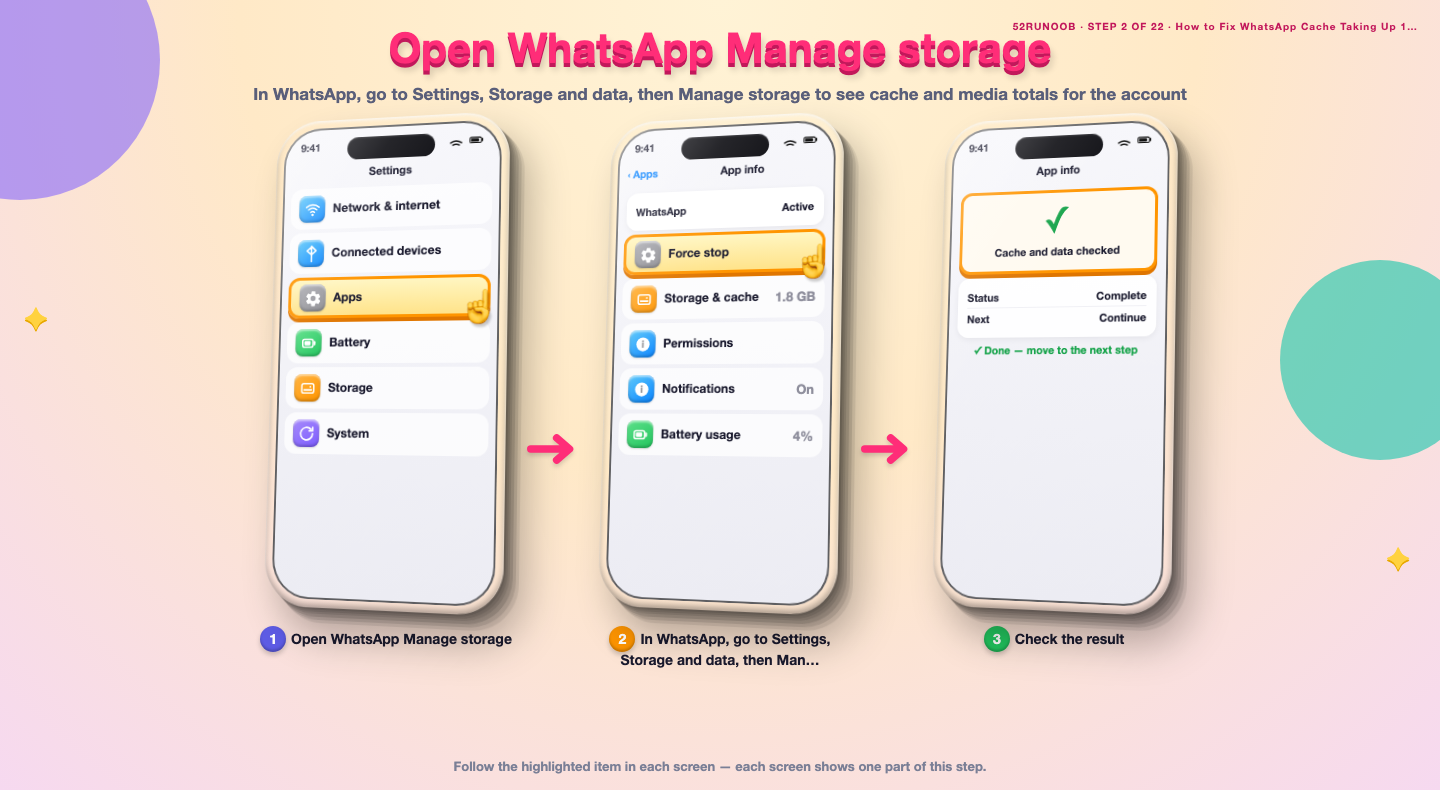
Step 2: Open WhatsApp Manage storage
In WhatsApp, go to Settings, Storage and data, then Manage storage to see cache and media totals for the account.
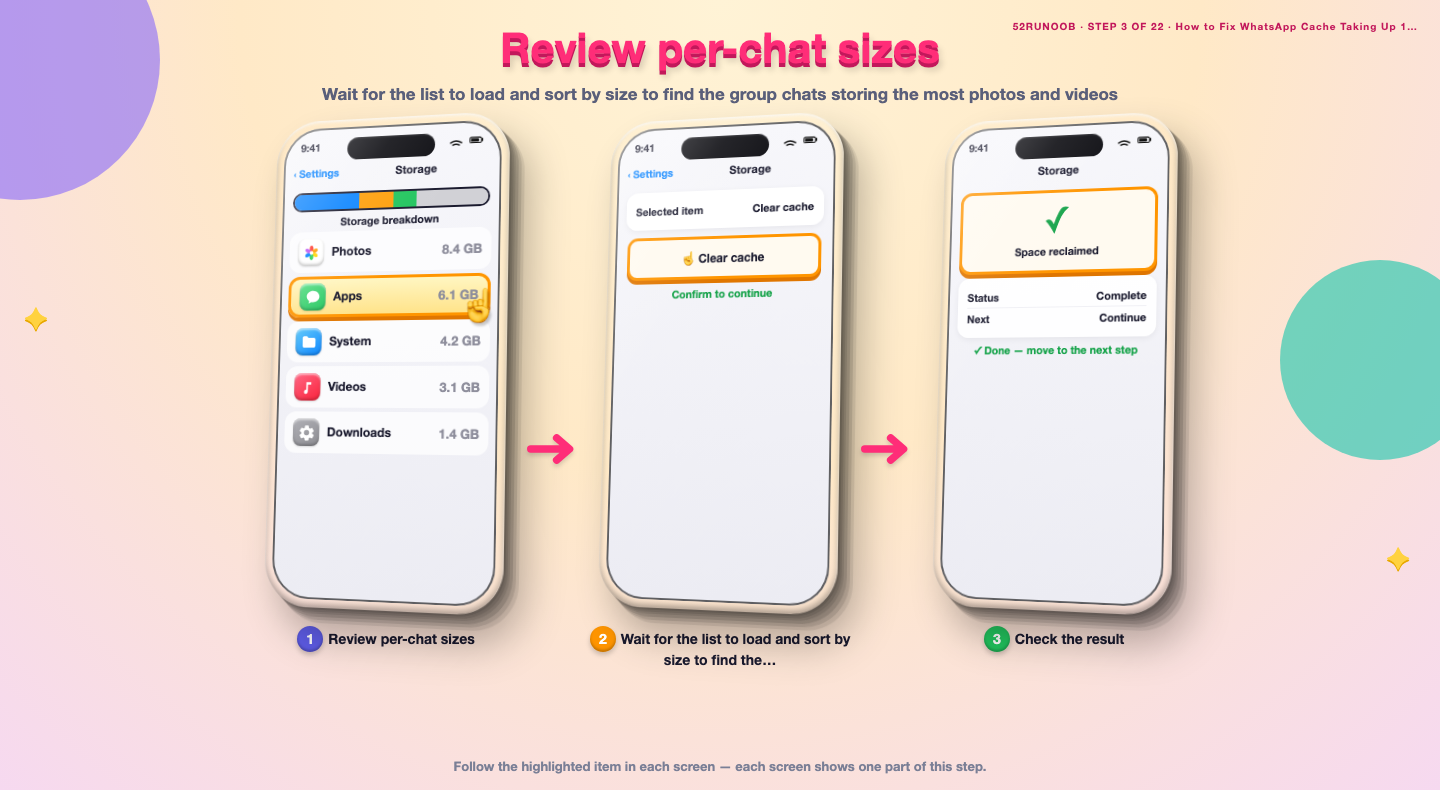
Step 3: Review per-chat sizes
Wait for the list to load and sort by size to find the group chats storing the most photos and videos.
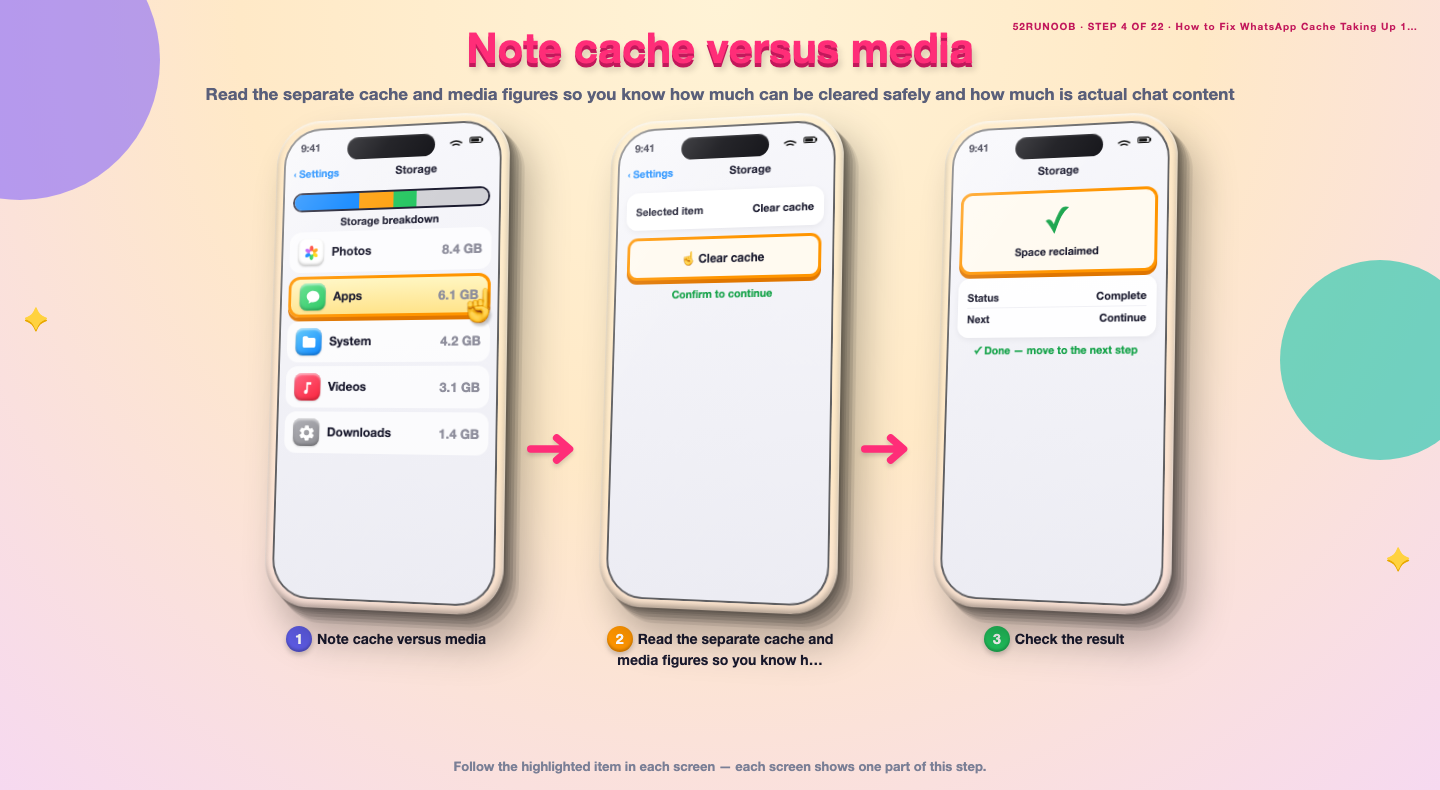
Step 4: Note cache versus media
Read the separate cache and media figures so you know how much can be cleared safely and how much is actual chat content.
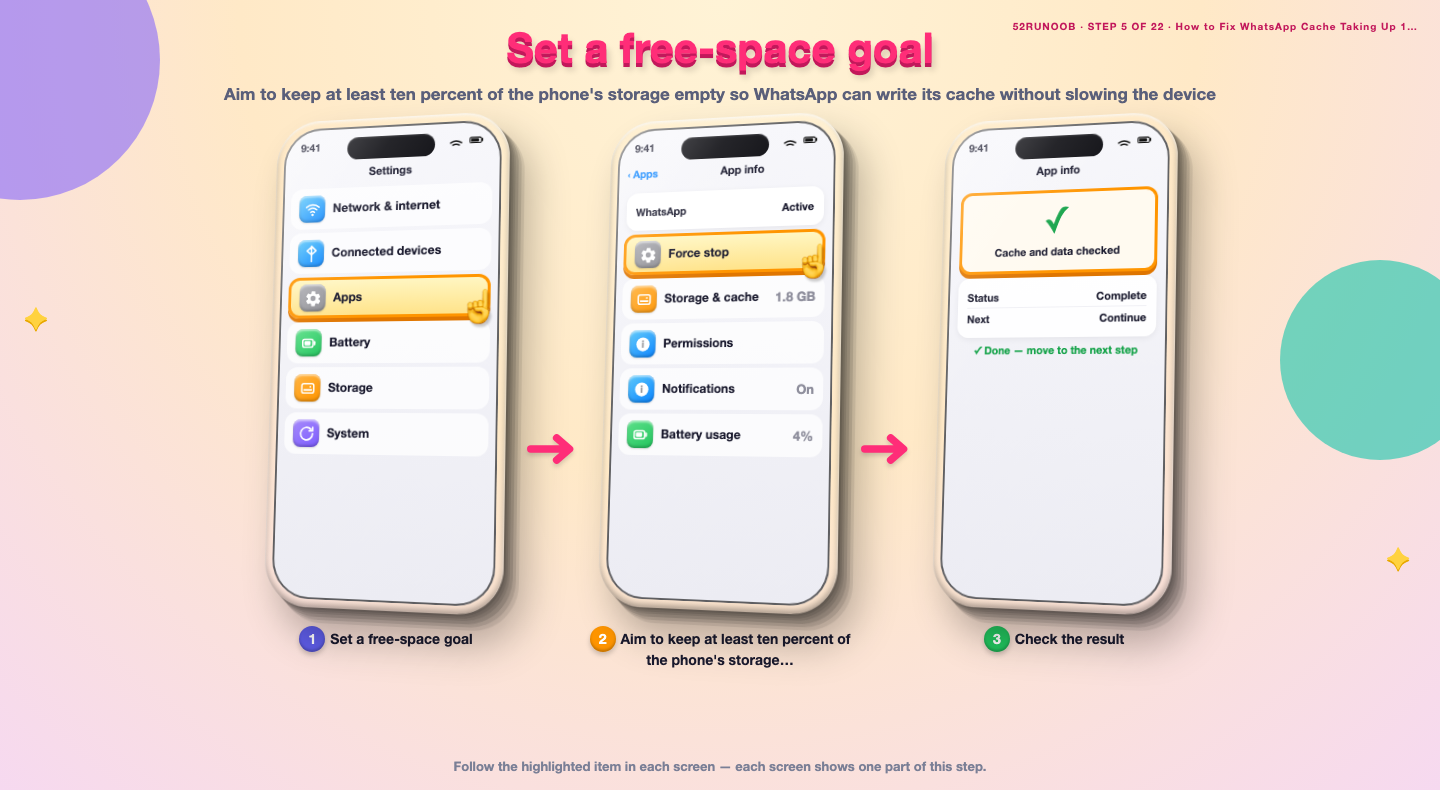
Step 5: Set a free-space goal
Aim to keep at least ten percent of the phone's storage empty so WhatsApp can write its cache without slowing the device.
Method 2 of 3: Clear Cache Without Losing Chats
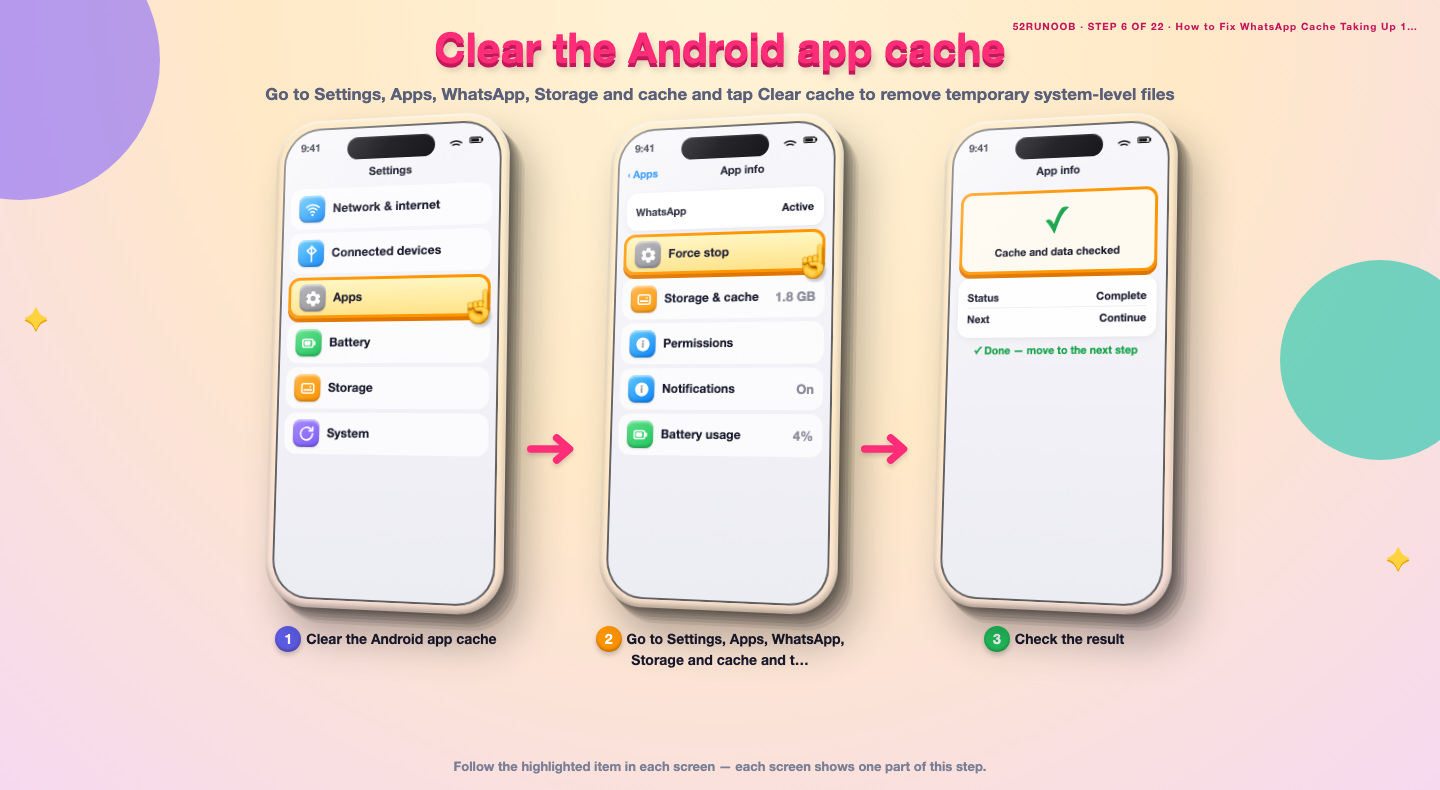
Step 6: Clear the Android app cache
Go to Settings, Apps, WhatsApp, Storage and cache and tap Clear cache to remove temporary system-level files.
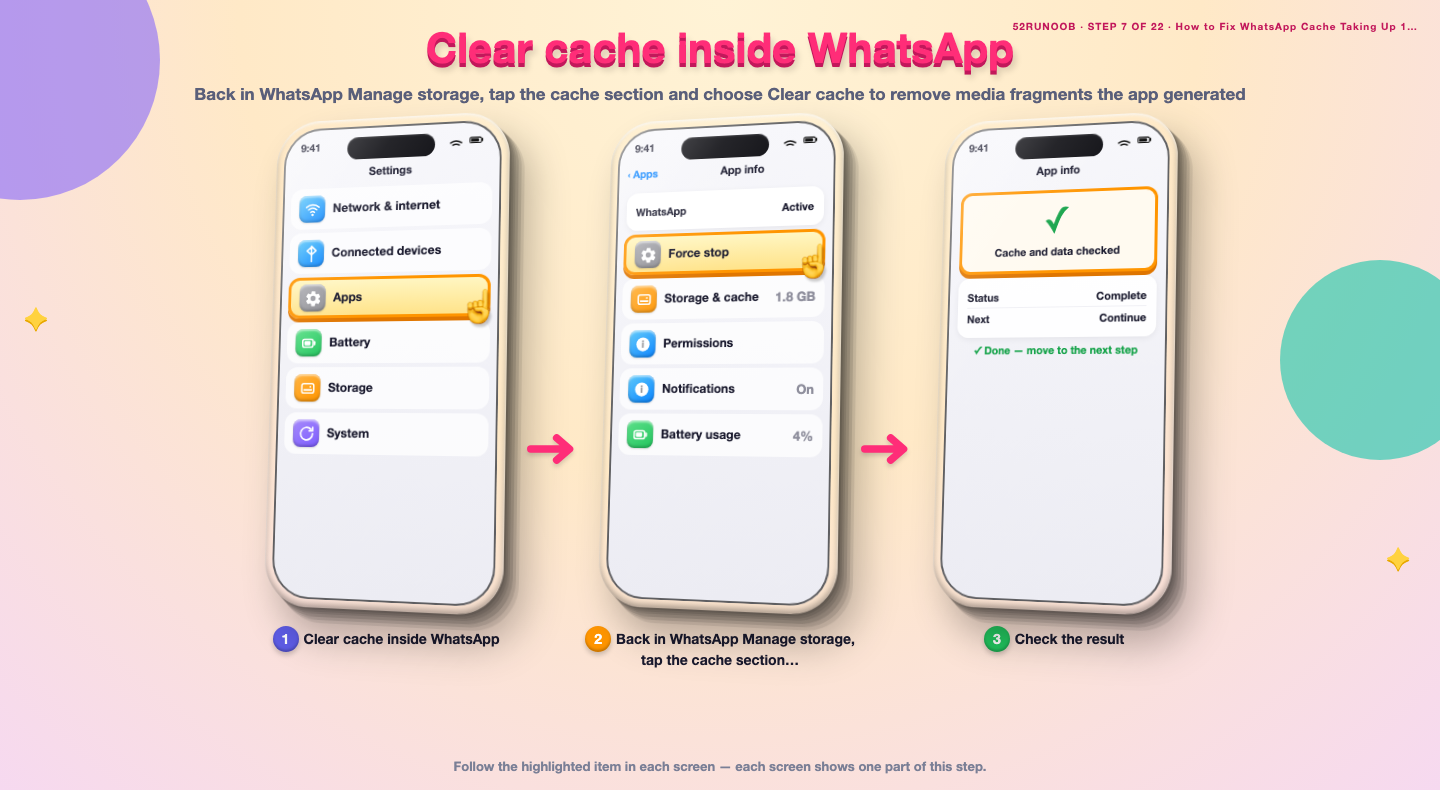
Step 7: Clear cache inside WhatsApp
Back in WhatsApp Manage storage, tap the cache section and choose Clear cache to remove media fragments the app generated.
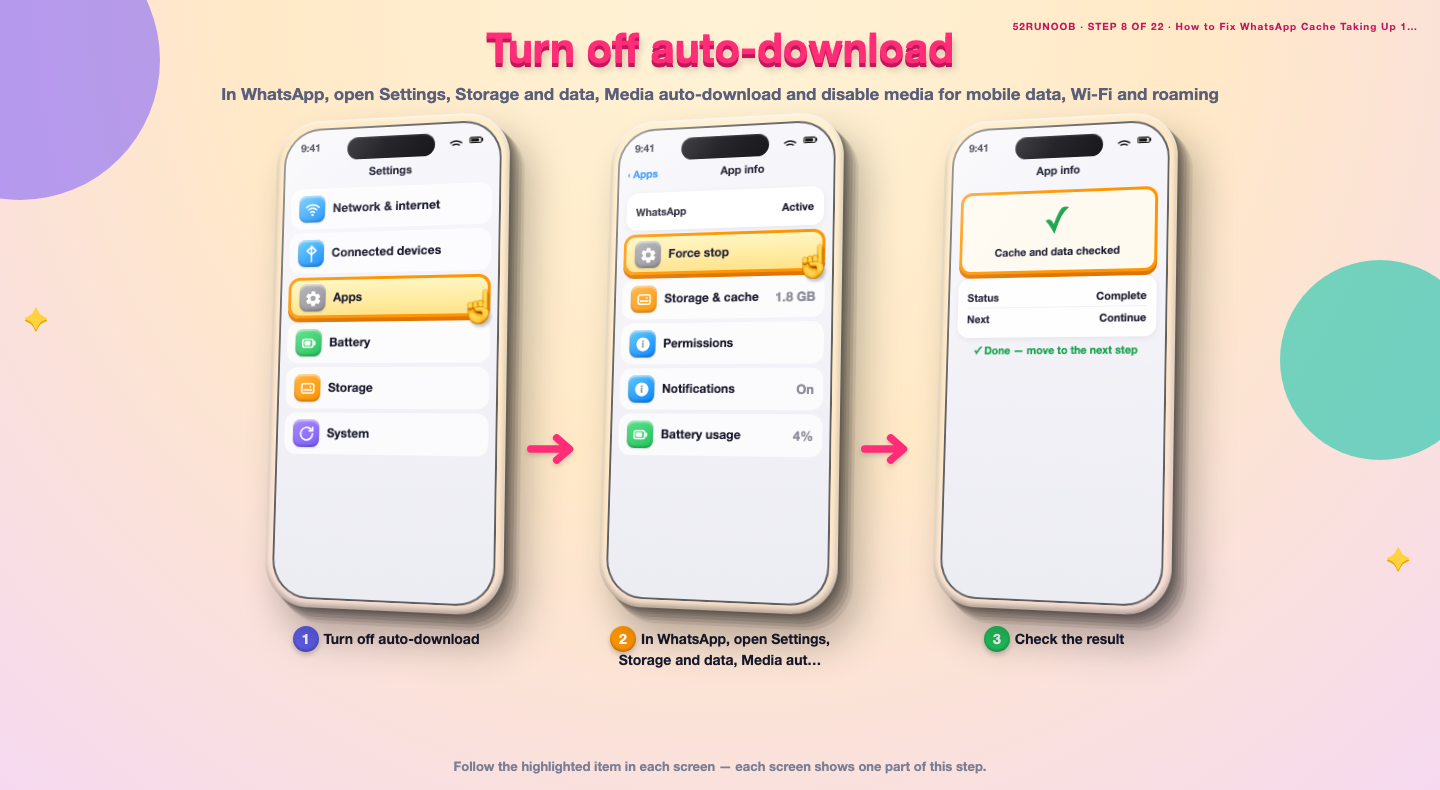
Step 8: Turn off auto-download
In WhatsApp, open Settings, Storage and data, Media auto-download and disable media for mobile data, Wi-Fi and roaming.
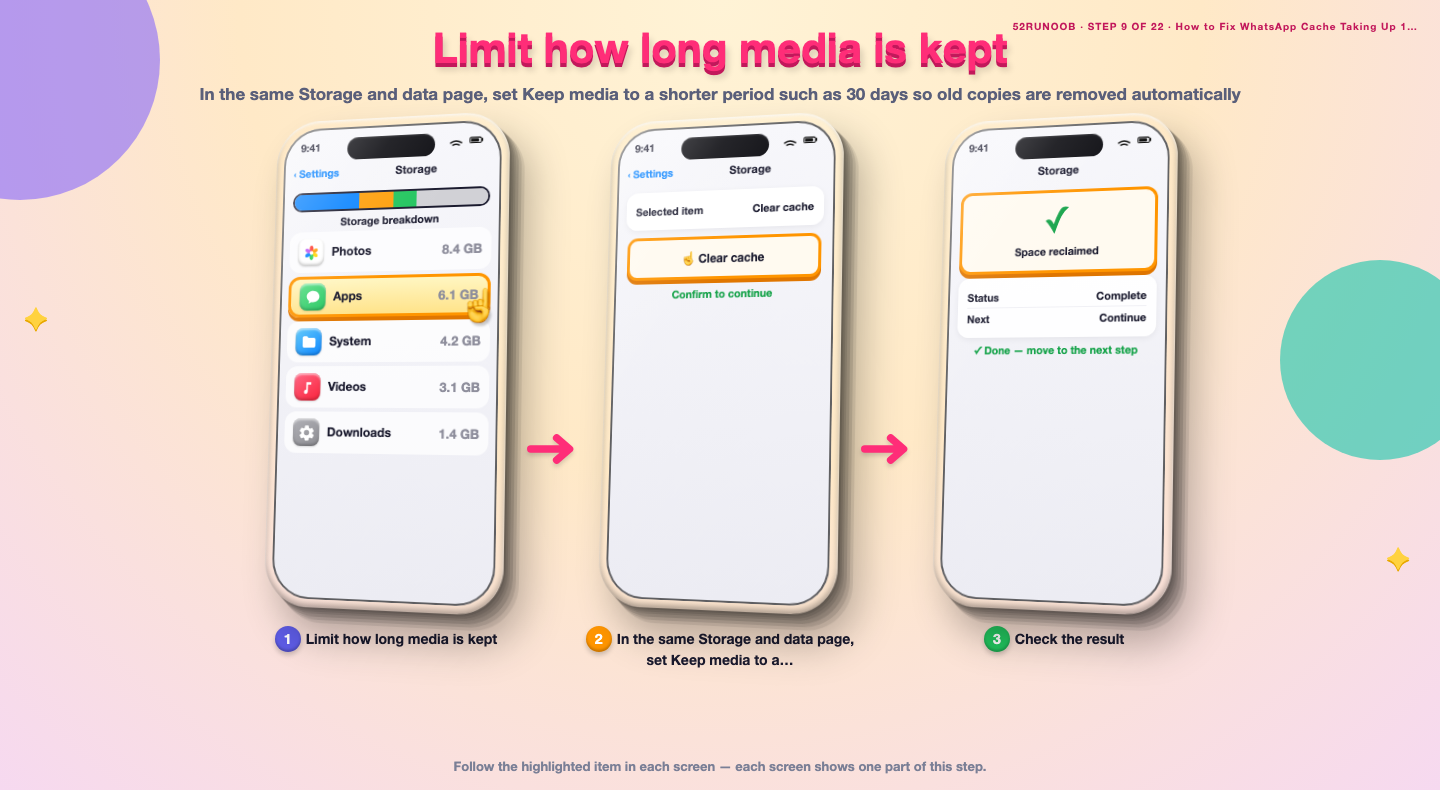
Step 9: Limit how long media is kept
In the same Storage and data page, set Keep media to a shorter period such as 30 days so old copies are removed automatically.
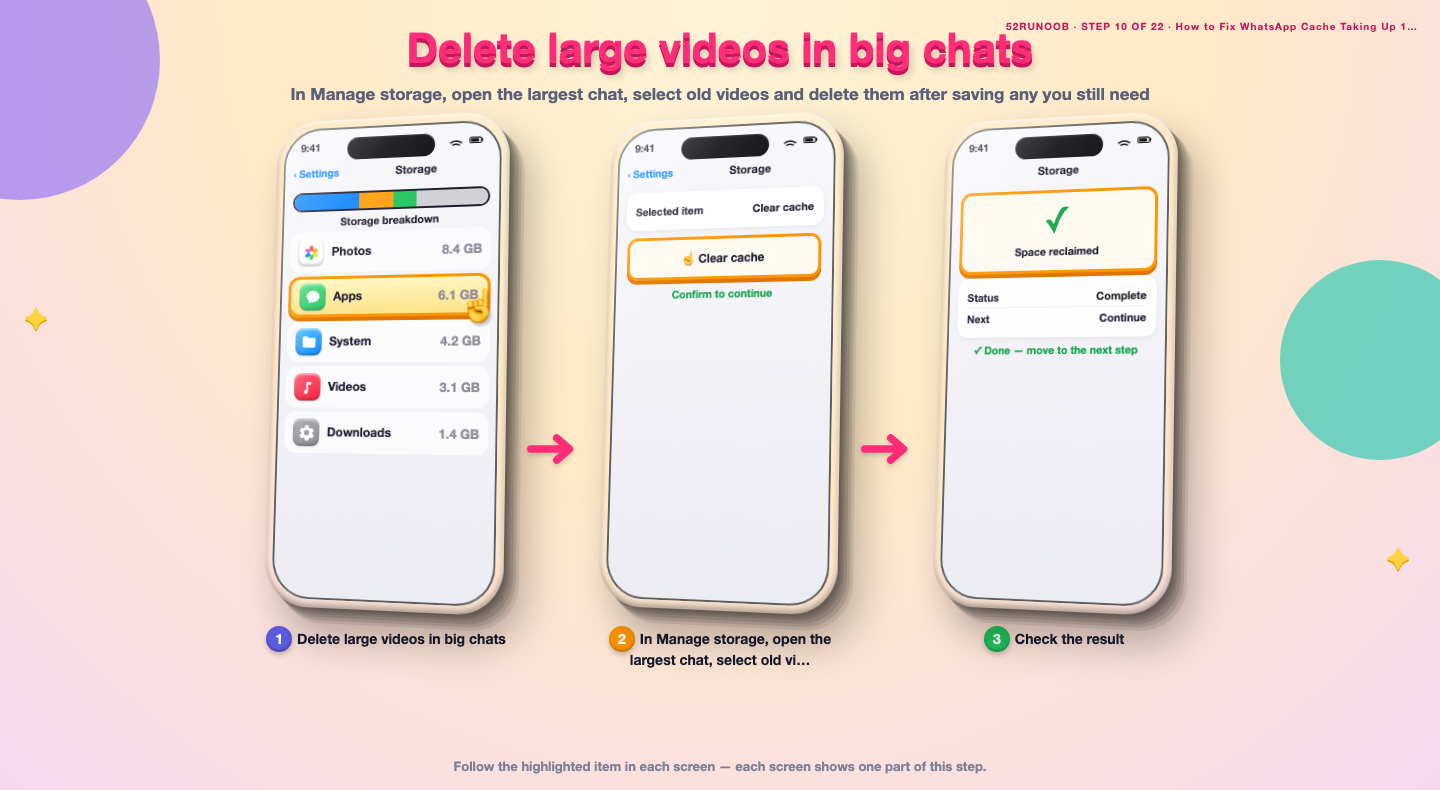
Step 10: Delete large videos in big chats
In Manage storage, open the largest chat, select old videos and delete them after saving any you still need.
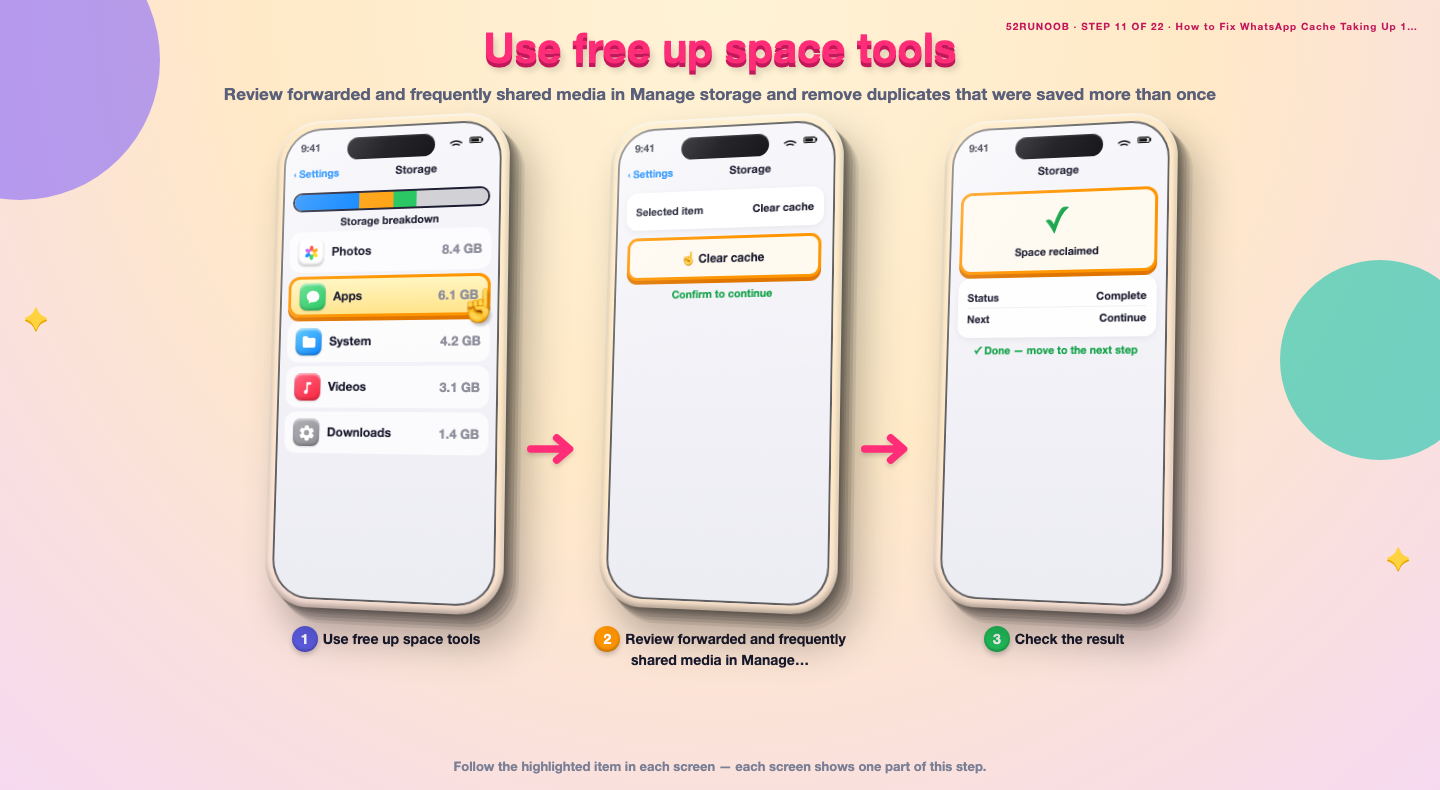
Step 11: Use free up space tools
Review forwarded and frequently shared media in Manage storage and remove duplicates that were saved more than once.
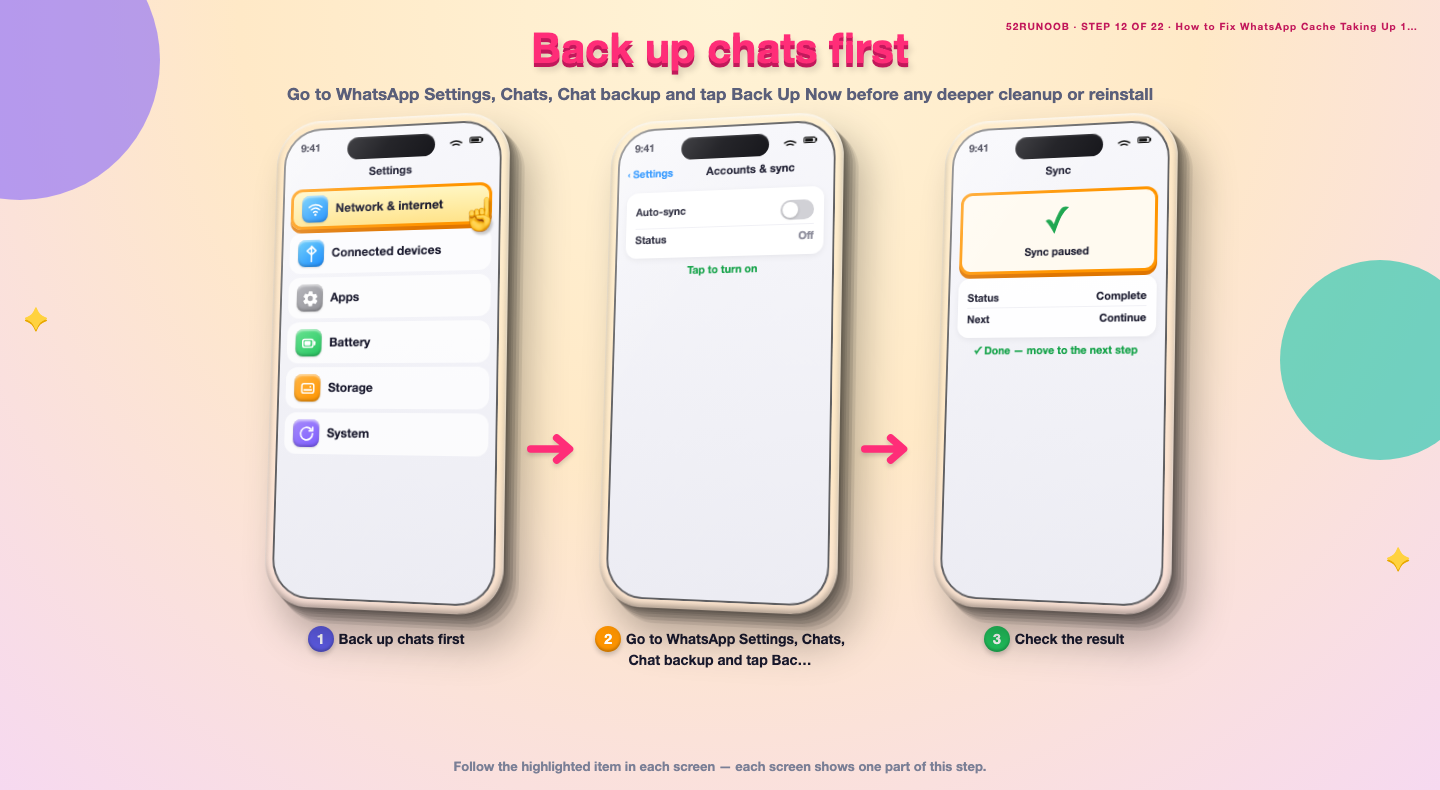
Step 12: Back up chats first
Go to WhatsApp Settings, Chats, Chat backup and tap Back Up Now before any deeper cleanup or reinstall.
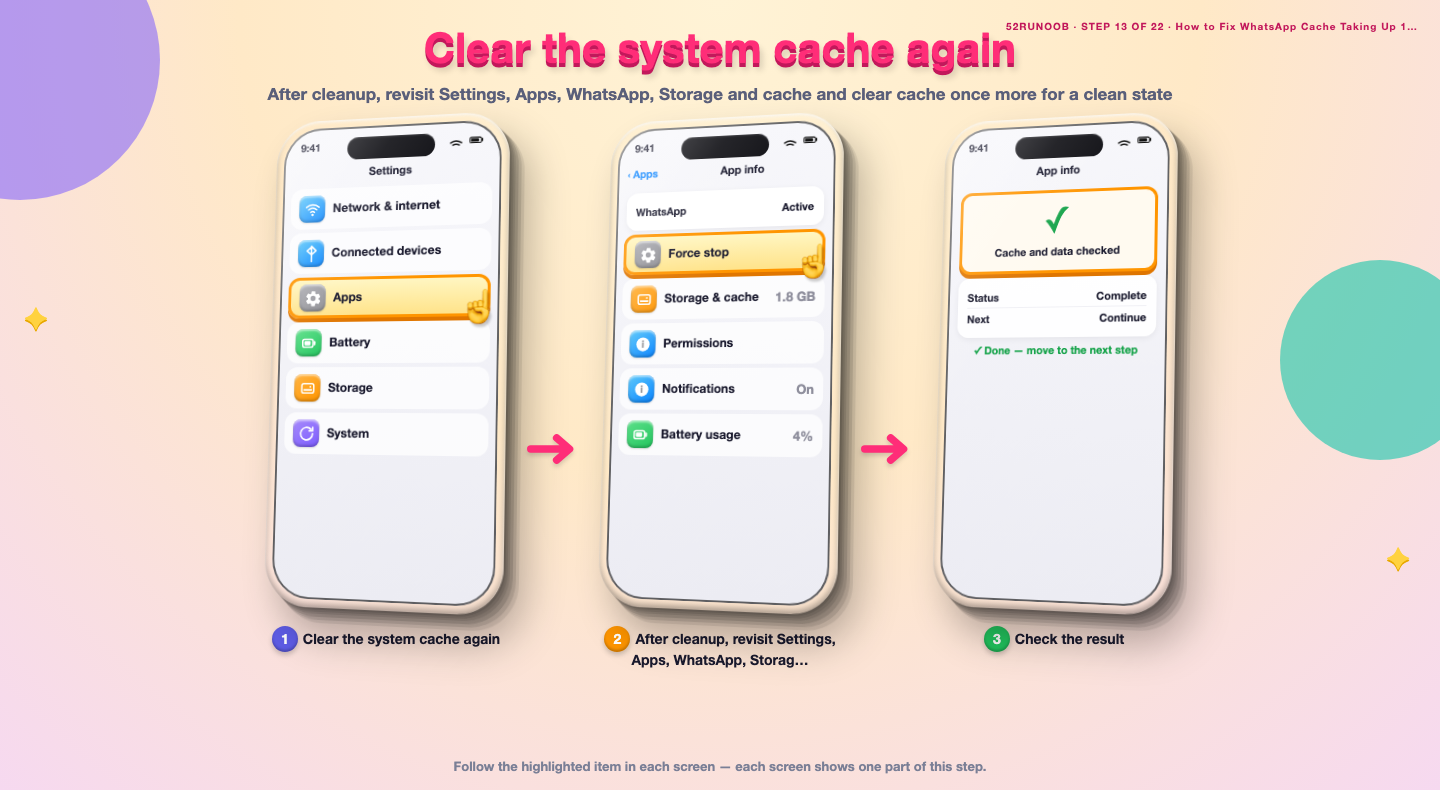
Step 13: Clear the system cache again
After cleanup, revisit Settings, Apps, WhatsApp, Storage and cache and clear cache once more for a clean state.
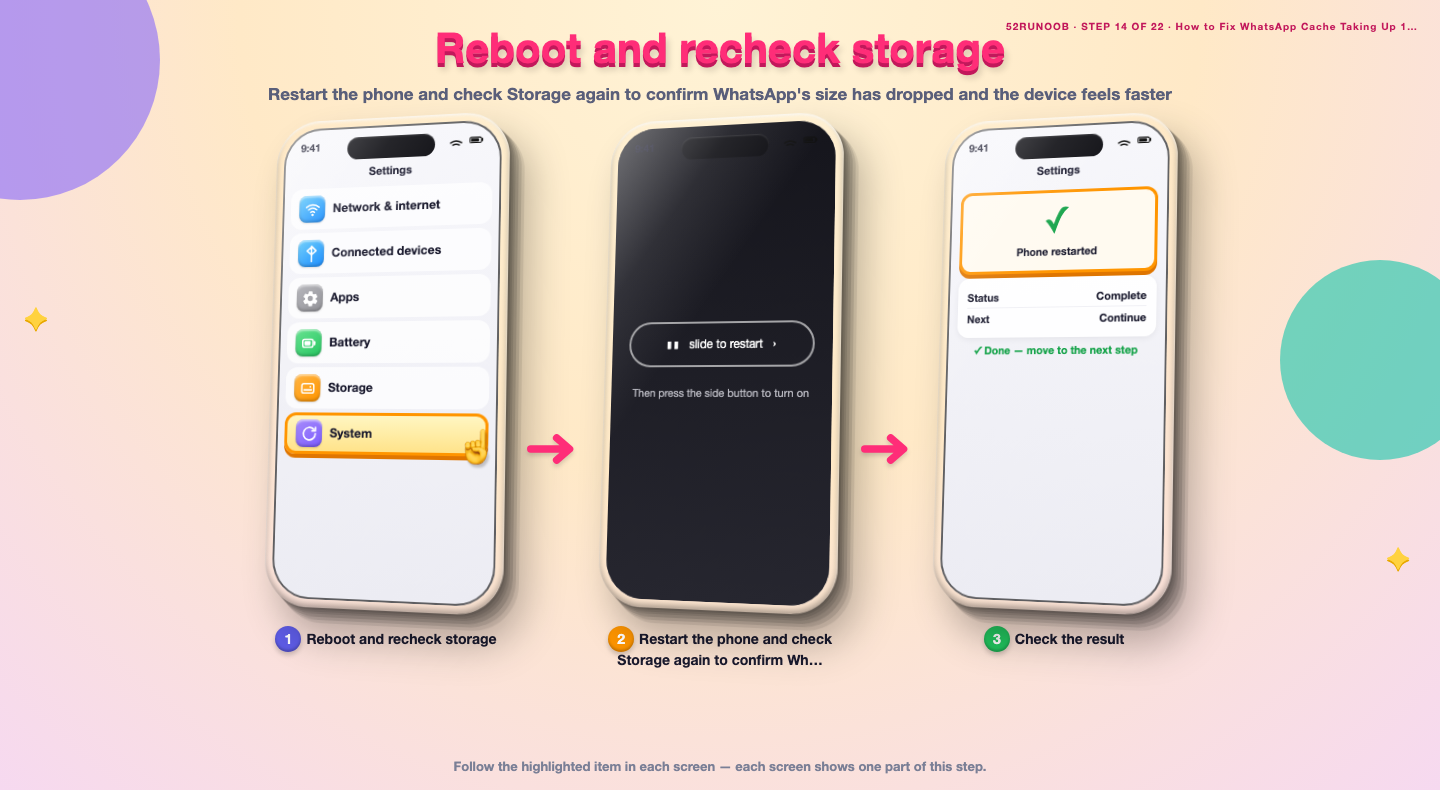
Step 14: Reboot and recheck storage
Restart the phone and check Storage again to confirm WhatsApp's size has dropped and the device feels faster.
Method 3 of 3: Stop the Cache From Coming Back
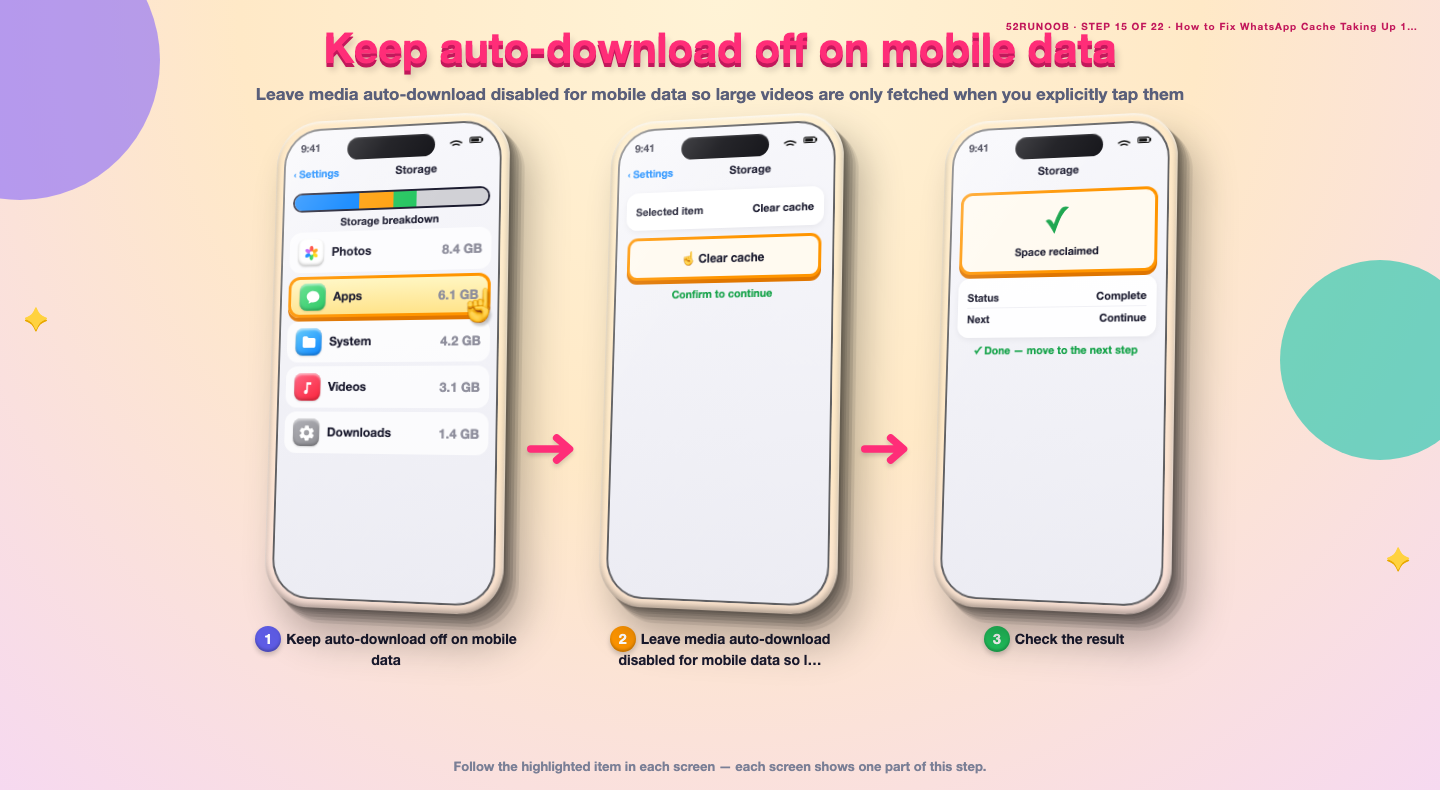
Step 15: Keep auto-download off on mobile data
Leave media auto-download disabled for mobile data so large videos are only fetched when you explicitly tap them.
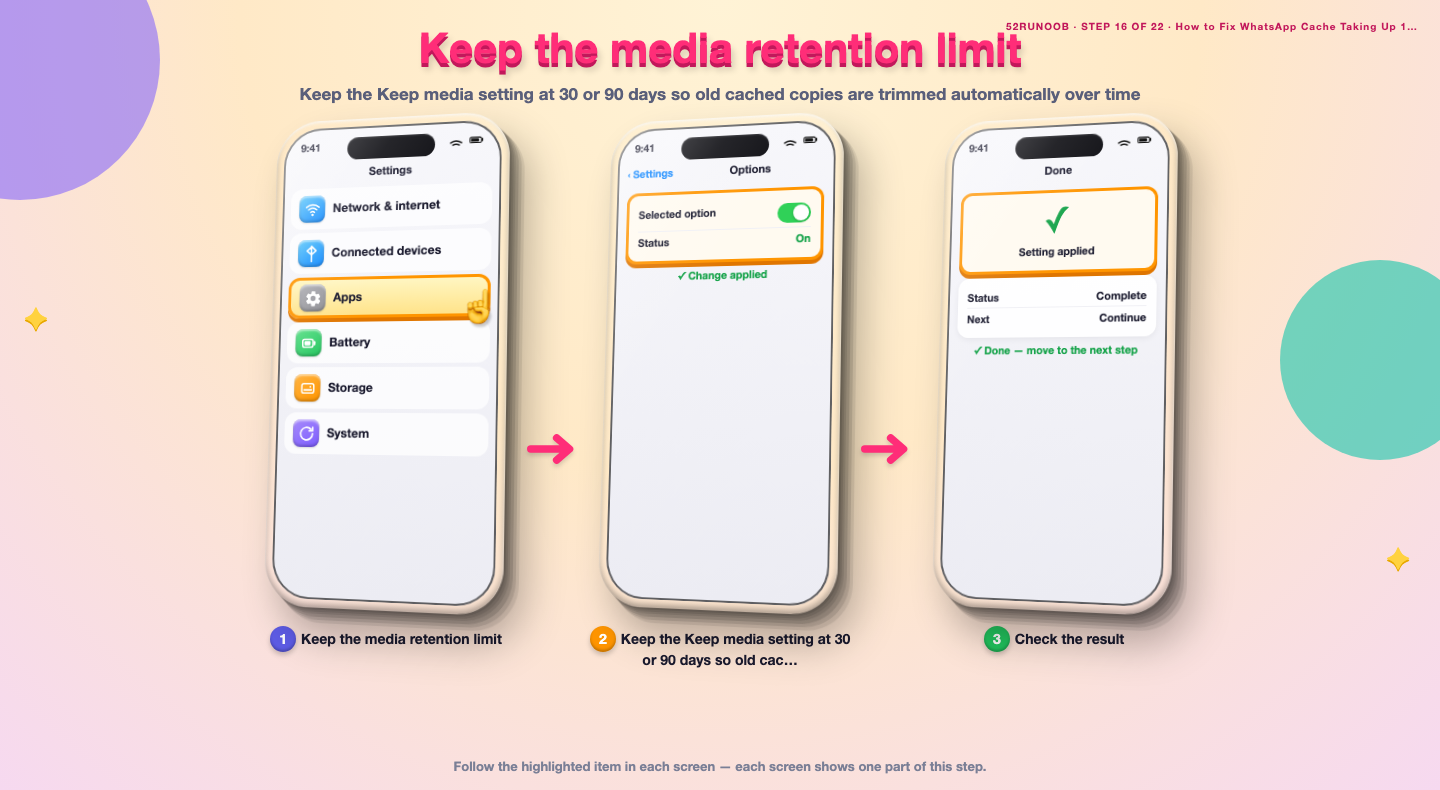
Step 16: Keep the media retention limit
Keep the Keep media setting at 30 or 90 days so old cached copies are trimmed automatically over time.
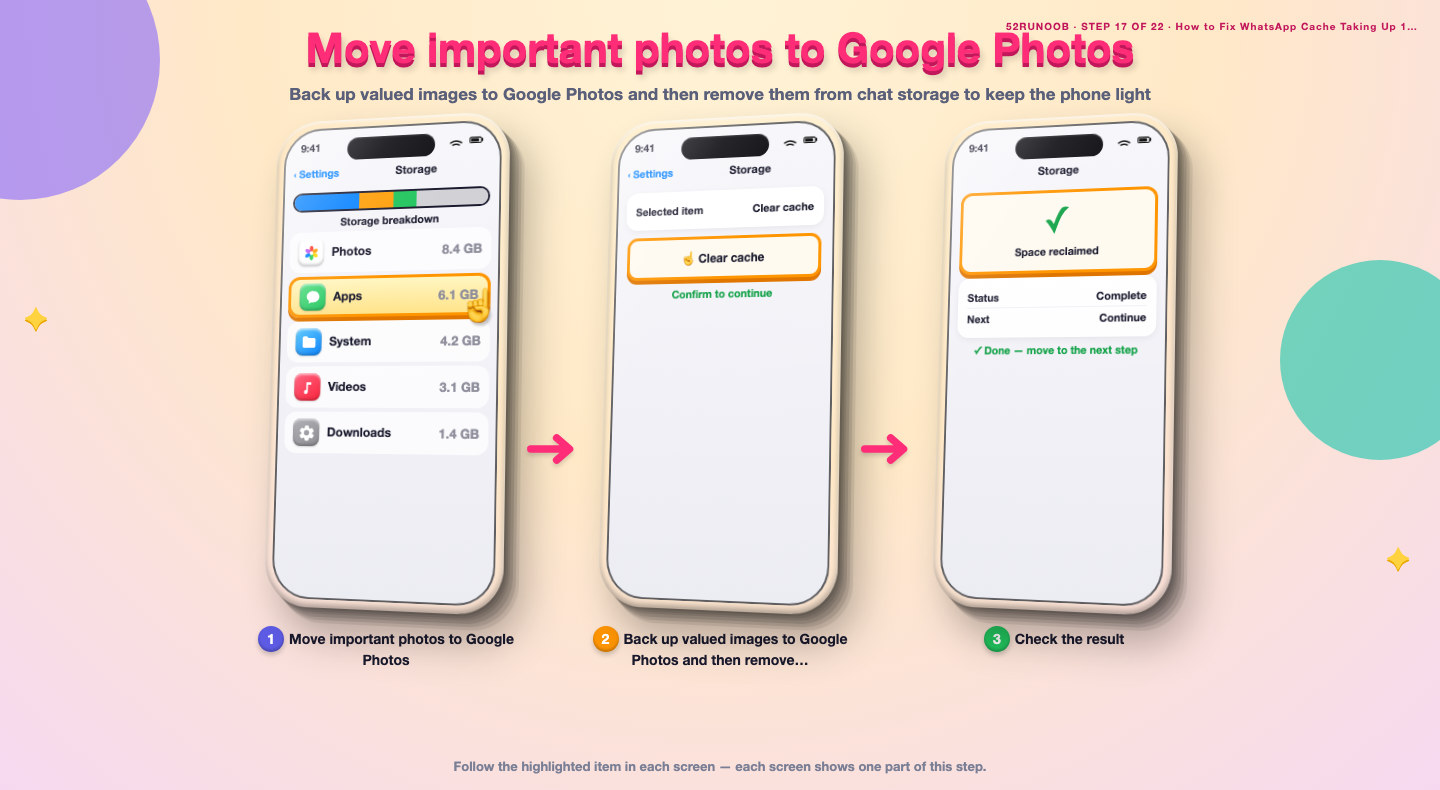
Step 17: Move important photos to Google Photos
Back up valued images to Google Photos and then remove them from chat storage to keep the phone light.
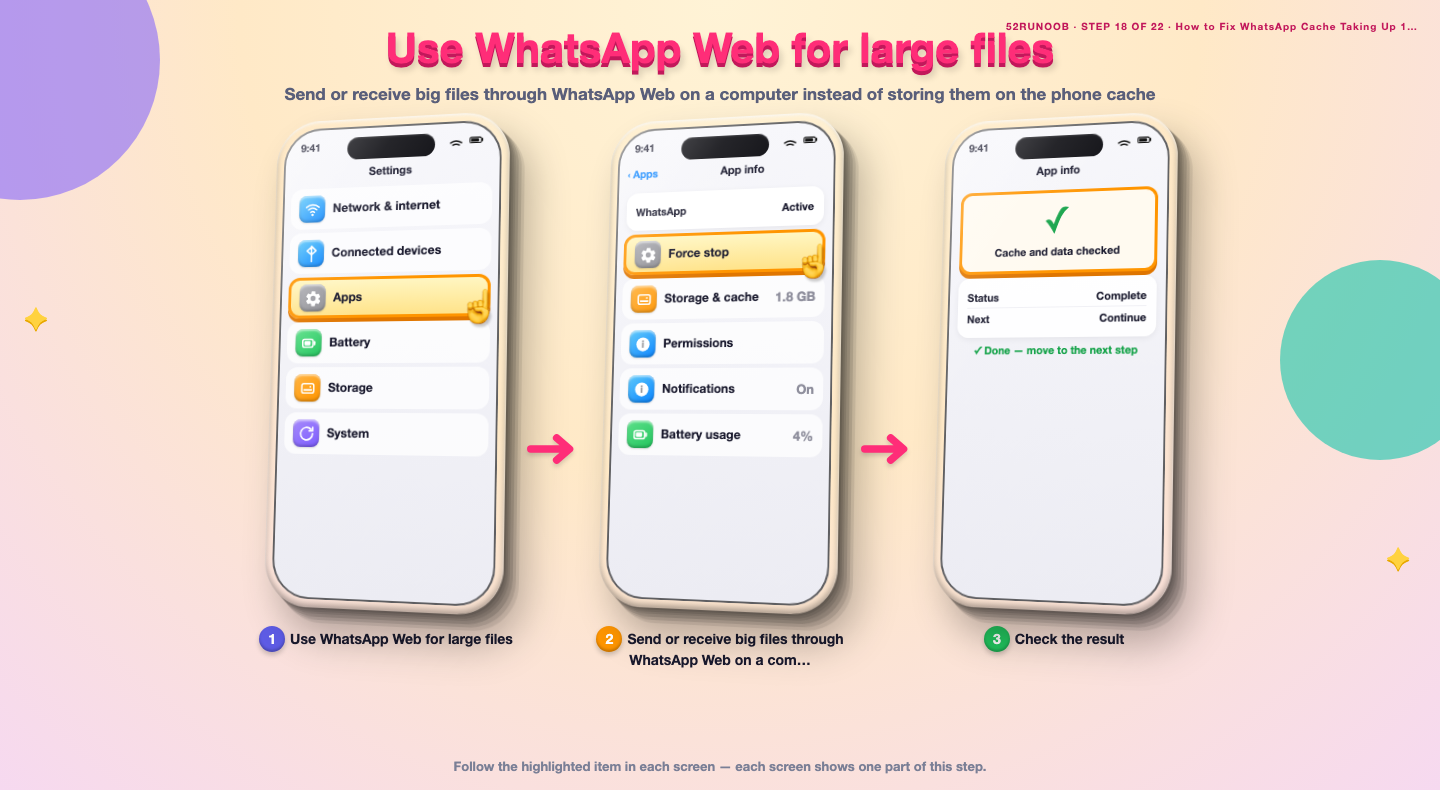
Step 18: Use WhatsApp Web for large files
Send or receive big files through WhatsApp Web on a computer instead of storing them on the phone cache.
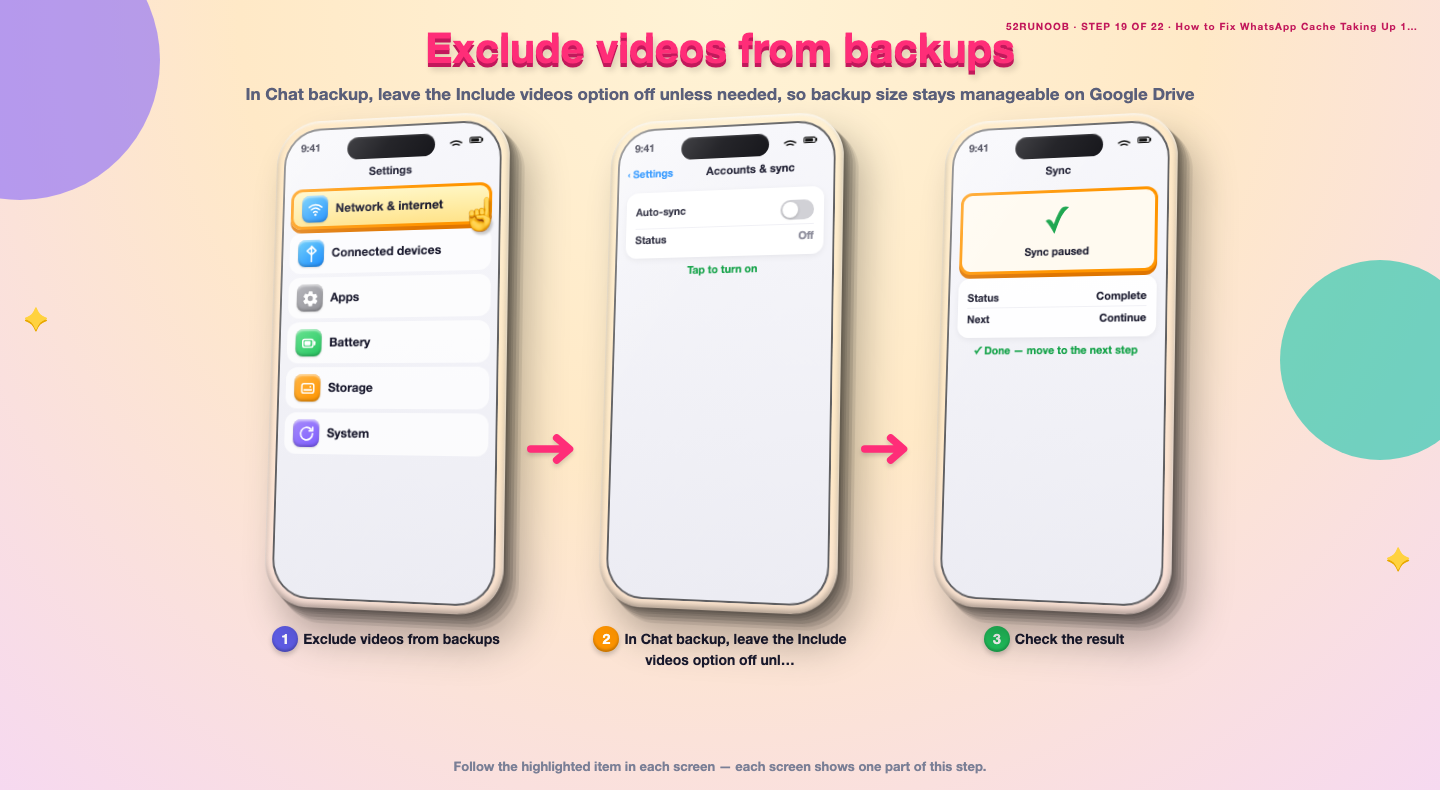
Step 19: Exclude videos from backups
In Chat backup, leave the Include videos option off unless needed, so backup size stays manageable on Google Drive.
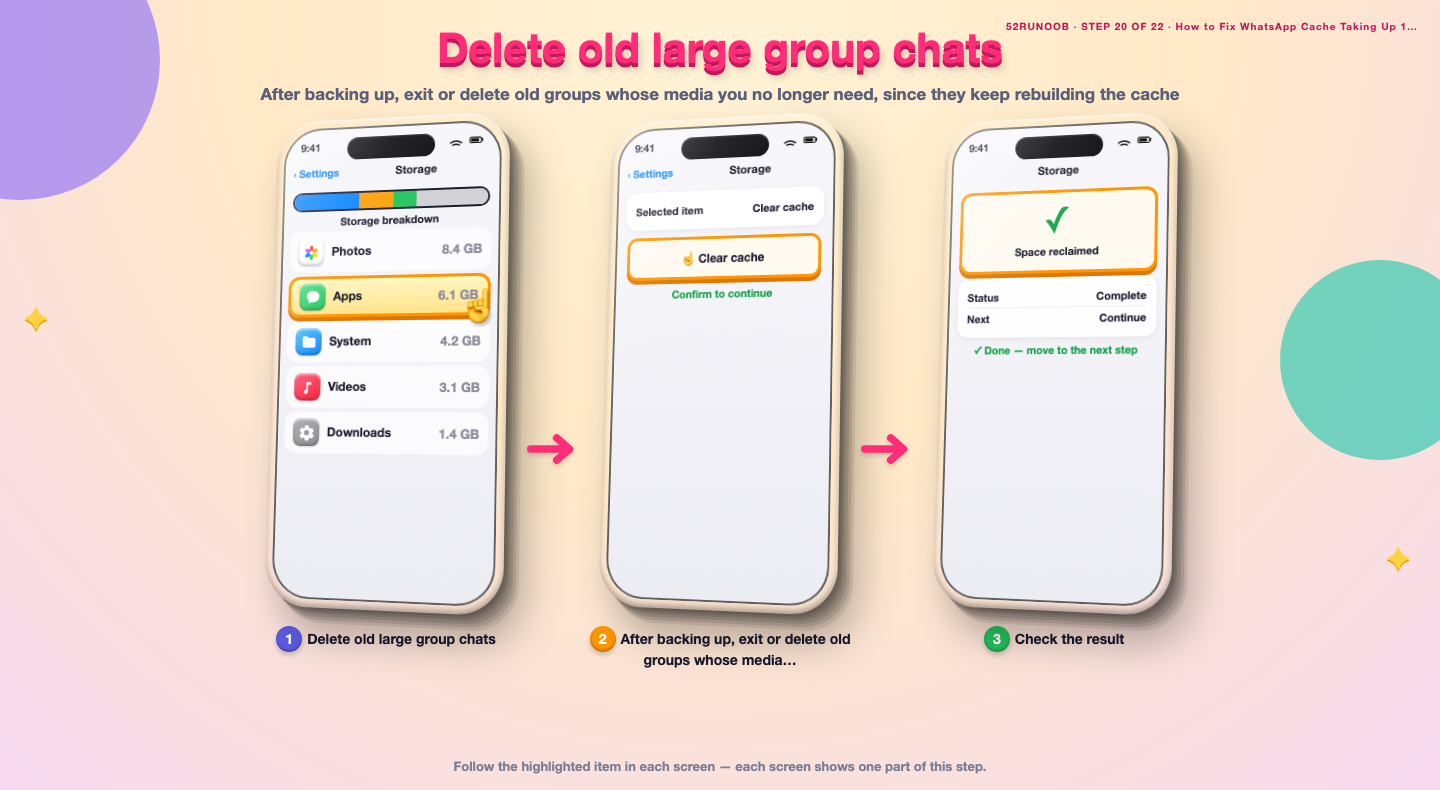
Step 20: Delete old large group chats
After backing up, exit or delete old groups whose media you no longer need, since they keep rebuilding the cache.
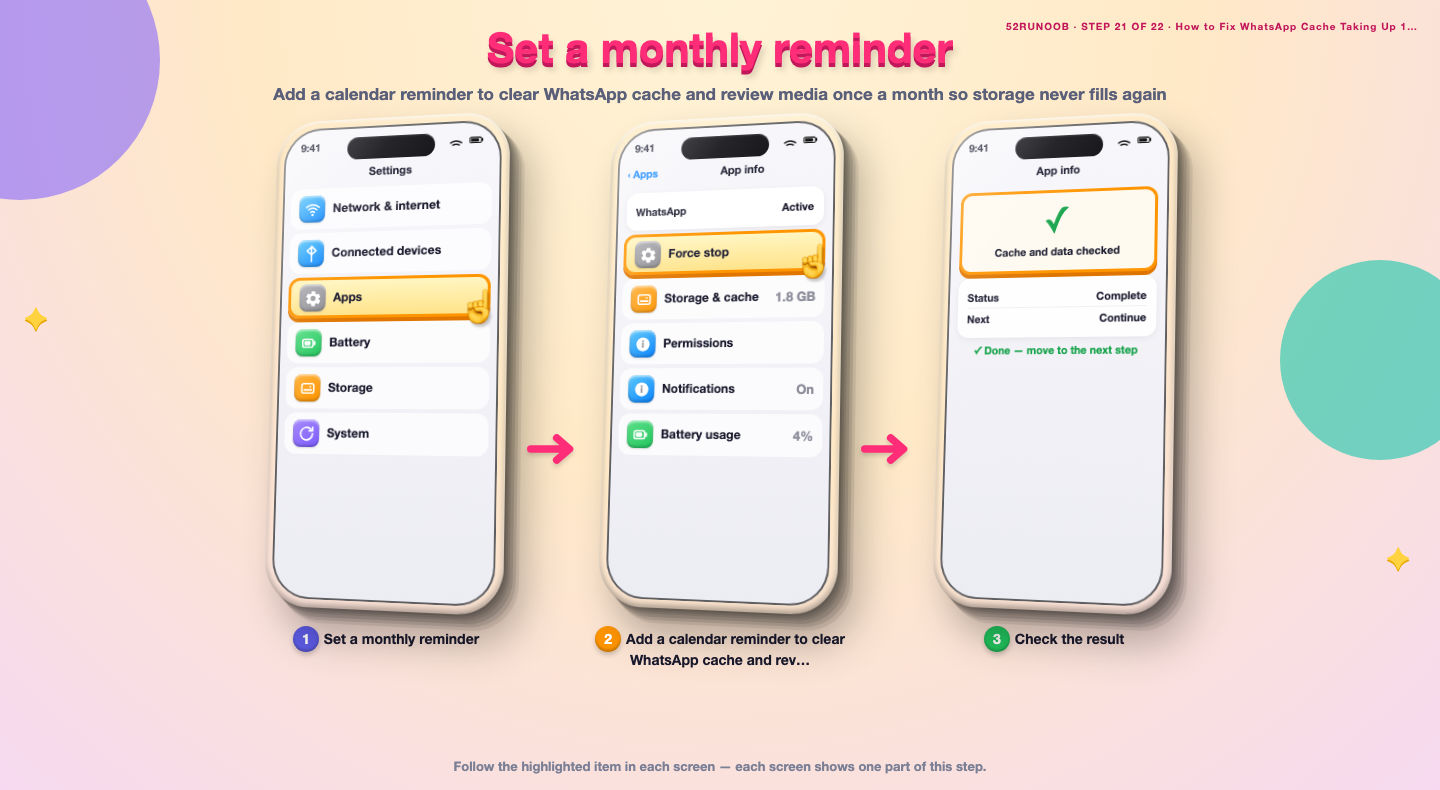
Step 21: Set a monthly reminder
Add a calendar reminder to clear WhatsApp cache and review media once a month so storage never fills again.
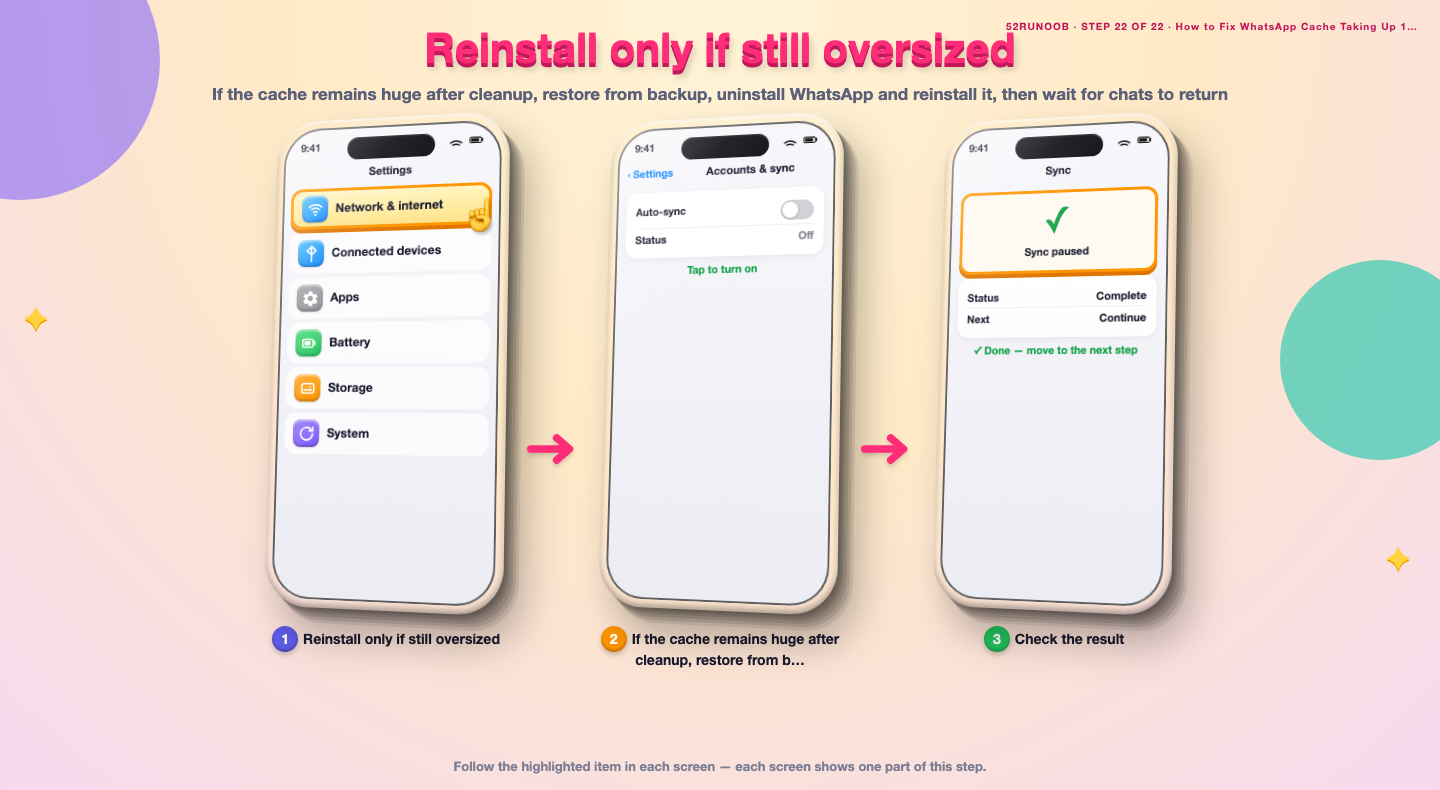
Step 22: Reinstall only if still oversized
If the cache remains huge after cleanup, restore from backup, uninstall WhatsApp and reinstall it, then wait for chats to return.
Tips
- Clearing cache never deletes your chat text or call history.
- Group chats with forwarded videos are usually the largest storage hogs.
- Turning off auto-download is the only way to stop the cache growing back quickly.
Warnings
- Clearing app data, unlike cache, removes local chat history unless it is backed up.
- Save important photos elsewhere before deleting them from a chat.
- Back up chats to Google Drive before a reinstall or major cleanup.
Frequently asked questions
Is the WhatsApp cache safe to clear?
Yes. The cache holds temporary copies of media your phone has already shown. Clearing it frees space without touching your messages, contacts or call history.
Will I lose photos if I clear the cache?
Not from your chats. The original media stays in the conversation and on WhatsApp's servers; only local temporary copies are removed. Media you deleted from the chat cannot be recovered from the cache.
Why is WhatsApp using 10GB?
Auto-downloaded videos, repeatedly forwarded clips and voice notes accumulate over years, especially in large groups. Manage storage shows exactly which chats hold the most data.
Is a large cache a sign of malware?
Usually not; it is normal accumulation from heavy use. If you never send media but the cache still explodes, check for an unknown device in WhatsApp Web and run a security scan.
References
- Google Photos - Free up storage. https://support.google.com/photos/answer/6193313
- Google Photos - Back up your photos. https://support.google.com/photos/answer/6220791
- Android Support - Speed up your Android device. https://support.google.com/android/answer/9454546
- wikiHow — How to Fix WhatsApp Cache Taking Up 10GB and Slowing the Phone. https://www.wikihow.com/Free-Up-Space-on-an-Android-Phone
Every guide is reviewed against its sources. See our editorial policy.
Reader comments
0 so farFinished this guide? Tell other readers what worked, what didn't, and what you would change.