System Data on an iPhone covers iOS itself plus caches, logs, Siri data and downloaded mail attachments. A figure above 30GB is usually inflated by app caches and temporary files rather than the operating system alone. Restart, offload heavy apps, clear safe caches and keep free space before using a reset.
This guide walks through the process in clear illustrated steps, from the first preparation to a finished result. Each step has its own picture, so you can compare your progress as you go.
How to use this guide
Work through the steps in order. Method 1 of 3 covers the basics, and the later methods offer alternatives and finishing touches. If you only have a minute, skim the Quick steps box above and come back for the details.
Related guides
- How to Clean your house fast
- How to Prepare for an international flight
- How to Sleep better at night
- How to Fix windows 11 slow after waking from sleep with 100 disk
- Browse all Fix Slow Device guides
- All 52runoob guides
Trusted external resources
A note on sources
We check each guide against the official resources listed in References at the end of this article. External links open in a new tab; the related guides above stay on this site.
Quick steps
- Check System Data in iPhone Storage.
- Restart the iPhone to clear temporary caches.
- Offload or delete the heaviest apps.
- Clear Safari and unused mail account data.
- Update iOS and keep ten percent storage free.
Things you'll need
- An iPhone with iOS installed
- Access to Settings, General, iPhone Storage
- A Wi-Fi connection and a power source for updates
- An iCloud or computer backup before any reset
Step-by-step
Method 1 of 3: Understand and Measure System Data
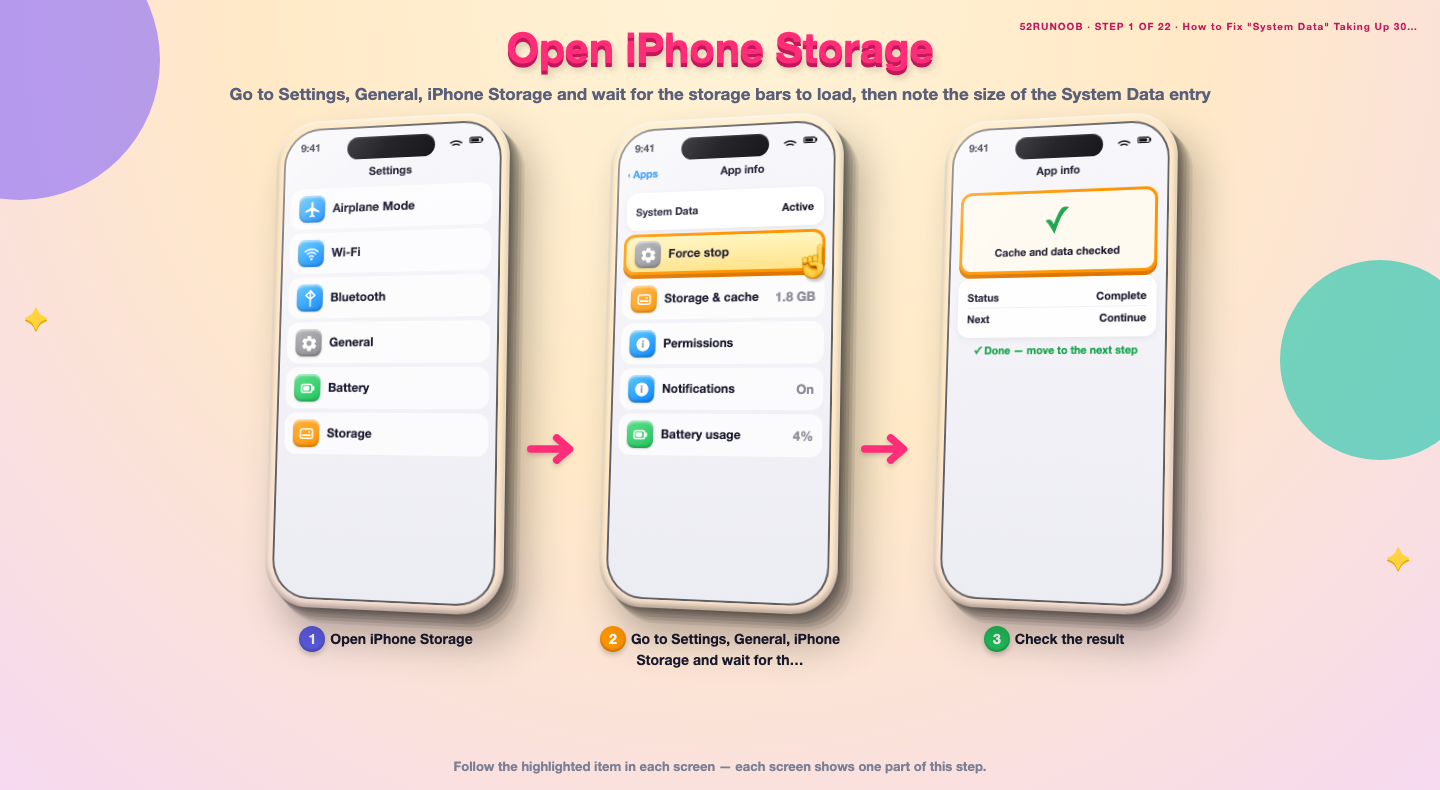
Step 1: Open iPhone Storage
Go to Settings, General, iPhone Storage and wait for the storage bars to load, then note the size of the System Data entry.
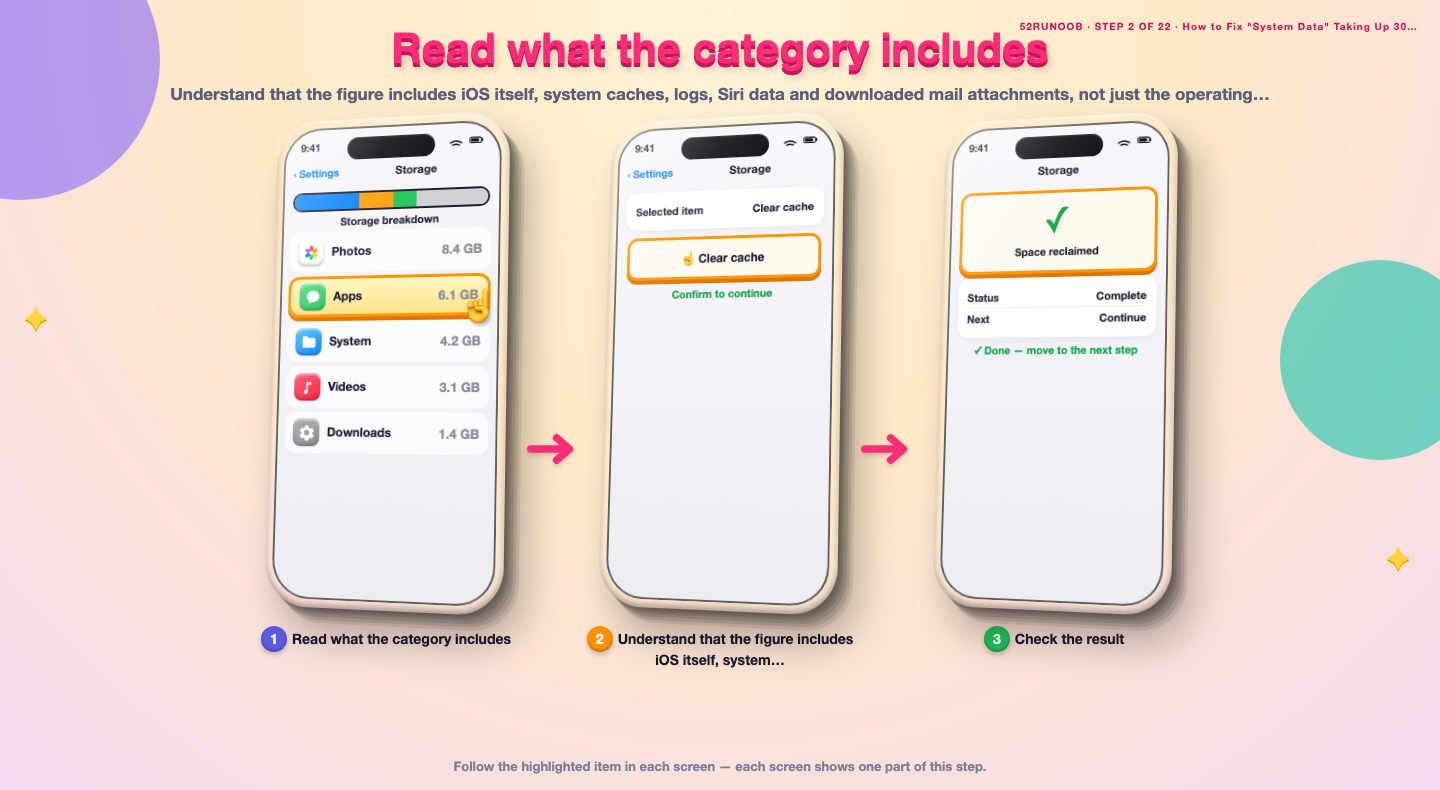
Step 2: Read what the category includes
Understand that the figure includes iOS itself, system caches, logs, Siri data and downloaded mail attachments, not just the operating system.
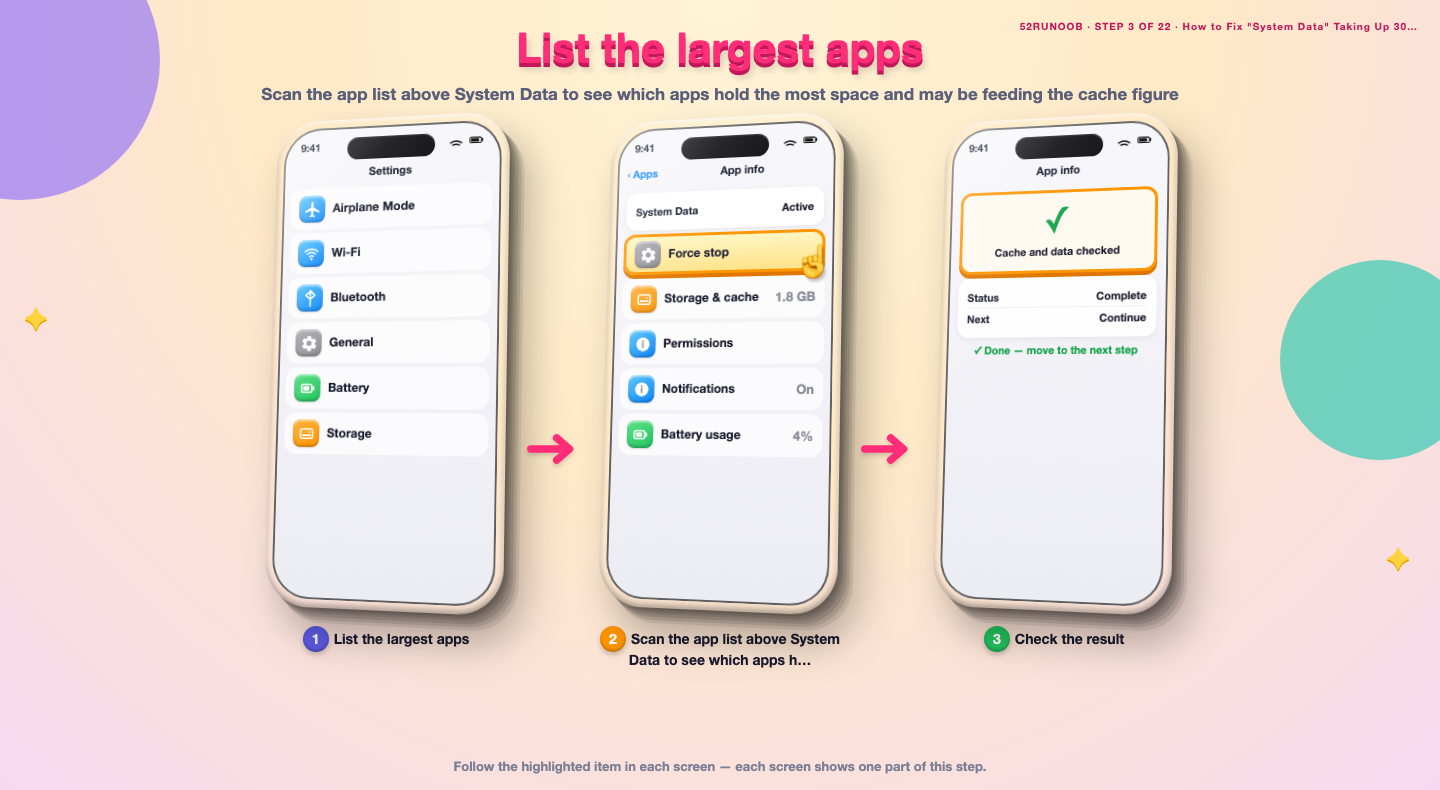
Step 3: List the largest apps
Scan the app list above System Data to see which apps hold the most space and may be feeding the cache figure.
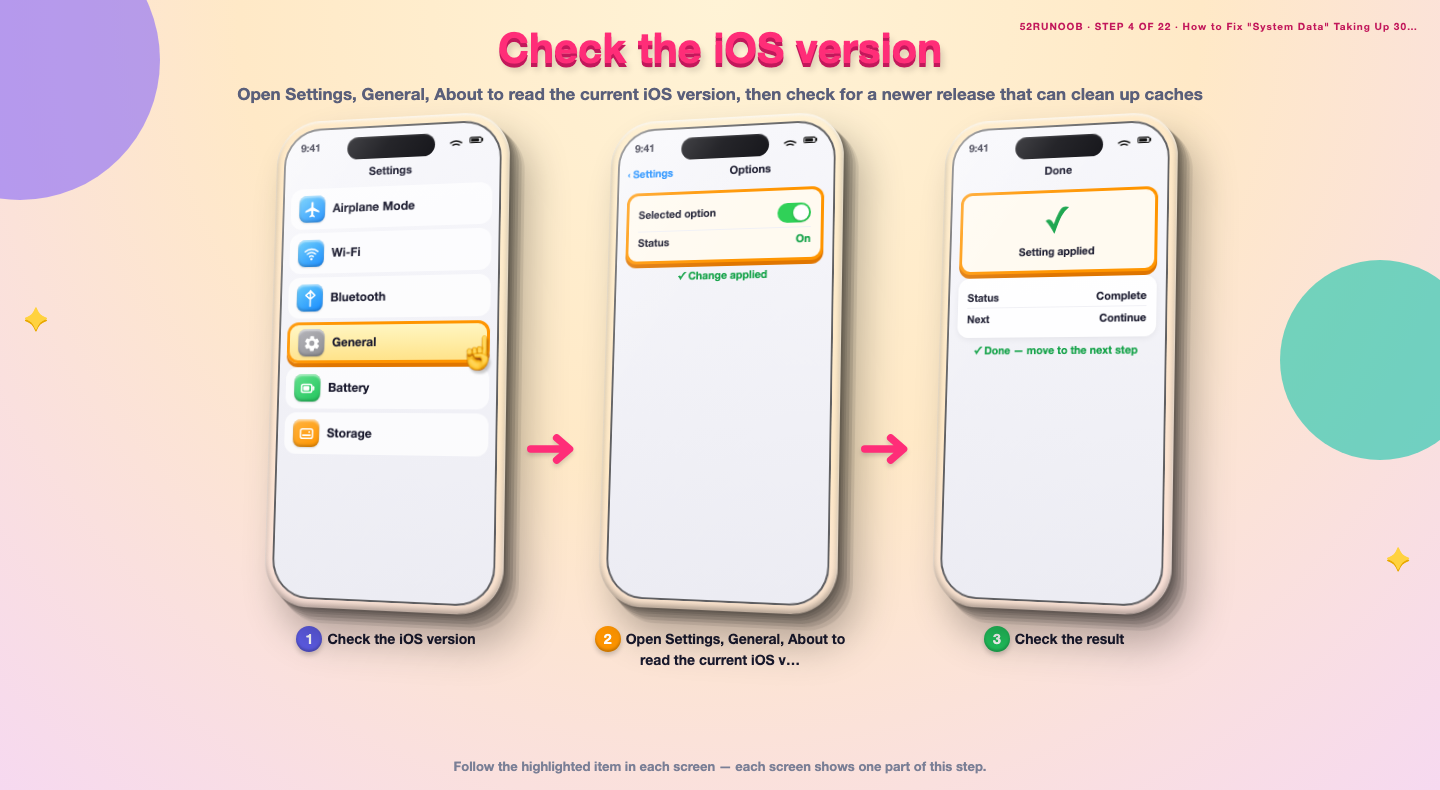
Step 4: Check the iOS version
Open Settings, General, About to read the current iOS version, then check for a newer release that can clean up caches.
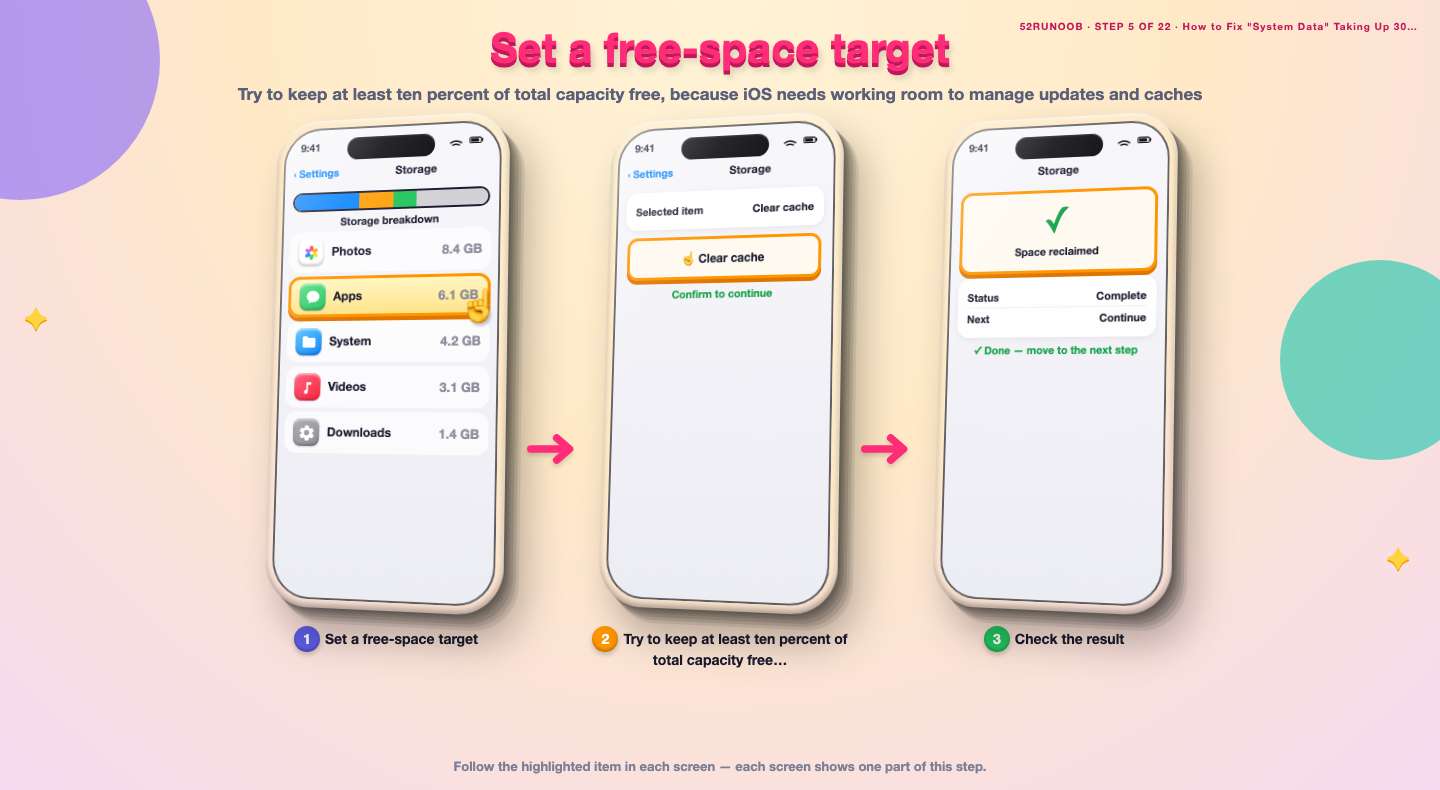
Step 5: Set a free-space target
Try to keep at least ten percent of total capacity free, because iOS needs working room to manage updates and caches.
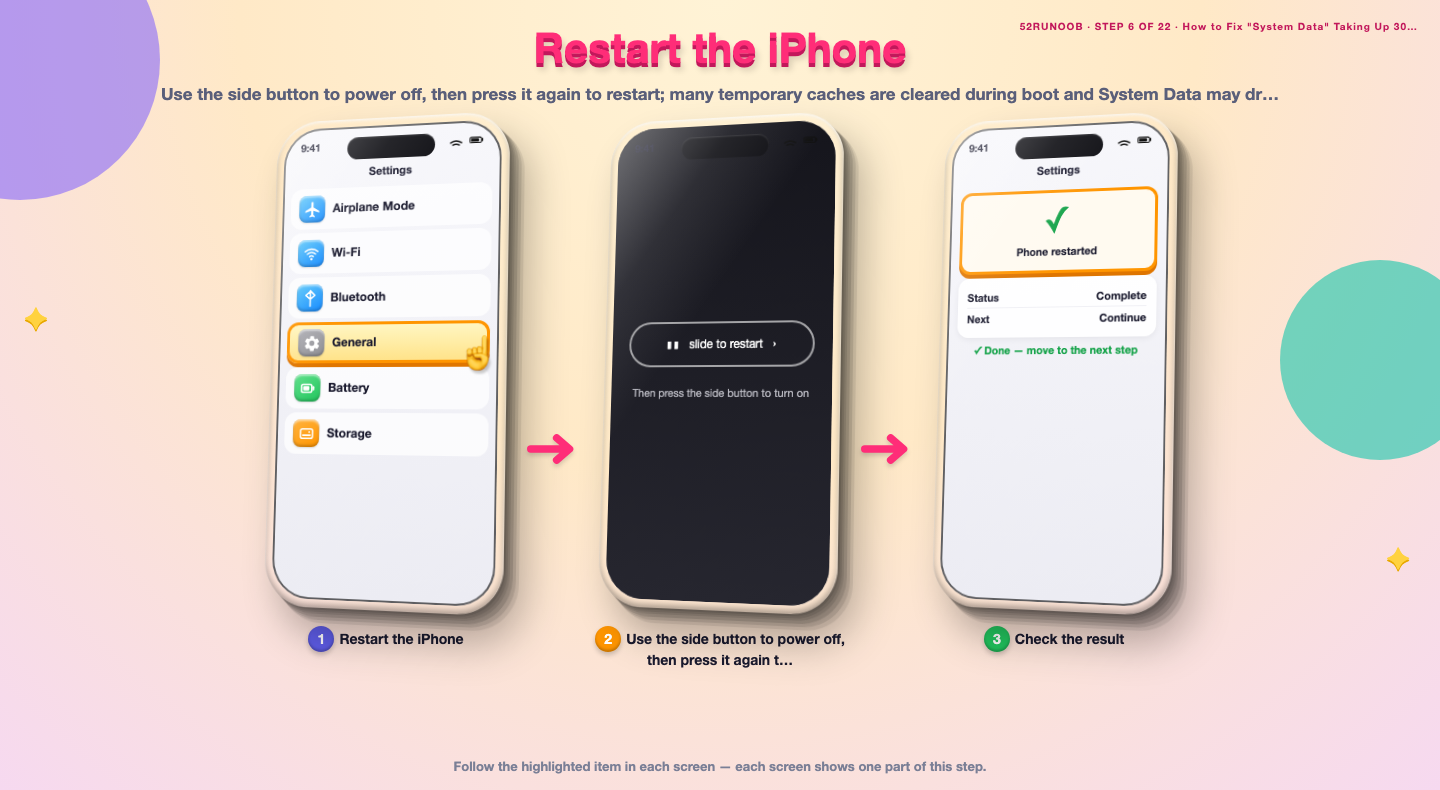
Step 6: Restart the iPhone
Use the side button to power off, then press it again to restart; many temporary caches are cleared during boot and System Data may drop.
Method 2 of 3: Clear Safe Caches
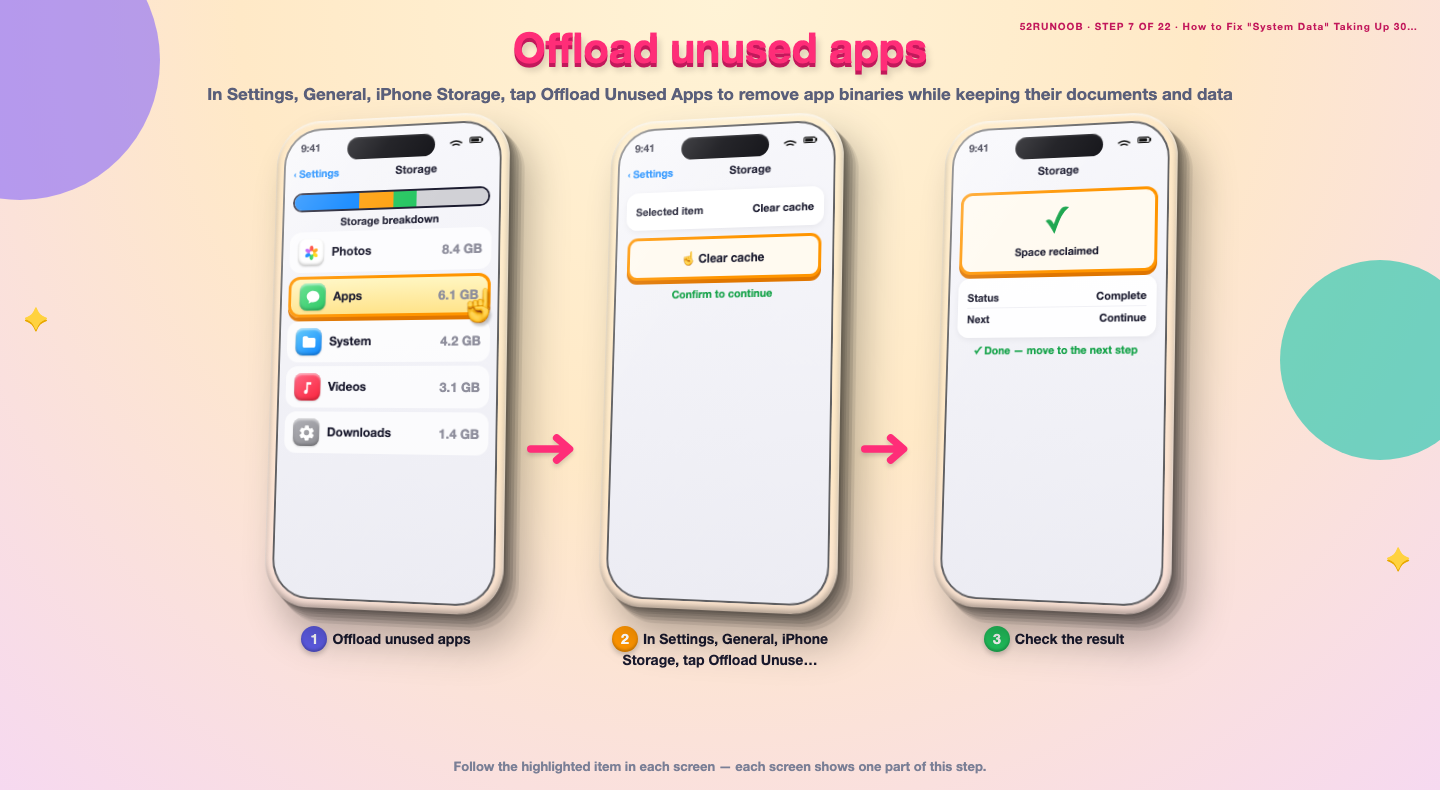
Step 7: Offload unused apps
In Settings, General, iPhone Storage, tap Offload Unused Apps to remove app binaries while keeping their documents and data.
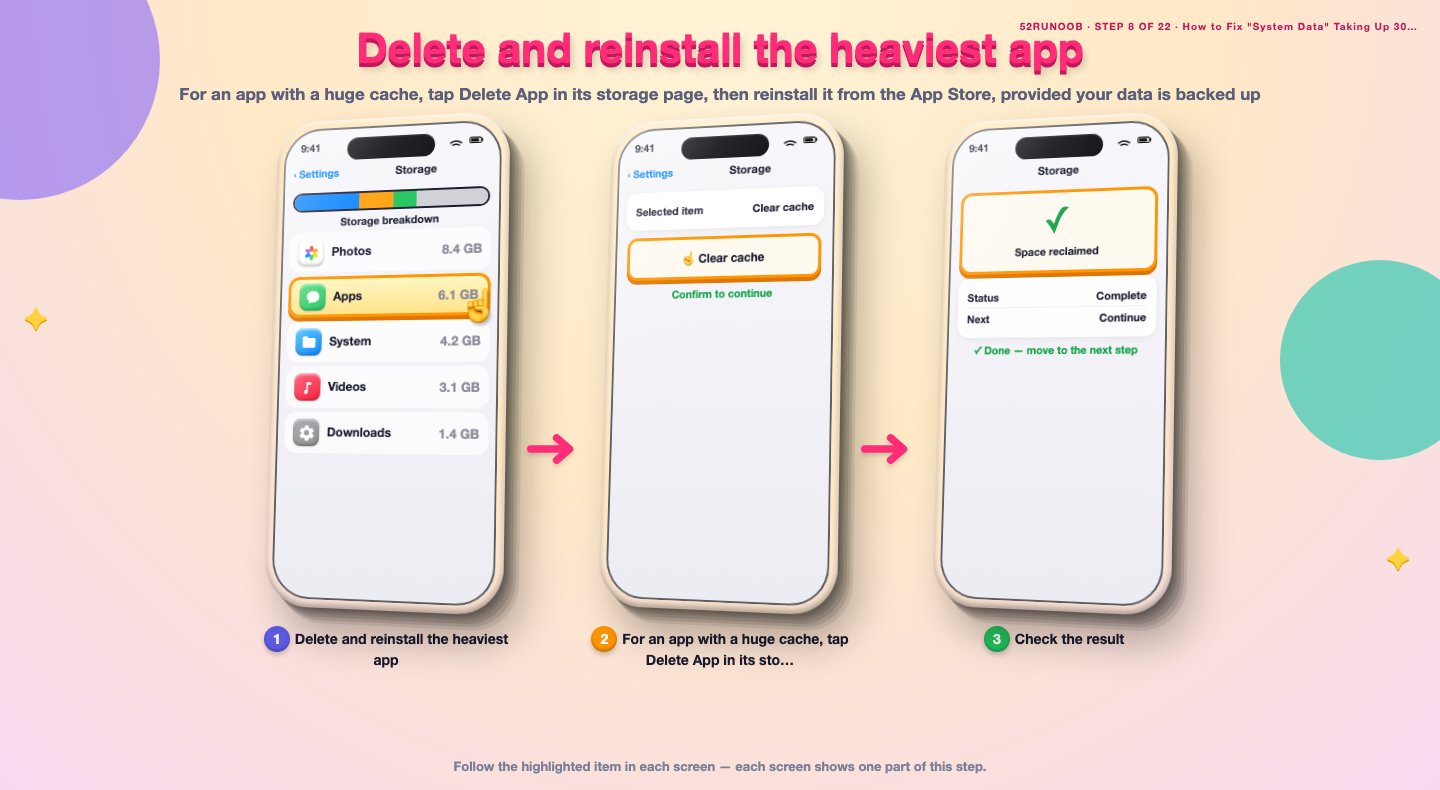
Step 8: Delete and reinstall the heaviest app
For an app with a huge cache, tap Delete App in its storage page, then reinstall it from the App Store, provided your data is backed up.
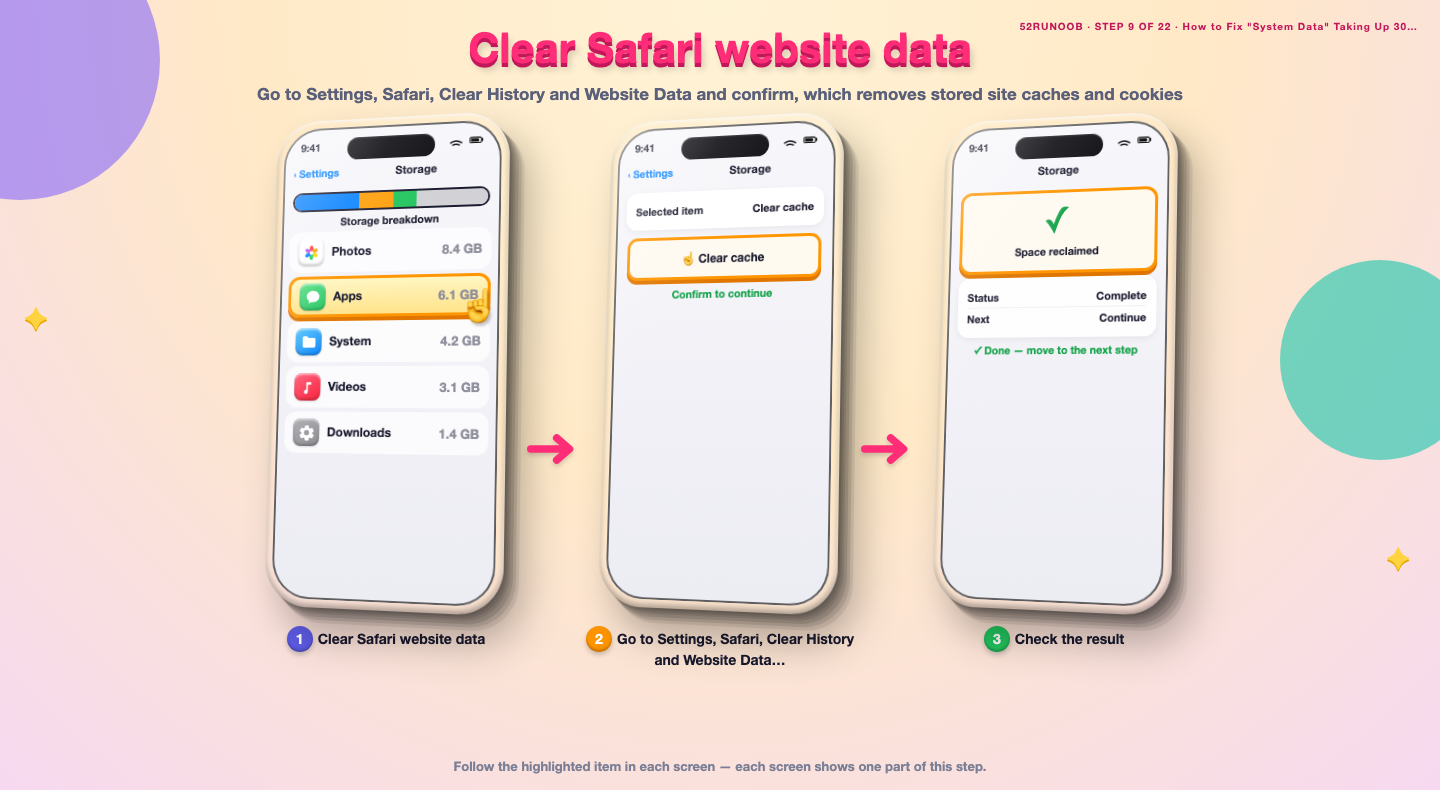
Step 9: Clear Safari website data
Go to Settings, Safari, Clear History and Website Data and confirm, which removes stored site caches and cookies.
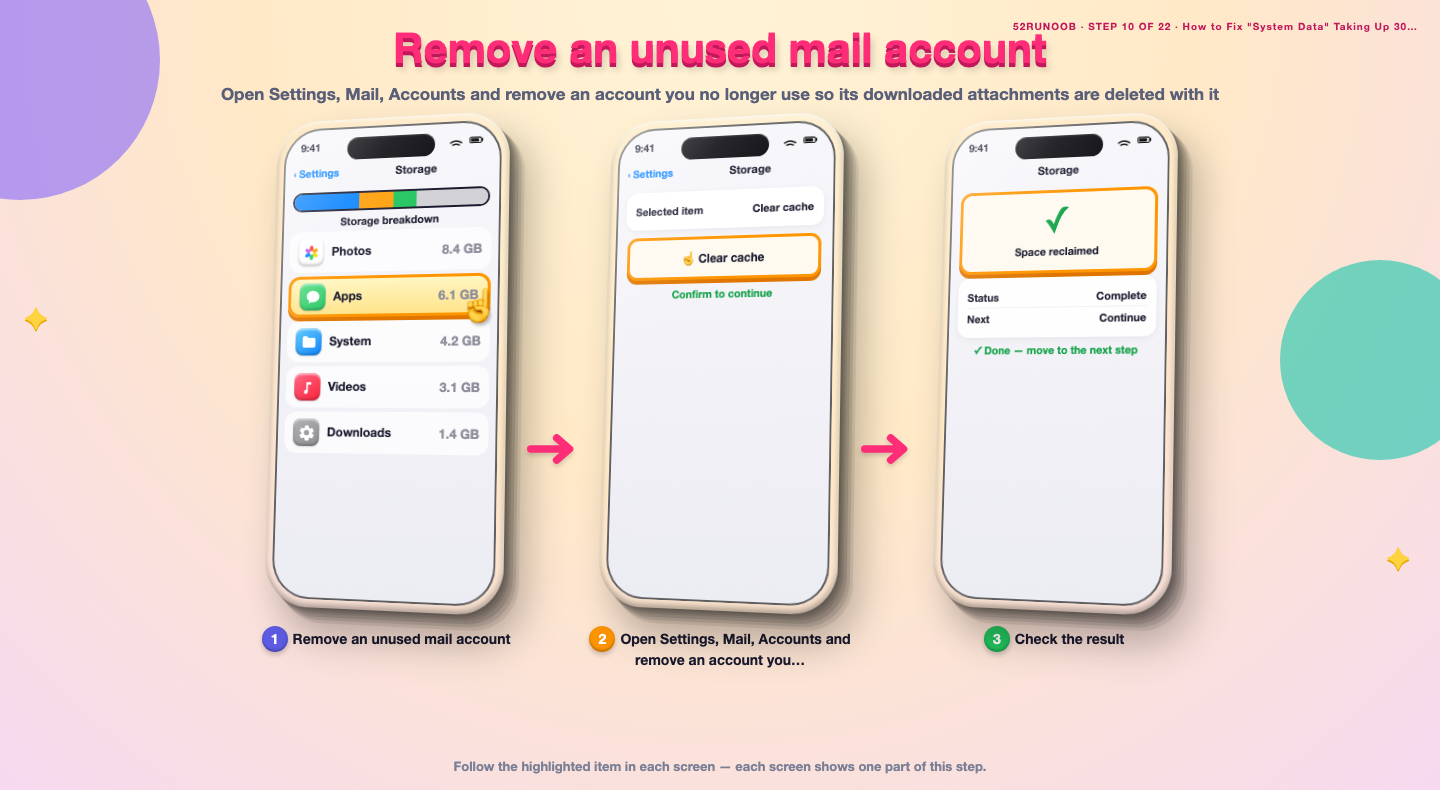
Step 10: Remove an unused mail account
Open Settings, Mail, Accounts and remove an account you no longer use so its downloaded attachments are deleted with it.
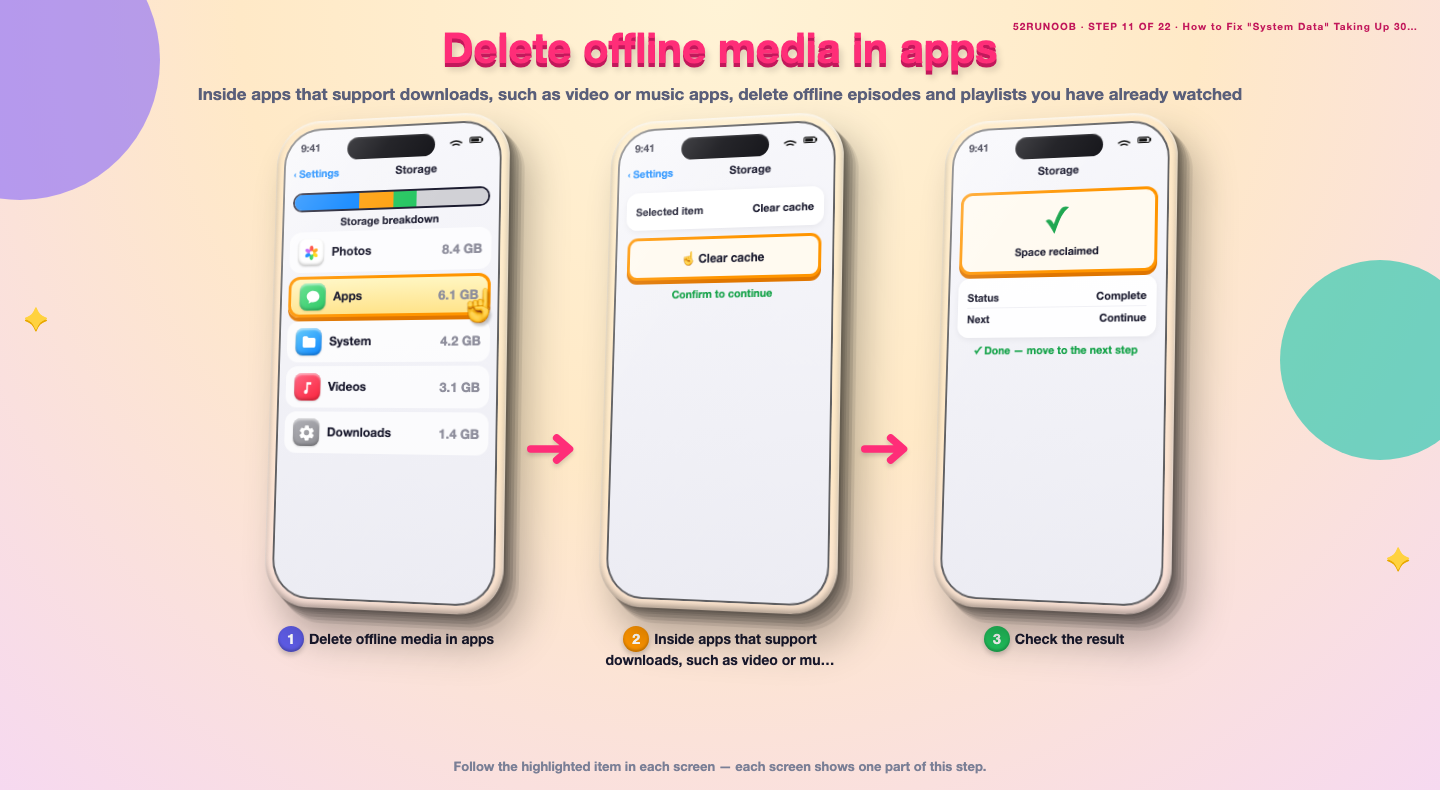
Step 11: Delete offline media in apps
Inside apps that support downloads, such as video or music apps, delete offline episodes and playlists you have already watched.
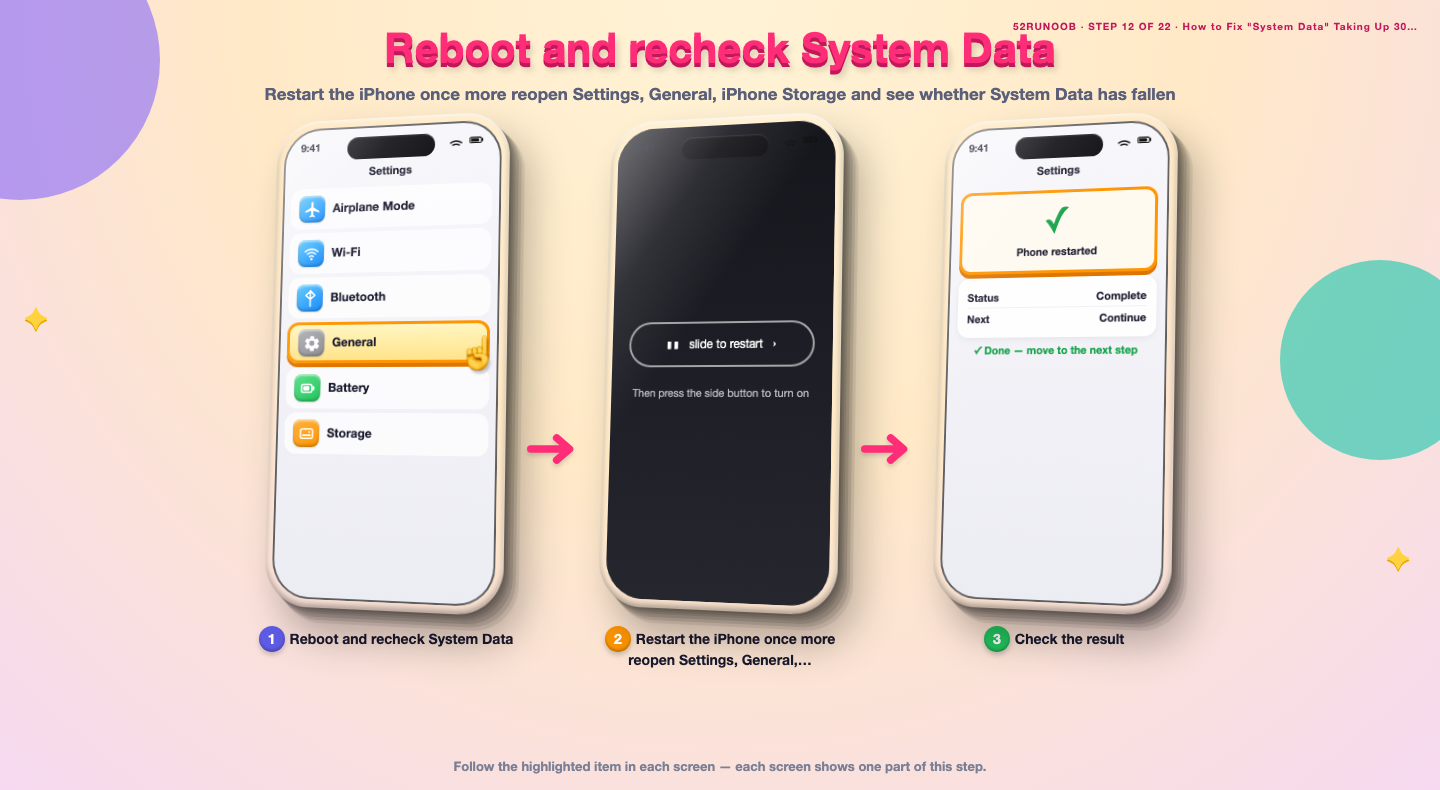
Step 12: Reboot and recheck System Data
Restart the iPhone once more reopen Settings, General, iPhone Storage and see whether System Data has fallen.
Method 3 of 3: Deeper Reset and Prevention
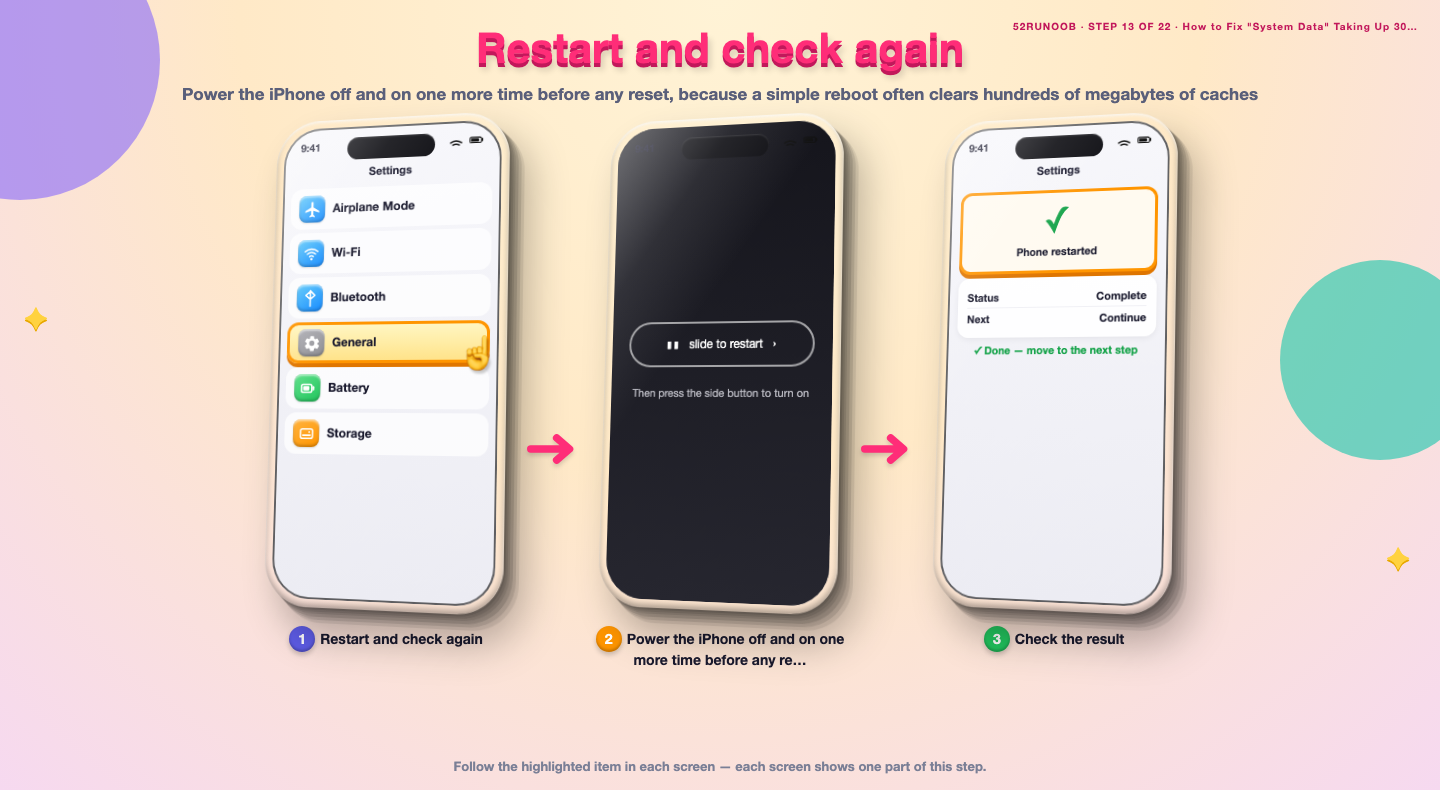
Step 13: Restart and check again
Power the iPhone off and on one more time before any reset, because a simple reboot often clears hundreds of megabytes of caches.
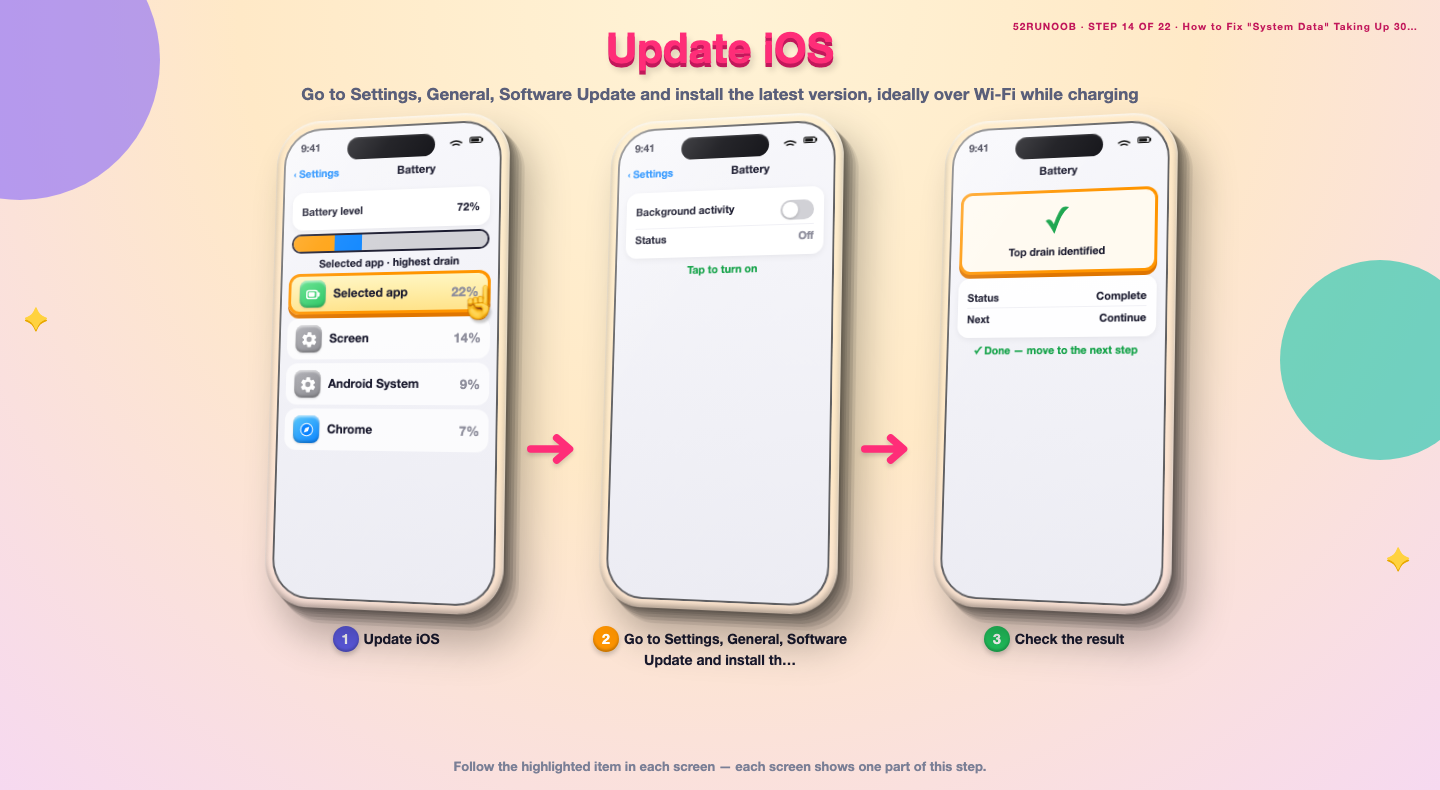
Step 14: Update iOS
Go to Settings, General, Software Update and install the latest version, ideally over Wi-Fi while charging.
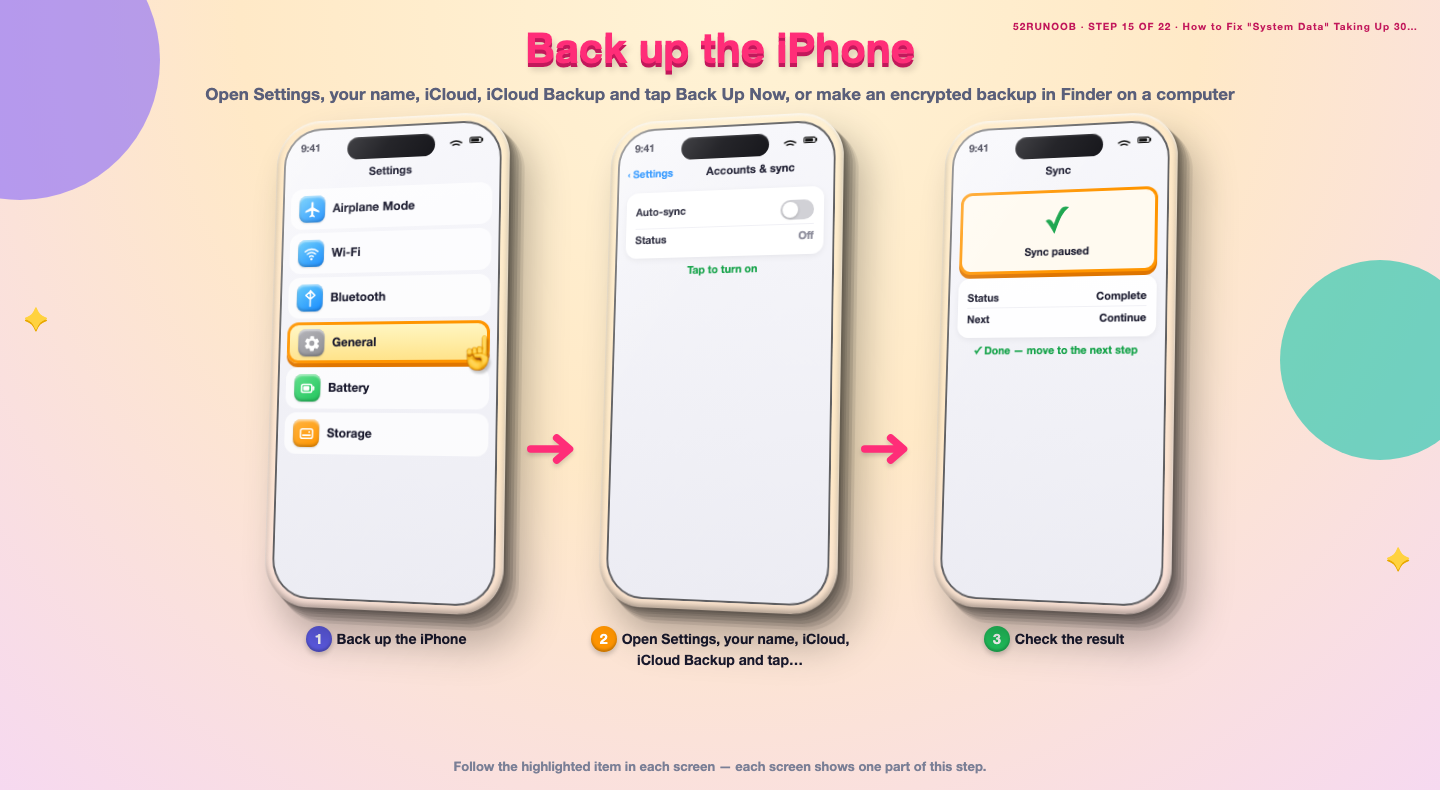
Step 15: Back up the iPhone
Open Settings, your name, iCloud, iCloud Backup and tap Back Up Now, or make an encrypted backup in Finder on a computer.
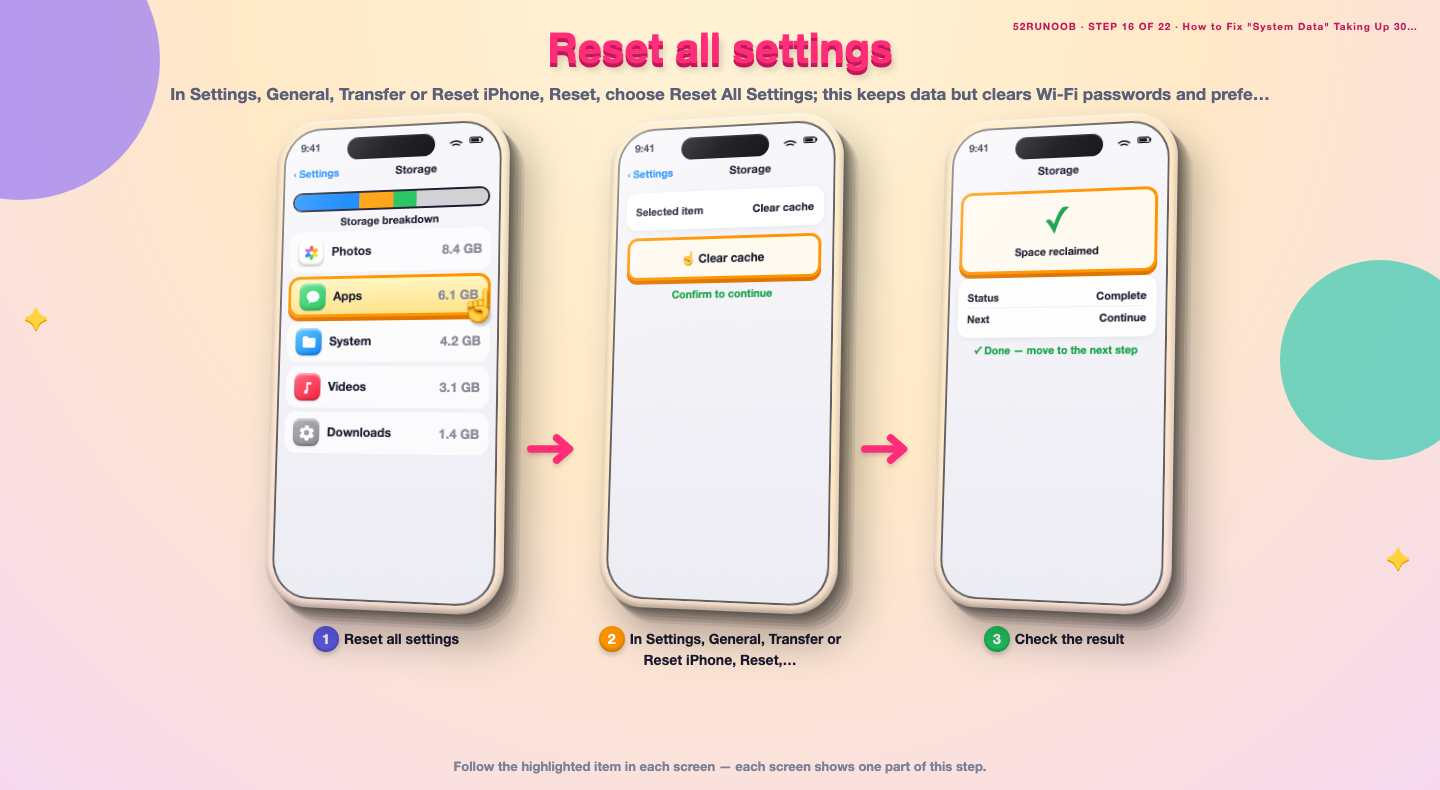
Step 16: Reset all settings
In Settings, General, Transfer or Reset iPhone, Reset, choose Reset All Settings; this keeps data but clears Wi-Fi passwords and preferences.
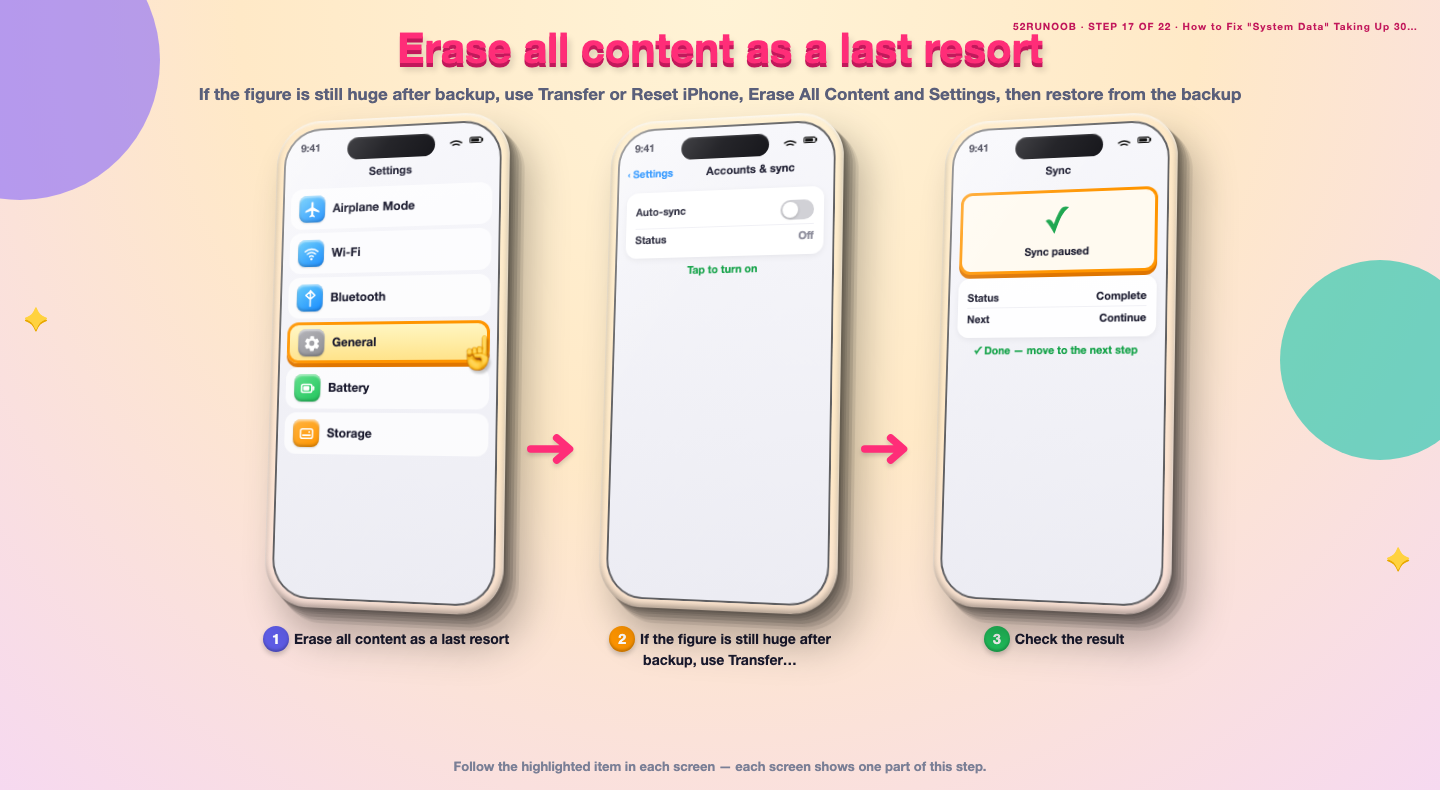
Step 17: Erase all content as a last resort
If the figure is still huge after backup, use Transfer or Reset iPhone, Erase All Content and Settings, then restore from the backup.
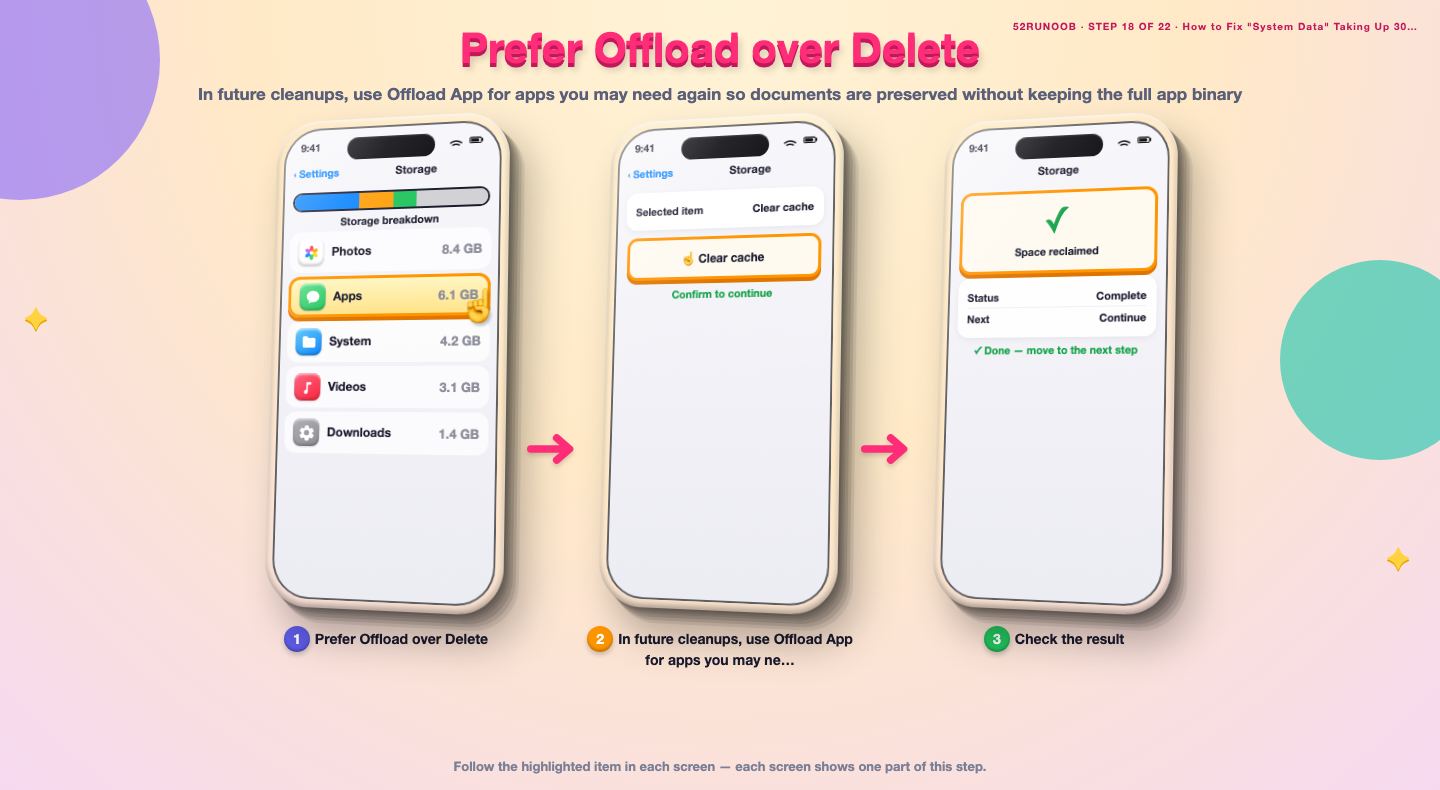
Step 18: Prefer Offload over Delete
In future cleanups, use Offload App for apps you may need again so documents are preserved without keeping the full app binary.
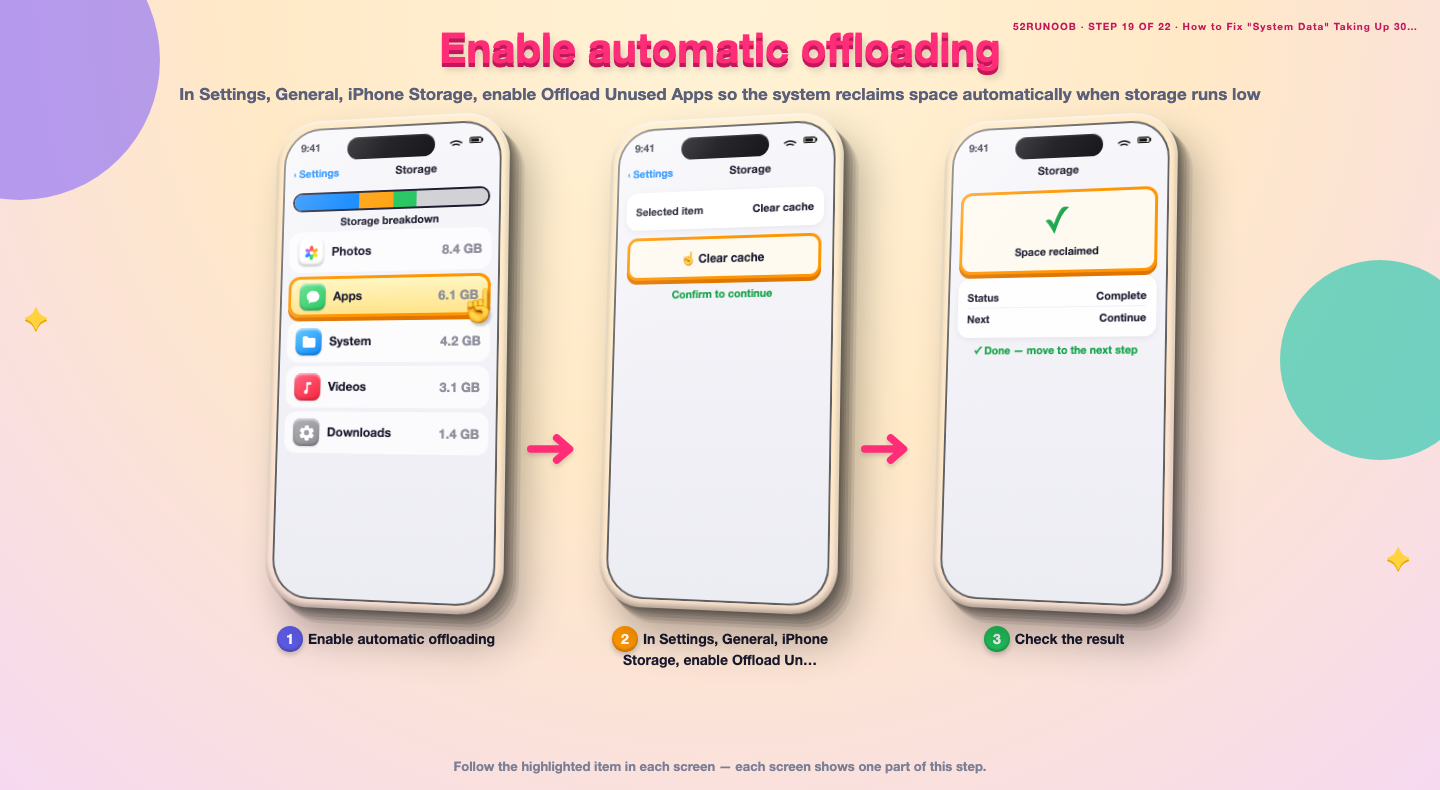
Step 19: Enable automatic offloading
In Settings, General, iPhone Storage, enable Offload Unused Apps so the system reclaims space automatically when storage runs low.
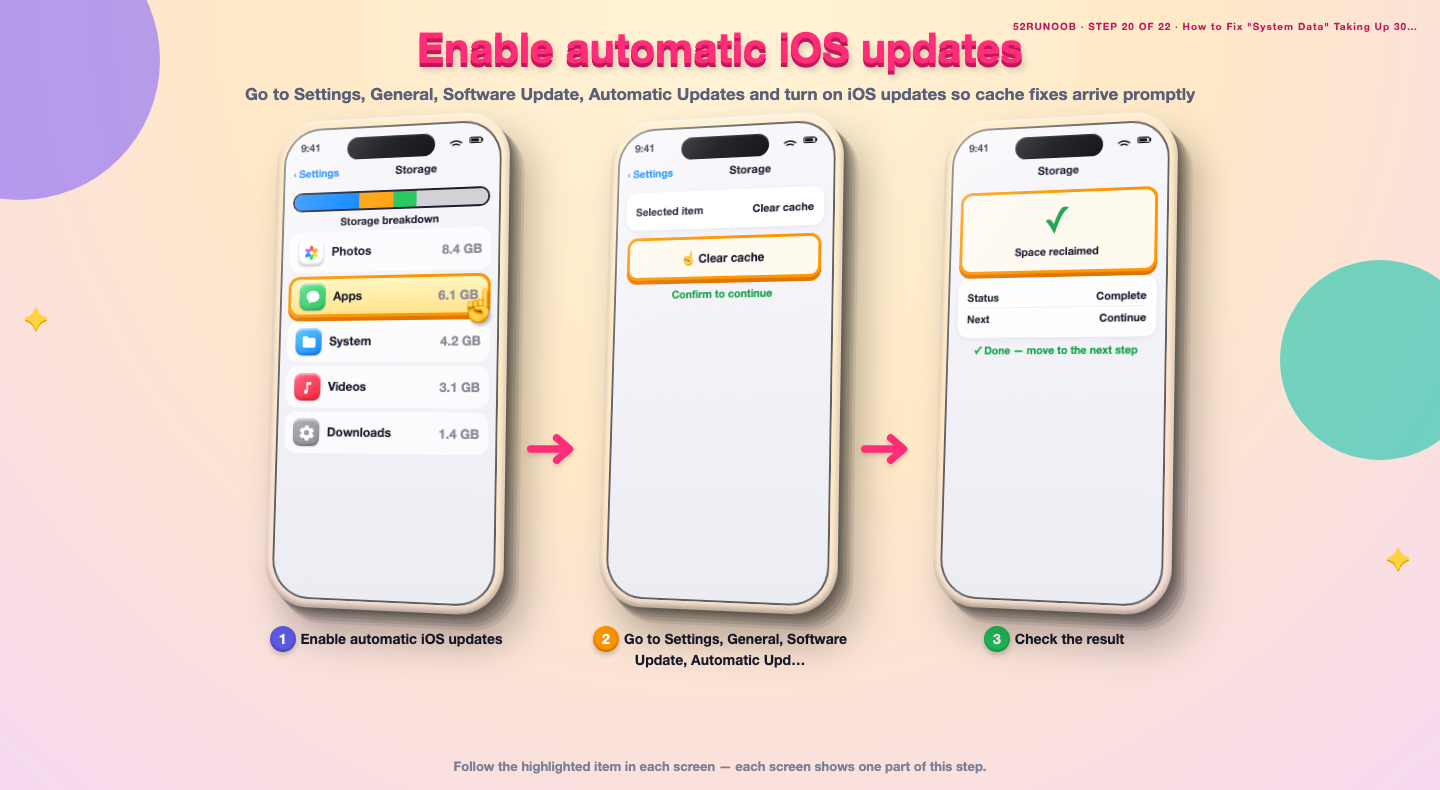
Step 20: Enable automatic iOS updates
Go to Settings, General, Software Update, Automatic Updates and turn on iOS updates so cache fixes arrive promptly.
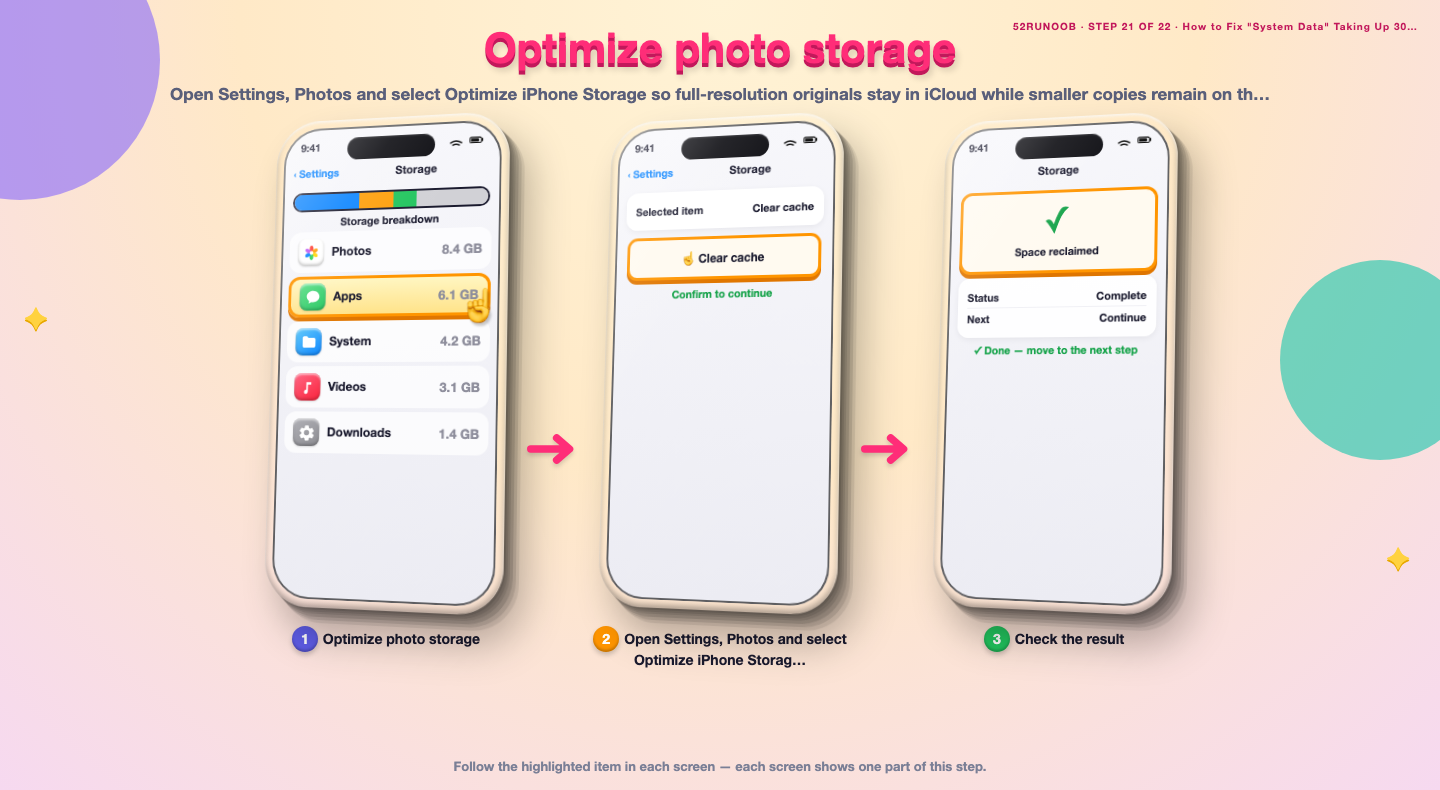
Step 21: Optimize photo storage
Open Settings, Photos and select Optimize iPhone Storage so full-resolution originals stay in iCloud while smaller copies remain on the device.
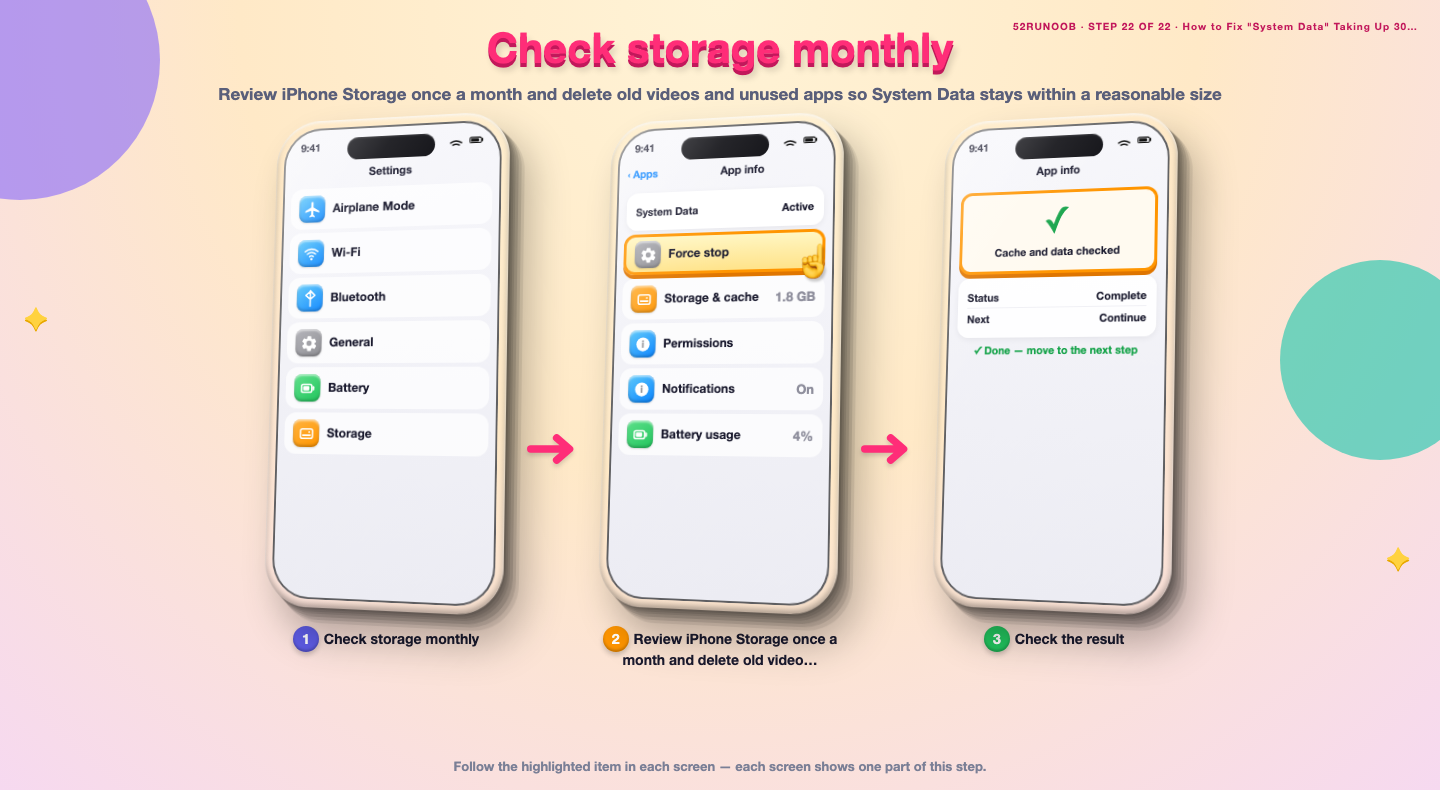
Step 22: Check storage monthly
Review iPhone Storage once a month and delete old videos and unused apps so System Data stays within a reasonable size.
Tips
- System Data often shrinks on its own after a restart or an iOS update.
- Offloading an app keeps its documents while removing the app binary.
- Delete App removes a big cache faster than offloading, but reinstall to get it back.
Warnings
- Back up the iPhone before erasing all content and settings.
- Reset All Settings keeps data but removes Wi-Fi passwords and preferences.
- Do not delete iOS system files or use unverified cleaning tools; they can break the phone.
Frequently asked questions
Is System Data a virus or something dangerous?
No. System Data is a normal storage category for iOS, its caches, logs, Siri information and mail attachments. It cannot be a virus by itself, and an unusually large figure is almost always accumulated caches.
Is it normal for System Data to be 30GB?
It is larger than typical but not unheard of on a long-used phone with mail attachments and heavy apps. A restart and an iOS update often bring it down; if it keeps climbing, check the largest apps and mail storage.
Can I delete System Data directly?
You cannot tap a delete button for it because iOS manages those files. The safe route is to restart, offload large apps, clear app and browser caches, update iOS and, as a last resort, erase and restore from backup.
Does offloading delete my app data?
No. Offloading removes the app itself but keeps its documents and data on the phone, so reinstalling restores your information. Delete App removes both and should only be used when you have a backup.
References
- Apple Support - Free up storage space on iPhone. https://support.apple.com/en-us/102433
- Apple Support - Update iOS. https://support.apple.com/en-us/102655
- wikiHow — How to Fix "System Data" Taking Up 30GB+ on iPhone. https://www.wikihow.com/Free-Up-Space-on-an-iPhone
Every guide is reviewed against its sources. See our editorial policy.
Reader comments
0 so farFinished this guide? Tell other readers what worked, what didn't, and what you would change.