Instagram Reels streams high-resolution video continuously, so a weak connection, a full storage drive or a heavy app cache makes clips stutter and freeze. Clear the cache, restart the phone and stop battery saver from limiting the processor. Then check the network and keep the app updated.
This guide walks through the process in clear illustrated steps, from the first preparation to a finished result. Each step has its own picture, so you can compare your progress as you go.
How to use this guide
Work through the steps in order. Method 1 of 2 covers the basics, and the later methods offer alternatives and finishing touches. If you only have a minute, skim the Quick steps box above and come back for the details.
Related guides
- How to Admit you like someone
- How to Organize your photos
- How to Remove malware from a pc
- How to Fix dwm exe desktop window manager high cpu on windows 11
- Browse all Fix Slow Device guides
- All 52runoob guides
Trusted external resources
- Android Support - Speed up your Android device
- Android Support - Clear app cache and data
- Google Play Help - Fix downloads and updates
A note on sources
We check each guide against the official resources listed in References at the end of this article. External links open in a new tab; the related guides above stay on this site.
Quick steps
- Switch networks to rule out buffering.
- Clear Instagram's cache from Android app info.
- Keep at least ten percent of storage free.
- Turn off Power saving while watching Reels.
- Update Instagram and Android System WebView.
Things you'll need
- An Android phone with Instagram installed
- Access to Settings and the app info screen
- A stable Wi-Fi or mobile connection
- About 10 minutes to test playback
Step-by-step
Method 1 of 2: Quick Fixes for Smooth Playback
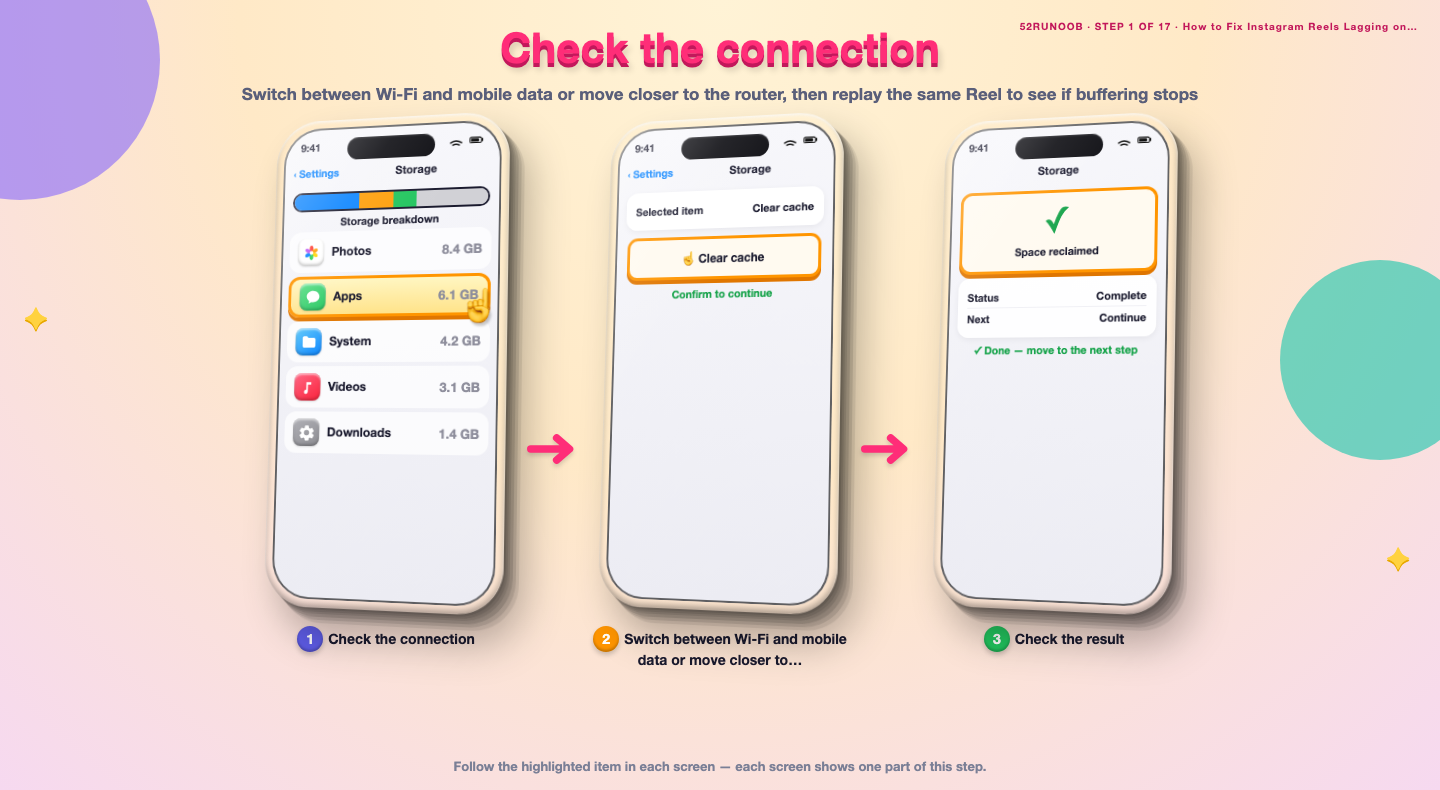
Step 1: Check the connection
Switch between Wi-Fi and mobile data or move closer to the router, then replay the same Reel to see if buffering stops.
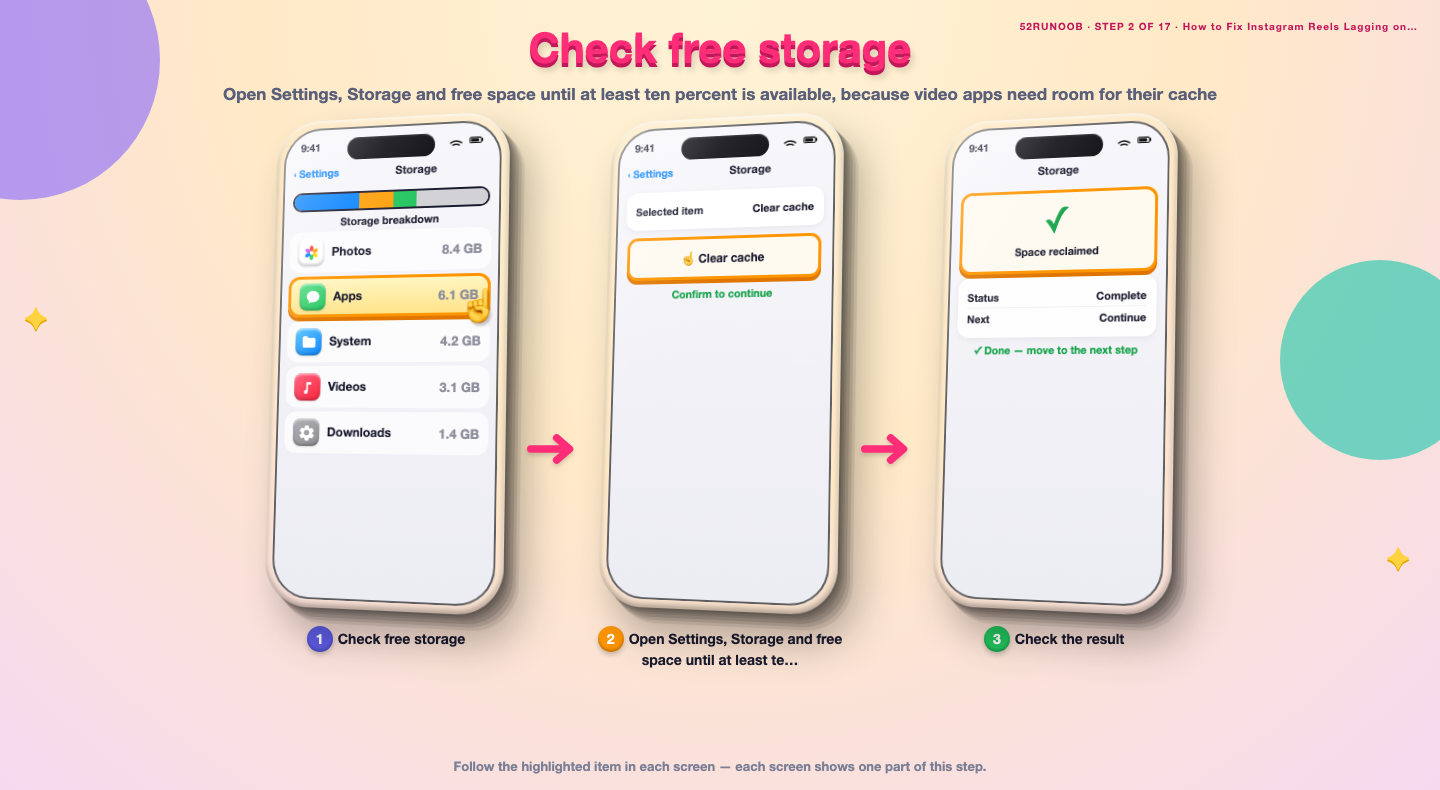
Step 2: Check free storage
Open Settings, Storage and free space until at least ten percent is available, because video apps need room for their cache.
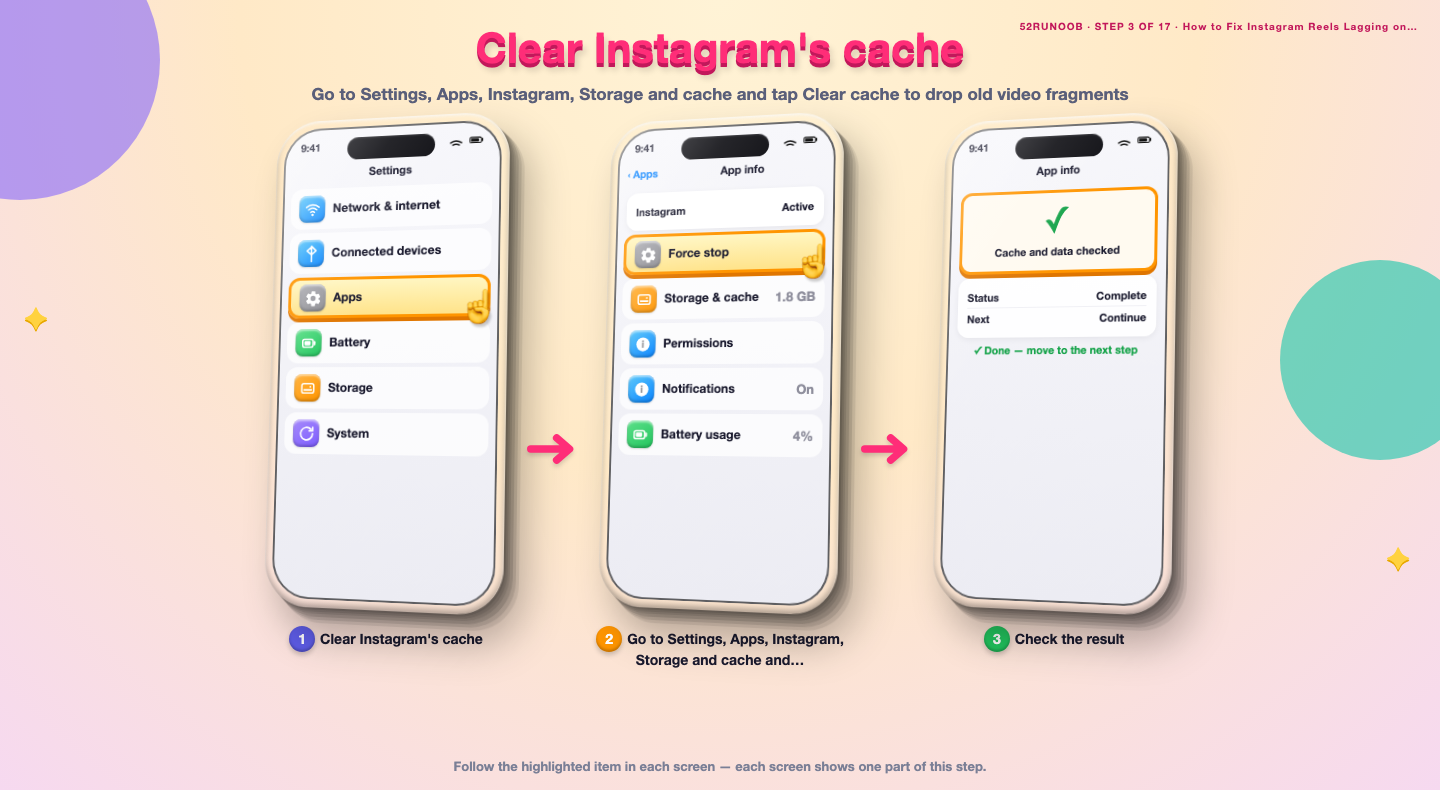
Step 3: Clear Instagram's cache
Go to Settings, Apps, Instagram, Storage and cache and tap Clear cache to drop old video fragments.
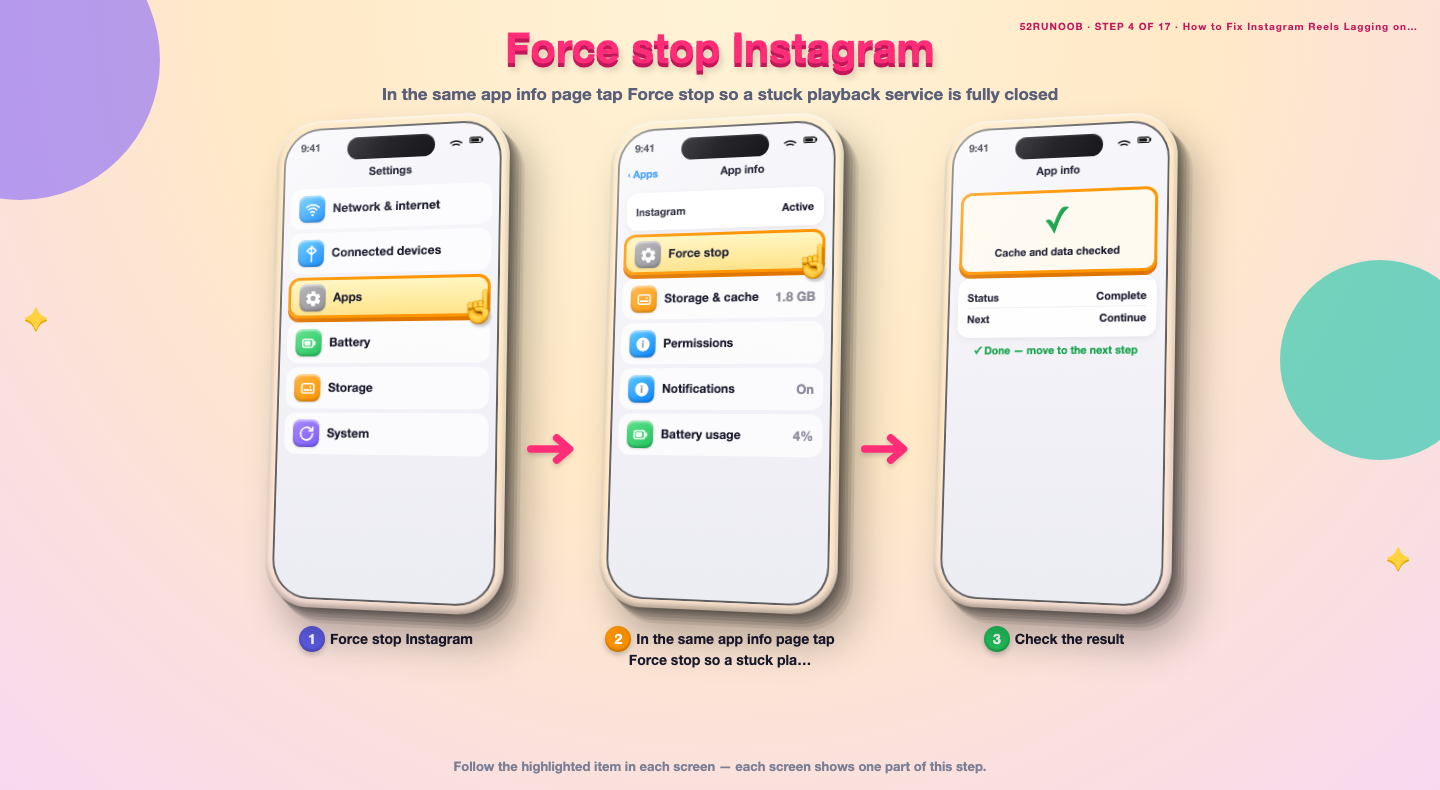
Step 4: Force stop Instagram
In the same app info page tap Force stop so a stuck playback service is fully closed.
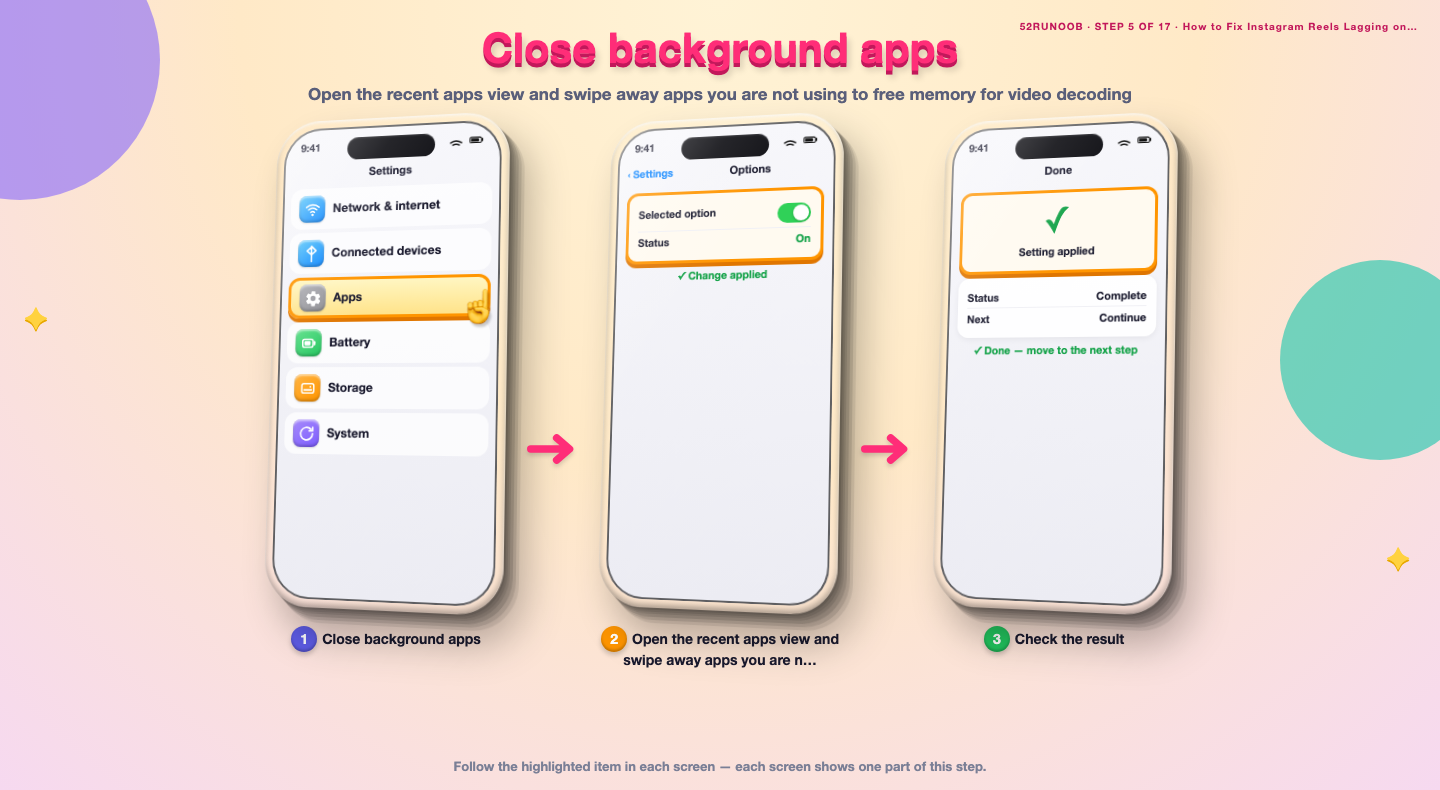
Step 5: Close background apps
Open the recent apps view and swipe away apps you are not using to free memory for video decoding.
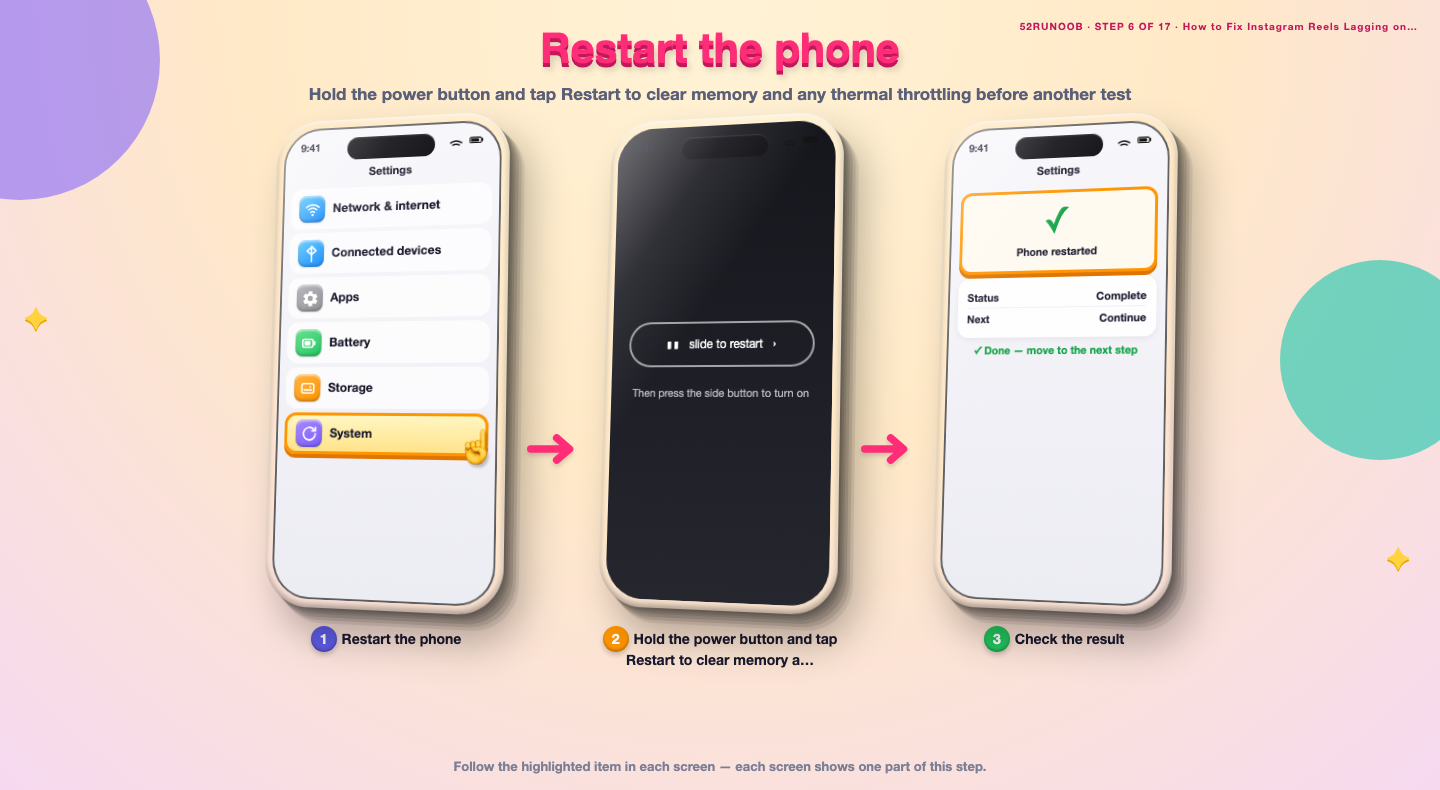
Step 6: Restart the phone
Hold the power button and tap Restart to clear memory and any thermal throttling before another test.
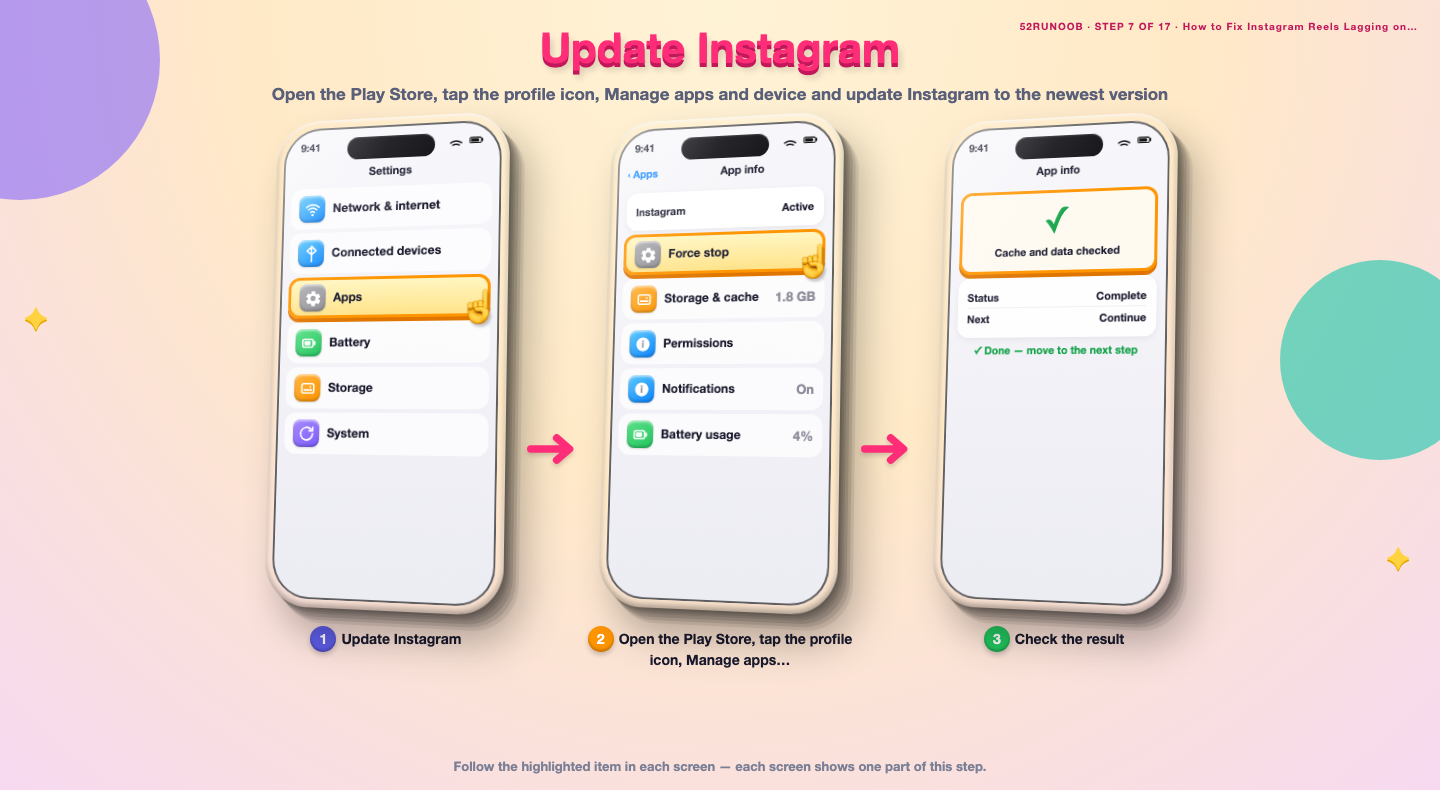
Step 7: Update Instagram
Open the Play Store, tap the profile icon, Manage apps and device and update Instagram to the newest version.
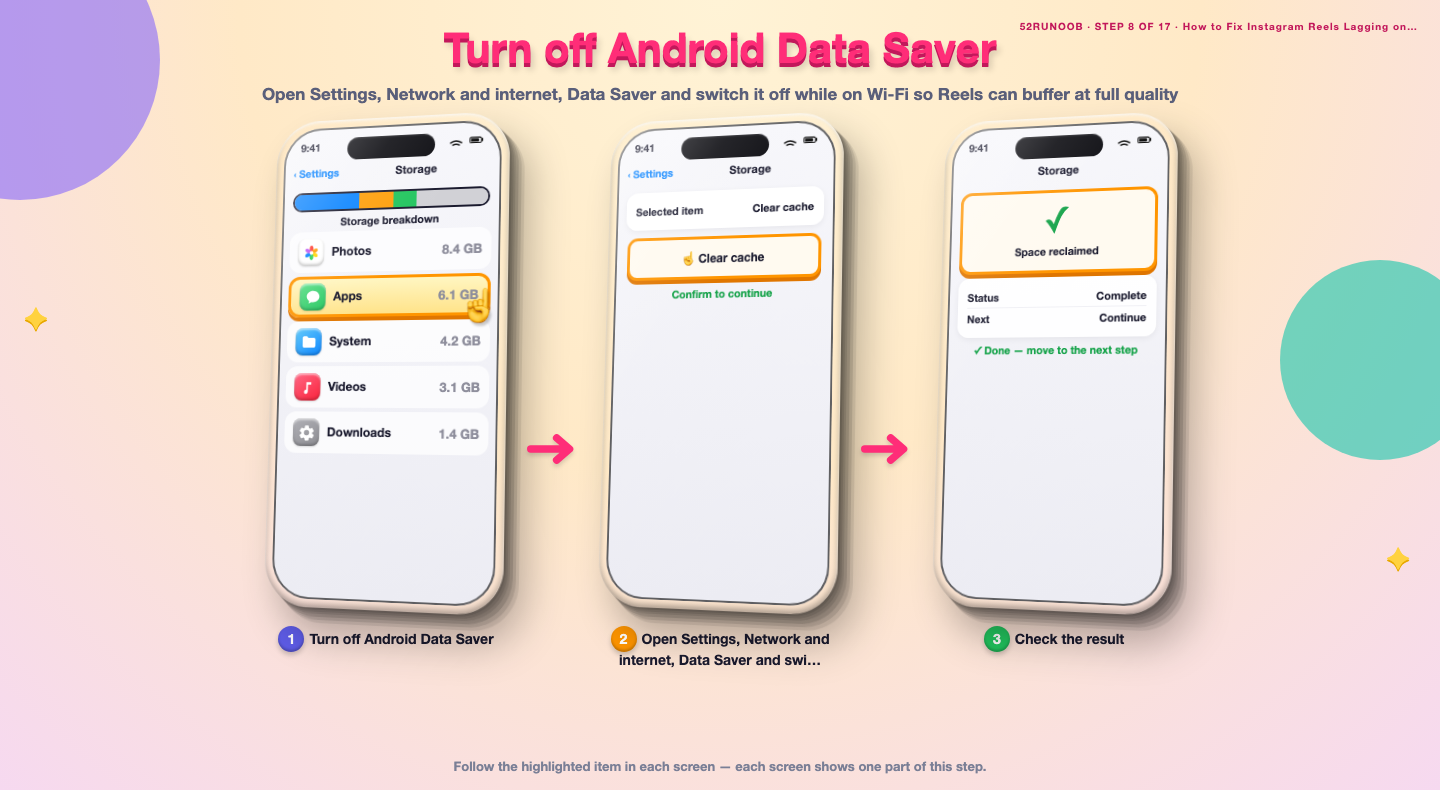
Step 8: Turn off Android Data Saver
Open Settings, Network and internet, Data Saver and switch it off while on Wi-Fi so Reels can buffer at full quality.
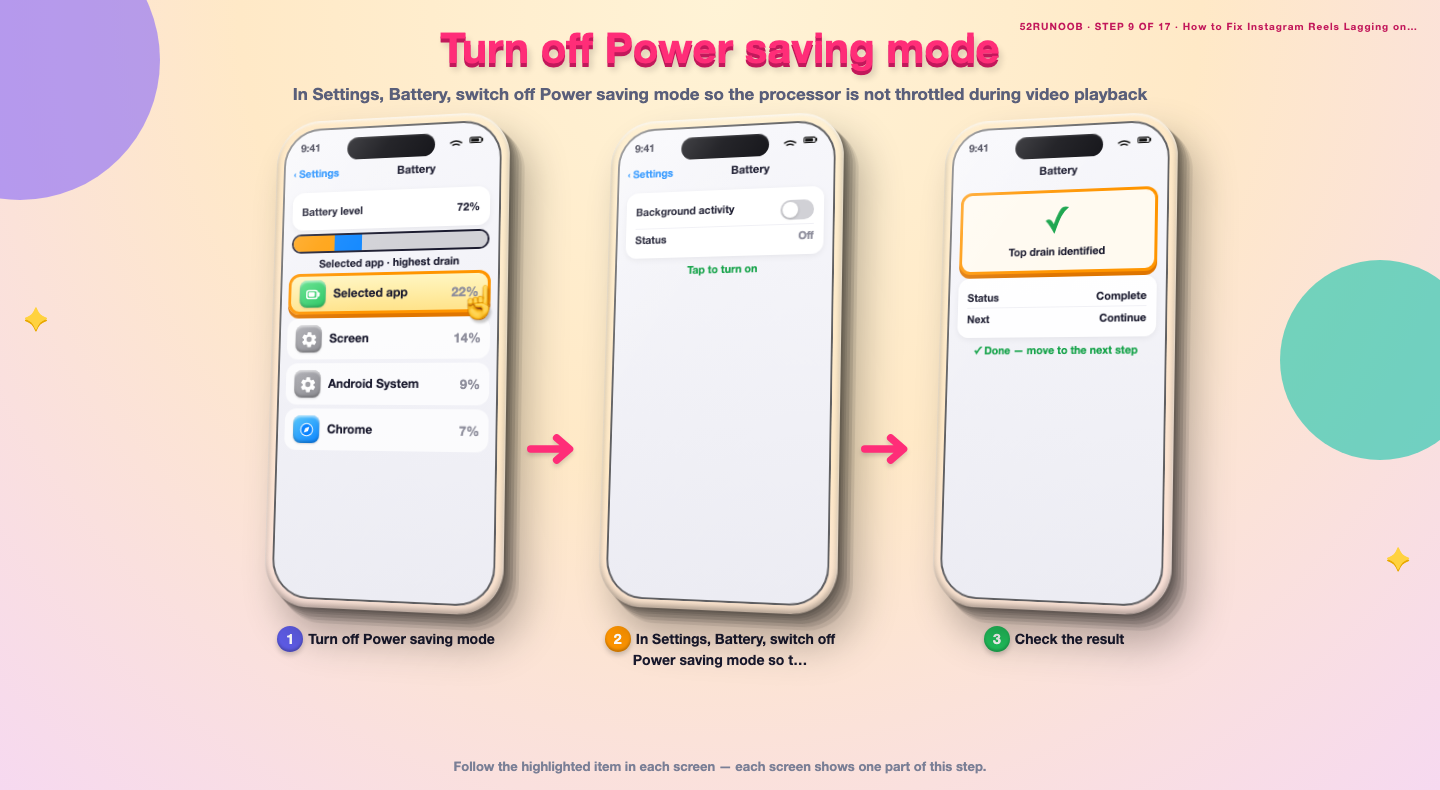
Step 9: Turn off Power saving mode
In Settings, Battery, switch off Power saving mode so the processor is not throttled during video playback.
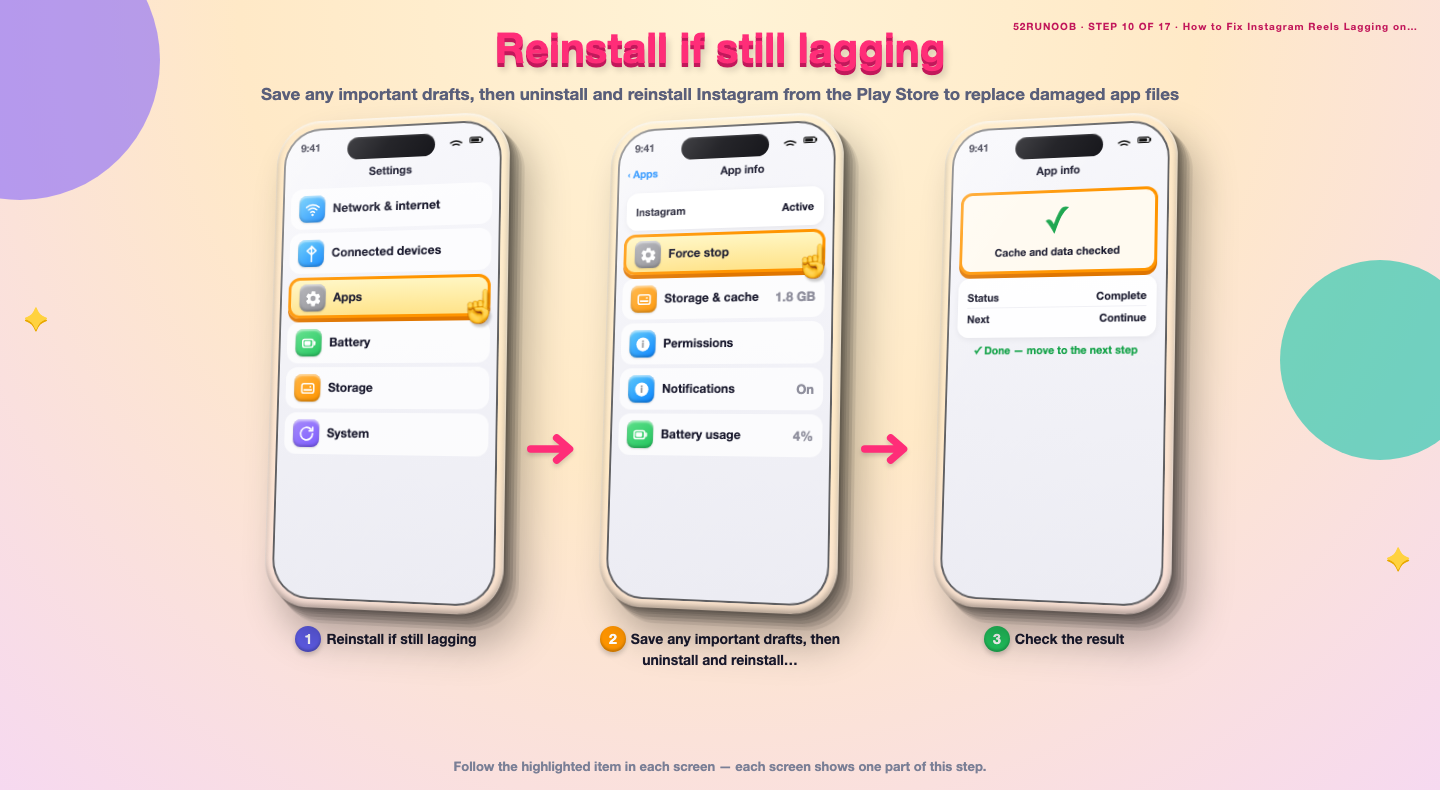
Step 10: Reinstall if still lagging
Save any important drafts, then uninstall and reinstall Instagram from the Play Store to replace damaged app files.
Method 2 of 2: Reduce Reels' Background Work
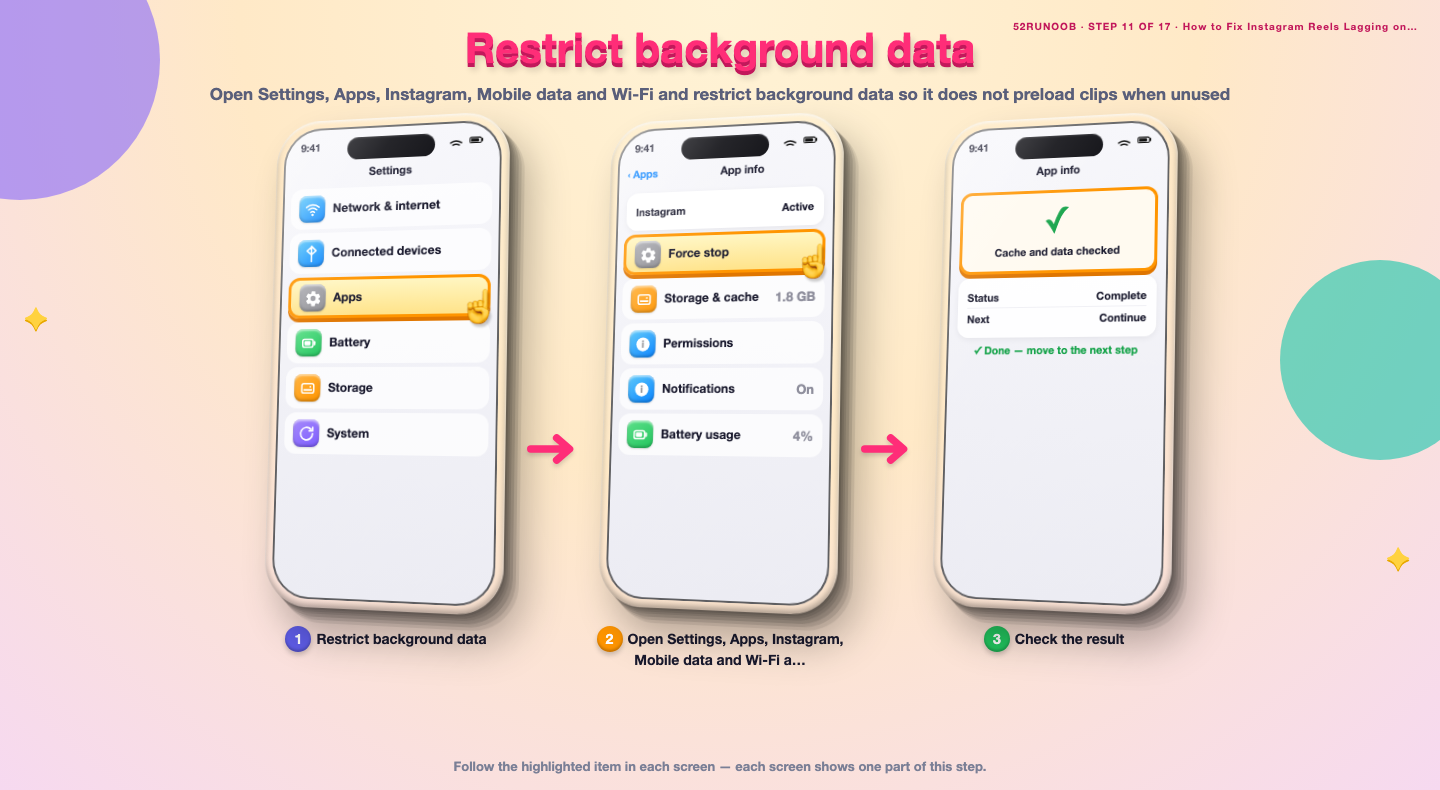
Step 11: Restrict background data
Open Settings, Apps, Instagram, Mobile data and Wi-Fi and restrict background data so it does not preload clips when unused.
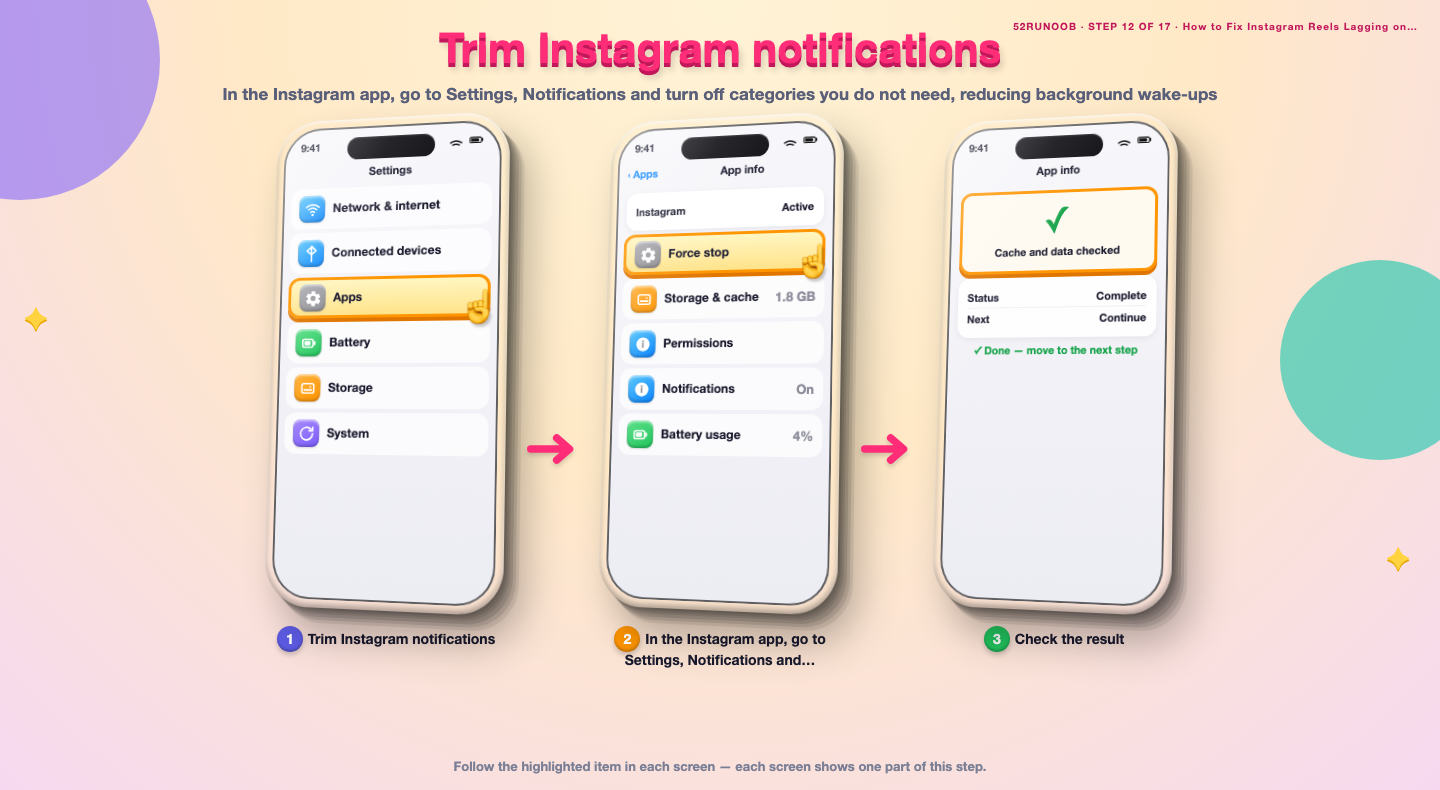
Step 12: Trim Instagram notifications
In the Instagram app, go to Settings, Notifications and turn off categories you do not need, reducing background wake-ups.
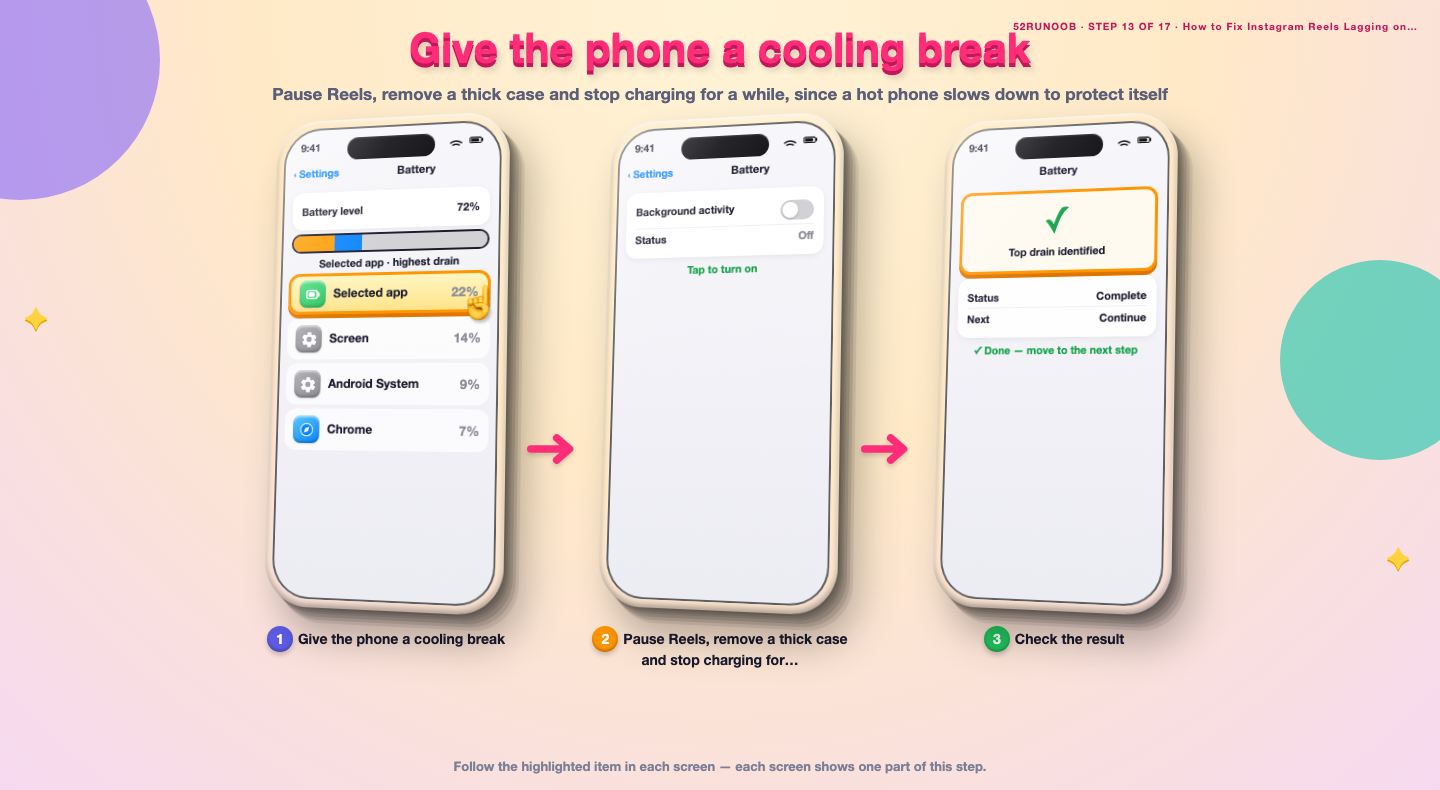
Step 13: Give the phone a cooling break
Pause Reels, remove a thick case and stop charging for a while, since a hot phone slows down to protect itself.
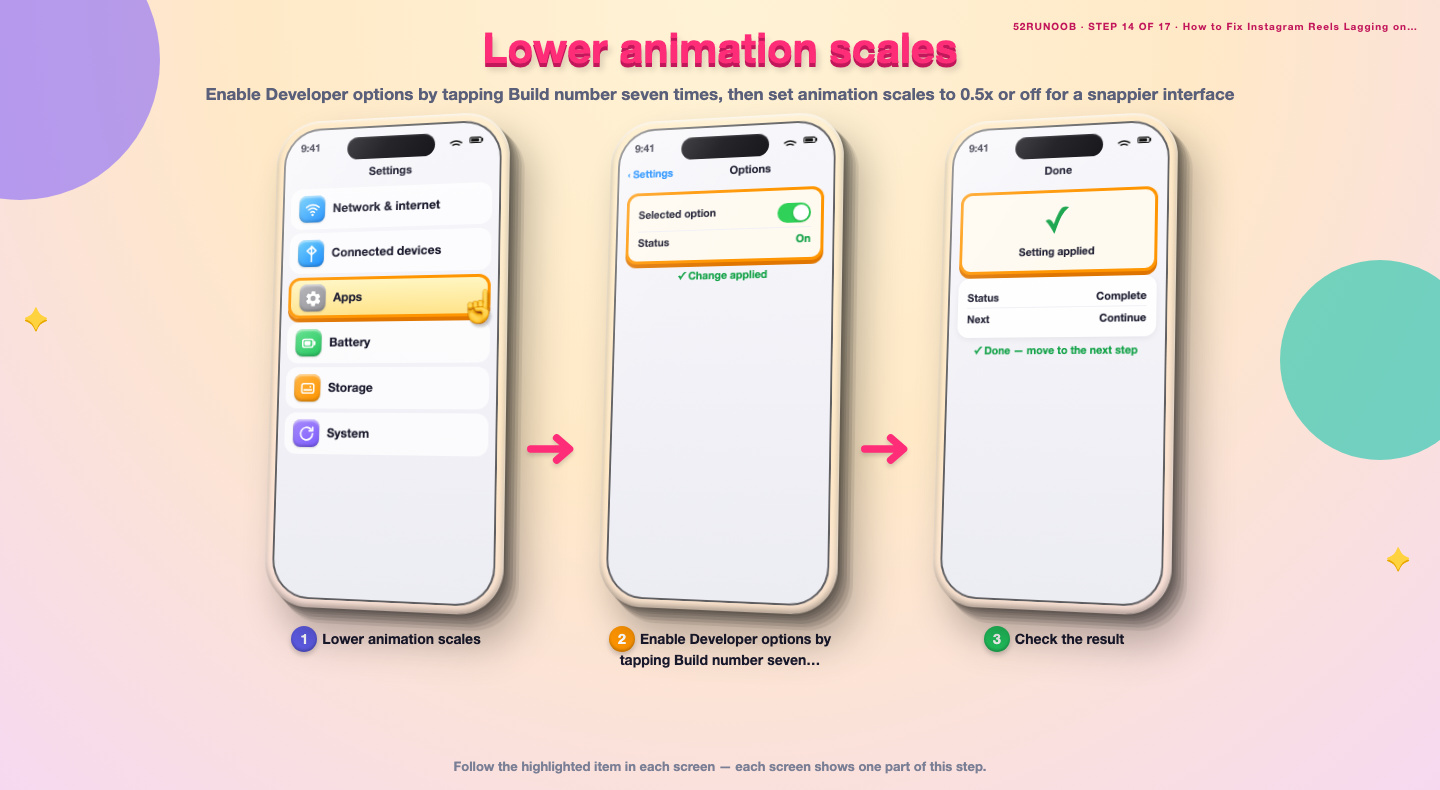
Step 14: Lower animation scales
Enable Developer options by tapping Build number seven times, then set animation scales to 0.5x or off for a snappier interface.
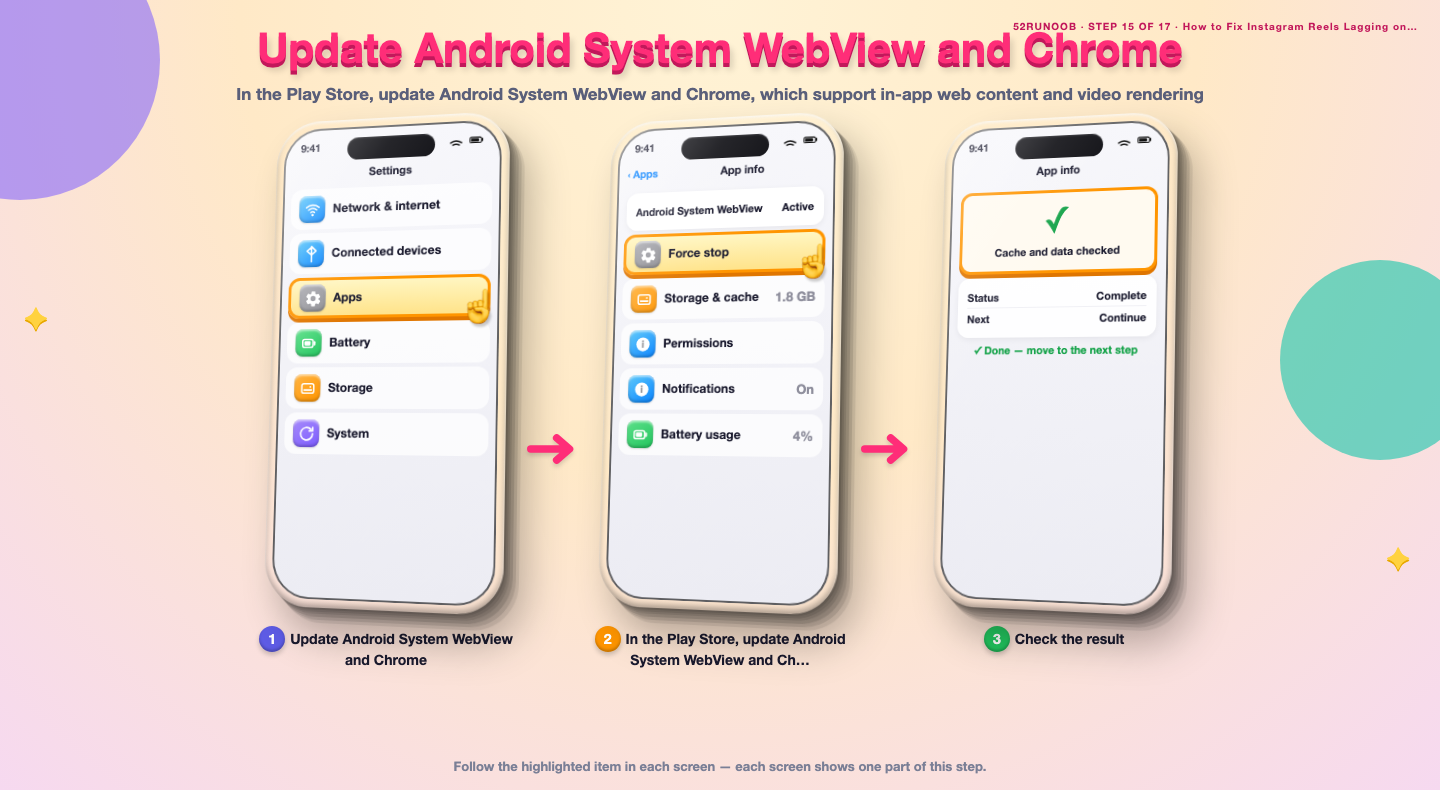
Step 15: Update Android System WebView and Chrome
In the Play Store, update Android System WebView and Chrome, which support in-app web content and video rendering.
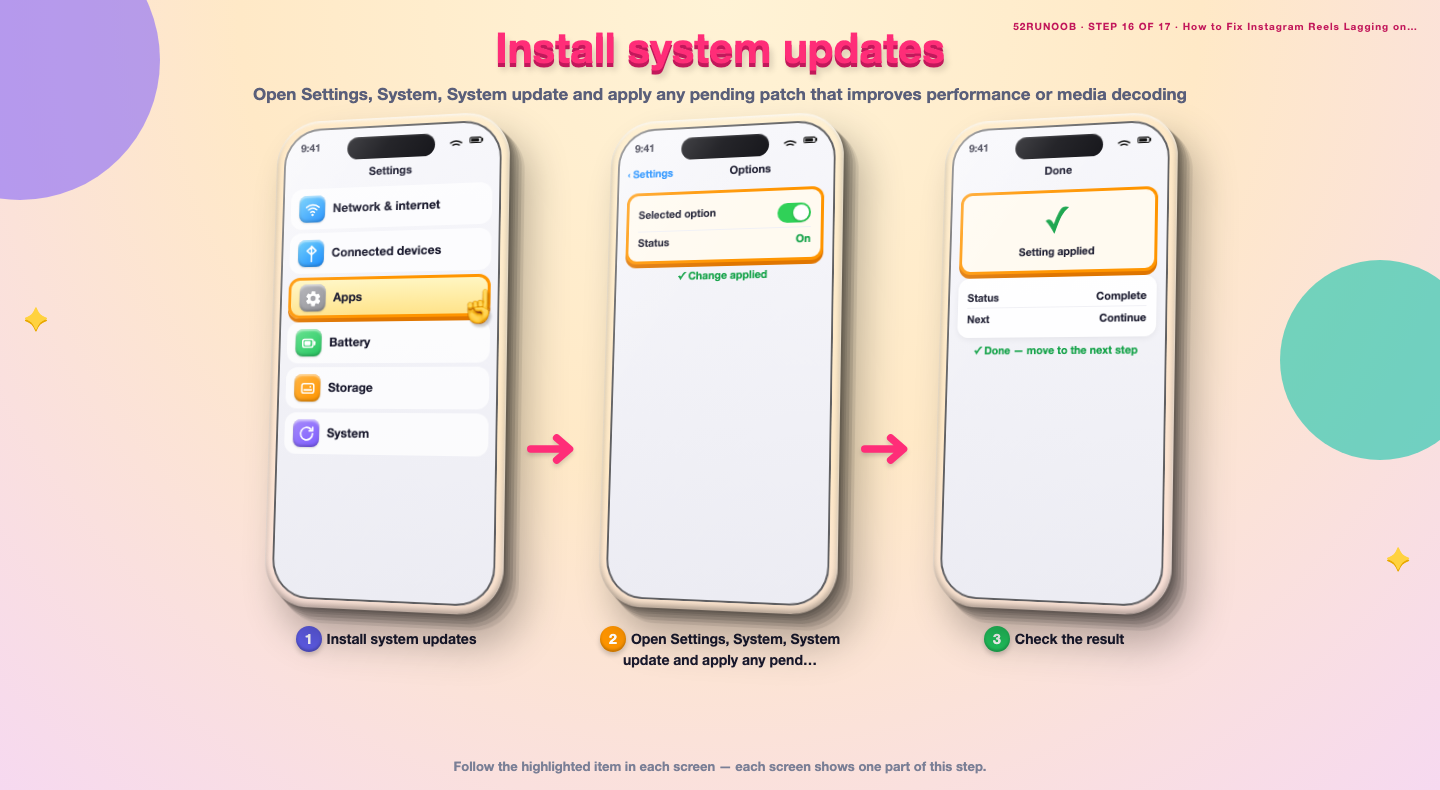
Step 16: Install system updates
Open Settings, System, System update and apply any pending patch that improves performance or media decoding.
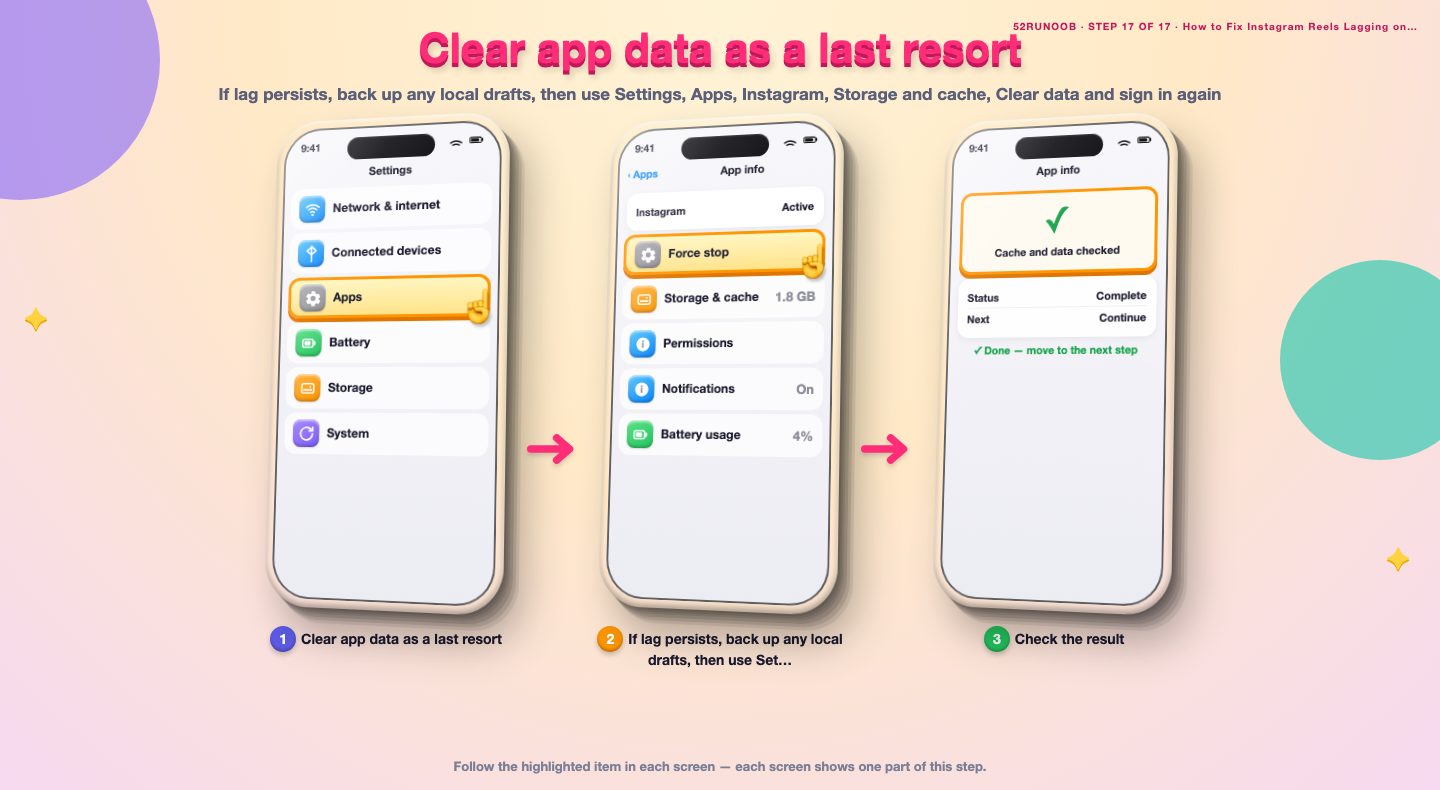
Step 17: Clear app data as a last resort
If lag persists, back up any local drafts, then use Settings, Apps, Instagram, Storage and cache, Clear data and sign in again.
Tips
- Buffering circles mean network trouble; frozen frames with audio often mean local performance.
- A nearly full phone slows down every app that writes a cache.
- Logged-out reinstalls fix corruption but require your sign-in details.
Warnings
- Clearing app data signs you out and resets Instagram's local settings.
- Do not grant unnecessary location or background permissions to fix lag.
- Avoid letting the phone overheat during long Reels sessions.
Frequently asked questions
Is it normal for Reels to buffer sometimes?
Yes, a brief buffer on a slow or crowded connection is normal. Constant freezing while the rest of the phone works fine points to a local problem such as low storage or a large cache.
Is Instagram using CPU when closed normal?
A small background presence is normal for notifications, but it should not drain noticeable battery while idle. Restricting background data and trimming notifications usually stops excessive activity.
Will clearing cache delete my Reels or drafts?
Clearing the Android cache removes temporary files only; your account, posts and saved items are on Instagram's servers. Drafts can be device-local, so save anything important before clearing data or reinstalling.
Does clearing cache make Reels faster permanently?
It helps until the cache grows again. Pair it with free storage, updated apps and stable network so the improvement lasts much longer.
References
- Android Support - Speed up your Android device. https://support.google.com/android/answer/9454546
- Android Support - Clear app cache and data. https://support.google.com/android/answer/9551190
- Google Play Help - Fix downloads and updates. https://support.google.com/googleplay/answer/7012527
- wikiHow — How to Fix Instagram Reels Lagging on Android. https://www.wikihow.com/Speed-Up-an-Android-Phone
Every guide is reviewed against its sources. See our editorial policy.
Reader comments
0 so farFinished this guide? Tell other readers what worked, what didn't, and what you would change.