The 'Other' entry in Android's Storage screen is a catch-all for app data, cache, downloads, offline media and system files. When it grows to half the phone, app installs stall and the device slows down. Audit what is inside it, then clear caches and delete redundant files to reclaim the space.
This guide walks through the process in clear illustrated steps, from the first preparation to a finished result. Each step has its own picture, so you can compare your progress as you go.
How to use this guide
Work through the steps in order. Method 1 of 2 covers the basics, and the later methods offer alternatives and finishing touches. If you only have a minute, skim the Quick steps box above and come back for the details.
Related guides
- How to How to fix samsung bixby agent high cpu and battery drain
- How to Sit less during the day
- How to Define curly hair without heat
- How to Stretch before exercise
- Browse all Fix Slow Device guides
- All 52runoob guides
Trusted external resources
- Google Support — Free up space on your Android device
- Android Source — Storage overview
- Google Photos — Back up and free up storage
A note on sources
We check each guide against the official resources listed in References at the end of this article. External links open in a new tab; the related guides above stay on this site.
Quick steps
- Open Settings, Storage to see how much space 'Other' uses.
- Tap into 'Other' or 'Files' to view what is counted.
- Sort apps by size and check their data and cache.
- Delete old Downloads and leftover APK installation files.
- Clear app caches and uninstall apps you no longer use.
- Recheck Storage to confirm 'Other' has shrunk.
Things you'll need
- An Android phone with Storage access
- The Files (or My Files) app
- A Wi-Fi connection for any cloud backup
- About 20 minutes to audit files
Step-by-step
Method 1 of 2: Audit What Counts as Other
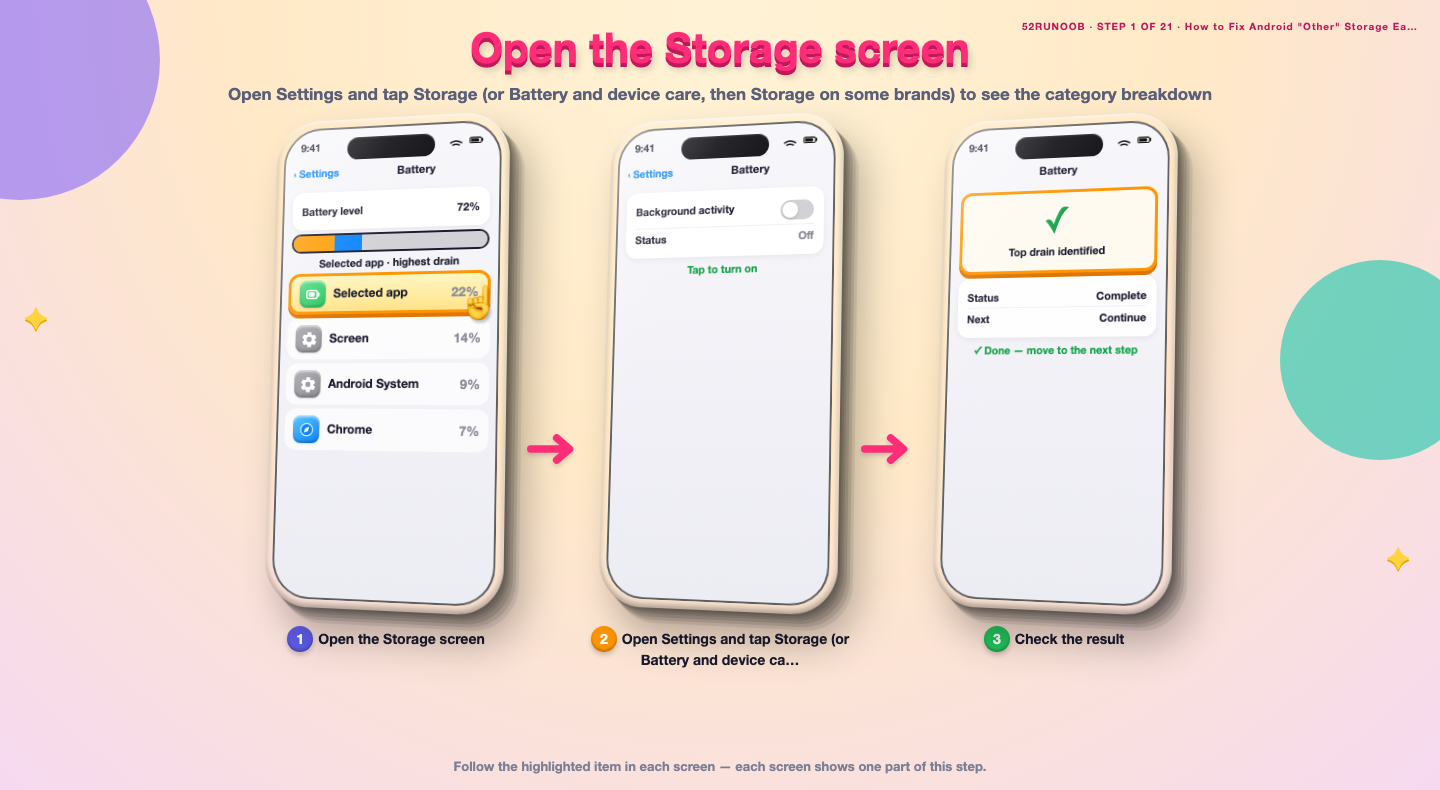
Step 1: Open the Storage screen
Open Settings and tap Storage (or Battery and device care, then Storage on some brands) to see the category breakdown.
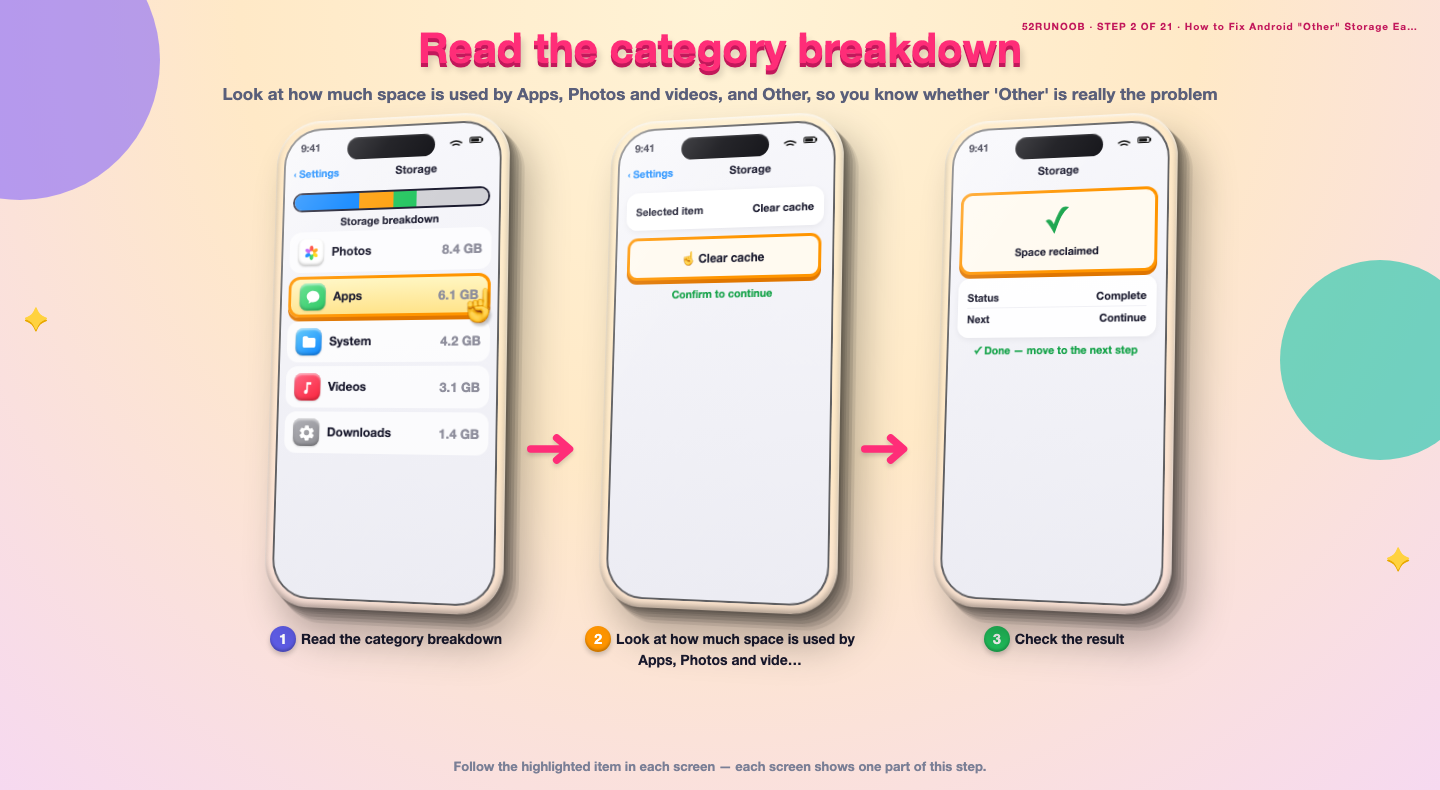
Step 2: Read the category breakdown
Look at how much space is used by Apps, Photos and videos, and Other, so you know whether 'Other' is really the problem.
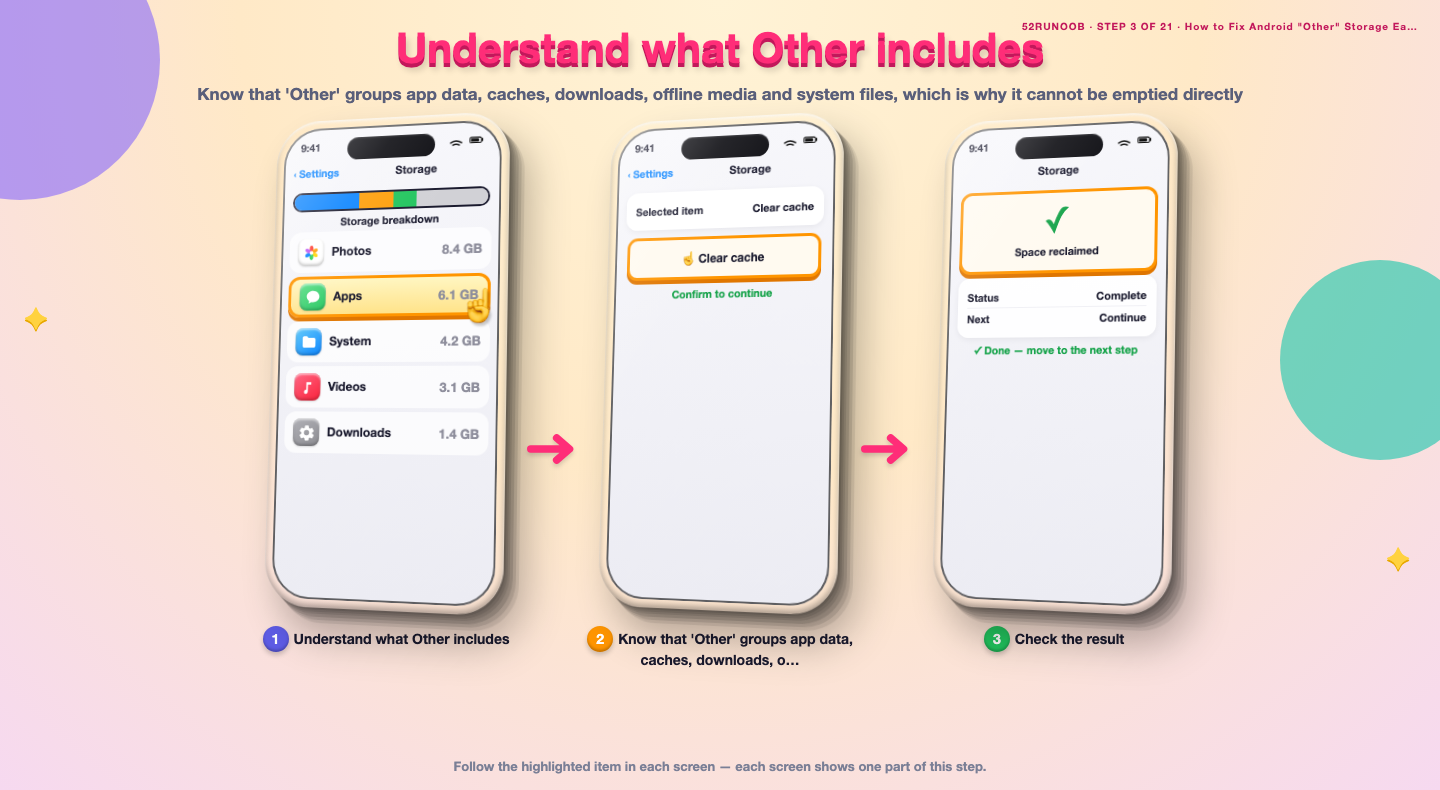
Step 3: Understand what Other includes
Know that 'Other' groups app data, caches, downloads, offline media and system files, which is why it cannot be emptied directly.
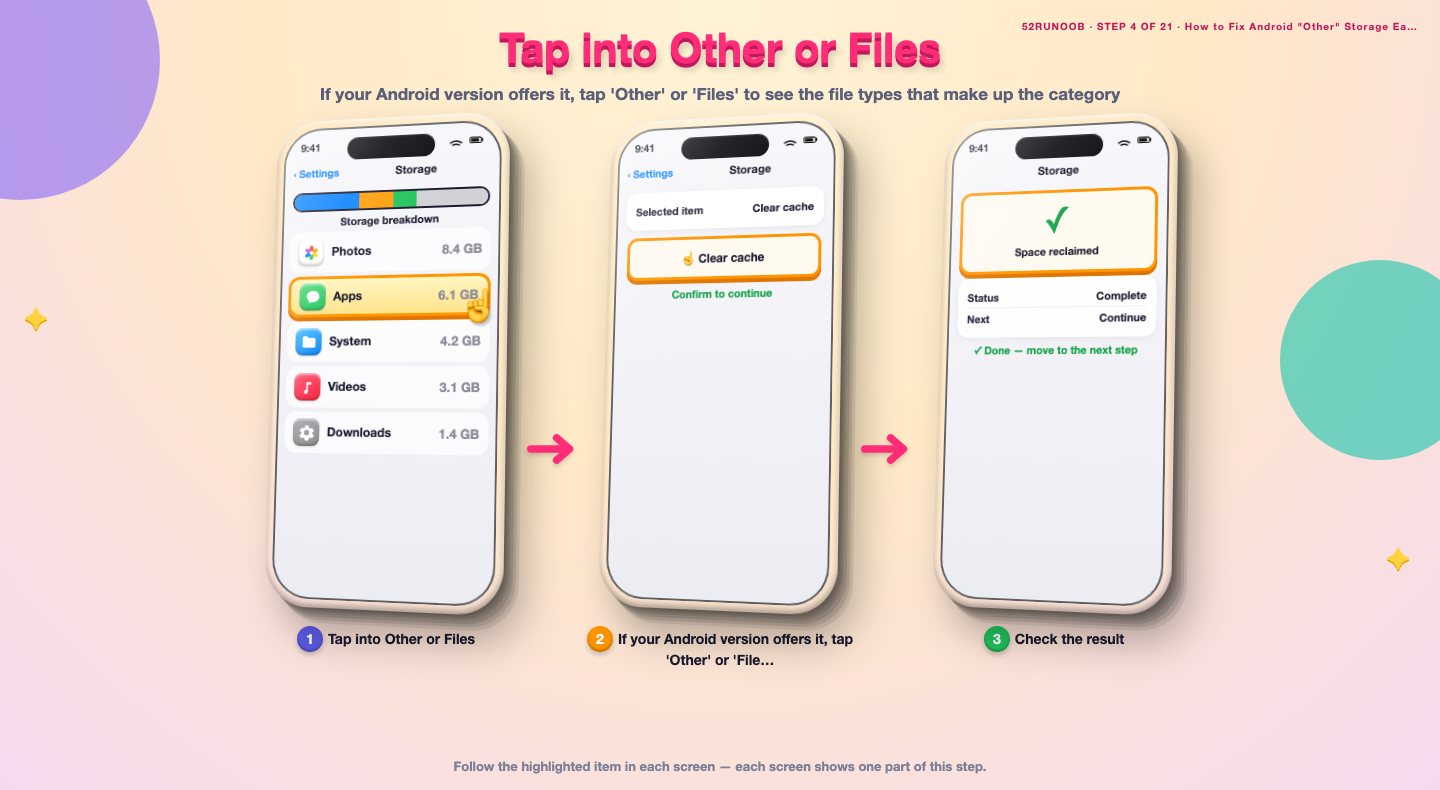
Step 4: Tap into Other or Files
If your Android version offers it, tap 'Other' or 'Files' to see the file types that make up the category.
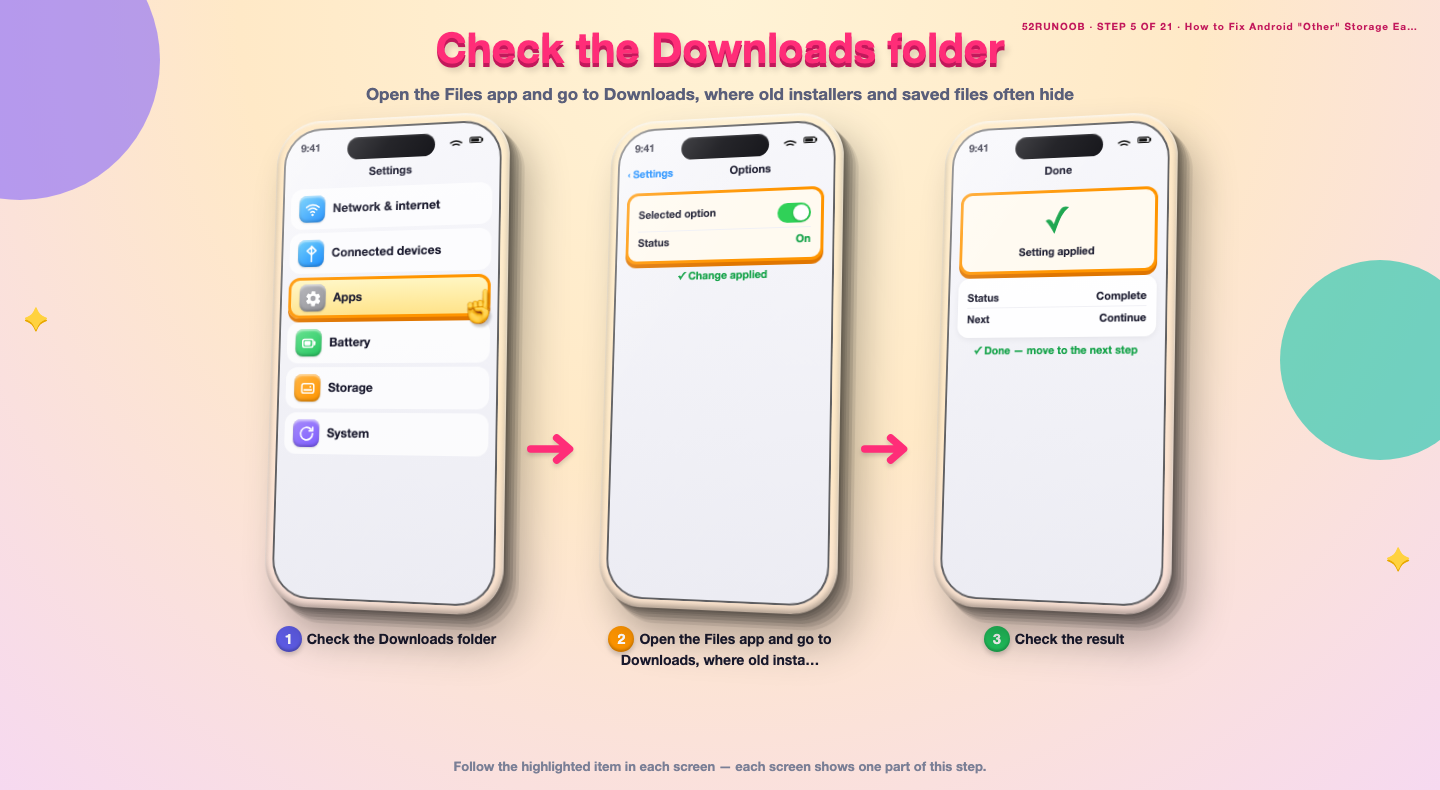
Step 5: Check the Downloads folder
Open the Files app and go to Downloads, where old installers and saved files often hide.
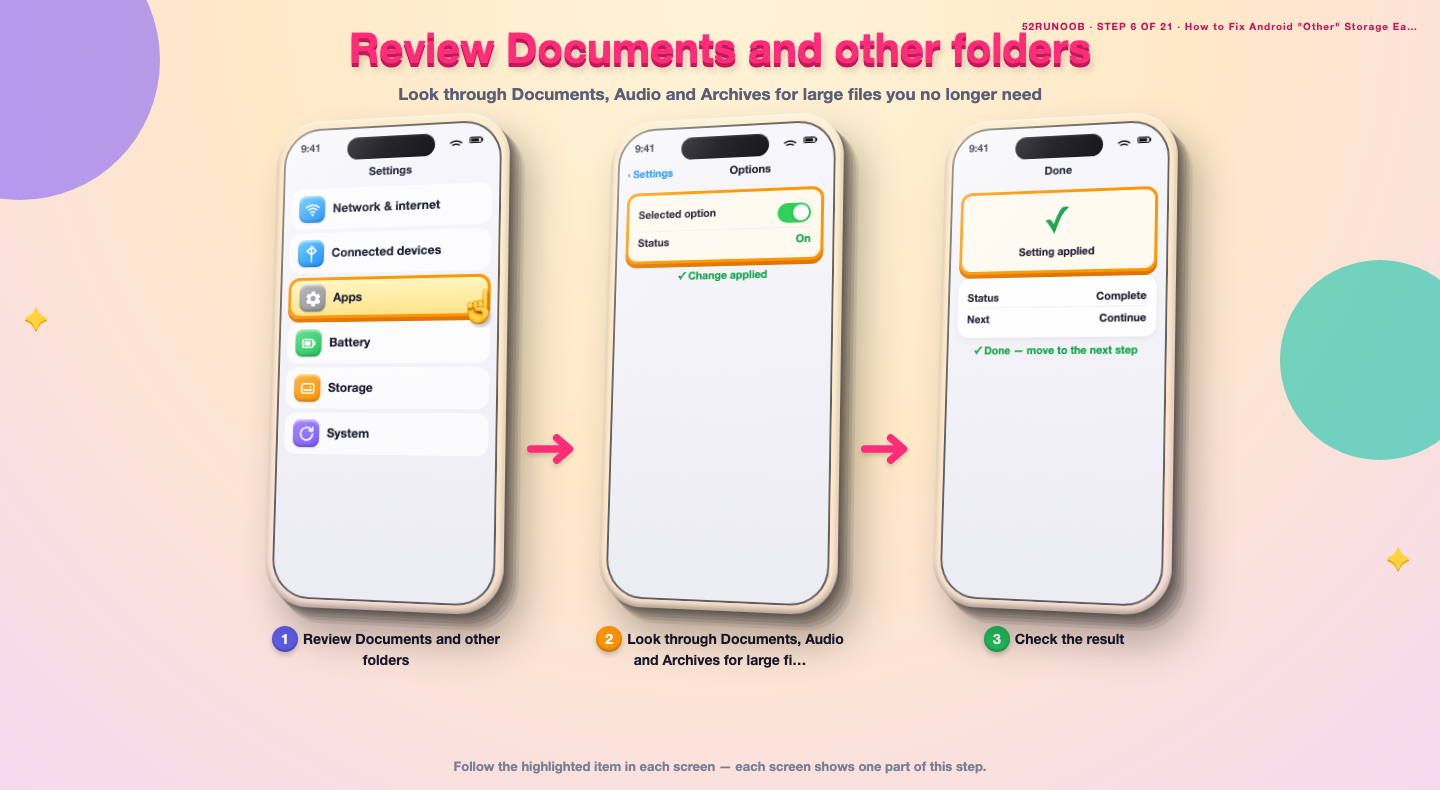
Step 6: Review Documents and other folders
Look through Documents, Audio and Archives for large files you no longer need.
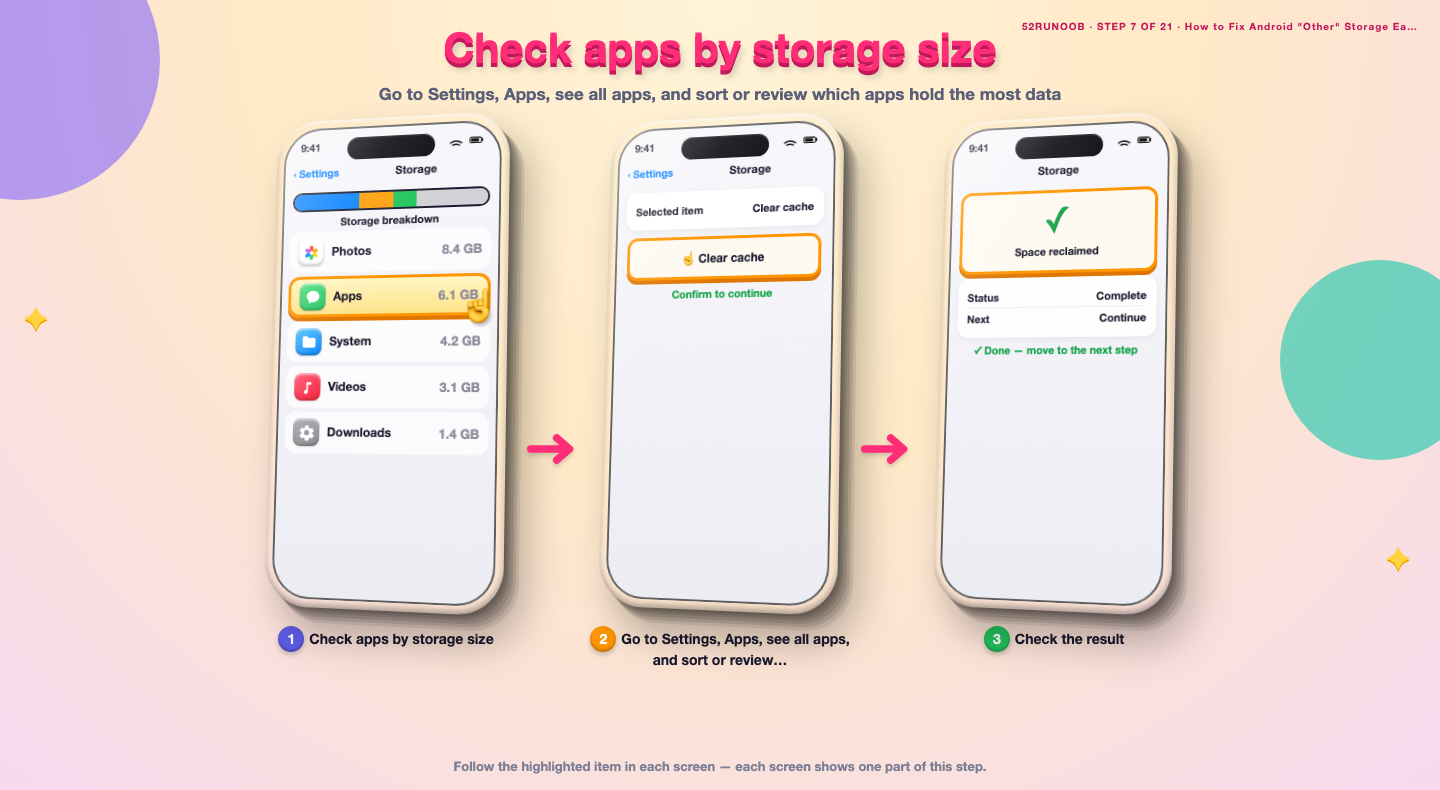
Step 7: Check apps by storage size
Go to Settings, Apps, see all apps, and sort or review which apps hold the most data.
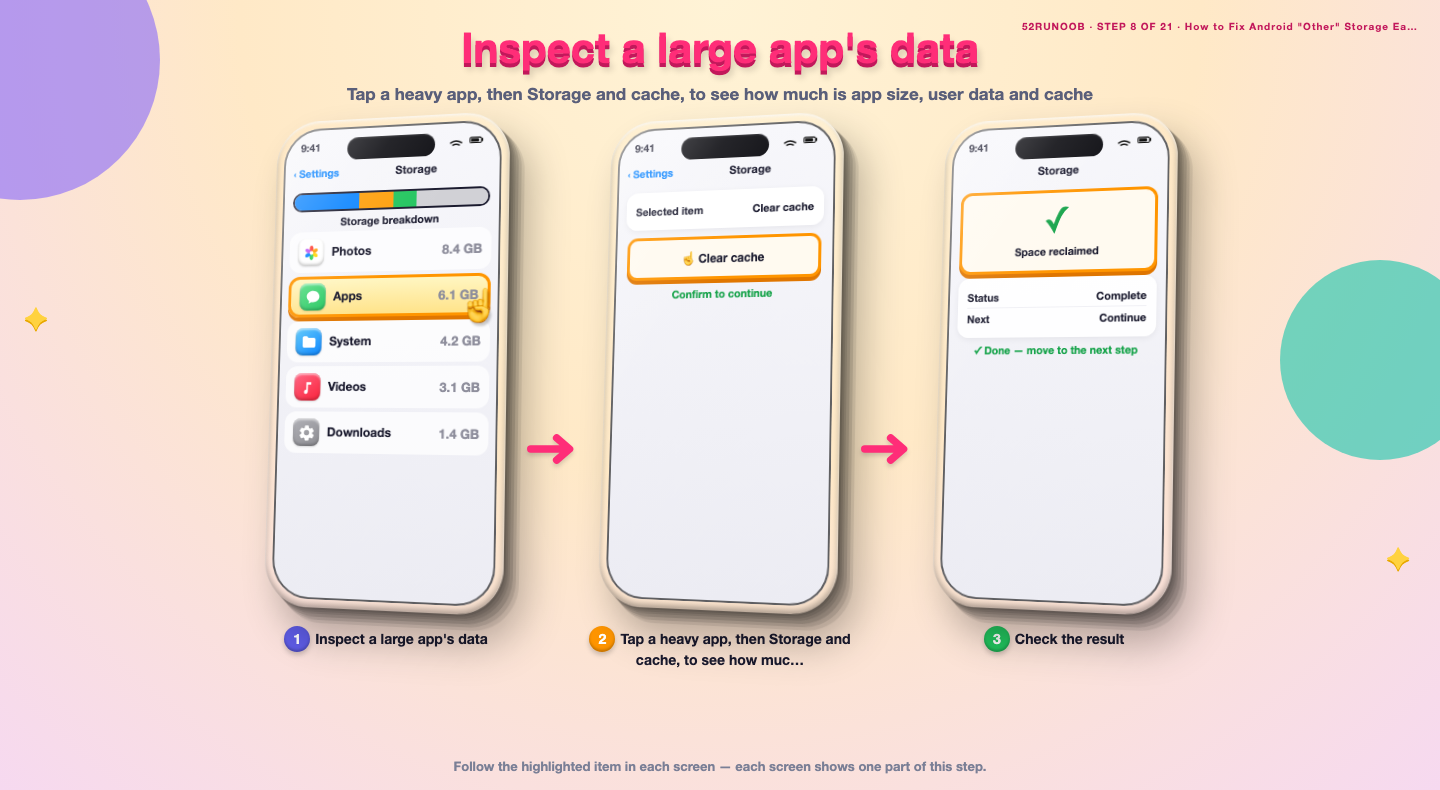
Step 8: Inspect a large app's data
Tap a heavy app, then Storage and cache, to see how much is app size, user data and cache.
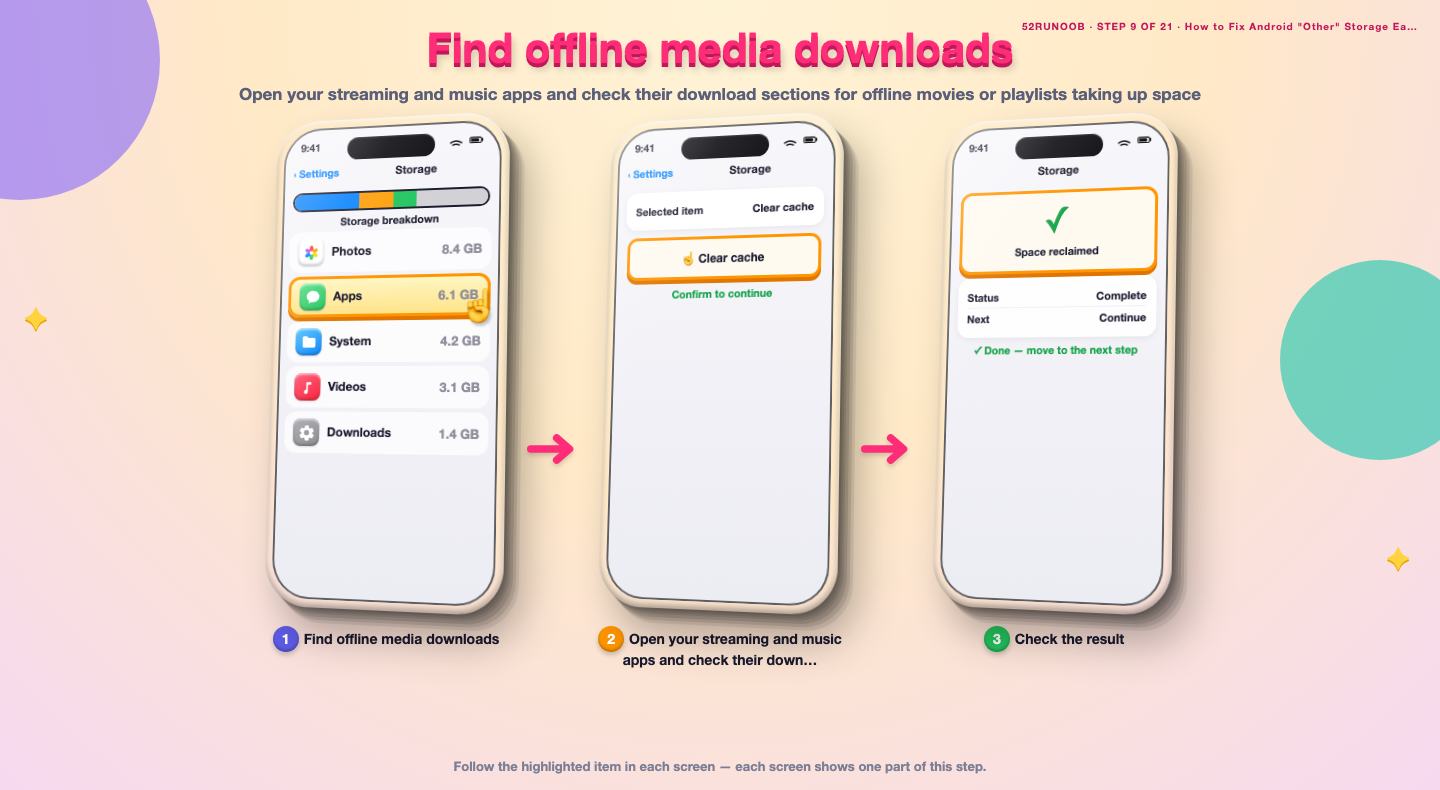
Step 9: Find offline media downloads
Open your streaming and music apps and check their download sections for offline movies or playlists taking up space.
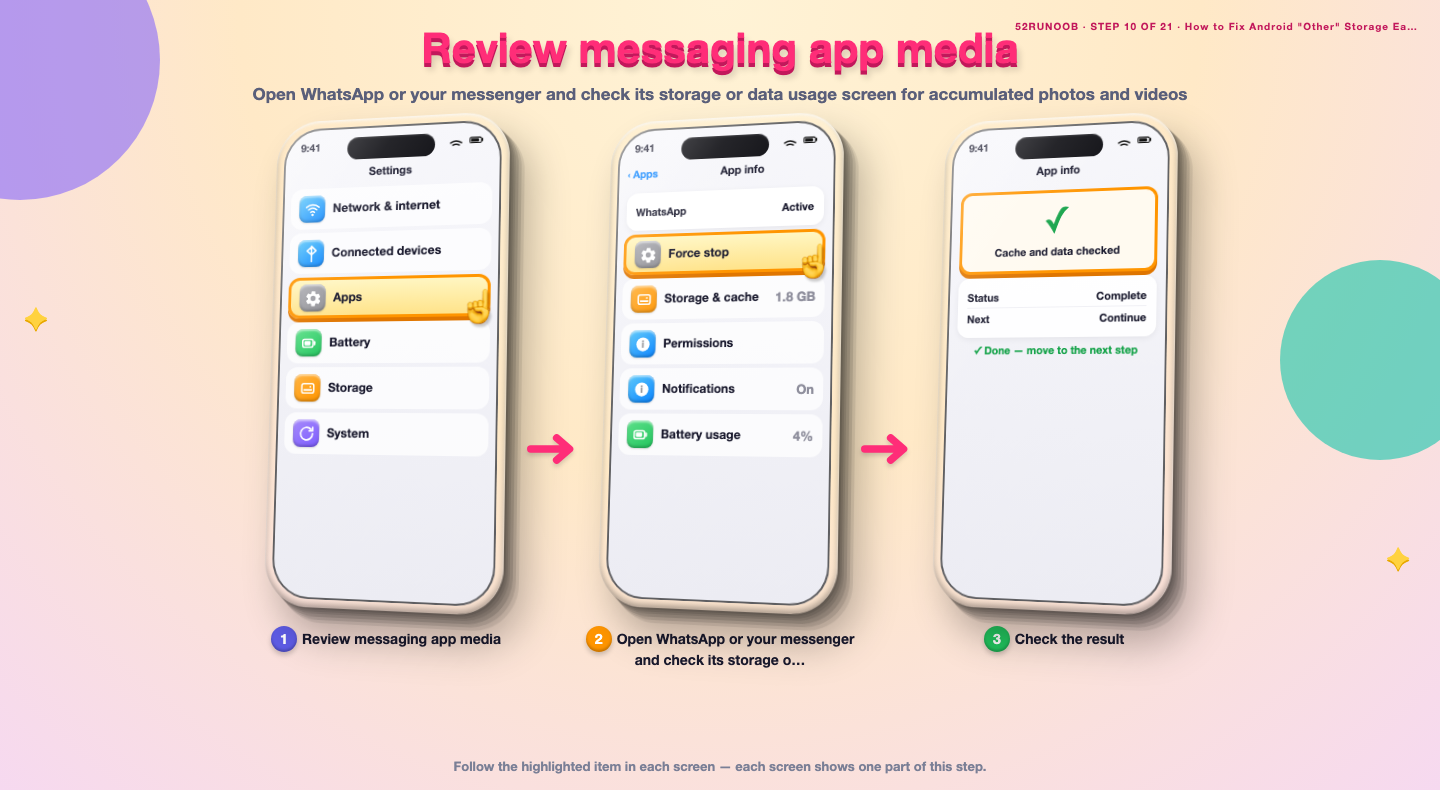
Step 10: Review messaging app media
Open WhatsApp or your messenger and check its storage or data usage screen for accumulated photos and videos.
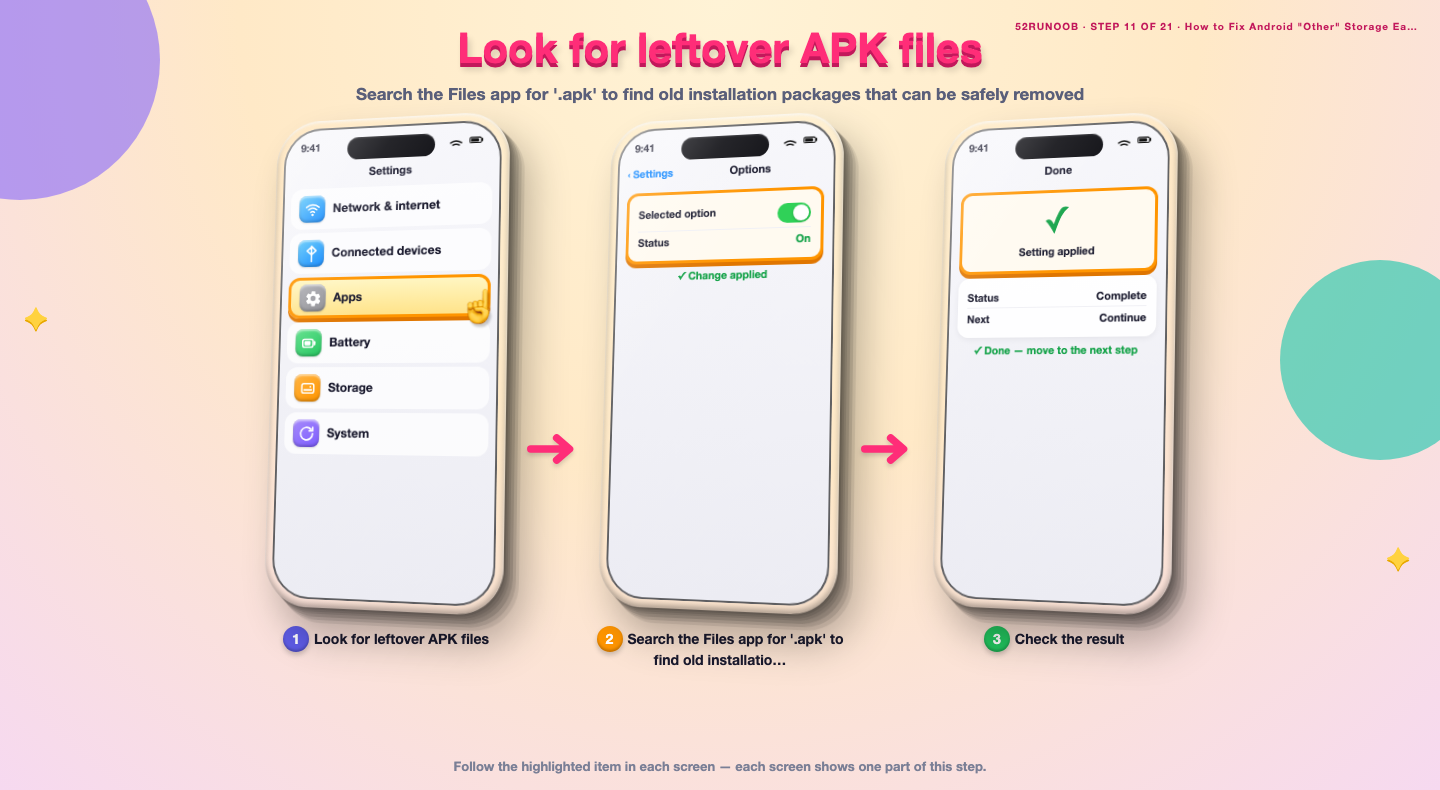
Step 11: Look for leftover APK files
Search the Files app for '.apk' to find old installation packages that can be safely removed.
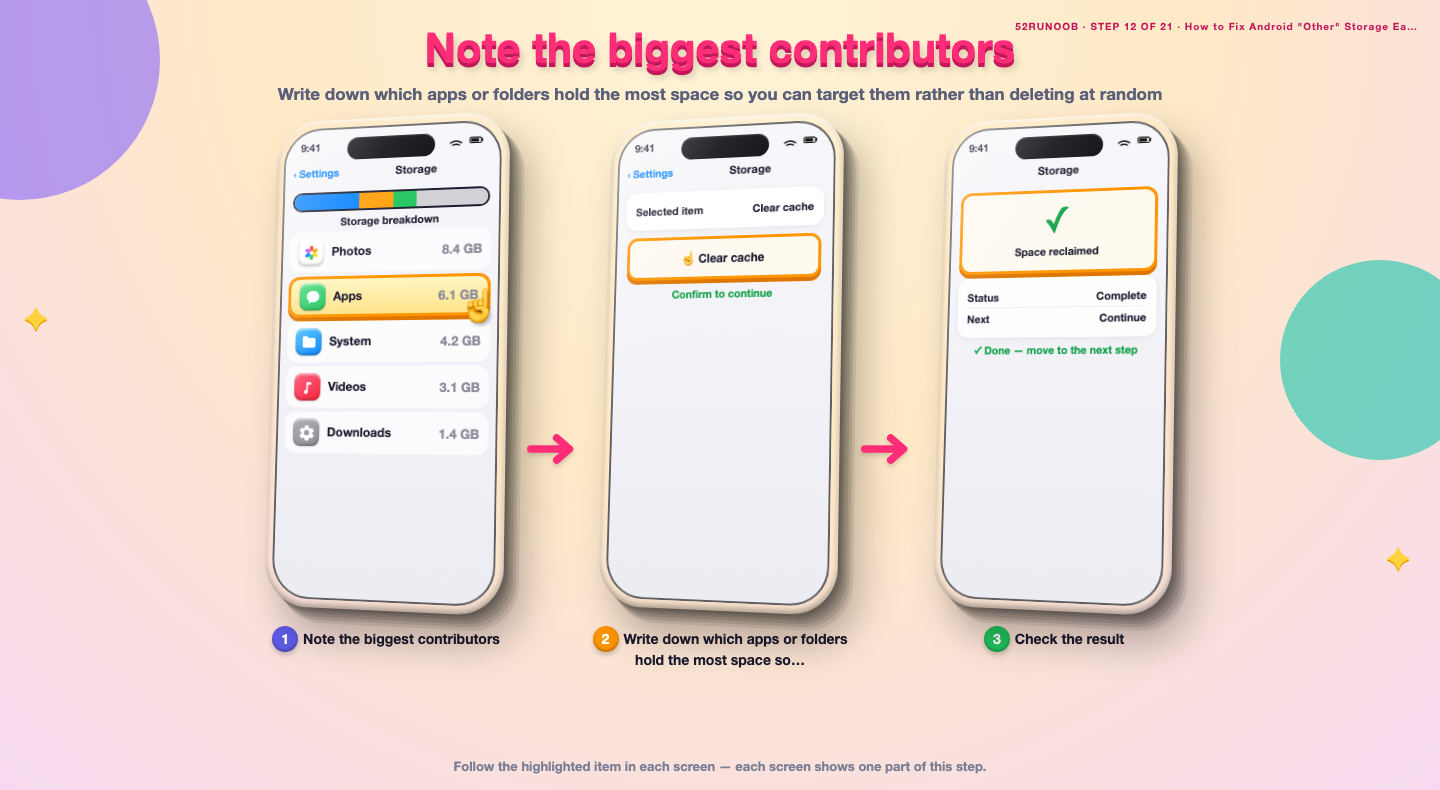
Step 12: Note the biggest contributors
Write down which apps or folders hold the most space so you can target them rather than deleting at random.
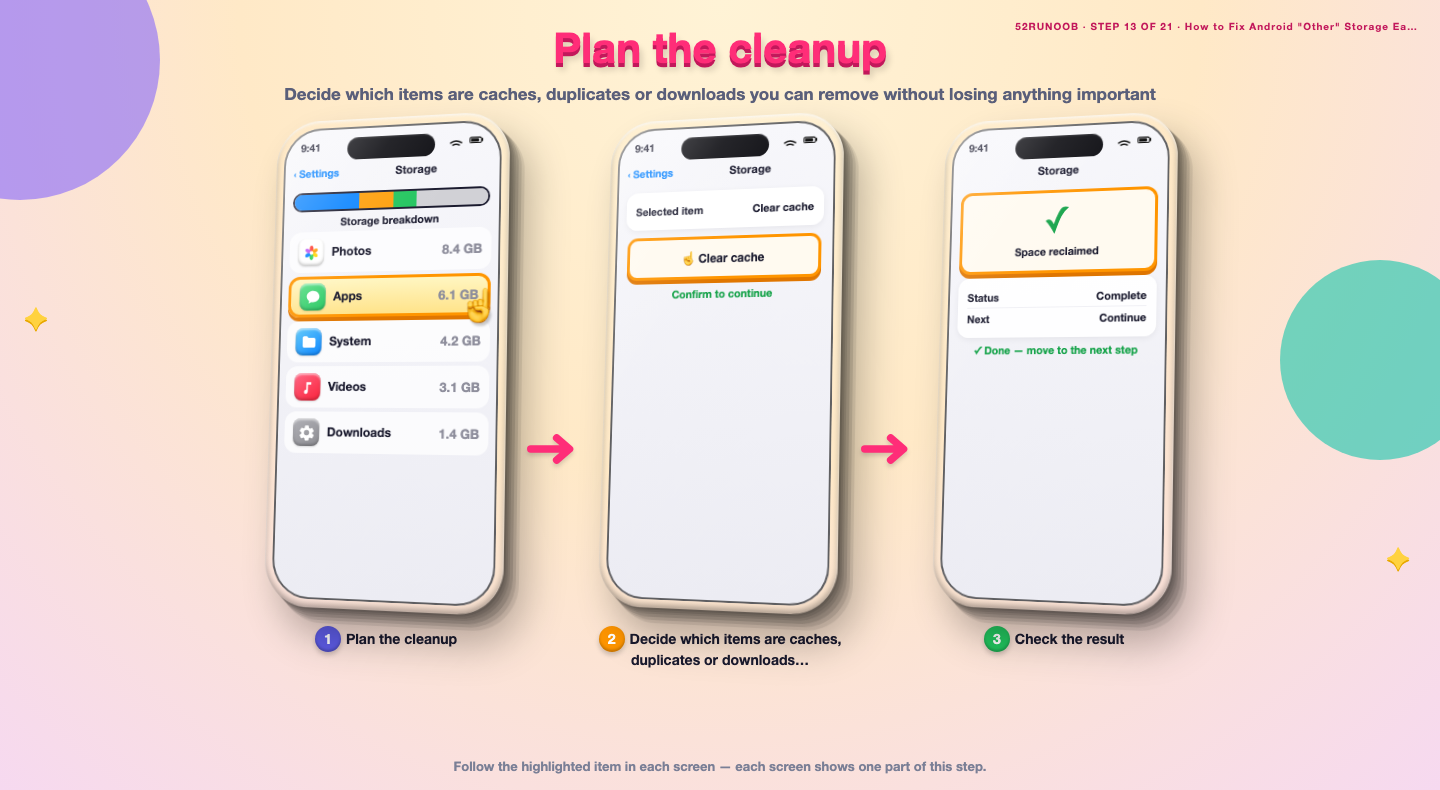
Step 13: Plan the cleanup
Decide which items are caches, duplicates or downloads you can remove without losing anything important.
Method 2 of 2: Clear Cached and Residual Data
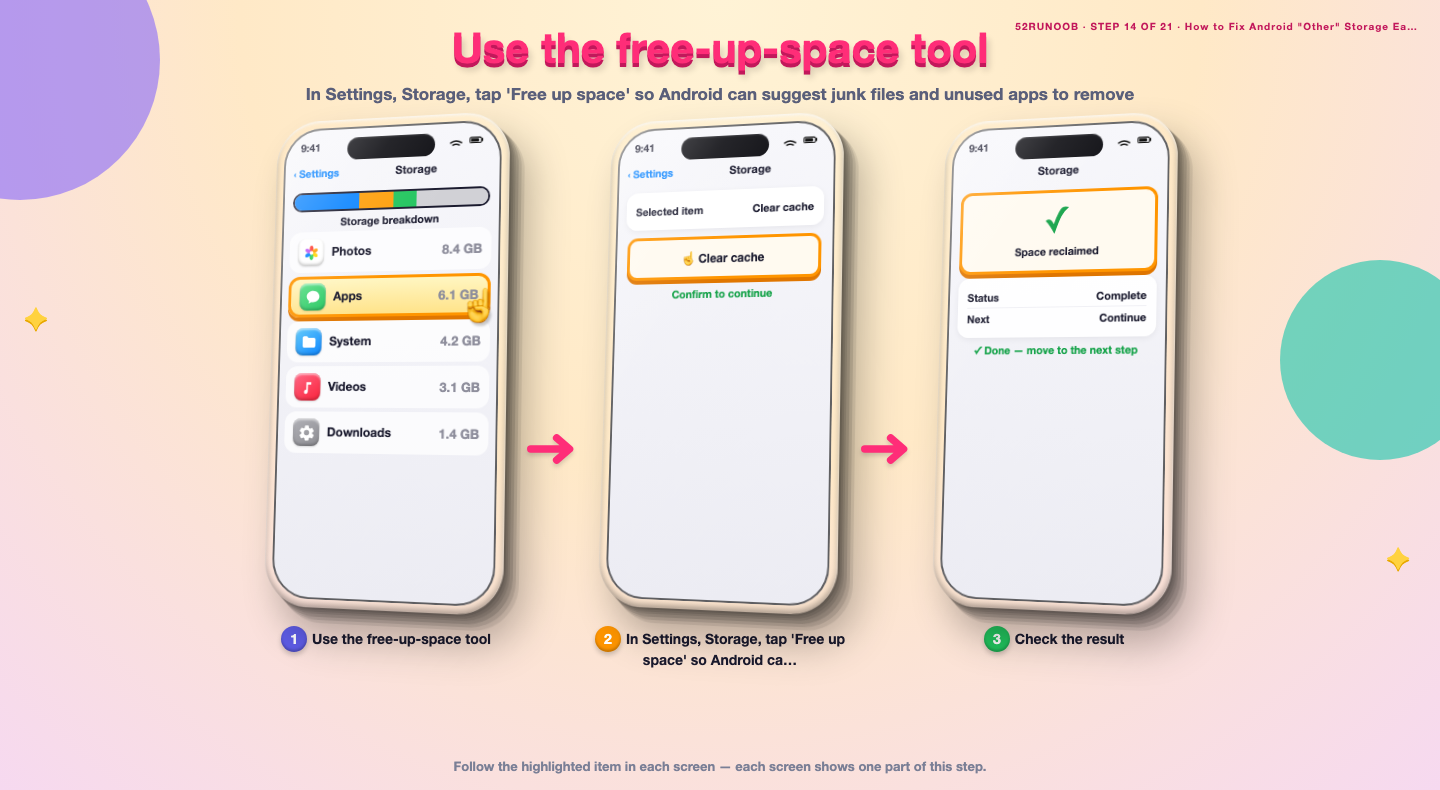
Step 14: Use the free-up-space tool
In Settings, Storage, tap 'Free up space' so Android can suggest junk files and unused apps to remove.
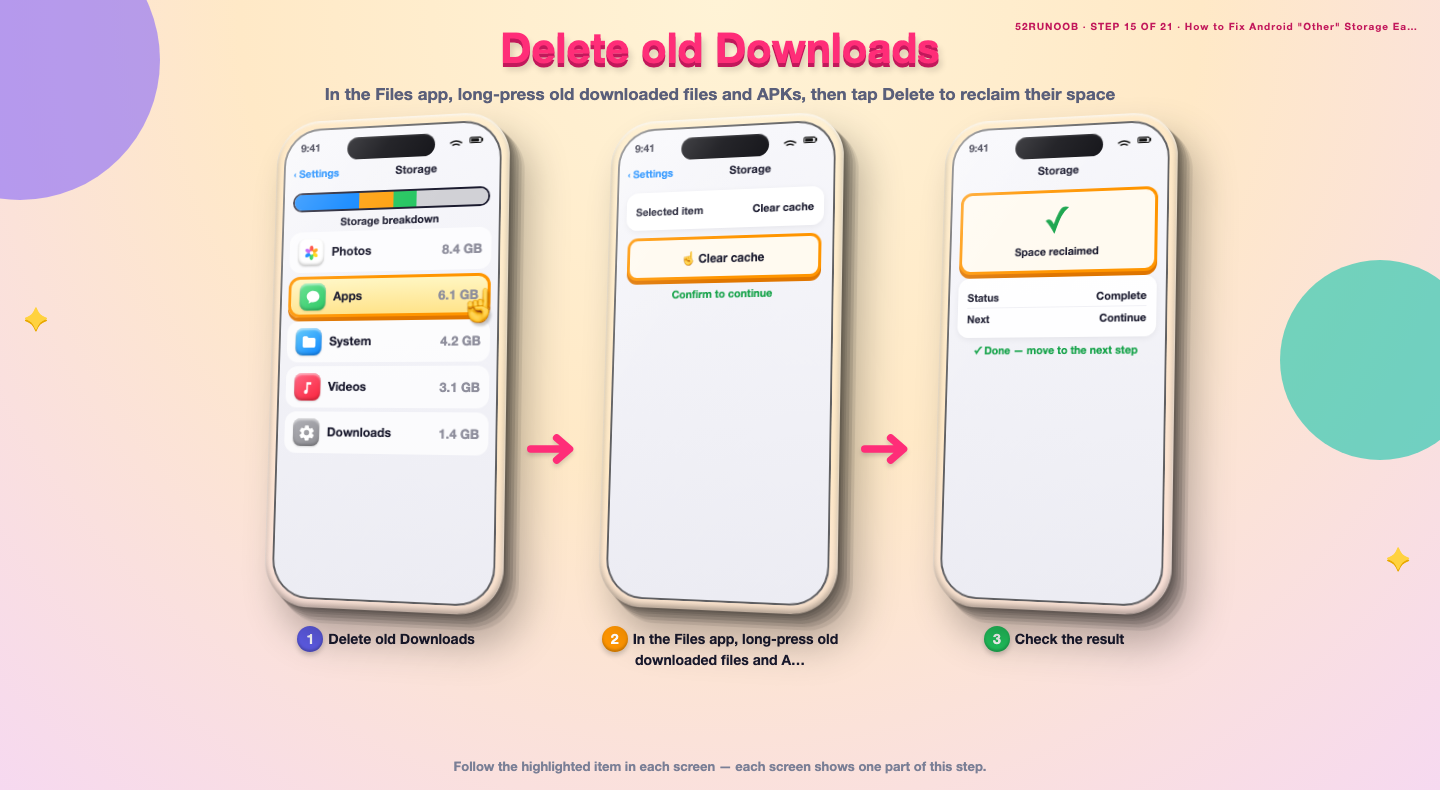
Step 15: Delete old Downloads
In the Files app, long-press old downloaded files and APKs, then tap Delete to reclaim their space.
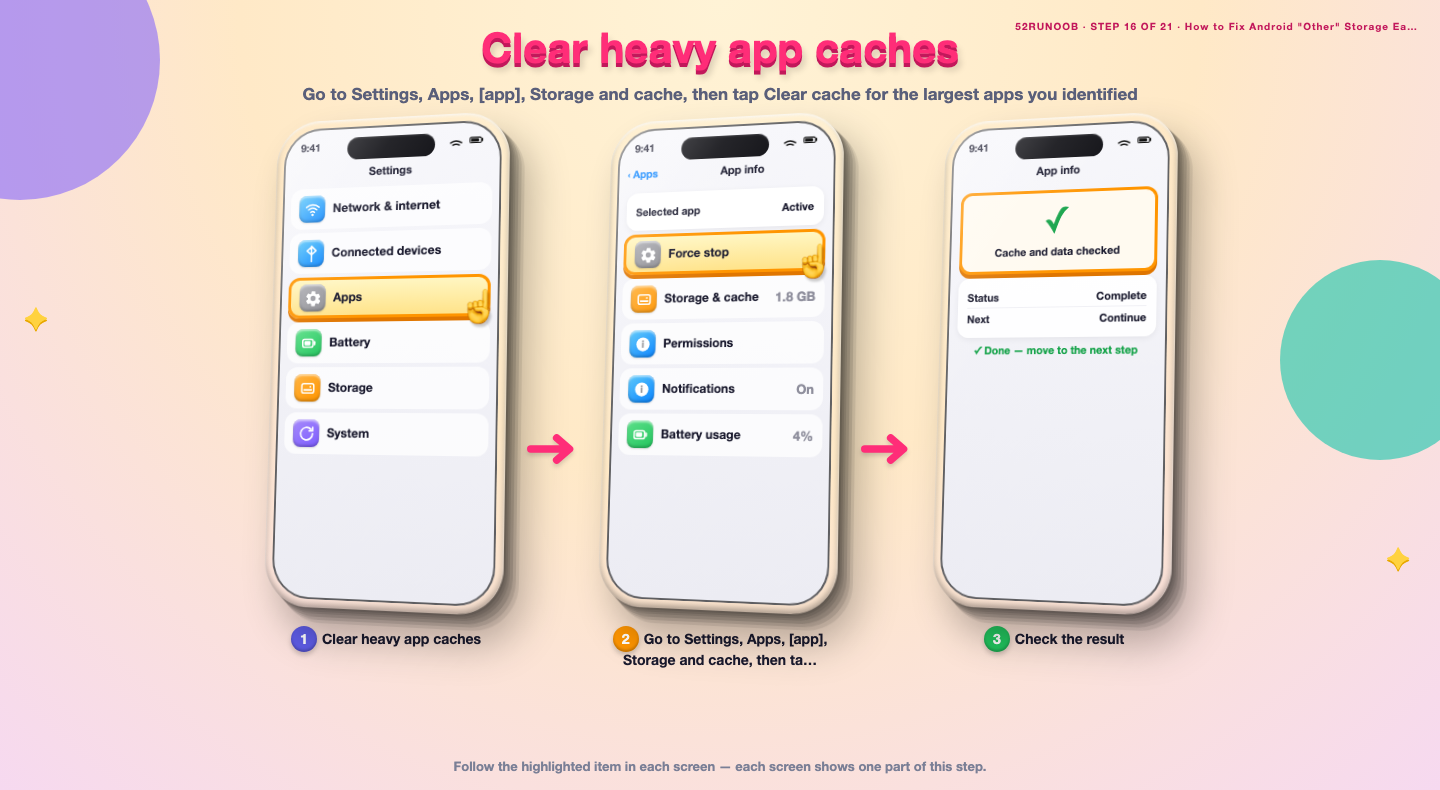
Step 16: Clear heavy app caches
Go to Settings, Apps, [app], Storage and cache, then tap Clear cache for the largest apps you identified.
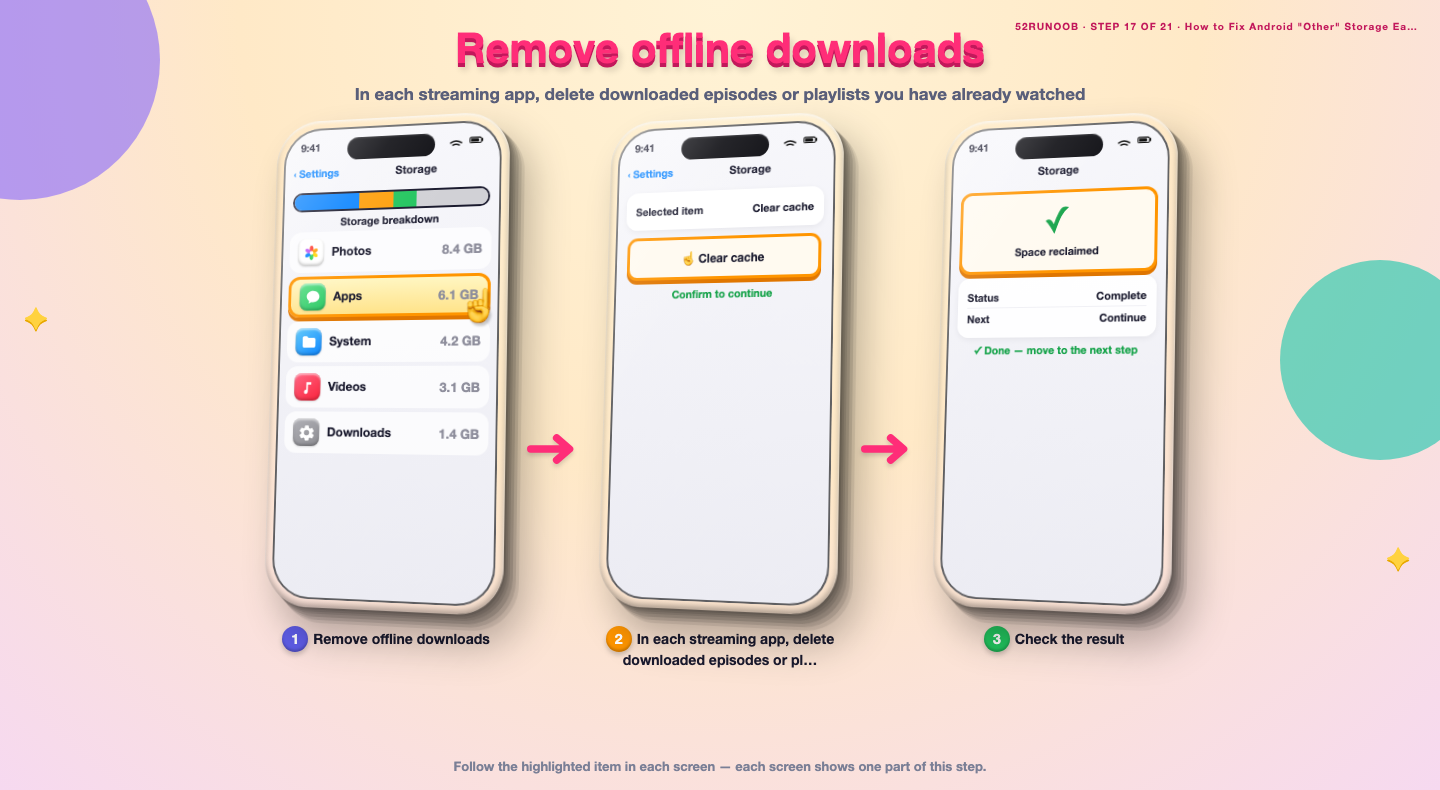
Step 17: Remove offline downloads
In each streaming app, delete downloaded episodes or playlists you have already watched.
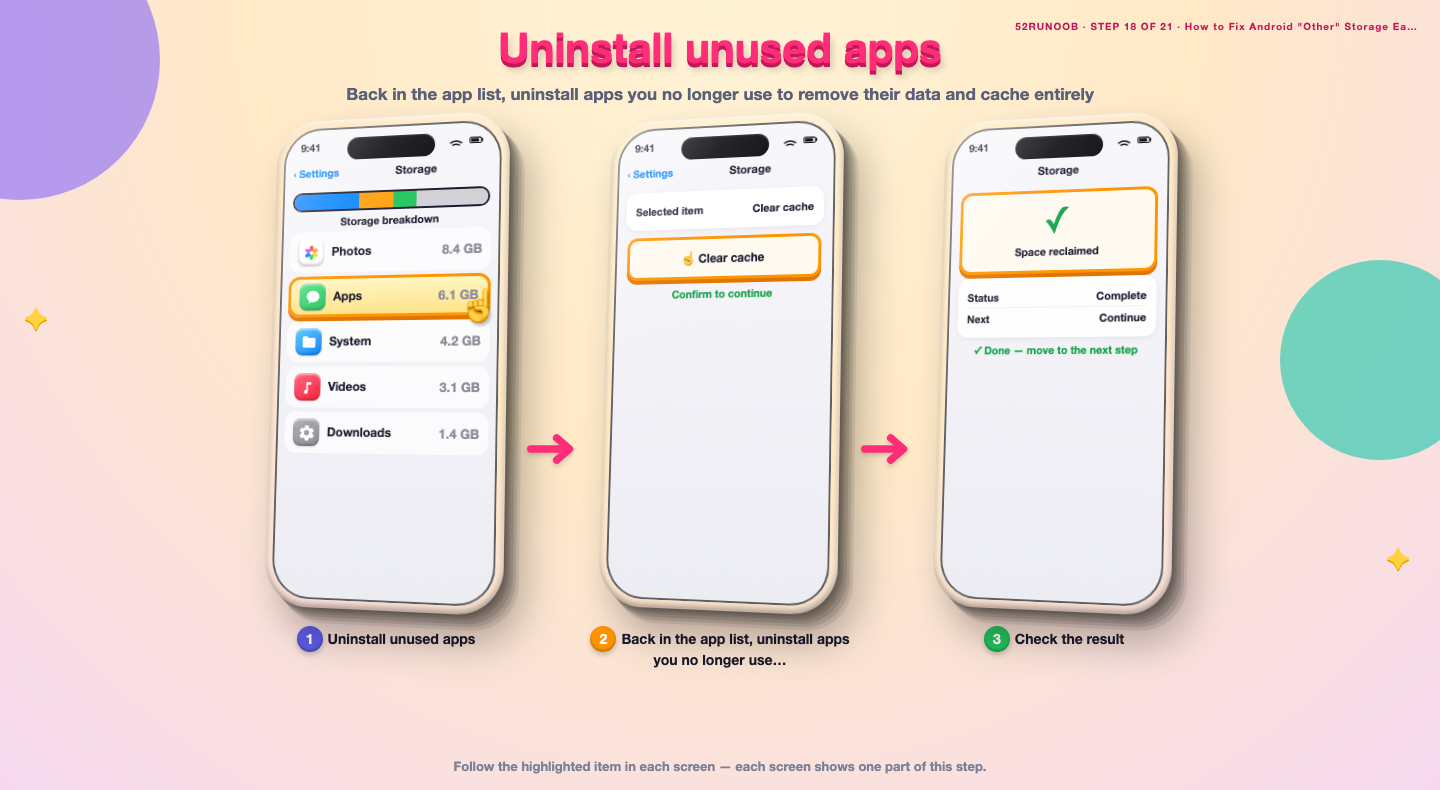
Step 18: Uninstall unused apps
Back in the app list, uninstall apps you no longer use to remove their data and cache entirely.
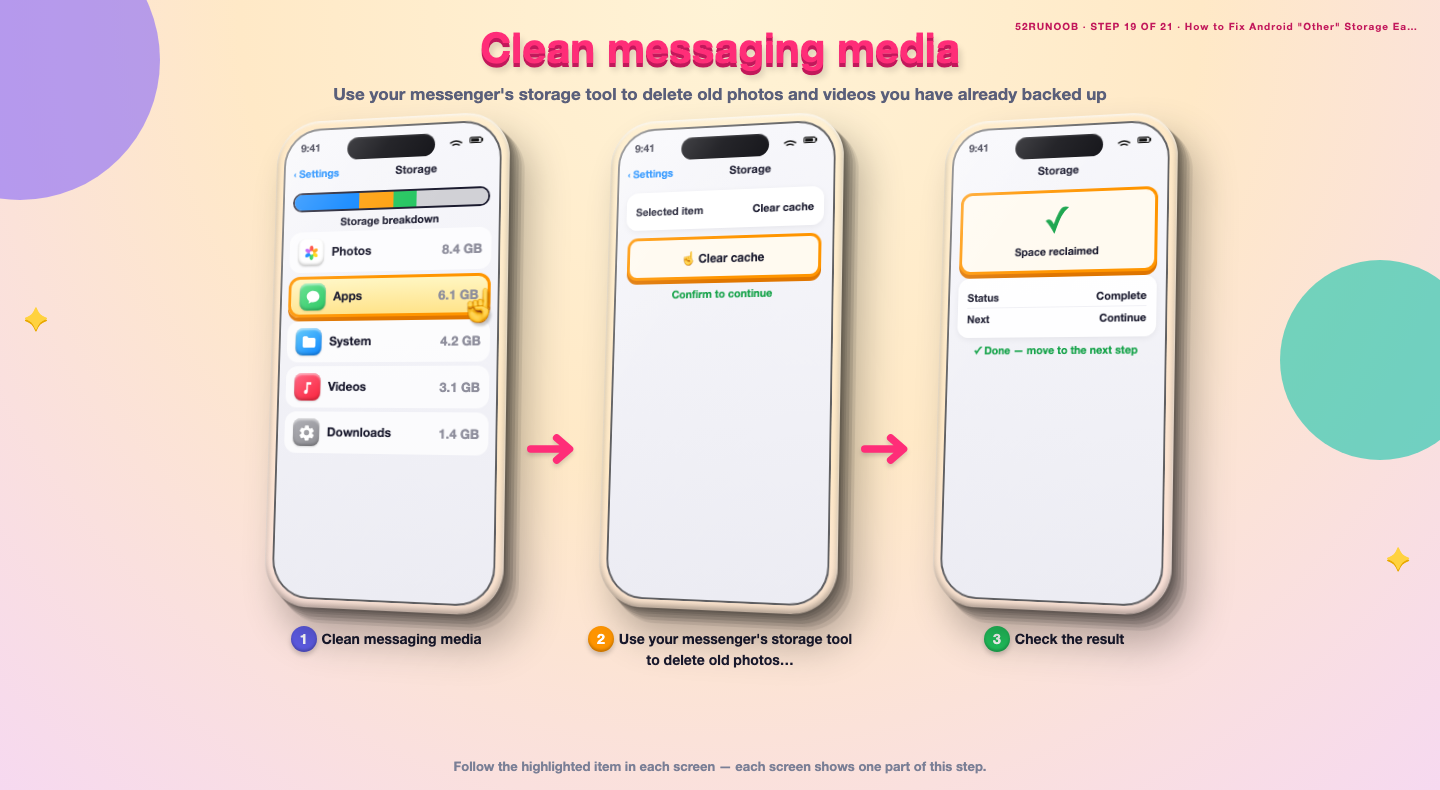
Step 19: Clean messaging media
Use your messenger's storage tool to delete old photos and videos you have already backed up.
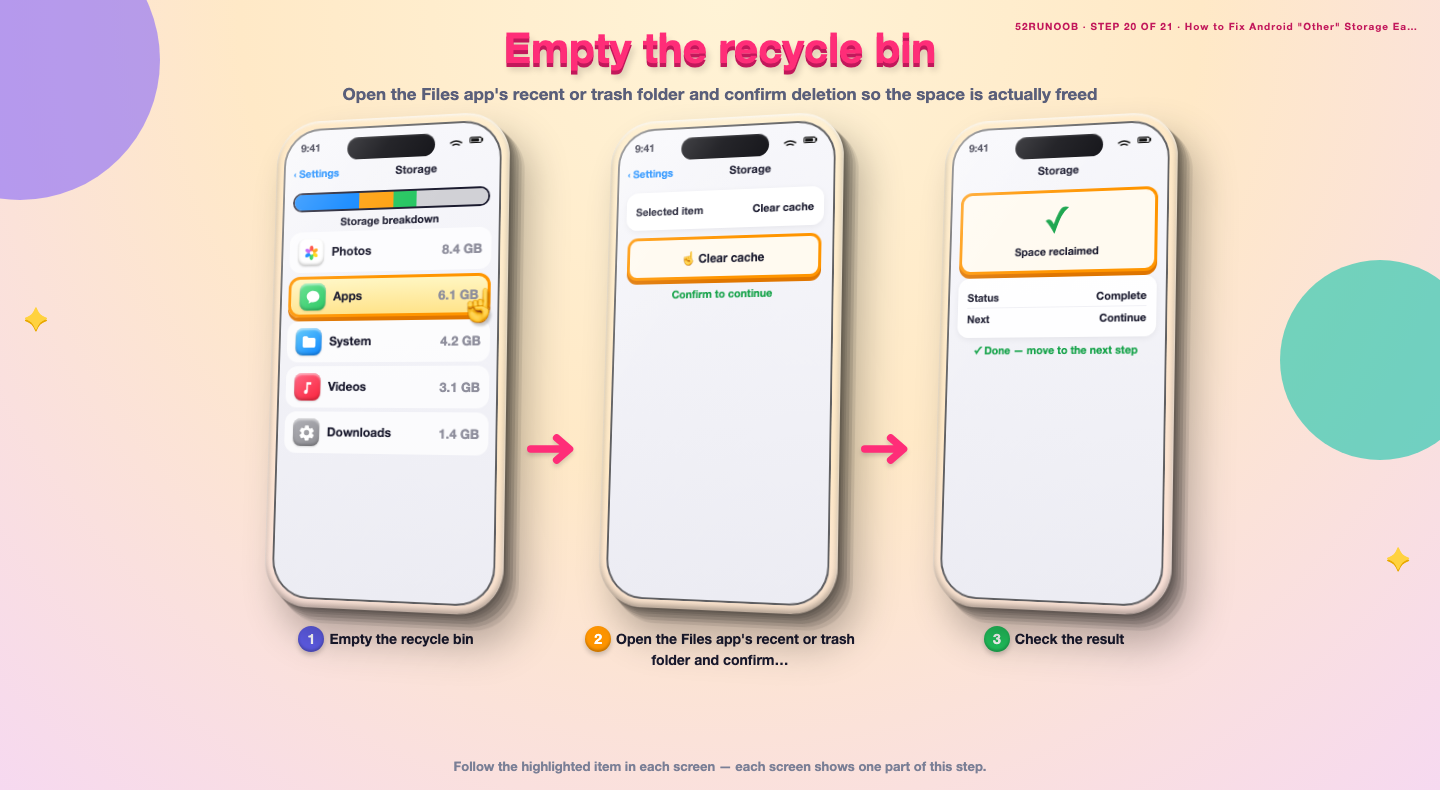
Step 20: Empty the recycle bin
Open the Files app's recent or trash folder and confirm deletion so the space is actually freed.
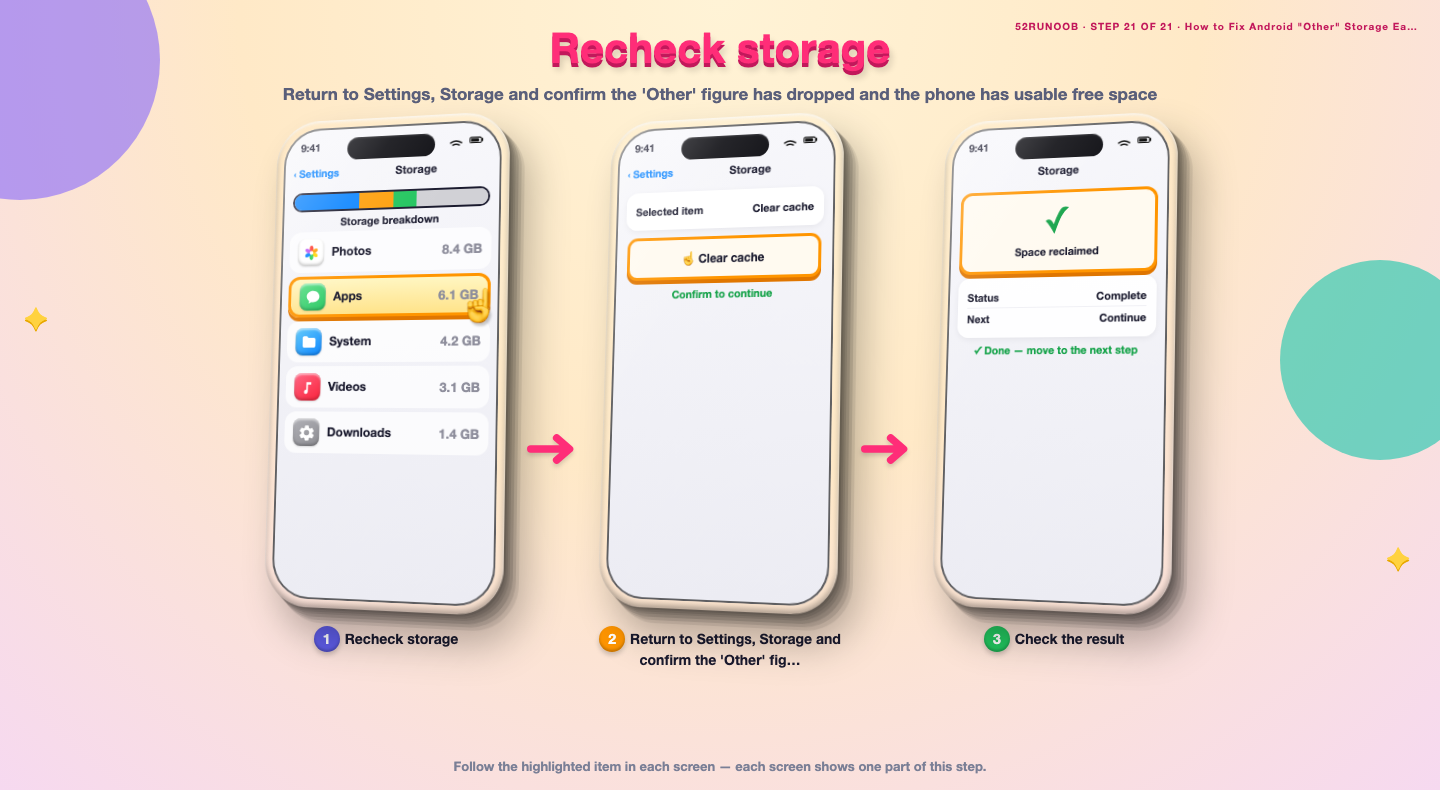
Step 21: Recheck storage
Return to Settings, Storage and confirm the 'Other' figure has dropped and the phone has usable free space.
Tips
- 'Other' is normal and cannot be deleted as a single item; remove its contents instead.
- Offline downloads in streaming apps are a common hidden cause of a large 'Other' category.
- Keep at least 10 percent of storage free so Android can run smoothly.
Warnings
- Do not delete files you do not recognize from system folders; you may break apps.
- Clearing app data (not just cache) signs you out and removes local settings.
- Back up photos before deleting them from the device storage.
Frequently asked questions
Is the 'Other' category a virus or something dangerous?
No. 'Other' is a normal Android storage bucket that groups app data, cache, downloads and system files. It is not malware. If you are worried, run Play Protect and review app permissions, but the category itself is safe.
Why did 'Other' grow so large all of a sudden?
A large video download, a game's cached data, or accumulated app caches usually cause a sudden jump. Check Downloads and sort apps by storage size in Settings to find the culprit before deleting anything.
Can I delete 'Other' directly?
You cannot erase 'Other' as one item because it is a summary of many file types. You reduce it by clearing caches, deleting Downloads, removing old APKs and uninstalling unused apps.
Will clearing caches delete my photos and messages?
No. Clearing an app's cache only removes temporary files. Photos and messages are stored separately, but clearing 'data' instead of 'cache' can remove local app settings, so choose cache first.
References
- Google Support — Free up space on your Android device. https://support.google.com/android/answer/9551190
- Android Source — Storage overview. https://source.android.com/docs/core/storage
- Google Photos — Back up and free up storage. https://support.google.com/photos/answer/6193313
- wikiHow — How to Fix Android "Other" Storage Eating Half the Phone. https://www.wikihow.com/Free-Up-Space-on-an-Android-Phone
Every guide is reviewed against its sources. See our editorial policy.
Reader comments
0 so farFinished this guide? Tell other readers what worked, what didn't, and what you would change.