When CPU usage falls the moment Task Manager opens, the cause is often not the tool but a measurement artifact or a process that changes behavior when focus shifts. Some apps throttle themselves in the background, and some malware deliberately pauses when monitoring tools appear. Log CPU with Performance Monitor or Resource Monitor instead, run a security scan, and inspect hidden processes with Process Explorer.
This guide walks through the process in clear illustrated steps, from the first preparation to a finished result. Each step has its own picture, so you can compare your progress as you go.
How to use this guide
Work through the steps in order. Method 1 of 2 covers the basics, and the later methods offer alternatives and finishing touches. If you only have a minute, skim the Quick steps box above and come back for the details.
Related guides
- How to Reduce chrome memory usage when it slows down your pc
- How to Plan for a big purchase
- How to Start a collection on a budget
- How to Choose hiking boots that fit
- Browse all Fix Slow Device guides
- All 52runoob guides
Trusted external resources
- Microsoft Support — Configure startup applications in Windows
- Microsoft Learn — Process Explorer
- Microsoft Learn — Performance Monitor overview
A note on sources
We check each guide against the official resources listed in References at the end of this article. External links open in a new tab; the related guides above stay on this site.
Quick steps
- Reproduce the drop several times to confirm it is consistent.
- Use Resource Monitor to watch CPU without changing focus.
- Set up a Performance Monitor data collector for continuous logging.
- Run a full scan with Windows Security.
- Review startup apps and scheduled tasks.
- Inspect processes with Process Explorer for suspicious entries.
Things you'll need
- A Windows 11 PC with administrator access
- Resource Monitor, Performance Monitor, and Task Manager
- Windows Security or a trusted antivirus tool
- Process Explorer from Microsoft Sysinternals
Step-by-step
Method 1 of 2: Log CPU Without Disturbing the System
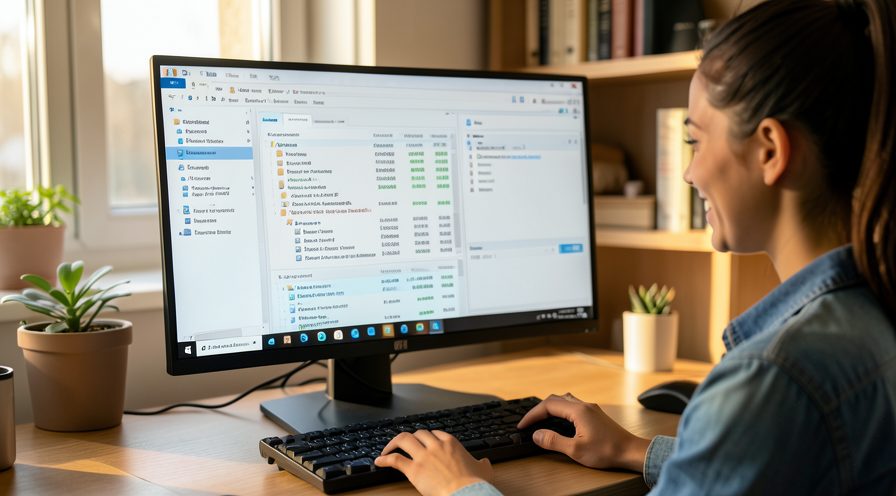
Step 1: Confirm the pattern
Open Task Manager, watch CPU fall, then repeat a few times to verify the behavior is consistent.
Step 2: Open Resource Monitor
Launch Resource Monitor from the Performance tab of Task Manager for a live detailed view.
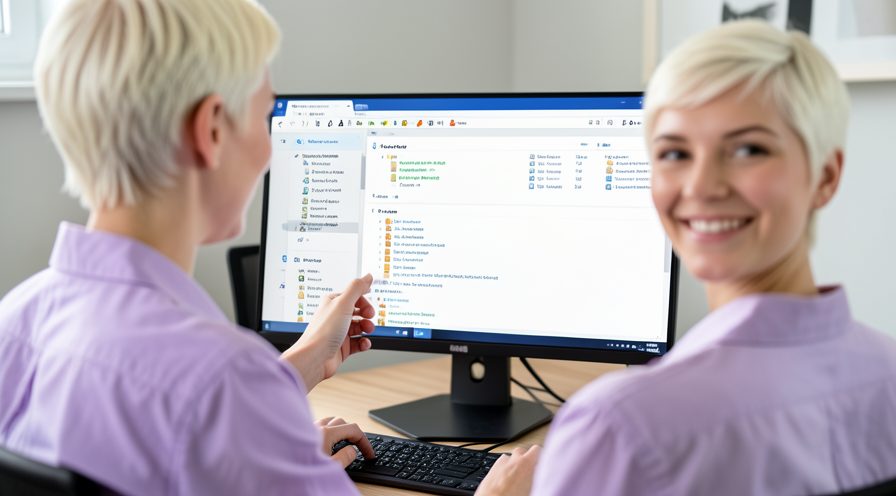
Step 3: Watch CPU continuously
Leave Resource Monitor open and use the PC normally to see whether spikes appear there.

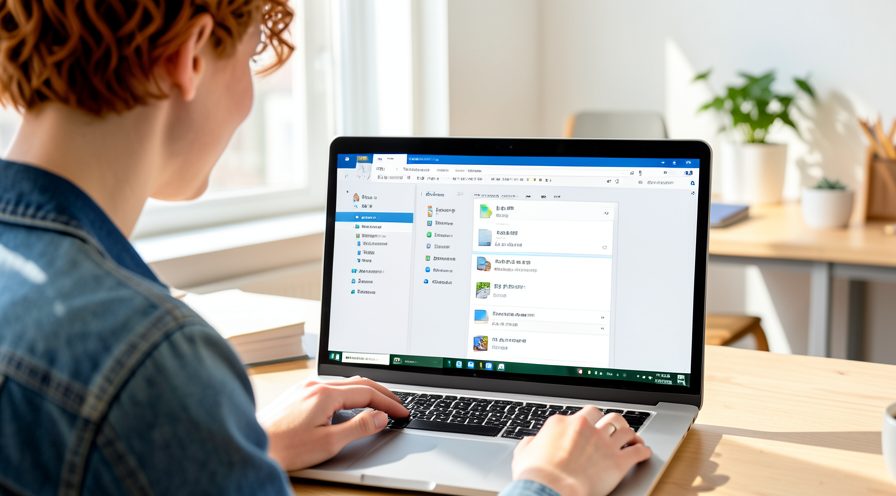
Step 4: Open Performance Monitor
Search for Performance Monitor and open it to build a reusable log.
Step 5: Create a data collector
Expand Data Collector Sets and create a new set that records CPU activity over time.

Step 6: Set the log duration
Choose a long enough recording period to capture the spike during normal work.

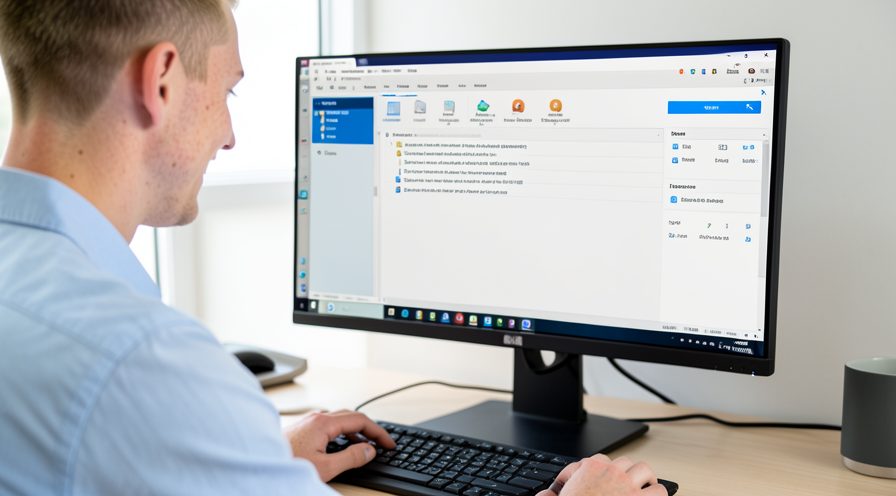
Step 7: Start logging
Start the data collector and continue your usual tasks without opening Task Manager.
Step 8: Reproduce the slowdown
Use the PC as you normally would until the slowdown happens again.

Step 9: Review the log
Stop the collector and examine the graph to see what the CPU was doing during the spike.

Step 10: Run Windows Security
Open Windows Security and start a full scan to look for hidden threats.

Step 11: Check protection status
Confirm that real-time protection and cloud-delivered protection are switched on.

Step 12: Review startup apps
Open Task Manager, go to Startup apps, and disable entries you do not recognize.

Step 13: Check scheduled tasks
Open Task Scheduler and look for tasks that launch unknown programs.

Step 14: Get Process Explorer
Download Process Explorer from the official Microsoft Sysinternals page and run it.
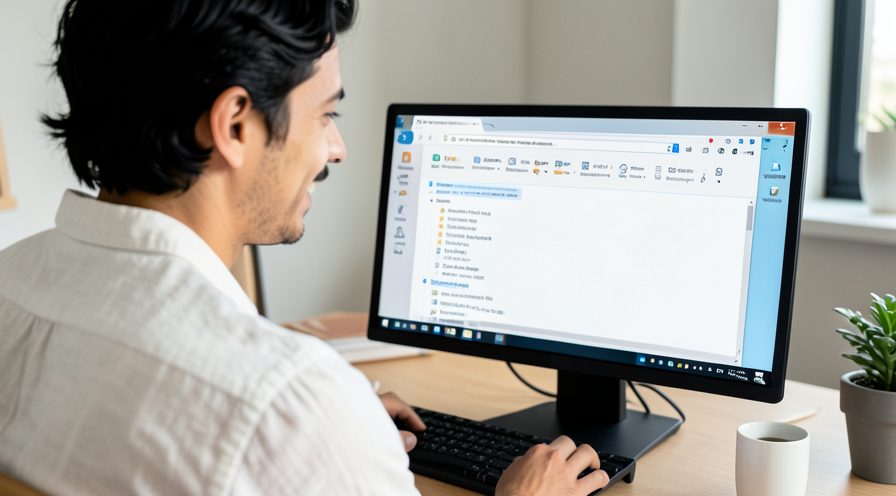
Step 15: Compare process trees
Use Process Explorer to see parent-child relationships and spot a suspicious process.

Step 16: Verify suspicious files
Right-click an unknown process and check its file location and digital signature.
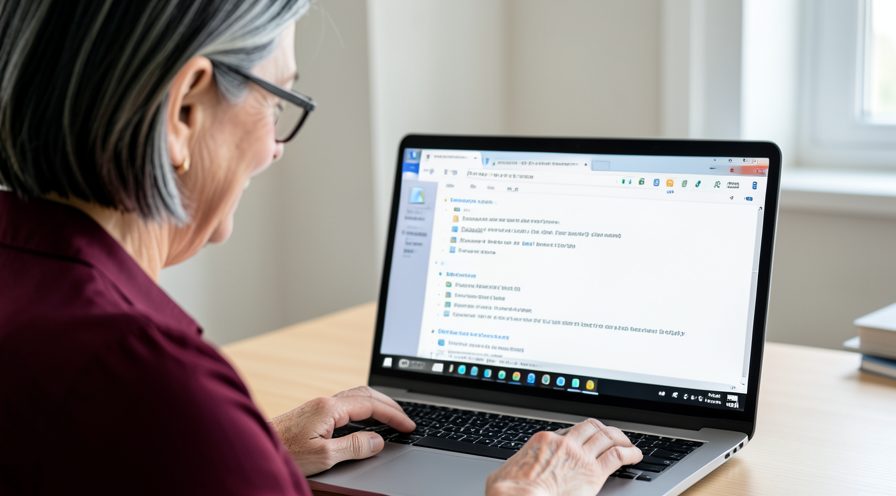
Step 17: Clean and reboot
Remove anything confirmed malicious and restart, then watch CPU usage again.

Tips
- Opening Task Manager can itself change what a process is doing.
- Continuous logging catches short spikes that a one-second view misses.
- A process that pauses when focus changes can be a sign of malware.
Warnings
- Do not trust a single Task Manager reading to rule out a short spike.
- Only download Process Explorer from the official Microsoft site.
- Avoid ending unknown processes before identifying what they belong to.
Frequently asked questions
Why does CPU drop when I open Task Manager?
The drop can be a measurement artifact because Task Manager samples CPU over short intervals and a brief spike may already be over by the time you look. It can also be a real behavior change: some apps throttle themselves when the foreground window changes, or a malicious process deliberately pauses under monitoring. Confirm the pattern repeatedly before deciding which it is.
Could this behavior be malware?
It can be. Some malware watches for Task Manager or other monitoring tools and stops its activity while they are open to avoid detection. If you suspect this, run a full offline antivirus scan and inspect processes with Process Explorer, which shows parent-child relationships and image paths that Task Manager hides.
What is a better way to catch the spike?
Use Performance Monitor to create a data collector that logs CPU over a longer period, or leave Resource Monitor open while you work normally. These tools record what happens without requiring you to open a window at the moment of the slowdown. Review the graph afterward to find the responsible process.
Does Task Manager itself use CPU?
Yes, but only a small amount, and it is usually not enough to explain a dramatic drop. A large fall more likely reflects a real change in what the busy process is doing, or the way CPU time is averaged and displayed. Use an independent log to separate the two possibilities.
References
- Microsoft Support — Configure startup applications in Windows. https://support.microsoft.com/en-us/help/4558286
- Microsoft Learn — Process Explorer. https://learn.microsoft.com/en-us/sysinternals/downloads/process-explorer
- Microsoft Learn — Performance Monitor overview. https://support.microsoft.com/kb/314482
- wikiHow — How to Fix High CPU That Drops as Soon as You Open Task Manager. https://www.wikihow.com/Fix-High-CPU-Usage
Every guide is reviewed against its sources. See our editorial policy.


Reader comments
0 so farFinished this guide? Tell other readers what worked, what didn't, and what you would change.