Chrome slows a PC when many tabs, background extensions, and web apps each keep their own renderer process alive. Memory Saver can suspend inactive tabs, while Chrome Task Manager shows exactly which tab or add-on is using the most memory. Closing spare tabs, removing heavy extensions, and keeping the browser updated usually restores smooth performance.
This guide walks through the process in clear illustrated steps, from the first preparation to a finished result. Each step has its own picture, so you can compare your progress as you go.
How to use this guide
Work through the steps in order. Method 1 of 2 covers the basics, and the later methods offer alternatives and finishing touches. If you only have a minute, skim the Quick steps box above and come back for the details.
Related guides
- How to Free up storage on your phone
- How to Have a relaxing spa day at home
- How to Make candles at home
- How to Type faster
- Browse all Windows Troubleshooting guides
- All 52runoob guides
Trusted external resources
- Microsoft Learn — Find memory heavy processes with commit size
- Microsoft Support — Configure Startup applications in Windows
- wikiHow — Stop Chrome from Refreshing Tabs
A note on sources
We check each guide against the official resources listed in References at the end of this article. External links open in a new tab; the related guides above stay on this site.
Quick steps
- Open Chrome Task Manager with the built-in shortcut and sort by memory.
- Close or reload tabs that consume the most memory.
- Remove or disable extensions you do not use.
- Enable Memory Saver to put inactive tabs to sleep.
- Limit open tabs and pin only the ones you always need.
- Update Chrome and restart the PC if memory use stays high.
Things you'll need
- A Windows PC with Google Chrome installed
- Chrome settings and the built-in Chrome Task Manager
- A list of the extensions you actually rely on
- About 15 minutes to test changes across a few reloads
Step-by-step
Method 1 of 2: Find, Clear, and Refresh Memory Hogs
Step 1: Open Chrome Task Manager
Press the Shift and Escape keys together to open Chrome's built-in task manager.

Step 2: Sort by memory
Click the Memory column so the highest consuming tabs rise to the top.

Step 3: Identify heavy tabs
Look for a single site whose memory use is far above the other open tabs.

Step 4: End the worst offender
Select the heavy tab and end its process to reclaim memory immediately.

Step 5: Check extension processes
Scroll the list to spot extensions holding memory in the background.

Step 6: Close unused tabs
Shut tabs you no longer need so their renderer processes release memory.
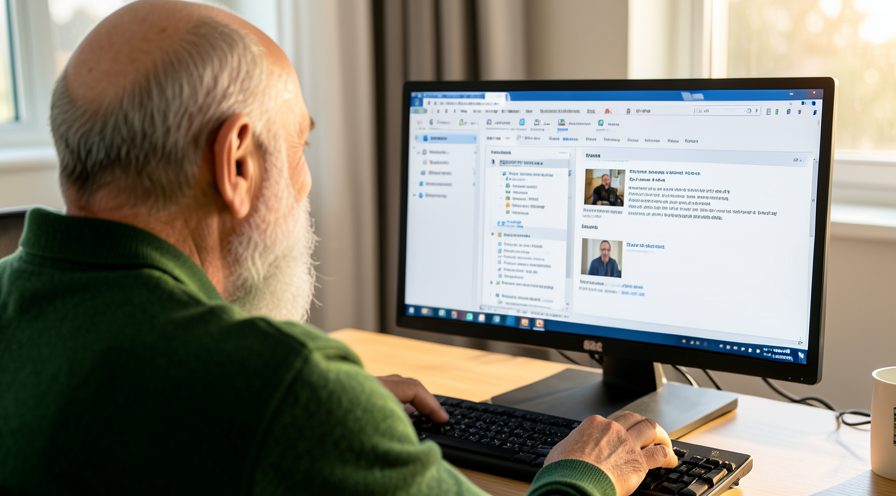
Step 7: Update the browser
Open the about page so Chrome checks for and installs the latest version.

Step 8: Restart the PC
Restart Windows to clear leftover processes and confirm memory use is lower.

Method 2 of 2: Reduce Background Load
Step 9: Open Chrome settings
Open the browser menu and choose settings from the list.

Step 10: Review installed extensions
Open the extensions page and list which add-ons you actually use.

Step 11: Remove unused extensions
Remove add-ons you no longer need to free their background memory.

Step 12: Enable Memory Saver
Open the performance section and turn on Memory Saver to sleep inactive tabs.

Step 13: Choose a savings level
Select a balanced or maximum tab deactivation level that suits your workflow.

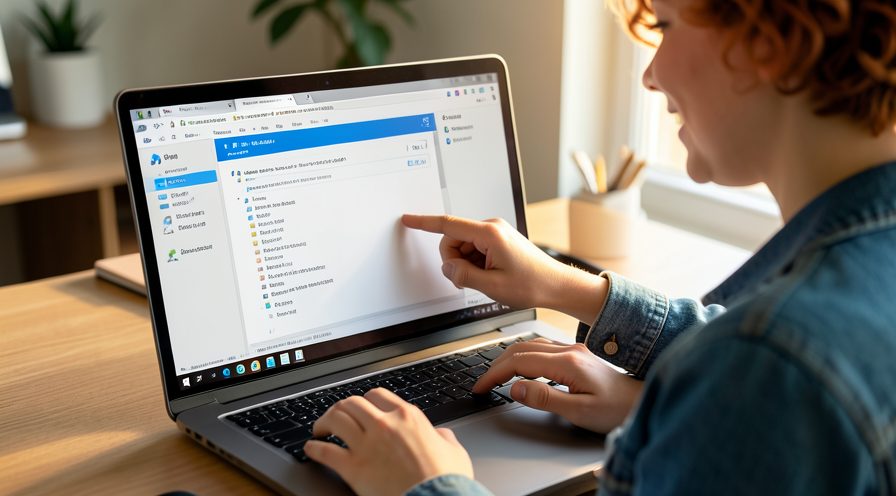
Step 14: Pin important tabs
Pin the few tabs you always need so they stay active while others sleep.
Tips
- Each tab runs its own renderer process, so one heavy site can raise total memory use.
- Memory Saver keeps your active tab fast while putting unused ones to sleep.
- Chrome Task Manager is more accurate than guessing from the Windows Task Manager alone.
Warnings
- Removing an extension can change browser behavior, so export its settings first if it syncs data.
- Tabs suspended by Memory Saver reload when revisited, which can reset unsaved form entries.
- Do not end browser processes from Windows Task Manager unless Chrome is unresponsive.
Frequently asked questions
Why does Chrome use so much memory?
Chrome runs a separate renderer process for each tab, plus processes for extensions and the browser itself, which adds overhead. Opening dozens of tabs or installing many extensions multiplies that overhead. The design improves stability and security, but it means total memory use climbs quickly.
How do I check which tab uses the most memory?
Press the Shift and Escape keys together to open Chrome's own Task Manager, then click the Memory column to sort. Unlike Windows Task Manager, it lists each tab and extension separately so you can see the exact culprit. Reload or close the heaviest entries to free memory.
What does Memory Saver actually do?
Memory Saver puts inactive tabs into a suspended state so they release memory for active work. When you return to a sleeping tab, Chrome reloads it automatically. You can choose a balanced or maximum tab deactivation level in the Chrome performance settings.
Should I disable hardware acceleration to reduce memory?
Hardware acceleration uses the graphics processor to render pages, which usually lowers CPU load rather than memory use. Turning it off rarely reduces RAM consumption and can make scrolling or video slower. Try it only as a troubleshooting step if Chrome behaves strangely on a particular graphics driver.
References
- Microsoft Learn — Find memory heavy processes with commit size. https://learn.microsoft.com/en-us/troubleshoot/developer/visualstudio/ide/visual-studio-unresponsive-resources-consuming-memory
- Microsoft Support — Configure Startup applications in Windows. https://support.microsoft.com/en-us/help/4026268/windows-10-change-startup-apps
- wikiHow — Stop Chrome from Refreshing Tabs. https://www.wikihow.com/Disable-Automatic-Tab-Discarding-in-Chrome
- wikiHow — How to Reduce Chrome Memory Usage When It Slows Down Your PC. https://www.wikihow.com/Fix-a-Slow-Computer
Every guide is reviewed against its sources. See our editorial policy.



Reader comments
0 so farFinished this guide? Tell other readers what worked, what didn't, and what you would change.