Bixby Agent is Samsung's voice assistant service, often woken by the 'Hi Bixby' phrase, the side key or a Modes and Routines trigger. Constant listening or a stuck routine can keep the CPU and battery busy. Turn off the triggers you do not use, clear the app cache and update it through Galaxy Store.
This guide walks through the process in clear illustrated steps, from the first preparation to a finished result. Each step has its own picture, so you can compare your progress as you go.
How to use this guide
Work through the steps in order. Method 1 of 2 covers the basics, and the later methods offer alternatives and finishing touches. If you only have a minute, skim the Quick steps box above and come back for the details.
Related guides
- How to Handle criticism without getting defensive
- How to Learn javascript
- How to How to fix phone stuck optimizing apps and slow after an update
- How to How to fix iphone slow on ios 17 after the final update
- Browse all Fix Slow Device guides
- All 52runoob guides
Trusted external resources
- Android Support - Speed up your Android device
- Android Support - Clear app cache and data
- Android Developers - Background work guide
A note on sources
We check each guide against the official resources listed in References at the end of this article. External links open in a new tab; the related guides above stay on this site.
Quick steps
- Check battery usage for Bixby in device care.
- Turn off voice wake-up and remap the Bixby key.
- Force stop Bixby and clear its cache.
- Pause active Modes and Routines.
- Update Bixby through the Galaxy Store.
Things you'll need
- A Samsung Galaxy phone running One UI
- Access to Settings and the Galaxy Store
- A Wi-Fi connection for app and software updates
- About 15 minutes to test each change
Step-by-step
Method 1 of 2: Identify and Calm the Assistant
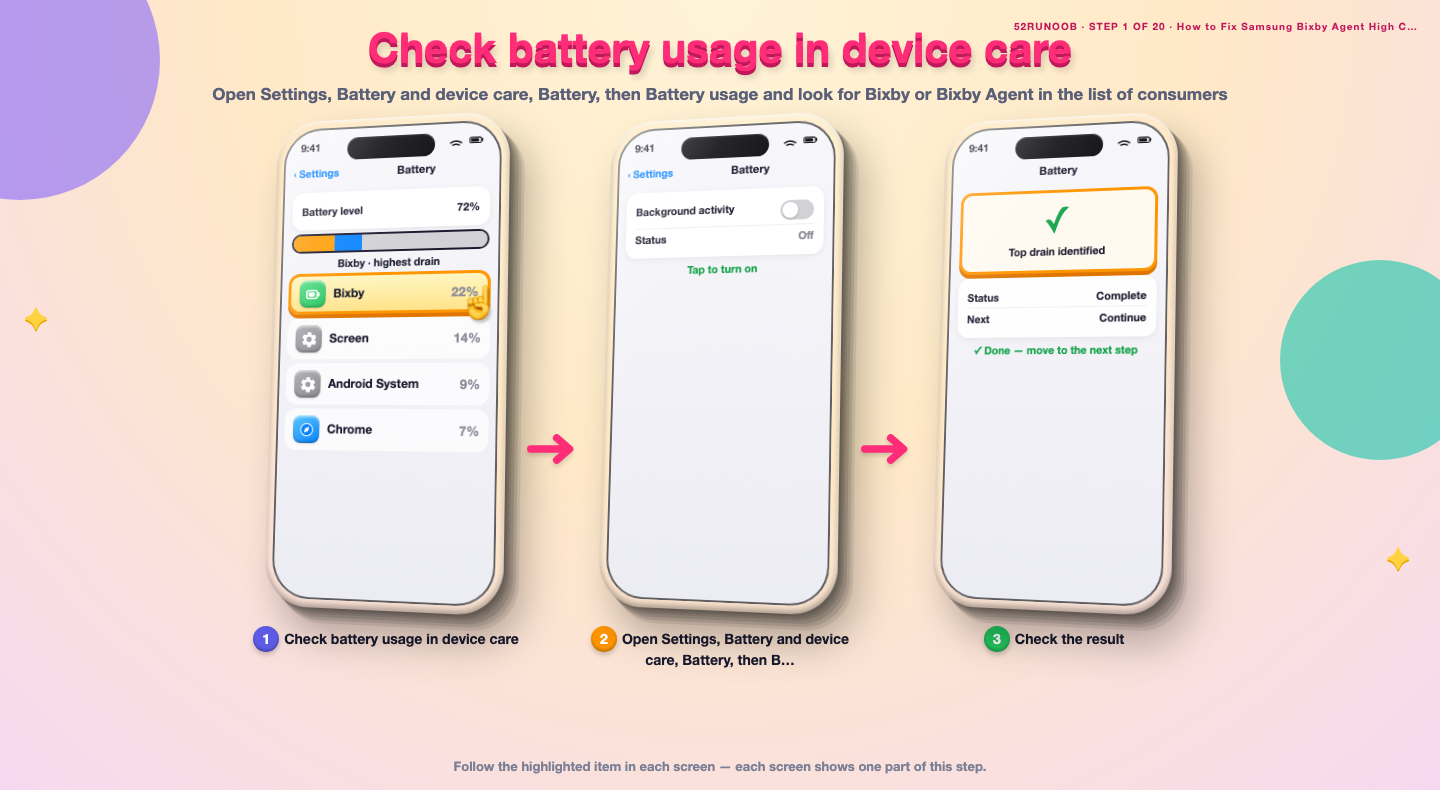
Step 1: Check battery usage in device care
Open Settings, Battery and device care, Battery, then Battery usage and look for Bixby or Bixby Agent in the list of consumers.
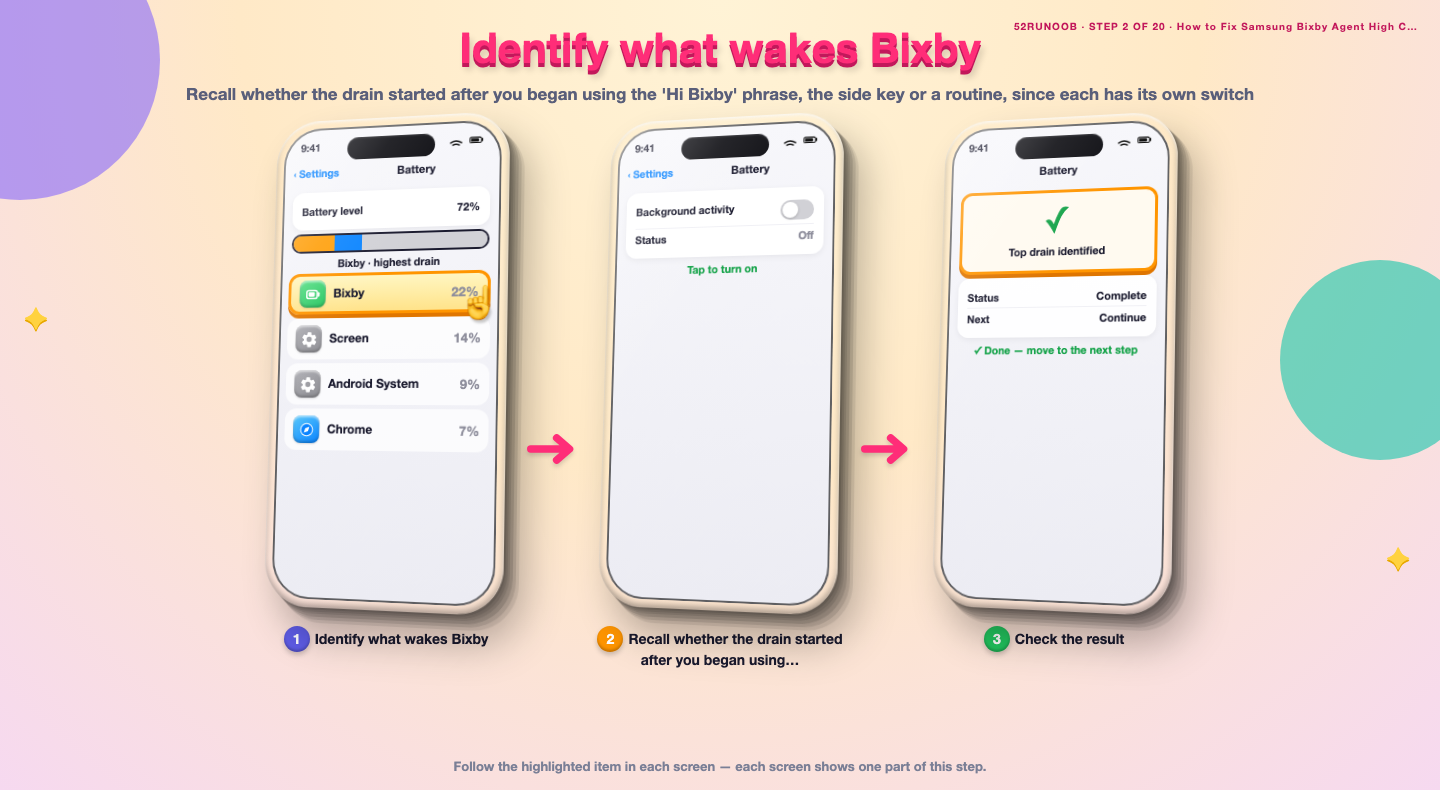
Step 2: Identify what wakes Bixby
Recall whether the drain started after you began using the 'Hi Bixby' phrase, the side key or a routine, since each has its own switch.
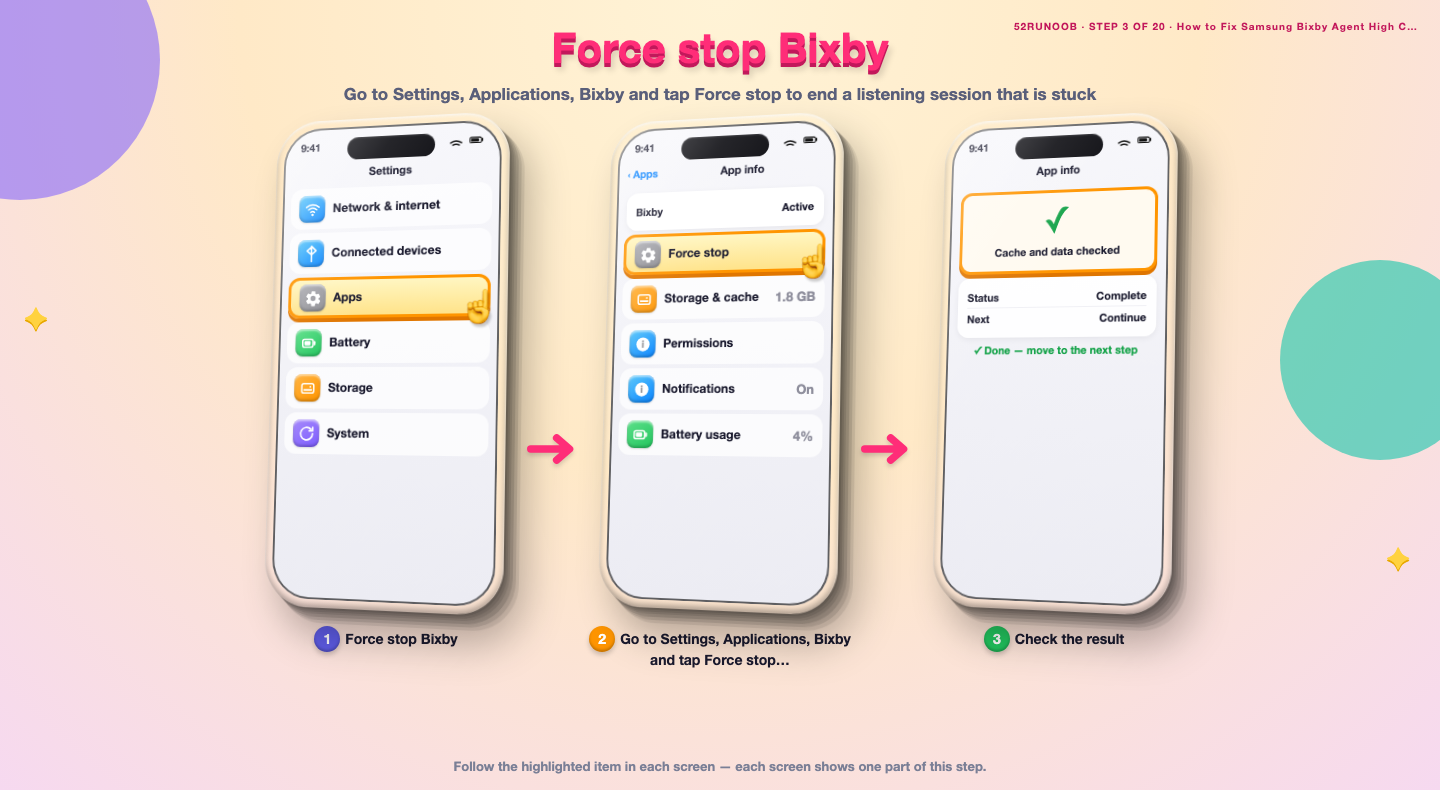
Step 3: Force stop Bixby
Go to Settings, Applications, Bixby and tap Force stop to end a listening session that is stuck.
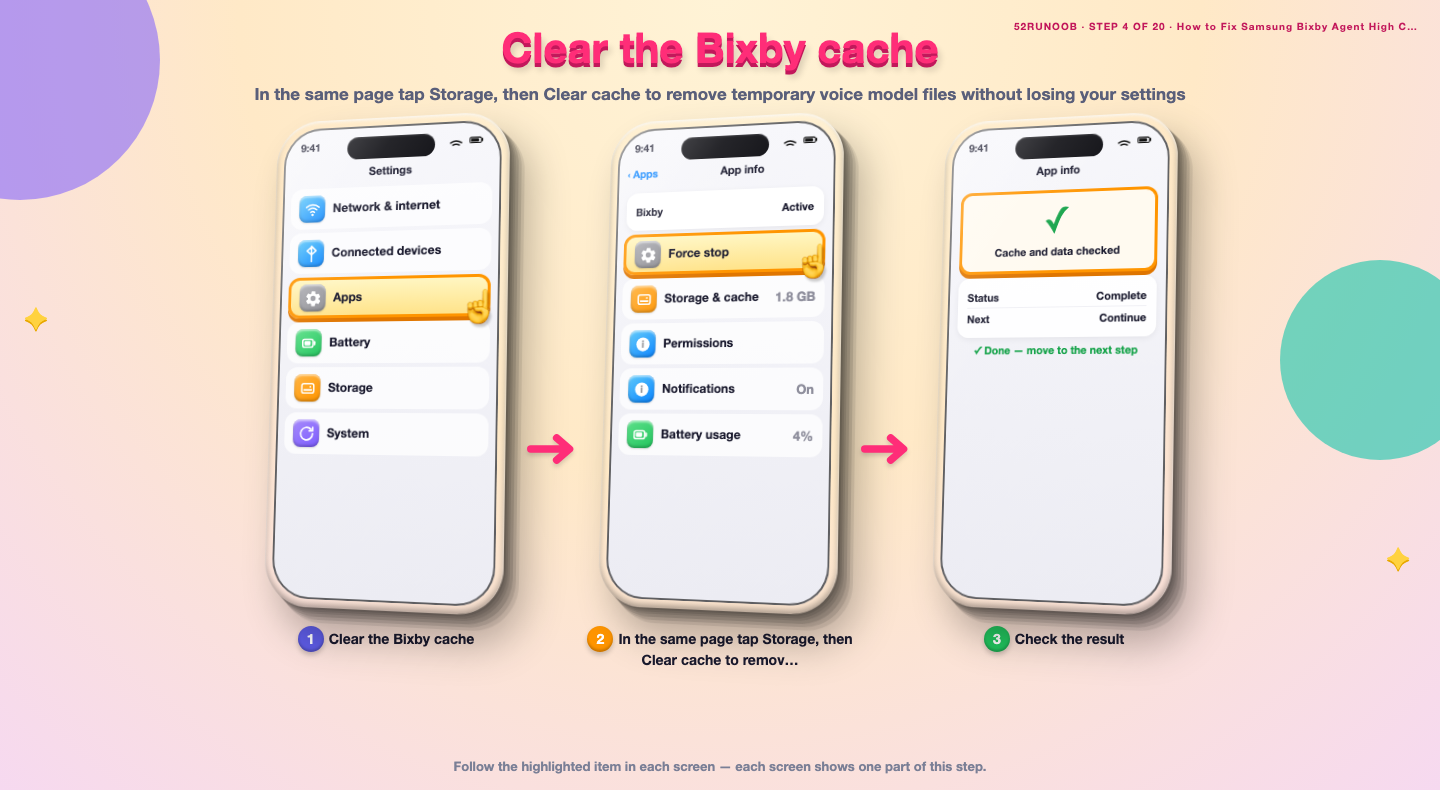
Step 4: Clear the Bixby cache
In the same page tap Storage, then Clear cache to remove temporary voice model files without losing your settings.
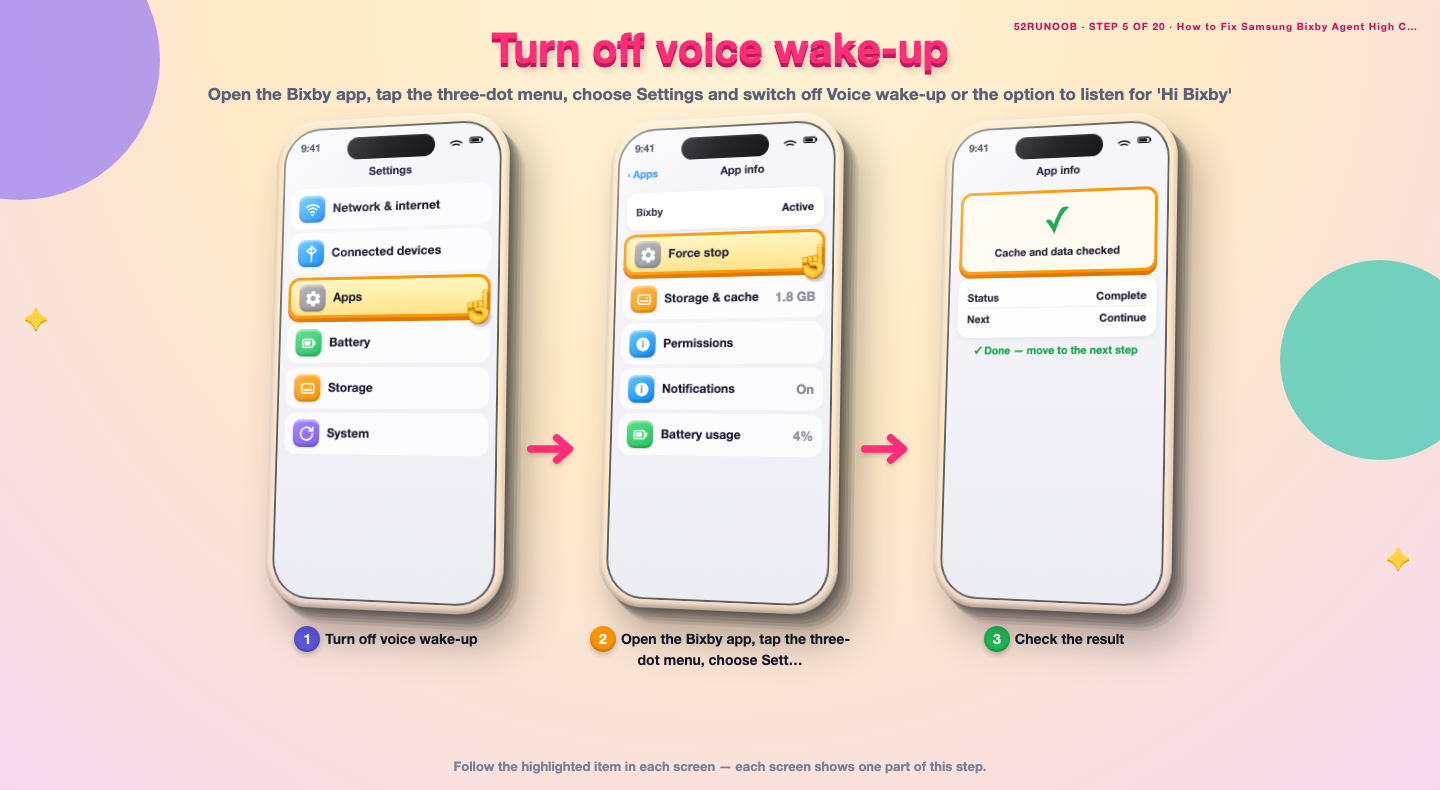
Step 5: Turn off voice wake-up
Open the Bixby app, tap the three-dot menu, choose Settings and switch off Voice wake-up or the option to listen for 'Hi Bixby'.
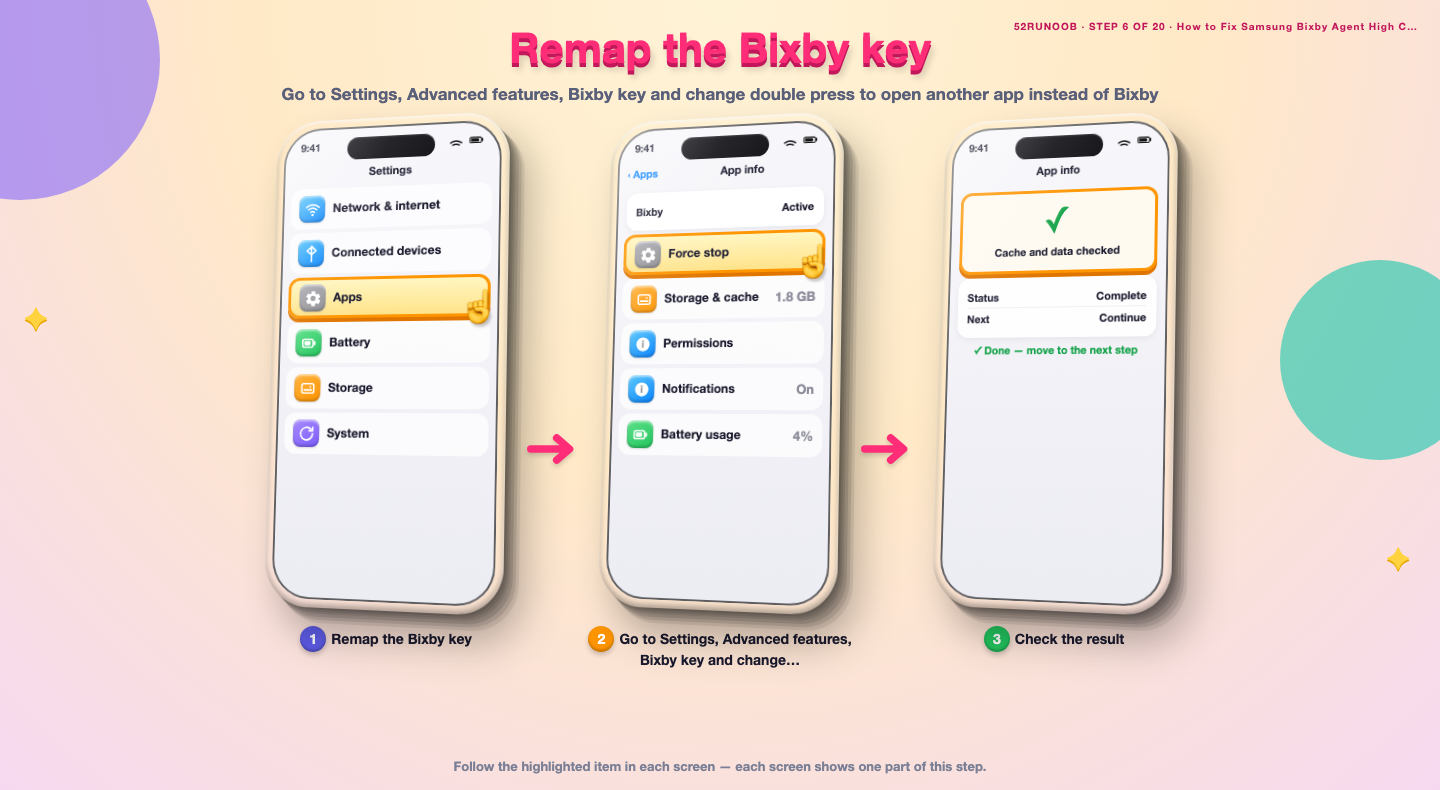
Step 6: Remap the Bixby key
Go to Settings, Advanced features, Bixby key and change double press to open another app instead of Bixby.
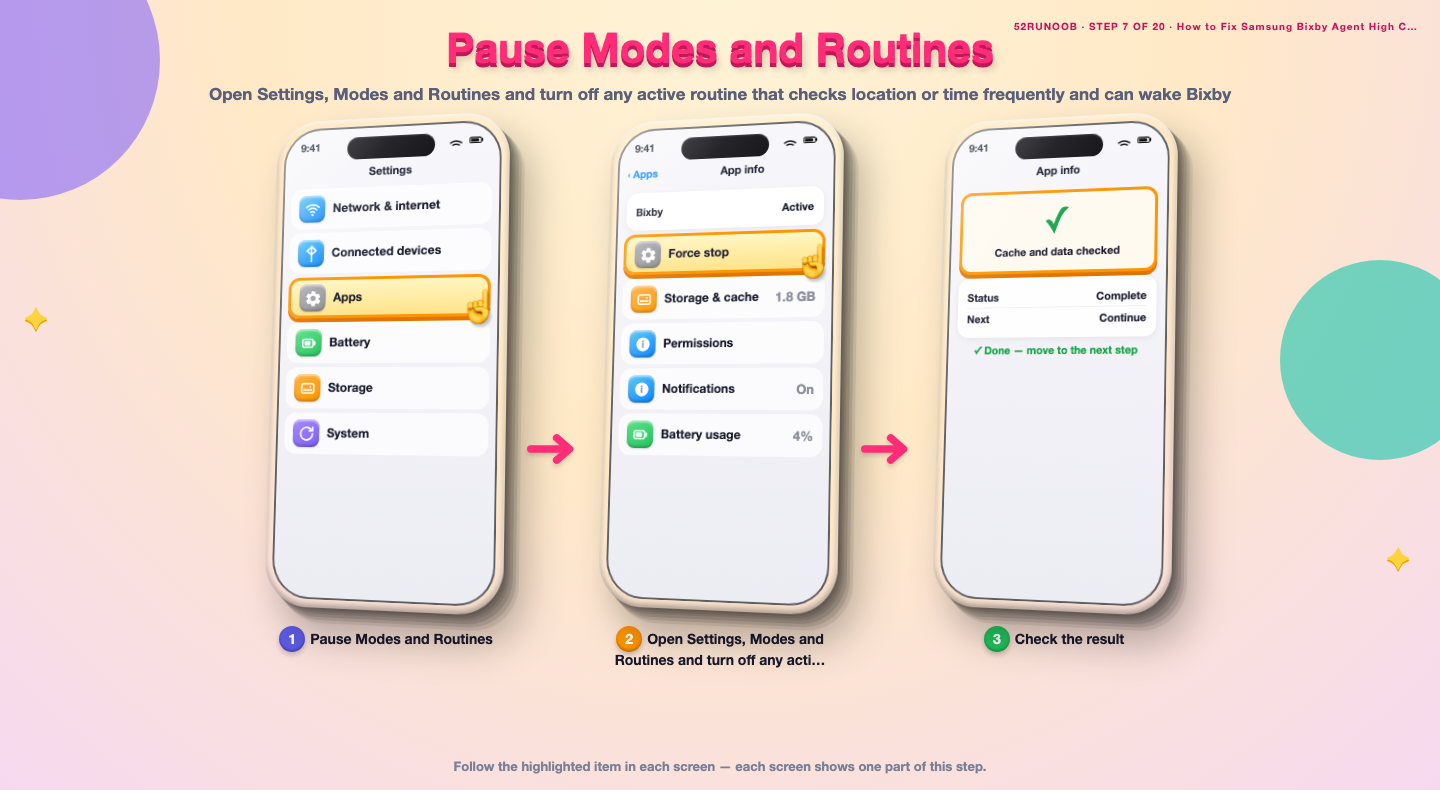
Step 7: Pause Modes and Routines
Open Settings, Modes and Routines and turn off any active routine that checks location or time frequently and can wake Bixby.
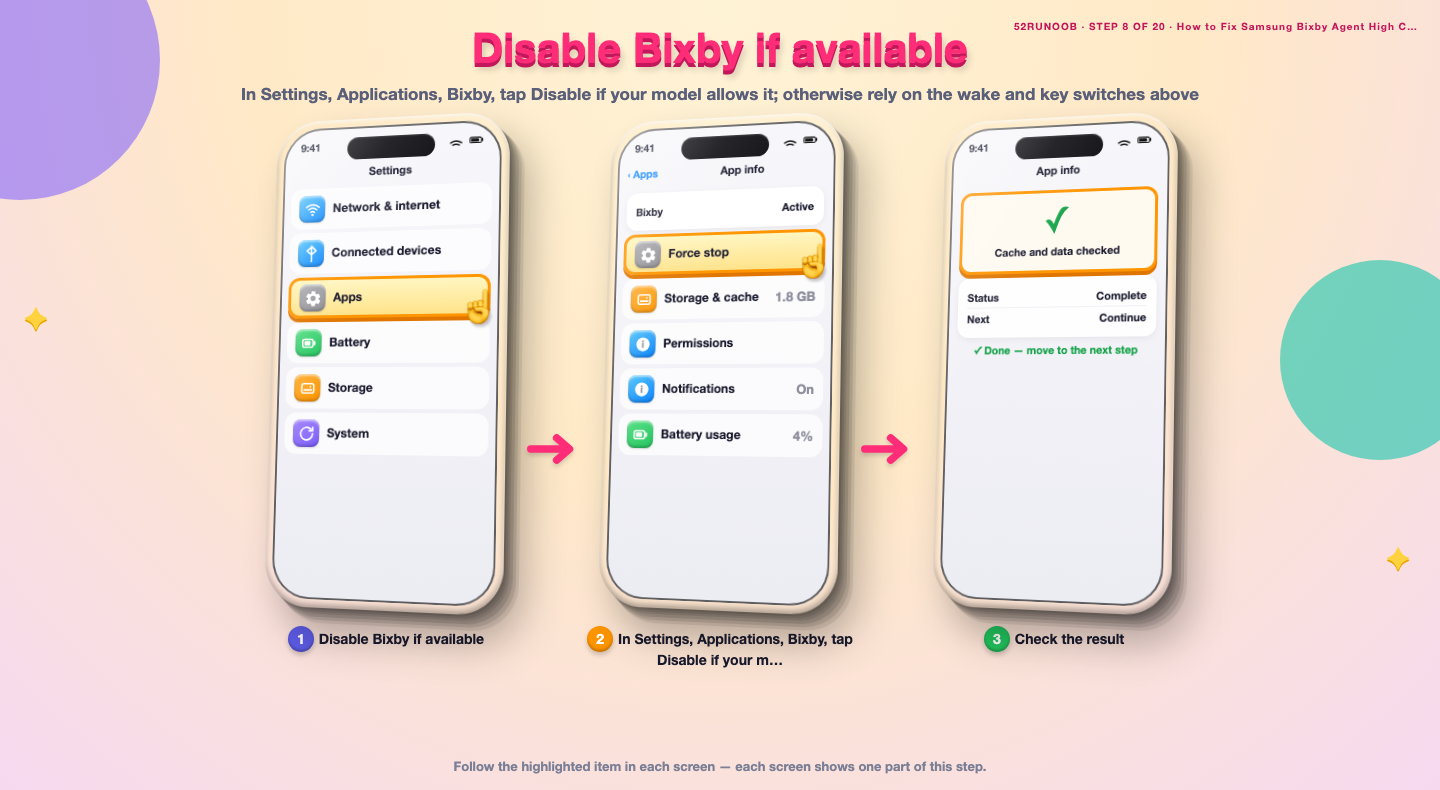
Step 8: Disable Bixby if available
In Settings, Applications, Bixby, tap Disable if your model allows it; otherwise rely on the wake and key switches above.
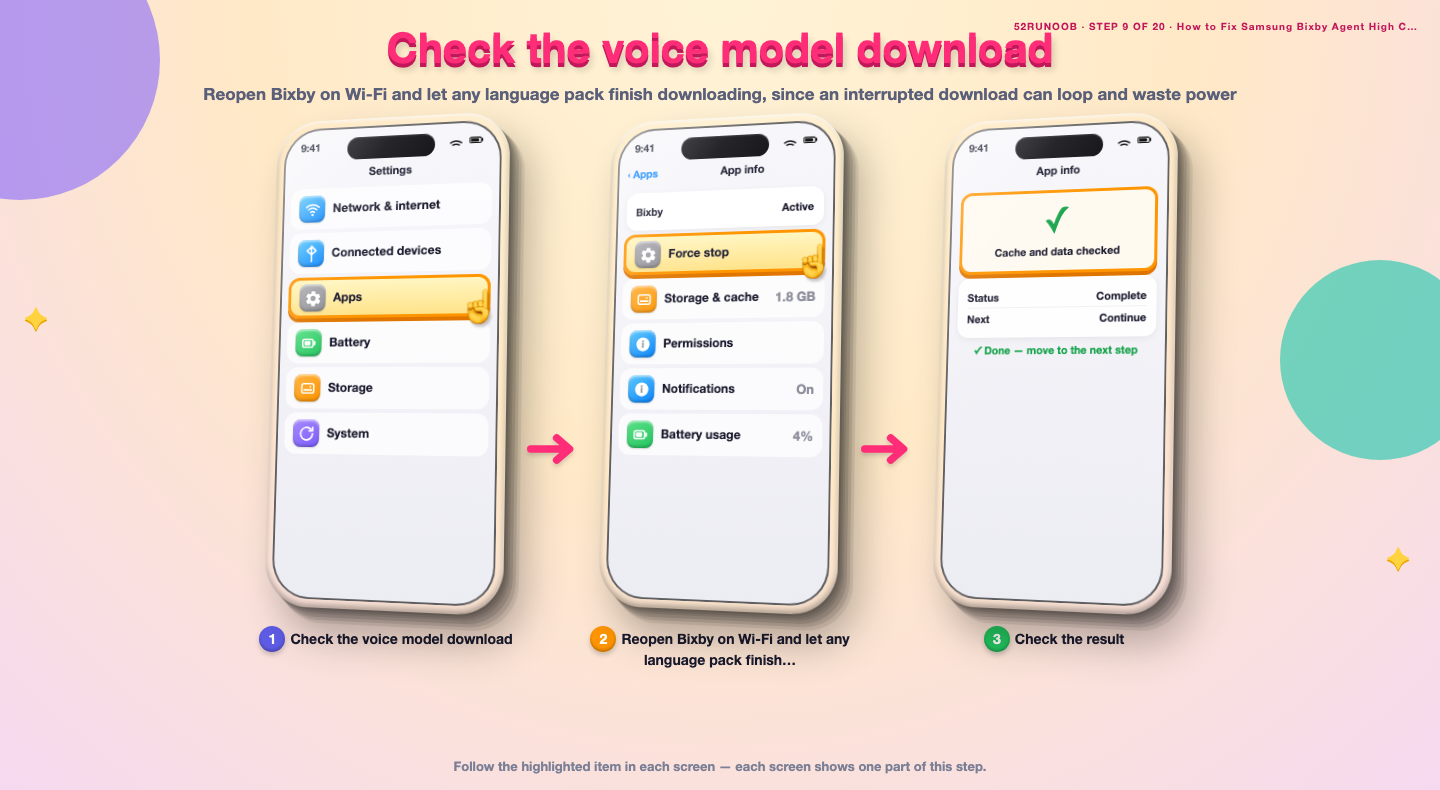
Step 9: Check the voice model download
Reopen Bixby on Wi-Fi and let any language pack finish downloading, since an interrupted download can loop and waste power.
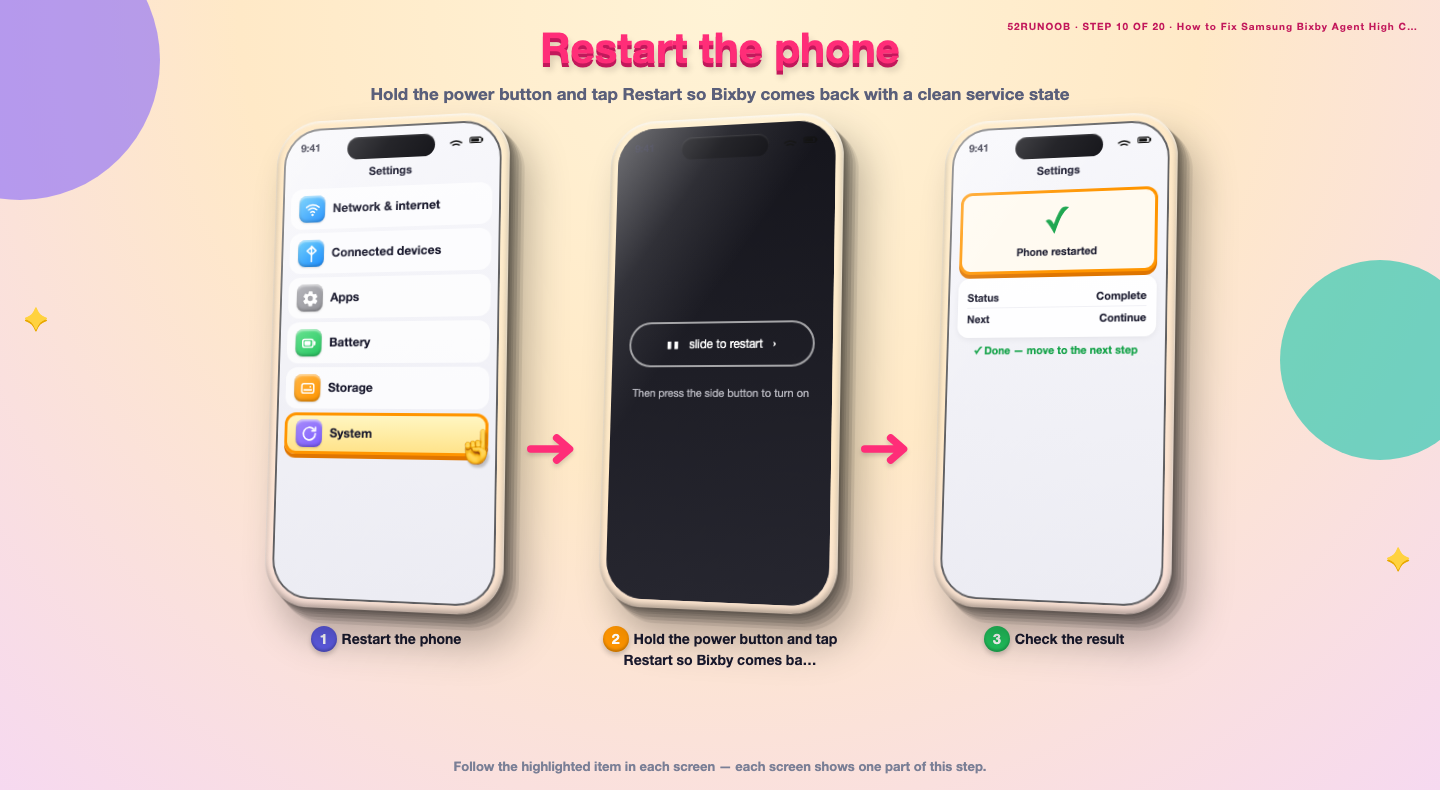
Step 10: Restart the phone
Hold the power button and tap Restart so Bixby comes back with a clean service state.
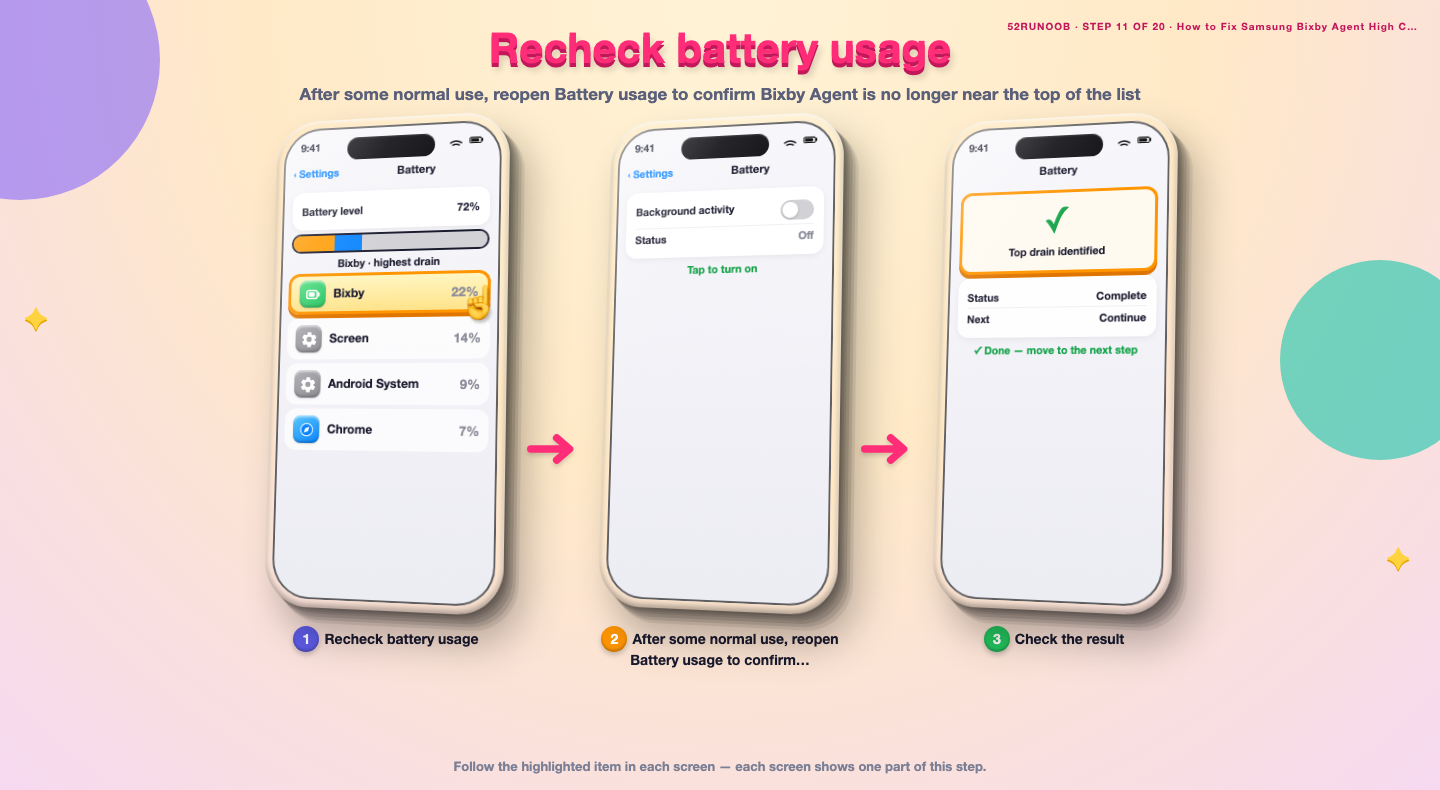
Step 11: Recheck battery usage
After some normal use, reopen Battery usage to confirm Bixby Agent is no longer near the top of the list.
Method 2 of 2: Update and Reset Bixby
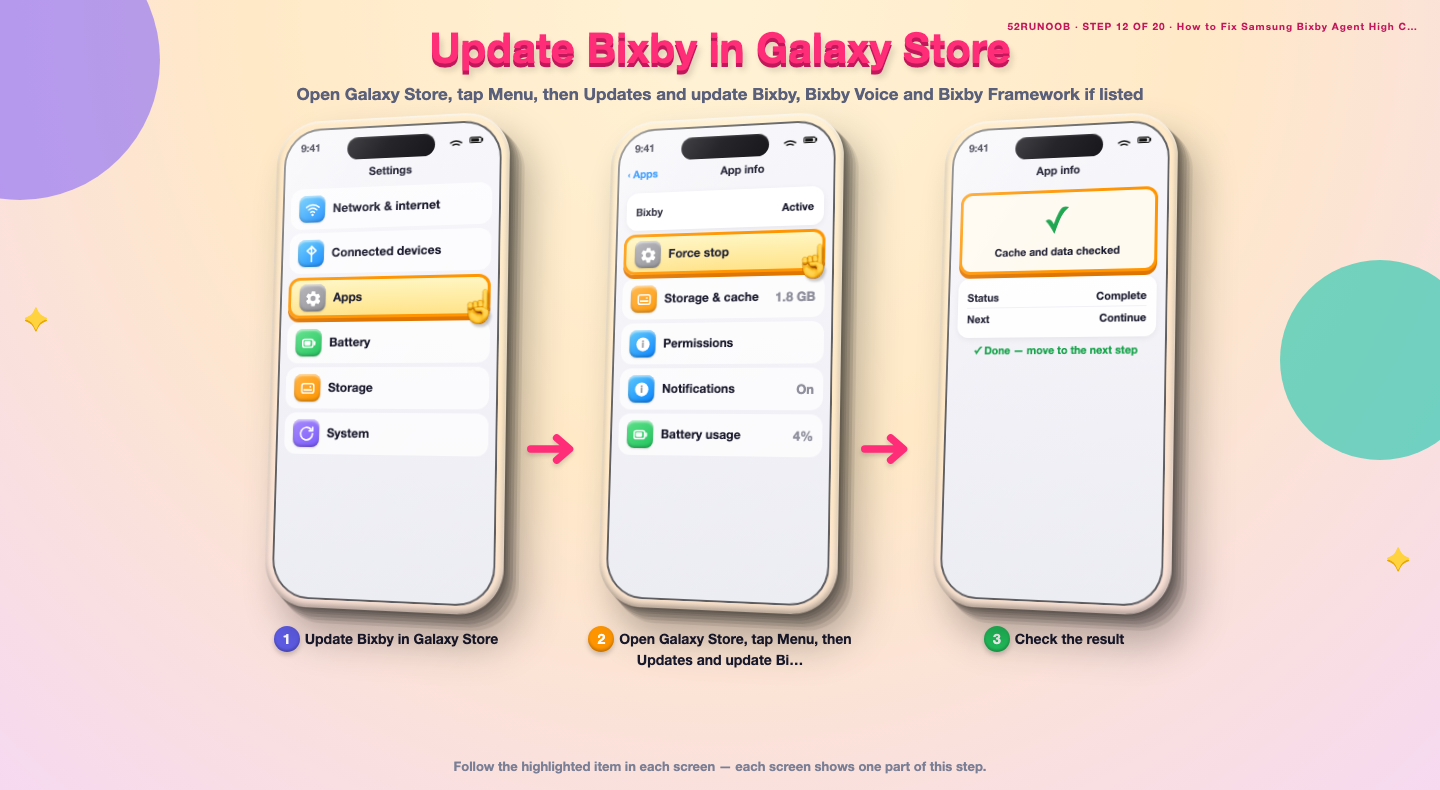
Step 12: Update Bixby in Galaxy Store
Open Galaxy Store, tap Menu, then Updates and update Bixby, Bixby Voice and Bixby Framework if listed.
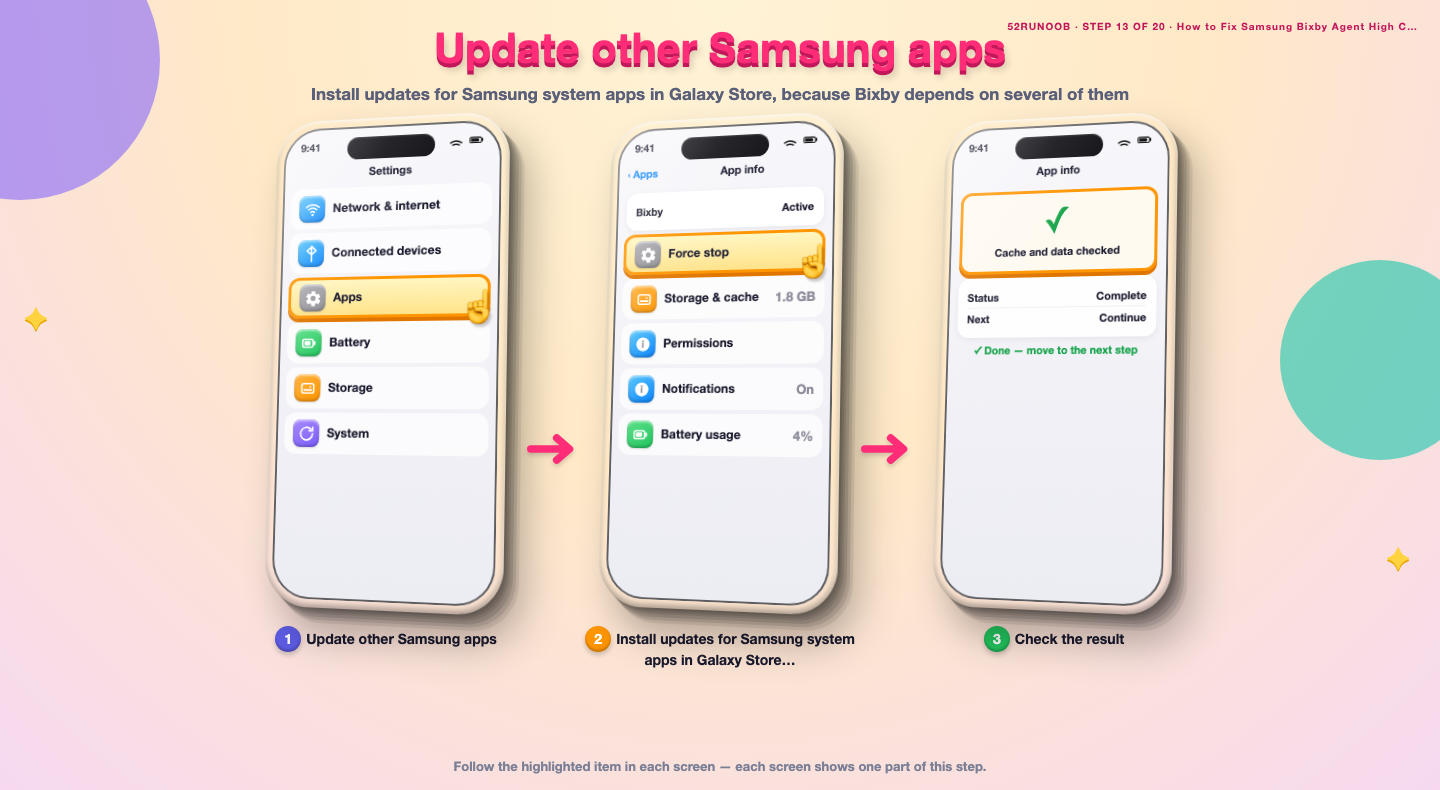
Step 13: Update other Samsung apps
Install updates for Samsung system apps in Galaxy Store, because Bixby depends on several of them.
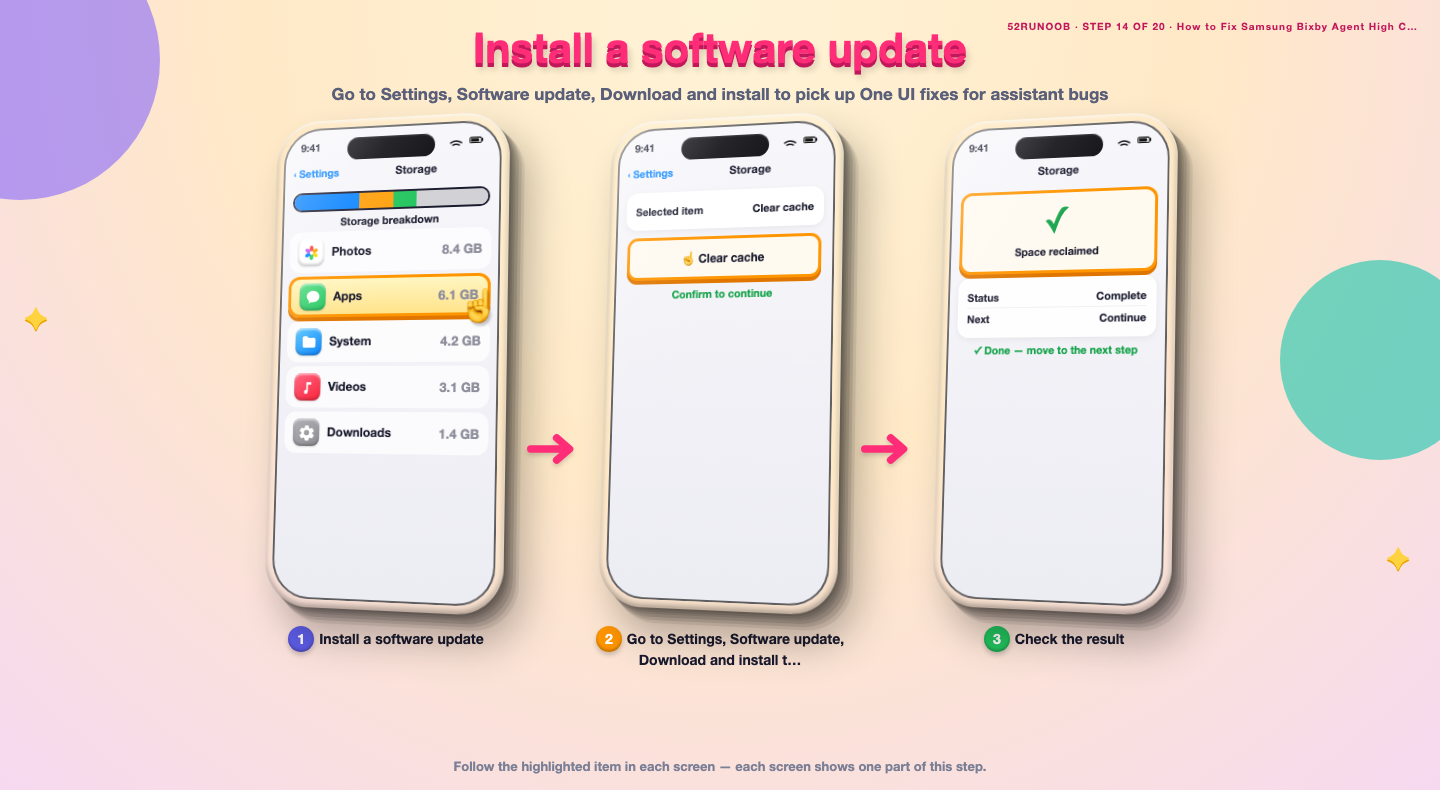
Step 14: Install a software update
Go to Settings, Software update, Download and install to pick up One UI fixes for assistant bugs.
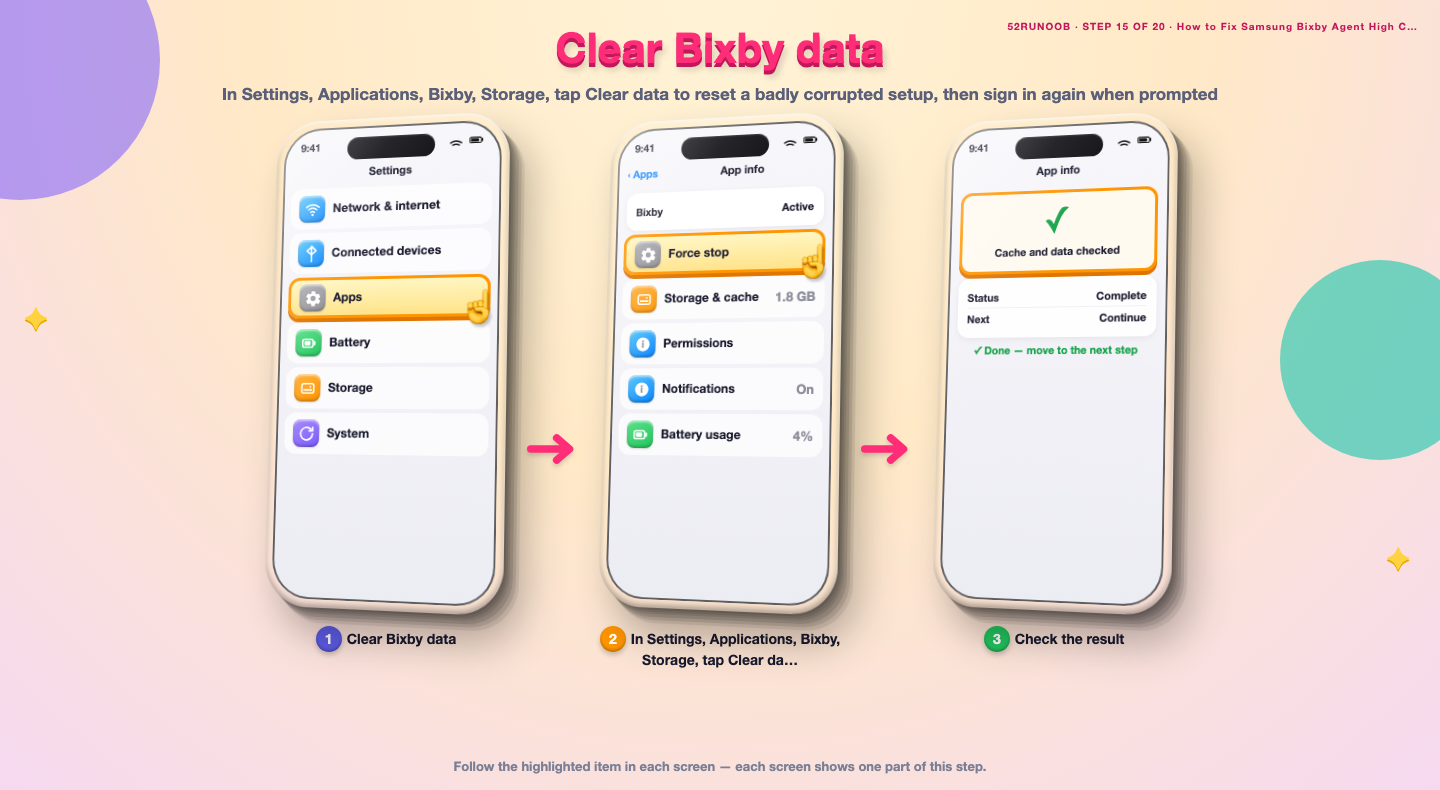
Step 15: Clear Bixby data
In Settings, Applications, Bixby, Storage, tap Clear data to reset a badly corrupted setup, then sign in again when prompted.
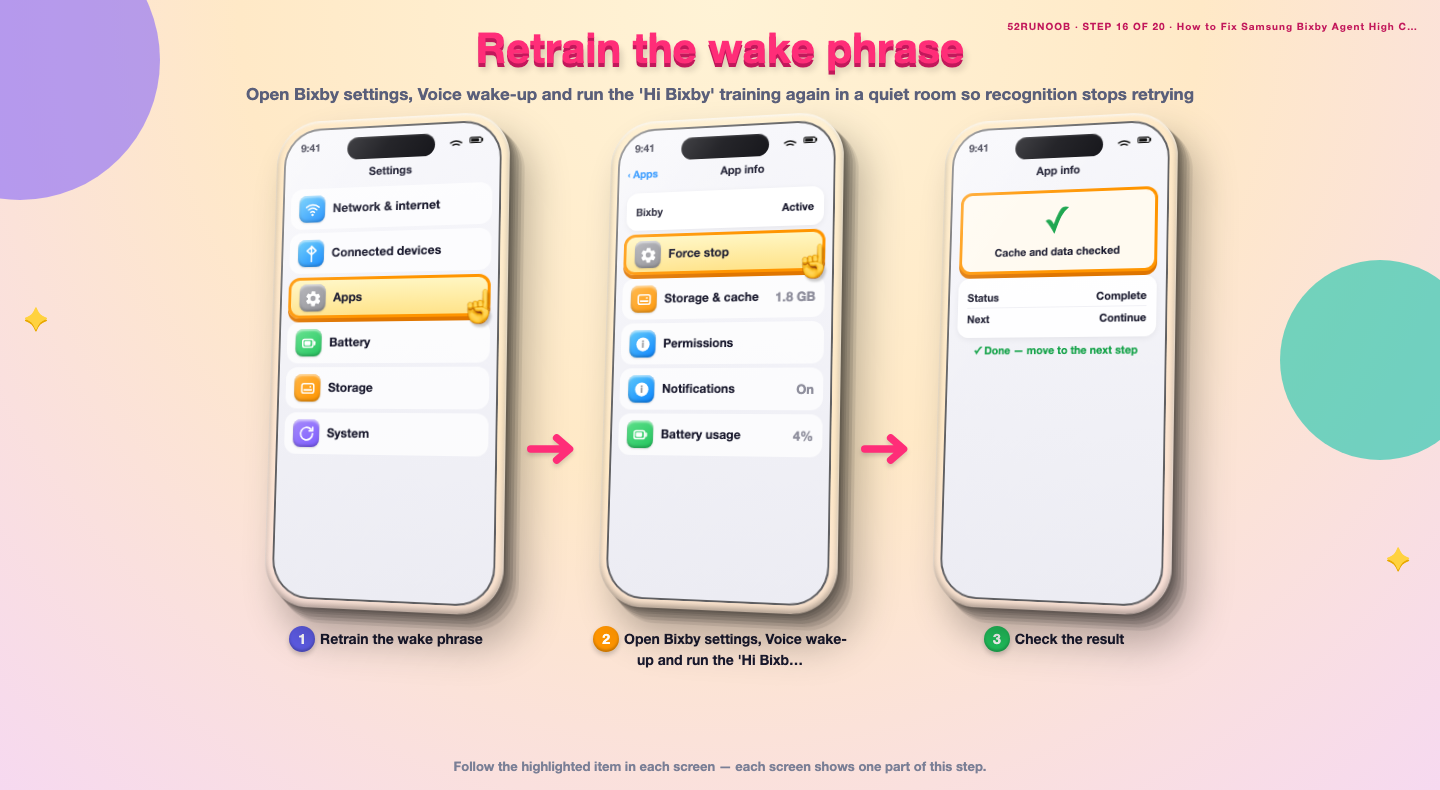
Step 16: Retrain the wake phrase
Open Bixby settings, Voice wake-up and run the 'Hi Bixby' training again in a quiet room so recognition stops retrying.
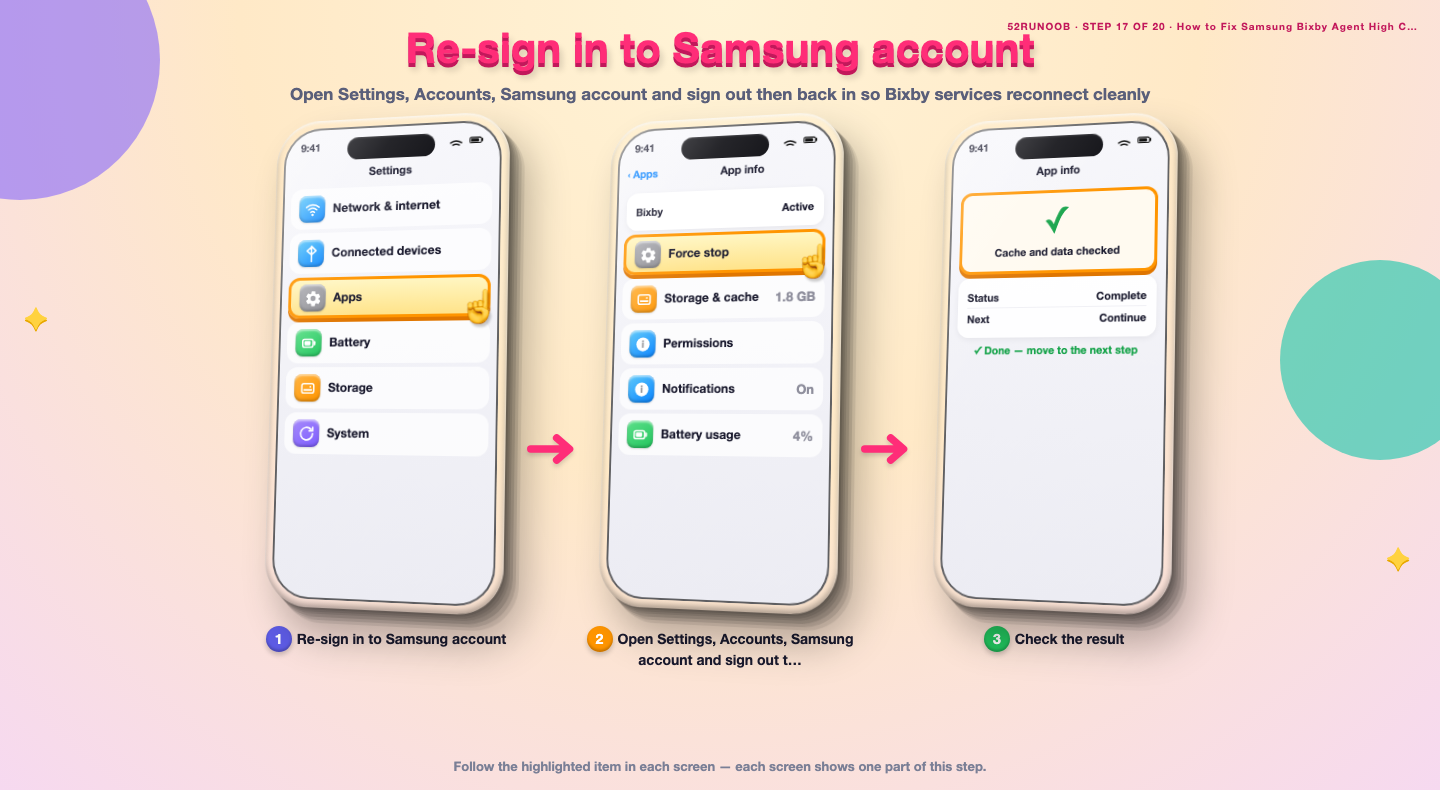
Step 17: Re-sign in to Samsung account
Open Settings, Accounts, Samsung account and sign out then back in so Bixby services reconnect cleanly.
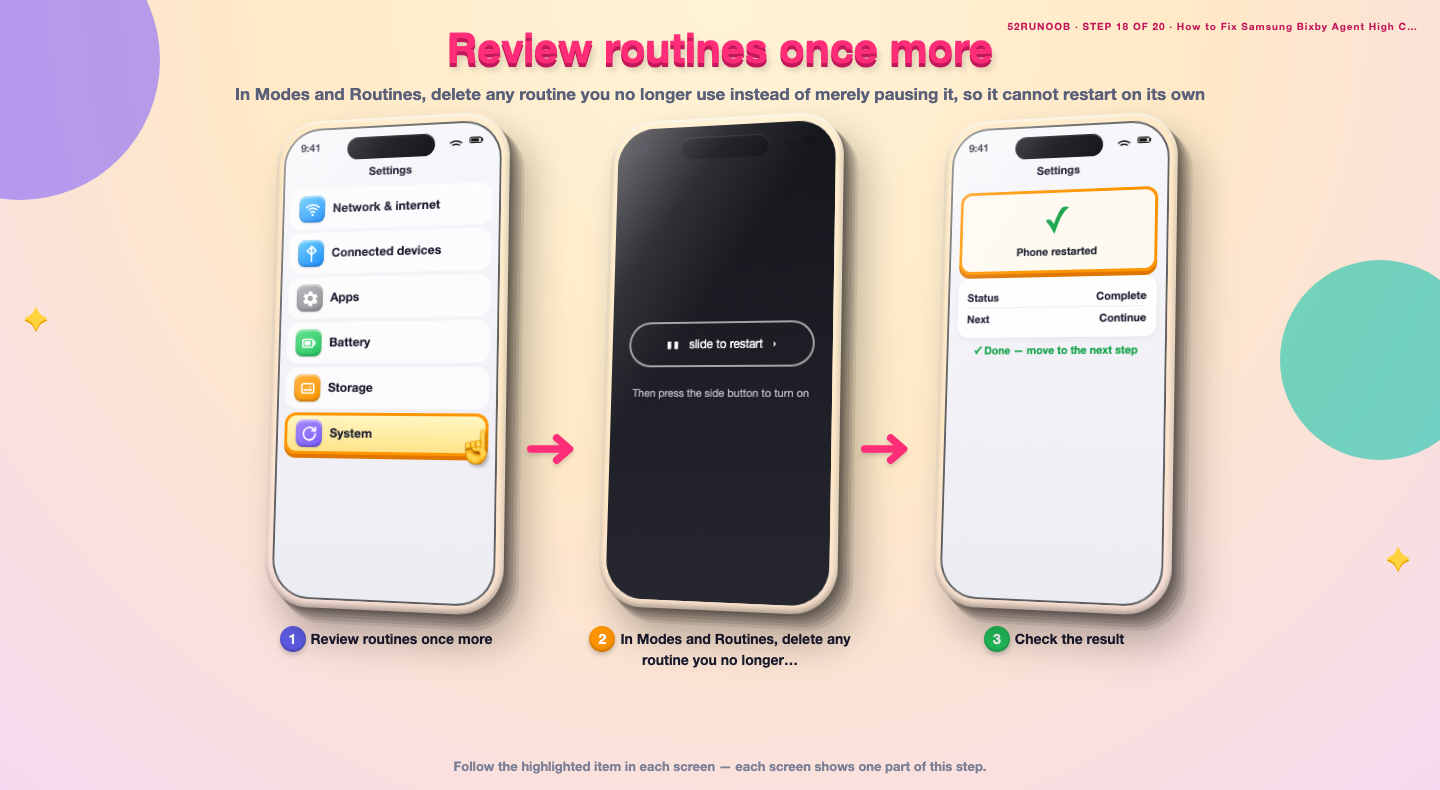
Step 18: Review routines once more
In Modes and Routines, delete any routine you no longer use instead of merely pausing it, so it cannot restart on its own.
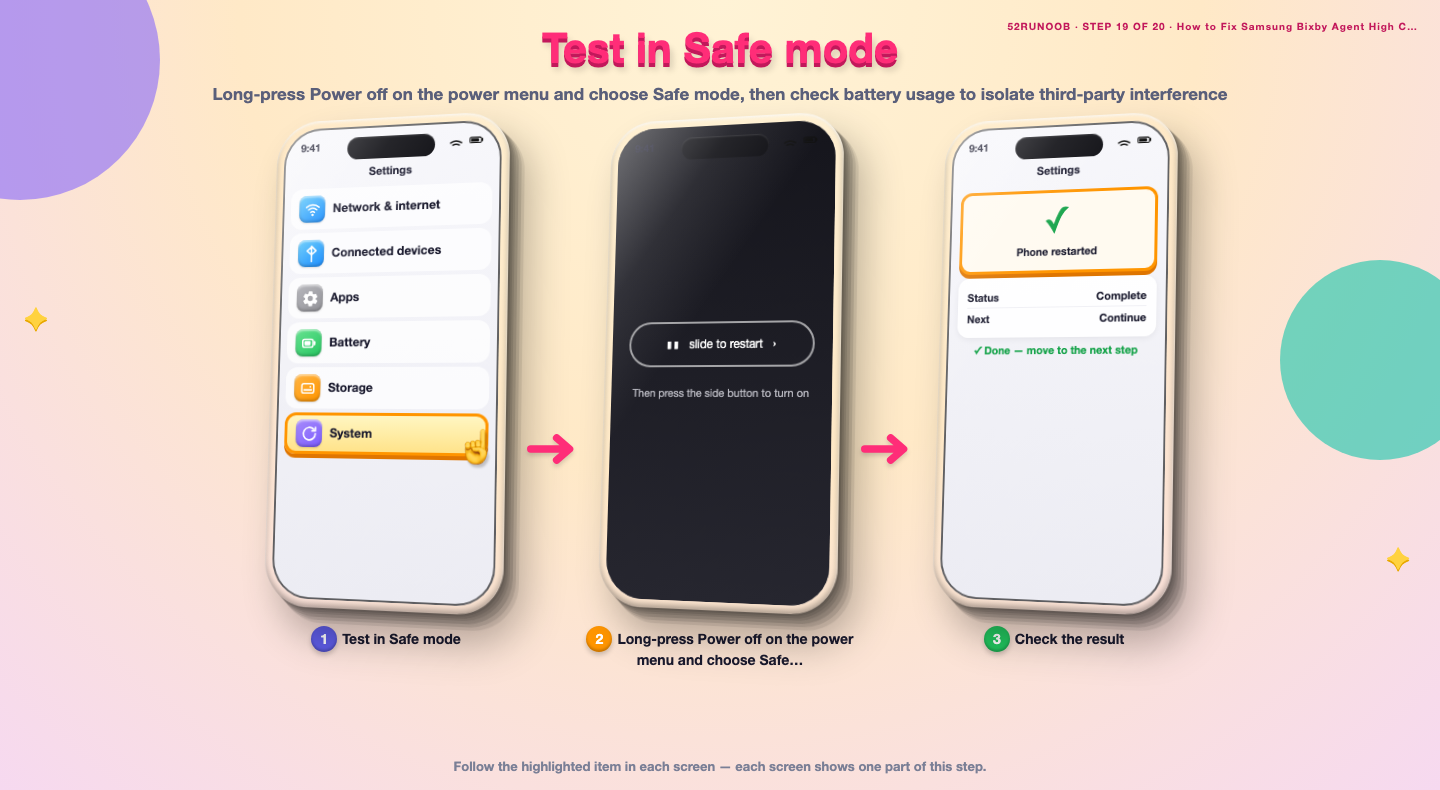
Step 19: Test in Safe mode
Long-press Power off on the power menu and choose Safe mode, then check battery usage to isolate third-party interference.
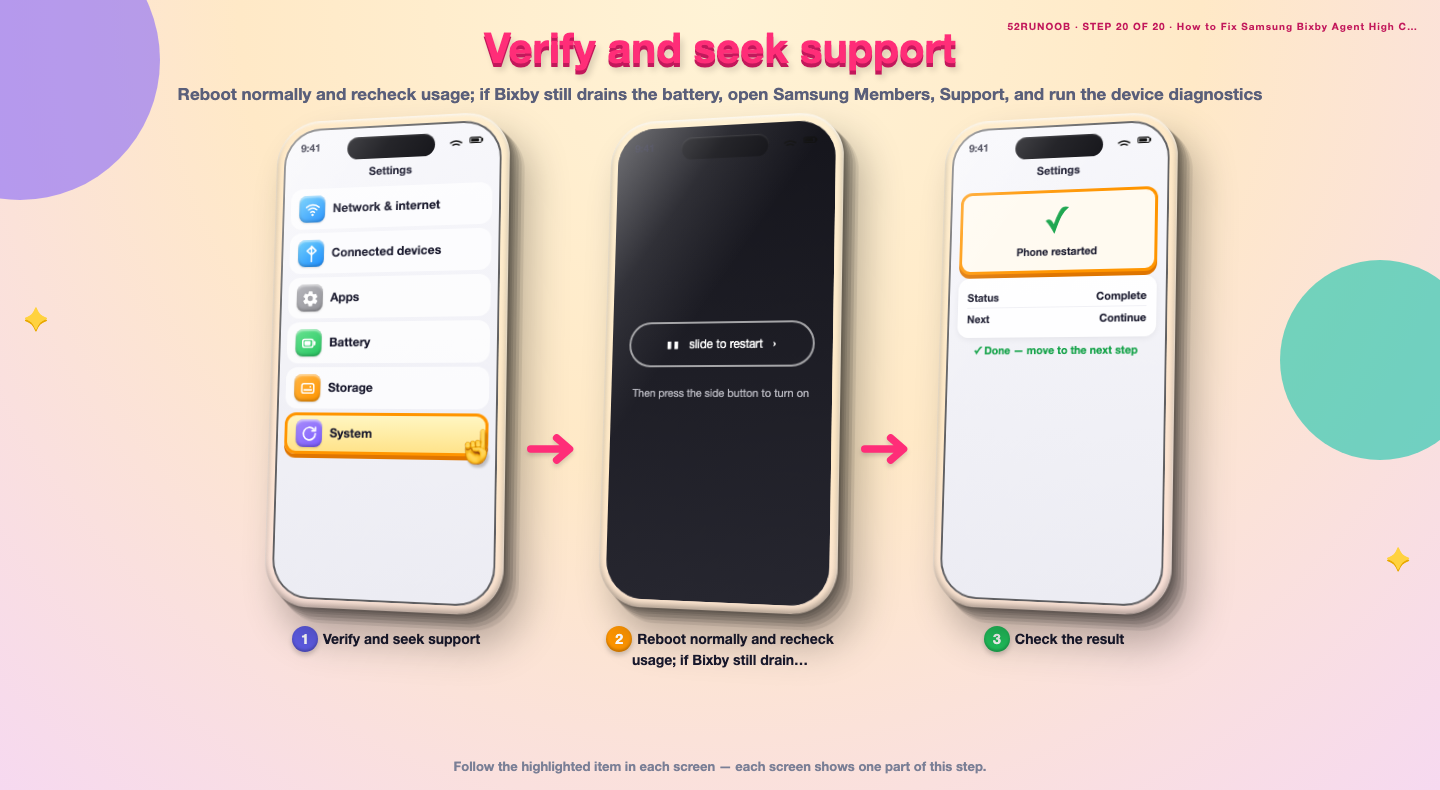
Step 20: Verify and seek support
Reboot normally and recheck usage; if Bixby still drains the battery, open Samsung Members, Support, and run the device diagnostics.
Tips
- Voice wake-up keeps a listening service active even when the screen is off.
- A routine that checks conditions frequently can look like a Bixby battery bug.
- Bixby updates sometimes arrive in Galaxy Store rather than Google Play.
Warnings
- Clearing Bixby data resets its settings and signs it out of your Samsung account.
- Disabling Bixby may also remove voice controls you rely on for accessibility.
- Use Safe mode only for testing; third-party apps return when you reboot normally.
Frequently asked questions
Is Bixby Agent safe, or is it spyware?
It is a legitimate Samsung assistant service, not spyware. It does listen for its wake phrase when enabled, but you can turn voice wake-up off in the Bixby app settings if you prefer not to use it.
Is it normal for Bixby to run all the time?
A small background presence is normal when voice wake-up or a routine is active. Draining a noticeable share of battery while idle is not, and usually means a trigger is firing repeatedly.
Can I disable Bixby completely?
On many Galaxy models you can disable Bixby in Settings, Applications, Bixby. Some devices do not offer the option, but turning off voice wake-up and remapping the key achieves a similar effect.
Why did Bixby start draining battery after an update?
An update may re-download voice models or re-enable a wake setting. Reboot once, clear the Bixby cache, then check Galaxy Store for a follow-up update that fixes the new bug.
References
- Android Support - Speed up your Android device. https://support.google.com/android/answer/9454546
- Android Support - Clear app cache and data. https://support.google.com/android/answer/9551190
- Android Developers - Background work guide. https://developer.android.com/guide/background
- wikiHow — How to Fix Samsung Bixby Agent High CPU and Battery Drain. https://www.wikihow.com/Speed-Up-an-Android-Phone
Every guide is reviewed against its sources. See our editorial policy.
Reader comments
0 so farFinished this guide? Tell other readers what worked, what didn't, and what you would change.