com.android.phone is the Android telephony process that registers the SIM, handles calls and manages the mobile network. High CPU usually follows a weak signal, a faulty SIM or a repeated network search. Re-register the network, clean the carrier app and reset network settings if needed.
This guide walks through the process in clear illustrated steps, from the first preparation to a finished result. Each step has its own picture, so you can compare your progress as you go.
How to use this guide
Work through the steps in order. Method 1 of 3 covers the basics, and the later methods offer alternatives and finishing touches. If you only have a minute, skim the Quick steps box above and come back for the details.
Related guides
- How to Book a hotel at the best price
- How to Fix 100 disk usage when no process shows high disk in task manager
- How to How to fix android phone lagging in split screen multitasking
- How to Fix wsappx high cpu and memory usage in windows 11
- Browse all Fix Slow Device guides
- All 52runoob guides
Trusted external resources
- Android Support - Speed up your Android device
- Android Support - Clear app cache and data
- Android Open Source Project - Over-the-air updates
A note on sources
We check each guide against the official resources listed in References at the end of this article. External links open in a new tab; the related guides above stay on this site.
Quick steps
- Confirm com.android.phone in system battery usage.
- Toggle Airplane mode to re-register the network.
- Reseat or replace the SIM card.
- Clear the Carrier Services app cache.
- Reset network settings if the process keeps spinning.
Things you'll need
- An Android phone with a working SIM card
- The SIM eject tool or a paper clip
- Access to Settings and mobile network menus
- A known good Wi-Fi network for updates
Step-by-step
Method 1 of 3: Confirm the Telephony Process
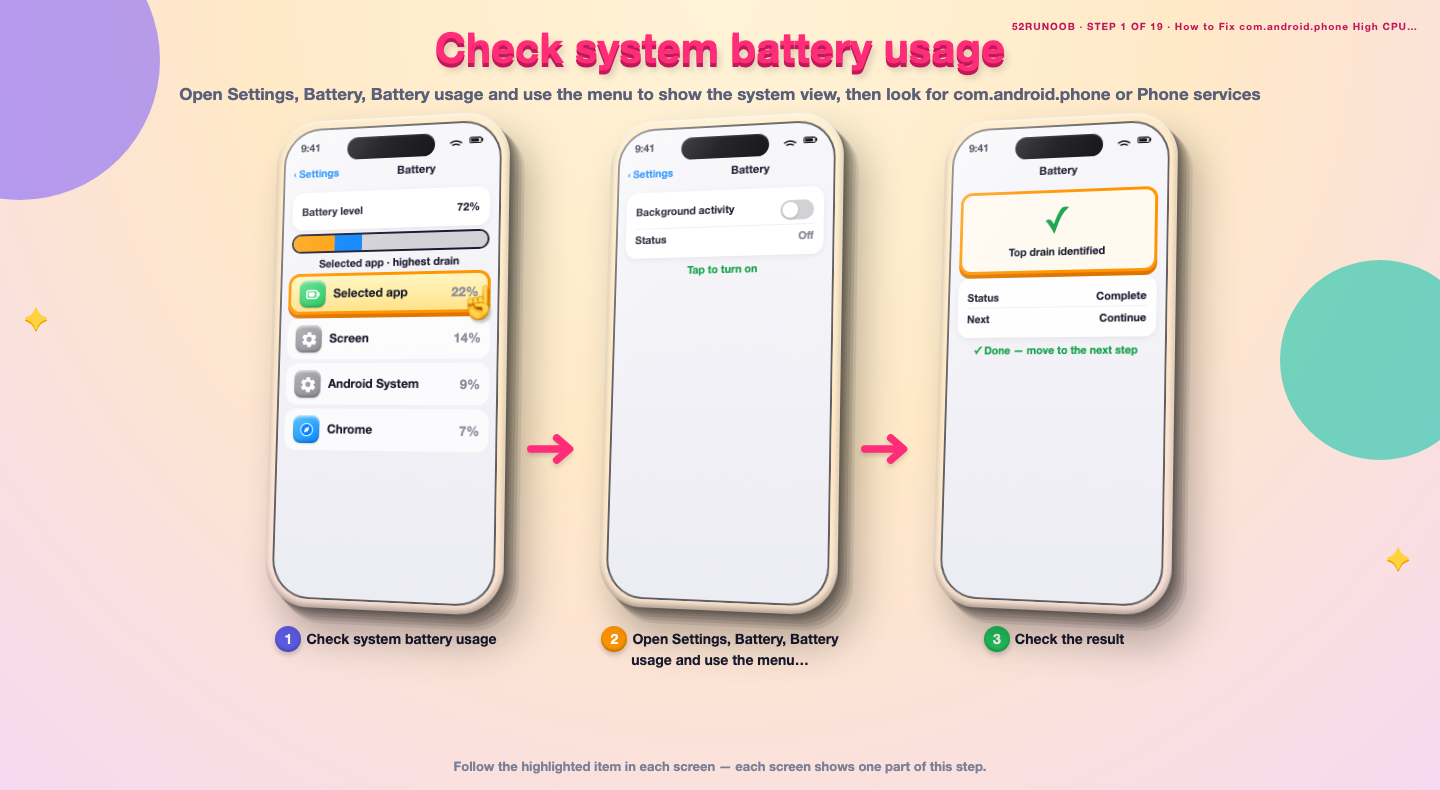
Step 1: Check system battery usage
Open Settings, Battery, Battery usage and use the menu to show the system view, then look for com.android.phone or Phone services.
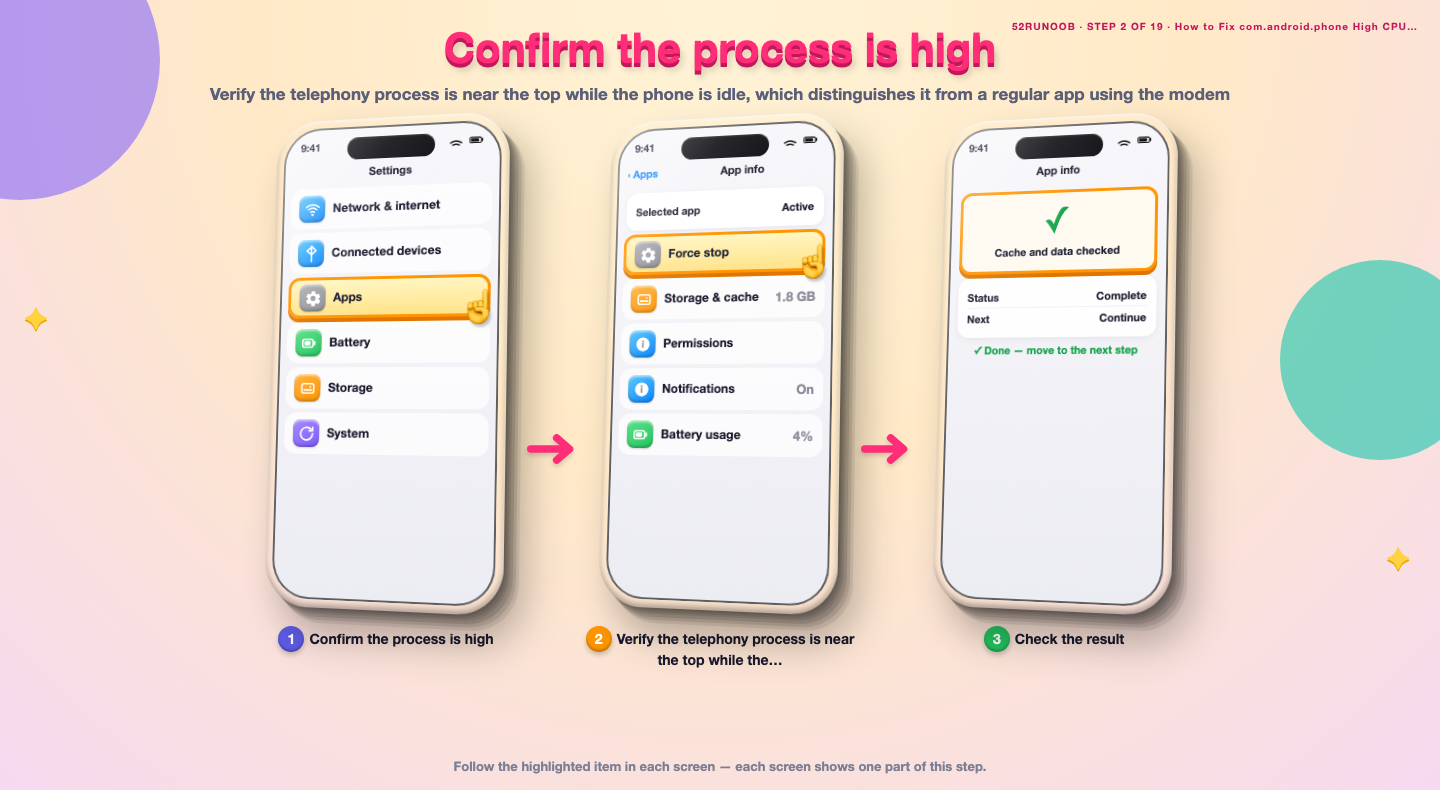
Step 2: Confirm the process is high
Verify the telephony process is near the top while the phone is idle, which distinguishes it from a regular app using the modem.
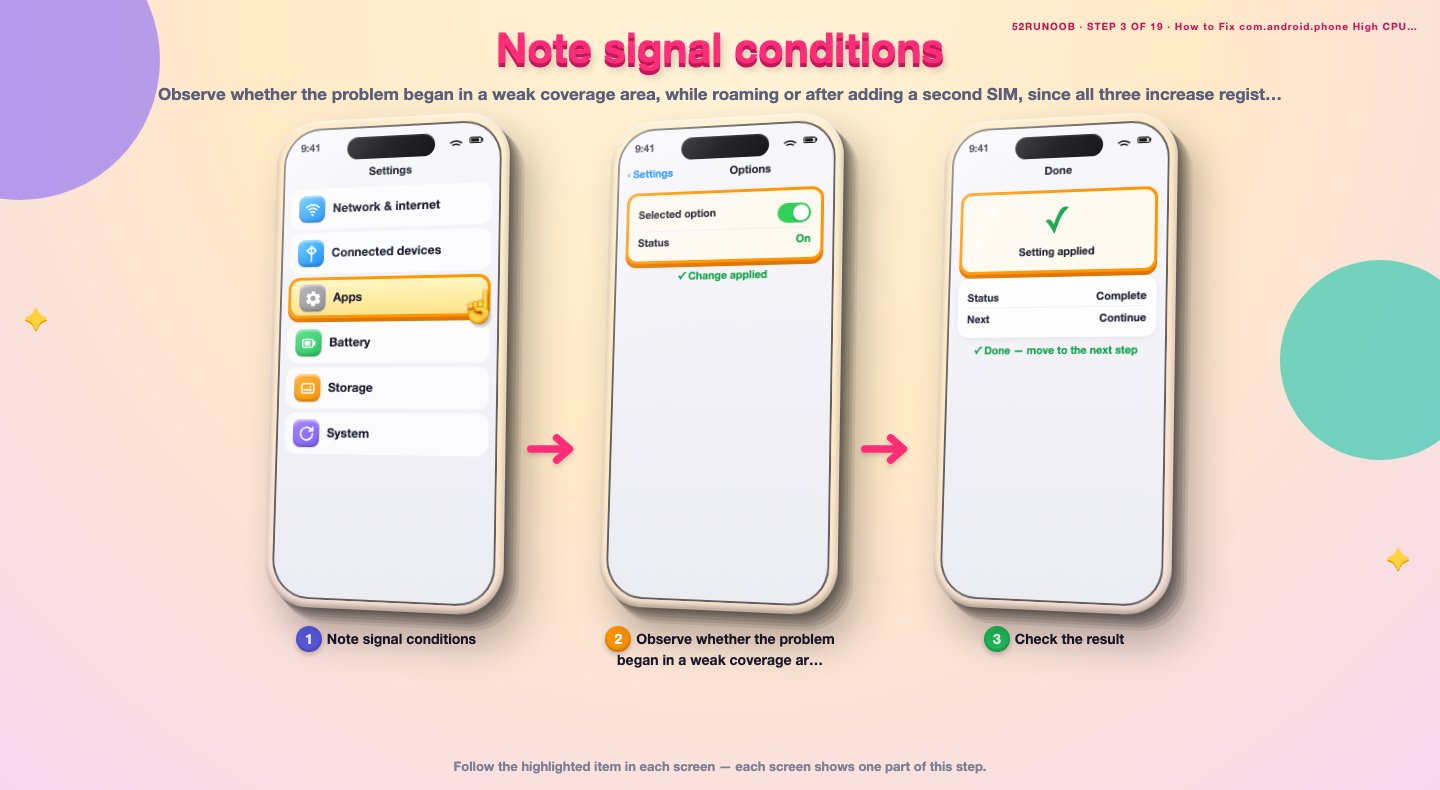
Step 3: Note signal conditions
Observe whether the problem began in a weak coverage area, while roaming or after adding a second SIM, since all three increase registration work.
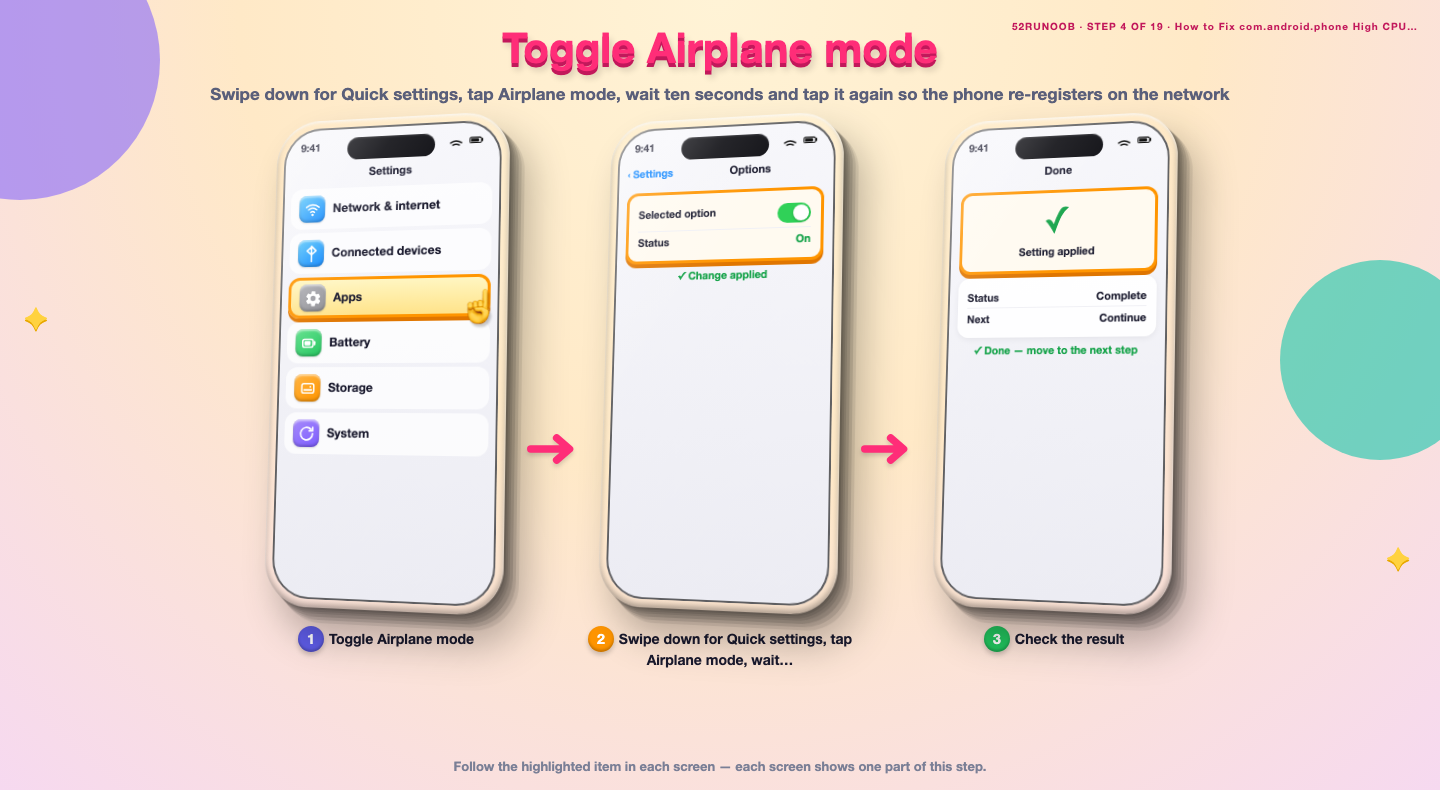
Step 4: Toggle Airplane mode
Swipe down for Quick settings, tap Airplane mode, wait ten seconds and tap it again so the phone re-registers on the network.
Step 5: Restart the phone
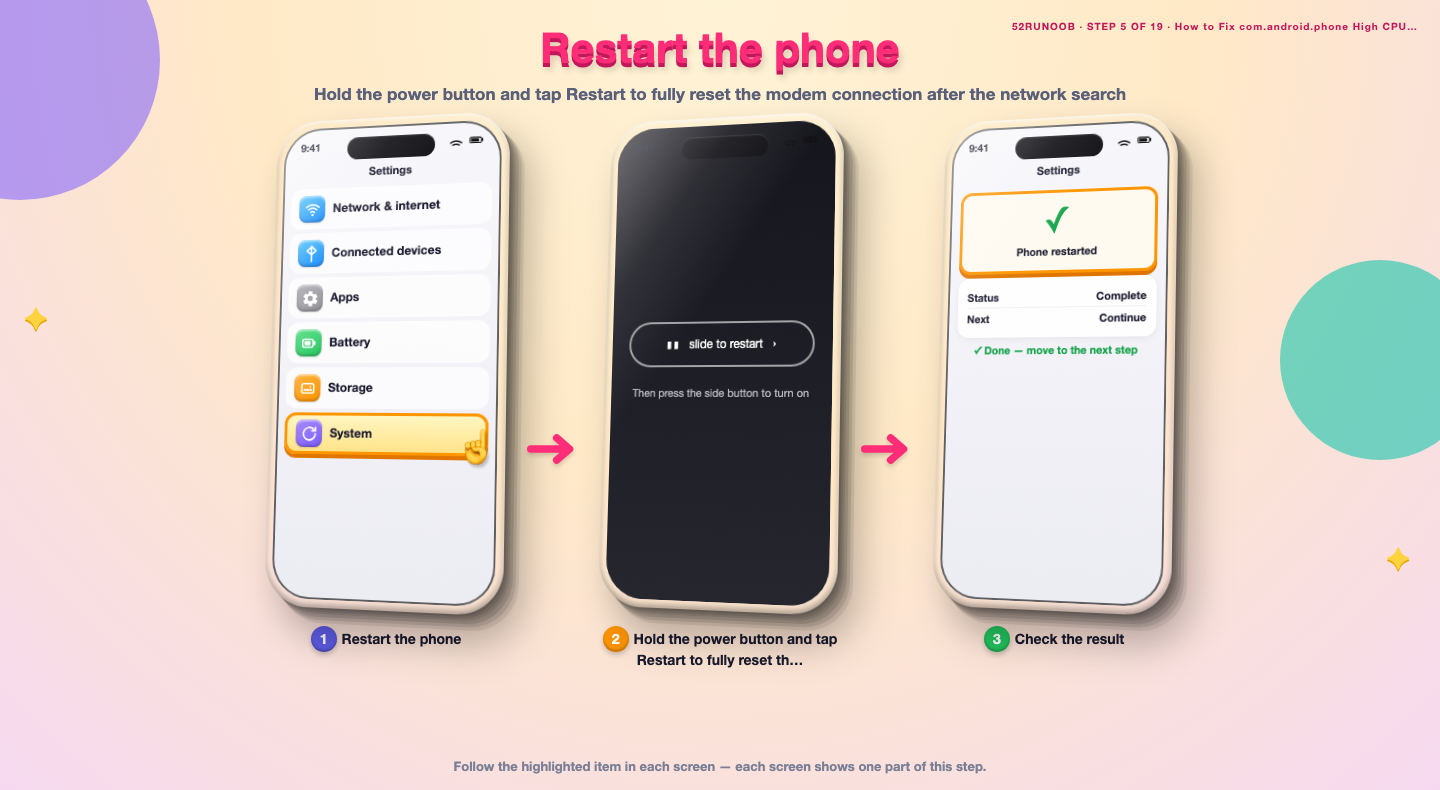
Hold the power button and tap Restart to fully reset the modem connection after the network search.
Step 6: Reseat the SIM card
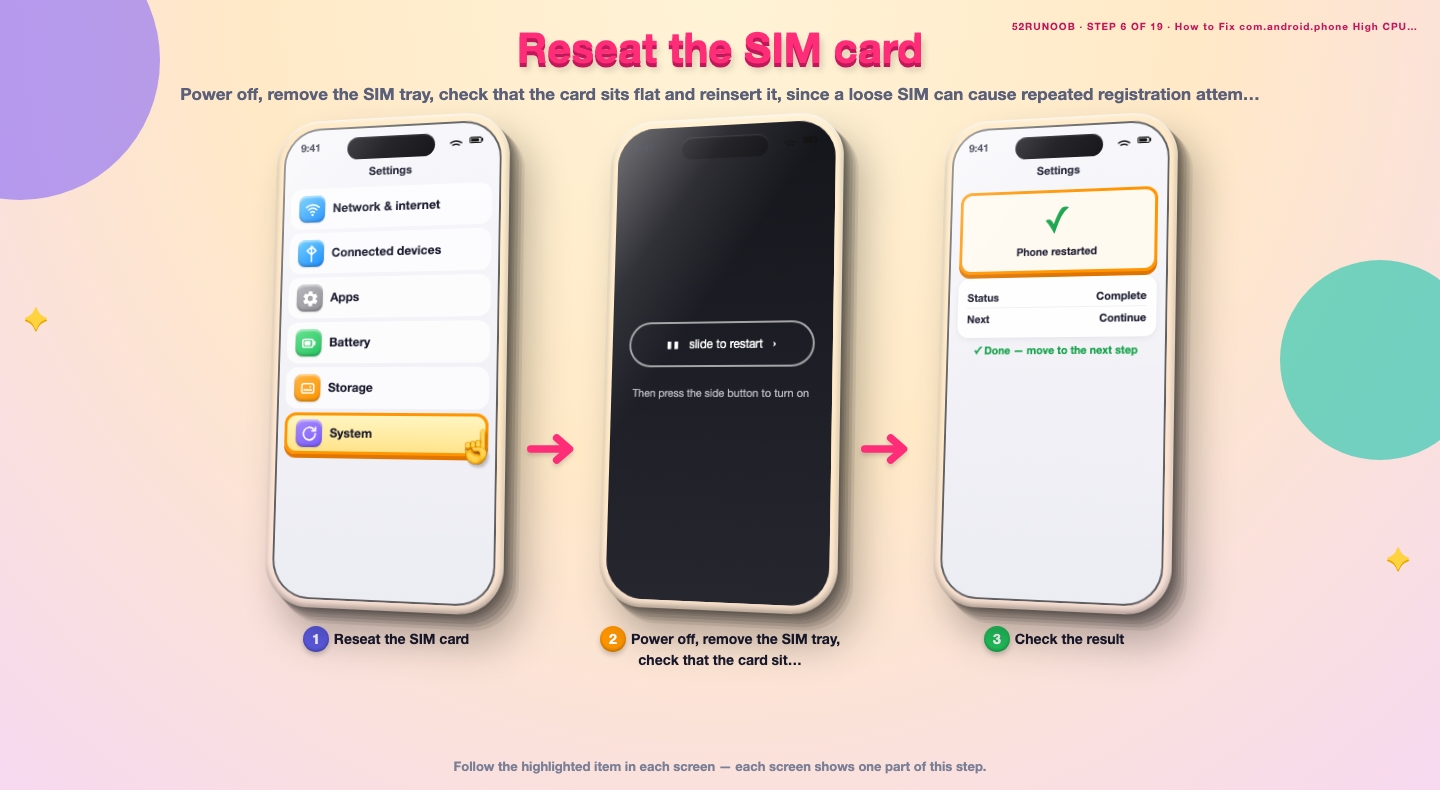
Power off, remove the SIM tray, check that the card sits flat and reinsert it, since a loose SIM can cause repeated registration attempts.
Method 2 of 3: Fix Network and Carrier Triggers
Step 7: Prefer LTE over weak 5G
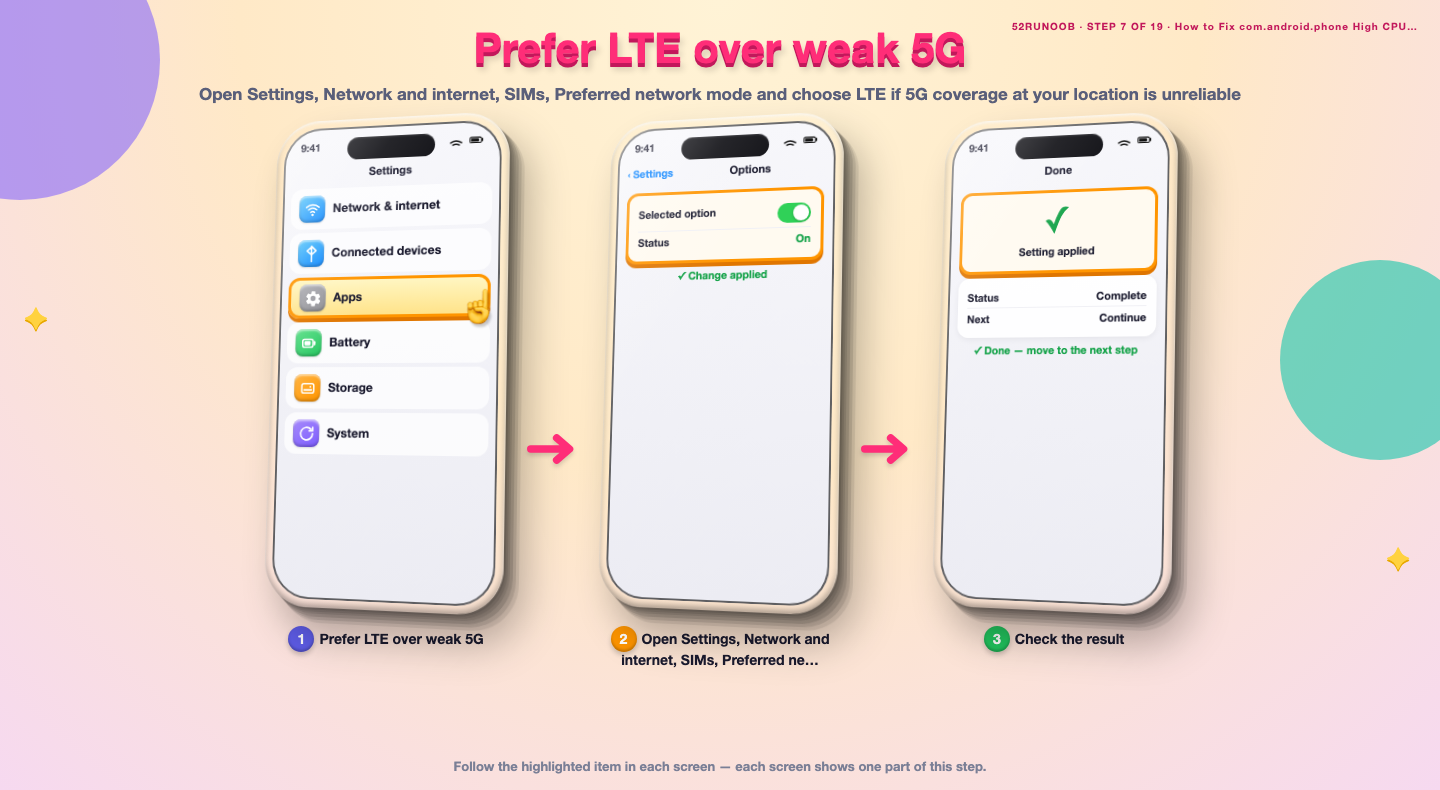
Open Settings, Network and internet, SIMs, Preferred network mode and choose LTE if 5G coverage at your location is unreliable.
Step 8: Test with one SIM at a time
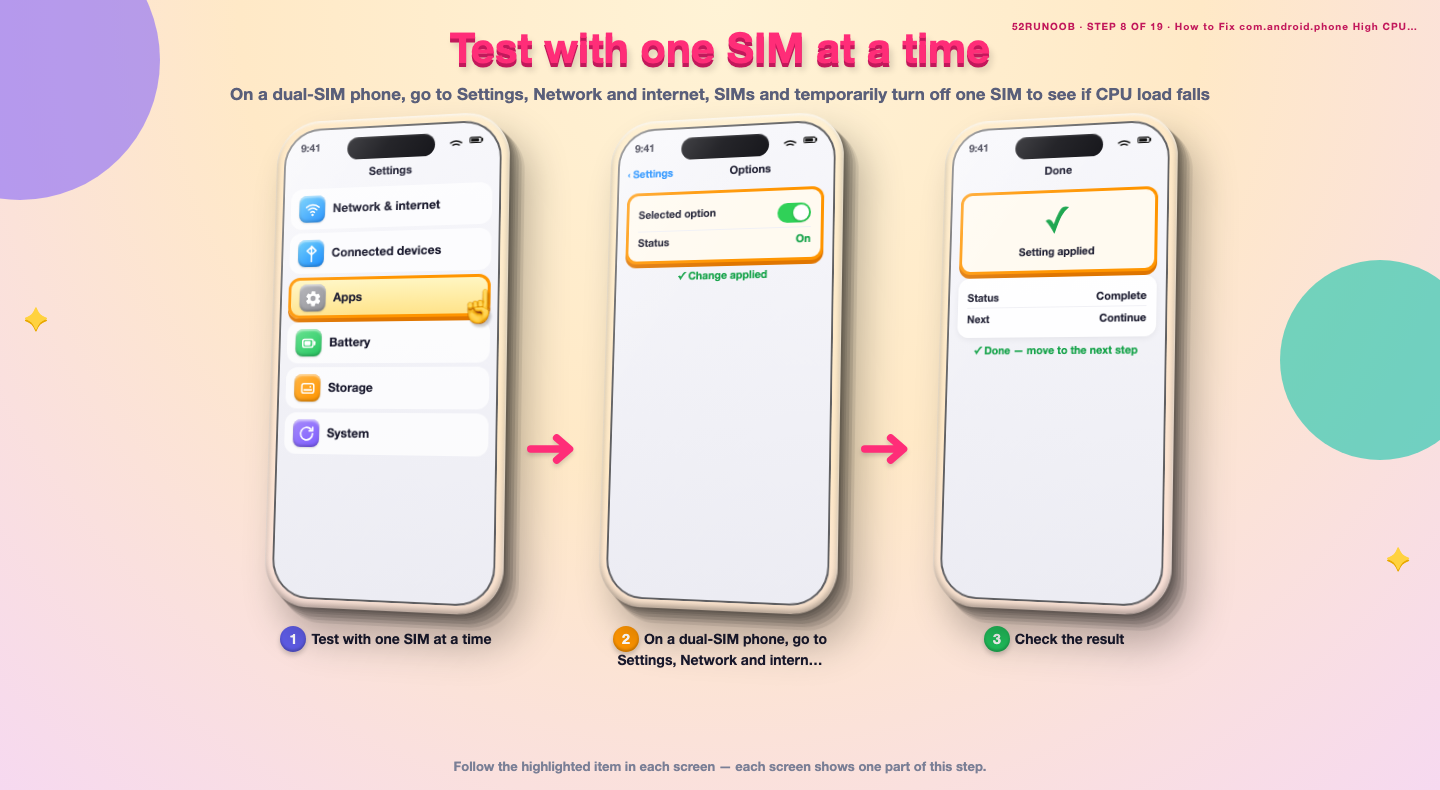
On a dual-SIM phone, go to Settings, Network and internet, SIMs and temporarily turn off one SIM to see if CPU load falls.
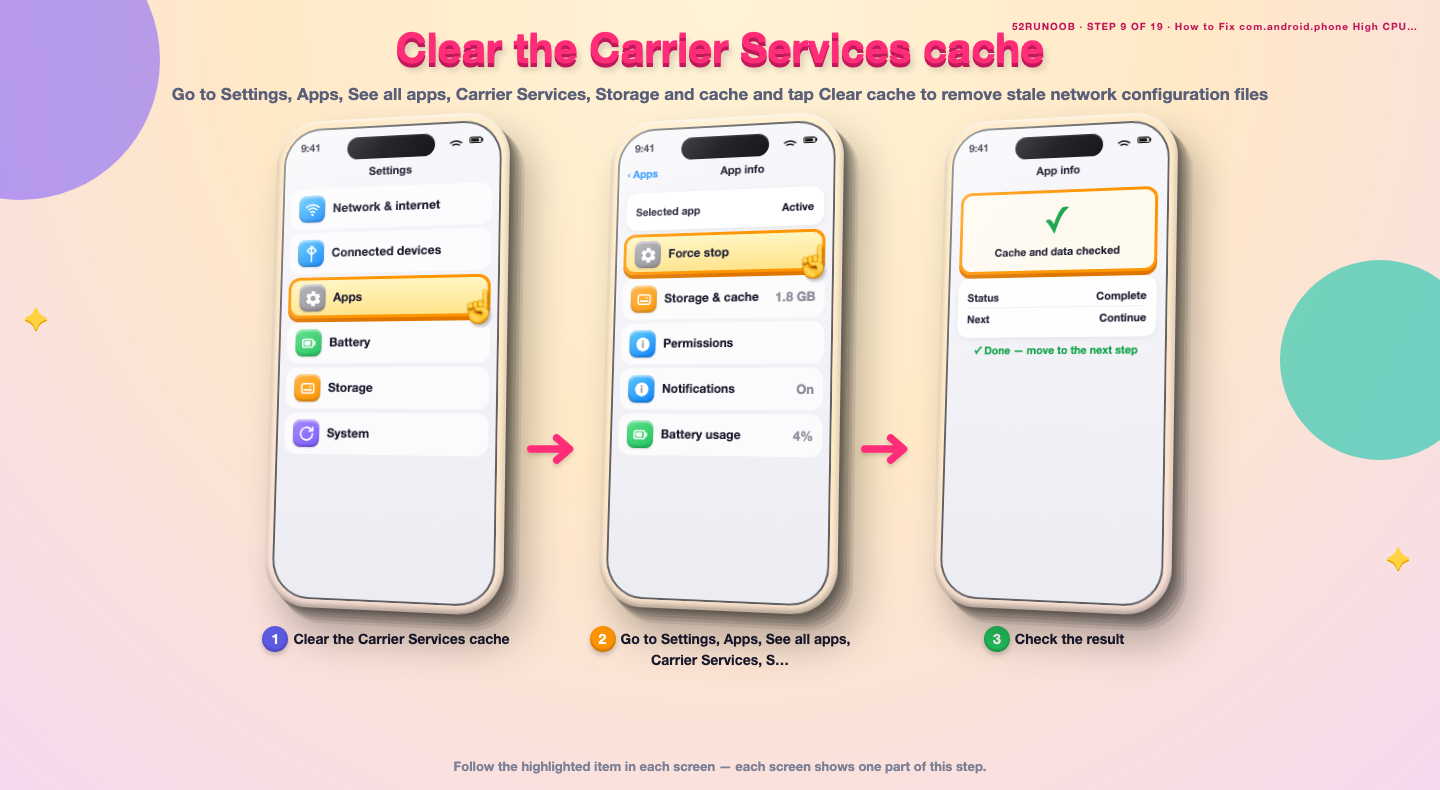
Step 9: Clear the Carrier Services cache
Go to Settings, Apps, See all apps, Carrier Services, Storage and cache and tap Clear cache to remove stale network configuration files.
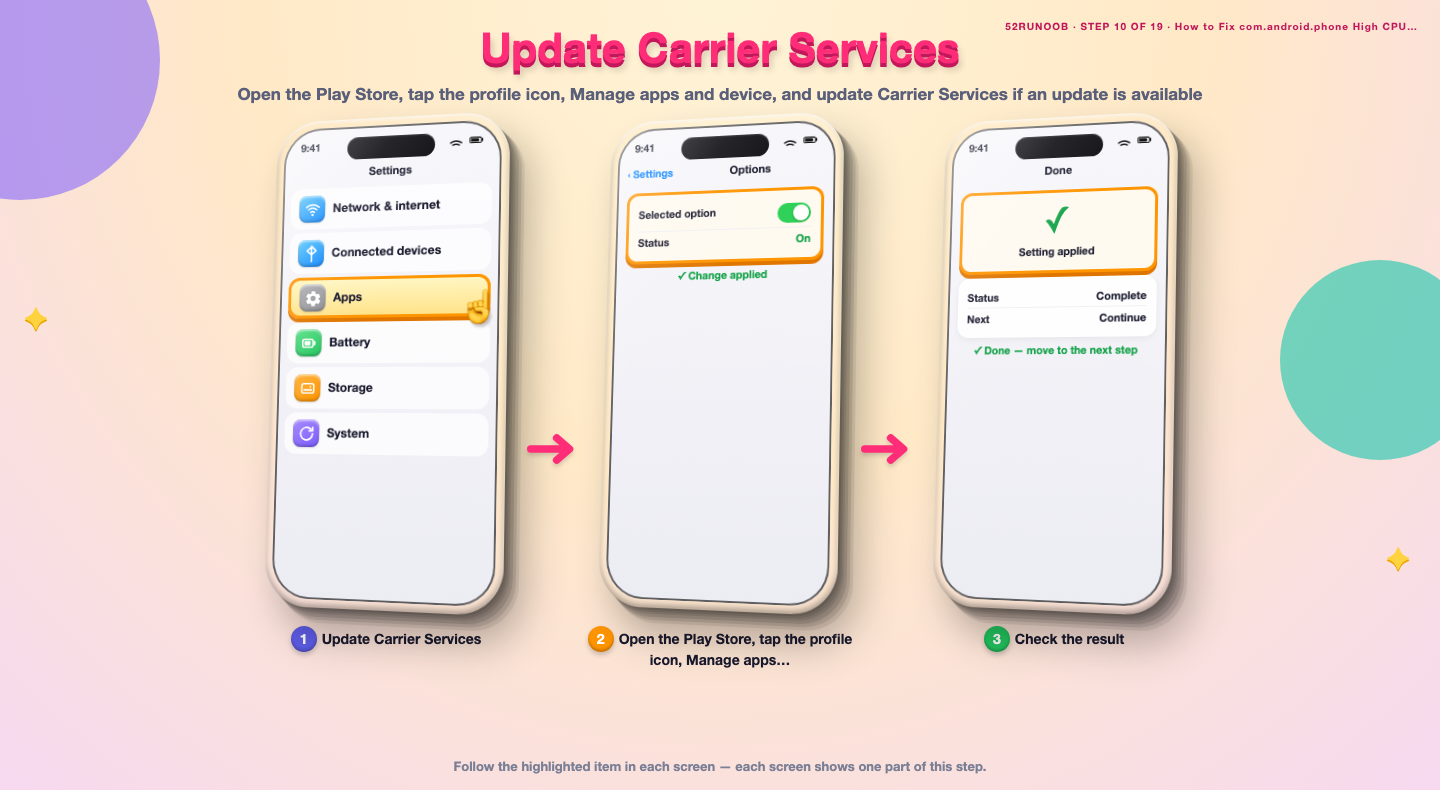
Step 10: Update Carrier Services
Open the Play Store, tap the profile icon, Manage apps and device, and update Carrier Services if an update is available.
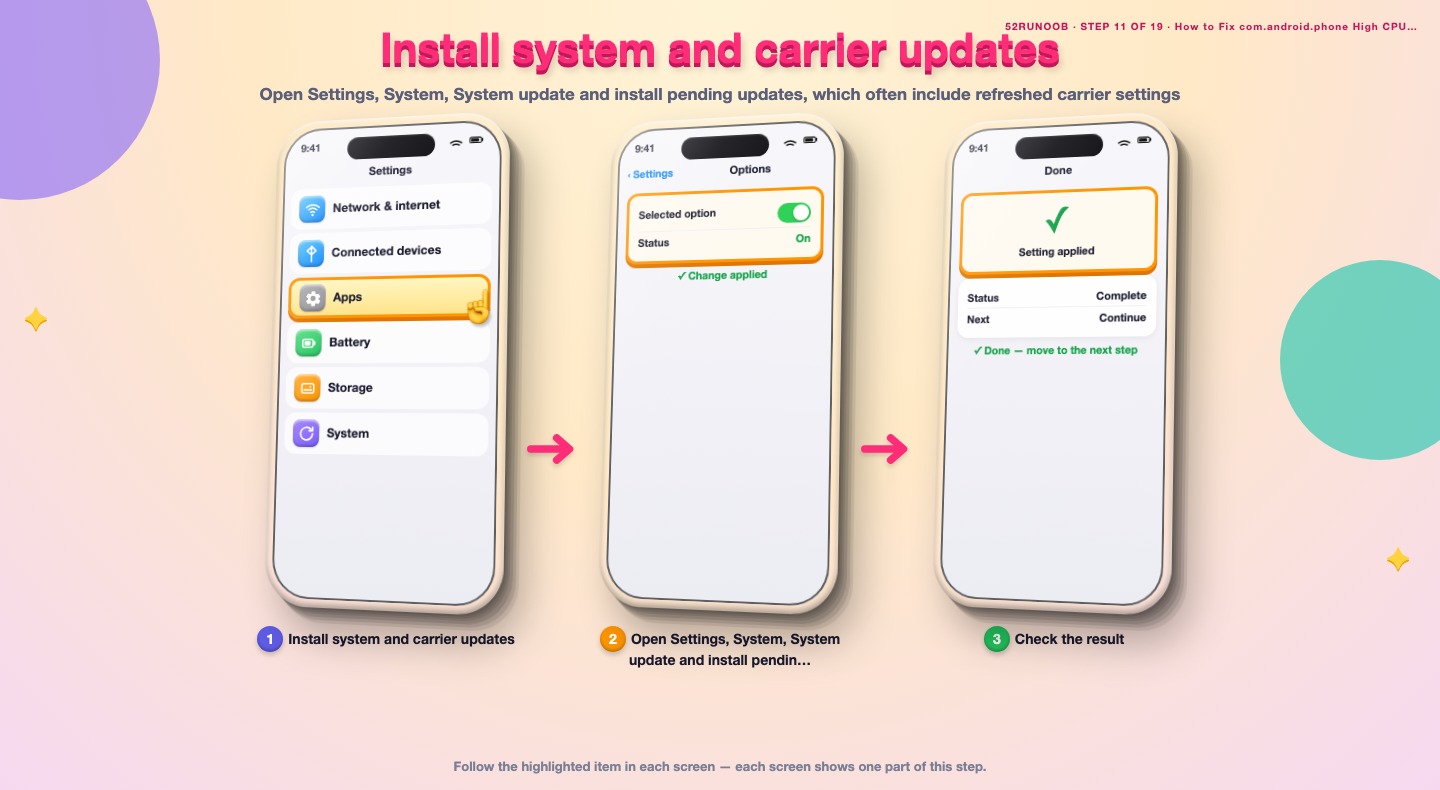
Step 11: Install system and carrier updates
Open Settings, System, System update and install pending updates, which often include refreshed carrier settings.
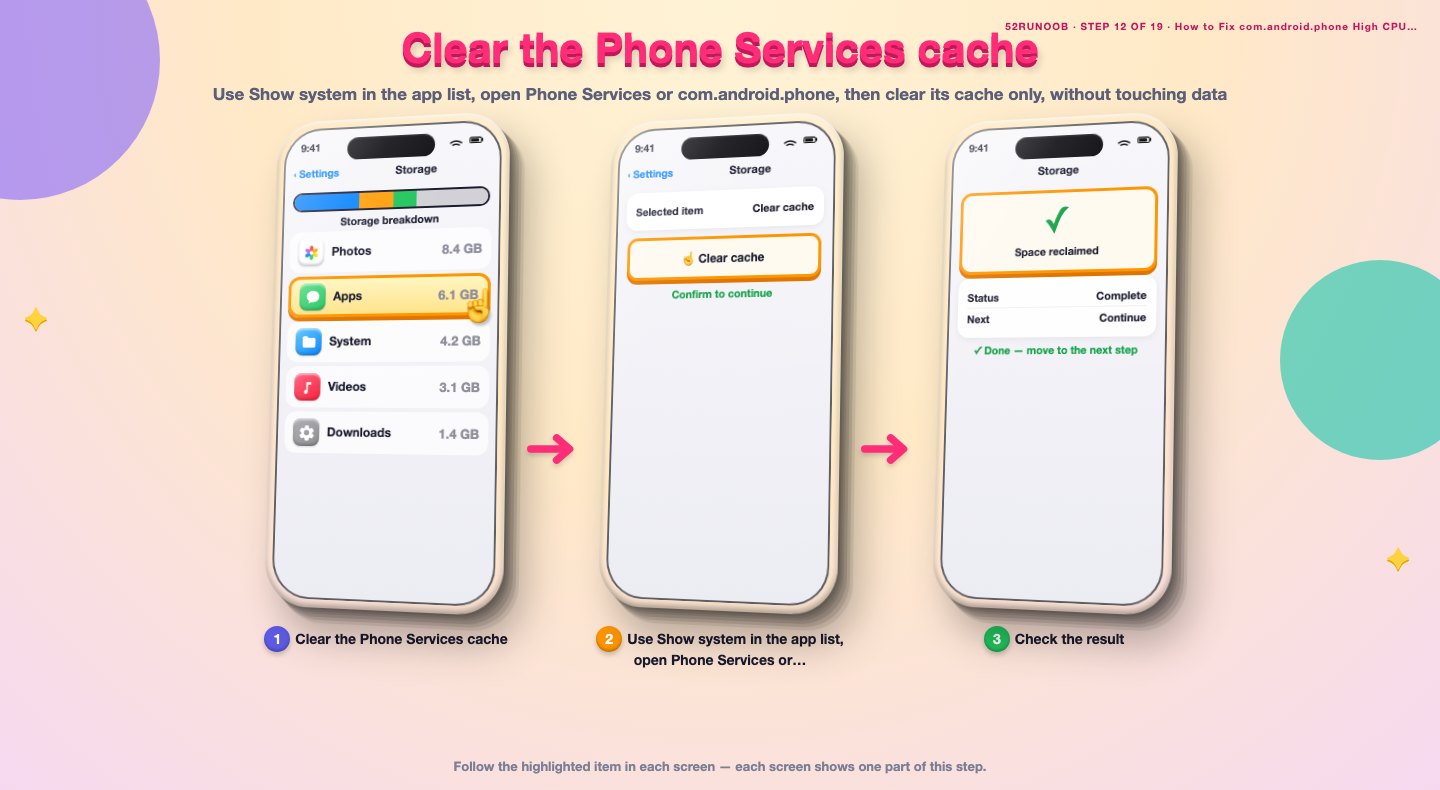
Step 12: Clear the Phone Services cache
Use Show system in the app list, open Phone Services or com.android.phone, then clear its cache only, without touching data.
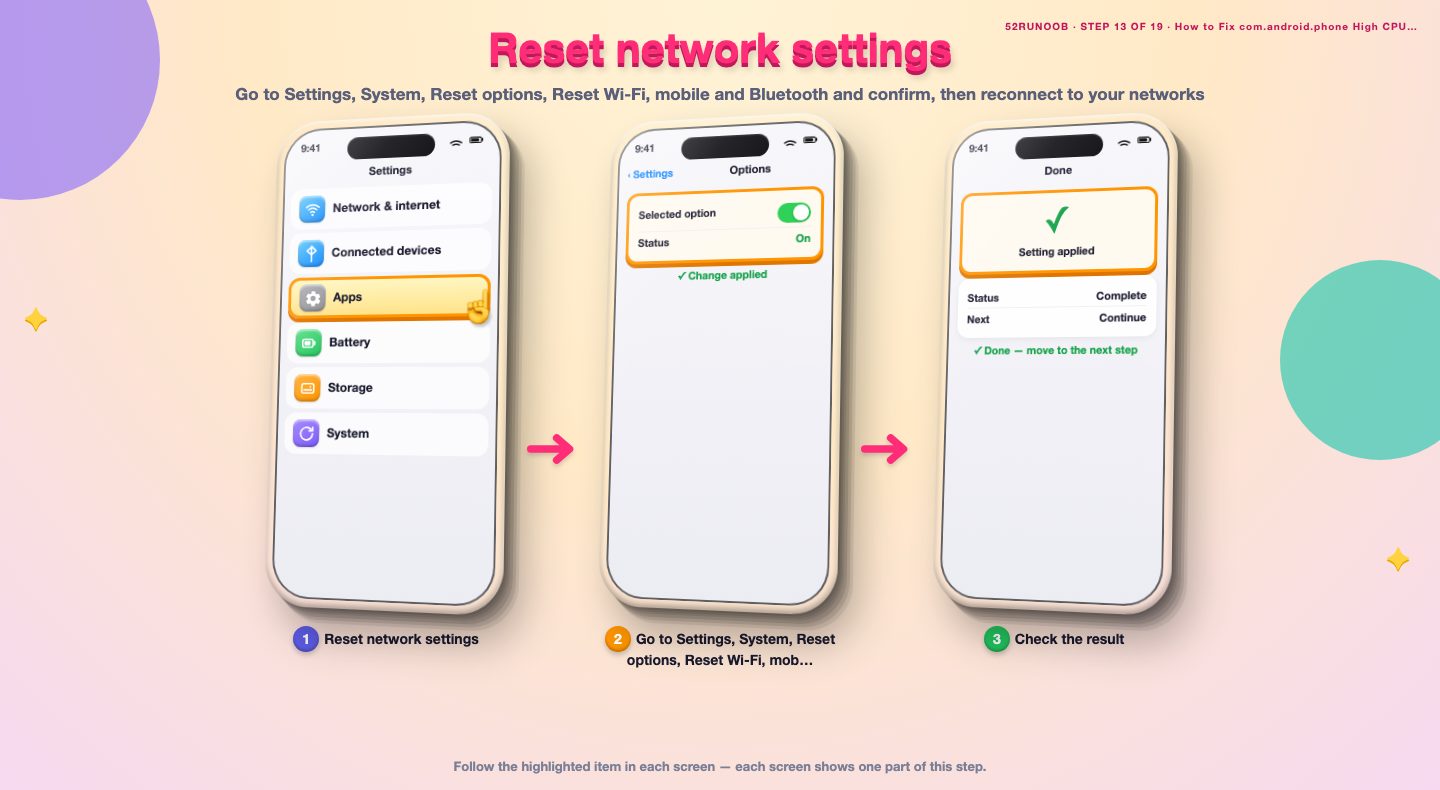
Step 13: Reset network settings
Go to Settings, System, Reset options, Reset Wi-Fi, mobile and Bluetooth and confirm, then reconnect to your networks.
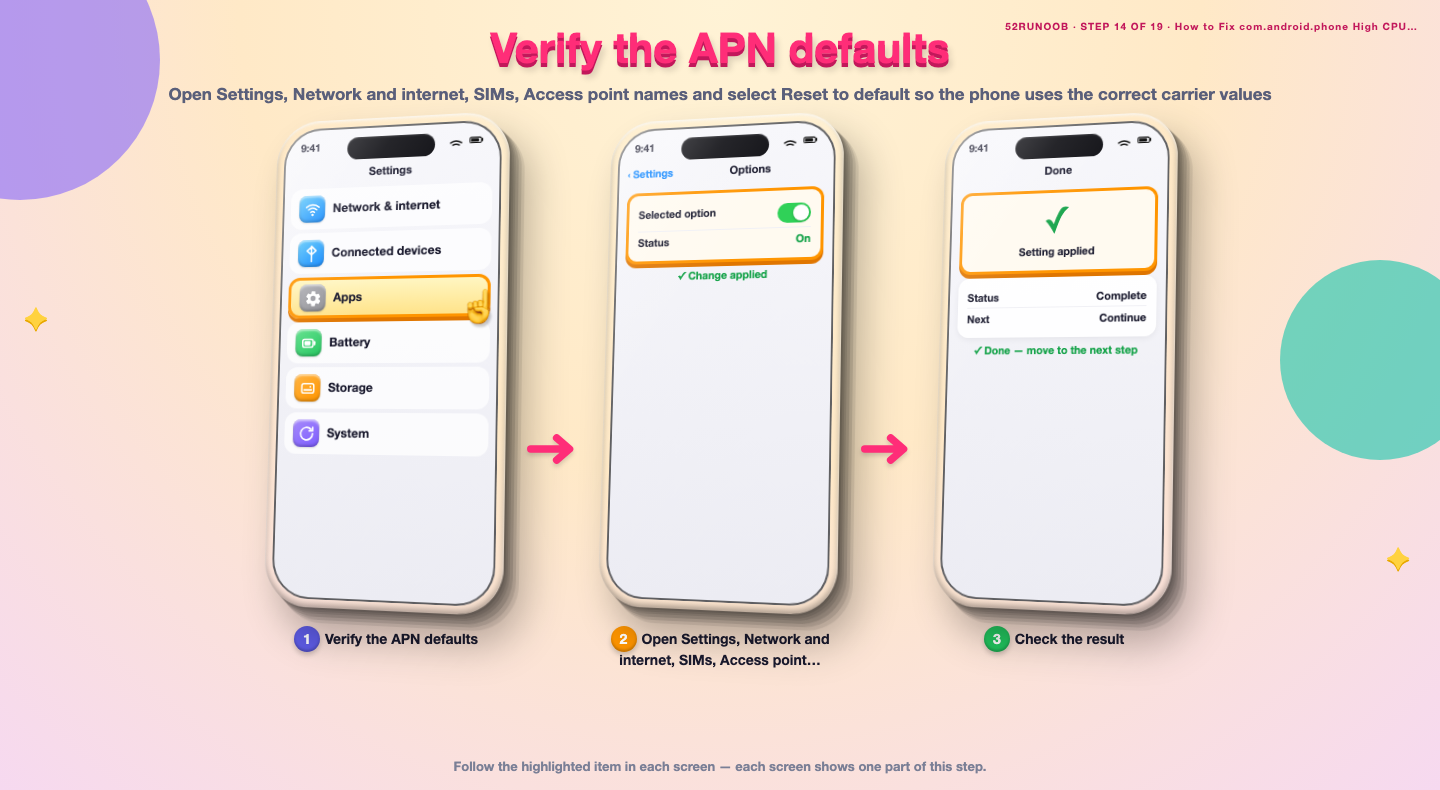
Step 14: Verify the APN defaults
Open Settings, Network and internet, SIMs, Access point names and select Reset to default so the phone uses the correct carrier values.
Method 3 of 3: Update, Test and Escalate
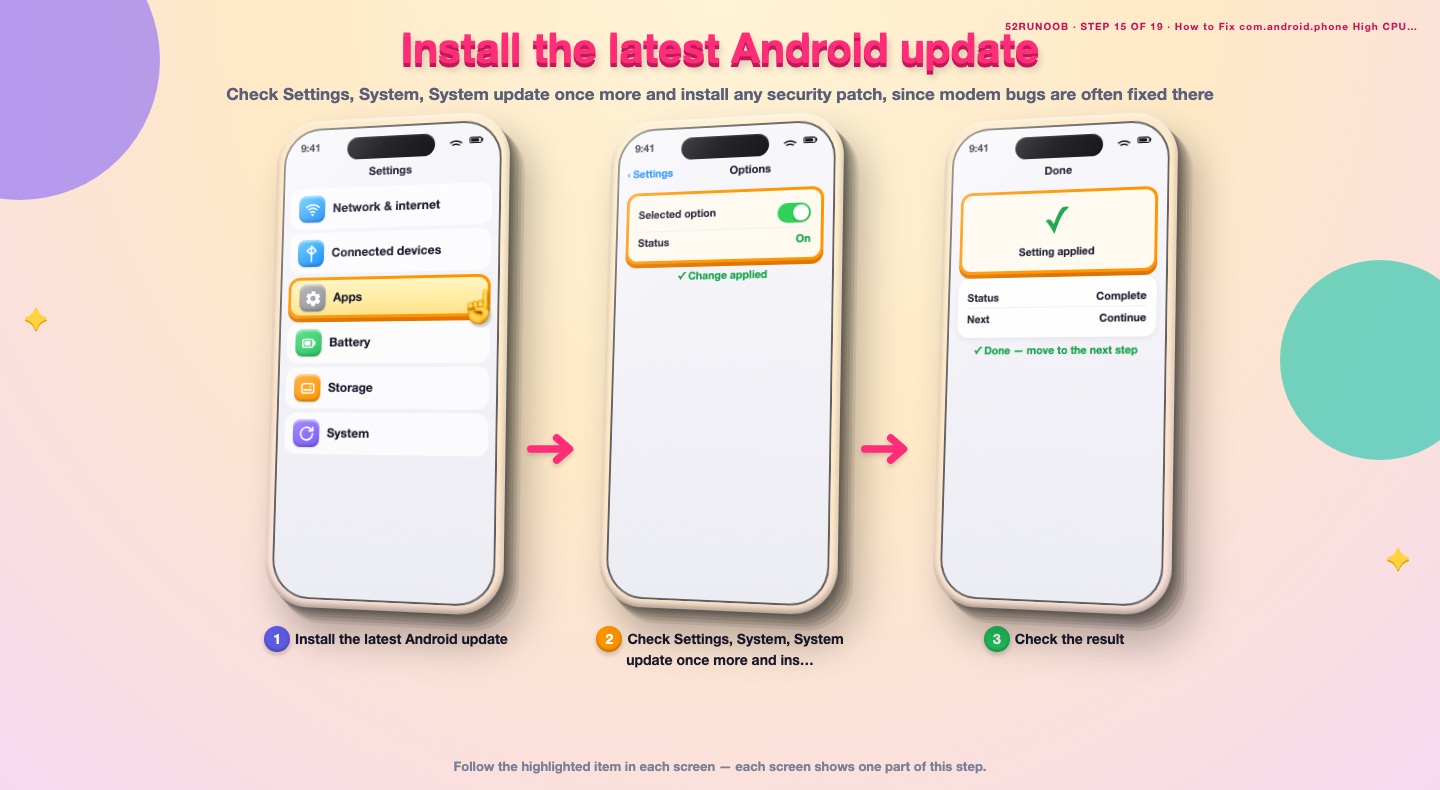
Step 15: Install the latest Android update
Check Settings, System, System update once more and install any security patch, since modem bugs are often fixed there.
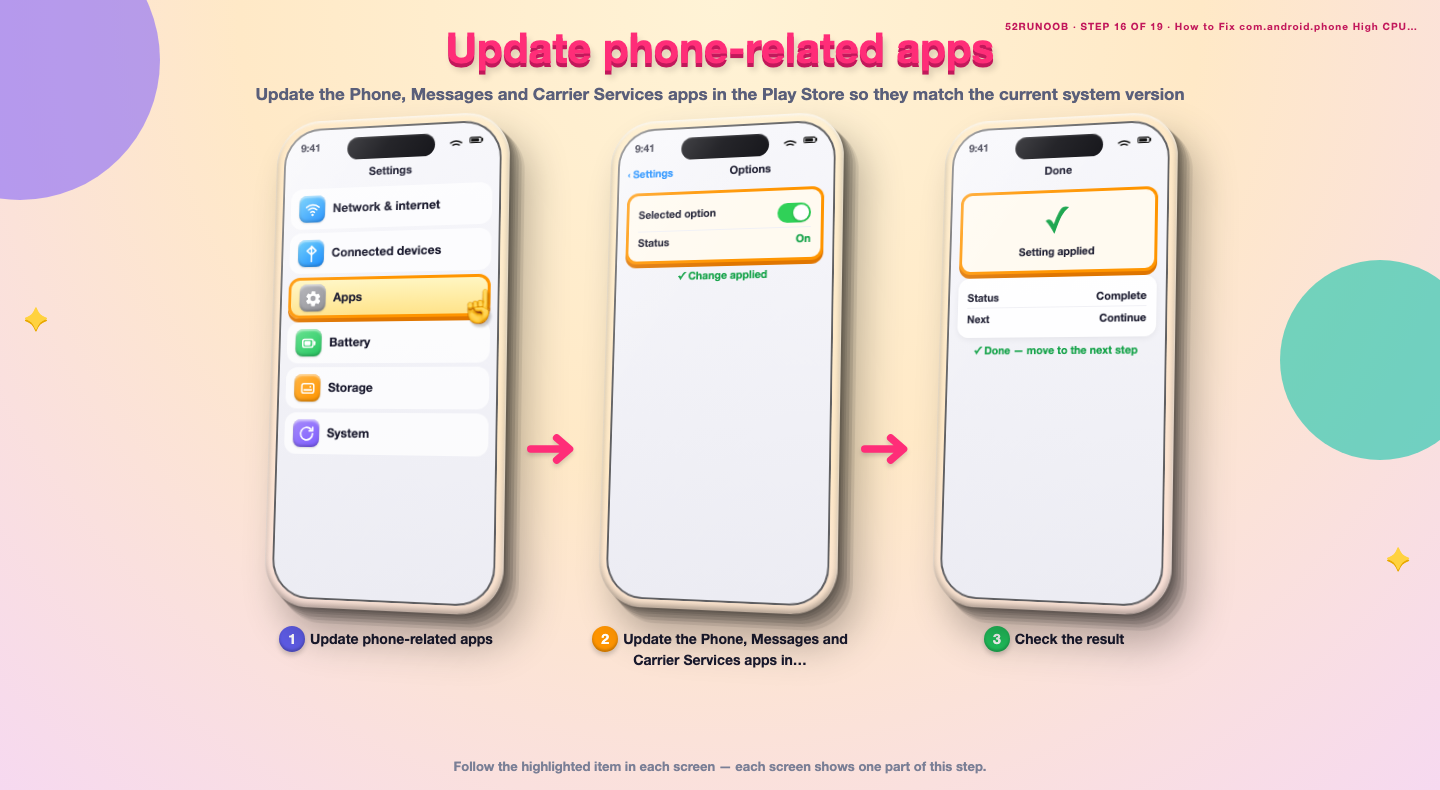
Step 16: Update phone-related apps
Update the Phone, Messages and Carrier Services apps in the Play Store so they match the current system version.
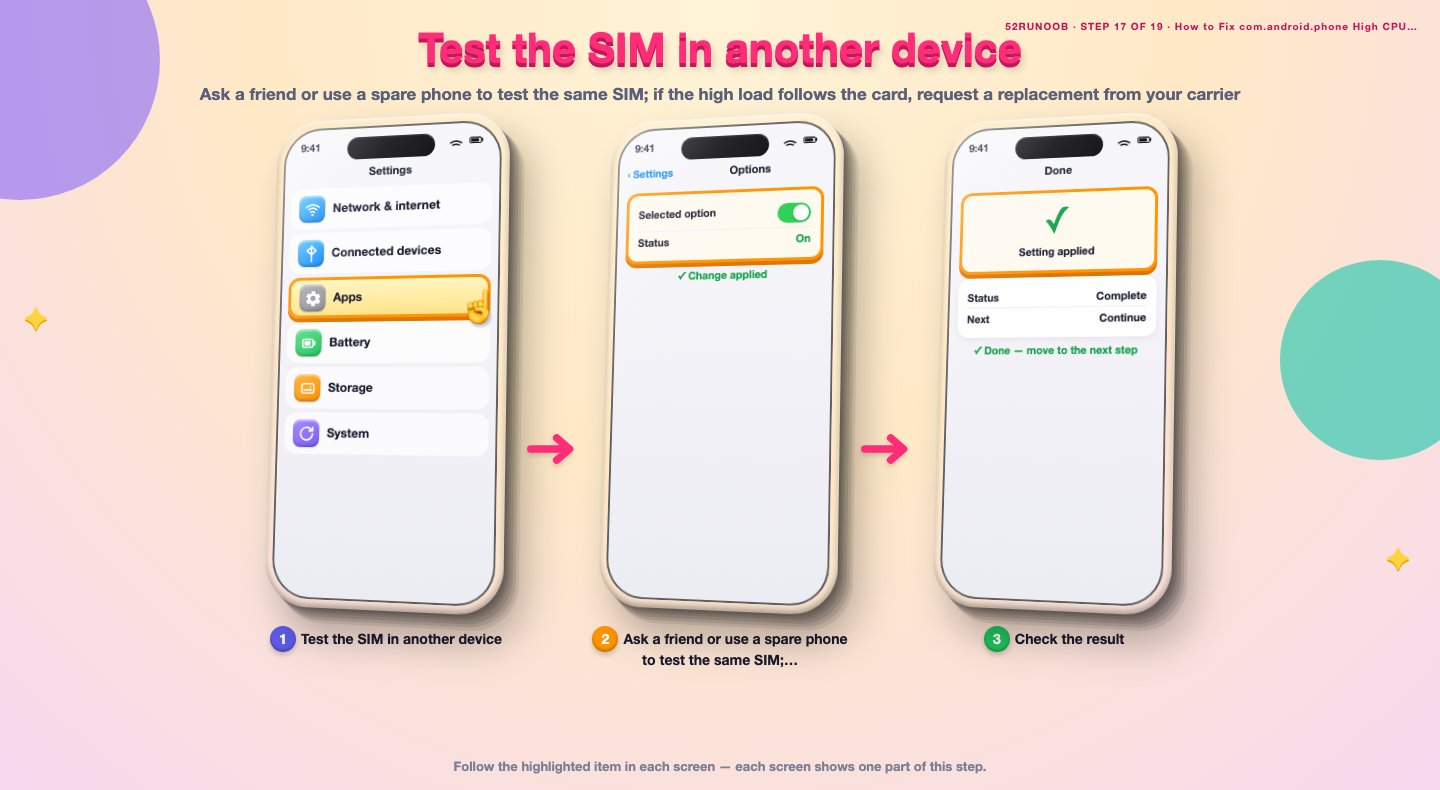
Step 17: Test the SIM in another device
Ask a friend or use a spare phone to test the same SIM; if the high load follows the card, request a replacement from your carrier.
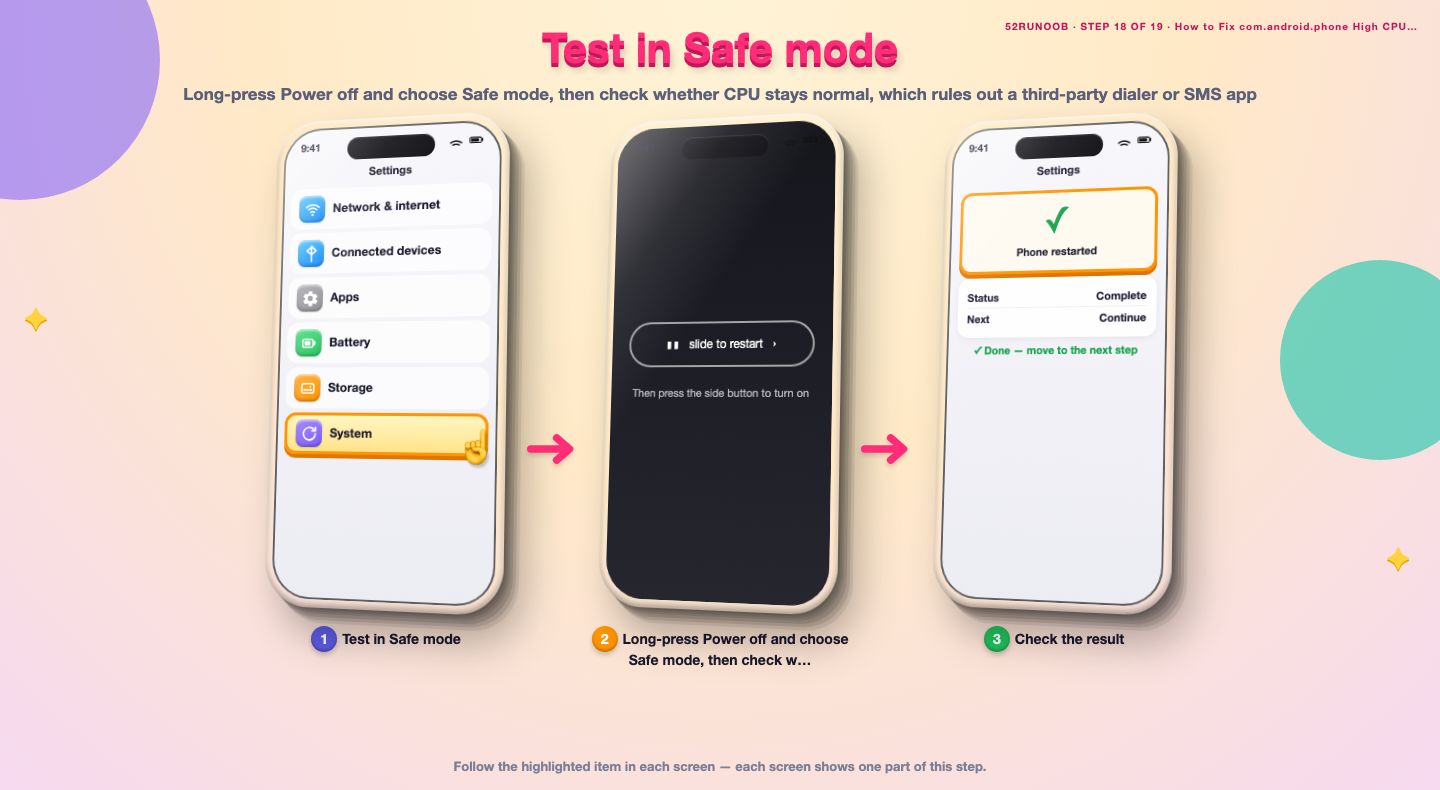
Step 18: Test in Safe mode
Long-press Power off and choose Safe mode, then check whether CPU stays normal, which rules out a third-party dialer or SMS app.
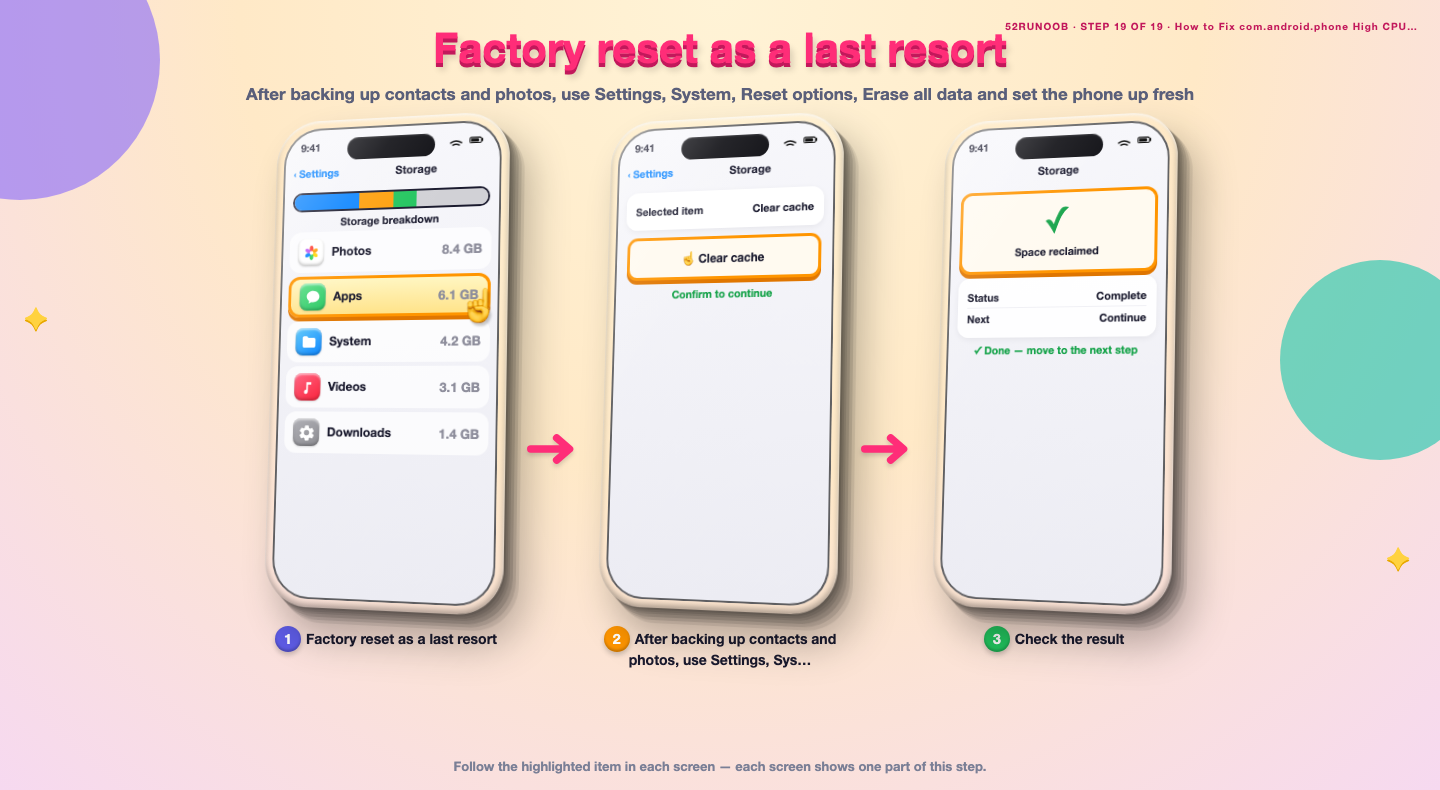
Step 19: Factory reset as a last resort
After backing up contacts and photos, use Settings, System, Reset options, Erase all data and set the phone up fresh.
Tips
- A weak 5G signal makes the modem search repeatedly and raises CPU load.
- Dual-SIM phones can double the registration work, so test with one SIM at a time.
- Carrier settings arrive through system updates, so keep the phone current.
Warnings
- Do not remove com.android.phone; calls, SMS and mobile data depend on it.
- Resetting network settings forgets saved Wi-Fi networks and Bluetooth devices.
- Handle the SIM gently and power off the phone before removing it.
Frequently asked questions
Is com.android.phone a virus?
No. It is the standard Android telephony process that runs the SIM, calls and mobile data. It is part of the system and should never be uninstalled. A high reading is usually a network or SIM problem rather than malware.
Is high CPU from the phone process normal?
Brief activity while switching networks or sending SMS is normal. A process that stays high for hours with the screen off is not and often means the modem is searching for signal over and over.
Can I force stop com.android.phone?
You normally cannot, and you should not try. It is essential for calls and messages. Re-registering the network with Airplane mode or rebooting is the safe way to restart it.
Could my SIM card cause this?
Yes. An old or damaged SIM can fail to register cleanly, which keeps the telephony process busy. Test the SIM in another phone or ask your carrier for a replacement if the problem follows the card.
References
- Android Support - Speed up your Android device. https://support.google.com/android/answer/9454546
- Android Support - Clear app cache and data. https://support.google.com/android/answer/9551190
- Android Open Source Project - Over-the-air updates. https://source.android.com/docs/core/ota
- wikiHow — How to Fix com.android.phone High CPU on Android. https://www.wikihow.com/Fix-High-CPU-Usage-on-Android
Every guide is reviewed against its sources. See our editorial policy.
Reader comments
0 so farFinished this guide? Tell other readers what worked, what didn't, and what you would change.