iOS 26's Liquid Glass design uses layered transparency and motion that can make older iPhones feel slow, with stuttering animations and laggy transitions. Reduce motion and transparency in Accessibility settings, keep the phone cool, and free storage to make the interface feel responsive again.
This guide walks through the process in clear illustrated steps, from the first preparation to a finished result. Each step has its own picture, so you can compare your progress as you go.
How to use this guide
Work through the steps in order. Method 1 of 2 covers the basics, and the later methods offer alternatives and finishing touches. If you only have a minute, skim the Quick steps box above and come back for the details.
Related guides
- How to Take better notes in class
- How to Recover a deleted file
- How to Start a side hustle
- How to Resolve conflict at work
- Browse all Fix Slow Device guides
- All 52runoob guides
Trusted external resources
- Apple Support — Reduce motion on iPhone
- Apple Support — Increase contrast and reduce transparency
- Apple Support — If your iPhone is running slowly
A note on sources
We check each guide against the official resources listed in References at the end of this article. External links open in a new tab; the related guides above stay on this site.
Quick steps
- Turn on Reduce Motion in Accessibility settings.
- Enable Reduce Transparency to simplify glass effects.
- Restart the phone after changing display settings.
- Keep the phone cool and free up storage.
- Install the latest iOS point release.
Things you'll need
- An iPhone running iOS 26
- Access to Settings and Accessibility
- A few minutes
- A charger if the battery is low
Step-by-step
Method 1 of 2: Simplify the Visual Effects
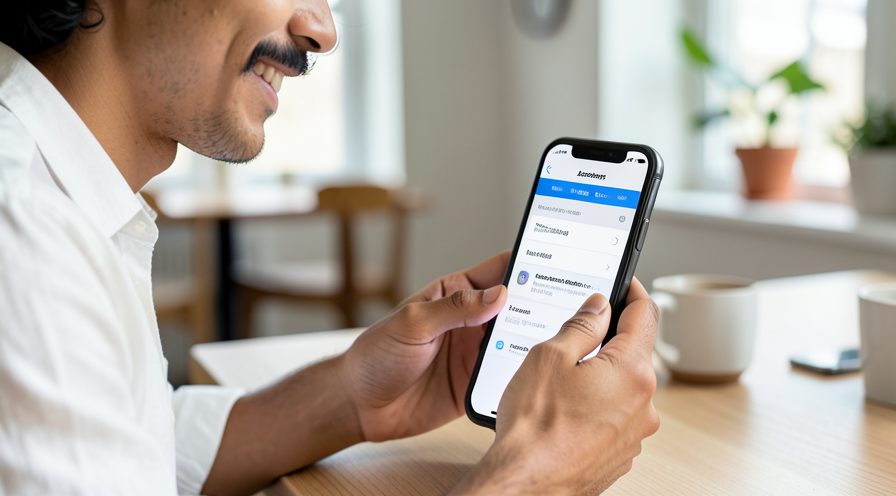
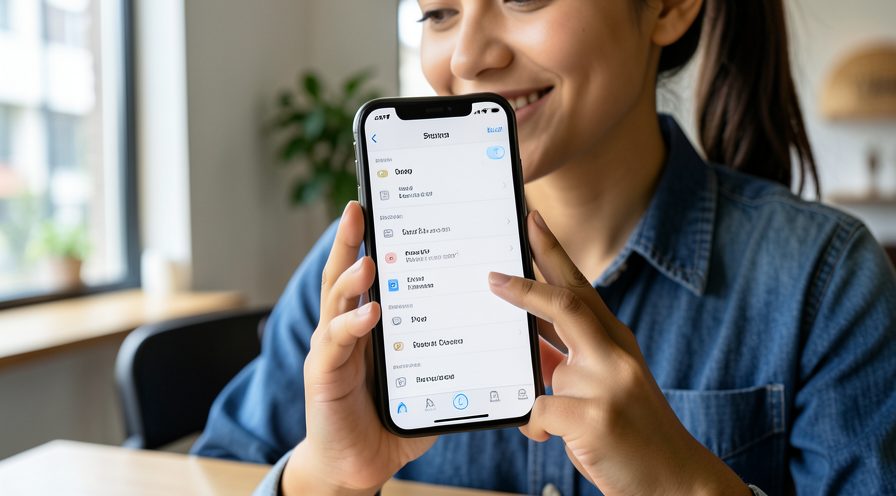
Step 1: Open Accessibility settings
Go to Settings, Accessibility, Motion.
Step 2: Turn on Reduce Motion
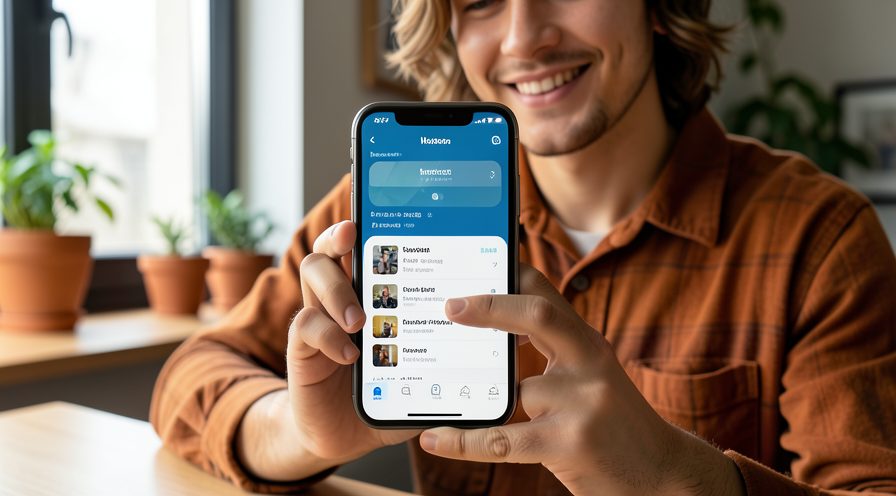
Enable Reduce Motion to remove the zooming transition between screens.
Step 3: Open Display settings
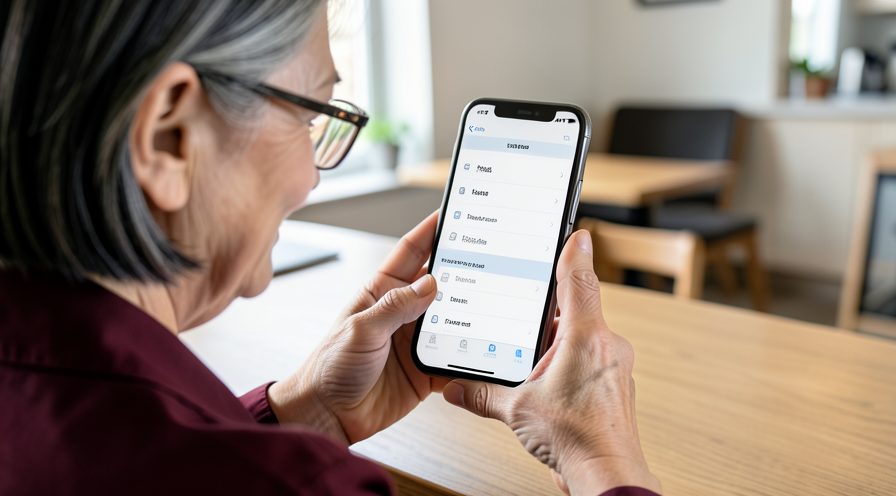
Go back to Accessibility, Display & Text Size.
Step 4: Enable Reduce Transparency
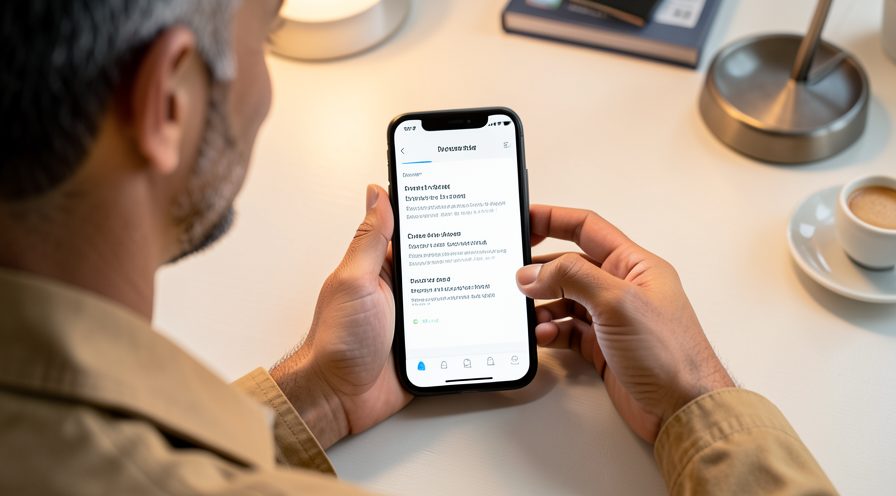
Turn on Reduce Transparency to simplify the Liquid Glass blur effects.
Step 5: Restart the phone
Restart so the display changes fully take effect.
Step 6: Test the animations
Open and close apps to confirm transitions feel smoother.
Method 2 of 2: Support Overall Performance
Step 7: Check free storage
Open Settings, General, iPhone Storage and free space if it is nearly full.
Step 8: Let the phone cool
If the phone is warm, stop charging, remove the case and wait before using it heavily.
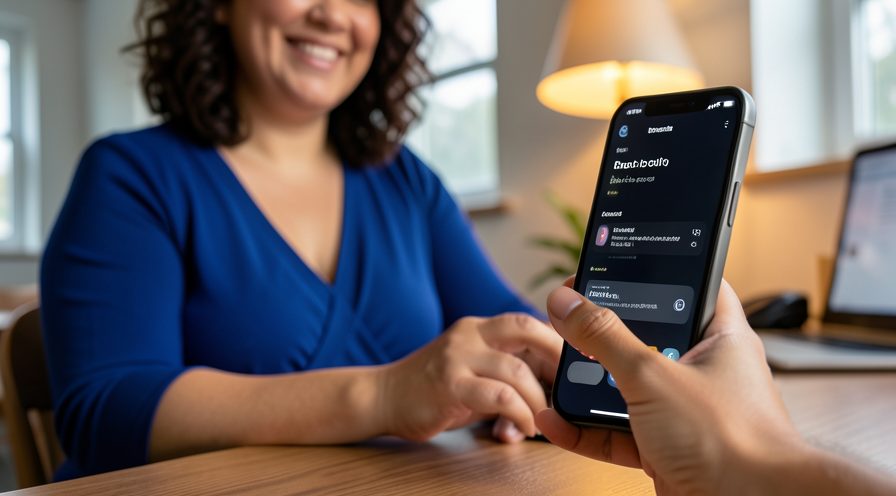
Step 9: Disable Background App Refresh
Turn off Background App Refresh for apps that do not need it to free resources.
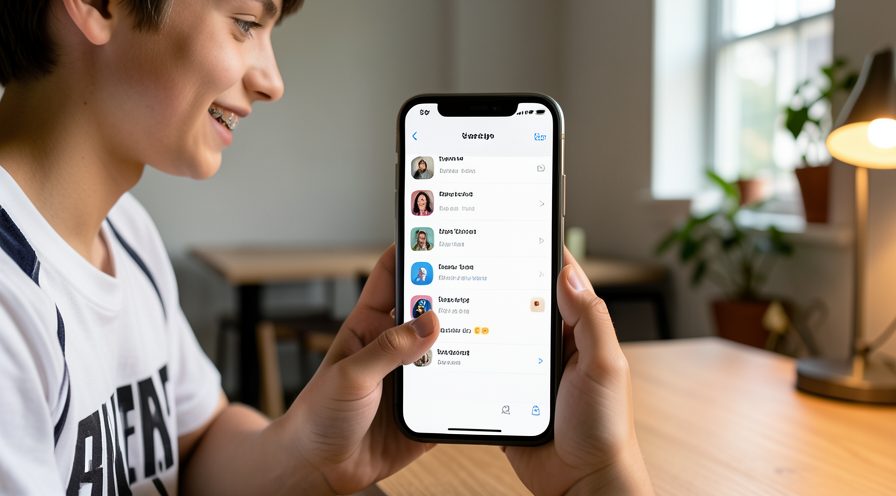
Step 10: Update iOS
Install the latest iOS 26 point release for animation optimizations.
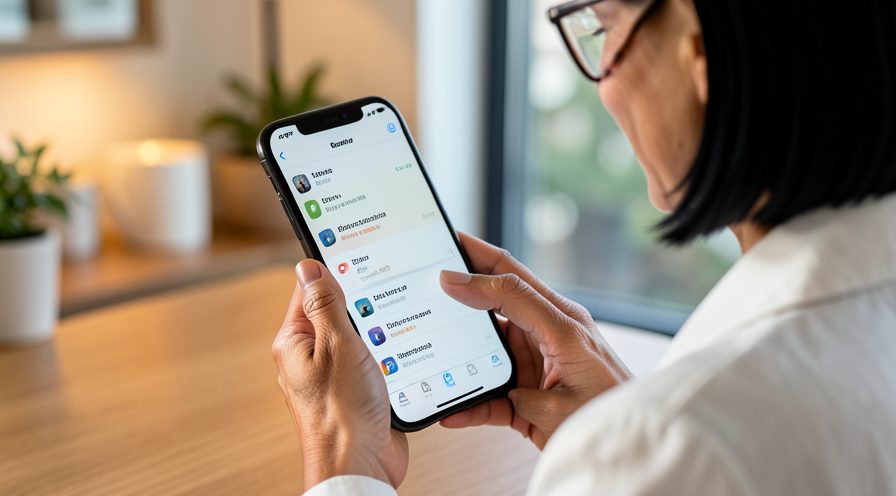
Step 11: Check Battery Health
If the phone still stutters, check Battery Health since a weak battery can throttle performance.
Tips
- Reduce Motion removes the zooming transition between screens.
- Reduce Transparency replaces blurred glass with solid backgrounds.
- These settings keep the phone usable without losing core features.
Warnings
- Disabling effects changes how the interface looks; you can revert any time.
- Persistent stutter can also mean a degraded battery or low storage.
- Do not install unofficial tweaks claiming to restore old animations.
Frequently asked questions
Why are animations slow with iOS 26?
The Liquid Glass design uses transparency layers and motion effects that demand more graphics processing. On older iPhones this can cause stuttering. Reducing motion and transparency lightens that load.
Does Reduce Motion remove all animations?
It removes or simplifies the larger transitions, such as the zoom effect between apps, while keeping essential feedback. It makes the interface feel quicker on slower hardware.
Will Reduce Transparency change my wallpaper look?
It replaces blurred, see-through panels with solid backgrounds, so menus look flatter but remain fully functional. You can turn it off again if you prefer the original look.
Can a new iOS update fix slow animations?
Yes. Apple often releases point releases that optimize animations and fix performance regressions, so keep the phone updated while using these settings as a workaround.
References
- Apple Support — Reduce motion on iPhone. https://support.apple.com/en-us/111854
- Apple Support — Increase contrast and reduce transparency. https://support.apple.com/en-us/111855
- Apple Support — If your iPhone is running slowly. https://support.apple.com/en-us/118268
- wikiHow — How to Fix iPhone Slow Animations With iOS 26 Liquid Glass. https://www.wikihow.com/Speed-Up-Your-iPhone
Every guide is reviewed against its sources. See our editorial policy.
Reader comments
0 so farFinished this guide? Tell other readers what worked, what didn't, and what you would change.