Computers and Electronics

Fix, tune, and get more out of the phones, laptops, and gadgets you use daily.

142 guides across 12 topics

How to Stop Startup Apps From Slowing Down Windows 11 Login

Startup apps launch as soon as you sign in, and too many of them compete for CPU and disk access, which stretches the time until the desktop is usable. Windows 11 lets you control them from Task Manager or Settings, where you can see each app's startup impact. For items that do not appear in those lists, check the Startup folders, scheduled tasks, and services. This illustrated guide covers 2 methods and 13 steps, with a separate picture for every step.
Nov 21, 2026 20

How to Fix Windows 11 Taking 2 Minutes to Boot to Desktop

A two-minute boot to the desktop is usually caused by too many startup apps, a slow mechanical hard drive, pending Windows updates, or a fast startup profile that no longer matches your drivers. Work through the simple causes first by trimming startup programs and letting updates finish, then check disk health and power settings. If the drive is an aging HDD, moving Windows to an SSD is the single biggest improvement. This illustrated guide covers 3 methods and 19 steps, with a separate picture for every step.
Nov 21, 2026 30

How to Fix High Disk Usage Caused by Delivery Optimization (svchost.exe)

Delivery Optimization is the Windows Update feature that downloads update files and shares them peer-to-peer, and it runs behind svchost.exe or the BITS service. When a large feature update is downloading or being seeded to other PCs, that background transfer can pin a Service Host process near 100% disk. The fix is to identify the service in Task Manager, then cap its bandwidth, pause updates, or reset the update components if activity never settles. This illustrated guide covers 2 methods and 16 steps, with a separate picture for every step.
Nov 21, 2026 23

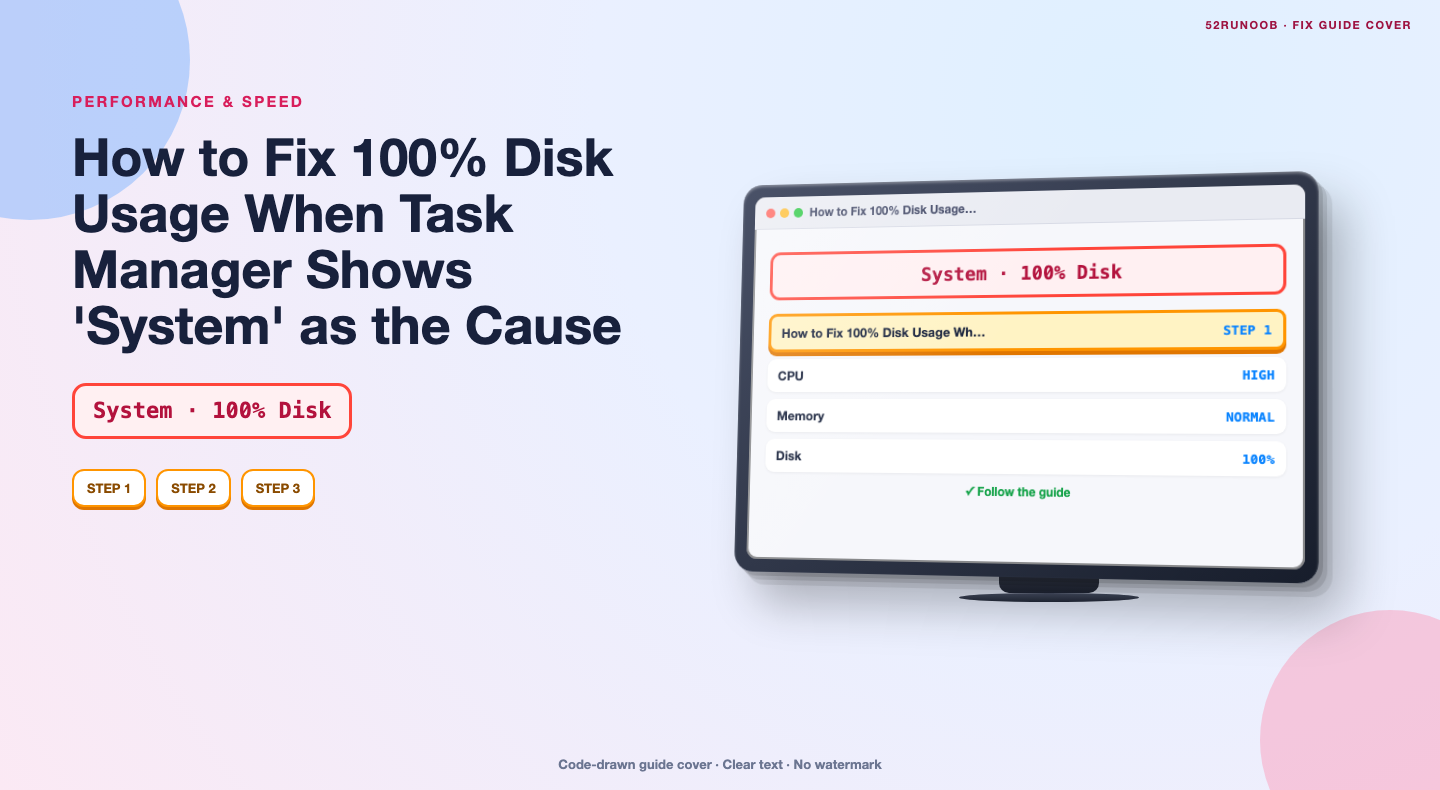
How to Fix 100% Disk Usage When Task Manager Shows 'System' as the Cause

When Task Manager blames the System process for 100% disk usage, the activity usually comes from a driver or kernel-level component rather than an ordinary app. Common sources include the pagefile, SysMain, and antivirus filters. Use Resource Monitor to trace the child activity, then update drivers and check memory. This illustrated guide covers 2 methods and 18 steps, with a separate picture for every step.
Nov 21, 2026 22

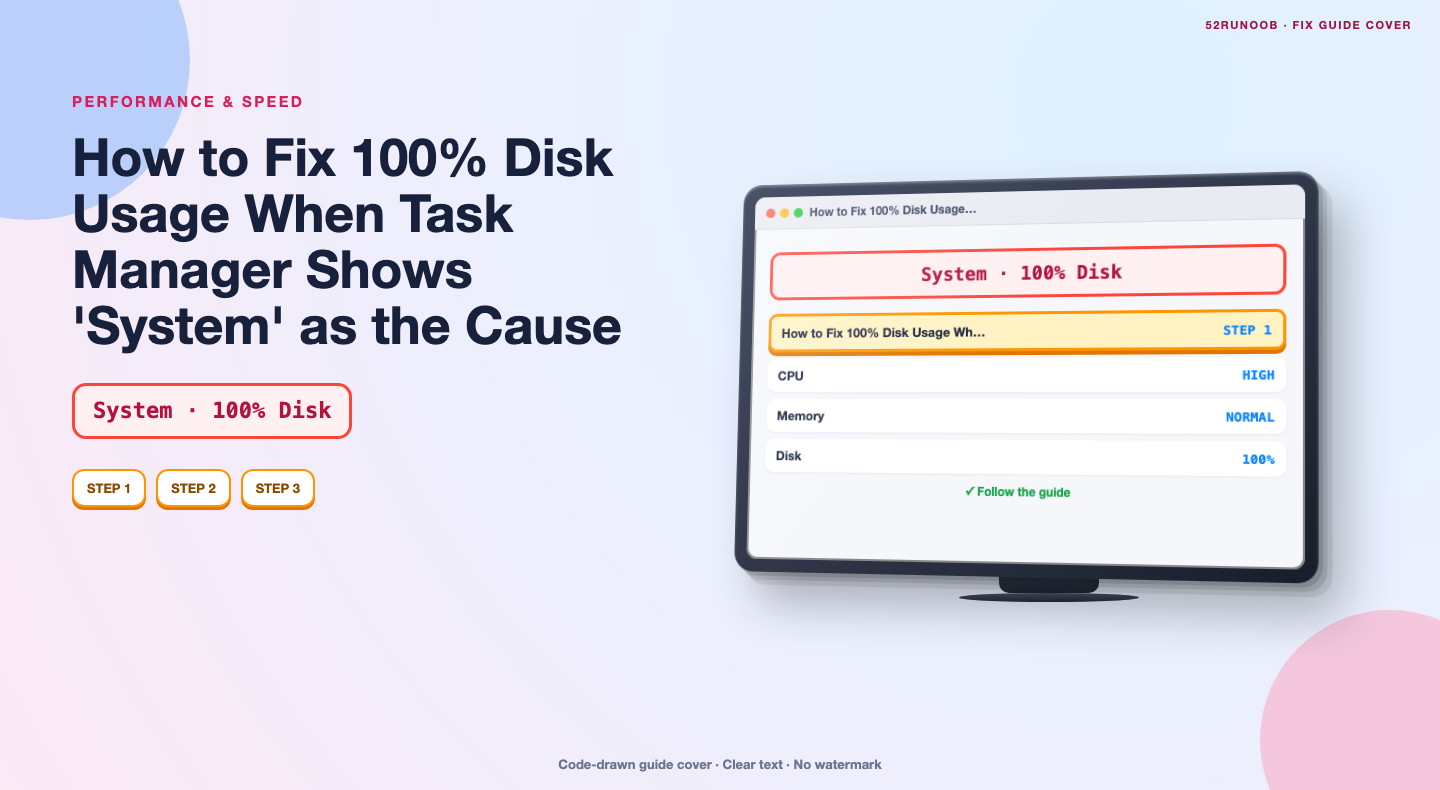
How to Fix 100% Disk Usage When Task Manager Shows 'System' as the Cause

When Task Manager blames the System process for 100% disk usage, the activity usually comes from a driver or kernel-level component rather than an ordinary app. Common sources include the pagefile, SysMain, and antivirus filters. Use Resource Monitor to trace the child activity, then update drivers and check memory. This illustrated guide covers 2 methods and 18 steps, with a separate picture for every step.
Nov 21, 2026 18

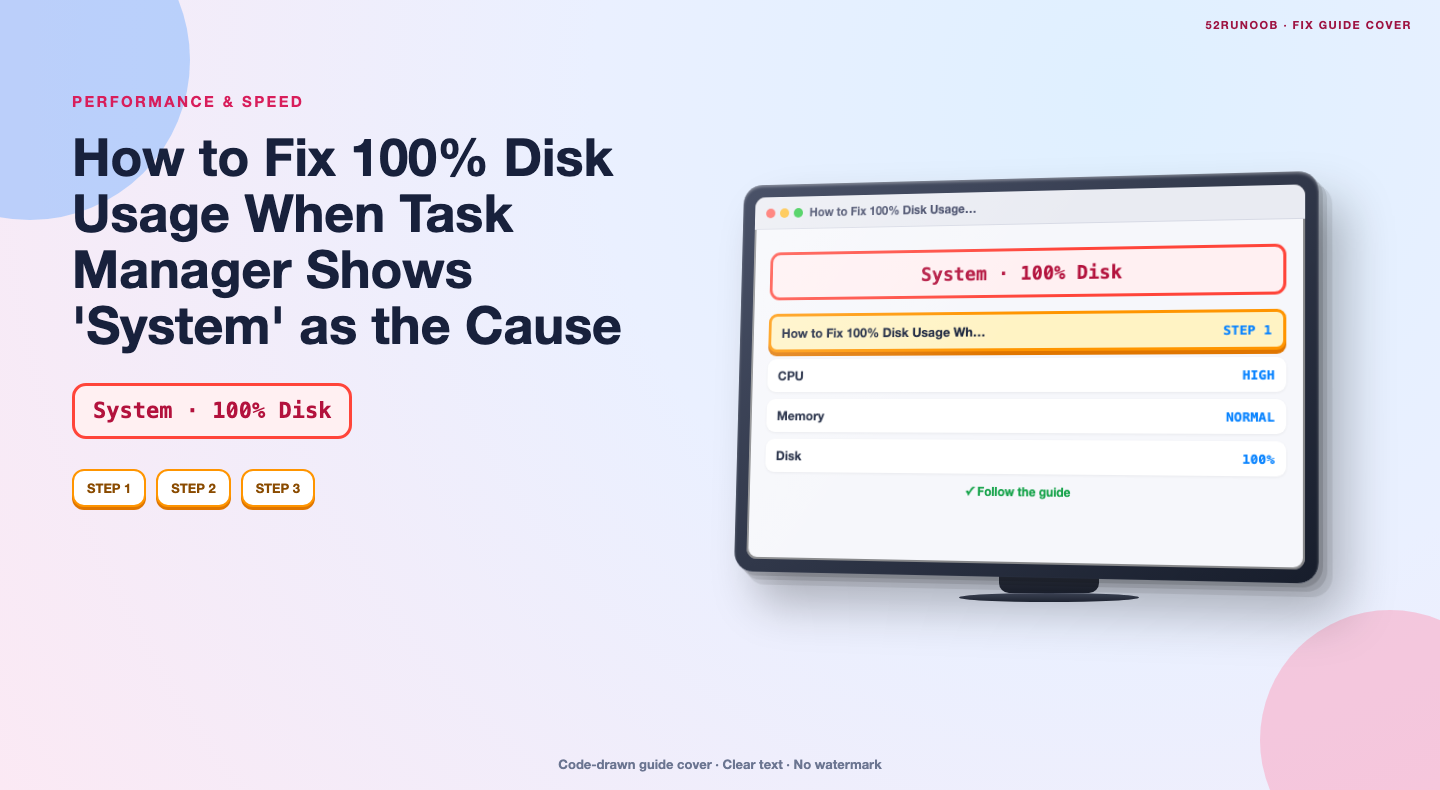
How to Fix 100% Disk Usage When Task Manager Shows 'System' as the Cause

When Task Manager blames the System process for 100% disk usage, the activity usually comes from a driver or kernel-level component rather than an ordinary app. Common sources include the pagefile, SysMain, and antivirus filters. Use Resource Monitor to trace the child activity, then update drivers and check memory. This illustrated guide covers 2 methods and 18 steps, with a separate picture for every step.
Nov 21, 2026 15

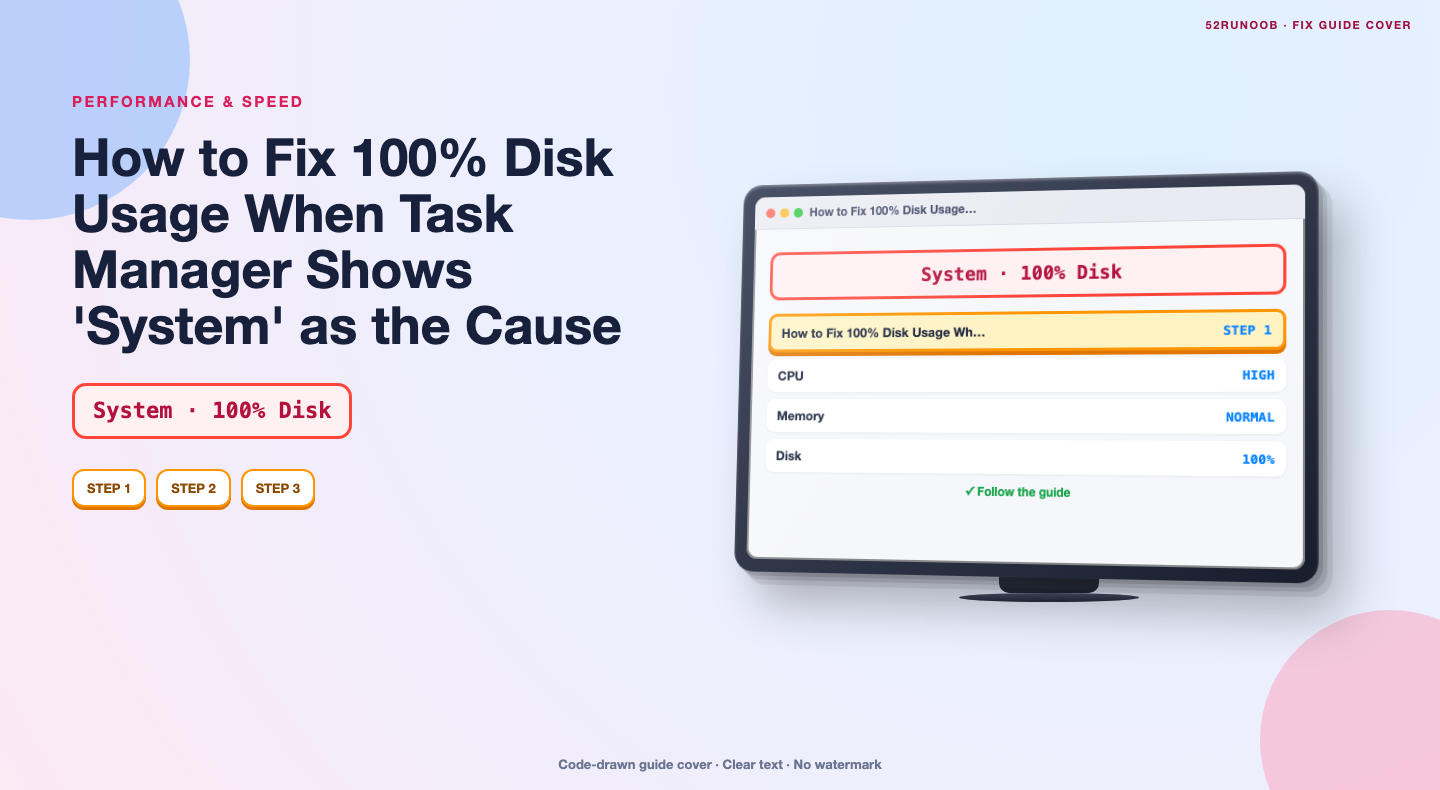
How to Fix 100% Disk Usage When Task Manager Shows 'System' as the Cause

When Task Manager blames the System process for 100% disk usage, the activity usually comes from a driver or kernel-level component rather than an ordinary app. Common sources include the pagefile, SysMain, and antivirus filters. Use Resource Monitor to trace the child activity, then update drivers and check memory. This illustrated guide covers 2 methods and 18 steps, with a separate picture for every step.
Nov 21, 2026 18

How to Fix 100% Disk Usage When Task Manager Shows 'System' as the Cause

When Task Manager blames the System process for 100% disk usage, the activity usually comes from a driver or kernel-level component rather than an ordinary app. Common sources include the pagefile, SysMain, and antivirus filters. Use Resource Monitor to trace the child activity, then update drivers and check memory. This illustrated guide covers 2 methods and 18 steps, with a separate picture for every step.
Nov 21, 2026 22

How to Stop Windows Search Indexing From Pinning the Disk at 100%

Windows Search indexing catalogs files so searches return instant results, but on a large or slow drive it can keep the disk at 100%. You can exclude large folders, pause or rebuild the index, or disable the Windows Search service entirely. Choose the option that best balances search speed with disk load. This illustrated guide covers 3 methods and 19 steps, with a separate picture for every step.
Nov 21, 2026 20

How to Fix 100% Disk Usage When Task Manager Shows 'System' as the Cause

When Task Manager blames the System process for 100% disk usage, the activity usually comes from a driver or kernel-level component rather than an ordinary app. Common sources include the pagefile, SysMain, and antivirus filters. Use Resource Monitor to trace the child activity, then update drivers and check memory. This illustrated guide covers 2 methods and 18 steps, with a separate picture for every step.
Nov 21, 2026 18

How to Fix 100% Disk Usage When Task Manager Shows 'System' as the Cause

When Task Manager blames the System process for 100% disk usage, the activity usually comes from a driver or kernel-level component rather than an ordinary app. Common sources include the pagefile, SysMain, and antivirus filters. Use Resource Monitor to trace the child activity, then update drivers and check memory. This illustrated guide covers 2 methods and 18 steps, with a separate picture for every step.

Nov 21, 2026 24

How to Fix 100% Disk Usage When Task Manager Shows 'System' as the Cause

When Task Manager blames the System process for 100% disk usage, the activity usually comes from a driver or kernel-level component rather than an ordinary app. Common sources include the pagefile, SysMain, and antivirus filters. Use Resource Monitor to trace the child activity, then update drivers and check memory. This illustrated guide covers 2 methods and 18 steps, with a separate picture for every step.

Nov 21, 2026 18