Delivery Optimization is the Windows Update feature that downloads update files and shares them peer-to-peer, and it runs behind svchost.exe or the BITS service. When a large feature update is downloading or being seeded to other PCs, that background transfer can pin a Service Host process near 100% disk. The fix is to identify the service in Task Manager, then cap its bandwidth, pause updates, or reset the update components if activity never settles.
This guide walks through the process in clear illustrated steps, from the first preparation to a finished result. Each step has its own picture, so you can compare your progress as you go.
How to use this guide
Work through the steps in order. Method 1 of 2 covers the basics, and the later methods offer alternatives and finishing touches. If you only have a minute, skim the Quick steps box above and come back for the details.
Related guides
- How to Trim your own bangs
- How to Fix service host local system network restricted high cpu
- How to Set up email filters
- How to Clean a can opener
- Browse all Windows Troubleshooting guides
- All 52runoob guides
Trusted external resources
- Microsoft Learn — What is Delivery Optimization?
- Microsoft Support — Windows troubleshooters (BITS and Update)
- Microsoft Learn — Service host grouping explained
A note on sources
We check each guide against the official resources listed in References at the end of this article. External links open in a new tab; the related guides above stay on this site.
Quick steps
- Open Task Manager and sort by Disk to find the busy Service Host process.
- Expand Service Host to confirm Delivery Optimization or BITS is the cause.
- Open Settings, Windows Update, Advanced options, then Delivery Optimization.
- Turn off peer downloads and set a download bandwidth limit.
- Pause Windows Update for a day if a large feature update is saturating the disk.
- Reset Windows Update components and restart if disk usage stays high.
Things you'll need
- A Windows 11 PC with administrator access
- Task Manager and the Windows Settings app
- An internet connection for checking update status
- About 20 minutes to complete a reset and restart
Step-by-step
Method 1 of 2: Identify the Service Behind the Disk Spike
Step 1: Open Task Manager
Press Ctrl+Shift+Esc and open the Processes tab to see current resource use.

Step 2: Sort by disk usage
Click the Disk column so the processes reading and writing most are listed first.

Step 3: Expand the Service Host group
Click the arrow beside Service Host to reveal the services running inside it.

Step 4: Find Delivery Optimization or BITS
Look for Delivery Optimization or Background Intelligent Transfer Service in the expanded list.
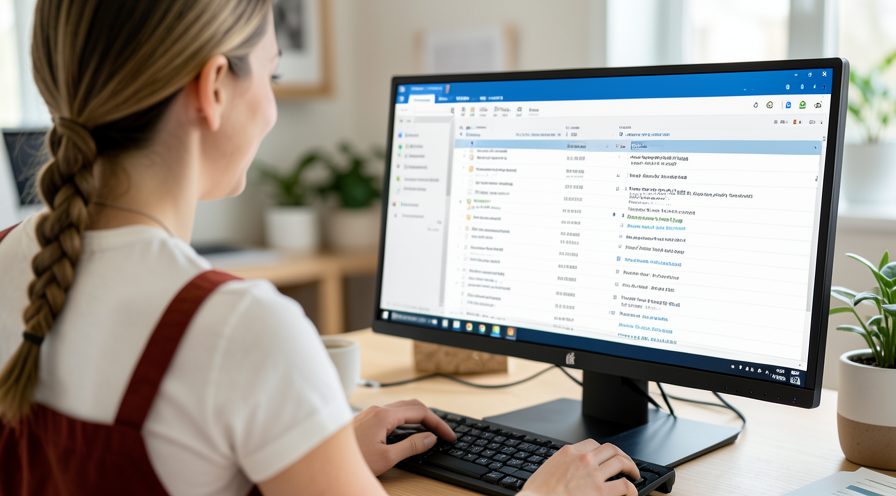
Step 5: Check the update status
Open Settings, Windows Update, and see whether a feature update is currently downloading.

Step 6: Note the process identifier
Switch to the Details tab and record the process identifier of the busy host for later comparison.

Step 7: Check the update history
Open Windows Update history to see whether a feature update is still finalizing in the background.

Step 8: Monitor the disk in Resource Monitor
Open Resource Monitor from Task Manager and watch which process is reading from the disk.

Step 9: Check disk health
Run chkdsk c: /f and schedule the scan at restart to catch file system errors.

Method 2 of 2: Limit, Pause, and Reset the Download
Step 10: Open Delivery Optimization settings
In Settings, go to Windows Update, Advanced options, then Delivery Optimization.
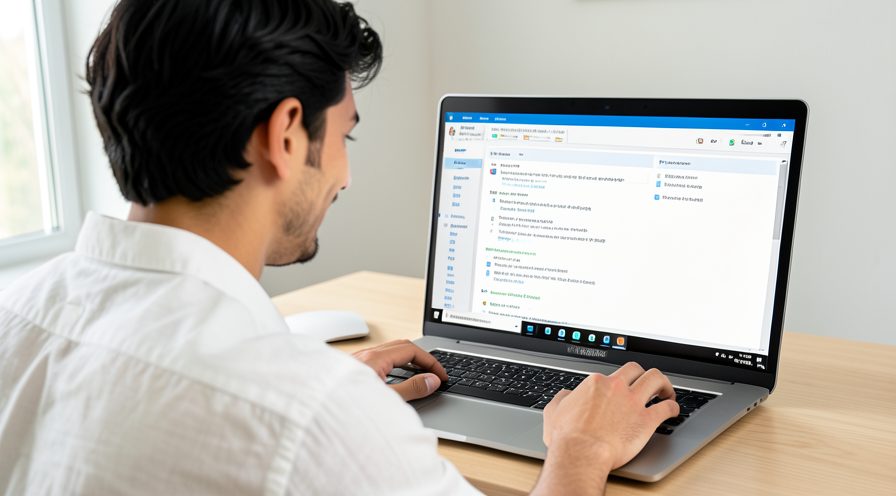
Step 11: Turn off peer downloads
Set peer sharing to Off to stop the PC seeding updates to other computers.

Step 12: Cap the download bandwidth
Enable the download bandwidth limit and choose a level that leaves room for your work.

Step 13: Pause Windows Update briefly
On the main Windows Update page, pause updates for a day while you need the disk.
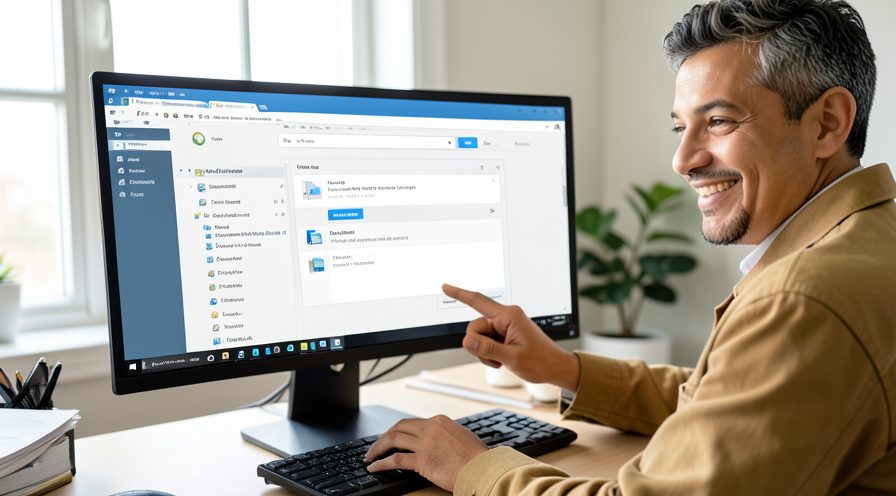
Step 14: Let the current scan finish
If Windows Security is scanning, allow it to complete before changing more settings.

Step 15: Restart and recheck disk use
Restart the PC and reopen Task Manager to see whether disk activity has dropped.

Step 16: Reset stuck update components
If activity continues, stop the Windows Update and BITS services in an administrator terminal, clear the update cache, and restart them.

Tips
- Delivery Optimization disk use during a feature update is usually temporary and settles when the download finishes.
- Capping bandwidth in Settings is safer than ending svchost.exe, which can stop several services at once.
- Checking the Processes tab first tells you which service is responsible before you change anything.
Warnings
- Do not end or delete svchost.exe itself; Windows needs it to host essential services.
- Turning off peer downloads may slow update delivery on networks with several PCs.
- Back up important files before resetting update components or editing service settings.
Frequently asked questions
What is Delivery Optimization and why does it use so much disk?
Delivery Optimization is the Windows Update component that downloads update files and can share them with other PCs on the network or internet. A large feature update or a peer-seeding session can keep the related Service Host or BITS process reading and writing heavily, which appears as high disk use. It normally drops once the download and sharing finish.
Is high disk use from Delivery Optimization dangerous?
Usually no; it is a background download process, not malware or a hardware fault. If the disk stays pinned for hours, check Task Manager to confirm the service name rather than assuming the worst. Sustained full disk use with no active update may point to a different service or a failing drive.
Will disabling Delivery Optimization stop Windows updates?
No. Turning off peer downloads or limiting bandwidth only changes how update files are fetched, not whether updates install. Windows still downloads updates directly from Microsoft servers. You can also pause updates temporarily and resume them later.
How do I reset Windows Update components safely?
Open an administrator Command Prompt and stop the Windows Update and BITS services with net stop wuauserv and net stop bits. Rename the C:\Windows\SoftwareDistribution and C:\Windows\System32\catroot2 folders, then restart both services and reboot. This clears stuck update caches without removing your personal files.
References
- Microsoft Learn — What is Delivery Optimization?. https://learn.microsoft.com/en-us/windows/manage/waas-delivery-optimization
- Microsoft Support — Windows troubleshooters (BITS and Update). https://support.microsoft.com/en-us/help/4540879
- Microsoft Learn — Service host grouping explained. https://learn.microsoft.com/en-us/windows/application-management/svchost-service-refactoring
- wikiHow — How to Fix High Disk Usage Caused by Delivery Optimization (svchost.exe). https://www.wikihow.com/Fix-High-CPU-Usage
Every guide is reviewed against its sources. See our editorial policy.



Reader comments
0 so farFinished this guide? Tell other readers what worked, what didn't, and what you would change.