When Task Manager blames the System process for 100% disk usage, the activity usually comes from a driver or kernel-level component rather than an ordinary app. Common sources include the pagefile, SysMain, and antivirus filters. Use Resource Monitor to trace the child activity, then update drivers and check memory.
This guide walks through the process in clear illustrated steps, from the first preparation to a finished result. Each step has its own picture, so you can compare your progress as you go.
How to use this guide
Work through the steps in order. Method 1 of 2 covers the basics, and the later methods offer alternatives and finishing touches. If you only have a minute, skim the Quick steps box above and come back for the details.
Related guides
- How to Exfoliate without irritation
- How to Use travel rewards points
- How to Store fresh herbs
- How to Make a study schedule
- Browse all Windows Troubleshooting guides
- All 52runoob guides
Trusted external resources
- Microsoft Support — Use System File Checker to repair files
- Microsoft Learn — chkdsk command reference
- Microsoft Support — Free up drive space in Windows
A note on sources
We check each guide against the official resources listed in References at the end of this article. External links open in a new tab; the related guides above stay on this site.
Quick steps
- Open Resource Monitor and expand the Disk section to see file activity.
- Identify the child process behind System, often the pagefile or SysMain.
- Check antivirus scan status and let an active scan finish.
- Update storage, chipset, and network drivers in Device Manager.
- Check RAM usage; a low-memory pagefile can drive constant disk activity.
- Run DISM, SFC, and chkdsk to rule out corruption.
Things you'll need
- A Windows PC with administrator access
- Task Manager and Resource Monitor, built into Windows
- Device Manager for driver updates
- About 30 minutes for scans and driver checks
Step-by-step
Method 1 of 2: Trace the Cause and Check the Disk
Step 1: Open Task Manager
Press Ctrl+Shift+Esc and open the Processes tab to confirm System shows high disk usage.

Step 2: Open Resource Monitor
Click the Resource Monitor link at the bottom of the Performance tab.

Step 3: Review the Disk section
Expand the Disk area to see which processes and files are reading and writing.
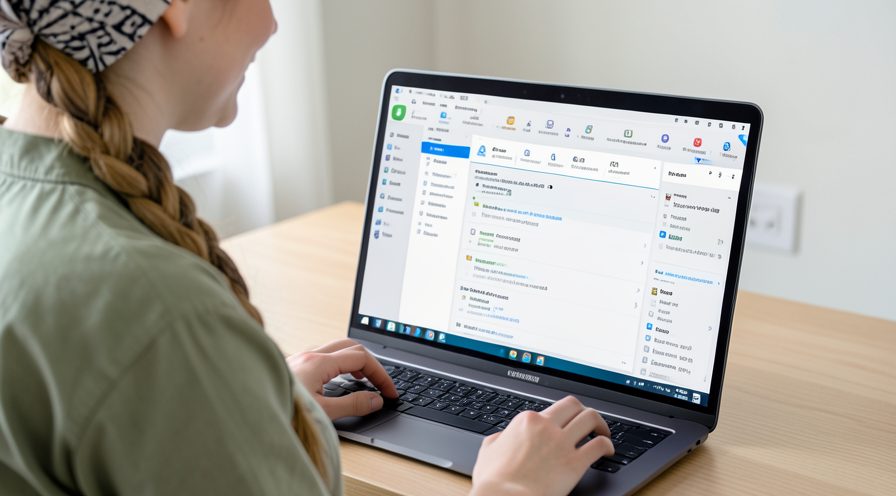
Step 4: Look for the pagefile
Check whether the pagefile file is being heavily read, which points to low memory.

Step 5: Note filter activity
Look for antivirus or SysMain activity that may be attributed to System.

Step 6: Check memory usage
Return to Task Manager and review the Memory column to see if RAM is nearly full.

Step 7: Run a disk error check
Type chkdsk c: /f and schedule the scan on restart to fix file system errors behind System disk activity.

Step 8: Check drive health
Use the drive's properties or a health utility to read its reported status.

Method 2 of 2: Update Drivers, Reduce Load, and Repair
Step 9: Open Device Manager
Right-click the Start button and open Device Manager to review installed hardware.

Step 10: Update storage drivers
Expand Disk drives and update the driver for the drive showing heavy activity.

Step 11: Update chipset and network drivers
Update chipset and network adapter drivers from the manufacturer if available.

Step 12: Check antivirus scans
Open Windows Security and let any running scan finish before making changes.

Step 13: Disable SysMain if needed
In the Services window, stop and disable SysMain on an SSD if it is the source.

Step 14: Reboot and recheck
Restart the PC and verify in Resource Monitor that System disk activity has dropped.

Step 15: Open an administrator terminal
Right-click the Start button and open Windows Terminal with administrator rights to run repairs.

Step 16: Run DISM repair
Type DISM /Online /Cleanup-Image /RestoreHealth and press Enter to repair the component store.

Step 17: Run System File Checker
Type sfc /scannow and press Enter to repair corrupted system files.

Step 18: Review system logs
Open Event Viewer and check the System log for disk or driver errors that explain remaining activity.

Tips
- The System process groups kernel activity, so the real cause is usually a driver or a filter.
- Heavy paging is a sign of low RAM rather than a disk problem by itself.
- Resource Monitor shows the exact files being read, which is more useful than Task Manager alone.
Warnings
- Do not end the System process; Windows will not allow it and it can cause instability.
- Updating drivers from unofficial sites can install malware; use Device Manager or the manufacturer.
- Disabling antivirus to test may leave the PC exposed; only do it briefly.
Frequently asked questions
What is the System process in Task Manager?
The System process represents kernel and driver operations rather than a normal application. When it shows high disk usage, the activity comes from something running at a low level, such as a storage driver, antivirus filter, or the memory manager. Resource Monitor can help reveal the specific files and child processes involved.
Can the pagefile cause high disk usage by System?
Yes. When physical memory runs low, Windows moves memory pages to the pagefile on disk, which shows up as System disk activity. If this happens constantly, check RAM usage in Task Manager and consider adding memory or reducing background apps.
Why does Task Manager blame System instead of the real cause?
Task Manager attributes kernel and driver work to the System process because those operations do not belong to a user-mode app. The actual source, such as a driver or antivirus filter, is hidden behind it. Resource Monitor's Disk section is the better tool for tracing the activity.
Can a driver cause 100% disk usage?
Yes. A buggy or outdated storage, chipset, or filter driver can repeatedly read and write, saturating the disk. Update drivers through Device Manager or the hardware manufacturer, and check Event Viewer for disk-related warnings.
References
- Microsoft Support — Use System File Checker to repair files. https://support.microsoft.com/en-us/topic/use-the-system-file-checker-tool-to-repair-missing-or-corrupted-system-files-79aa86cb-ca52-166a-92a3-966e85d4094e
- Microsoft Learn — chkdsk command reference. https://learn.microsoft.com/en-us/windows-server/administration/windows-commands/chkdsk
- Microsoft Support — Free up drive space in Windows. https://support.microsoft.com/windows/free-up-drive-space-in-windows-85529ccb-c365-490d-b548-831022bc9b32
- wikiHow — How to Fix 100% Disk Usage When Task Manager Shows 'System' as the Cause. https://www.wikihow.com/Fix-High-CPU-Usage
Every guide is reviewed against its sources. See our editorial policy.



Reader comments
0 so farFinished this guide? Tell other readers what worked, what didn't, and what you would change.