When iCloud Photos syncs a large library, the iPhone downloads or uploads many files at once, which uses CPU, storage and battery and can feel slow. Let the first sync finish on Wi-Fi while charging, use optimized storage, and pause syncing during demanding tasks.
This guide walks through the process in clear illustrated steps, from the first preparation to a finished result. Each step has its own picture, so you can compare your progress as you go.
How to use this guide
Work through the steps in order. Method 1 of 2 covers the basics, and the later methods offer alternatives and finishing touches. If you only have a minute, skim the Quick steps box above and come back for the details.
Related guides
- How to Have a relaxing spa day at home
- How to Tell when meat is cooked through
- How to Start meditating for beginners
- How to Build a healthy relationship
- Browse all Fix Slow Device guides
- All 52runoob guides
Trusted external resources
- Apple Support — iCloud Photos syncing
- Apple Support — Optimize iPhone storage
- Apple Support — Check iCloud storage
A note on sources
We check each guide against the official resources listed in References at the end of this article. External links open in a new tab; the related guides above stay on this site.
Quick steps
- Check sync status in the Photos app.
- Connect to Wi-Fi and charge the phone during the first sync.
- Enable Optimize iPhone Storage if space is tight.
- Pause syncing temporarily when you need full speed.
- Confirm sync is complete before freeing local storage.
Things you'll need
- An iPhone with iCloud Photos enabled
- A Wi-Fi connection and charger
- Access to Settings and Photos
- About 20 minutes to adjust settings
Step-by-step
Method 1 of 2: Let the First Sync Finish
Step 1: Check sync status
Open Photos and look for the syncing or uploading message at the bottom.

Step 2: Connect to Wi-Fi and power
Plug in the iPhone and stay on Wi-Fi so the heavy sync can proceed uninterrupted.
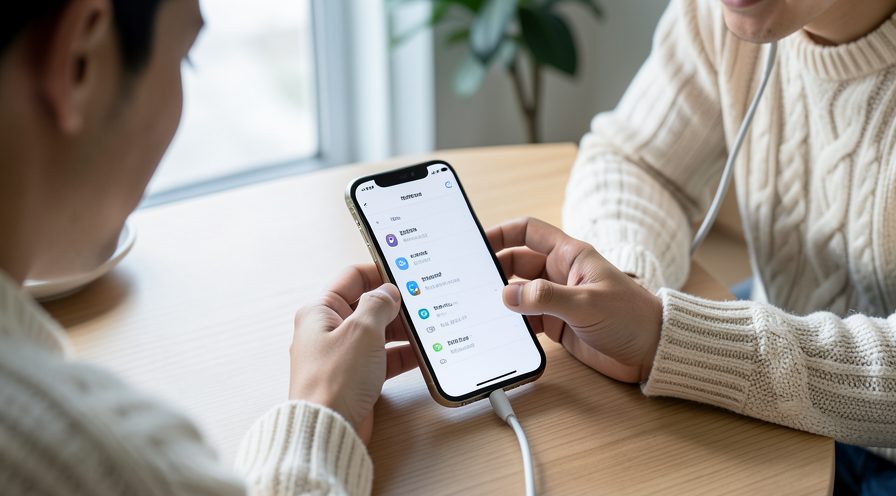
Step 3: Leave it idle overnight
Let the first sync run while the phone is unused, since that is when it is slowest.
Step 4: Check iCloud storage
In Settings, tap your name, iCloud, and confirm storage is not full, which stalls syncing.
Step 5: Confirm completion
Wait until the syncing message disappears before changing storage settings.
Method 2 of 2: Reduce Ongoing Load
Step 6: Turn on Optimize Storage
In Settings, Photos, select Optimize iPhone Storage to keep smaller local copies.
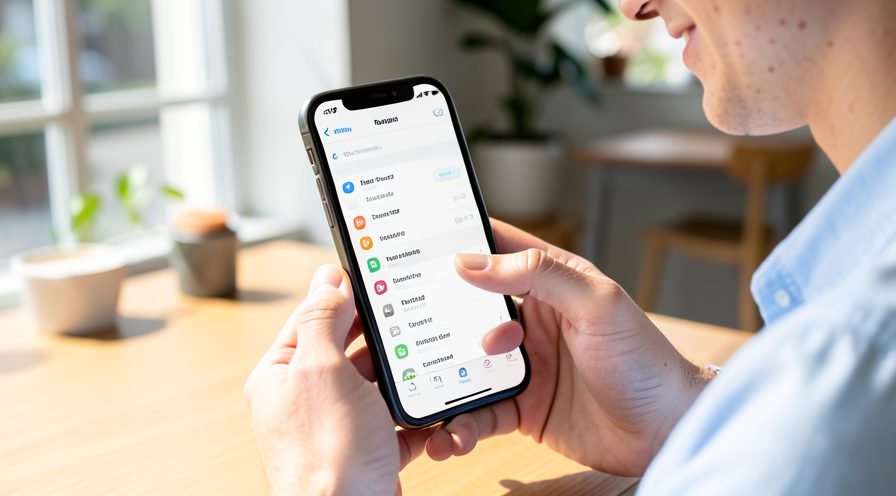
Step 7: Pause sync during heavy tasks
Temporarily switch off iCloud Photos when you need full performance, then re-enable it.
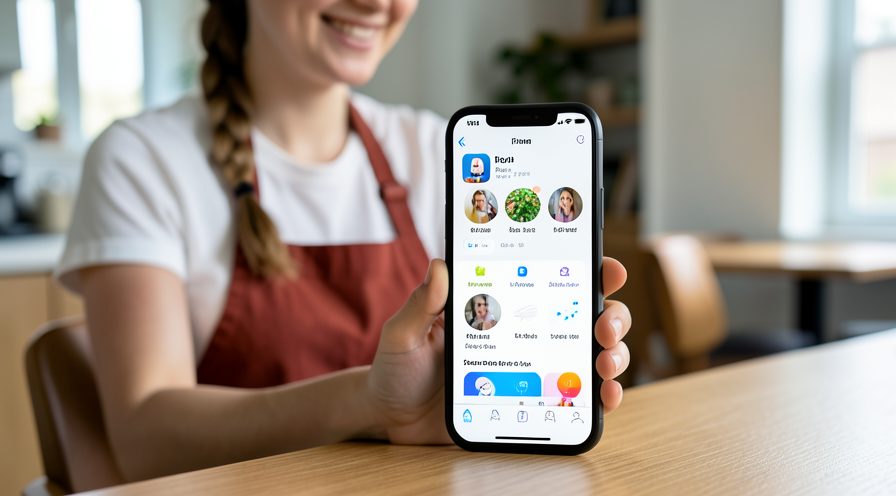
Step 8: Restart to clear a stall
If syncing seems stuck, restart the phone to reset the process.
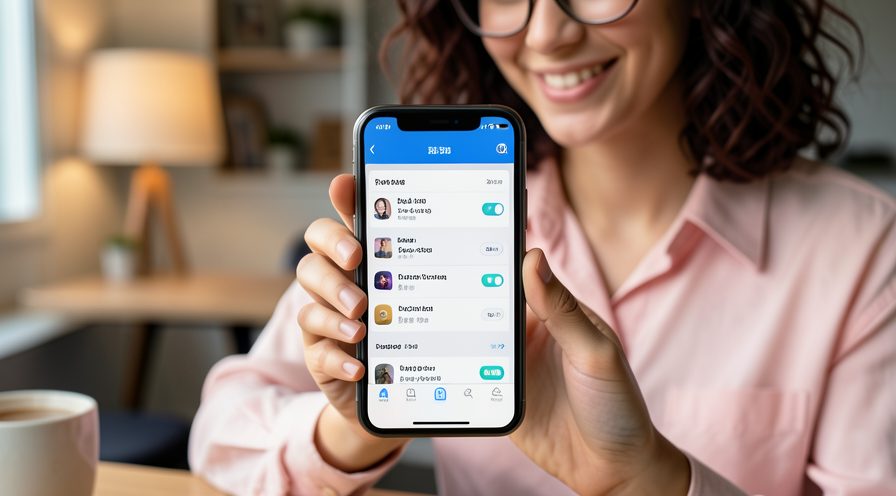
Step 9: Update iOS
Install the latest iOS release in case syncing performance has been improved.

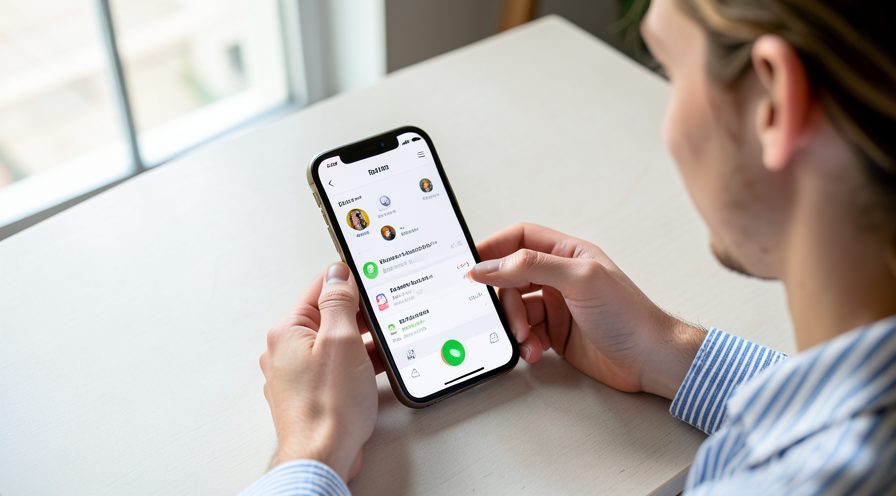
Step 10: Verify normal speed
Confirm the phone responds normally once regular syncing continues.
Tips
- The initial sync of a large library is temporary and only happens once.
- Optimized storage keeps small versions locally and downloads full ones on demand.
- Check iCloud storage is not full, which stalls the sync and wastes resources.
Warnings
- Turning off iCloud Photos with 'Download and keep originals' off can remove local copies.
- A stalled sync may mean cloud storage is full.
- Do not delete photos before confirming they are safely in iCloud.
Frequently asked questions
Why is my iPhone slow during iCloud Photos sync?
Syncing a large library means the phone is uploading or downloading many files and generating thumbnails, which uses processor and storage. Once the first sync completes, the phone usually returns to normal speed.
Does Optimize iPhone Storage help?
Yes. It keeps smaller versions on the device and downloads full-resolution files when needed, reducing local storage pressure and the amount of data the phone handles during sync.
How do I pause iCloud Photos syncing?
Turn off iCloud Photos in Settings, Photos, then turn it back on when you are ready. Photos already synced remain in iCloud and on the device; only further syncing stops.
What if the sync never finishes?
Check that iCloud storage is not full and the phone has a stable Wi-Fi connection and enough battery. Restarting the phone can also clear a stalled sync.
References
- Apple Support — iCloud Photos syncing. https://support.apple.com/en-us/108785
- Apple Support — Optimize iPhone storage. https://support.apple.com/en-us/102433
- Apple Support — Check iCloud storage. https://support.apple.com/en-us/108782
- wikiHow — How to Fix iPhone Slow While iCloud Photos Is Syncing. https://www.wikihow.com/Sync-Photos-to-iCloud
Every guide is reviewed against its sources. See our editorial policy.

Reader comments
0 so farFinished this guide? Tell other readers what worked, what didn't, and what you would change.