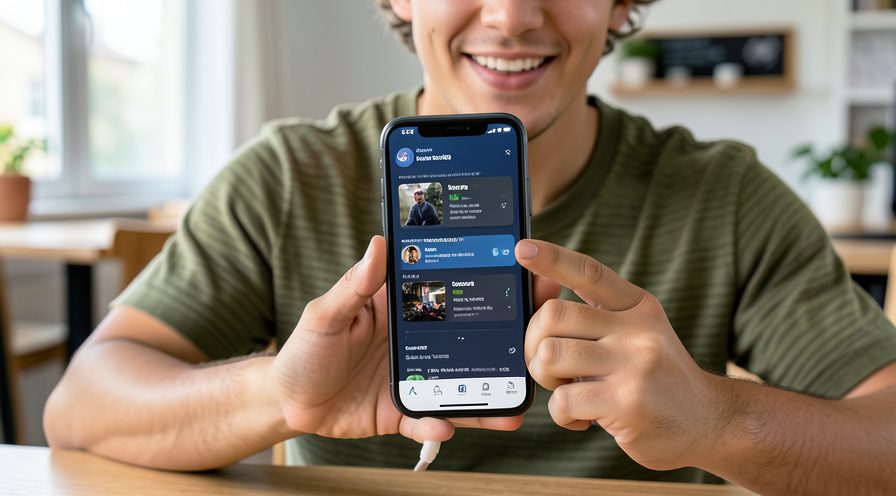
Backing up a large photo library uses CPU, storage and network, which can make an Android phone feel slow and warm. Let the first backup finish on Wi-Fi while charging, then use backup settings to reduce ongoing load with lighter videos and scheduled syncing.
This guide walks through the process in clear illustrated steps, from the first preparation to a finished result. Each step has its own picture, so you can compare your progress as you go.
How to use this guide
Work through the steps in order. Method 1 of 2 covers the basics, and the later methods offer alternatives and finishing touches. If you only have a minute, skim the Quick steps box above and come back for the details.
Related guides
- How to Study for a test
- How to Set up an ergonomic desk
- How to Deep clean your kitchen
- How to Deal with a difficult coworker
- Browse all Fix Slow Device guides
- All 52runoob guides
Trusted external resources
- Google Support — Back up photos and videos
- Google Support — Manage backup quality
- Google Support — Free up space after backup
A note on sources
We check each guide against the official resources listed in References at the end of this article. External links open in a new tab; the related guides above stay on this site.
Quick steps
- Check backup progress in the Google Photos app.
- Let the first backup run on Wi-Fi while charging.
- Switch to storage saver to upload lighter files.
- Pause backup temporarily when you need full speed.
- Free local space once the backup completes.
Things you'll need
- An Android phone with Google Photos
- A Wi-Fi connection
- A charger for the first backup
- About 20 minutes to change settings
Step-by-step
Method 1 of 2: Manage the Initial Backup
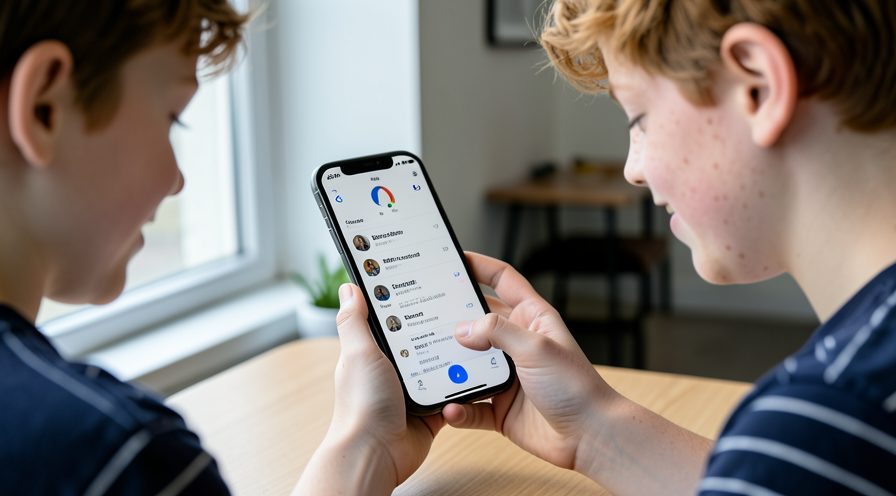
Step 1: Check backup status
Open Google Photos, tap your profile and read the backup progress message.
Step 2: Connect to Wi-Fi and charge
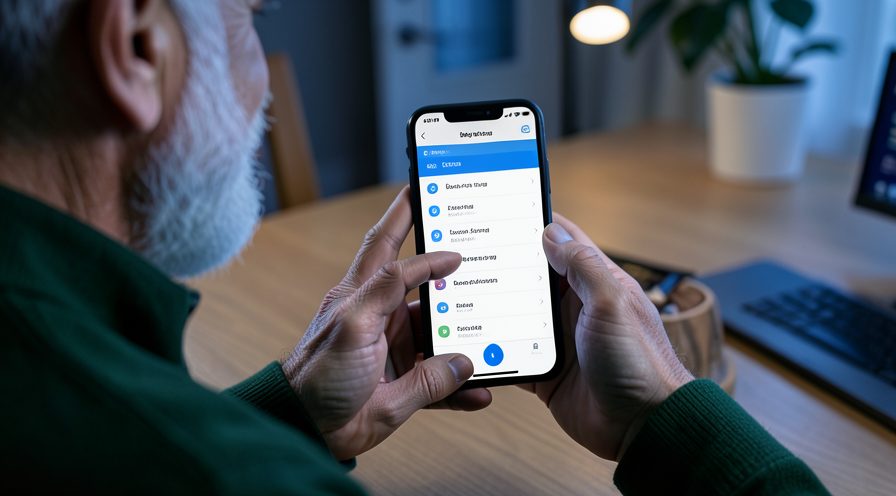
Plug in the phone and connect to Wi-Fi so the heavy first backup does not use mobile data.
Step 3: Let it run overnight
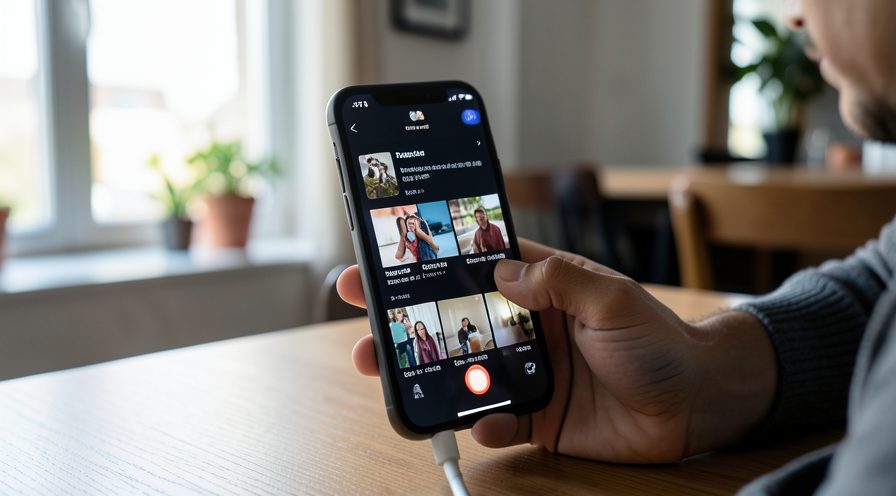
Leave the phone idle while the first library uploads, since this is the slowest phase.
Step 4: Avoid heavy apps meanwhile
Skip gaming or video while the backup is processing large files.
Step 5: Confirm completion
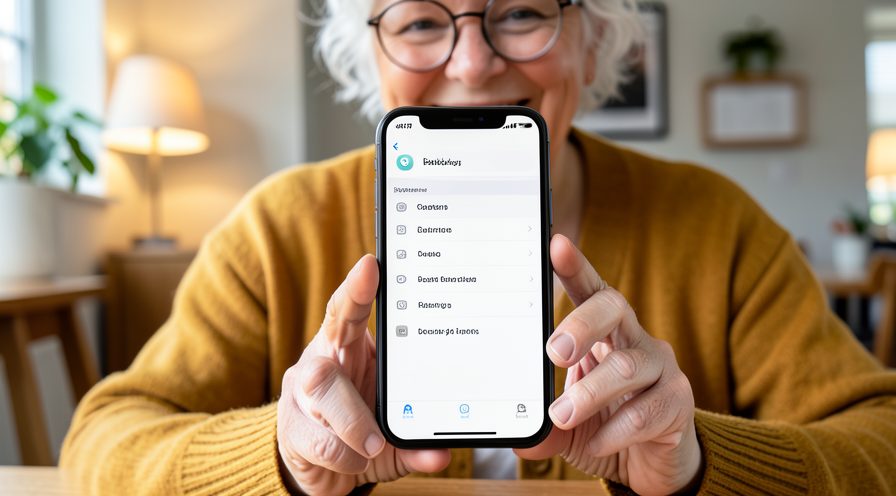
Check that the backup shows complete before changing other settings.
Method 2 of 2: Reduce Ongoing Backup Load
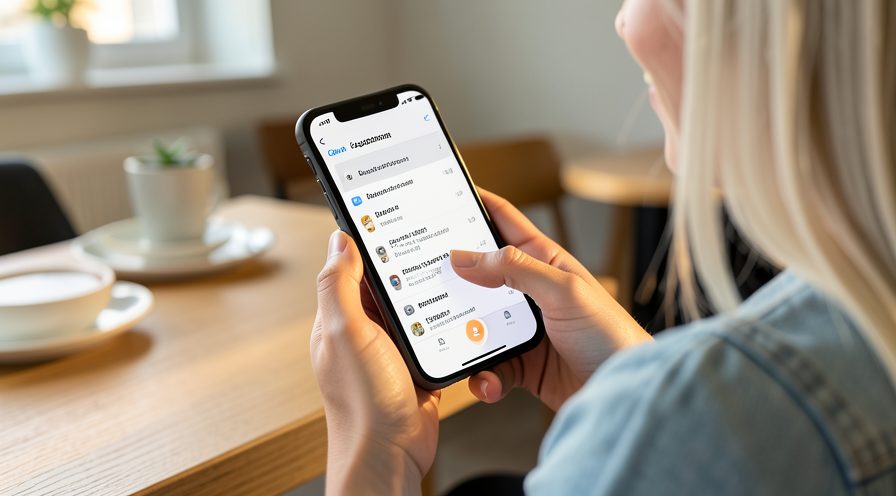
Step 6: Switch backup quality
In Photos settings, Backup, choose Storage saver to upload smaller files.

Step 7: Exclude app screenshots
Turn off backup for device folders such as screenshots you do not need in the cloud.
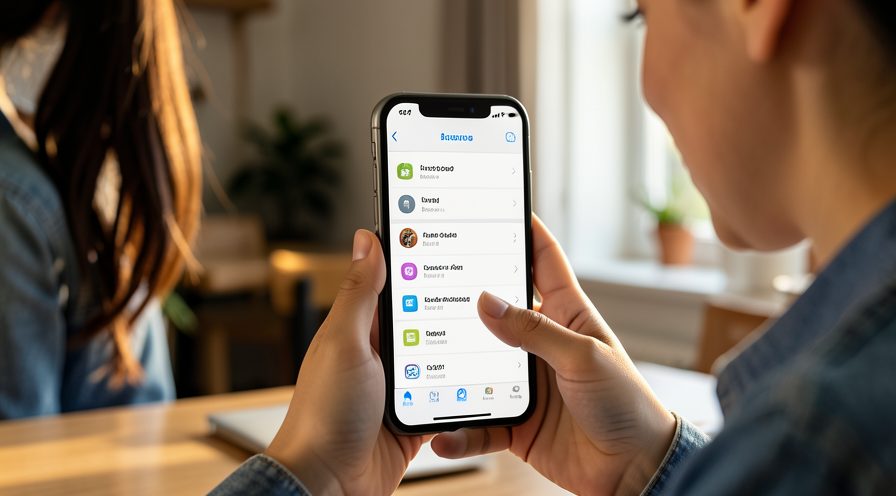
Step 8: Use Free up space
After confirming upload, use Free up space to remove local copies and ease storage pressure.
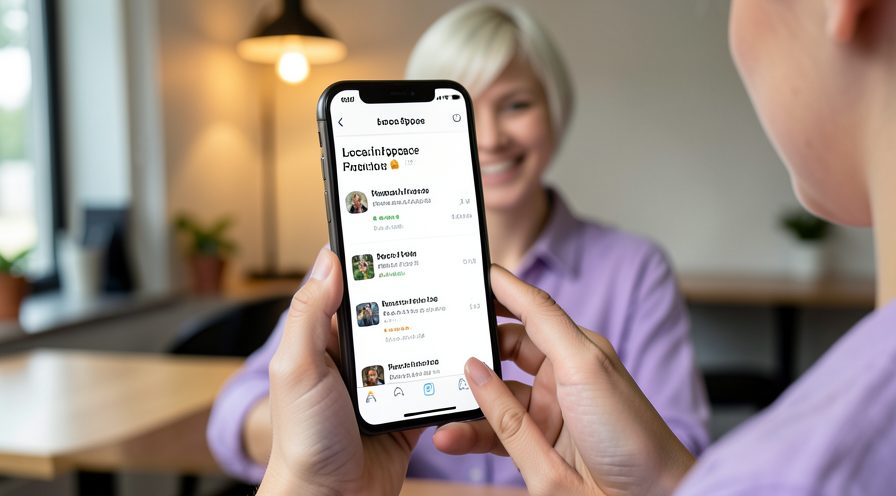
Step 9: Pause during heavy tasks
Temporarily pause backup when you need maximum speed, then resume afterward.
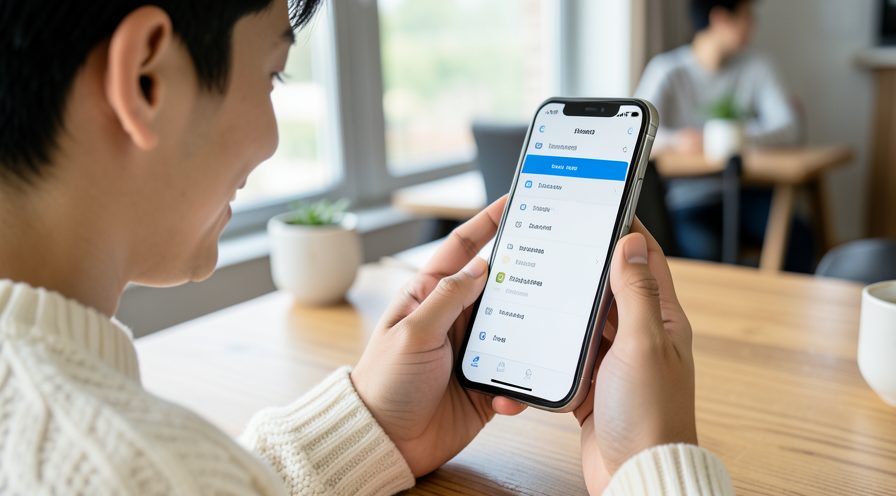
Step 10: Update the app
Update Google Photos in the Play Store to get performance fixes.
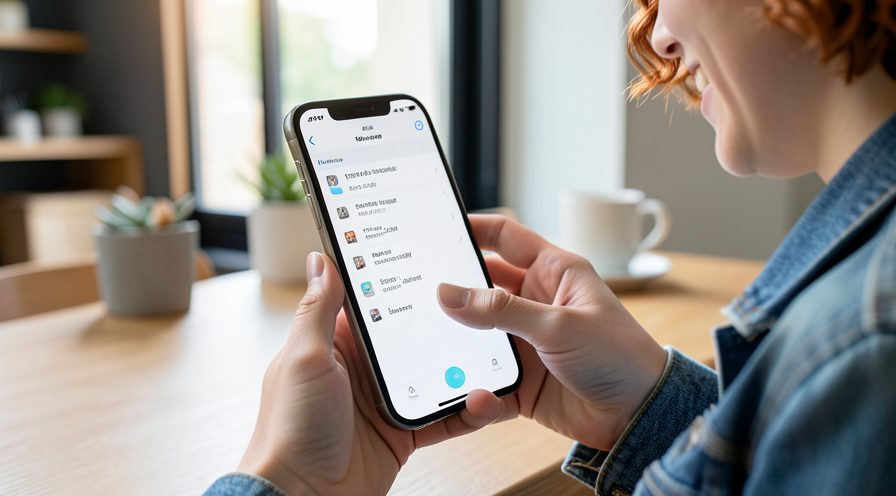
Step 11: Recheck performance
Confirm the phone stays responsive while regular backups continue.
Tips
- The first backup of a large library is the heaviest and only happens once.
- Storage saver uploads smaller versions and keeps the phone responsive.
- Backing up overnight while charging avoids noticing the slowdown.
Warnings
- Pausing backup too often can leave photos unprotected.
- Original quality backups can fill cloud storage quickly.
- Freeing local space before confirming upload can lose photos.
Frequently asked questions
Why is my phone slow during photo backup?
Uploading many large photos uses the processor, storage and network at once, especially for videos. After the initial library is backed up, ongoing uploads are small and the slowdown usually disappears.
Does backup quality affect speed?
Yes. Storage saver compresses photos and videos so there is less data to process and upload, which keeps the phone more responsive compared with original quality backups.
Can I pause backup temporarily?
Yes. You can pause backups in Google Photos settings while you need full performance, then resume later. Just remember photos taken while paused are not protected until you resume.
How do I free space after backup?
Once Google Photos confirms the upload is complete, use its Free up space tool to remove local copies. It only deletes photos already safely in the cloud.
References
- Google Support — Back up photos and videos. https://support.google.com/photos/answer/6193313
- Google Support — Manage backup quality. https://support.google.com/photos/answer/6220791
- Google Support — Free up space after backup. https://support.google.com/photos/answer/6193313
- wikiHow — How to Fix Android Phone Slow While Google Photos Is Backing Up. https://www.wikihow.com/Back-Up-Photos-to-Google-Photos
Every guide is reviewed against its sources. See our editorial policy.
Reader comments
0 so farFinished this guide? Tell other readers what worked, what didn't, and what you would change.