If an Android phone is still slow after a factory reset, the cause is either software restored from a backup, an aging battery or storage, or hardware limits. Avoid restoring a full backup at first, install apps fresh, check health and consider that the device may simply be at the end of its useful life.
This guide walks through the process in clear illustrated steps, from the first preparation to a finished result. Each step has its own picture, so you can compare your progress as you go.
How to use this guide
Work through the steps in order. Method 1 of 2 covers the basics, and the later methods offer alternatives and finishing touches. If you only have a minute, skim the Quick steps box above and come back for the details.
Related guides
- How to Take better notes in class
- How to Have a relaxing spa day at home
- How to Improve your handwriting
- How to Write a thank you note
- Browse all Fix Slow Device guides
- All 52runoob guides
Trusted external resources
- Google Support — Reset an Android device
- Google Support — Back up or restore your Android
- Android Developers — Storage and performance
A note on sources
We check each guide against the official resources listed in References at the end of this article. External links open in a new tab; the related guides above stay on this site.
Quick steps
- Confirm the reset was a full factory reset, not just a restart.
- Set the phone up fresh without restoring an old backup first.
- Install only essential apps and test speed.
- Check battery and storage health.
- If still slow, accept the hardware limit or upgrade.
Things you'll need
- An Android phone that was recently reset
- Your Google account credentials
- A Wi-Fi connection
- A backup of your important data elsewhere
Step-by-step
Method 1 of 2: Verify the Reset and Set Up Clean
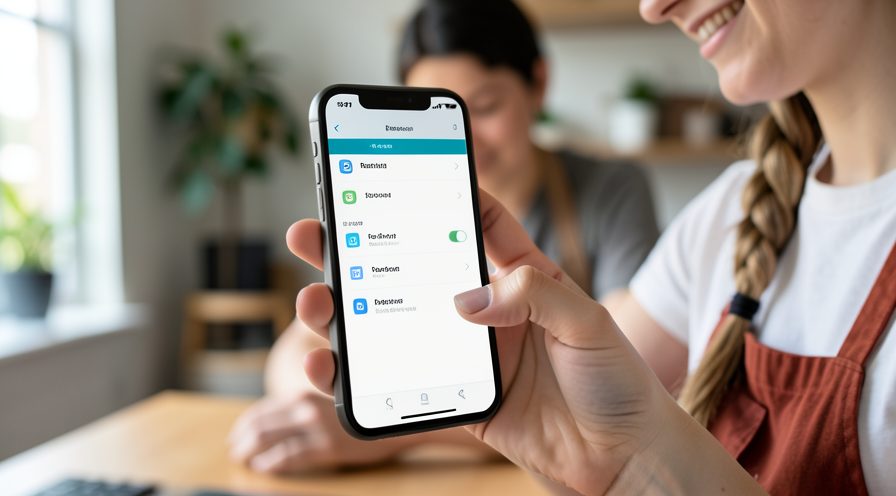
Step 1: Confirm the reset type
Make sure you performed a factory data reset from Settings or recovery, not just a restart.
Step 2: Set up as a new device
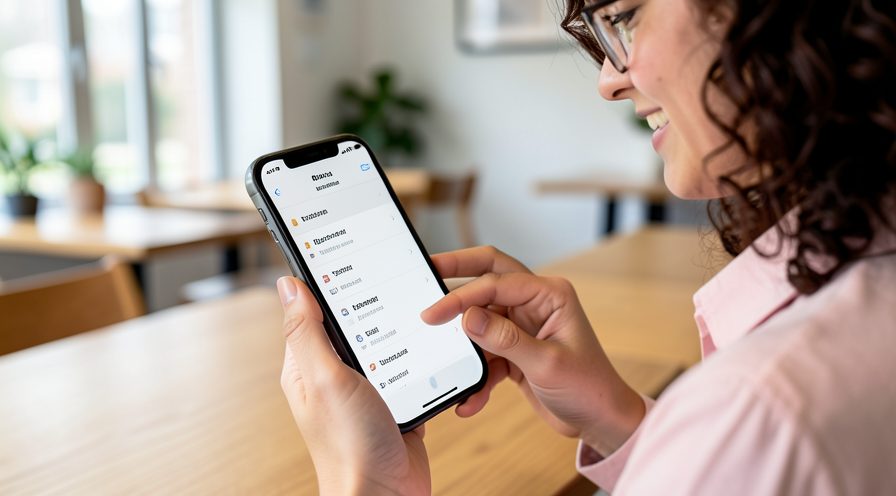
During setup, choose to set up the phone as new rather than restoring an old backup.
Step 3: Install only essential apps
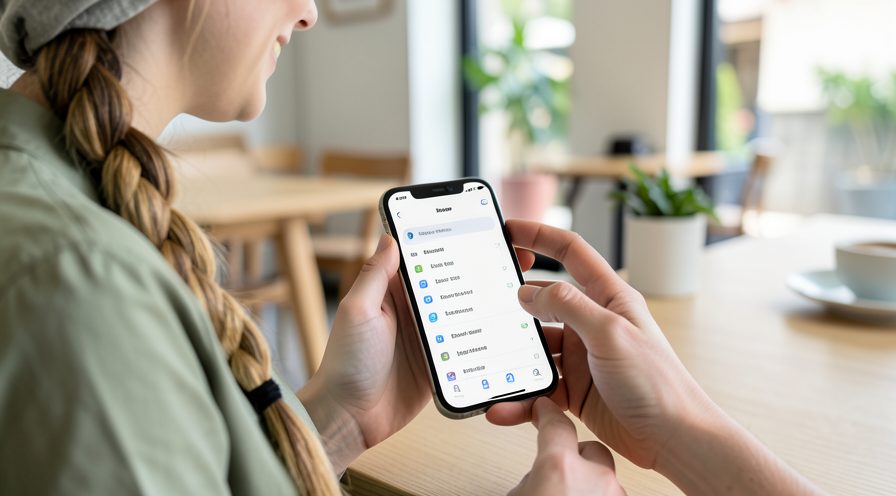
Add just the apps you use daily and test speed before installing more.
Step 4: Update system and apps
Install the latest system update and app versions to avoid old bugs.

Step 5: Test performance clean
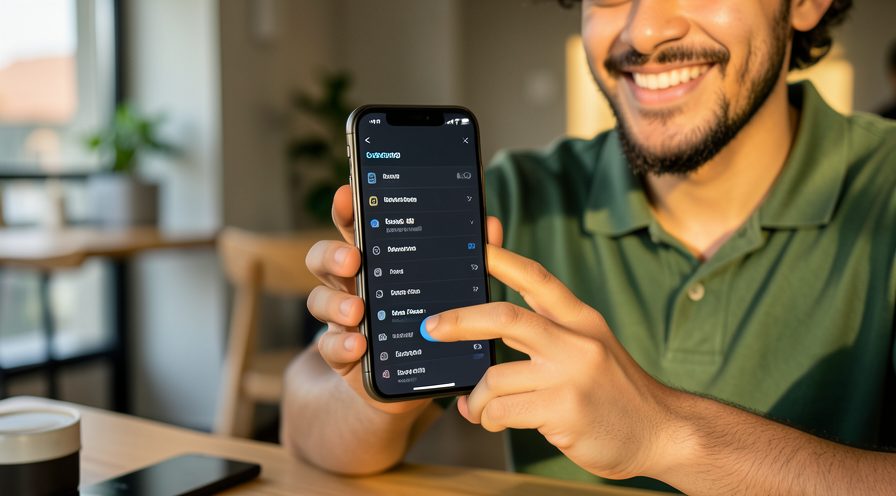
Use the phone for a day with minimal apps and note whether it feels fast.
Method 2 of 2: Diagnose Persistent Slowness
Step 6: Check battery health
Use the phone's diagnostics or a battery tool to see whether capacity has dropped sharply.
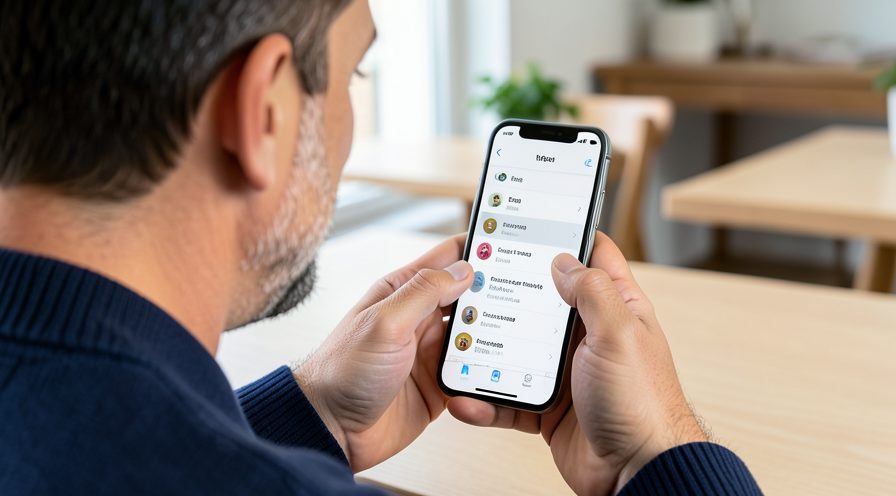
Step 7: Check storage health
Run a storage test or note read and write delays that suggest aging flash memory.
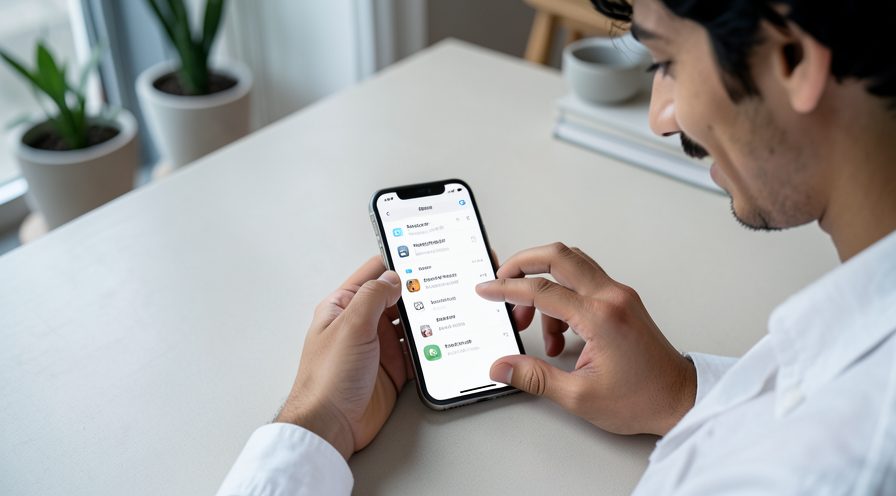
Step 8: Watch for overheating
Notice whether the phone heats up during light use, which can indicate hardware trouble.

Step 9: Add apps back one at a time
Reinstall apps gradually and test after each to find any that slow the phone.
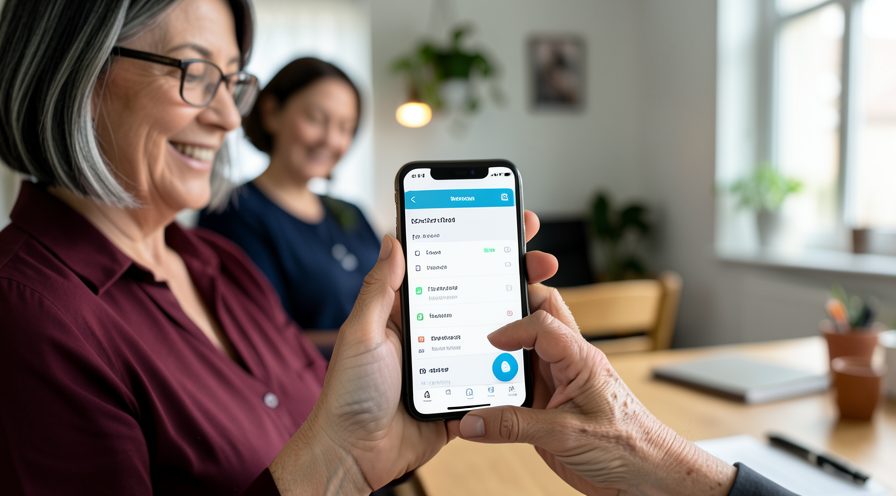
Step 10: Consider service or upgrade
If a clean phone is still slow, seek service for hardware or plan an upgrade.
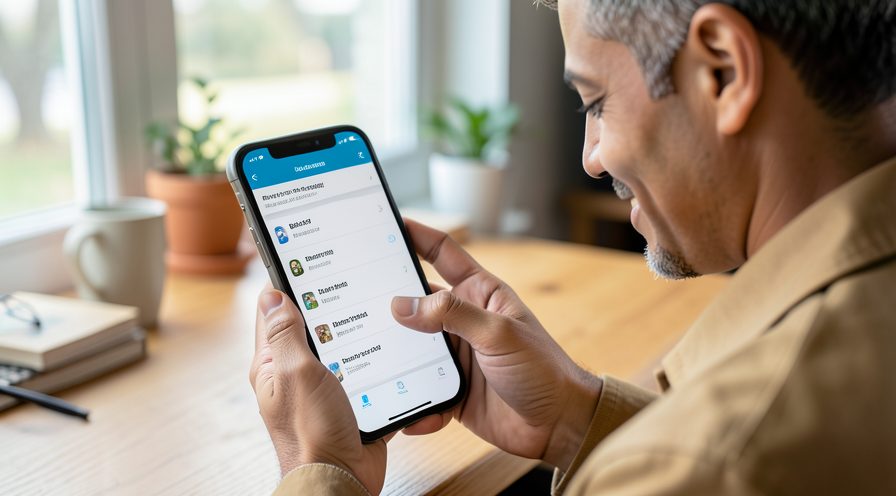
Tips
- Restoring an old backup can bring back the exact problem you tried to remove.
- A clean setup with minimal apps is the real test of hardware performance.
- Old low-end phones naturally slow down as apps grow heavier over time.
Warnings
- A factory reset erases everything; confirm your data is backed up first.
- Do not keep repeating resets without changing what you restore.
- A failing battery or storage cannot be fixed by software resets.
Frequently asked questions
Why is my phone still slow after a factory reset?
The most common reason is restoring an old backup that reinstalls the same heavy or buggy apps. Genuine hardware limits, an aging battery and worn storage can also keep an older phone slow even after a clean reset.
Should I restore my backup after the reset?
Not immediately. Set the phone up as new and install only essential apps first. If it runs well, add apps back gradually so you can spot which one causes the slowdown.
Can a factory reset fix hardware problems?
No. It only resets software. A degraded battery, failing storage or an overheating component will still cause problems, and those need service or replacement.
When is it time to upgrade?
If a clean setup with only a few apps is still slow, the hardware is likely the limit. At that point upgrading to a newer phone is more practical than further software tweaks.
References
- Google Support — Reset an Android device. https://support.google.com/android/answer/9069335
- Google Support — Back up or restore your Android. https://support.google.com/android/answer/9283114
- Android Developers — Storage and performance. https://source.android.com/docs/core/storage
- wikiHow — How to Fix Android Phone Still Slow After a Factory Reset. https://www.wikihow.com/Factory-Reset-an-Android-Phone
Every guide is reviewed against its sources. See our editorial policy.
Reader comments
0 so farFinished this guide? Tell other readers what worked, what didn't, and what you would change.