Android keeps temporary system files in a separate cache partition. When it fills with stale files, the phone can boot slowly, lag during updates and feel sluggish. Free internal space, clear app caches and, if needed, wipe the cache partition in recovery mode to restore normal speed.
This guide walks through the process in clear illustrated steps, from the first preparation to a finished result. Each step has its own picture, so you can compare your progress as you go.
How to use this guide
Work through the steps in order. Method 1 of 3 covers the basics, and the later methods offer alternatives and finishing touches. If you only have a minute, skim the Quick steps box above and come back for the details.
Related guides
- How to Fall asleep faster
- How to Grow herbs indoors
- How to Use public transport in a new city
- How to Boil an egg perfectly
- Browse all Fix Slow Device guides
- All 52runoob guides
Trusted external resources
- Google Support — Clear app cache and data
- Android Source — Storage subsystem
- Android Source — Over-the-air updates
A note on sources
We check each guide against the official resources listed in References at the end of this article. External links open in a new tab; the related guides above stay on this site.
Quick steps
- Check internal storage in Settings and note free space.
- Look for slow boot, update loops and general lag symptoms.
- Use Settings, Storage, Free up space to clear junk.
- Clear caches of your heaviest apps.
- If problems persist, wipe the cache partition in recovery mode.
- Reboot and confirm the phone feels faster.
Things you'll need
- An Android phone
- Access to Settings and Storage
- A backup of important data before any reset
- The phone's power and volume buttons
Step-by-step
Method 1 of 3: Understand and Check the Cache
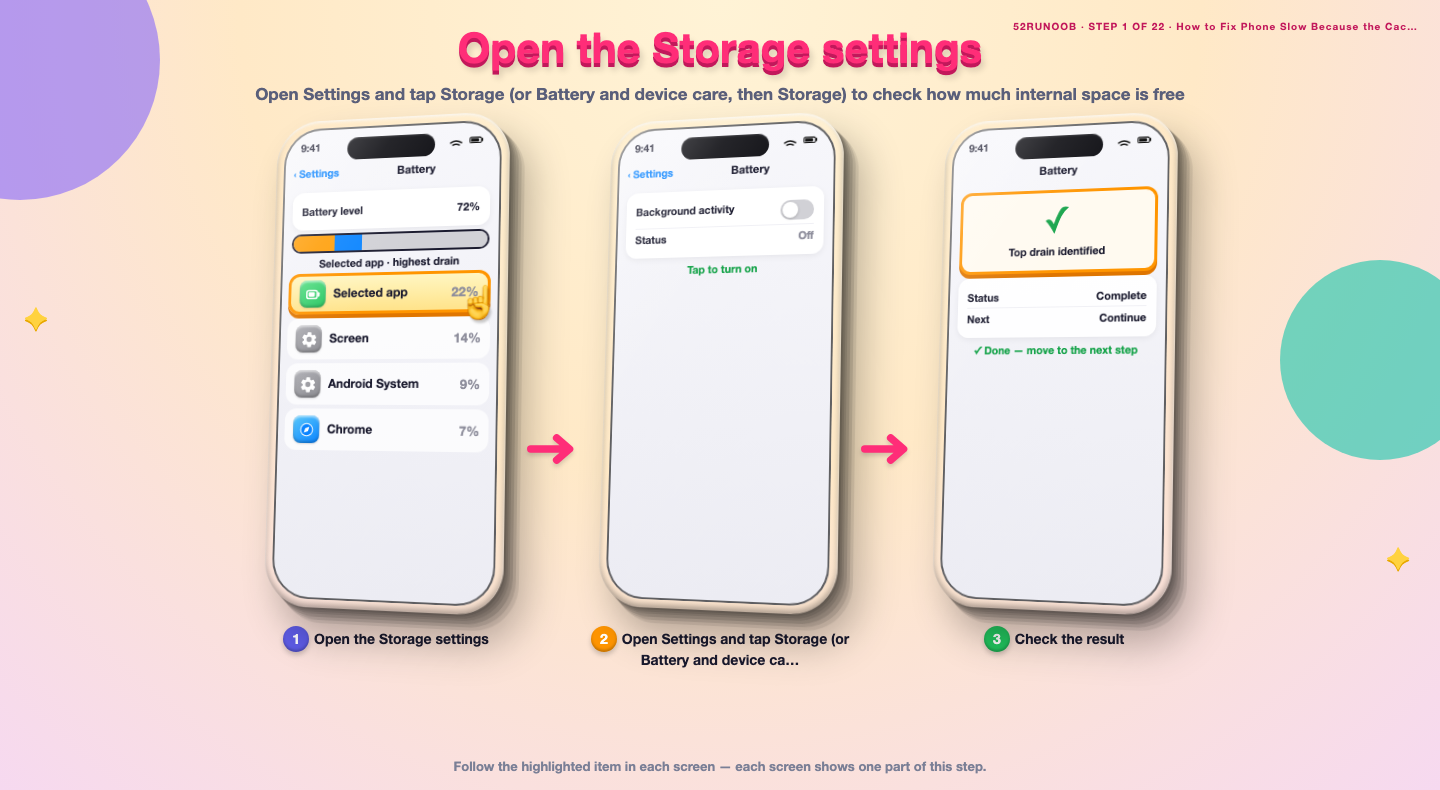
Step 1: Open the Storage settings
Open Settings and tap Storage (or Battery and device care, then Storage) to check how much internal space is free.
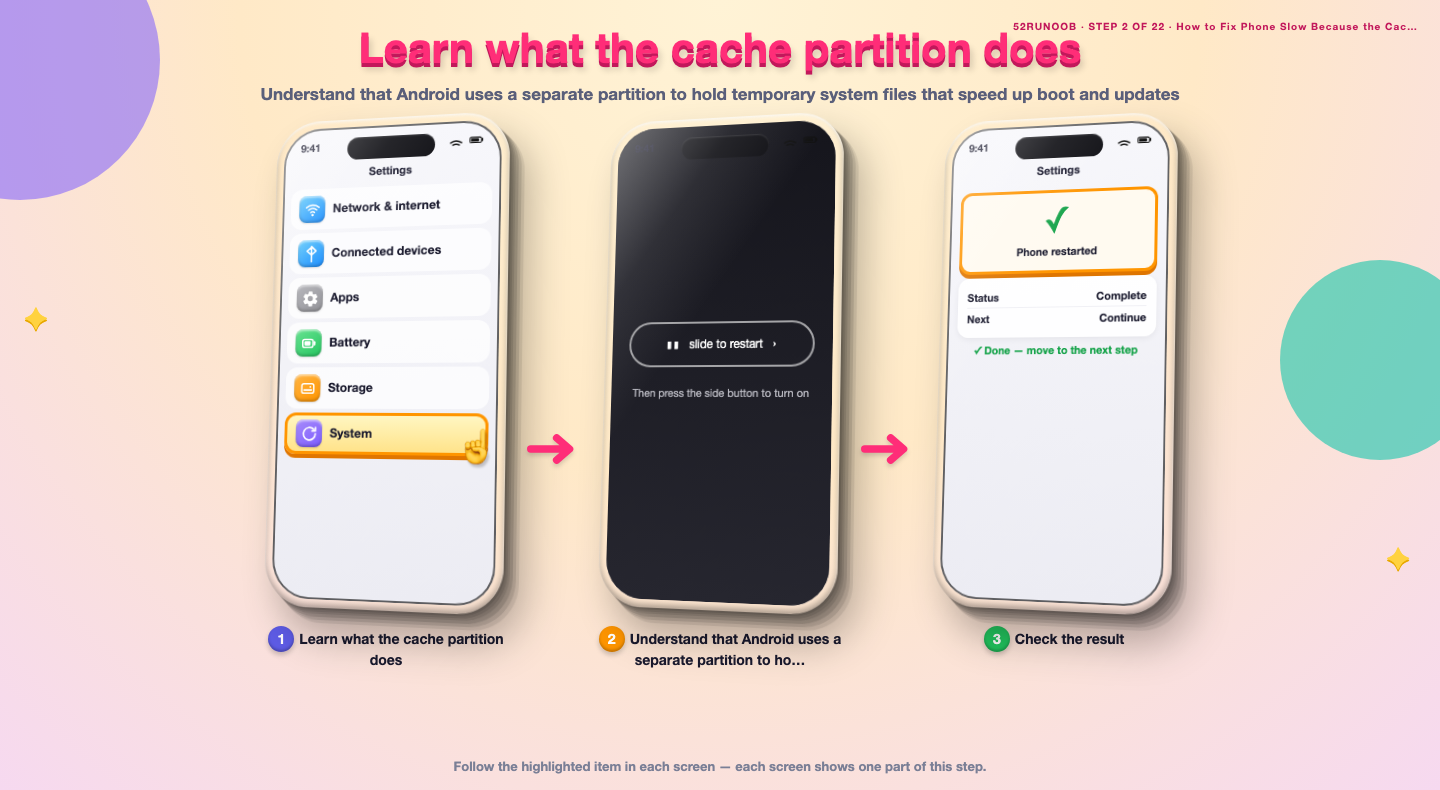
Step 2: Learn what the cache partition does
Understand that Android uses a separate partition to hold temporary system files that speed up boot and updates.
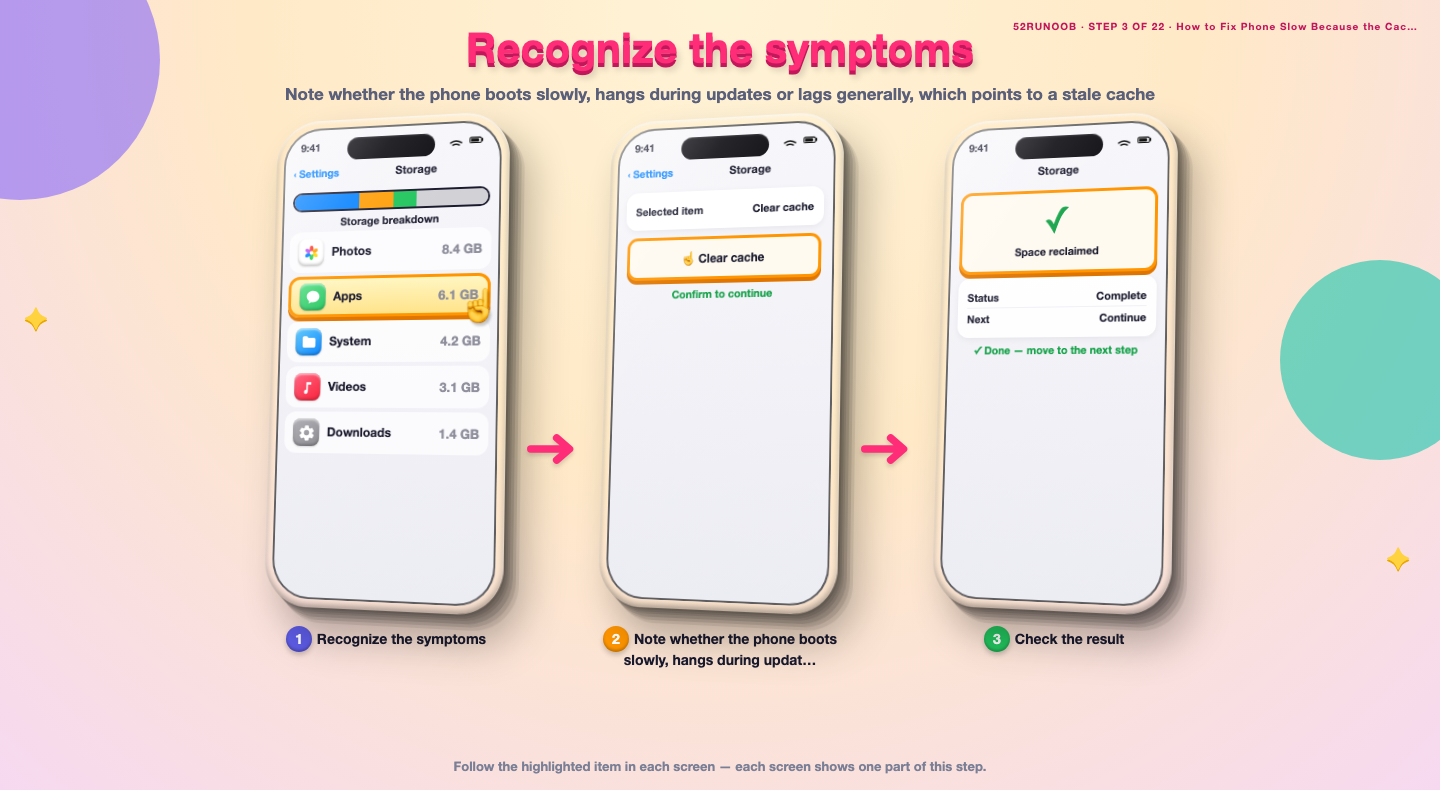
Step 3: Recognize the symptoms
Note whether the phone boots slowly, hangs during updates or lags generally, which points to a stale cache.
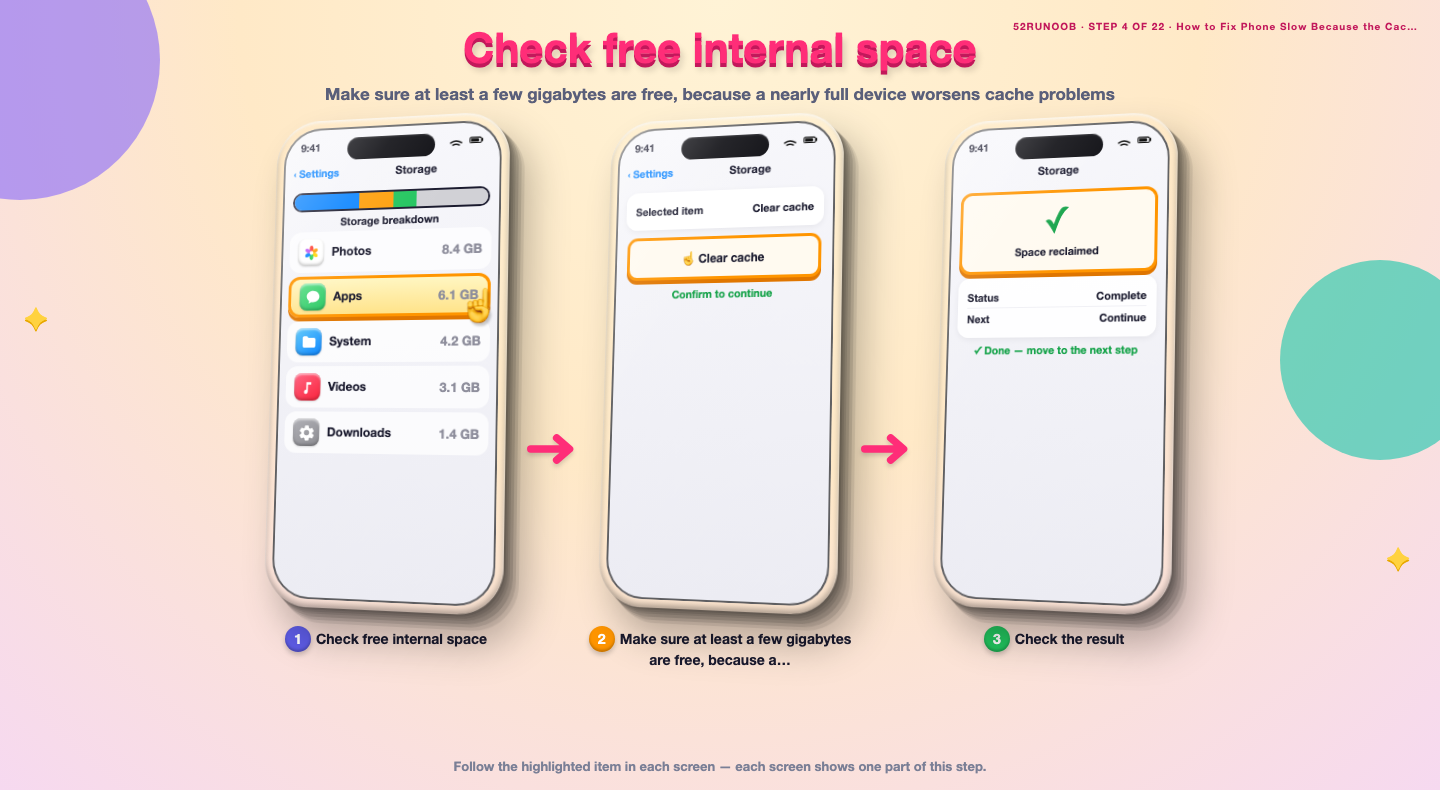
Step 4: Check free internal space
Make sure at least a few gigabytes are free, because a nearly full device worsens cache problems.
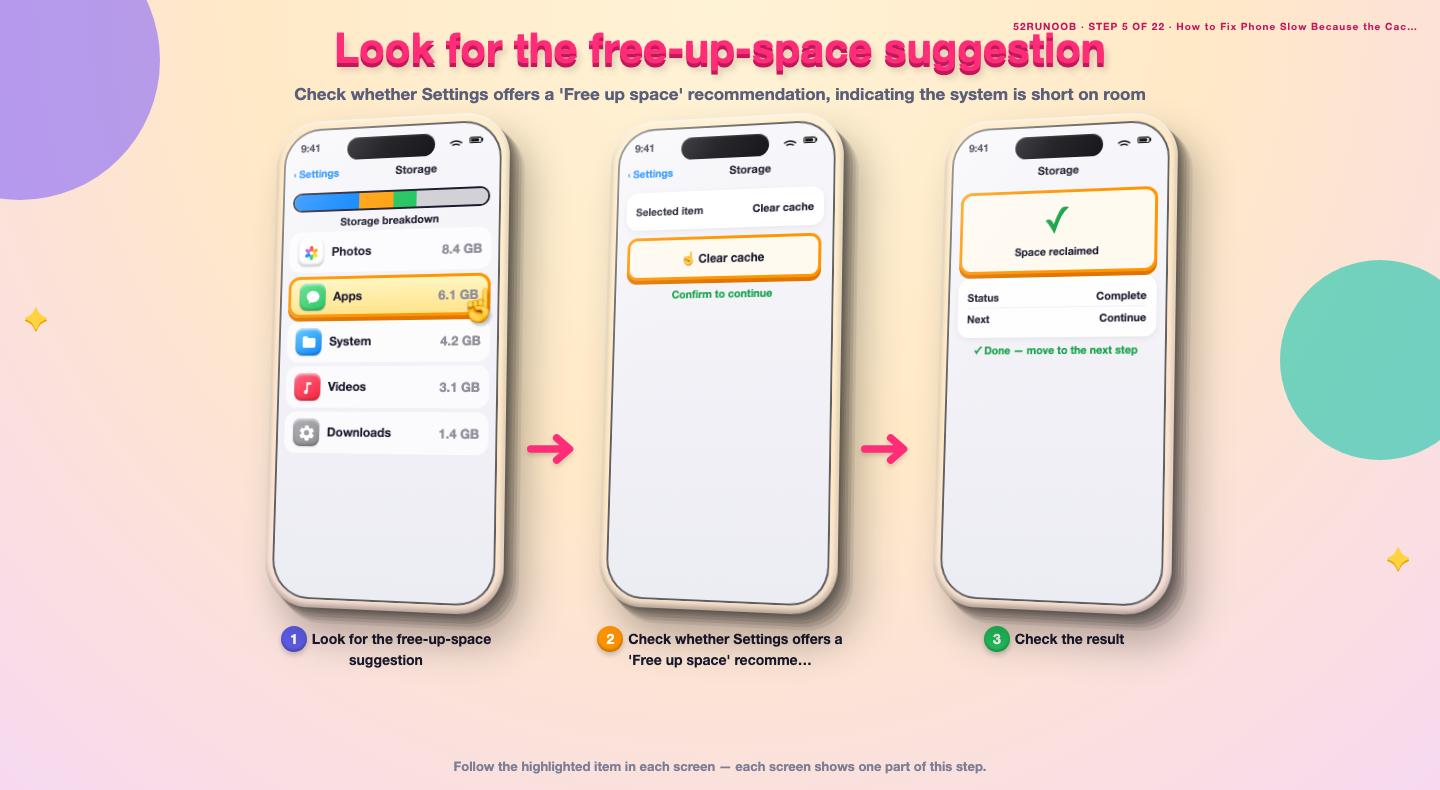
Step 5: Look for the free-up-space suggestion
Check whether Settings offers a 'Free up space' recommendation, indicating the system is short on room.
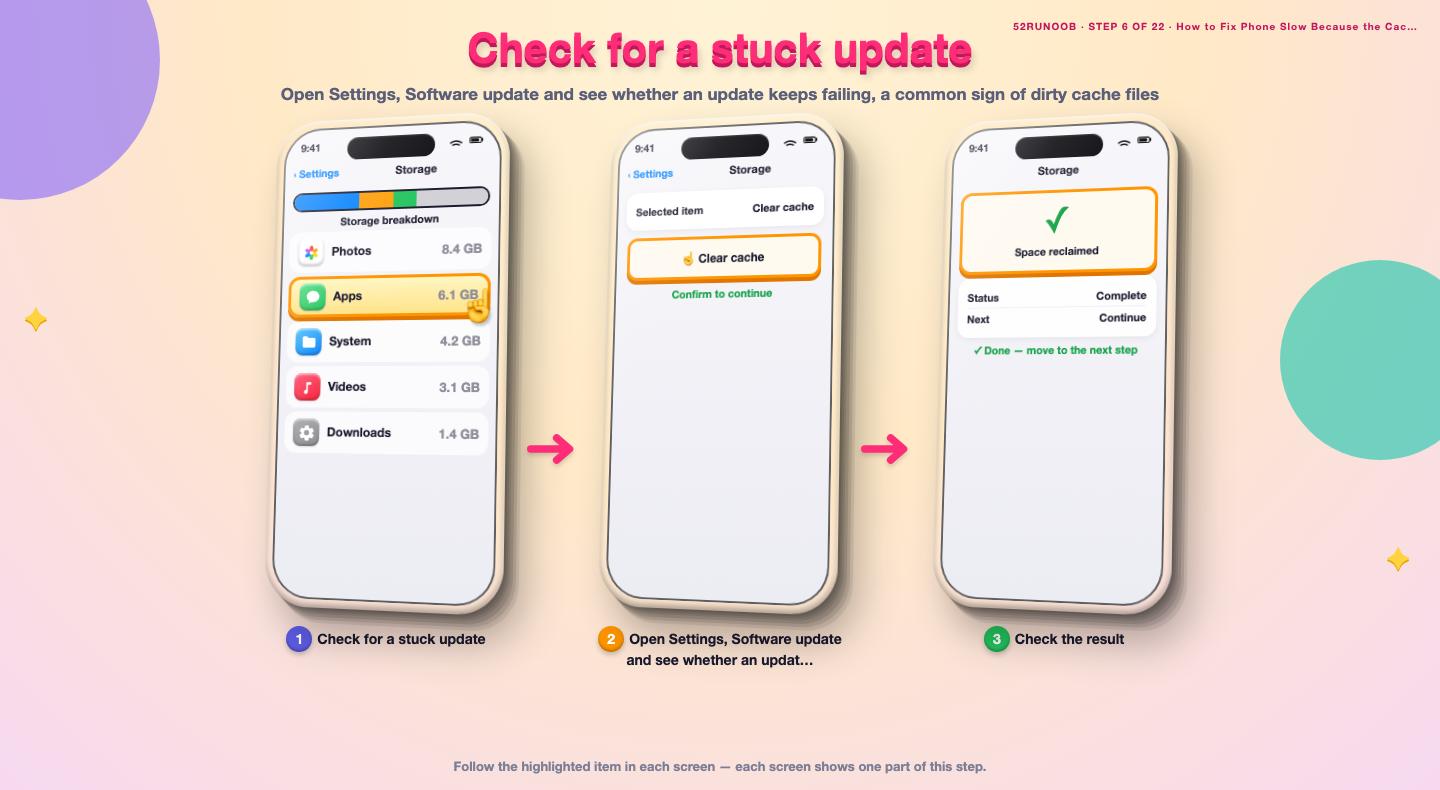
Step 6: Check for a stuck update
Open Settings, Software update and see whether an update keeps failing, a common sign of dirty cache files.
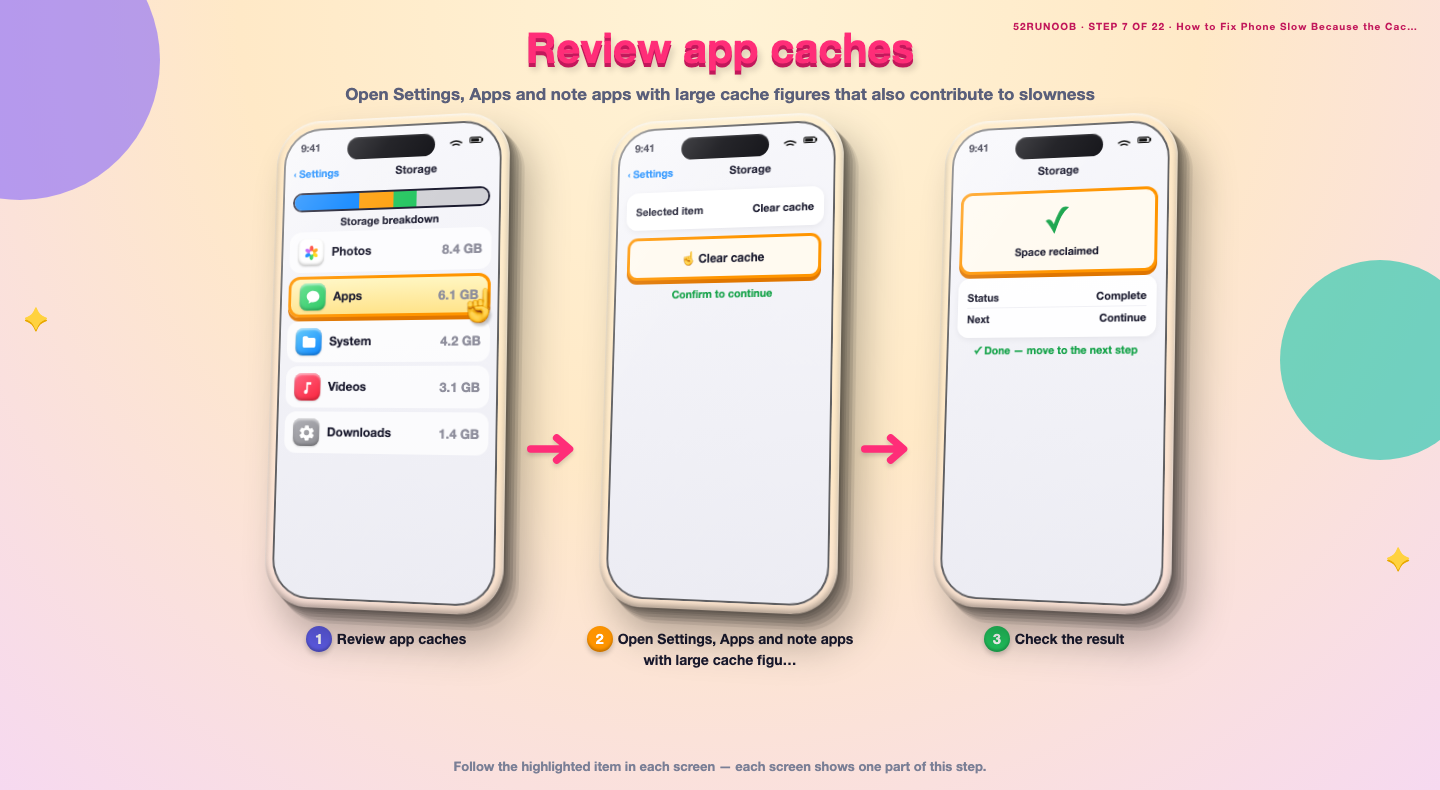
Step 7: Review app caches
Open Settings, Apps and note apps with large cache figures that also contribute to slowness.
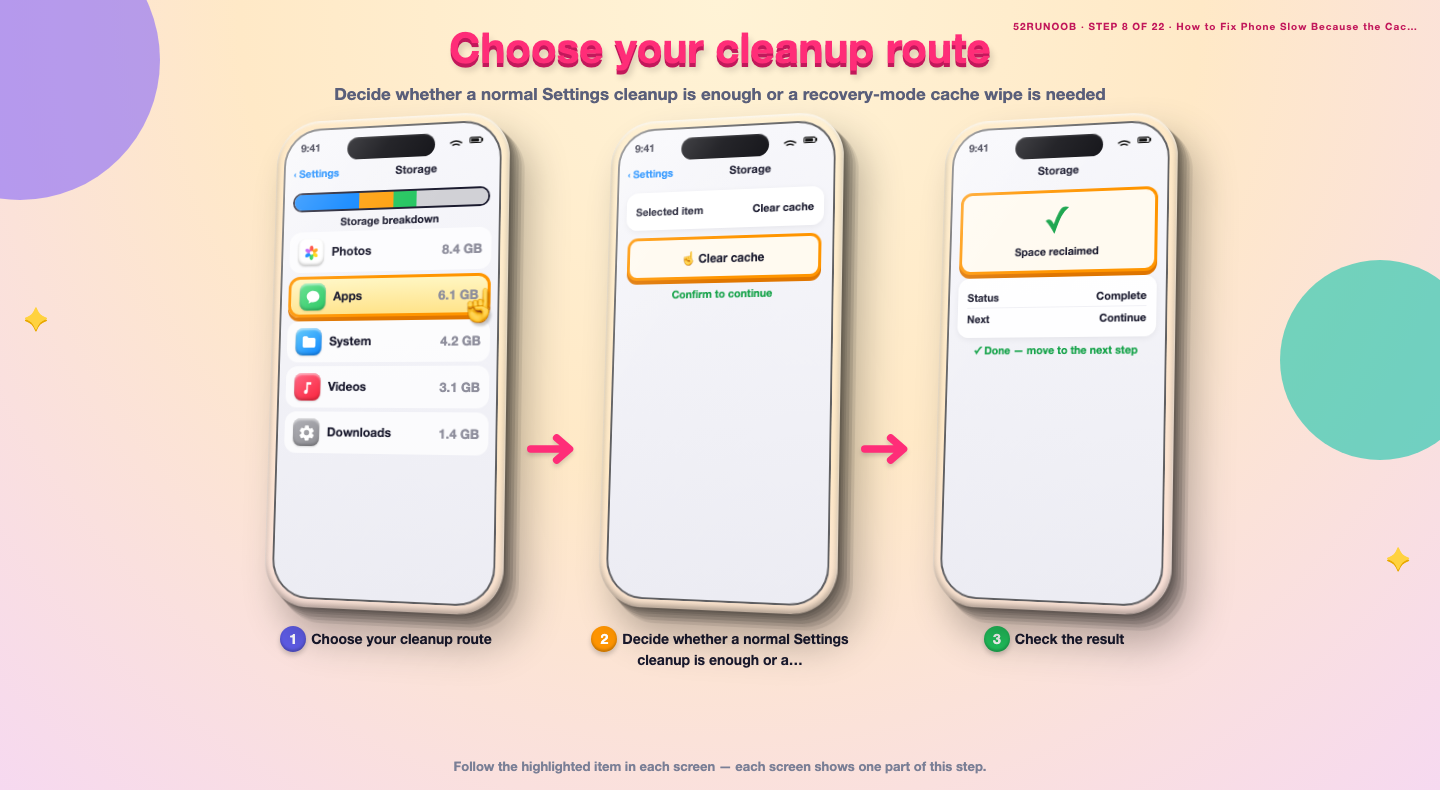
Step 8: Choose your cleanup route
Decide whether a normal Settings cleanup is enough or a recovery-mode cache wipe is needed.
Method 2 of 3: Clear Cache Through Settings
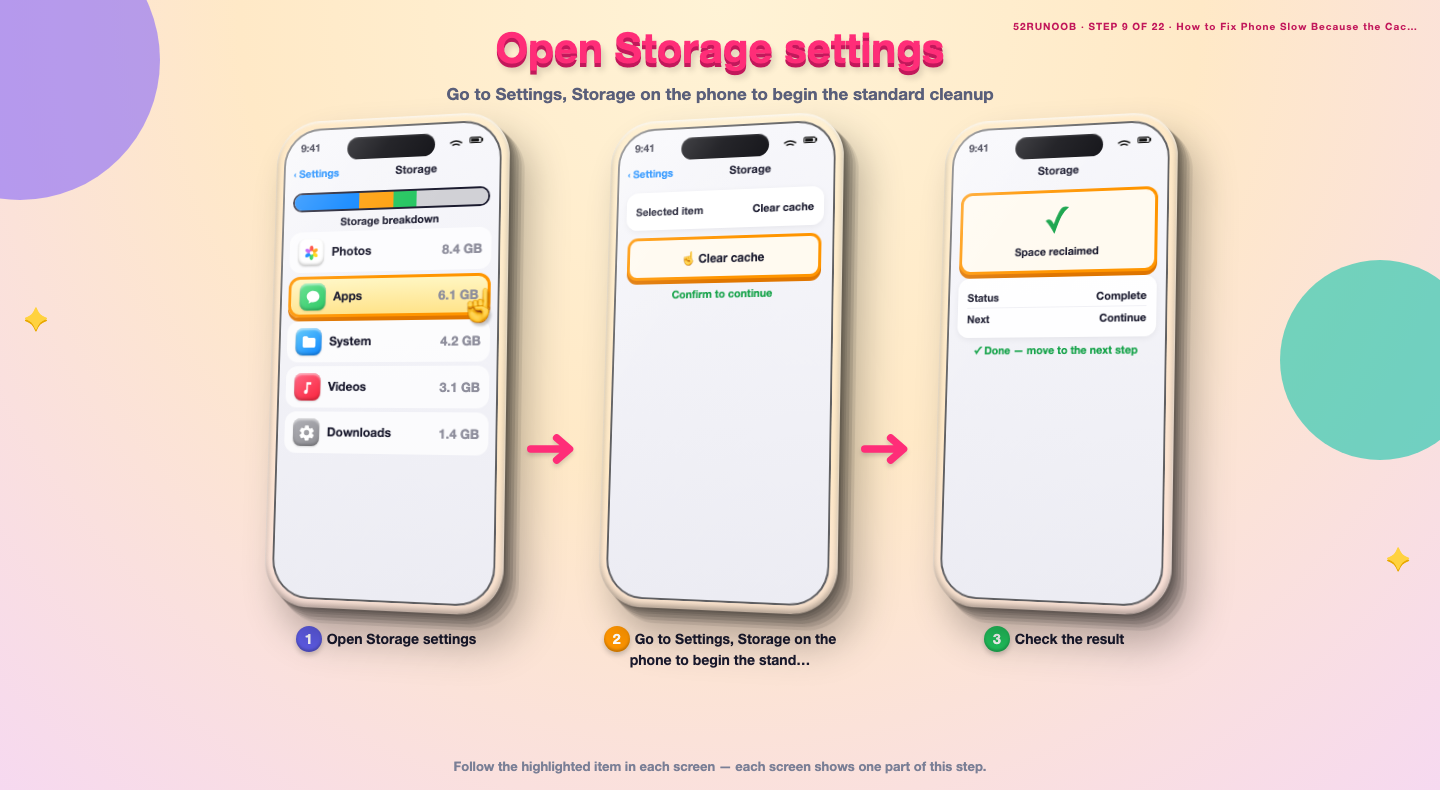
Step 9: Open Storage settings
Go to Settings, Storage on the phone to begin the standard cleanup.
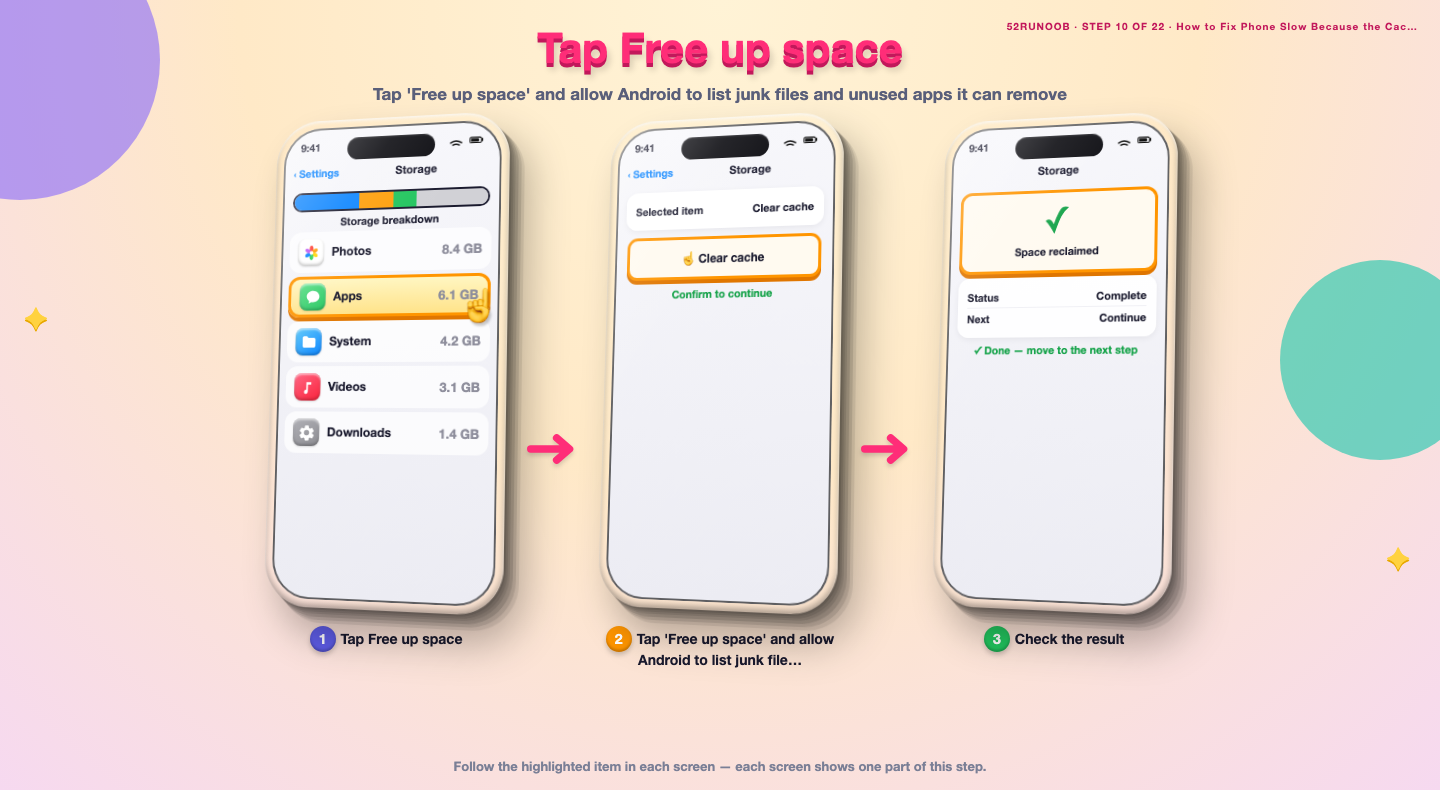
Step 10: Tap Free up space
Tap 'Free up space' and allow Android to list junk files and unused apps it can remove.
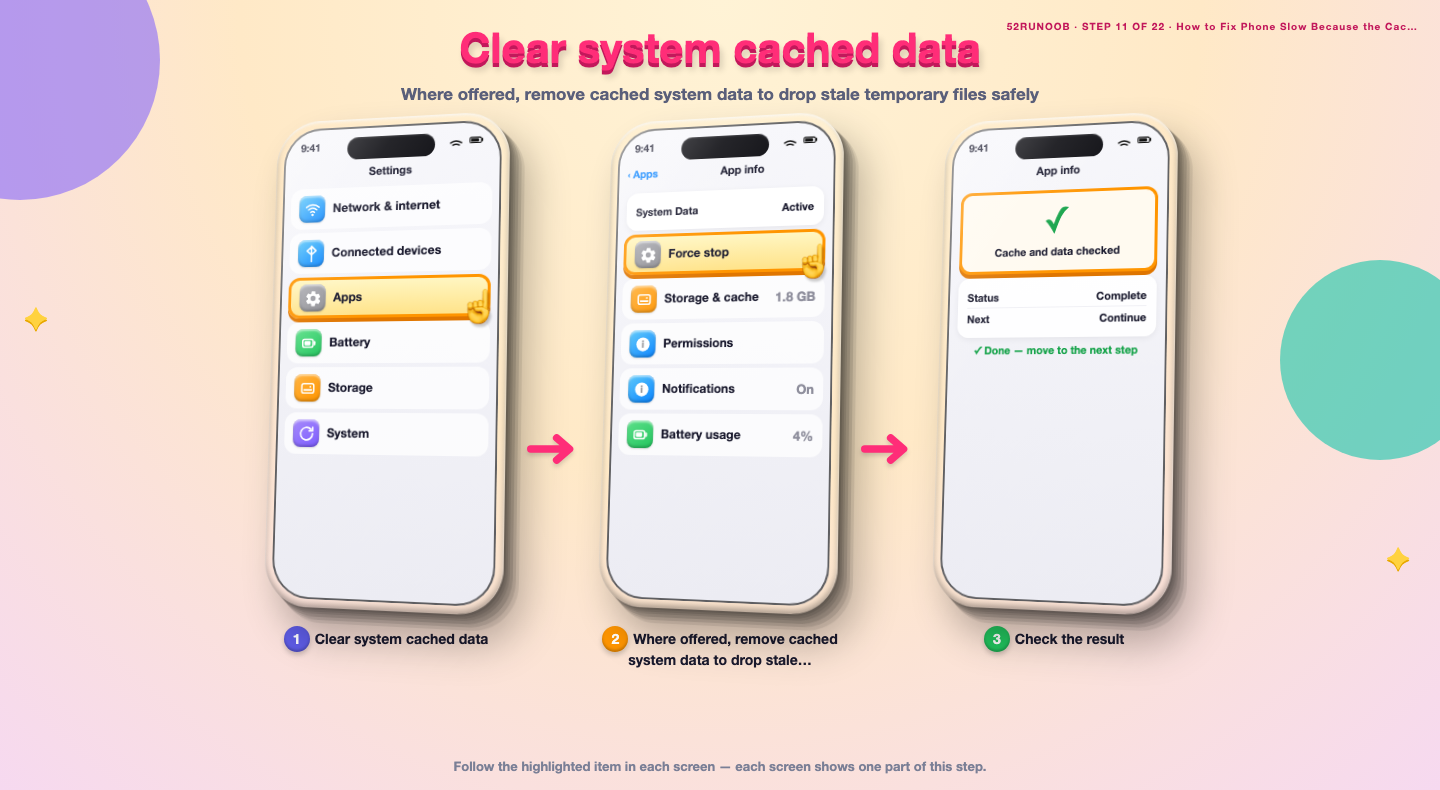
Step 11: Clear system cached data
Where offered, remove cached system data to drop stale temporary files safely.
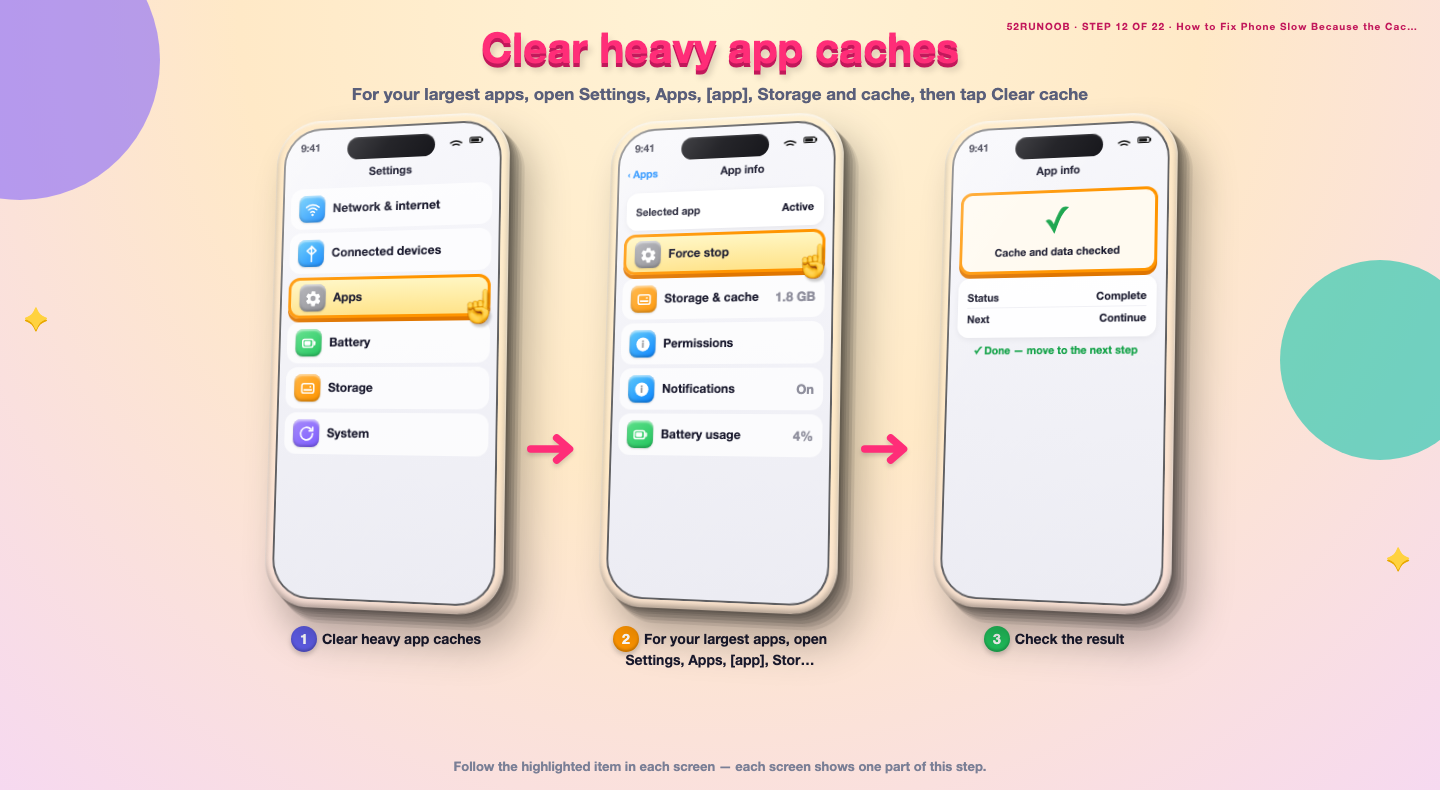
Step 12: Clear heavy app caches
For your largest apps, open Settings, Apps, [app], Storage and cache, then tap Clear cache.
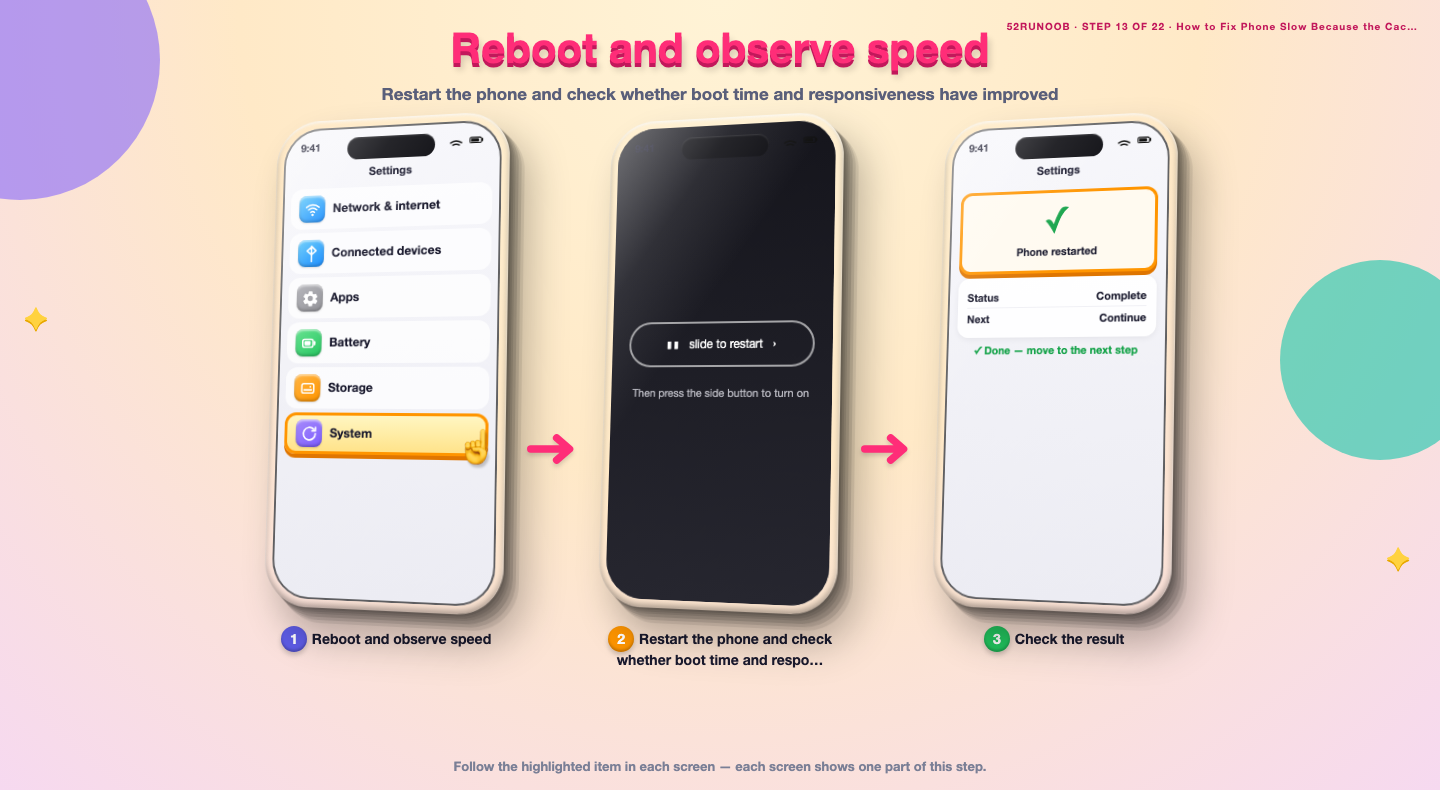
Step 13: Reboot and observe speed
Restart the phone and check whether boot time and responsiveness have improved.
Method 3 of 3: Wipe the Cache Partition in Recovery
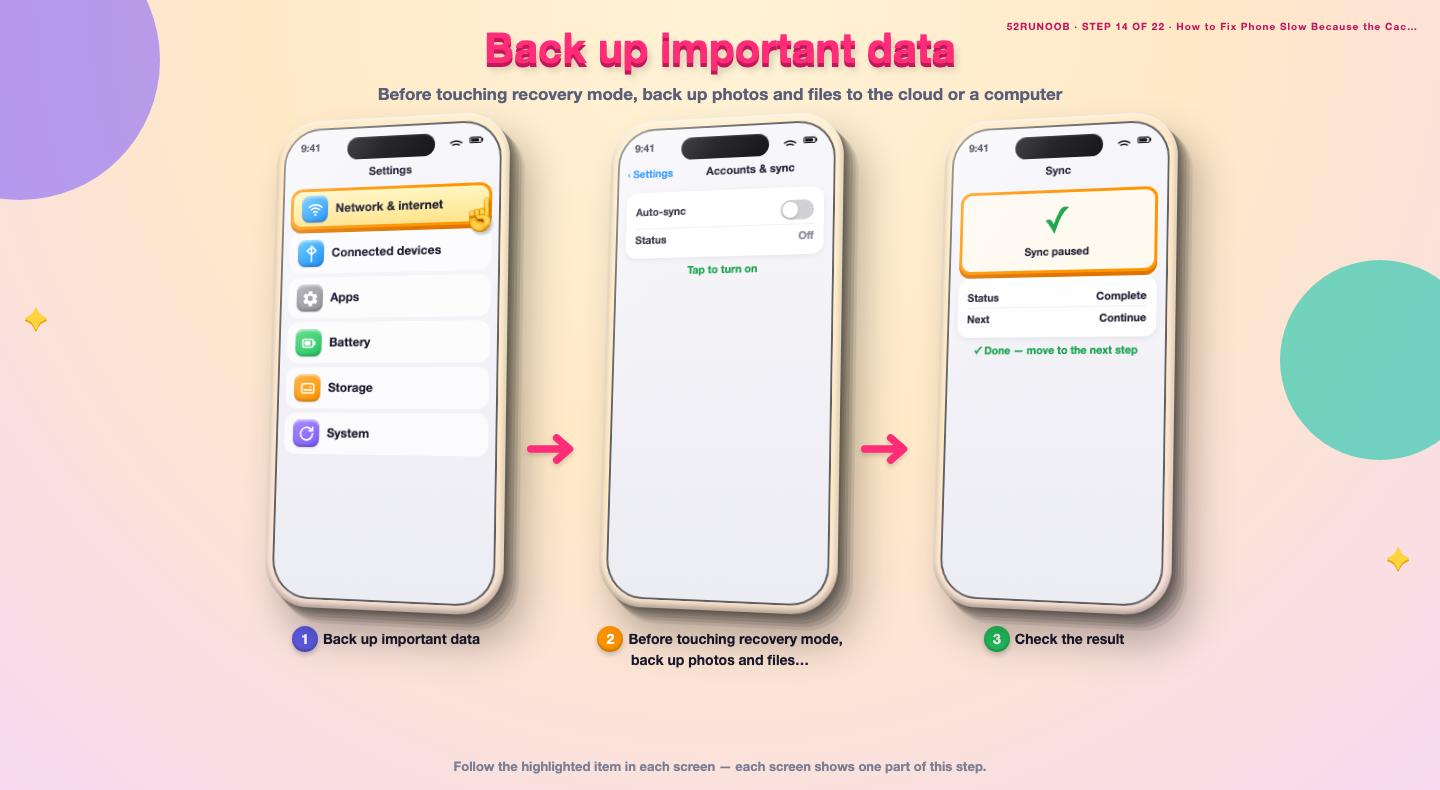
Step 14: Back up important data
Before touching recovery mode, back up photos and files to the cloud or a computer.
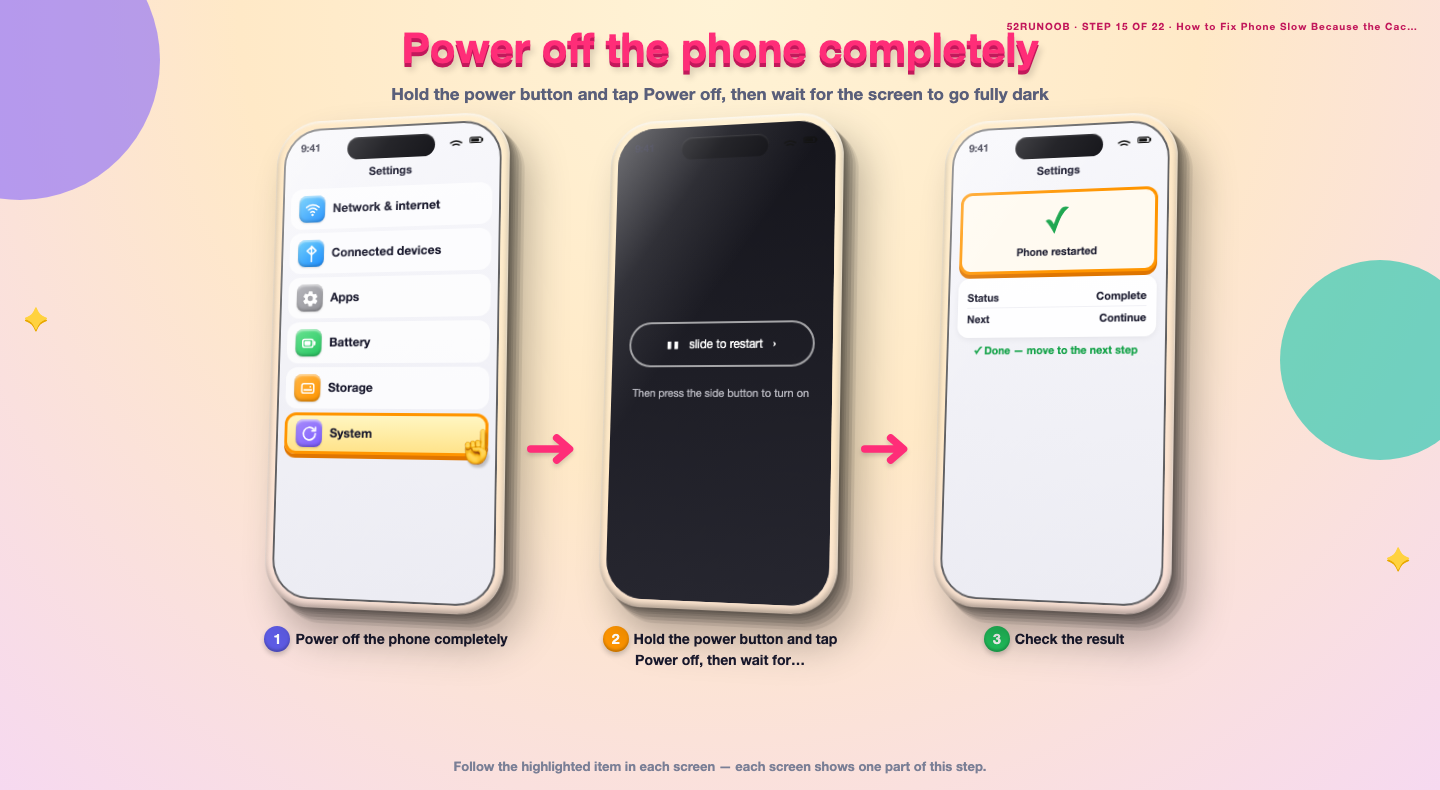
Step 15: Power off the phone completely
Hold the power button and tap Power off, then wait for the screen to go fully dark.
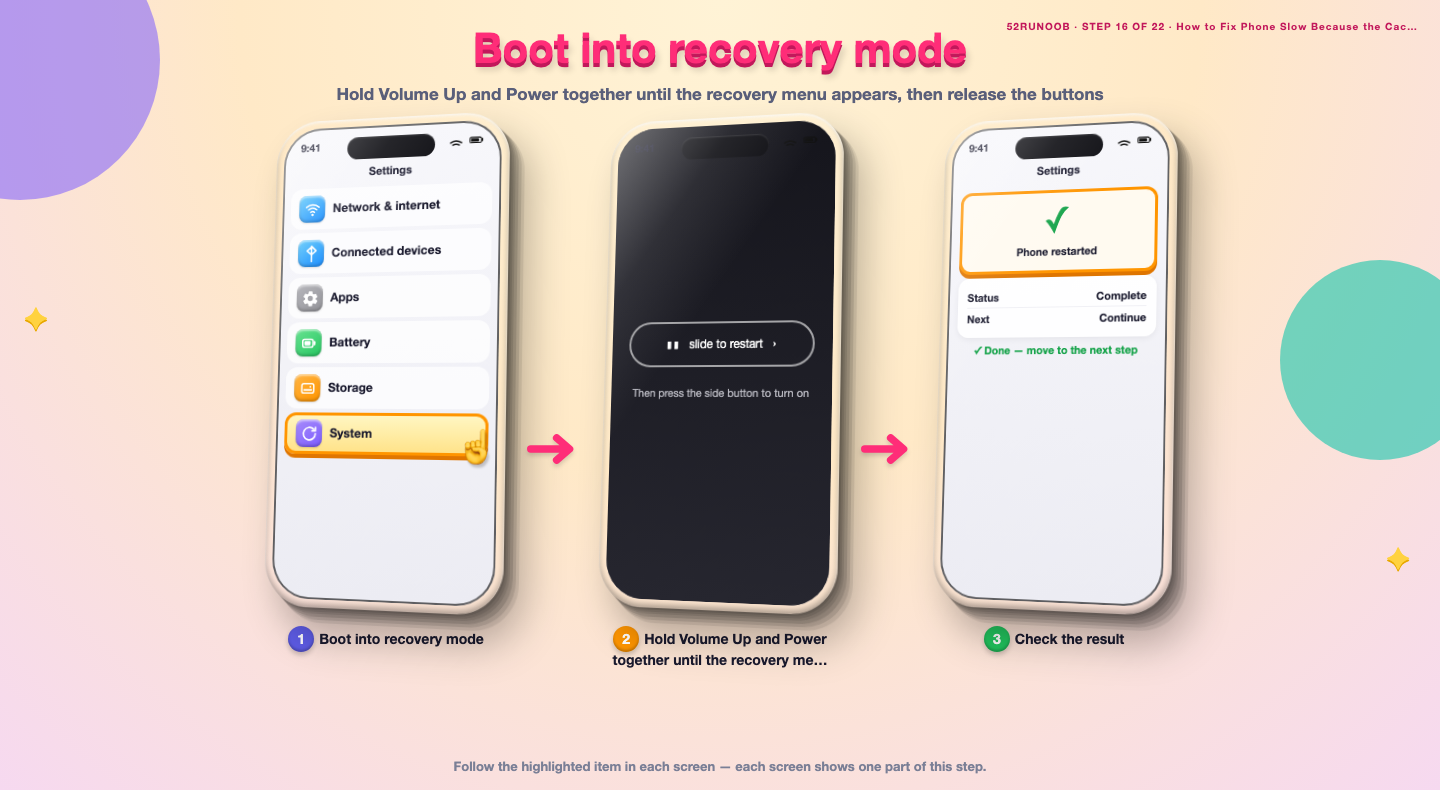
Step 16: Boot into recovery mode
Hold Volume Up and Power together until the recovery menu appears, then release the buttons.
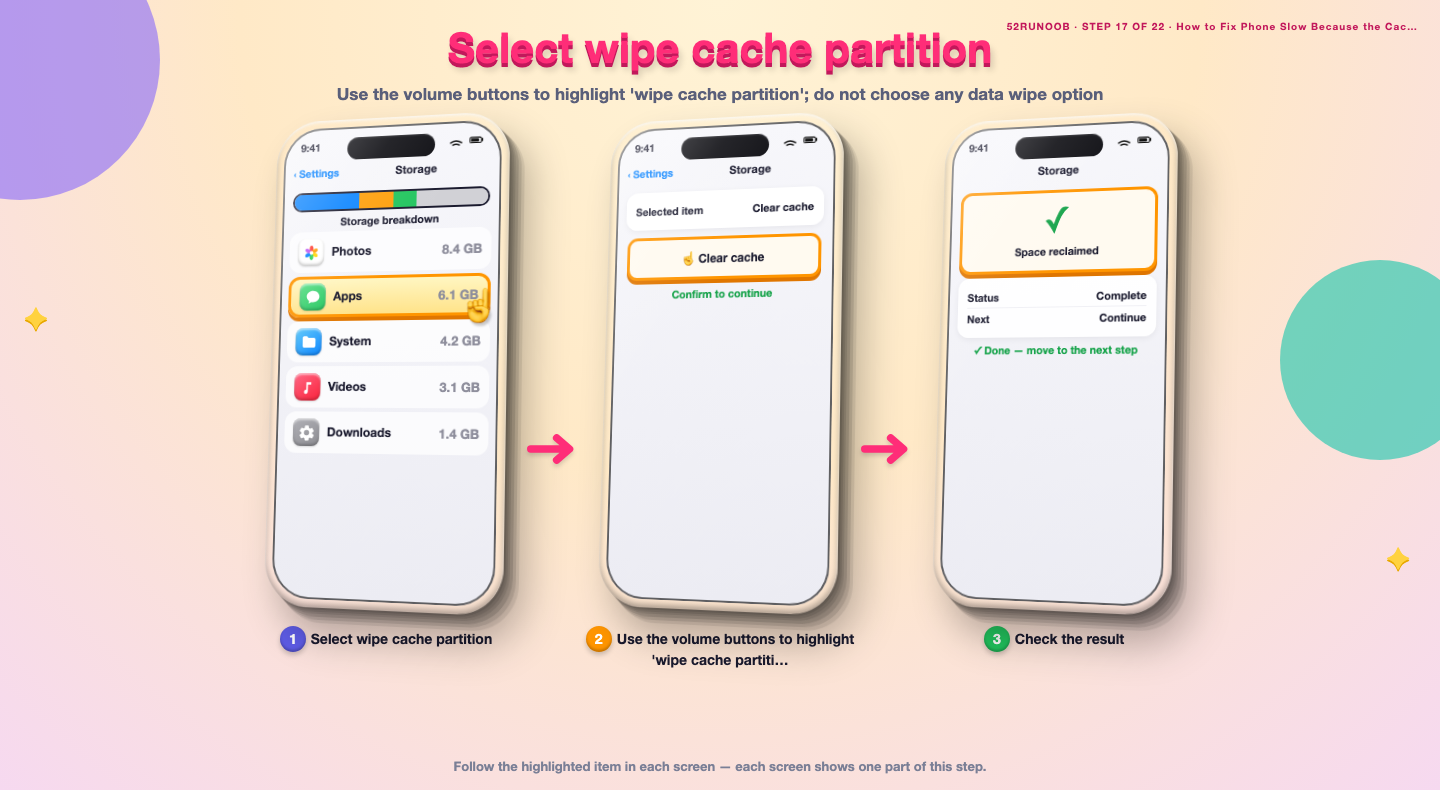
Step 17: Select wipe cache partition
Use the volume buttons to highlight 'wipe cache partition'; do not choose any data wipe option.
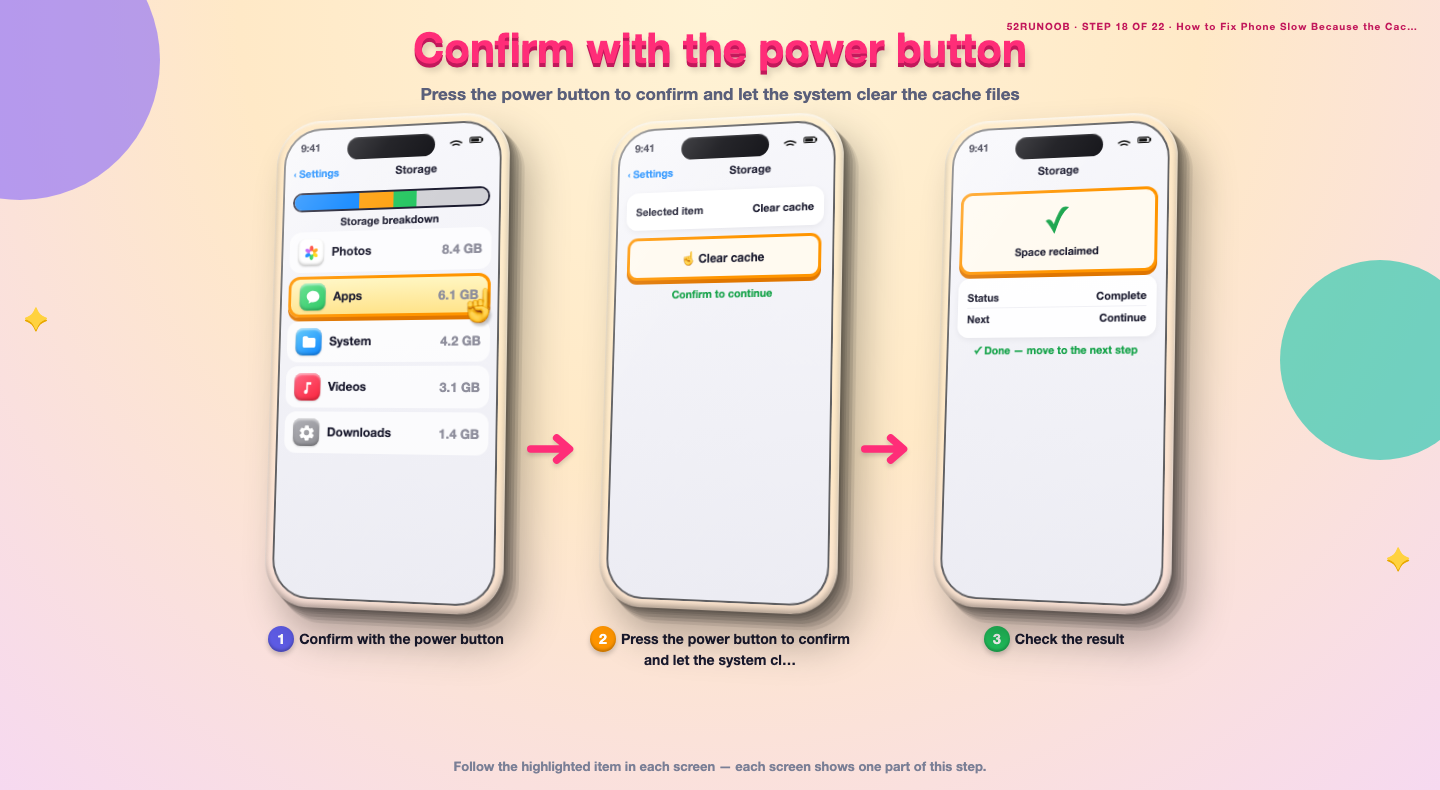
Step 18: Confirm with the power button
Press the power button to confirm and let the system clear the cache files.
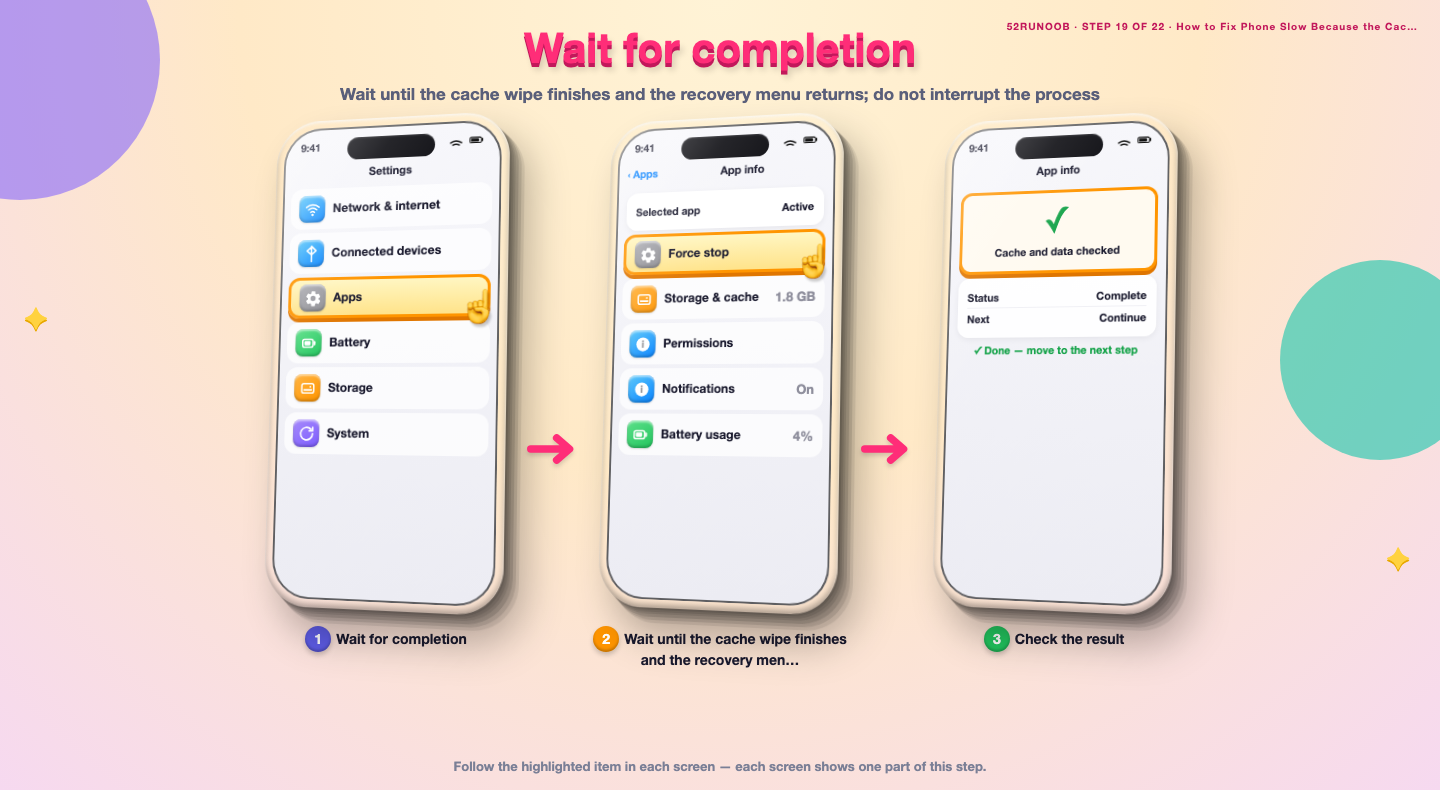
Step 19: Wait for completion
Wait until the cache wipe finishes and the recovery menu returns; do not interrupt the process.
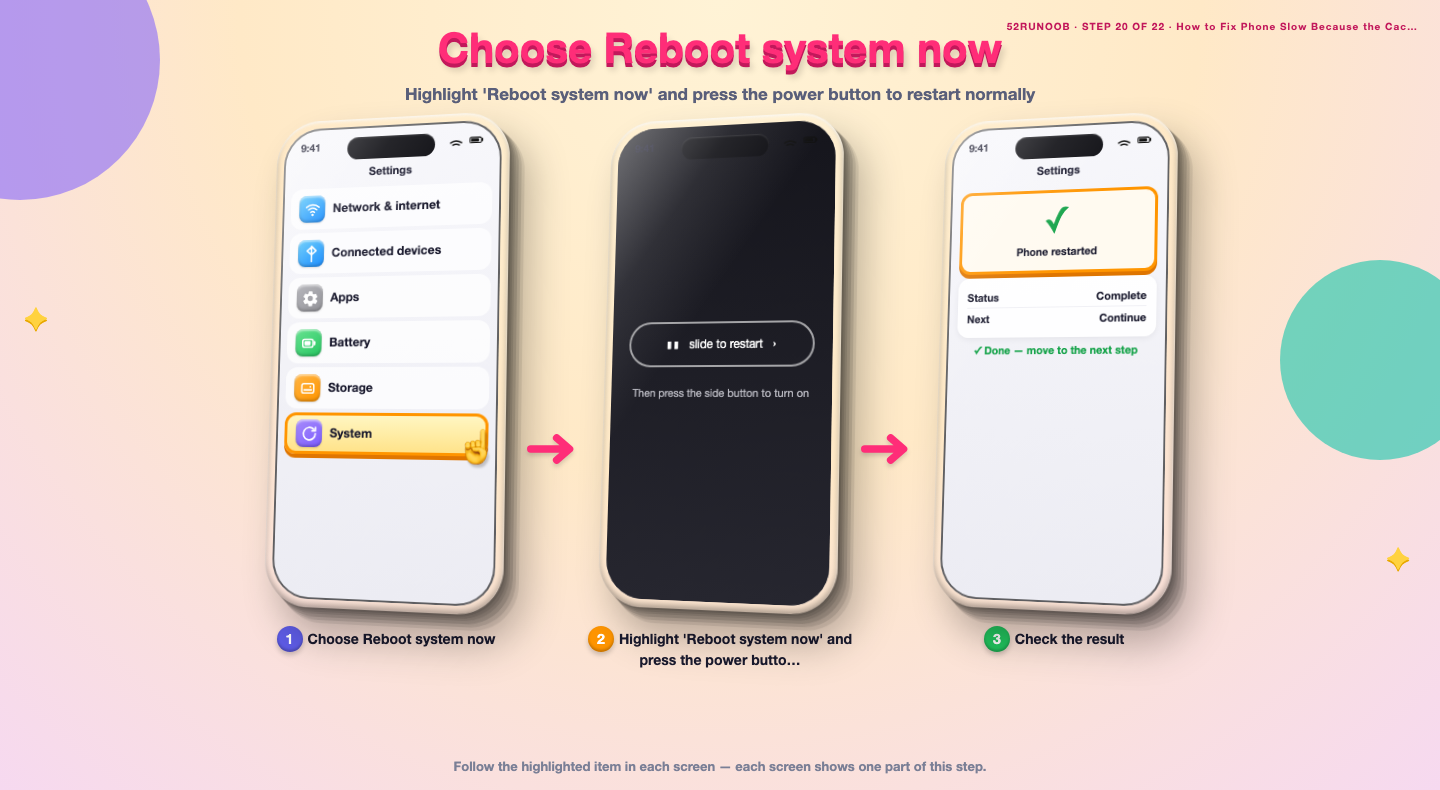
Step 20: Choose Reboot system now
Highlight 'Reboot system now' and press the power button to restart normally.
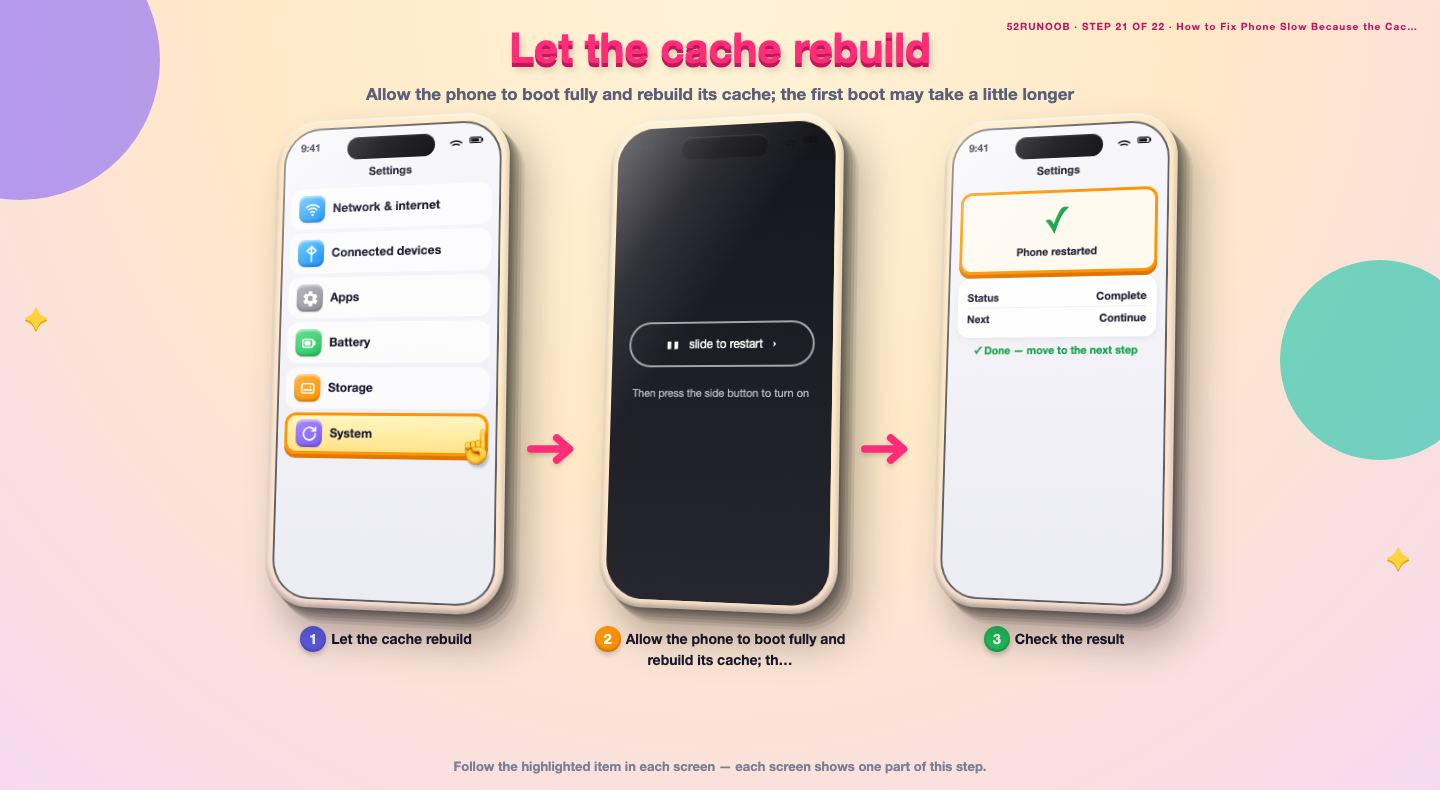
Step 21: Let the cache rebuild
Allow the phone to boot fully and rebuild its cache; the first boot may take a little longer.
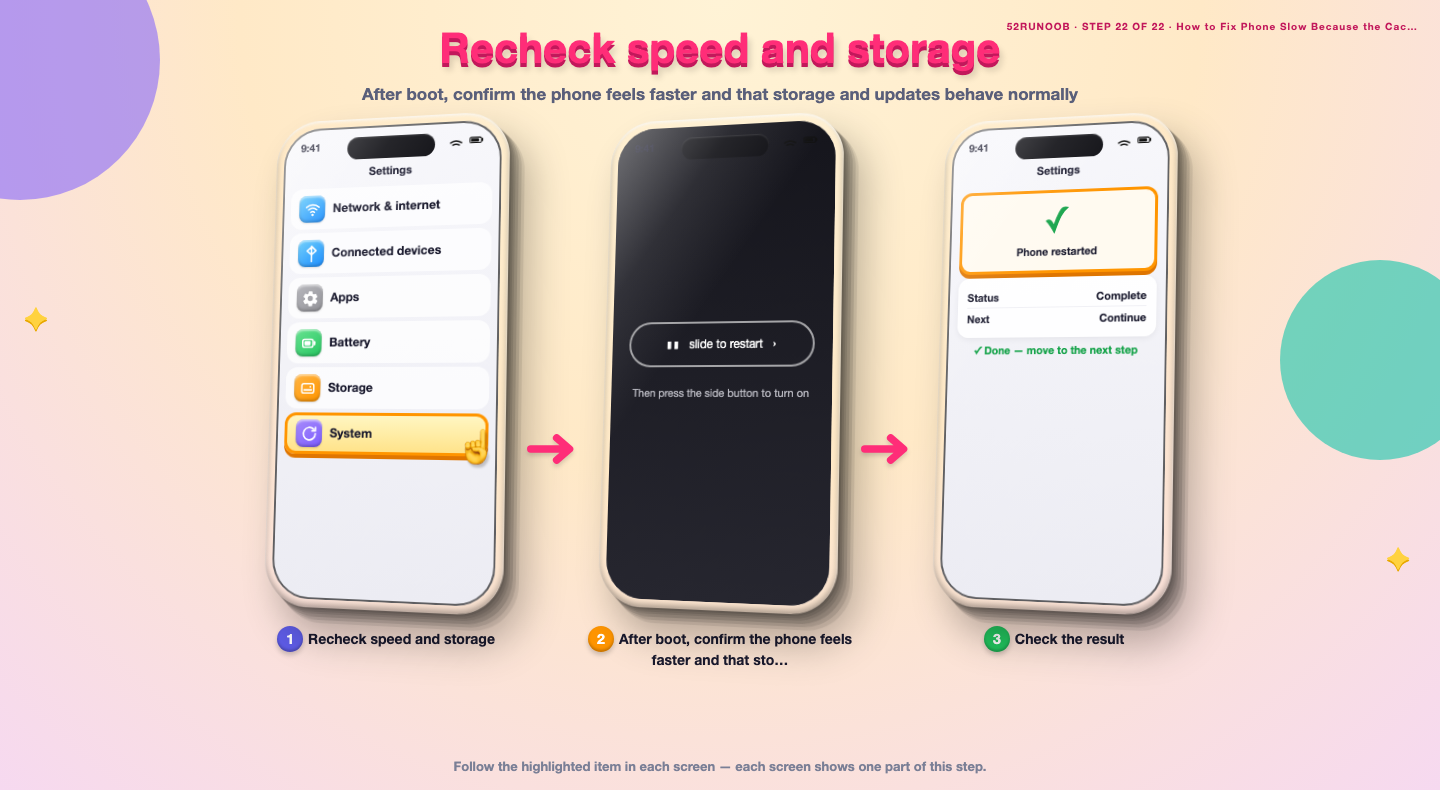
Step 22: Recheck speed and storage
After boot, confirm the phone feels faster and that storage and updates behave normally.
Tips
- A full cache partition often shows up as a stuck or failing system update.
- Wiping the cache partition does not erase personal files or apps.
- Leave a few gigabytes of internal storage free so the system can write temporary files.
Warnings
- Be careful in recovery mode: only choose 'wipe cache partition', not 'wipe data'.
- Back up your data before attempting any recovery-mode operation.
- Button combinations for recovery differ by brand; check your model if unsure.
Frequently asked questions
Is a full cache partition dangerous or a sign of a virus?
No. It is a normal temporary storage area that fills with system files over time. It is not malware. Slow boot and update loops are the usual symptoms, and wiping it is a safe, standard fix.
Will wiping the cache partition delete my photos and apps?
No. Wiping the cache partition only removes temporary system files; your apps, photos and accounts stay intact. The phone rebuilds the cache automatically on the next boot.
How do I know the cache is the real cause of the lag?
If the phone boots slowly, updates get stuck, and clearing app caches helps only briefly, a stale system cache is likely. Wiping the cache partition in recovery mode is the standard next test.
Do iPhones have a cache partition I can wipe?
No. iOS manages system cache internally and does not expose a cache partition to users. On iPhone, the equivalent fixes are restarting, freeing storage and reinstalling problematic apps.
References
- Google Support — Clear app cache and data. https://support.google.com/android/answer/9551190
- Android Source — Storage subsystem. https://source.android.com/docs/core/storage
- Android Source — Over-the-air updates. https://source.android.com/docs/core/ota
- wikiHow — How to Fix Phone Slow Because the Cache Partition Is Full. https://www.wikihow.com/Clear-the-Cache-on-an-Android-Phone
Every guide is reviewed against its sources. See our editorial policy.
Reader comments
0 so farFinished this guide? Tell other readers what worked, what didn't, and what you would change.