RuntimeBroker.exe is a legitimate Windows process that mediates permission requests from Microsoft Store apps, such as location, notifications and camera access. High CPU or memory usually means a background Store app is repeatedly requesting a permission, so identify the app, limit background activity and permissions, then reset the Store if needed.
This guide walks through the process in clear illustrated steps, from the first preparation to a finished result. Each step has its own picture, so you can compare your progress as you go.
How to use this guide
Work through the steps in order. Method 1 of 3 covers the basics, and the later methods offer alternatives and finishing touches. If you only have a minute, skim the Quick steps box above and come back for the details.
Related guides
- How to Plan a first date
- How to Remember what you read
- How to Hang a picture straight
- How to Roast vegetables in the oven
- Browse all Fix Slow Device guides
- All 52runoob guides
Trusted external resources
- Microsoft Learn — AppX package troubleshooting
- Microsoft Support — Configure startup applications
- Microsoft Support — Troubleshoot Windows Update issues
A note on sources
We check each guide against the official resources listed in References at the end of this article. External links open in a new tab; the related guides above stay on this site.
Quick steps
- Confirm RuntimeBroker.exe is the process using resources in Task Manager.
- Find which Store app is running when CPU spikes.
- Close the suspect app and watch Resource Monitor.
- Turn off background apps in Privacy settings.
- Revoke location and notification permissions you do not need.
- Repair or reset the Microsoft Store app.
Things you'll need
- A Windows 11 PC with administrator access
- Task Manager and Windows Settings
- A list of installed Microsoft Store apps
- About 10 minutes to test each change
Step-by-step
Method 1 of 3: Identify the App Behind the Spike
Step 1: Confirm RuntimeBroker in Task Manager
Press Ctrl+Shift+Esc, open Processes, and check whether Runtime Broker is the process using CPU or memory.

Step 2: Inspect the Details tab
Open the Details tab to see how many RuntimeBroker instances are currently running.

Step 3: Sort Store apps by CPU
Back on Processes, click the CPU column so the busiest apps appear at the top.

Step 4: Note which app is active
Watch which Microsoft Store app is open or refreshing at the moment the broker spikes.

Step 5: Close the suspect app
Select the app you suspect and click End task to see whether CPU usage falls.

Step 6: Watch Resource Monitor
Open Resource Monitor and observe CPU and disk activity while the app is reopened.

Step 7: Review app resource history
Check Settings, Privacy, App diagnostics if available, to confirm which app uses unusual resources.

Method 2 of 3: Limit Background Apps and Permissions
Step 8: Open privacy settings
Go to Settings, Privacy and security to review which apps can use sensitive features.

Step 9: Turn off background apps
Open Background apps and switch off apps that do not need to run when you are not using them.

Step 10: Disable excess notifications
In System, Notifications, turn off alerts from apps that constantly generate pop-ups.

Step 11: Revoke location access
Under Location, remove location permission from apps that have no reason to know where you are.

Step 12: Limit camera and microphone access
In Camera and Microphone settings, disable access for apps you rarely use.

Step 13: Reboot and recheck
Restart the PC and confirm RuntimeBroker now stays at a low, steady CPU level.

Method 3 of 3: Reset the Store and Repair Windows
Step 14: Open installed apps
Go to Settings, Apps, Installed apps and find the Microsoft Store entry.

Step 15: Open advanced options
Select the Microsoft Store, choose Advanced options, and scroll to the repair controls.

Step 16: Repair the Store app
Click Repair first, which fixes the app without removing its data or settings.

Step 17: Reset the Store if needed
If the problem remains, click Reset to clear the Store app's stored data.

Step 18: Clear the Store cache
Press Windows plus R, type wsreset, and press Enter to clear the Microsoft Store cache.
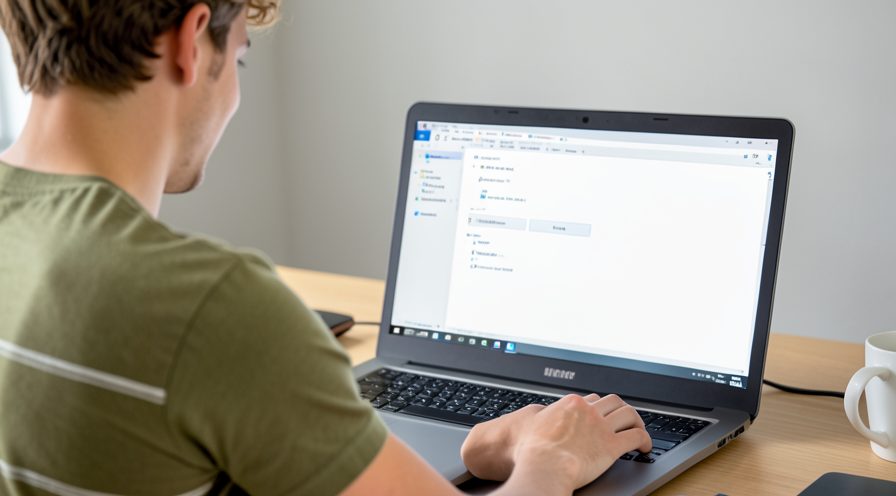
Step 19: Run System File Checker
Open an administrator terminal, run the SFC scan, and wait for it to complete.

Step 20: Run DISM restore health
Enter the DISM restore health command to repair the Windows component store.

Step 21: Restart and reopen Store apps
Restart Windows, reopen your Store apps, and confirm the broker CPU stays low.

Tips
- RuntimeBroker.exe is a normal Windows process and is not malware by default.
- A single chatty background app usually causes the entire spike.
- Check the Details tab to see how many broker instances are running.
Warnings
- Do not end every RuntimeBroker instance blindly; some are handling active app permissions.
- Revoking the wrong permission can stop an app you rely on working correctly.
- Resetting the Store signs you out of its apps, so know your credentials first.
Frequently asked questions
Is RuntimeBroker.exe a virus?
RuntimeBroker.exe is a genuine Windows process normally found in the System32 folder. Malware can imitate the name, so right-click it in Task Manager and choose Open file location to verify the path, then run Windows Security if anything looks unusual.
Why are there several RuntimeBroker processes?
Windows can start more than one broker instance to handle permissions for different user contexts and app groups. Seeing multiple entries is normal, but constant high CPU across them points to a background app repeatedly requesting access.
Which permissions can drive RuntimeBroker CPU?
Location, camera, microphone and notifications are frequent causes because apps poll them in the background. Revoking permissions for apps that do not need them reduces the broker's workload and lowers both CPU and memory use.
Will disabling background apps break my apps?
It only stops apps from refreshing and syncing while you are not using them; the apps still open normally. If you rely on live mail or chat updates, leave those specific apps enabled and turn off the rest.
References
- Microsoft Learn — AppX package troubleshooting. https://learn.microsoft.com/en-us/windows/win32/appxpkg/troubleshooting
- Microsoft Support — Configure startup applications. https://support.microsoft.com/en-us/help/4558286
- Microsoft Support — Troubleshoot Windows Update issues. https://support.microsoft.com/en-us/windows/fix-windows-update-errors-85529ccb-c365-490d-b548-831022bc9b32
- wikiHow — How to Fix RuntimeBroker.exe High CPU or Memory Usage on Windows 11. https://www.wikihow.com/Reduce-CPU-Usage
Every guide is reviewed against its sources. See our editorial policy.


Reader comments
0 so farFinished this guide? Tell other readers what worked, what didn't, and what you would change.