ctfmon.exe is the Text Services Framework loader that powers input methods, language bars and the touch keyboard in Windows 11. High CPU almost always comes from a third-party IME, an extra language service, or tablet input features rather than the Windows file itself. Remove unused input languages, disable the offending IME, restart the process and, if needed, test in a clean boot.
This guide walks through the process in clear illustrated steps, from the first preparation to a finished result. Each step has its own picture, so you can compare your progress as you go.
How to use this guide
Work through the steps in order. Method 1 of 2 covers the basics, and the later methods offer alternatives and finishing touches. If you only have a minute, skim the Quick steps box above and come back for the details.
Related guides
- How to Warm up before a workout
- How to Fix high disk usage caused by delivery optimization
- How to Build a simple cash flow sheet
- How to Handle lost luggage
- Browse all Fix Slow Device guides
- All 52runoob guides
Trusted external resources
- Microsoft Learn — Text Services Framework
- Microsoft Support — Use System File Checker to repair files
- Microsoft Support — Configure startup applications
A note on sources
We check each guide against the official resources listed in References at the end of this article. External links open in a new tab; the related guides above stay on this site.
Quick steps
- Confirm ctfmon.exe is the process using CPU in Task Manager.
- Remove input languages and keyboards you do not use in Settings.
- Disable or uninstall third-party input method editors.
- Restart the CTF Loader process from Task Manager.
- Turn off tablet and touch keyboard features you do not need.
- Run a clean boot to isolate a conflicting background program.
Things you'll need
- A Windows 11 PC with administrator access
- Task Manager and Windows Settings built into Windows
- The installer for any third-party IME you want to reinstall
- About 15 minutes to test changes and sign out
Step-by-step
Method 1 of 2: Remove Extra Input Languages and IMEs
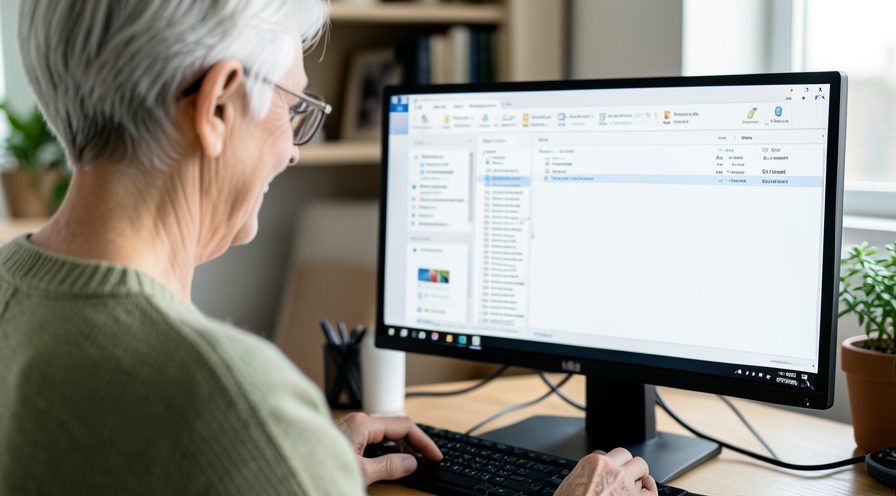
Step 1: Confirm ctfmon.exe in Task Manager
Press Ctrl+Shift+Esc, open the Processes tab, and check whether CTF Loader is genuinely the process consuming CPU.
Step 2: Verify the file location
Right-click CTF Loader and choose Open file location to confirm it resolves inside the Windows System32 folder.

Step 3: Open language settings
Open Settings, Time and language, Language and region, to see the languages currently installed.

Step 4: Remove unused languages
Select an input language you never use and remove it so its language service stops loading with ctfmon.exe.

Step 5: Open the classic keyboard list
Search for edit language and keyboard options in the Start menu and open the legacy text services dialog.

Step 6: Disable a third-party IME
Select the third-party input method editor and remove or disable it, keeping only the Microsoft IME you need.
Step 7: Sign out and back in
Sign out of Windows and sign in again to reload ctfmon.exe cleanly with the reduced language list.
Method 2 of 2: Restart the Process and Test in a Clean Boot
Step 8: Restart CTF Loader
In Task Manager, select CTF Loader and click Restart so the process reloads with fresh settings.

Step 9: Turn off touch keyboard features
Open Settings, Bluetooth and devices, Touch, and disable touch gestures and the on-screen keyboard if unused.

Step 10: Check startup apps
Open Task Manager, Startup apps, and switch off any third-party IME or language tool set to launch at sign-in.
Step 11: Enable a clean boot
Press Windows plus R, type msconfig, hide Microsoft services, disable the rest, and restart the computer.

Step 12: Isolate the conflicting program
Re-enable services in small groups after each restart until ctfmon.exe CPU climbs again, revealing the culprit.
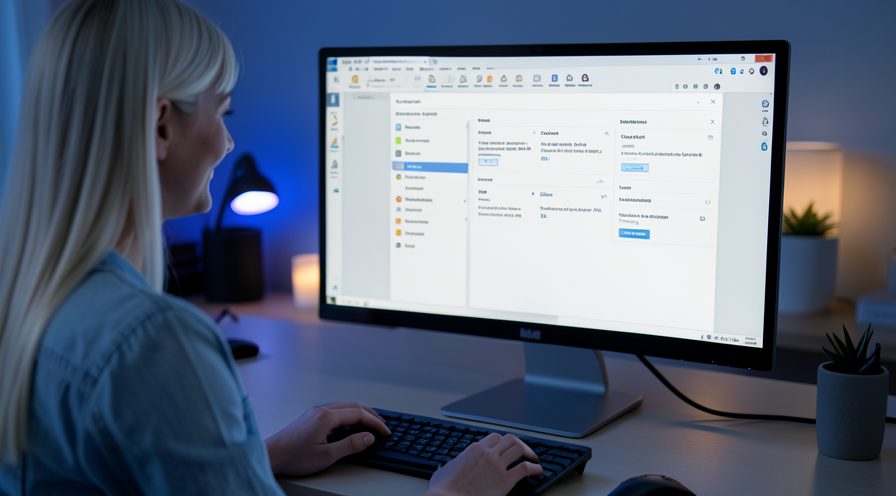
Step 13: Run System File Checker
Open an elevated Command Prompt and run the sfc scannow command to repair any corrupted system files behind the loader.

Tips
- ctfmon.exe is a legitimate signed system file and should never be deleted.
- A third-party input method editor is the most common cause of high CPU.
- Signing out and back in reloads ctfmon.exe without a full restart.
Warnings
- Do not delete the ctfmon.exe file in System32; Windows needs it for text input.
- Ending ctfmon.exe removes the language bar until the process restarts.
- Back up your settings before removing an input language you still rely on.
Frequently asked questions
Is ctfmon.exe a virus?
ctfmon.exe is a genuine Windows process stored in C:\Windows\System32 that loads the Text Services Framework. Malware can imitate the name, so right-click the process in Task Manager and choose Open file location; if it is anywhere other than System32, run a full Windows Security scan.
Can I disable ctfmon.exe permanently?
You should not. ctfmon.exe manages input methods and the language bar, and disabling it can break typing and the touch keyboard. Instead remove the extra language or third-party IME that is driving the CPU usage.
Why does ctfmon.exe spike when I switch languages?
Switching languages loads that language's input service, so a buggy or bloated third-party IME can spike CPU at that moment. Removing languages you do not use and updating or replacing the IME usually stops the spikes.
Will ending ctfmon.exe fix the problem?
Only temporarily. Ending the process in Task Manager makes Windows restart it right away, so the CPU load returns if the underlying IME or language service is still there. Treat a restart as a quick test, then remove the real cause.
References
- Microsoft Learn — Text Services Framework. https://learn.microsoft.com/en-us/windows/win32/tsf/text-services-framework
- Microsoft Support — Use System File Checker to repair files. https://support.microsoft.com/en-us/topic/use-the-system-file-checker-tool-to-repair-missing-or-corrupted-system-files-79aa86cb-ca52-166a-92a3-966e85d4094e
- Microsoft Support — Configure startup applications. https://support.microsoft.com/en-us/help/4558286
- wikiHow — How to Fix ctfmon.exe (CTF Loader) High CPU on Windows 11. https://www.wikihow.com/Fix-High-CPU-Usage
Every guide is reviewed against its sources. See our editorial policy.



Reader comments
0 so farFinished this guide? Tell other readers what worked, what didn't, and what you would change.