When Windows Update downloads in the background, BITS and Delivery Optimization continuously write large update files, which can hold disk usage near 100% and make the PC feel sluggish. The fix is to schedule updates around active hours or pause them, cap Delivery Optimization bandwidth, and let a stuck update finish by resetting update components if needed. Performance recovers once the download and install complete.
This guide walks through the process in clear illustrated steps, from the first preparation to a finished result. Each step has its own picture, so you can compare your progress as you go.
How to use this guide
Work through the steps in order. Method 1 of 3 covers the basics, and the later methods offer alternatives and finishing touches. If you only have a minute, skim the Quick steps box above and come back for the details.
Related guides
- How to Practice deep breathing
- How to Add vinegar to laundry
- How to Make a scrapbook
- How to Prevent frizzy hair
- Browse all Fix Slow Device guides
- All 52runoob guides
Trusted external resources
- Microsoft Learn — What is Delivery Optimization?
- Microsoft Support — Windows Update troubleshooter
- Microsoft Support — Windows troubleshooters (BITS and Update)
A note on sources
We check each guide against the official resources listed in References at the end of this article. External links open in a new tab; the related guides above stay on this site.
Quick steps
- Check Windows Update status to confirm a download is in progress.
- Set active hours so updates do not download while you work.
- Pause updates briefly if you need a responsive disk now.
- Limit Delivery Optimization bandwidth in Windows Settings.
- Let the download and installation finish before heavy tasks.
- Reset Windows Update components if the download appears stuck.
Things you'll need
- A Windows 11 PC with administrator access
- Windows Update settings in the Settings app
- A stable internet connection
- About 20 minutes to adjust settings and restart
Step-by-step
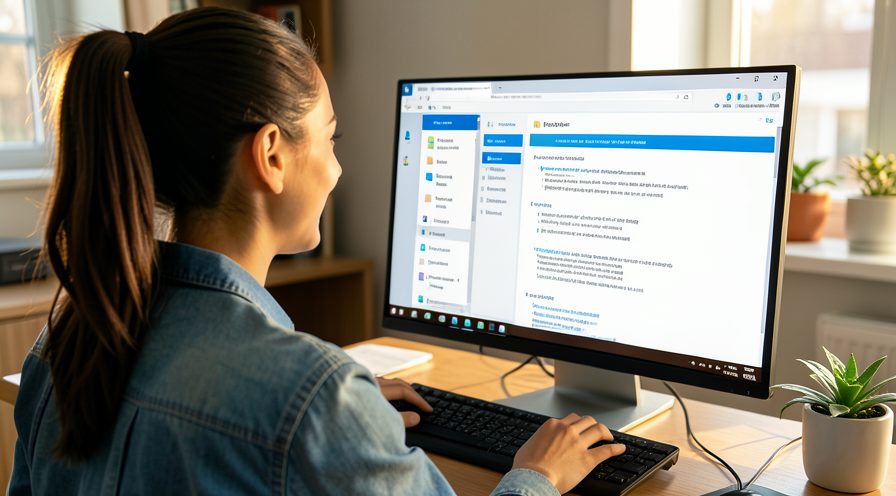
Method 1 of 3: Schedule or Pause Updates Around Your Work
Step 1: Open Windows Update settings
Open Settings, then Windows Update, to see the current download and install status.

Step 2: Confirm an update is downloading
Check whether a percentage or a downloading status is shown on the page.

Step 3: Open Active hours settings
Click Active hours and choose the range when you normally use the PC so updates avoid that window.

Step 4: Set active hours manually
Choose manual active hours that cover your workday to prevent unexpected restarts during use.

Step 5: Pause updates briefly if needed
Use the Pause updates control to hold the download for a short period when you need disk performance.

Step 6: Choose a convenient resume date
Select the earliest available resume date so updates are not delayed indefinitely.

Step 7: Plug in power and stay connected
Keep the PC on AC power and online so a paused or rescheduled update can proceed smoothly.

Step 8: Resume updates when convenient
Return to Windows Update and resume so the download and installation complete.
Method 2 of 3: Limit Delivery Optimization Bandwidth
Step 9: Open Delivery Optimization settings
In Settings, go to Windows Update, Advanced options, then Delivery Optimization.

Step 10: Review the download source option
Check whether the PC is set to download updates from other PCs as well as Microsoft.
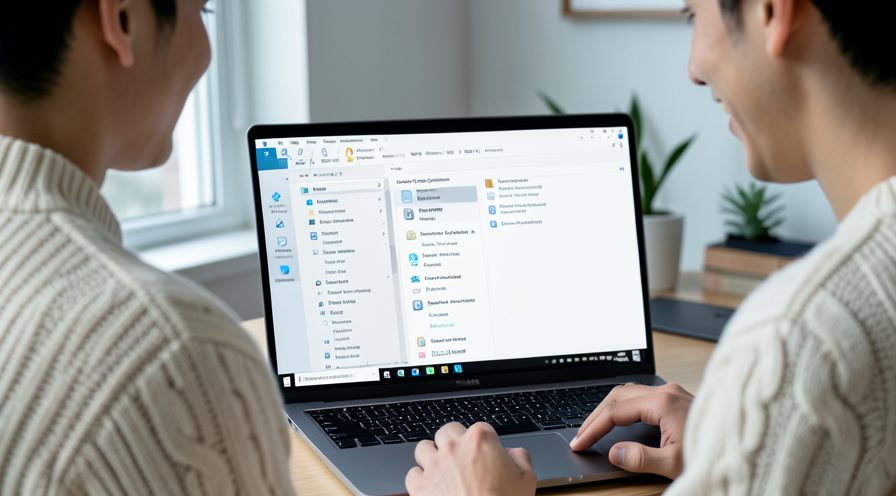
Step 11: Change the download source
Select the option to use Microsoft sources only and reduce peer activity that adds load.

Step 12: Open advanced bandwidth settings
Click Advanced settings to find the bandwidth limits for downloads and uploads.

Step 13: Cap download bandwidth
Enable and lower the download bandwidth percentage so updates use fewer system resources.

Step 14: Cap upload bandwidth
Limit how much upload bandwidth the PC shares with other devices to reduce background work.
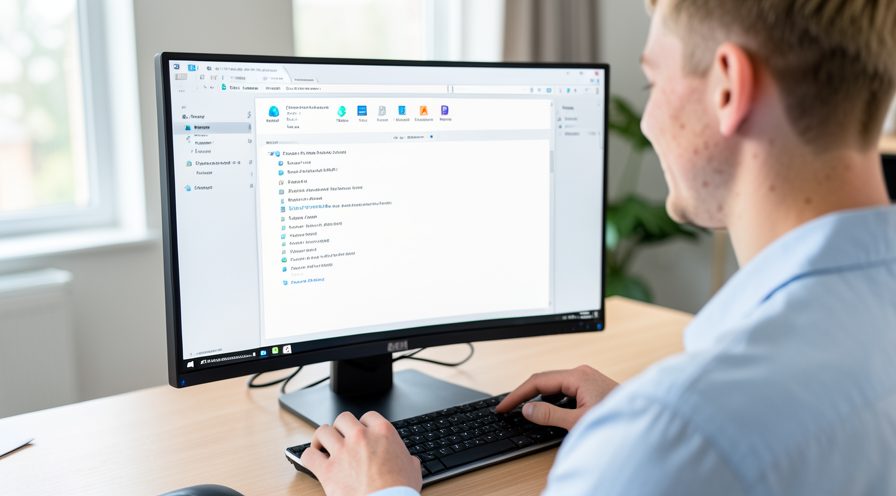
Step 15: Save and monitor disk usage
Apply the settings and check Task Manager to confirm disk activity has eased.

Method 3 of 3: Reset Stuck Windows Update Components
Step 16: Confirm the update is genuinely stuck
Check that the download percentage has not moved for a long time before resetting anything.

Step 17: Run the Windows Update troubleshooter
Open Settings, System, Troubleshoot, and run the Windows Update troubleshooter.
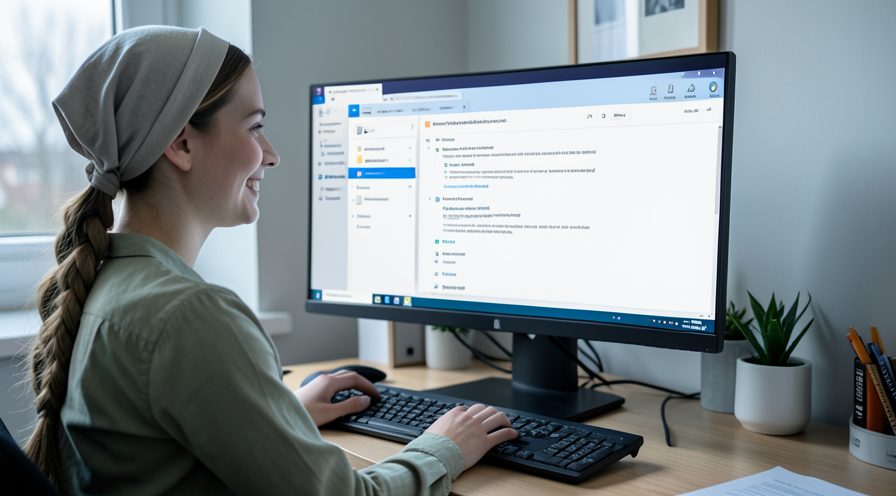
Step 18: Open an elevated Command Prompt
Search for Command Prompt and choose Run as administrator to prepare to reset services.

Step 19: Stop the update services
Use net stop commands to halt the Windows Update, BITS, and Cryptographic services.

Step 20: Clear the update cache
Rename the SoftwareDistribution and catroot2 folders so Windows rebuilds a fresh cache.
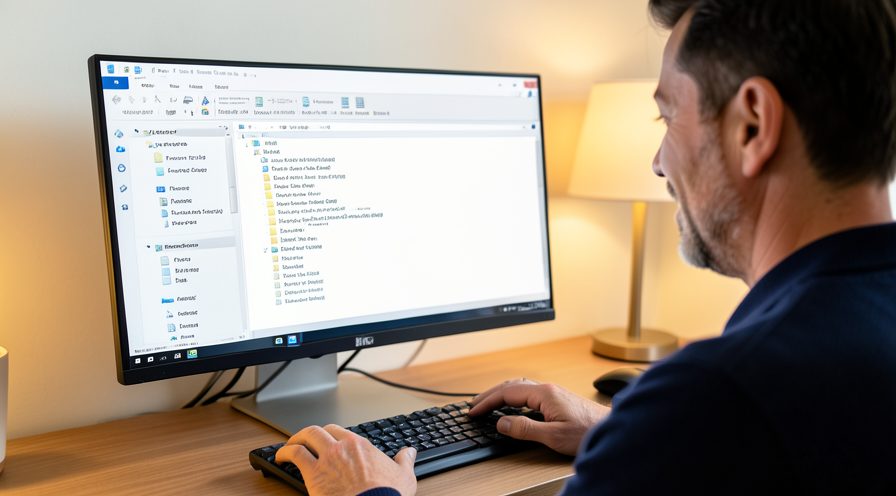
Step 21: Restart services and the PC
Restart the stopped services, then reboot and check for updates again.

Tips
- Disk usage from updates is temporary and eases once installation completes.
- Delivery Optimization can use your PC as a peer, adding upload and disk load.
- Setting active hours prevents updates from interrupting your workday.
Warnings
- Do not forcibly delete update cache files while an update is installing.
- Pausing updates too long can leave security fixes unapplied.
- Resetting update components must be done carefully and followed by a restart.
Frequently asked questions
Why is my disk at 100% when Windows Update runs?
Windows Update uses BITS and Delivery Optimization to download large payloads and write them to disk, then unpacks and installs them. On a slower drive this sustained input and output can saturate the disk. It is normal and clears when the update finishes.
Can I stop Windows Update from downloading temporarily?
Yes, you can pause updates for a limited period in Windows Settings, which stops the download and frees the disk. Resume afterward so you receive security fixes. Setting active hours is a less disruptive alternative.
Does limiting Delivery Optimization bandwidth help disk usage?
It mainly limits network bandwidth, but it can reduce peer activity that also touches the disk. It is useful if your PC is acting as an update source for other machines. It will not stop the download entirely.
What if the update stays at 100% disk for hours?
The update may be stuck, especially if progress does not change for a long time. Running the Windows Update troubleshooter or resetting update components can clear a stalled queue. Restart the PC afterward and check for the update again.
References
- Microsoft Learn — What is Delivery Optimization?. https://learn.microsoft.com/en-us/windows/manage/waas-delivery-optimization
- Microsoft Support — Windows Update troubleshooter. https://support.microsoft.com/en-us/windows/fix-windows-update-errors-85529ccb-c365-490d-b548-831022bc9b32
- Microsoft Support — Windows troubleshooters (BITS and Update). https://support.microsoft.com/en-us/help/4540879
- wikiHow — How to Fix 100% Disk Usage While Windows Update Is Downloading. https://www.wikihow.com/Fix-High-CPU-Usage
Every guide is reviewed against its sources. See our editorial policy.


Reader comments
0 so farFinished this guide? Tell other readers what worked, what didn't, and what you would change.