Xbox Game Bar can keep the CPU busy when background recording, overlays, or gaming services run even outside a game. Features such as automatic background capture keep the app hooked into the display and consuming processor time. Disable background recording, turn off overlays, close the Xbox app, and disable Gaming Services if the load persists.
This guide walks through the process in clear illustrated steps, from the first preparation to a finished result. Each step has its own picture, so you can compare your progress as you go.
How to use this guide
Work through the steps in order. Method 1 of 2 covers the basics, and the later methods offer alternatives and finishing touches. If you only have a minute, skim the Quick steps box above and come back for the details.
Related guides
- How to Work in a study group
- How to Organize a small kitchen
- How to Set healthy boundaries
- How to Build a big sandcastle
- Browse all Fix Slow Device guides
- All 52runoob guides
Trusted external resources
- Microsoft Support — Configure startup applications in Windows
- Microsoft Learn — Xbox Game Bar documentation
- Microsoft Support — Adjust visual effects in Windows
A note on sources
We check each guide against the official resources listed in References at the end of this article. External links open in a new tab; the related guides above stay on this site.
Quick steps
- Confirm Xbox Game Bar or Gaming Services is using CPU in Task Manager.
- Turn off background recording in Game Bar settings.
- Disable Game Bar overlays and widgets you do not use.
- Close the Xbox app and related background components.
- Disable Gaming Services if you do not play Xbox titles.
- Update Windows and Game Bar to the latest version.
Things you'll need
- A Windows 11 PC with Xbox Game Bar installed
- Access to Windows Settings and the Microsoft Store
- Administrator rights to change system services
- About 15 minutes for testing and a reboot
Step-by-step
Method 1 of 2: Turn Off Recording and Overlays in Game Bar
Step 1: Confirm Game Bar in Task Manager
Press Ctrl+Shift+Esc and check whether Xbox Game Bar or Gaming Services is high in the CPU column.
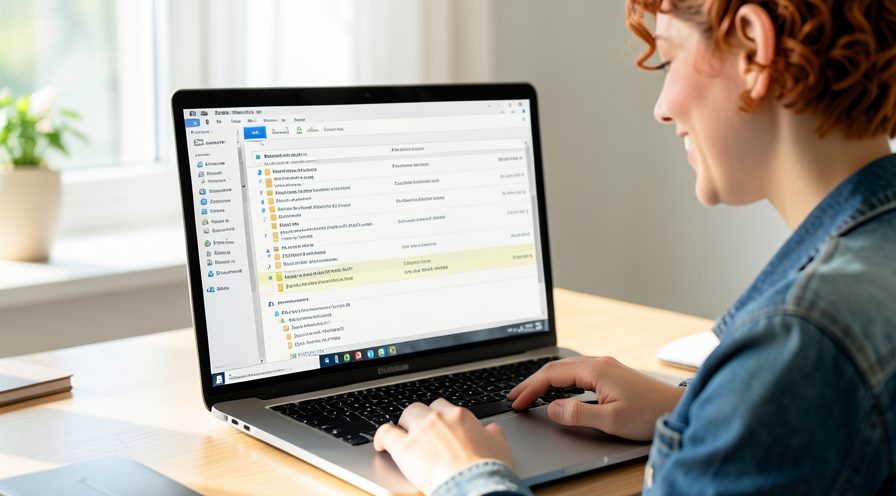
Step 2: Open Xbox Game Bar
Press the Game Bar shortcut or search for it in the Start menu to bring up the overlay.
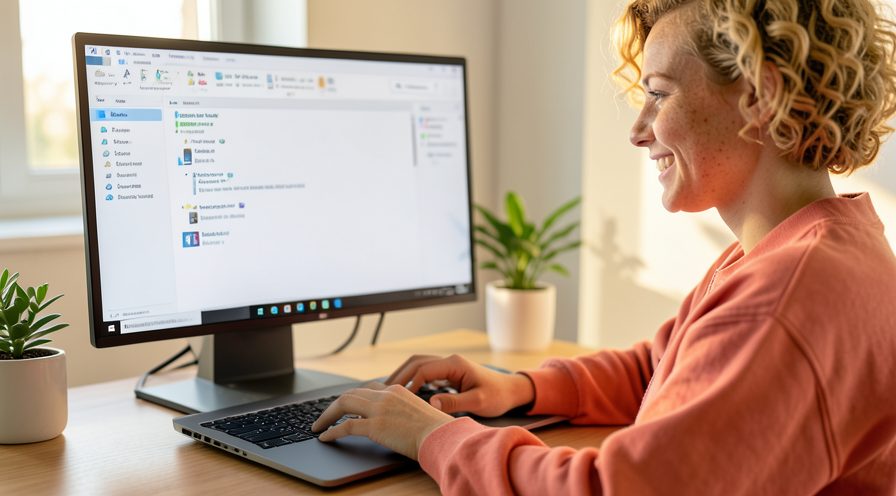
Step 3: Open Game Bar settings
Click the settings icon in the Game Bar overlay to reach its options.
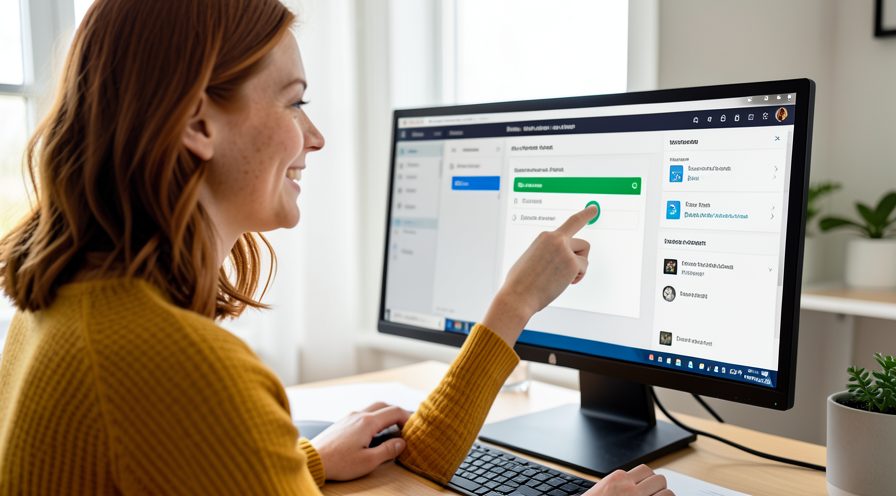
Step 4: Turn off background recording
Under Capturing, switch off background recording so the app stops capturing when you are not recording.
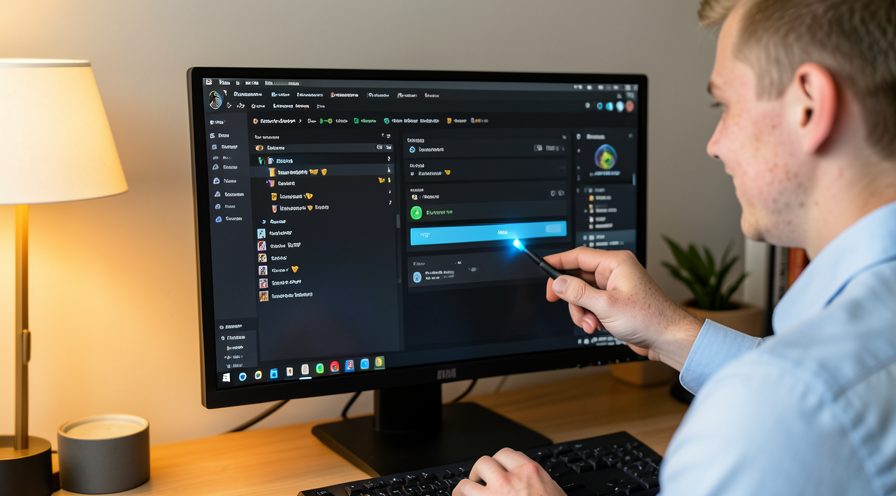
Step 5: Disable unused widgets
Hide widgets you never use so they stop polling and updating in the background.
Step 6: Turn off the overlay
In Windows Settings under Gaming, switch off the Xbox Game Bar toggle to close the overlay entirely.

Step 7: Recheck CPU usage
Return to Task Manager and confirm the CPU load from Game Bar has dropped.
Method 2 of 2: Close Gaming Components and Update
Step 8: Close the Xbox app
Right-click the Xbox app icon and close it so it stops syncing in the background.
Step 9: Check startup apps
Open Task Manager, open Startup apps, and disable Xbox related entries you do not need at boot.
Step 10: Open Windows Services
Search for Services and locate Gaming Services or Xbox Live related entries.
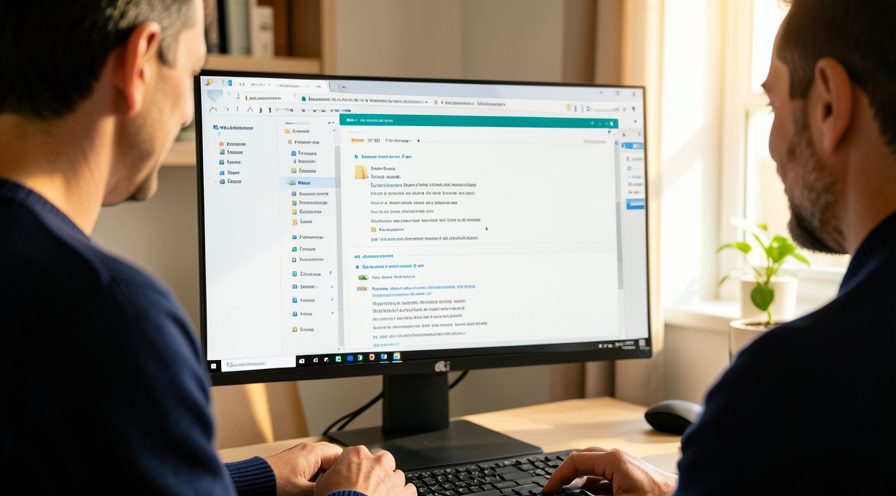
Step 11: Disable Gaming Services
Right-click Gaming Services, open Properties, and set the startup type to Disabled if you do not play Xbox games.
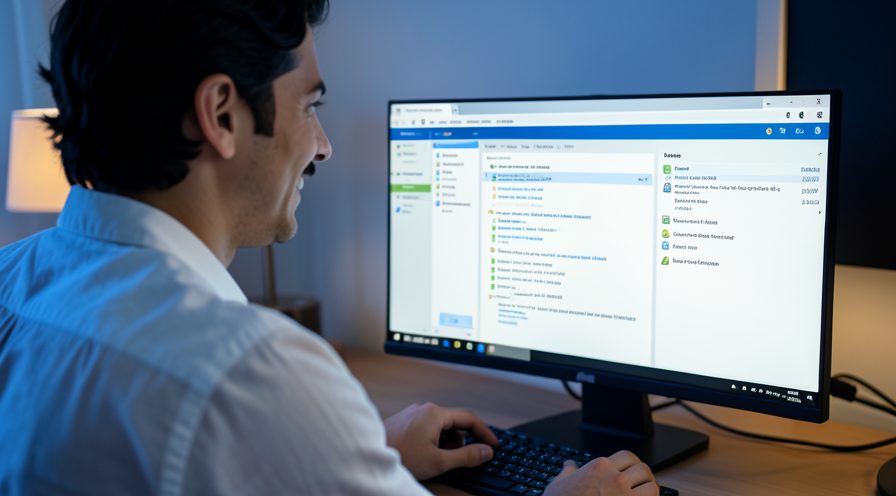
Step 12: Update Windows
Open Settings, go to Windows Update, and install available updates that include Game Bar fixes.

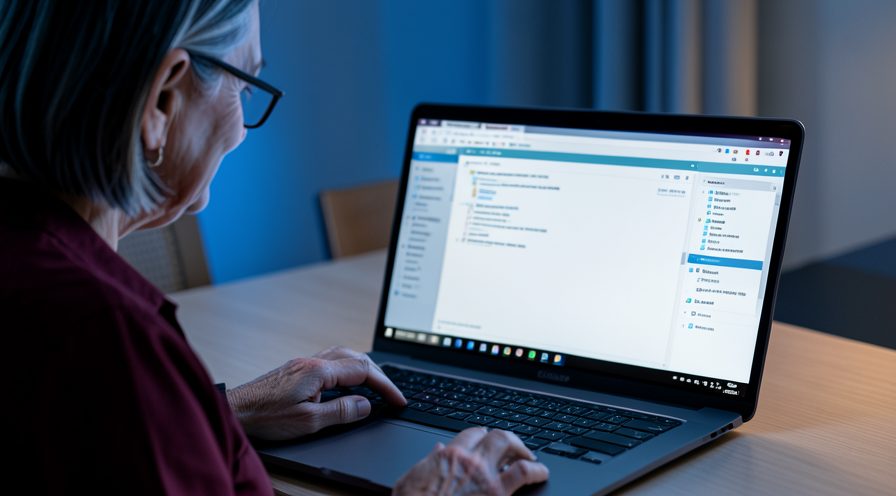
Step 13: Reboot and verify
Restart the PC and confirm in Task Manager that Game Bar no longer drives CPU high.
Tips
- Background recording is the most common cause of idle Game Bar CPU use.
- Turning off the overlay removes overhead even when you are not gaming.
- A Windows update often fixes a Game Bar bug that causes high CPU.
Warnings
- Disabling Gaming Services stops Xbox apps and some games from launching.
- Do not delete Game Bar system files; turn features off in Settings instead.
- Changing a system service without administrator rights will fail.
Frequently asked questions
Can Xbox Game Bar use CPU when I am not gaming?
Yes. If background recording or overlay widgets are enabled, Game Bar and its gaming services stay active and hook into the desktop even outside a game. That background work can show up as steady CPU use in Task Manager. Turning off recording and the overlay usually stops it.
Does turning off background recording actually help?
It often does, because continuous capture is the heaviest thing Game Bar does. With background recording off, the app stops monitoring the screen unless you explicitly start a capture. Check CPU again in Task Manager after making the change.
Is it safe to disable Gaming Services?
It is safe for the operating system, but Xbox apps, Game Pass titles, and some store games will no longer work until you re-enable it. Set it back to Manual or Automatic if you later want to play those games. Only change it if you do not rely on the Xbox ecosystem.
Why did Game Bar start using high CPU after an update?
An update can change how a background service behaves or re-enable a recording feature you had turned off. Check the capturing and overlay settings again after updating, and install any newer cumulative update that may contain a fix. Rebooting also clears a stuck service.
References
- Microsoft Support — Configure startup applications in Windows. https://support.microsoft.com/en-us/help/4558286
- Microsoft Learn — Xbox Game Bar documentation. https://learn.microsoft.com/en-us/gaming/game-bar/
- Microsoft Support — Adjust visual effects in Windows. https://support.microsoft.com/kb/314482
- wikiHow — How to Fix High CPU Caused by Xbox Game Bar on Windows 11. https://www.wikihow.com/Fix-High-CPU-Usage
Every guide is reviewed against its sources. See our editorial policy.


Reader comments
0 so farFinished this guide? Tell other readers what worked, what didn't, and what you would change.