OneDrive drives CPU up while syncing because it is uploading or downloading many files, building version history, or resolving conflicts in the background. A large first-time upload or local copies of Files On-Demand placeholders can keep the sync engine busy for hours. Pause or throttle syncing, deselect folders you do not need, resolve conflicts, and reset the app if it stays stuck.
This guide walks through the process in clear illustrated steps, from the first preparation to a finished result. Each step has its own picture, so you can compare your progress as you go.
How to use this guide
Work through the steps in order. Method 1 of 2 covers the basics, and the later methods offer alternatives and finishing touches. If you only have a minute, skim the Quick steps box above and come back for the details.
Related guides
- How to Connect a printer to wi fi
- How to Speed up a slow windows pc
- How to Write a bibliography
- How to Apply foundation evenly
- Browse all Fix Slow Device guides
- All 52runoob guides
Trusted external resources
- Microsoft Support — Fix OneDrive sync problems
- Microsoft Support — Save disk space with OneDrive Files On-Demand
- Microsoft Support — Free up drive space in Windows
A note on sources
We check each guide against the official resources listed in References at the end of this article. External links open in a new tab; the related guides above stay on this site.
Quick steps
- Open Task Manager and confirm OneDrive is the process using CPU.
- Pause syncing briefly to see if CPU usage drops.
- Limit upload and download bandwidth in OneDrive settings.
- Deselect folders you do not need to sync on this PC.
- Resolve sync conflicts and trim excess version history.
- Repair or reset OneDrive if high CPU persists.
Things you'll need
- A Windows 11 PC signed in to OneDrive
- The OneDrive desktop app and Windows Settings
- Administrator access if you need to reset the app
- About 20 minutes to test each change
Step-by-step
Method 1 of 2: Pause and Throttle Syncing
Step 1: Confirm OneDrive in Task Manager
Press Ctrl+Shift+Esc, open the Processes tab, and check whether Microsoft OneDrive is the process consuming CPU.

Step 2: Check sync status in the tray
Click the OneDrive cloud icon in the system tray to see whether files are actively uploading or downloading.

Step 3: Pause syncing briefly
Right-click the OneDrive tray icon, choose Pause syncing, and pick a short interval to test whether CPU drops.
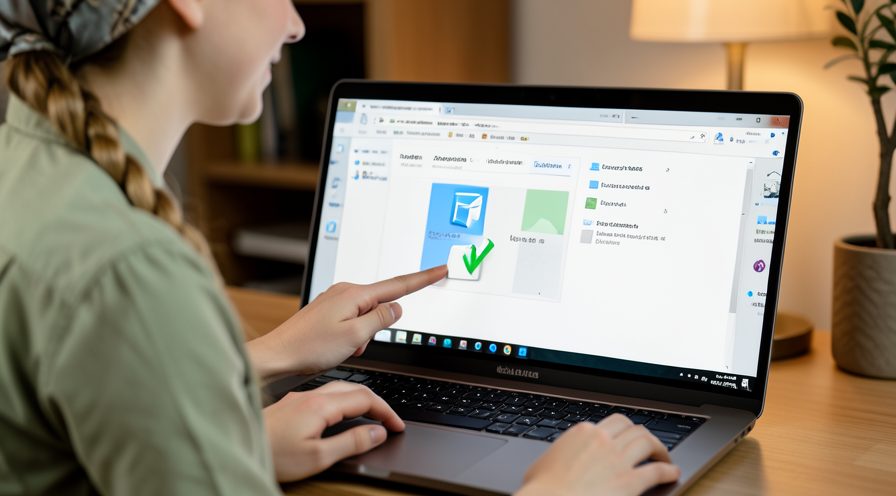
Step 4: Open OneDrive settings
Click the tray icon, open Settings, and go to the Sync tab to reach the transfer controls.
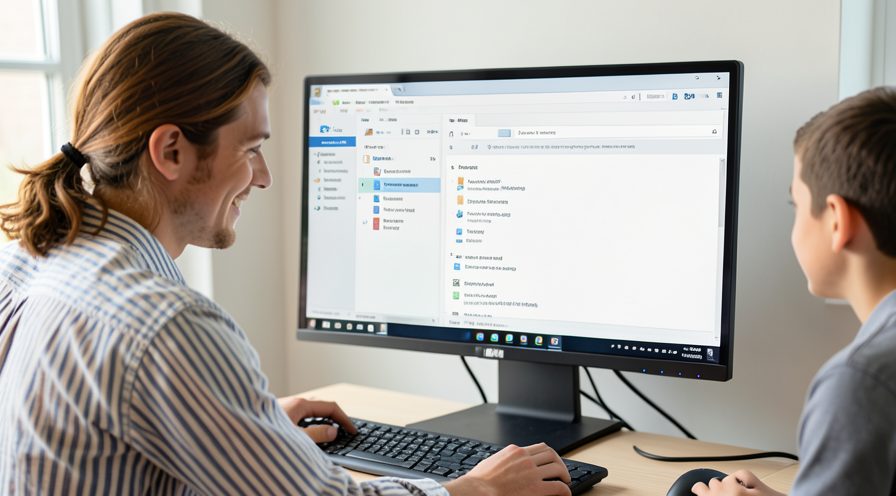
Step 5: Limit upload bandwidth
Set the upload rate to a lower value under Sync so large uploads do not saturate the processor.

Step 6: Limit download bandwidth
Set a lower download rate as well if syncing pulls down many files at once.

Step 7: Keep the PC on power
Plug in the charger because Windows can throttle background sync on battery and stretch it out.
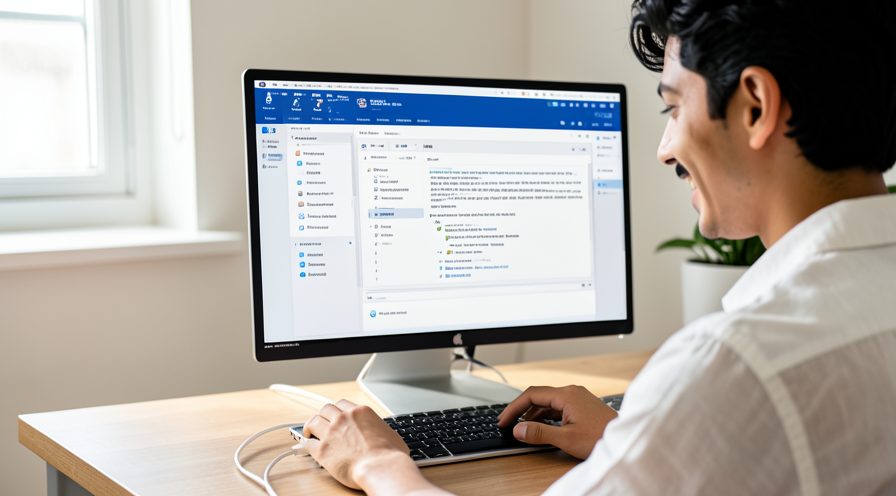
Step 8: Resume and watch CPU
Resume syncing and recheck Task Manager to confirm CPU has settled back to a normal level.

Method 2 of 2: Reduce What Syncs and Repair OneDrive
Step 9: Deselect folders you do not sync
Open OneDrive Settings, choose Sync, then Choose folders, and untick folders you do not need locally.

Step 10: Enable Files On-Demand
Turn on Files On-Demand so placeholders are stored locally instead of full copies of every file.

Step 11: Free local space for files
Use the cleanup option to mark rarely used files as online-only and reduce local processing.

Step 12: Resolve sync conflicts
Open the OneDrive activity center and fix files flagged with conflicts so syncing can move forward.

Step 13: Check for stuck version history
Trim excessive version history on very large files that can slow the sync engine.
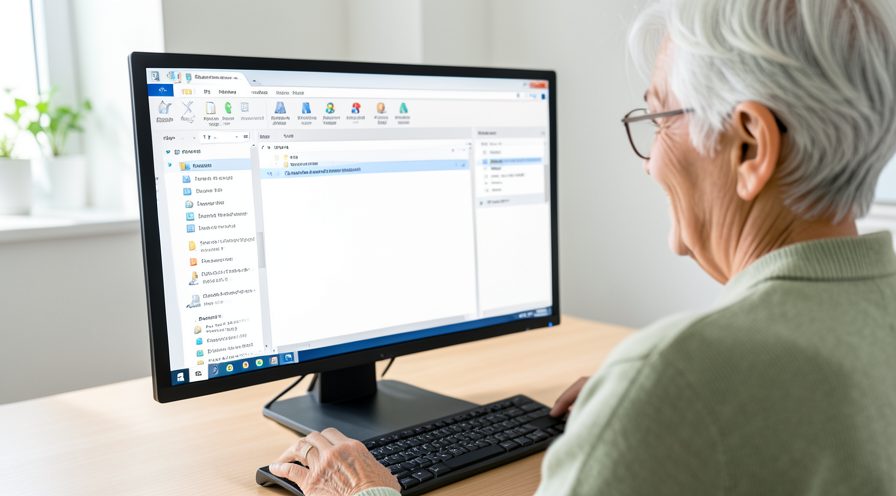
Step 14: Run the OneDrive repair tool
Search for Reset OneDrive from the Run dialog or Settings to repair the app without losing cloud files.

Step 15: Update OneDrive
Open the OneDrive tray menu, check for updates, and install the latest version to fix sync bugs.

Tips
- A large initial upload can keep CPU high for hours; let it finish while on power.
- Files On-Demand stores placeholders instead of full files and reduces local work.
- CPU usually falls immediately when you pause syncing if OneDrive is the cause.
Warnings
- Do not delete the OneDrive folder to stop syncing; unlink the account instead.
- Resetting OneDrive keeps cloud files, but local-only files not yet synced can be lost.
- Repeatedly turning sync off mid-upload creates more conflicts and more work.
Frequently asked questions
Why does OneDrive use high CPU right after I sign in?
After sign-in OneDrive compares your local folder with the cloud and may start a large upload or download of files that changed while you were away. With many files, offline files, or deep version history, that indexing work keeps the sync engine busy. CPU normally settles once the queue is clear.
Will pausing sync stop the high CPU?
Yes, pausing syncing is a good diagnostic step. If CPU drops right away, OneDrive's transfer queue is the cause and you can let it finish or throttle it. If CPU stays high while paused, look for another process in Task Manager.
Does Files On-Demand reduce OneDrive CPU usage?
It can, because online-only files stay as small placeholders instead of being fully downloaded and rechecked locally. Fewer full copies mean less data to process during a sync pass. You still need an internet connection to open those files, though.
Is it safe to repair or reset OneDrive?
Yes, the built-in repair and reset options re-register the app without deleting files already stored in the cloud. Check that important files show as synced first, because local-only items may be removed. You will sign in again after a full reset.
References
- Microsoft Support — Fix OneDrive sync problems. https://support.microsoft.com/en-us/topic/7af500d9-a18e-4abb-8450-b94f4e52c1a0
- Microsoft Support — Save disk space with OneDrive Files On-Demand. https://support.microsoft.com/en-us/topic/7af500d9-a18e-4abb-8450-b94f4e52c1a0
- Microsoft Support — Free up drive space in Windows. https://support.microsoft.com/windows/free-up-drive-space-in-windows-85529ccb-c365-490d-b548-831022bc9b32
- wikiHow — How to Fix OneDrive High CPU When Syncing Keeps the PC Slow. https://www.wikihow.com/Reduce-CPU-Usage
Every guide is reviewed against its sources. See our editorial policy.



Reader comments
0 so farFinished this guide? Tell other readers what worked, what didn't, and what you would change.