BitLocker encrypts a drive in the background by reading and writing every sector, which can push disk usage to 100% for hours on a large or slow drive. The fix is to confirm encryption is actually running, keep the PC on power, and let the pass finish without interruption. Performance returns to normal on its own once encryption completes.
This guide walks through the process in clear illustrated steps, from the first preparation to a finished result. Each step has its own picture, so you can compare your progress as you go.
How to use this guide
Work through the steps in order. Method 1 of 3 covers the basics, and the later methods offer alternatives and finishing touches. If you only have a minute, skim the Quick steps box above and come back for the details.
Related guides
- How to Support a friend who is struggling
- How to Talk about money with a partner
- How to Add color to beeswax
- How to Recover a deleted file
- Browse all Fix Slow Device guides
- All 52runoob guides
Trusted external resources
- Microsoft Learn — BitLocker overview
- Microsoft Learn — chkdsk command reference
- Microsoft Support — Free up drive space in Windows
A note on sources
We check each guide against the official resources listed in References at the end of this article. External links open in a new tab; the related guides above stay on this site.
Quick steps
- Open Control Panel and check whether BitLocker is actively encrypting the drive.
- Confirm the PC is plugged into power so encryption is not throttled on battery.
- Let the encryption pass finish; large drives can take several hours.
- Pause encryption temporarily if you briefly need a responsive disk.
- Avoid shutting down or forcing the PC off while encryption is in progress.
- Recheck disk usage in Task Manager after encryption completes.
Things you'll need
- A Windows 11 PC with BitLocker enabled or enabling
- Administrator access to Control Panel and Command Prompt
- The AC power adapter connected to the computer
- A few hours of patience for a full encryption pass
Step-by-step
Method 1 of 3: Confirm BitLocker Is Encrypting and Let It Finish
Step 1: Open Control Panel BitLocker settings
Search for 'BitLocker Drive Encryption' in the Start menu and open it to see the encryption status of each drive.
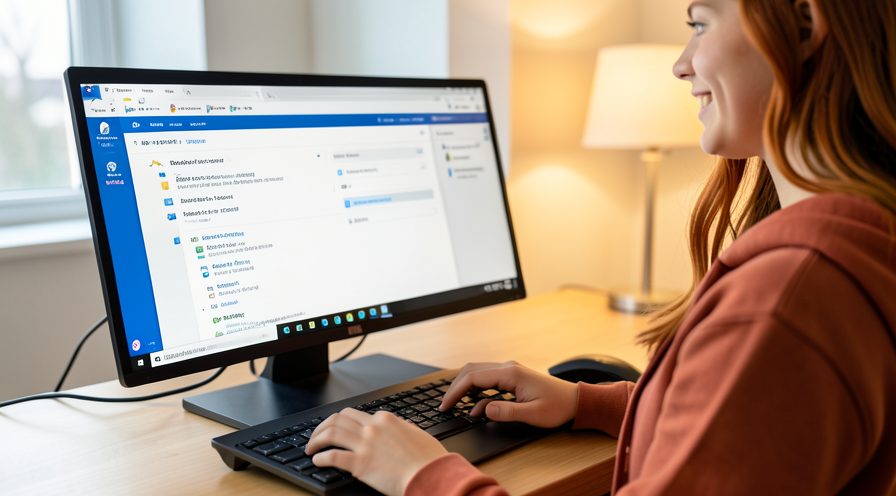
Step 2: Check the encryption progress status
Look for a status such as 'Encrypting' or a percentage indicator next to the drive letter.
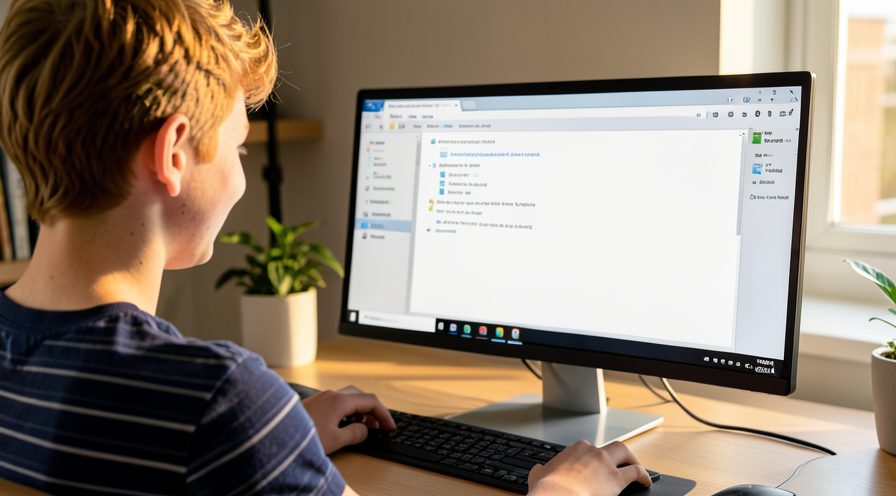
Step 3: Open Task Manager to confirm disk load
Press Ctrl+Shift+Esc, go to the Processes tab, and note that Disk is near 100% while encryption runs.

Step 4: Plug in the power adapter
Connect the AC charger because Windows throttles background encryption on battery to save power.
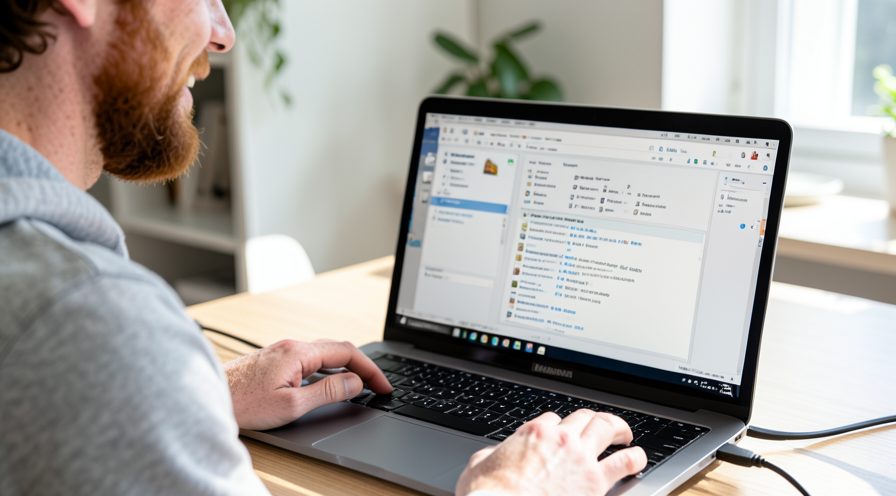
Step 5: Allow the encryption pass to complete
Leave the PC running and avoid heavy file operations until the status changes to fully encrypted.

Step 6: Recheck disk usage after completion
Reopen Task Manager and confirm disk activity has dropped back to normal once encryption is finished.

Method 2 of 3: Pause Encryption Temporarily and Reduce Contention
Step 7: Save your work before pausing
Finish and save any open documents so a temporary slowdown does not risk losing changes.

Step 8: Open the BitLocker control panel
Search for BitLocker Drive Encryption and open the classic Control Panel page listing your drives.

Step 9: Pause encryption if available
Choose the option to pause encryption when you need a responsive disk for a short critical task.

Step 10: Close unnecessary disk-heavy apps
Exit programs that are copying, downloading, or indexing large files while encryption is active.

Step 11: Pause large cloud syncs
Temporarily pause OneDrive or other sync clients that compete with encryption for disk I/O.

Step 12: Delay scheduled scans and backups
Reschedule antivirus scans and backups to run after encryption finishes rather than during it.

Step 13: Keep the PC cool and powered
Ensure good ventilation and continuous power so encryption is not slowed by thermal or battery throttling.

Step 14: Resume encryption when done
Return to the BitLocker control panel and resume encryption so the drive finishes protecting all data.

Method 3 of 3: Verify Drive Health and Free Space
Step 15: Check free space on the drive
Open File Explorer and confirm the encrypted drive has enough free space for metadata and normal use.

Step 16: Open an elevated Command Prompt
Search for Command Prompt, right-click it, and choose Run as administrator.
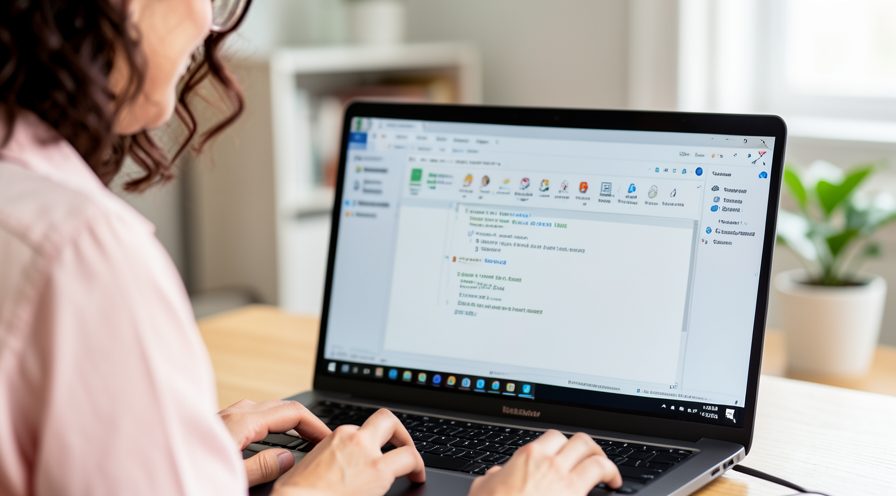
Step 17: Run chkdsk to check disk errors
Type chkdsk and press Enter to scan the drive for file system errors that can slow encryption.

Step 18: Review SMART drive health
Use a drive health utility to check the disk's SMART attributes for signs of impending failure.

Step 19: Update storage and chipset drivers
Install current storage controller and chipset drivers from the maker to avoid slow input and output.

Step 20: Avoid defragmenting an SSD
Do not run defragmentation on a solid-state drive; it adds needless writes while encryption is active.
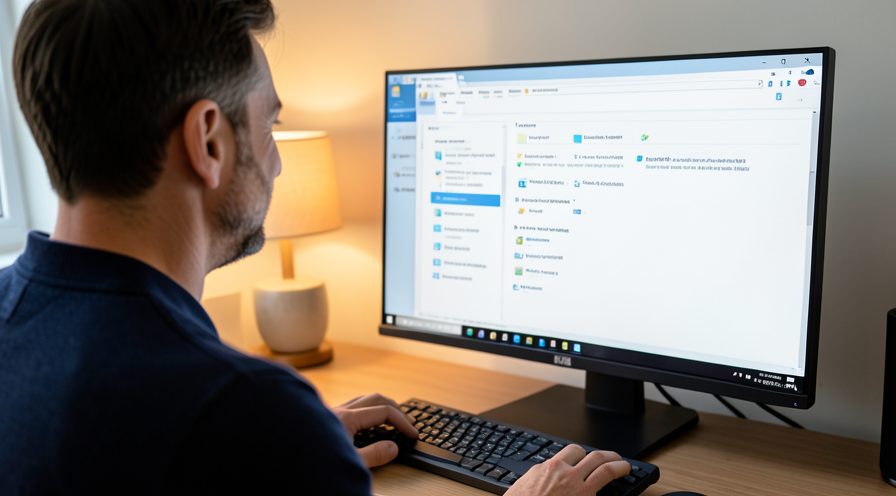
Step 21: Monitor disk usage again
After the pass and checks, watch Task Manager to confirm the 100% disk condition has cleared.

Tips
- Disk usage returns to normal on its own once the encryption pass finishes.
- Encryption runs faster on AC power than on battery.
- This is a one-time cost per drive, not a permanent slowdown.
Warnings
- Never power off or force-restart during encryption; it can corrupt the volume.
- Do not suspend and resume BitLocker repeatedly, as that extends the total time.
- Keep the recovery key accessible before making any changes.
Frequently asked questions
Why is my disk at 100% right after turning on BitLocker?
When you enable BitLocker, Windows encrypts used sectors in the background, and that continuous read/write work saturates the disk until the pass completes. On some configurations every sector is encrypted, which takes even longer. This is expected and temporary.
How long does BitLocker encryption take?
It depends on drive size, speed, and how much data is present. A large spinning hard drive can take several hours, while a fast SSD may finish much sooner. Keeping the PC on AC power lets it run at full speed.
Can I pause BitLocker encryption?
Yes, you can pause encryption from the BitLocker Drive Encryption control panel, which frees the disk temporarily for a critical task. Resume it later so protection is not left incomplete. Pausing extends the overall time but is safe.
Is it safe to use the PC while BitLocker encrypts?
Yes, normal use is safe, though the system will feel slow because the disk is busy. The important thing is not to force a shutdown or let the battery die. Performance improves as soon as encryption finishes.
References
- Microsoft Learn — BitLocker overview. https://learn.microsoft.com/en-us/windows/security/information-protection/bitlocker/bitlocker-overview
- Microsoft Learn — chkdsk command reference. https://learn.microsoft.com/en-us/windows-server/administration/windows-commands/chkdsk
- Microsoft Support — Free up drive space in Windows. https://support.microsoft.com/windows/free-up-drive-space-in-windows-85529ccb-c365-490d-b548-831022bc9b32
- wikiHow — How to Fix 100% Disk Usage While BitLocker Is Encrypting the Drive. https://www.wikihow.com/Speed-Up-Your-Computer
Every guide is reviewed against its sources. See our editorial policy.



Reader comments
0 so farFinished this guide? Tell other readers what worked, what didn't, and what you would change.