StartMenuExperienceHost.exe is the process behind the Windows 11 Start menu. High CPU and a laggy Start menu usually come from a corrupted Start menu cache, a malfunctioning pinned app, or account sync issues. Rebuild the Start menu cache by re-registering its app package, restart Explorer, repair system files, and create a new local account as a last resort.
This guide walks through the process in clear illustrated steps, from the first preparation to a finished result. Each step has its own picture, so you can compare your progress as you go.
How to use this guide
Work through the steps in order. Method 1 of 3 covers the basics, and the later methods offer alternatives and finishing touches. If you only have a minute, skim the Quick steps box above and come back for the details.
Related guides
- How to Deep clean your kitchen
- How to Fold a fitted sheet
- How to Choose hiking boots that fit
- How to Apply blush naturally
- Browse all Fix Slow Device guides
- All 52runoob guides
Trusted external resources
- Microsoft Learn — AppX package troubleshooting
- Microsoft Support — Use System File Checker to repair files
- Microsoft Support — Configure startup applications
A note on sources
We check each guide against the official resources listed in References at the end of this article. External links open in a new tab; the related guides above stay on this site.
Quick steps
- Confirm StartMenuExperienceHost.exe is using CPU in Task Manager.
- Restart the Start menu process from Task Manager.
- Restart Windows Explorer to refresh the shell.
- Re-register the Start menu app package with PowerShell.
- Run SFC and DISM to repair system files.
- Create a new local account if the menu still lags.
Things you'll need
- A Windows 11 PC with administrator access
- Task Manager, PowerShell and Windows Settings
- A backup of your pinned apps and layout
- About 20 minutes to test changes and reboot
Step-by-step
Method 1 of 3: Quick Restarts and Cache Check
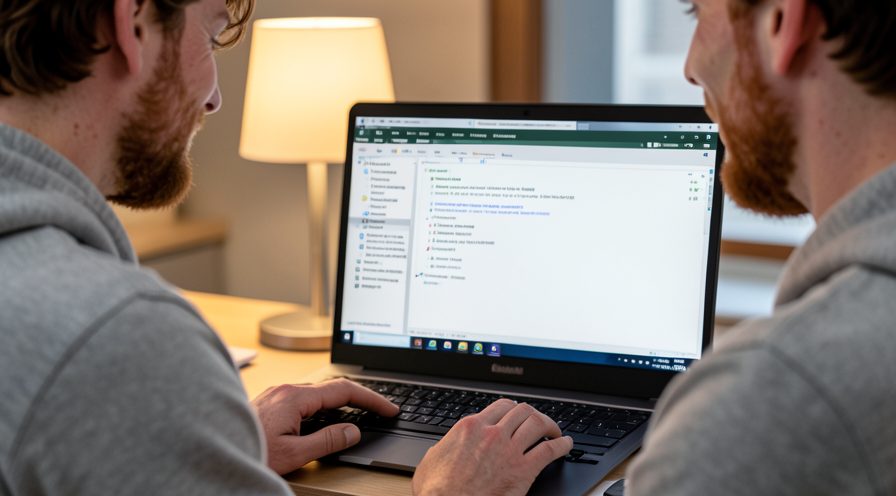
Step 1: Confirm the process in Task Manager
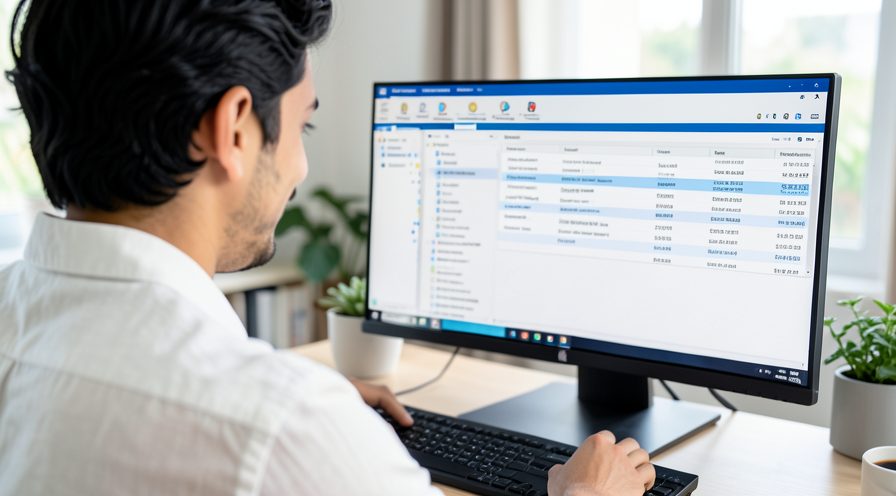
Press Ctrl+Shift+Esc, open Processes, and check whether Start Menu Experience Host is using high CPU.
Step 2: Verify the file location
Right-click Start Menu Experience Host and choose Open file location to confirm it is in System32.

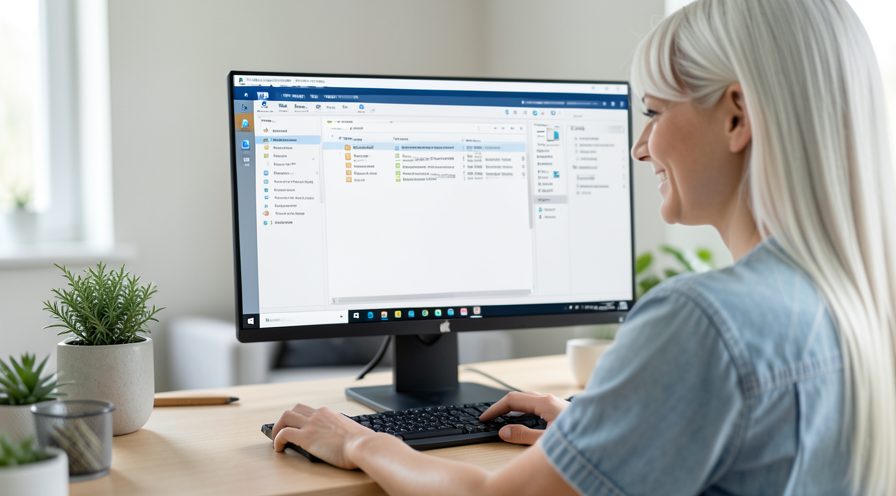
Step 3: Restart the process
Select Start Menu Experience Host and click Restart to reload the Start menu component.
Step 4: Test the Start menu
Click the Start button and see whether it opens quickly and the CPU spike subsides.
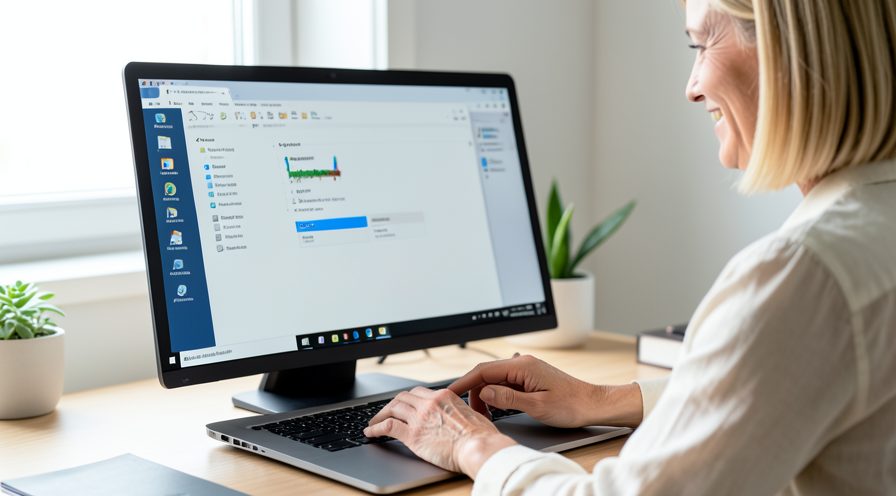
Step 5: Open Task Manager
If it still lags, keep Task Manager open so you can watch CPU while making further changes.
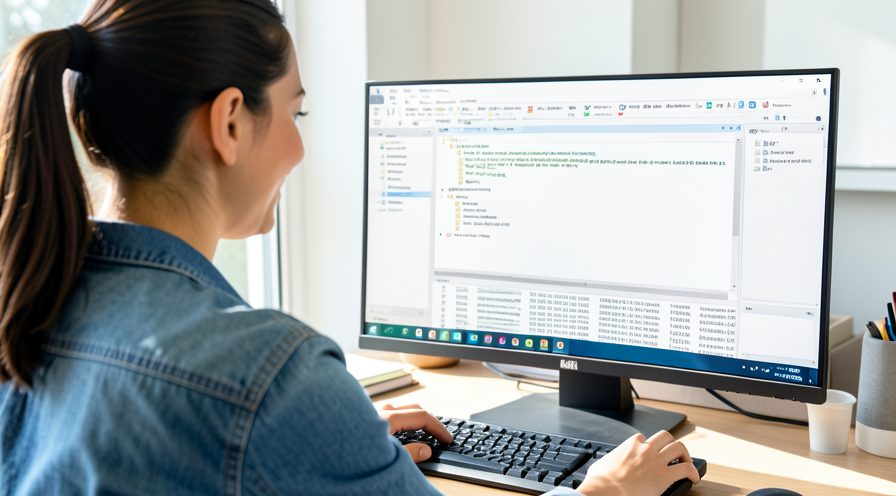
Step 6: Restart Windows Explorer
Find Windows Explorer in the Processes list, select it, and click Restart to refresh the shell.
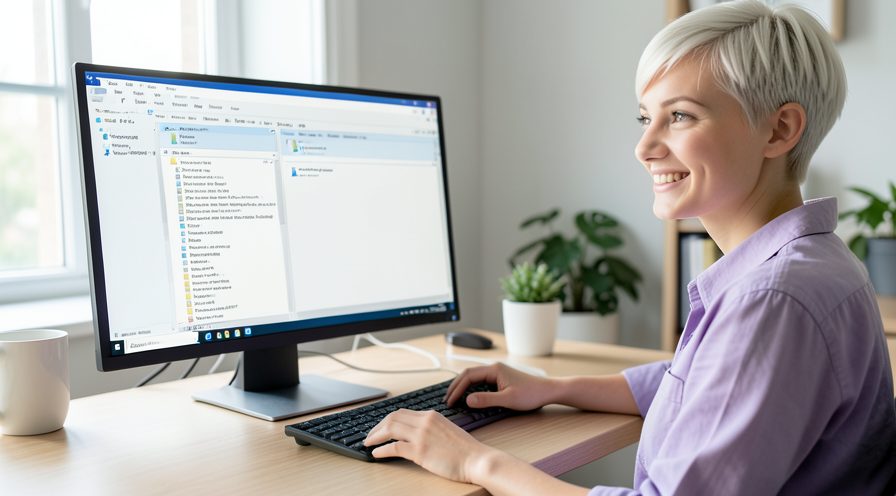
Step 7: Retest the Start menu
Open the Start menu again and confirm it responds without the previous delay.
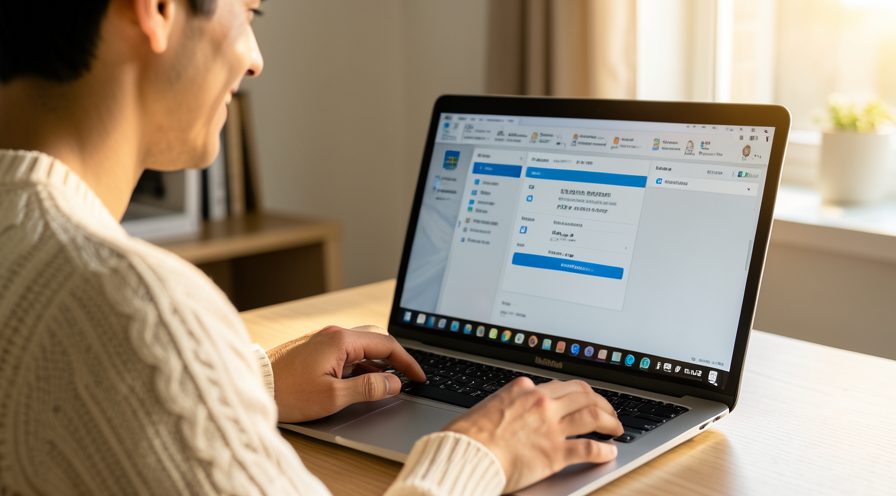
Step 8: Open PowerShell as administrator
Search for PowerShell in the Start menu and choose Run as administrator to get an elevated window.
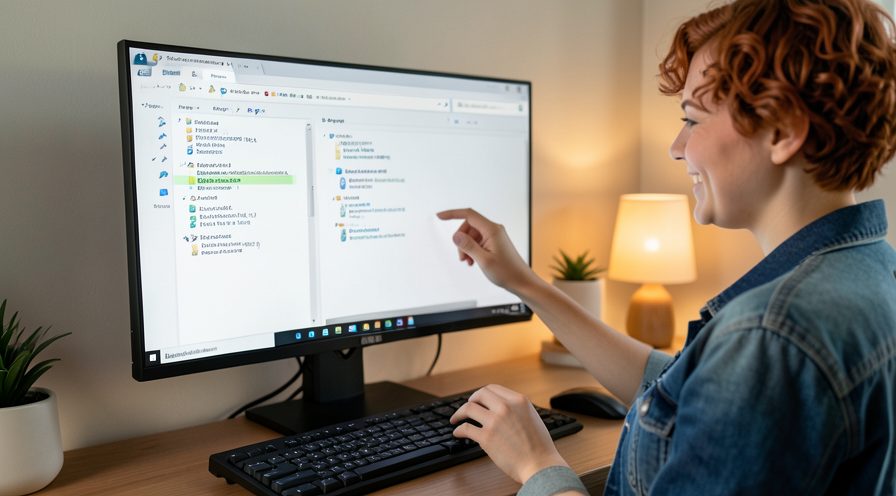
Step 9: Check the current user context
Confirm the elevated session is running under your own account before re-registering any packages.
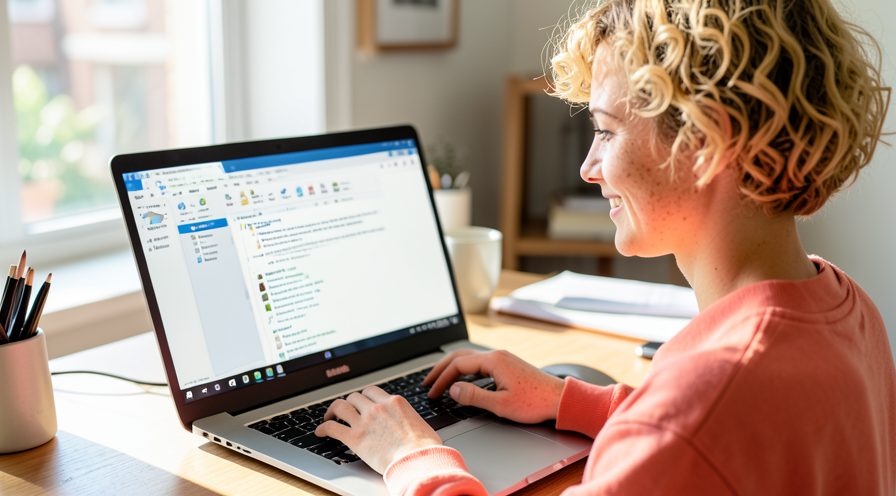
Step 10: Re-register the Start menu package
Run the PowerShell command that re-registers the Start menu experience host appx package for your account.
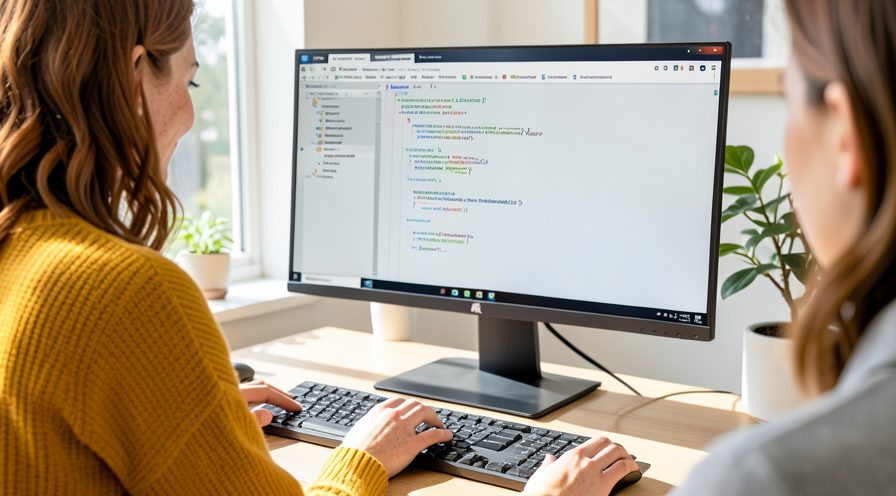
Step 11: Watch for completion
Wait for the command to finish and check for any error lines before closing the window.
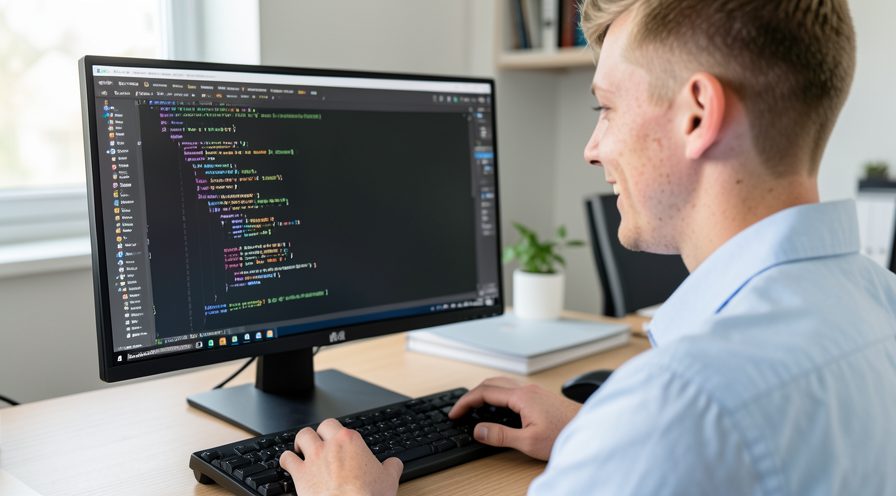
Step 12: Restart the computer
Restart Windows so the refreshed app package and cache load fully.
Step 13: Open the Start menu
After the restart, open the Start menu and check that it responds without lag.
Step 14: Check process CPU
Return to Task Manager and confirm Start Menu Experience Host now uses a low, stable CPU.
Step 15: Re-pin your apps if needed
If pinned items are missing, re-pin the shortcuts you use most often to the Start menu.
Method 3 of 3: Repair Files and Try a Fresh Account
Step 16: Open elevated command prompt
Search for Command Prompt in the Start menu and choose Run as administrator.
Step 17: Run System File Checker
Type the sfc scannow command and press Enter to find and repair corrupted system files.
Step 18: Run DISM restore health
Run the DISM restore health command to repair the Windows image if SFC found errors.

Step 19: Open account settings
Open Settings, Accounts, Family and other users, to add a new local account for testing.
Step 20: Sign in to the new account
Add a local account, sign out, and sign in to it, then open the Start menu to test performance.
Step 21: Move to the new profile if fixed
If the Start menu is smooth in the new account, copy your files there and use it going forward.

Tips
- Restarting the process or Explorer is harmless and does not close your applications.
- A corrupted Start menu cache is the leading cause of a slow, high-CPU Start menu.
- Re-registering the app package rebuilds the Start menu without reinstalling Windows.
Warnings
- Do not delete StartMenuExperienceHost.exe from System32; it is a protected system file.
- Sign out of your Microsoft account before heavy profile troubleshooting to avoid sync conflicts.
- Back up your Start layout before resetting pinned apps.
Frequently asked questions
Is StartMenuExperienceHost.exe a virus?
No. It is a genuine signed Windows process stored in C:\Windows\System32 that powers the Start menu. Right-click it in Task Manager and choose Open file location to verify; any other location warrants a Windows Security scan.
Why does re-registering the Start menu help?
The Start menu runs as an app package with a local cache that can become corrupted after updates. Re-registering that package rebuilds the cache and clears the corruption without reinstalling Windows or removing your files.
Is it safe to restart Explorer?
Yes. Restarting Windows Explorer only reloads the desktop, taskbar and Start menu; your open programs stay running. Use Task Manager, find Windows Explorer, and click Restart to do it cleanly.
Can a pinned app cause high CPU?
Yes. A corrupted pinned app or live tile can make the Start menu stall and spike CPU whenever it opens. Unpinning or reinstalling the offending app often restores normal Start menu behavior.
References
- Microsoft Learn — AppX package troubleshooting. https://learn.microsoft.com/en-us/windows/win32/appxpkg/troubleshooting
- Microsoft Support — Use System File Checker to repair files. https://support.microsoft.com/en-us/topic/use-the-system-file-checker-tool-to-repair-missing-or-corrupted-system-files-79aa86cb-ca52-166a-92a3-966e85d4094e
- Microsoft Support — Configure startup applications. https://support.microsoft.com/en-us/help/4558286
- wikiHow — How to Fix StartMenuExperienceHost.exe High CPU When the Start Menu Lags. https://www.wikihow.com/Fix-High-CPU-Usage
Every guide is reviewed against its sources. See our editorial policy.
Reader comments
0 so farFinished this guide? Tell other readers what worked, what didn't, and what you would change.