After a cumulative update, Windows runs one-time background work such as .NET recompilation, file optimization, indexing, and first-run setup, which can keep the disk at 100% and make the first login unusually slow. The fix is to give the PC time to finish, let indexing complete, and confirm no further restart is pending. Running DISM and SFC and trimming startup apps resolves problems that linger.
This guide walks through the process in clear illustrated steps, from the first preparation to a finished result. Each step has its own picture, so you can compare your progress as you go.
How to use this guide
Work through the steps in order. Method 1 of 3 covers the basics, and the later methods offer alternatives and finishing touches. If you only have a minute, skim the Quick steps box above and come back for the details.
Related guides
- How to Use a credit card responsibly
- How to Fix 100 disk usage on windows 11 when the pc is idle
- How to Stop svchost exe using 99 disk on windows 11
- How to Fix service host local system network restricted high cpu
- Browse all Fix Slow Device guides
- All 52runoob guides
Trusted external resources
- Microsoft Support — Use System File Checker to repair files
- Microsoft Learn — DISM commands
- Microsoft Support — Configure startup applications in Windows
A note on sources
We check each guide against the official resources listed in References at the end of this article. External links open in a new tab; the related guides above stay on this site.
Quick steps
- Allow ten to thirty minutes for post-update background work to settle.
- Check whether another restart is pending after the update.
- Let Windows Search indexing finish before judging performance.
- Run DISM and SFC to repair update-related file corruption.
- Disable unnecessary startup apps that compete at login.
- Verify no further updates are waiting to install.
Things you'll need
- A Windows 11 PC that just installed a cumulative update
- Administrator access to Command Prompt and Settings
- A stable power supply during the first login
- About 30 minutes to let background tasks complete
Step-by-step
Method 1 of 3: Give Post-Update Work Time to Finish
Step 1: Log in and wait it out
After the first login, leave the PC idle for several minutes so background tasks can complete.

Step 2: Watch disk activity in Task Manager
Open Task Manager and confirm that high disk usage is from system work rather than a runaway app.

Step 3: Check for a pending restart
Open Windows Update and see whether a restart is required to finish installing the update.

Step 4: Restart if prompted
Reboot when Windows asks, because many update changes only apply after a restart.
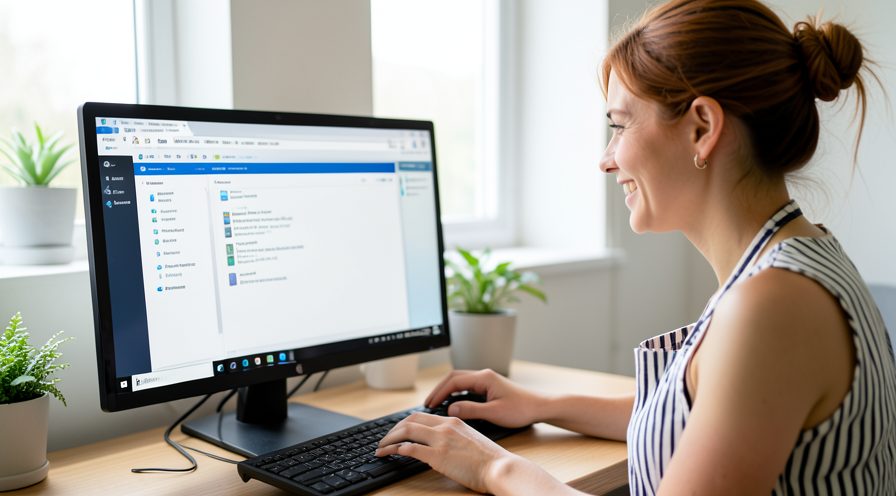
Step 5: Let indexing complete
Allow Windows Search a while to re-index changed files before judging speed.
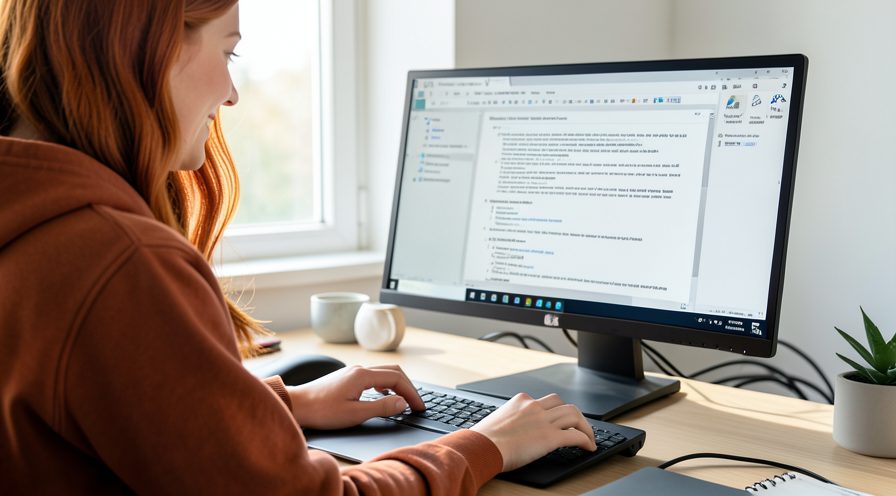
Step 6: Recheck performance after settling
Once background work stops, confirm that disk usage and responsiveness have returned to normal.
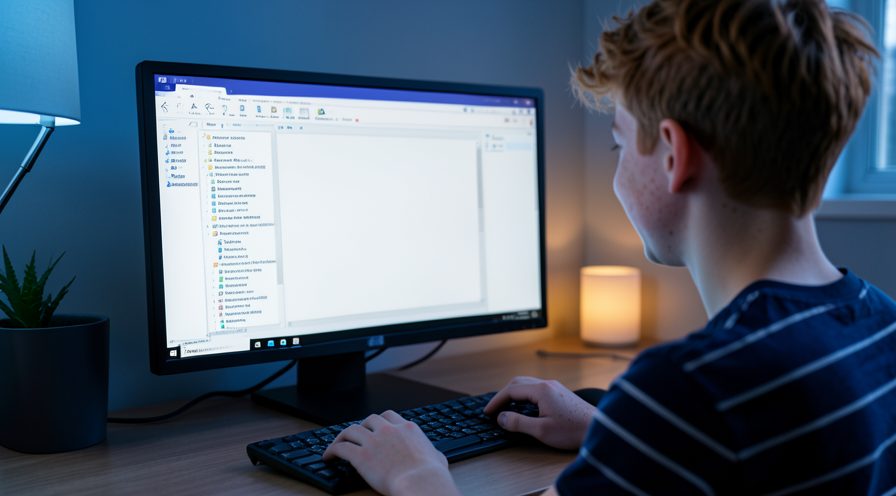
Method 2 of 3: Repair System Files and Check for Pending Updates
Step 7: Open Windows Update history
Check Settings, Windows Update, Update history, to confirm the cumulative update installed successfully.

Step 8: Look for additional updates
Click Check for updates to see whether a follow-up or servicing-stack update is still needed.
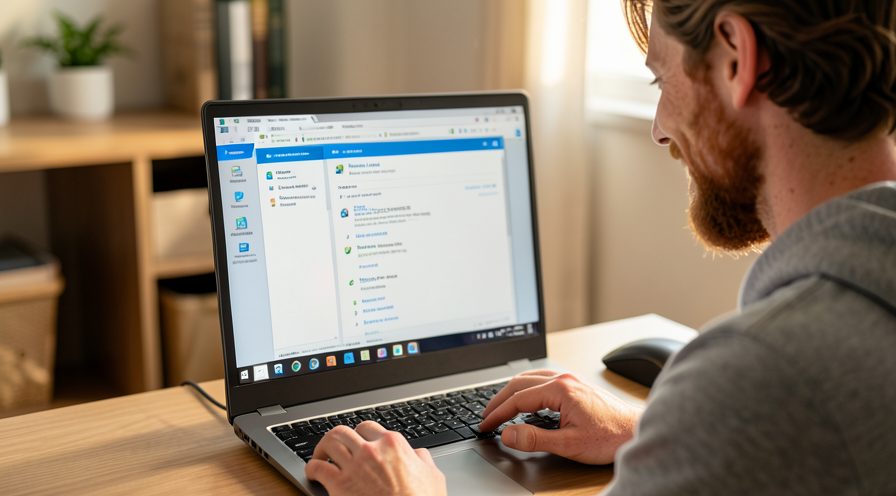
Step 9: Install any pending updates
Download and install anything offered, then restart if required.

Step 10: Open an elevated terminal
Search for Command Prompt or Terminal and run it as administrator.

Step 11: Run the DISM restore command
Run DISM with the RestoreHealth option to repair the Windows component store.
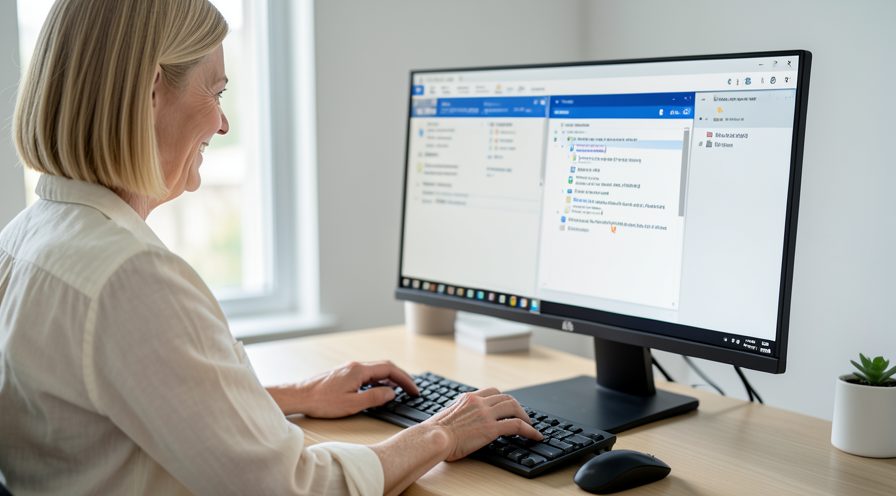
Step 12: Wait for DISM to finish
Allow the operation to reach completion without closing the window.
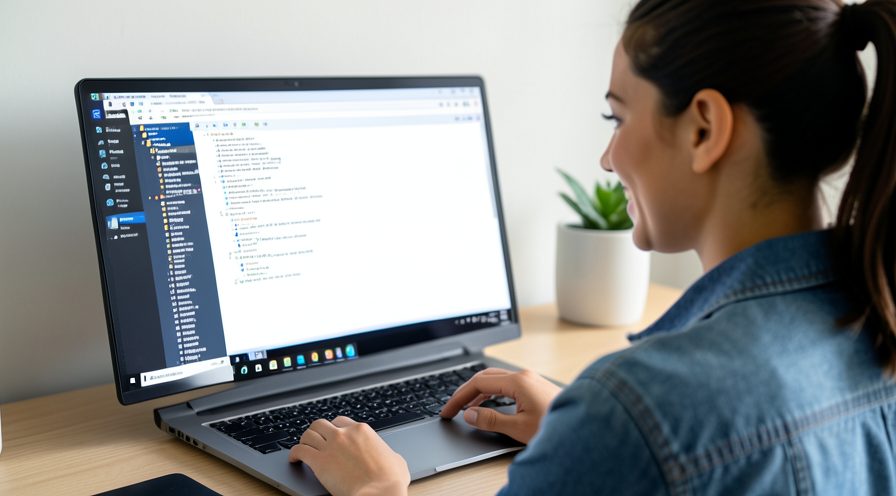
Step 13: Run the System File Checker
Type the system file checker scan command and press Enter to repair protected files.

Step 14: Review the scan result
Read the message at the end to see whether corruption was found and repaired.
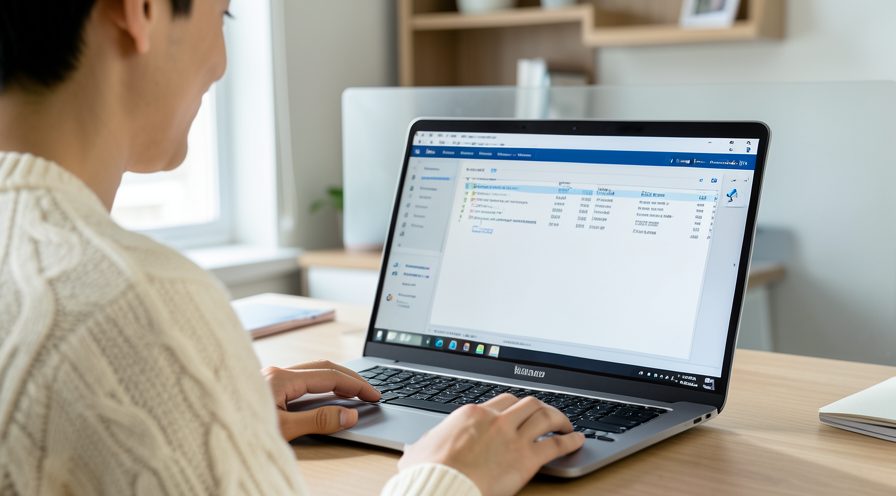
Step 15: Restart and retest login speed
Reboot the PC and sign in again to see if the first-login slowdown is resolved.
Method 3 of 3: Trim Startup Apps and First-Run Tasks
Step 16: Open the Task Manager Startup tab
Press Ctrl+Shift+Esc and open the Startup apps tab to see what launches at sign-in.
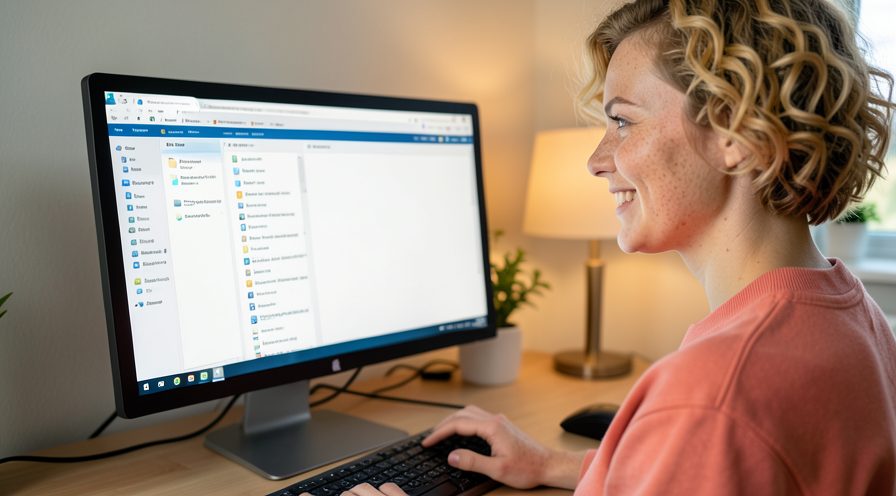
Step 17: Identify unnecessary startup items
Look for apps you rarely need immediately at login, such as updaters or launchers.
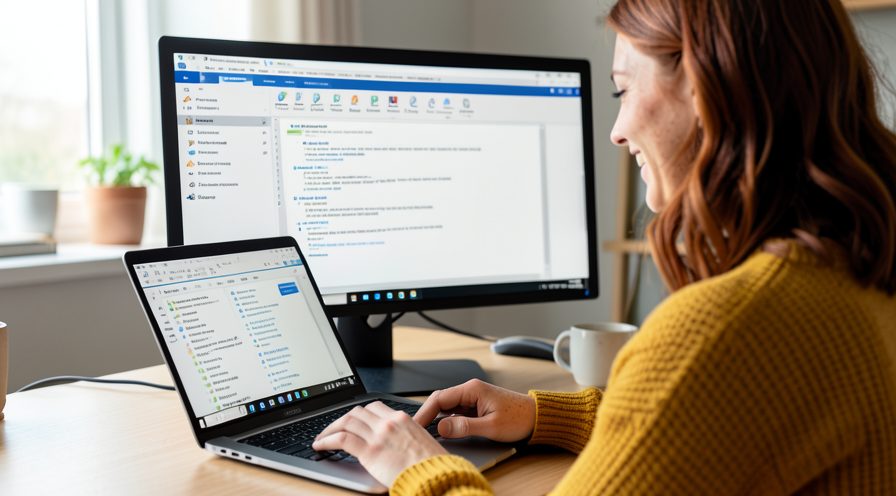
Step 18: Disable low-priority apps
Right-click an unneeded item and choose Disable to reduce login contention.
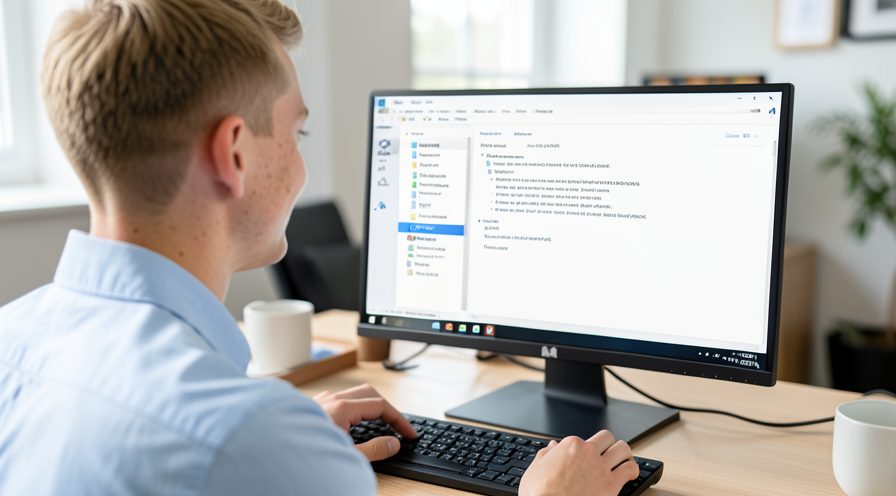
Step 19: Keep essential software enabled
Leave security and driver utilities enabled so protection and hardware work normally.

Step 20: Complete first-run setup prompts
Open any freshly updated apps and finish their one-time setup so they stop re-running it.
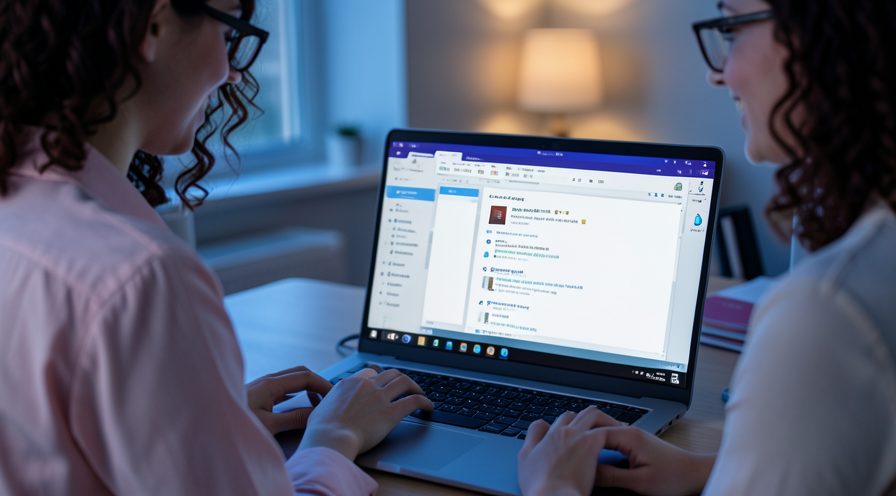
Step 21: Check background app permissions
In Settings, Privacy, review which apps can run in the background and restrict heavy ones.

Step 22: Sign out and time the next login
Sign out and back in to compare login speed after the cleanup.
Tips
- The first login after an update is normally the slowest; later logins are faster.
- Indexing and optimization run quietly in the background for a while after updating.
- A pending restart is a common reason the PC stays slow after an update.
Warnings
- Do not interrupt the first login by forcing a shutdown unless the PC is completely stuck.
- Running DISM may need an internet connection to fetch source files in some cases.
- Be cautious when disabling startup apps; keep security software enabled.
Frequently asked questions
How long should the first login after an update take?
It commonly takes ten to thirty minutes of background activity while Windows recompiles .NET assemblies, optimizes files, and rebuilds indexes. The disk may stay near 100% during this period. Subsequent logins are usually much faster.
Why is my PC still slow after the update finished?
A pending restart or queued follow-up update often keeps background work going. Check Windows Update for another install or restart prompt. Running DISM and SFC can also clear corrupted files left by a failed update.
Does Windows Search indexing cause the slowdown?
Yes, indexing can consume significant disk input and output after an update as it re-indexes changed files. It is temporary and eases once the index is up to date. You can check its status in the Windows Search settings.
Should I disable startup apps to speed up login?
Yes, trimming unnecessary startup apps reduces contention at the first login, which is already busy with update tasks. Use Task Manager to disable ones you do not need. Keep essential security and driver utilities enabled.
References
- Microsoft Support — Use System File Checker to repair files. https://support.microsoft.com/en-us/topic/use-the-system-file-checker-tool-to-repair-missing-or-corrupted-system-files-79aa86cb-ca52-166a-92a3-966e85d4094e
- Microsoft Learn — DISM commands. https://learn.microsoft.com/en-us/windows-hardware/manufacture/desktop/dism-image-management-command-line-options-s14?view=windows-11
- Microsoft Support — Configure startup applications in Windows. https://support.microsoft.com/en-us/help/4558286
- wikiHow — How to Fix Windows 11 Slow at First Login After a Cumulative Update. https://www.wikihow.com/Reduce-CPU-Usage
Every guide is reviewed against its sources. See our editorial policy.


Reader comments
0 so farFinished this guide? Tell other readers what worked, what didn't, and what you would change.