A phone with 2GB or 3GB of RAM runs out of memory quickly, causing apps to reload and the interface to stutter. You cannot add RAM, but you can reduce background apps, disable bloat, use lighter app versions and keep storage free so the limited memory stretches further.
This guide walks through the process in clear illustrated steps, from the first preparation to a finished result. Each step has its own picture, so you can compare your progress as you go.
How to use this guide
Work through the steps in order. Method 1 of 2 covers the basics, and the later methods offer alternatives and finishing touches. If you only have a minute, skim the Quick steps box above and come back for the details.
Related guides
- How to Talk about money with a partner
- How to Stop startup apps from slowing down windows 11 login
- How to Build a bedtime routine
- How to Organize a garage on a budget
- Browse all Fix Slow Device guides
- All 52runoob guides
Trusted external resources
- Google Support — Speed up your Android device
- Google Support — Manage app activity
- Android Developers — Memory management overview
A note on sources
We check each guide against the official resources listed in References at the end of this article. External links open in a new tab; the related guides above stay on this site.
Quick steps
- Uninstall or disable unused apps to cut background memory use.
- Limit background processes in Developer options.
- Use lightweight versions of heavy apps.
- Keep at least 20 percent storage free.
- Restart regularly to clear accumulated memory pressure.
Things you'll need
- An Android phone with 2GB or 3GB of RAM
- Access to Settings and Developer options
- A Wi-Fi connection
- About 30 minutes
Step-by-step
Method 1 of 2: Cut Background Memory Use
Step 1: Review running apps
Open Settings, Apps and look at recently used apps you do not need running.

Step 2: Uninstall unused apps
Remove apps you never open to stop them consuming memory and storage.

Step 3: Disable preinstalled bloat
For system apps you cannot uninstall, tap Disable if the option is available.

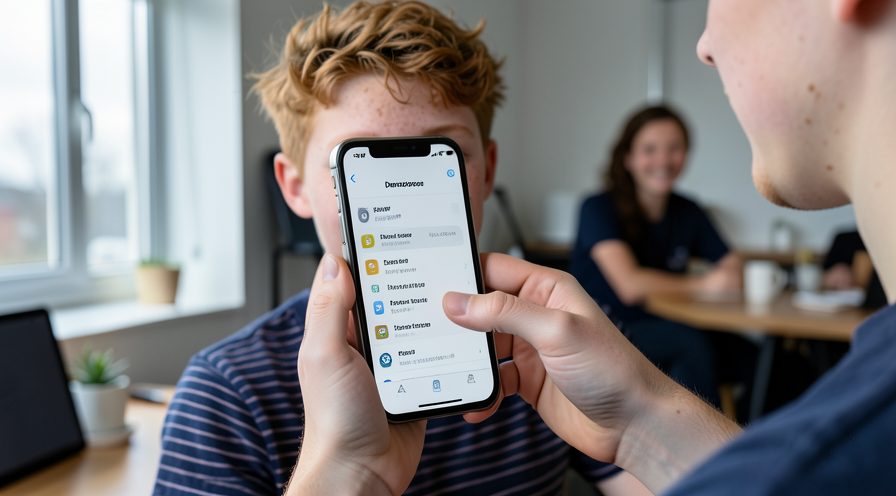
Step 4: Limit background processes
In Developer options, set Background process limit to a small number such as 3 or 4.
Step 5: Restart regularly
Restart the phone every day or two to clear memory that apps hold onto.

Method 2 of 2: Use Lighter Software Habits
Step 6: Install Lite app versions
Replace heavy social and shopping apps with their Lite or Go editions where available.

Step 7: Use a simple launcher
Switch to a lightweight launcher with fewer widgets and effects to reduce RAM use.

Step 8: Avoid heavy wallpapers
Use a static wallpaper instead of live wallpaper, which keeps a process running.

Step 9: Keep storage free
Keep at least 20 percent of storage empty so the system can cache app state smoothly.

Step 10: Close games fully
After gaming, force-close the game so it releases its large memory allocation.

Step 11: Test responsiveness
Confirm apps open faster and the launcher stops reloading after these changes.

Tips
- Light app variants use far less memory than the full versions.
- A launcher with fewer effects reduces RAM pressure noticeably.
- Frequent restarts are a practical workaround on low-RAM devices.
Warnings
- Do not install a 'RAM booster' app; it usually consumes memory itself.
- Limiting background processes too far breaks notifications.
- Disabling system apps can cause instability; disable only what you understand.
Frequently asked questions
Can I add more RAM to my Android phone?
No. RAM is built into the phone hardware and cannot be upgraded. The best you can do is reduce what is running so the available memory is used efficiently.
Do RAM booster apps work?
Generally no. Android already manages memory well, and booster apps use memory and CPU themselves. Restarting the phone is a more effective way to clear accumulated background state.
What are lightweight app versions?
Many popular services offer 'Lite' or 'Go' editions designed for low-RAM phones and slower networks. They use less memory and storage while keeping the core features.
Why does free storage affect RAM?
Android uses storage for swap-like cached data and to hold app state. When storage is nearly full, the system has trouble managing memory, which makes a low-RAM phone feel even slower.
References
- Google Support — Speed up your Android device. https://support.google.com/android/answer/9454546
- Google Support — Manage app activity. https://support.google.com/android/answer/9551190
- Android Developers — Memory management overview. https://developer.android.com/guide/topics/management/memory
- wikiHow — How to Fix Android Phone Slow With Only 2GB or 3GB of RAM. https://www.wikihow.com/Speed-Up-an-Android-Phone
Every guide is reviewed against its sources. See our editorial policy.


Reader comments
0 so farFinished this guide? Tell other readers what worked, what didn't, and what you would change.